Introduction on Azure Synapse Analytics
Azure Synapse is a limitless analytics service that brings together enterprise data warehousing and Big Data analytics. It gives you the freedom to query data on your terms, using either serverless or dedicated resources—at scale.Objective
This tutorial is going to describe how to deploy synapse workspace artifacts in an automated way following CI/CD best practices. We are going to utilize FlexDeploy’s capability of integrating with Azure DevOps. Microsoft has released Azure DevOps free extension “Synapse workspace deployment” for synapse artifacts deployment from one workspace to another.Flow
Azure DevOps Pipelines
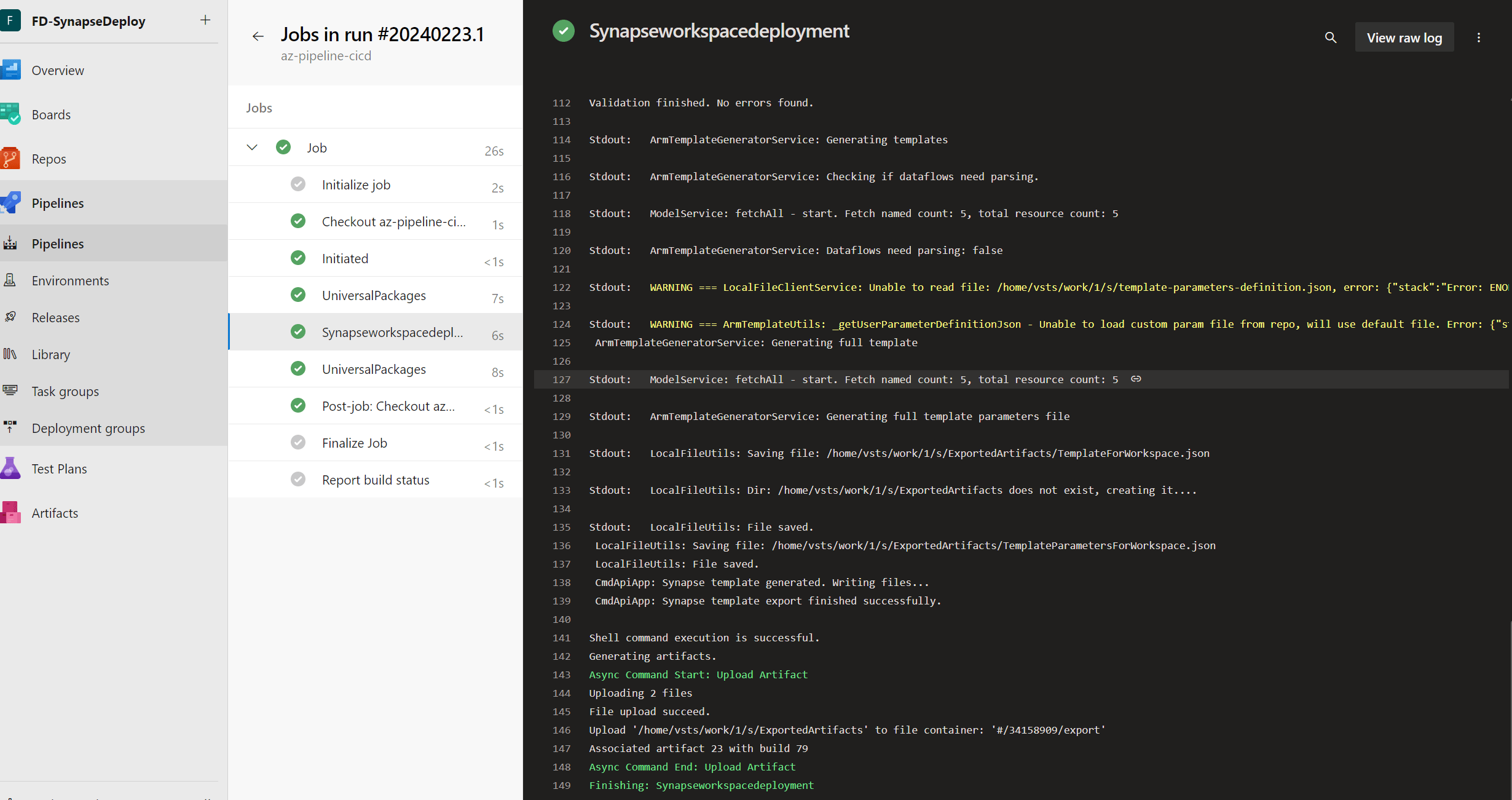
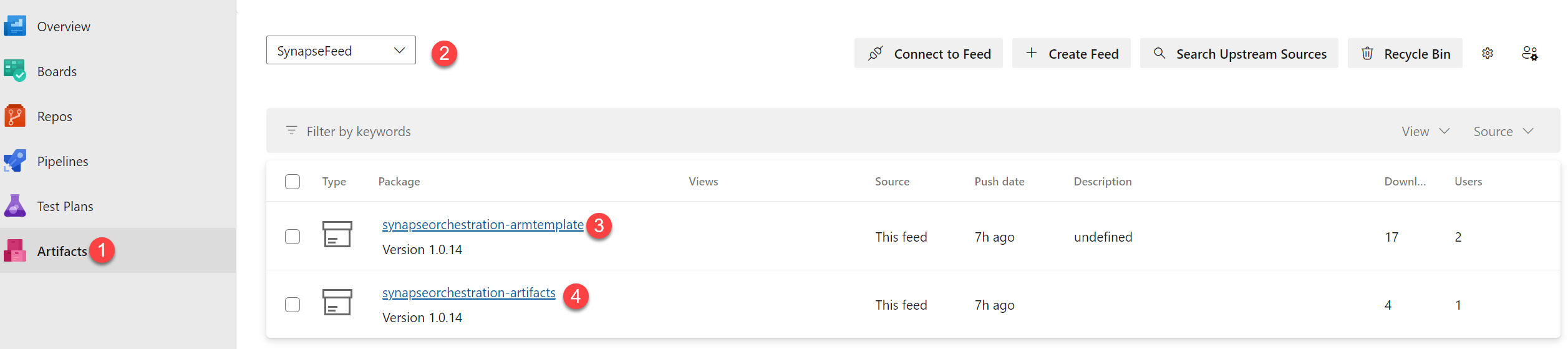
- Build pipeline will be created which invokes the “validate” operation provided by the Microsoft Synapse extension(Azure DevOps). This will generate ARM template(along with parameter file) corresponding to the code base. The ARM templates will be published to the feed in Azure DevOps as package.
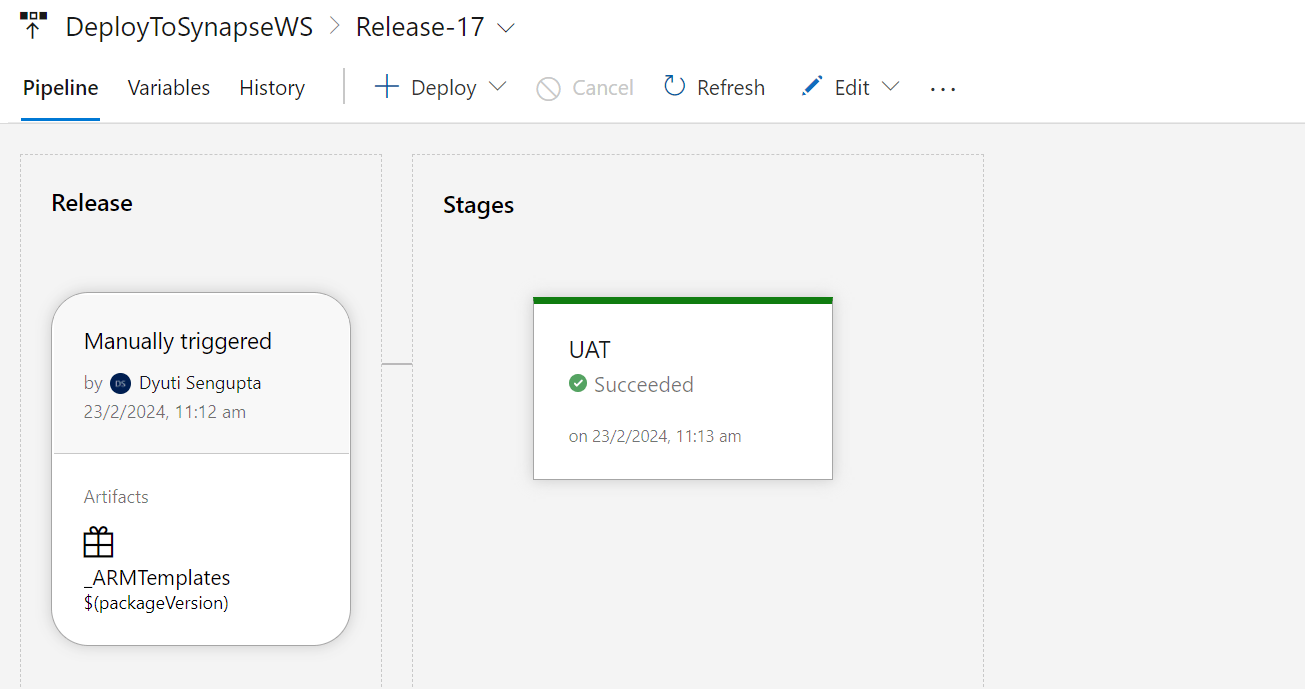
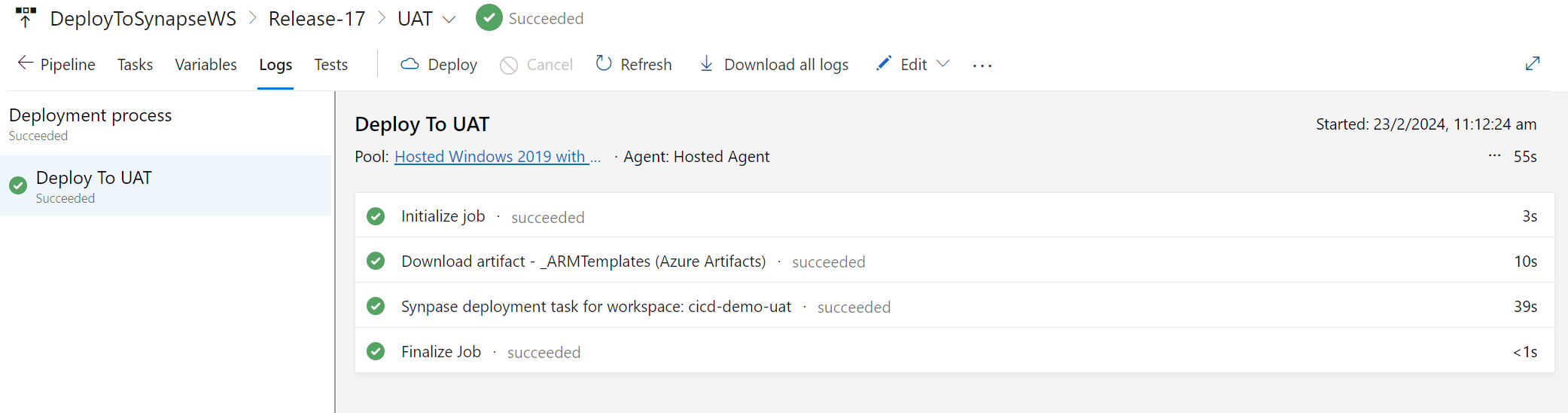
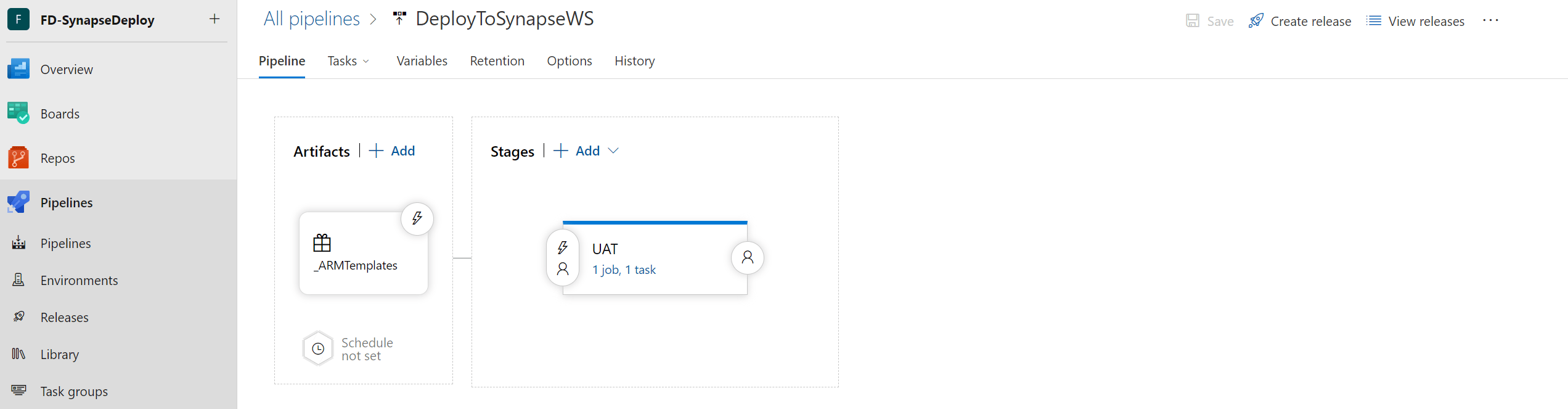
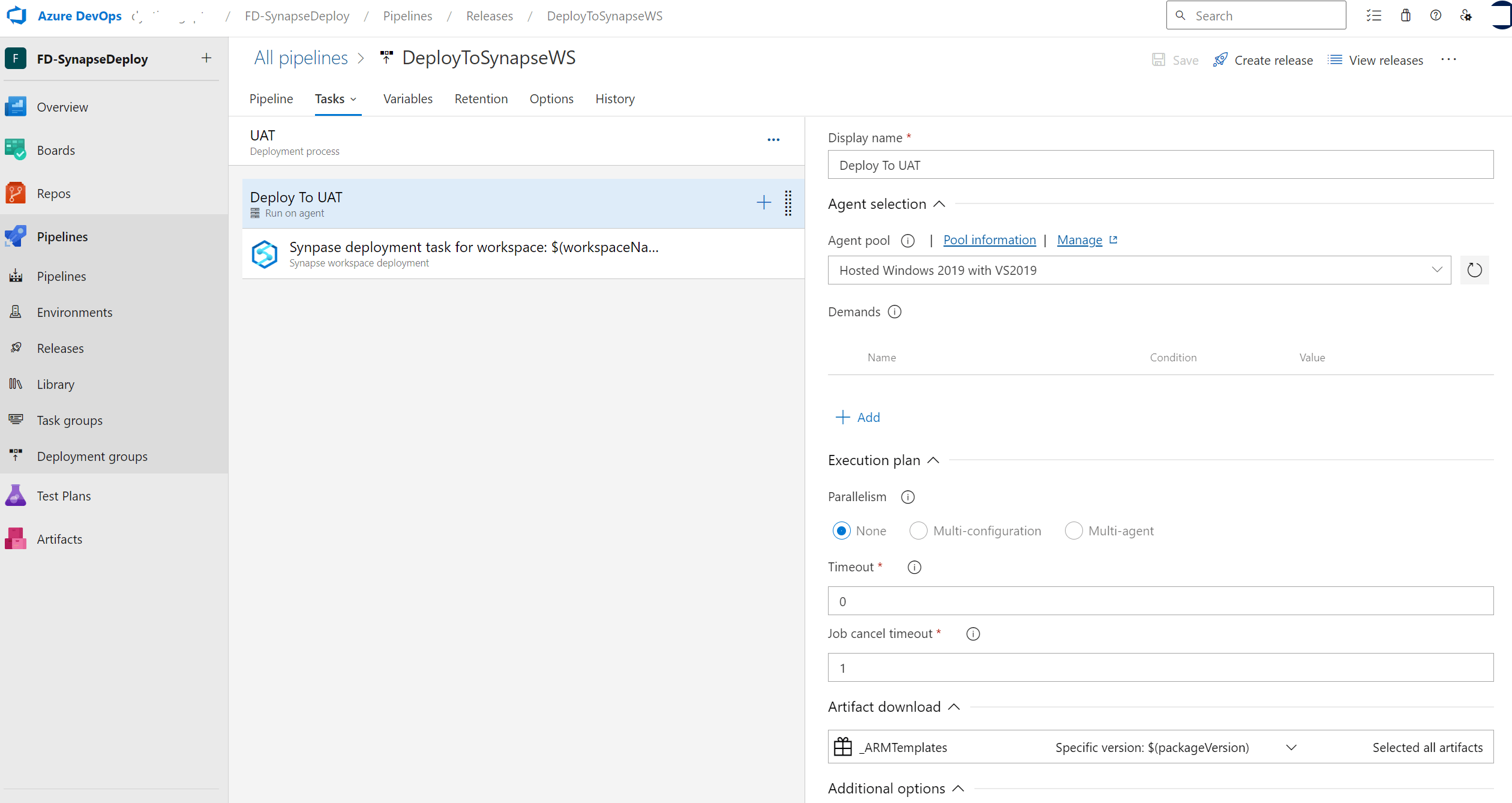
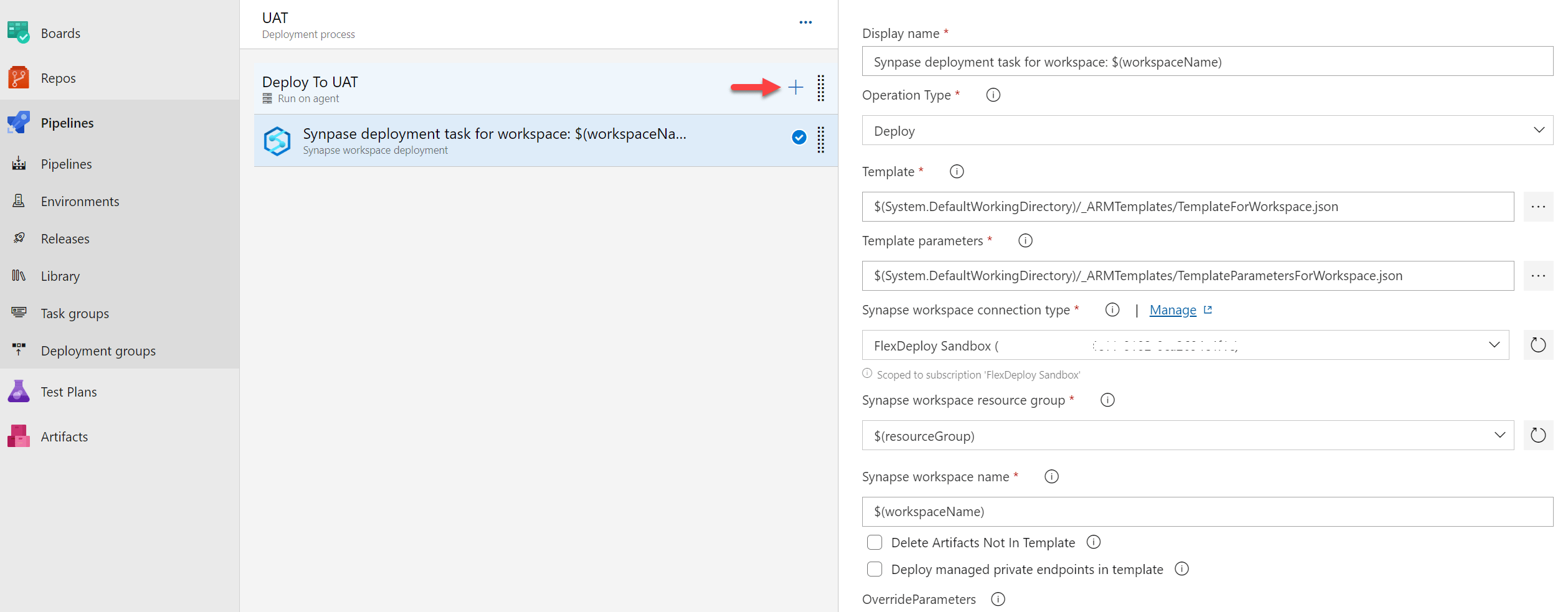
- Release pipeline will grab the ARM template package from the feed and invoke the “deploy” operation provided by the Microsoft Synapse extension.
FlexDeploy Orchestration
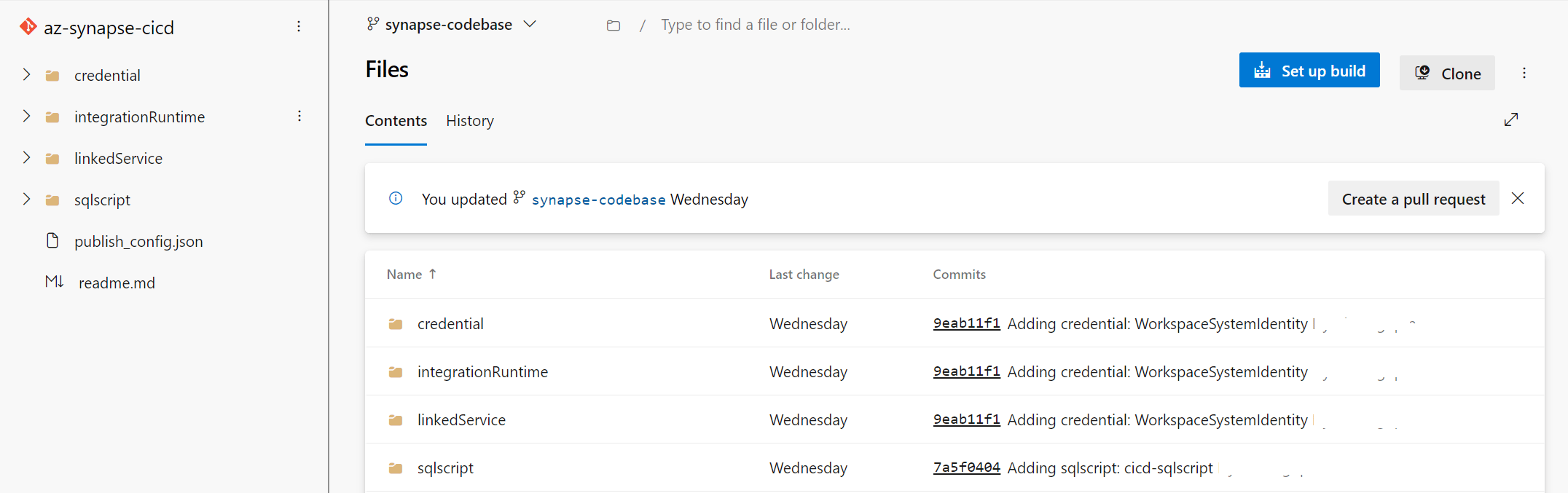
We are just leveraging Azure DevOps just to execute validate and deploy operation, the rest of the orchestration will be performed in FlexDeploy. It includes the below steps:- Developer will commit the workspace artifacts to the Source Control Repository (example: Azure DevOps Repo or GitHub etc.) from the Workspace through Synapse Studio.
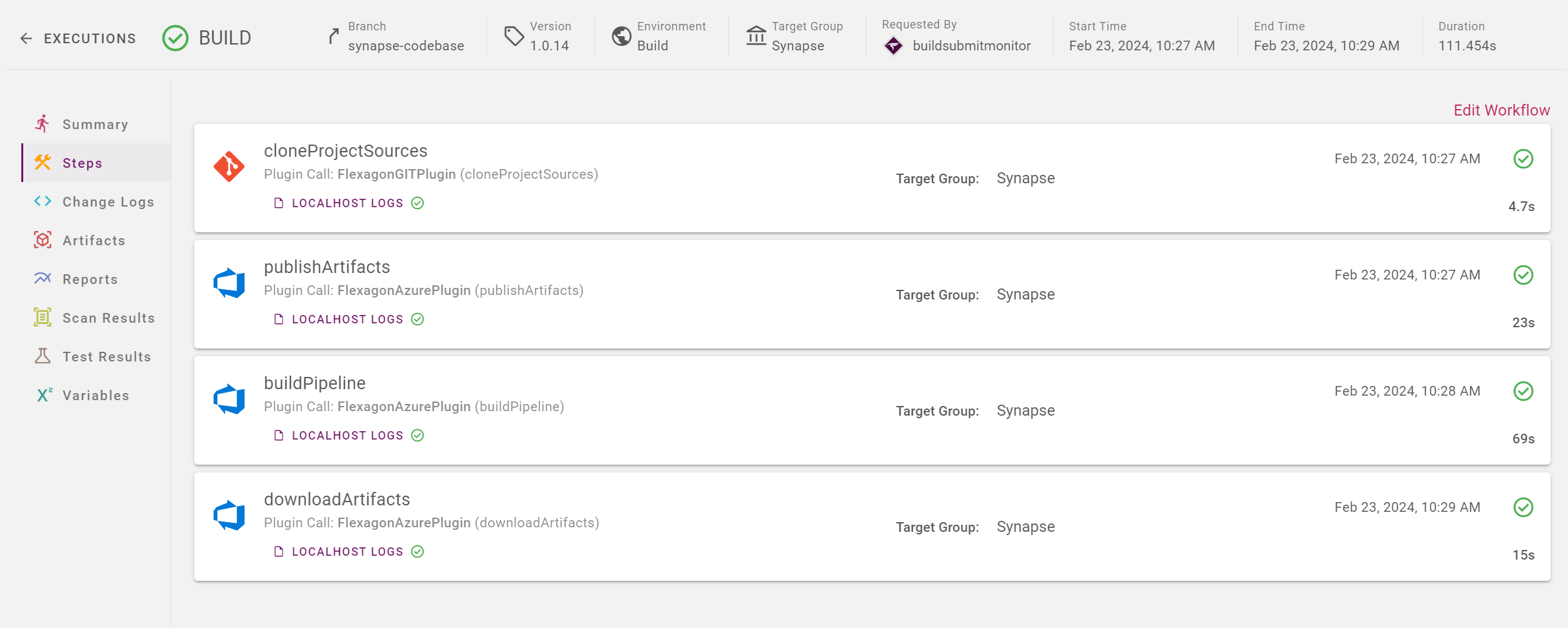
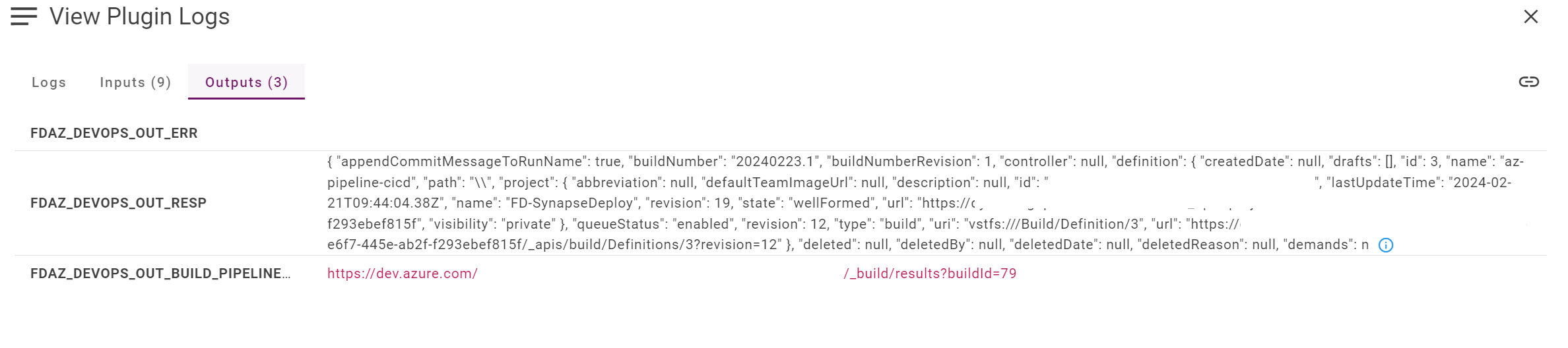
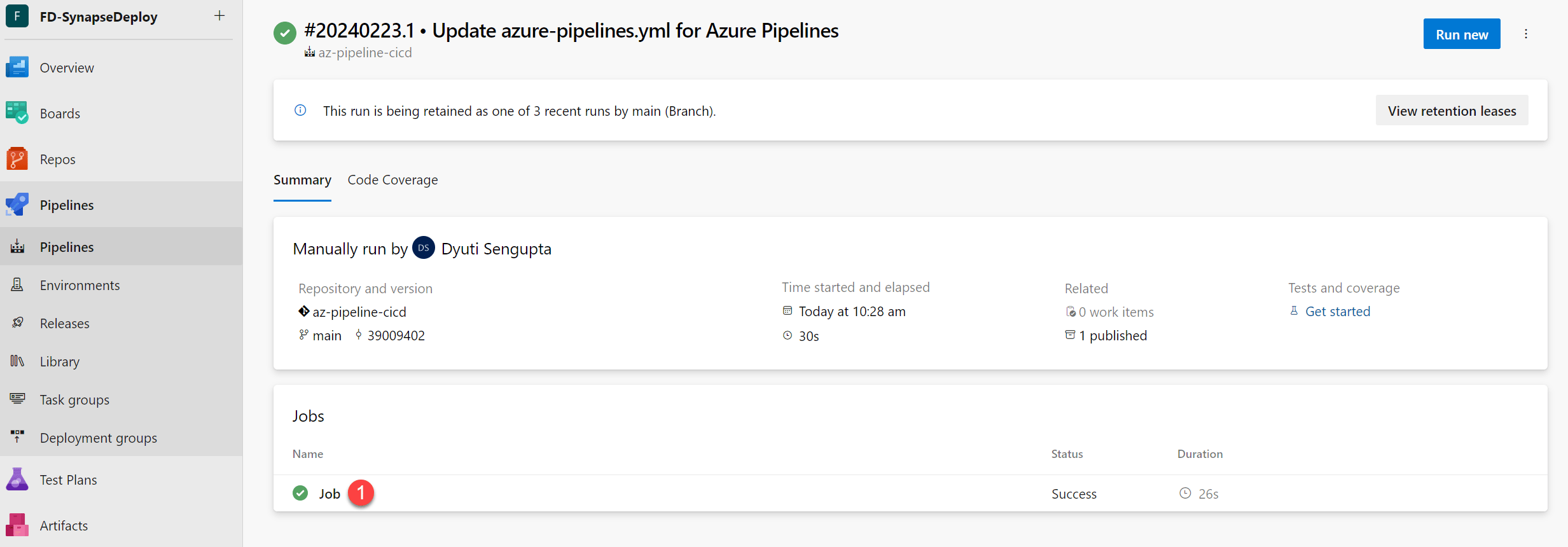
- FlexDeploy Build Workflow will checkout the codebase and initiate the build pipeline that is created in Azure DevOps. This build pipeline will create the ARM templates based on the codebase and publish to Azure DevOps feed.
- FlexDeploy will also store the ARM templates to it’s own Artifact Repository for versioning.
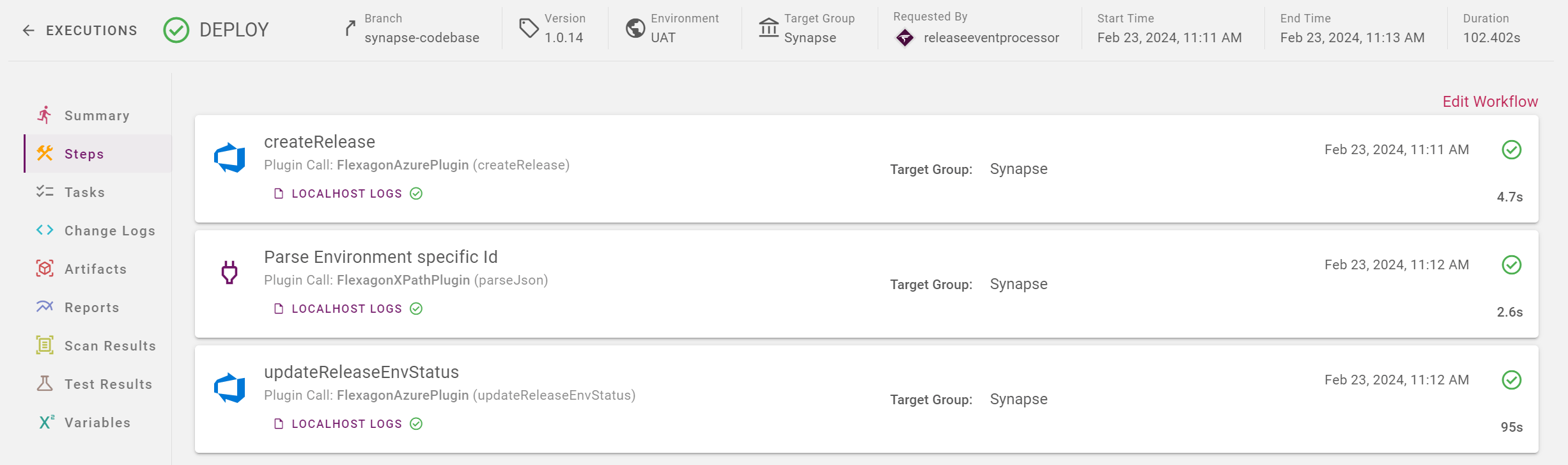
- The Deploy workflow in FlexDeploy will create a release in Azure DevOps that will initiate the release pipeline there and deploy the workspace artifacts to the target workspace.
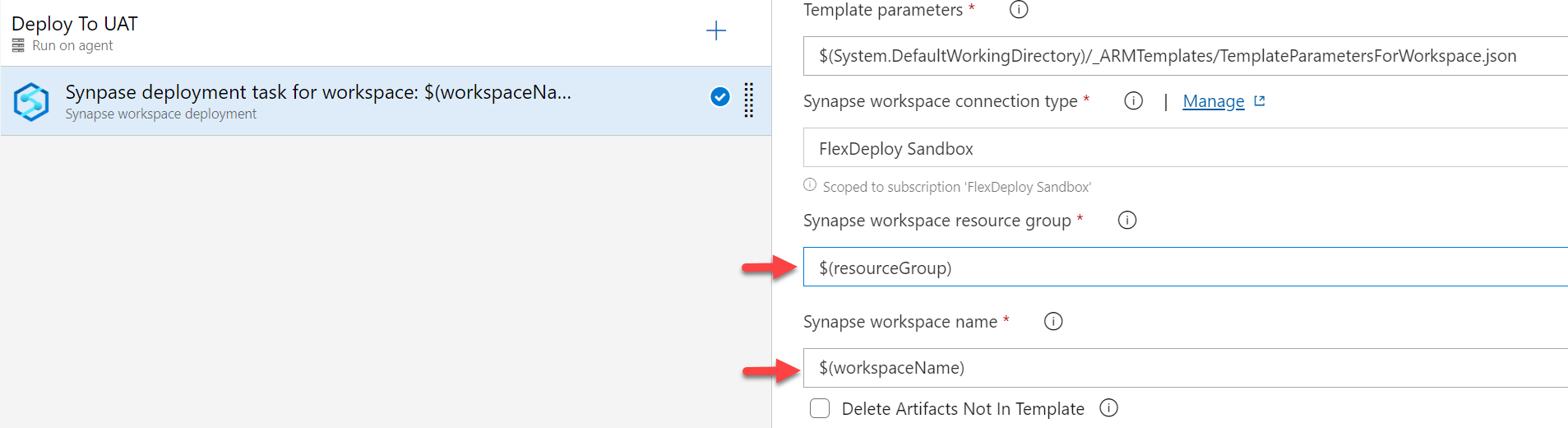
- Any dynamic values such as workspace name, resource group name or package name where the ARM templates would be published, will be controlled by FlexDeploy.
Pre-requisite setup in Azure DevOps
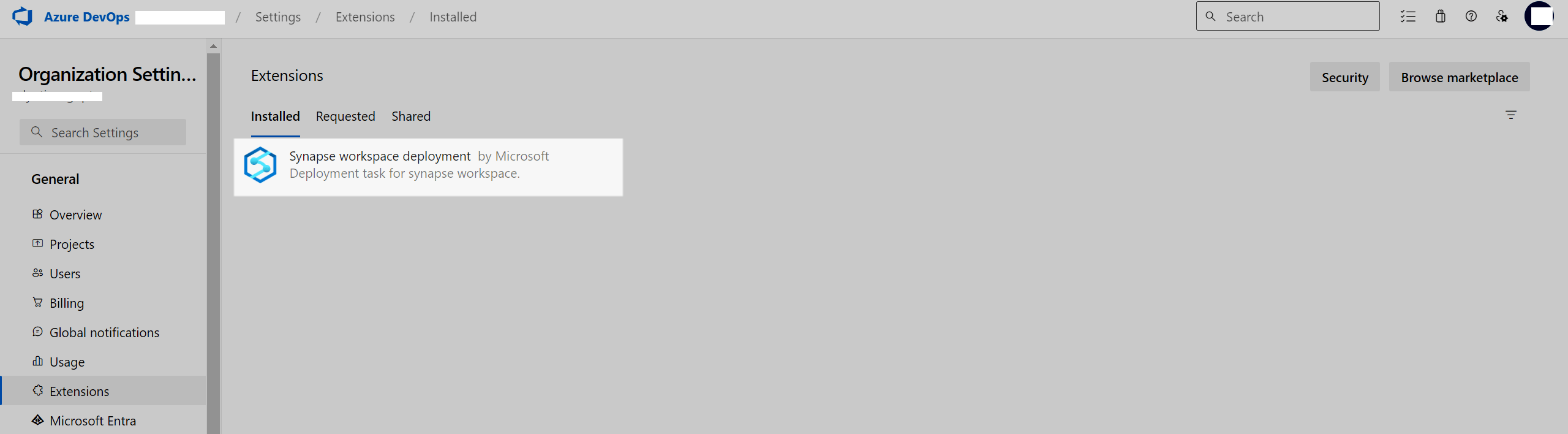
- The official extension “Synapse workspace deployment” must be installed in the Azure DevOps Organization, that we will use for pipeline creation in DevOps.
- Create Personal Access Token in Azure DevOps and Cloud Account in FlexDeploy, as that will be used for deployment. Please follow this steps.
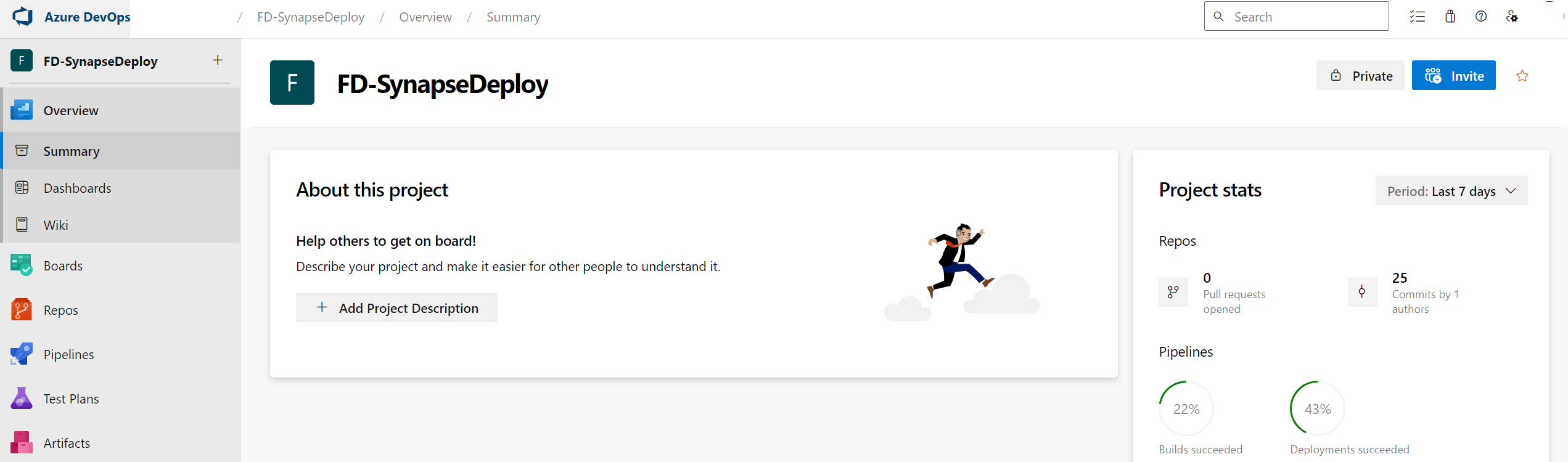
- Project needs to be created:
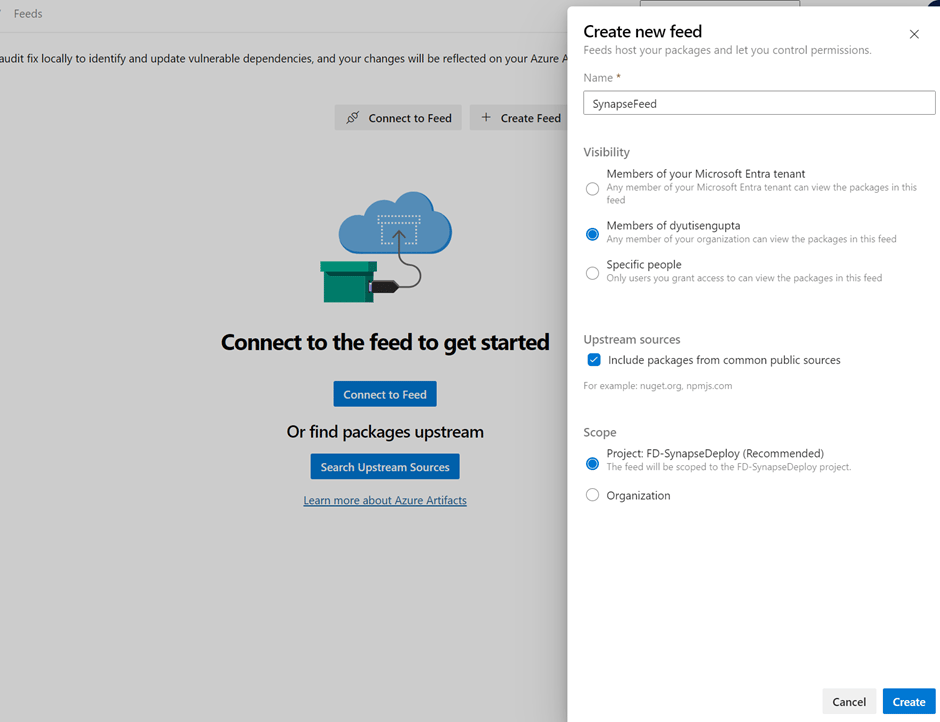
- feed needs to be created within this project, that will store the packages with their respective versions.
- Create a new repository that will store the build pipeline yaml. For our tutorial we used az-pipeline-cicd.
Synapse Workspace and committing code to Repository
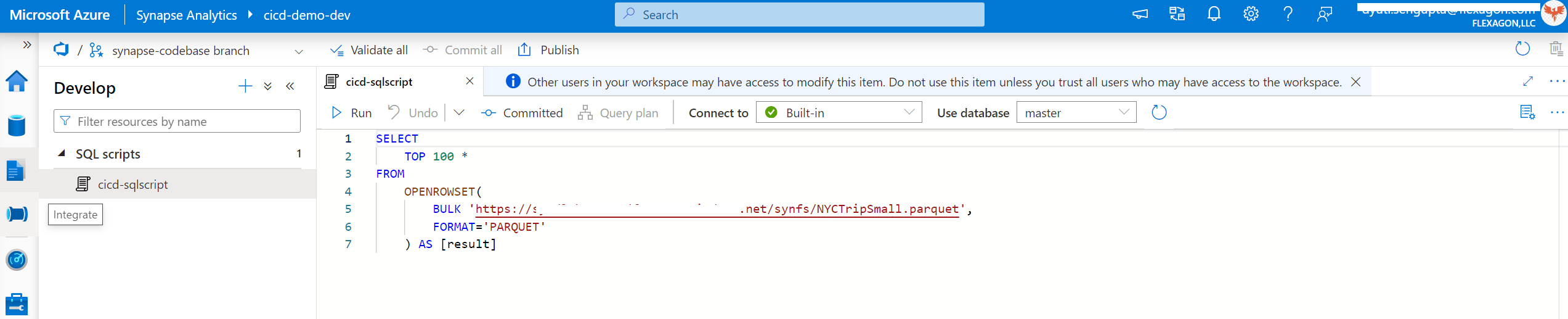
For this tutorial we will start with a simple example. We have created the Synapse workspace: cicd-demo-dev and included a SQL script, that will query data from a linked service in datalake storage account.
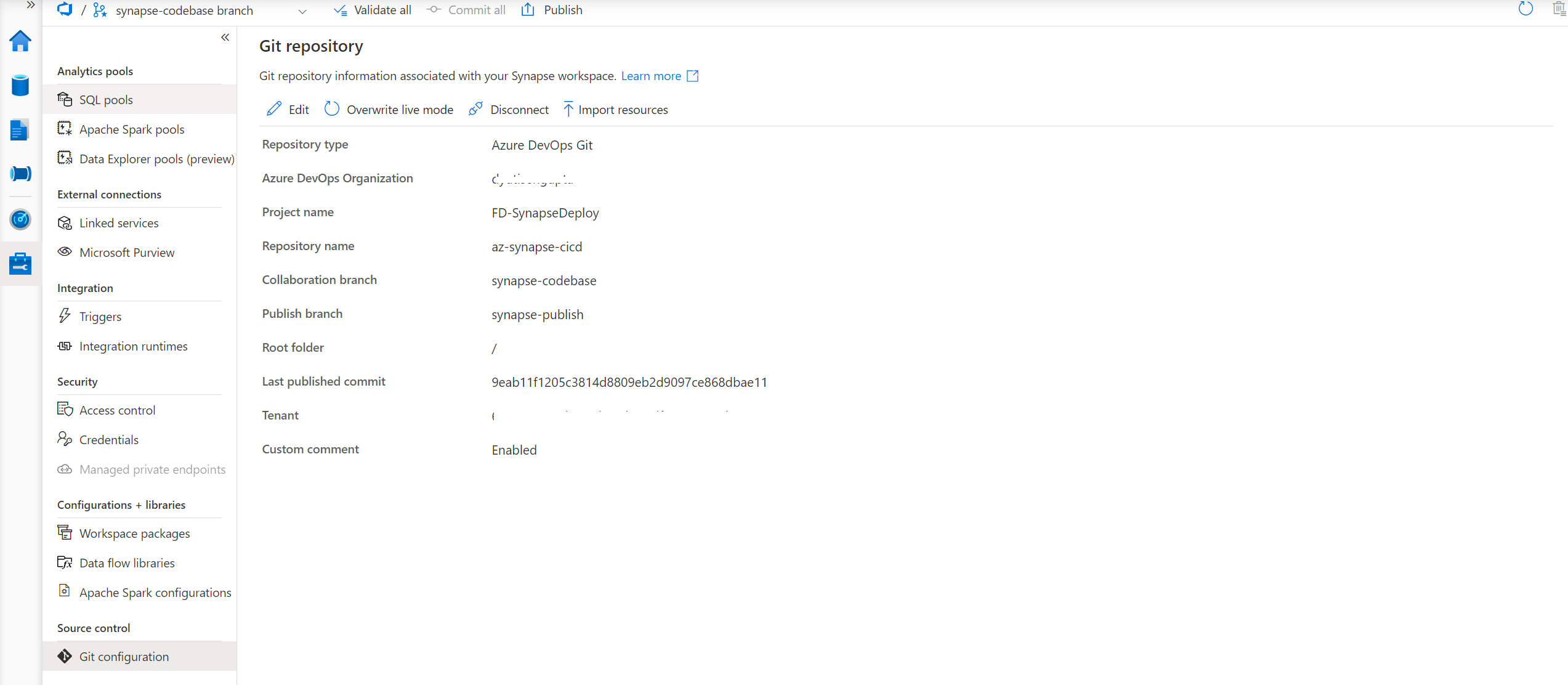
GIT structure
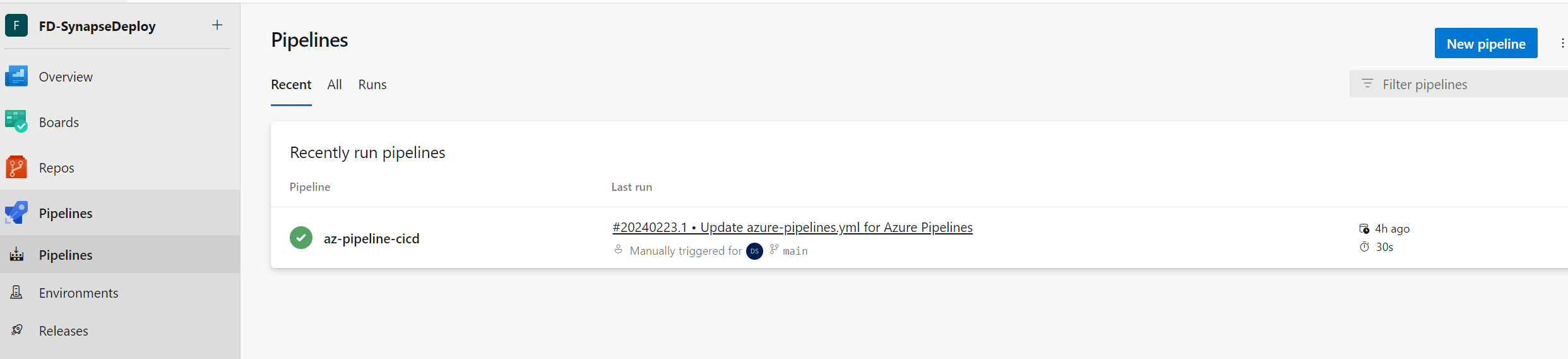
Azure DevOps Pipeline Creation
Build Pipeline
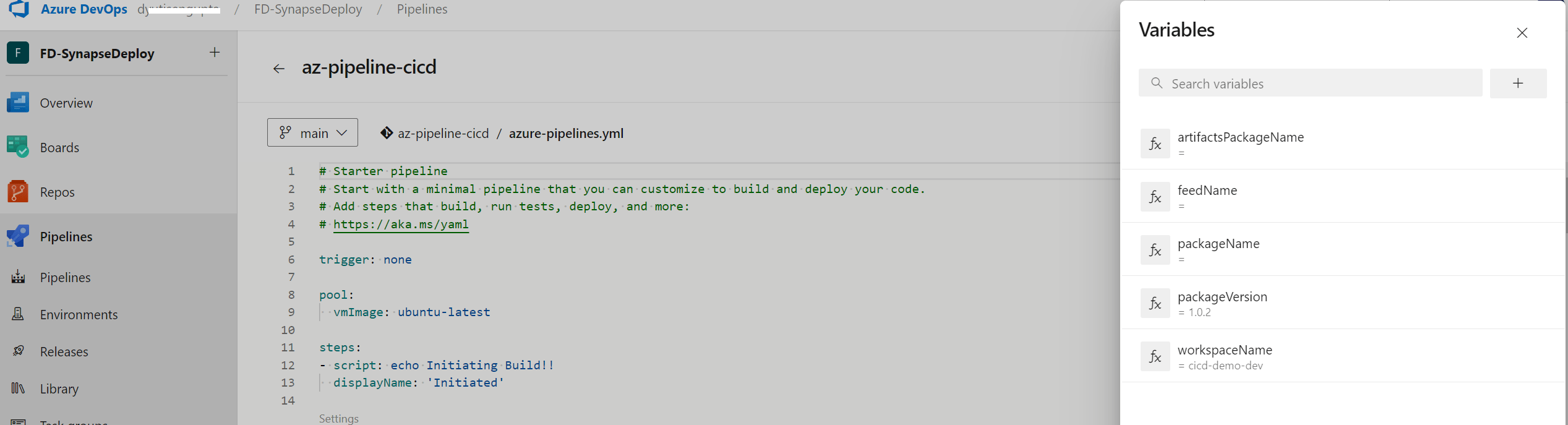
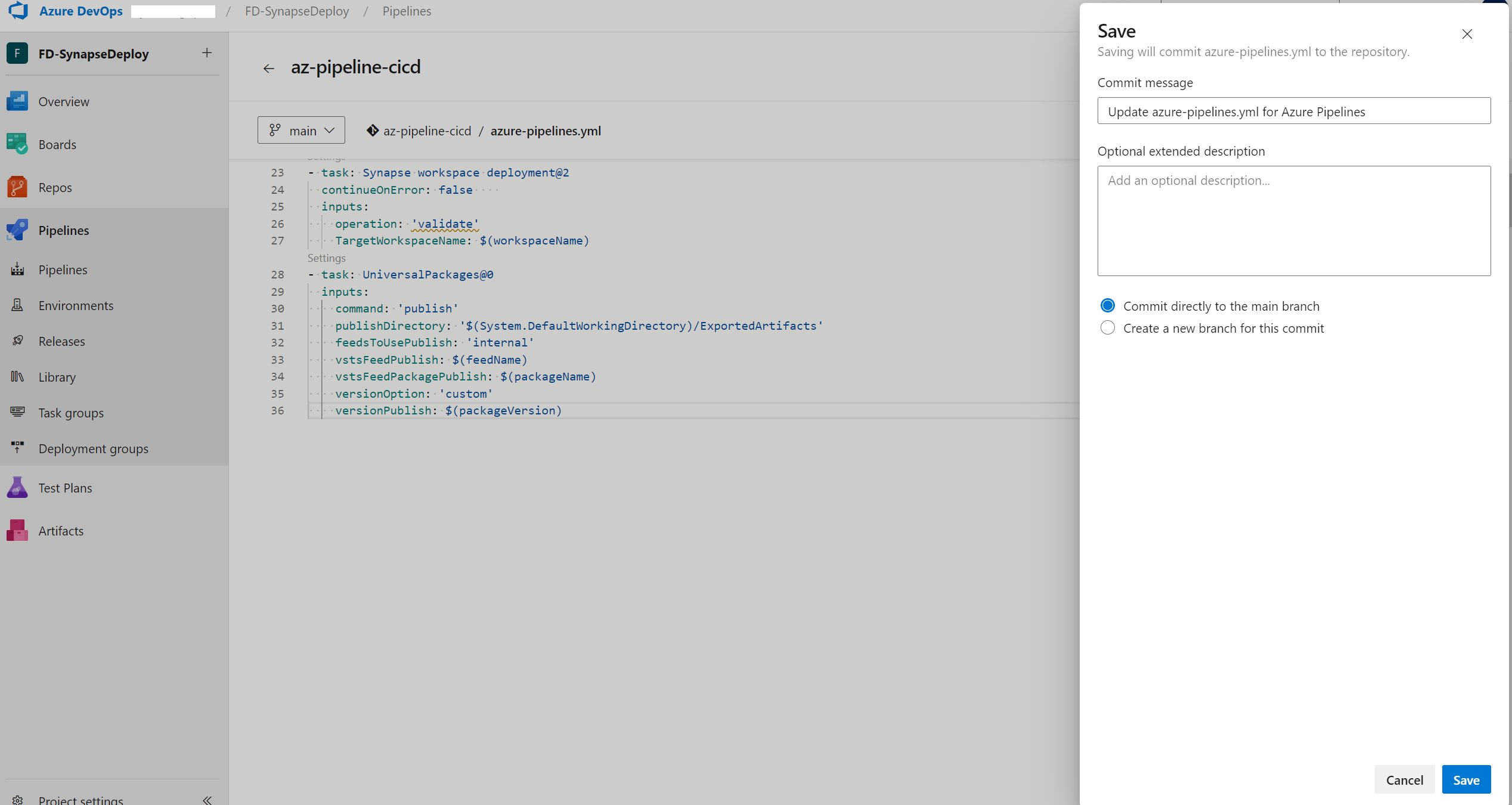
Navigate to the DevOps project and create a new pipeline pointing to the GIT repository az-pipeline-cicd. Choose the starter template.

Release Pipeline
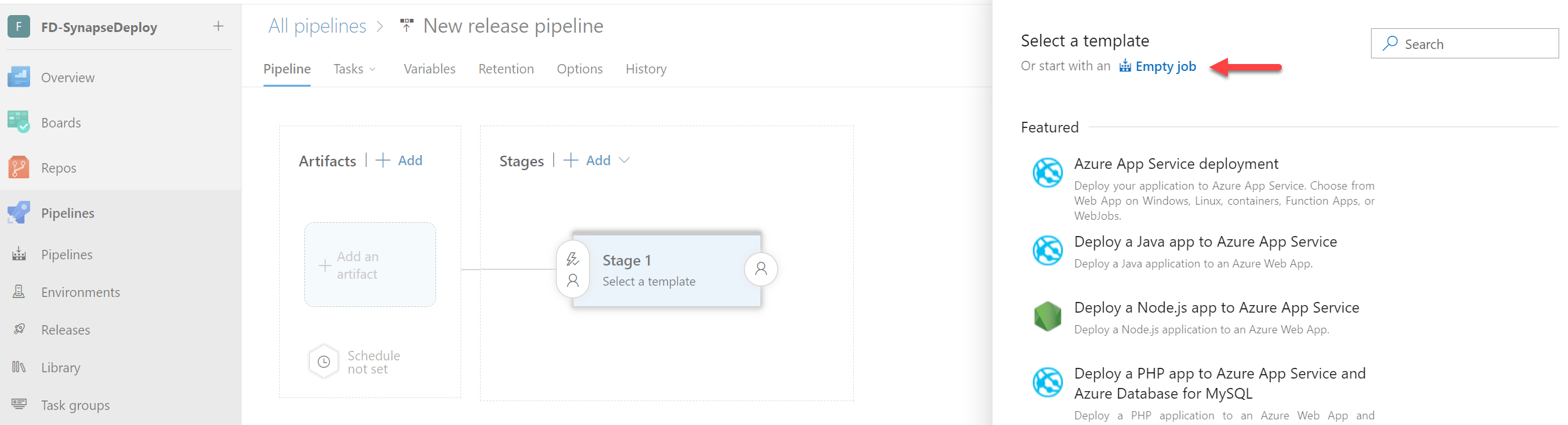
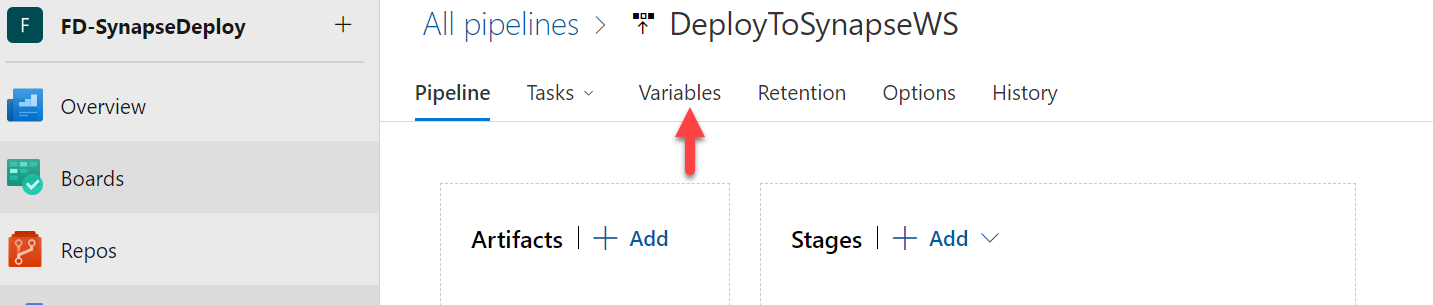
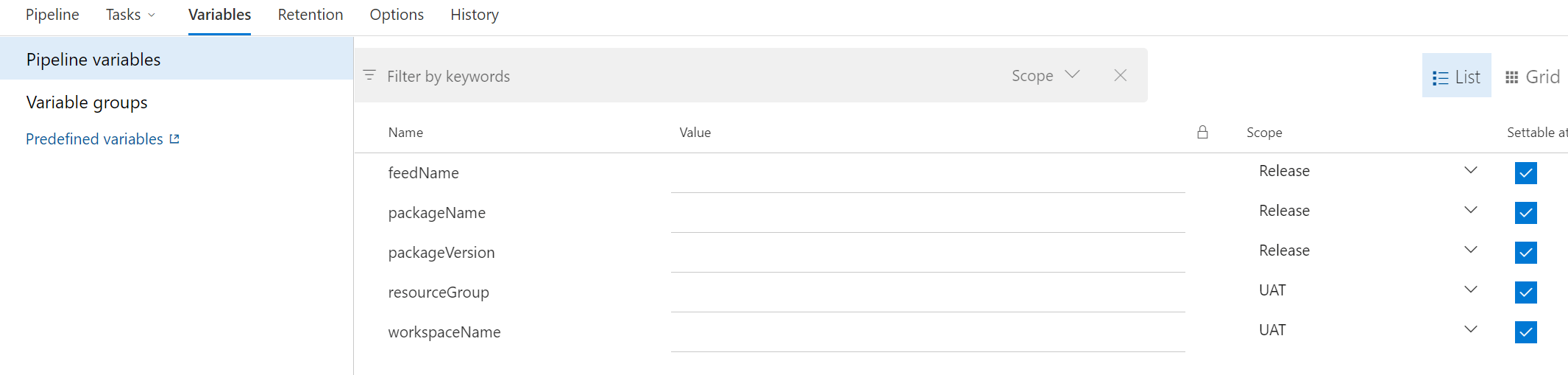
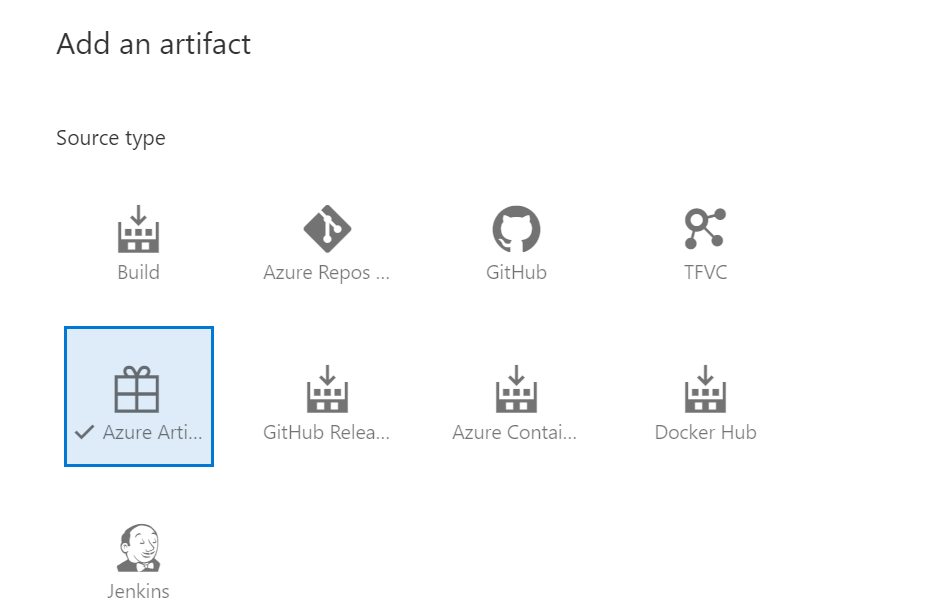
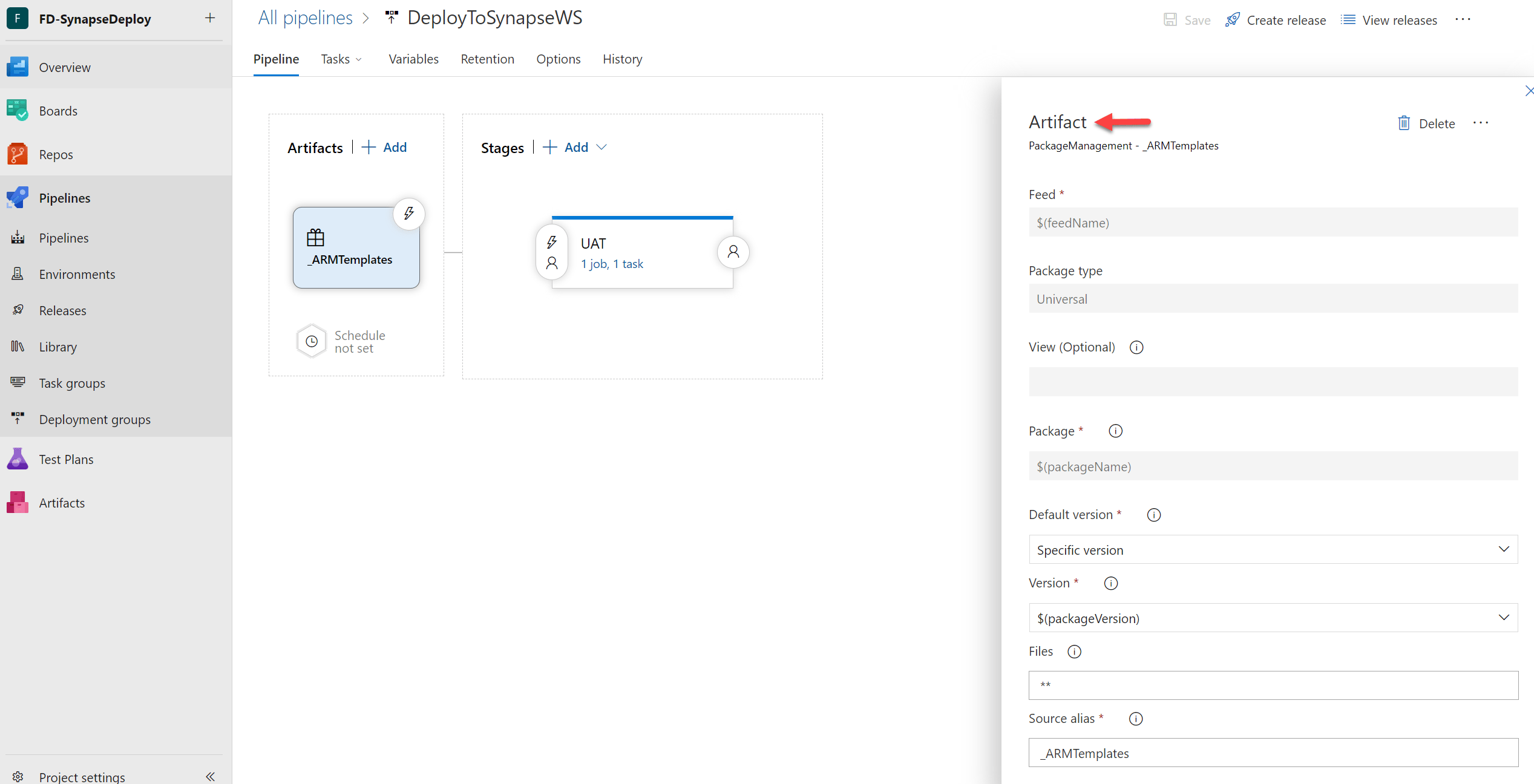
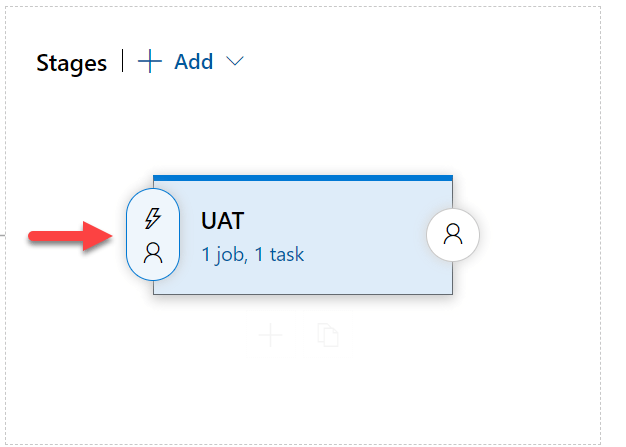
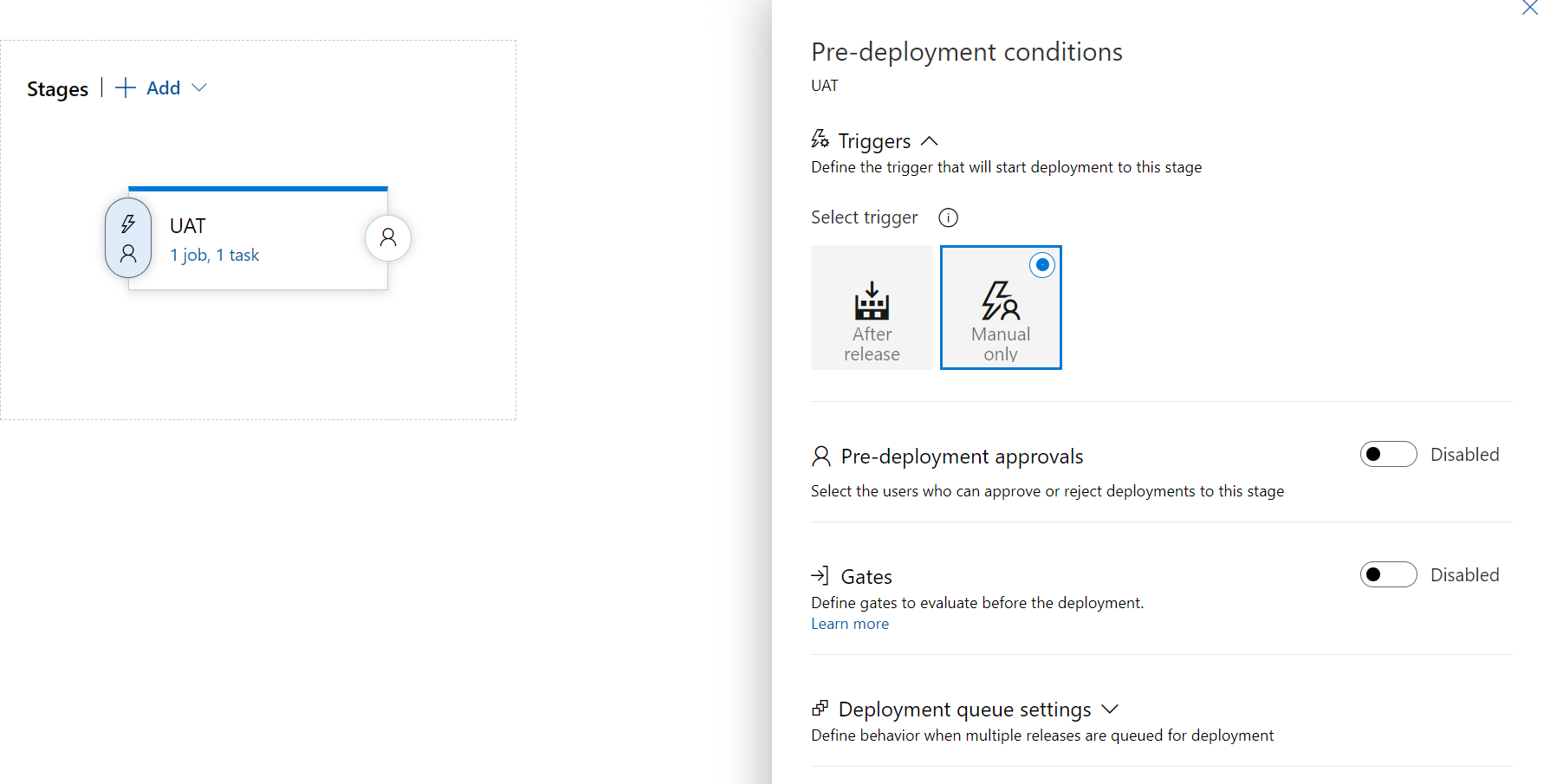
Navigate to the DevOps project → Release and create new release pipeline.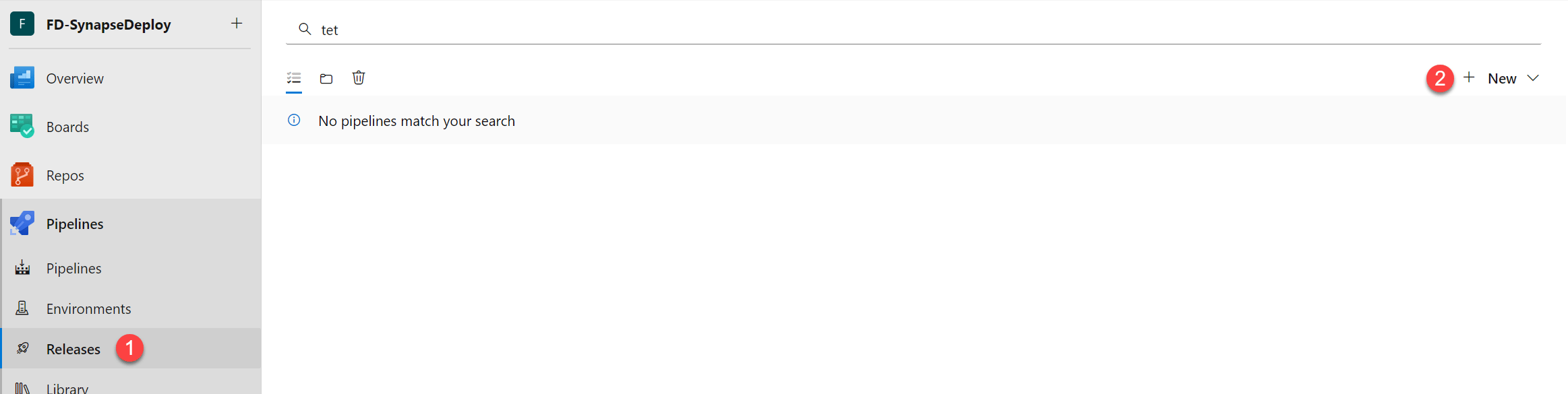
Workflow Configuration in FlexDeploy
Build Workflow
Creating build workflow CreateARMTemplate as: Project scoped workflow properties are added as: FEED_NAME, PROJECT_NAME, ARTIFACTS_PACKAGE_NAME, PACKAGE_VERSION, VARIABLES_LIST, BUILD_DEFINITION_NAME, PACKAGE_NAME.Explanation
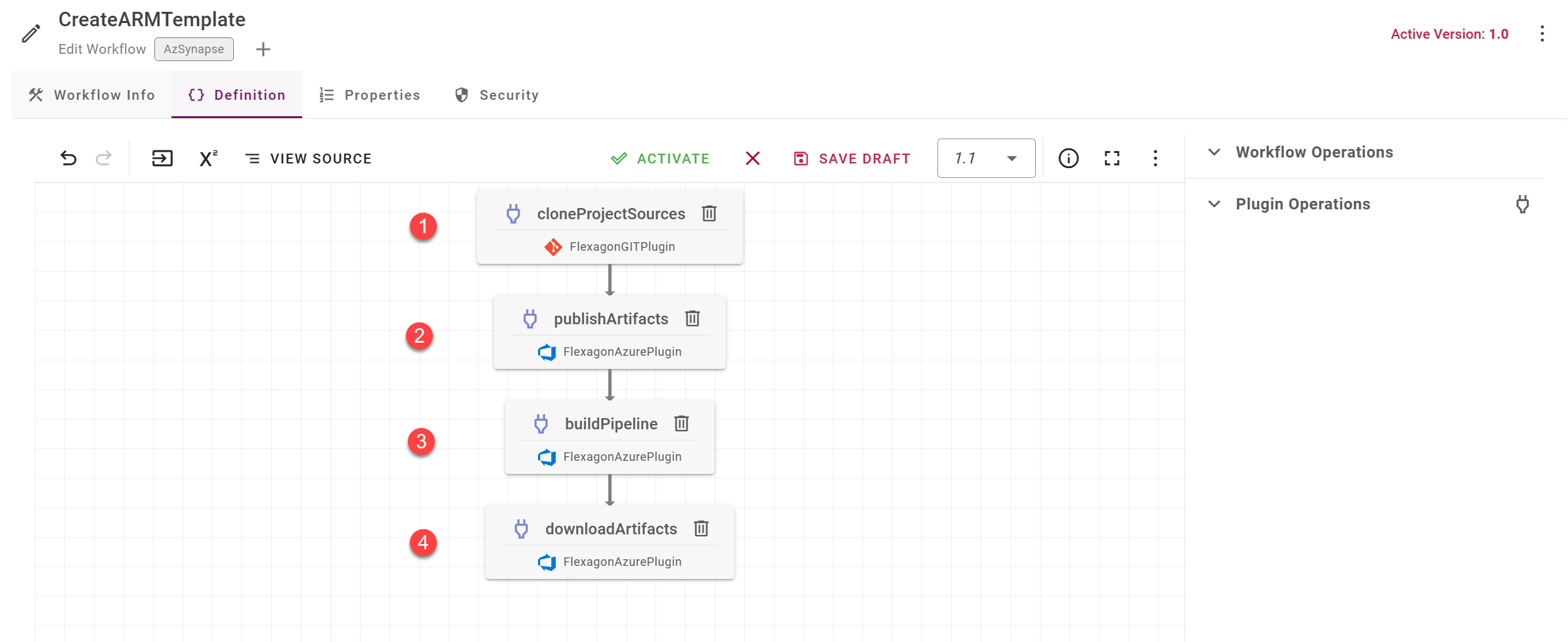
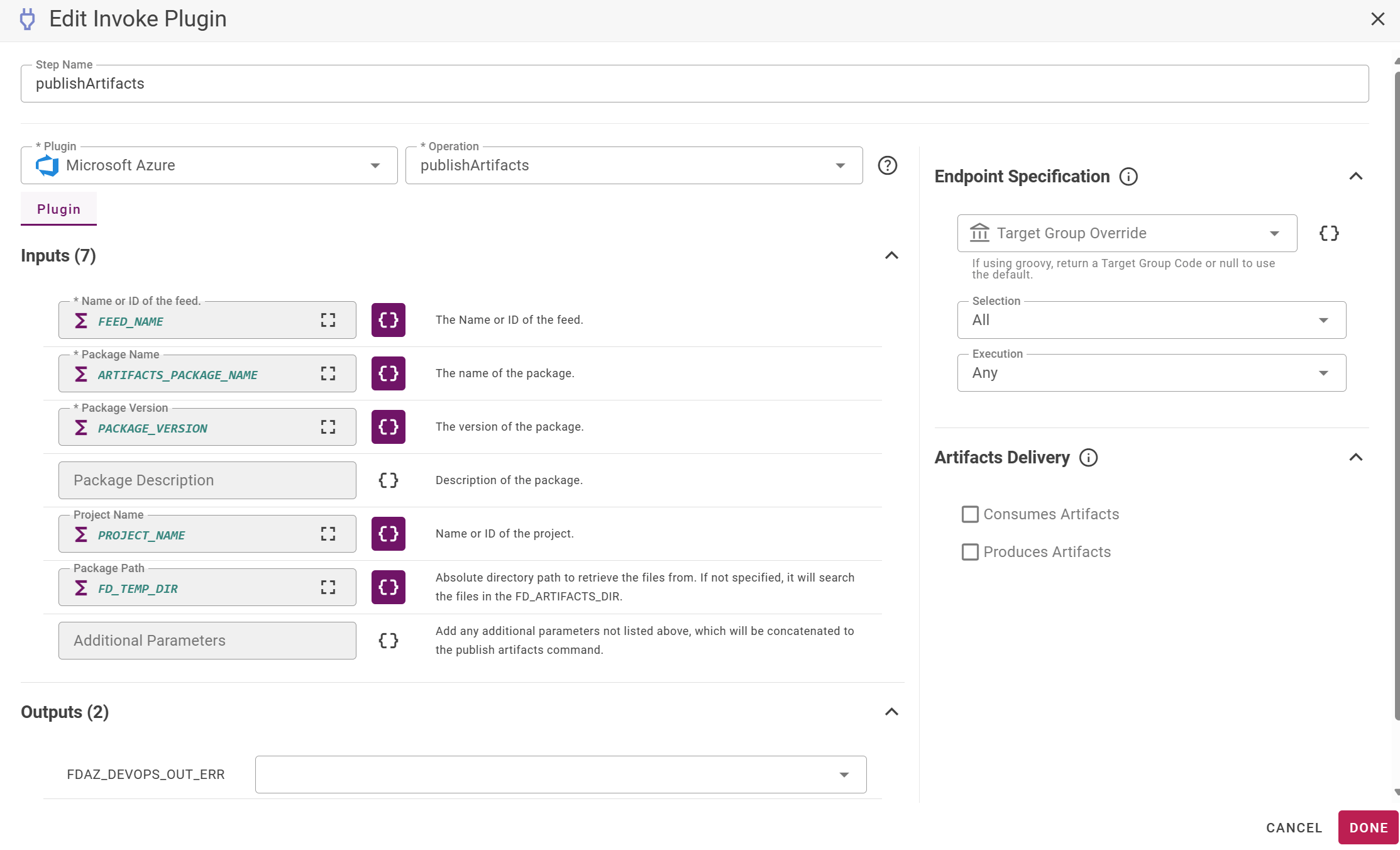
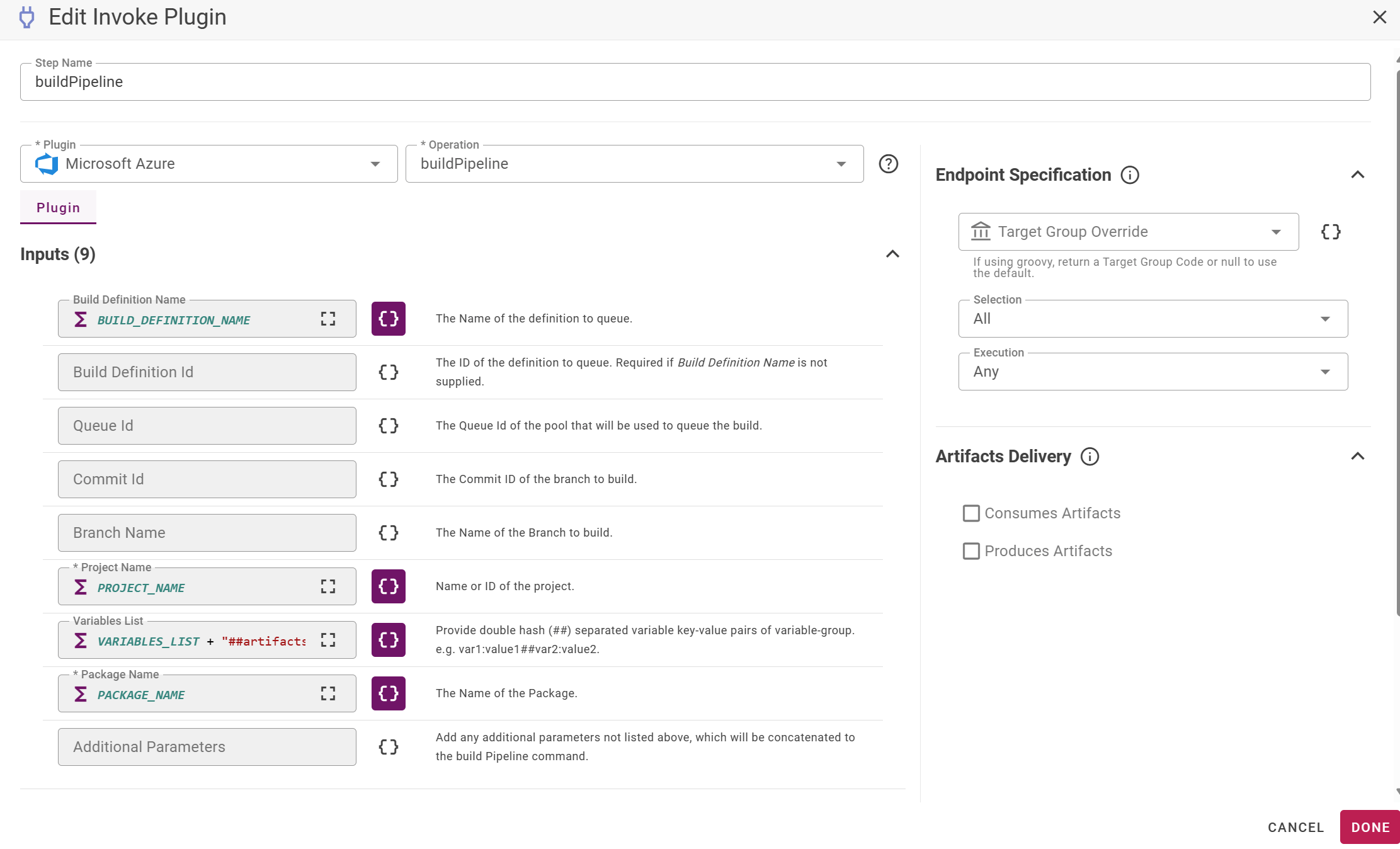
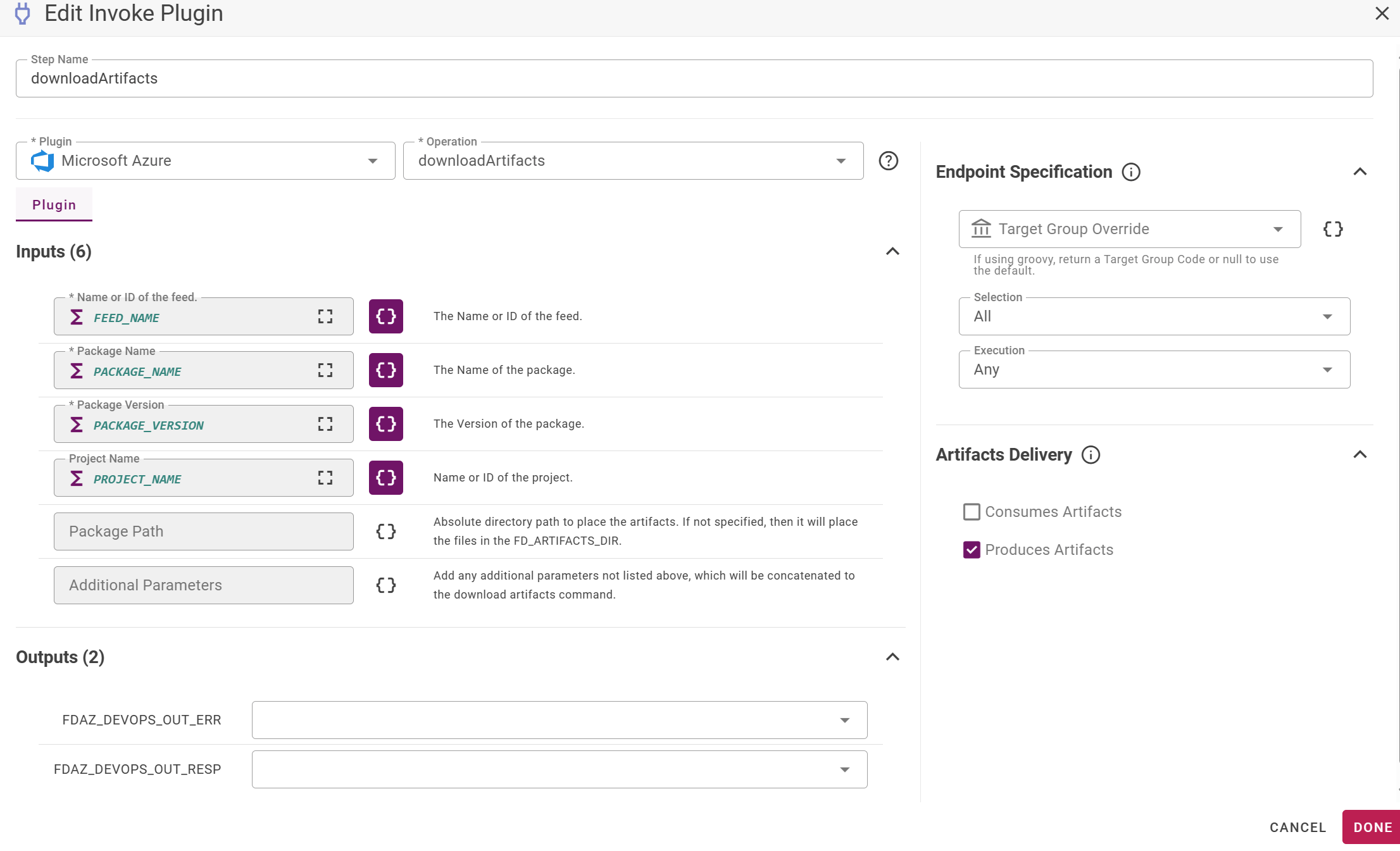
Deploy Workflow
Creating deploy workflow DeploySynapseArtifacts as: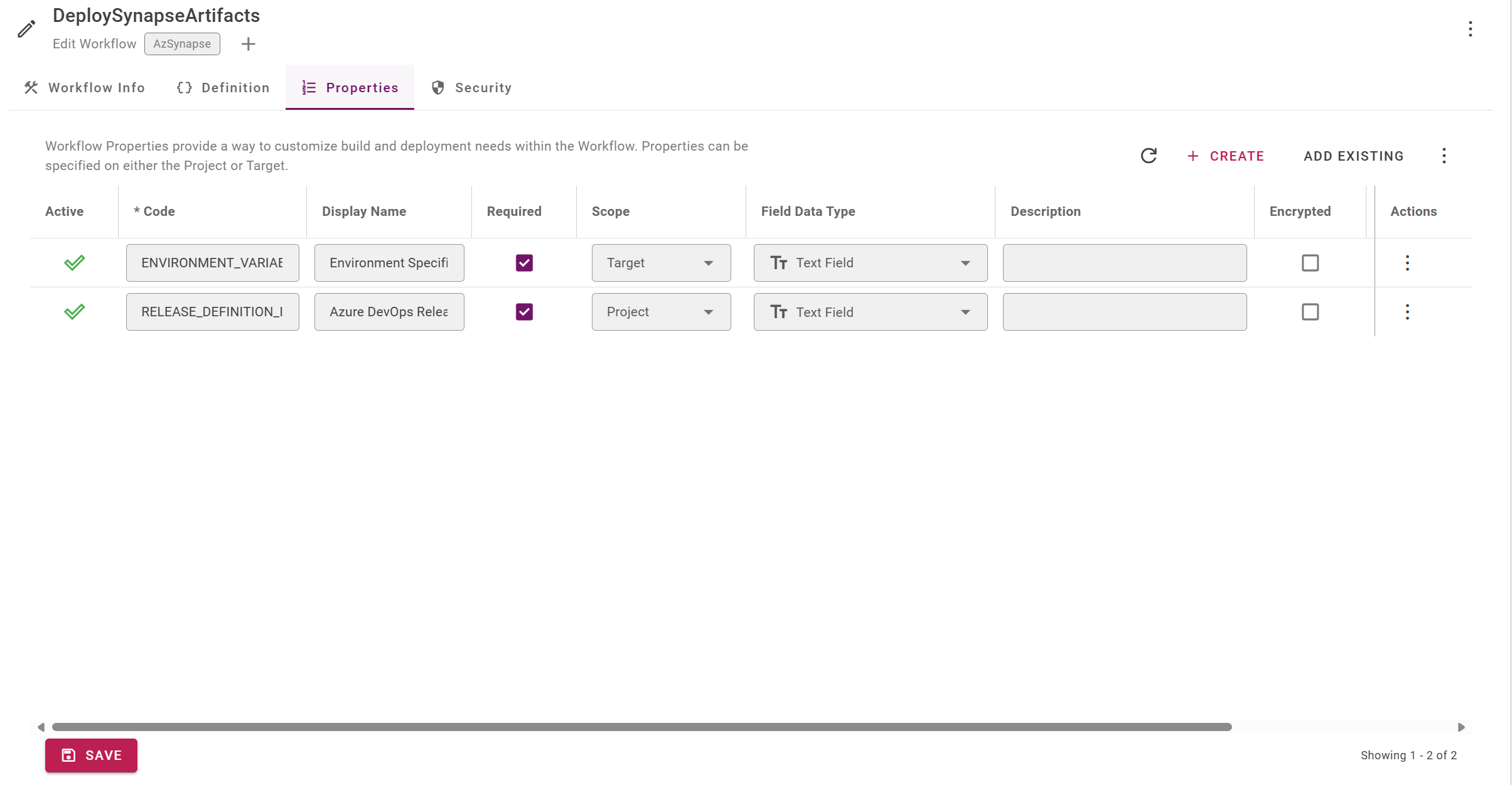
Variables
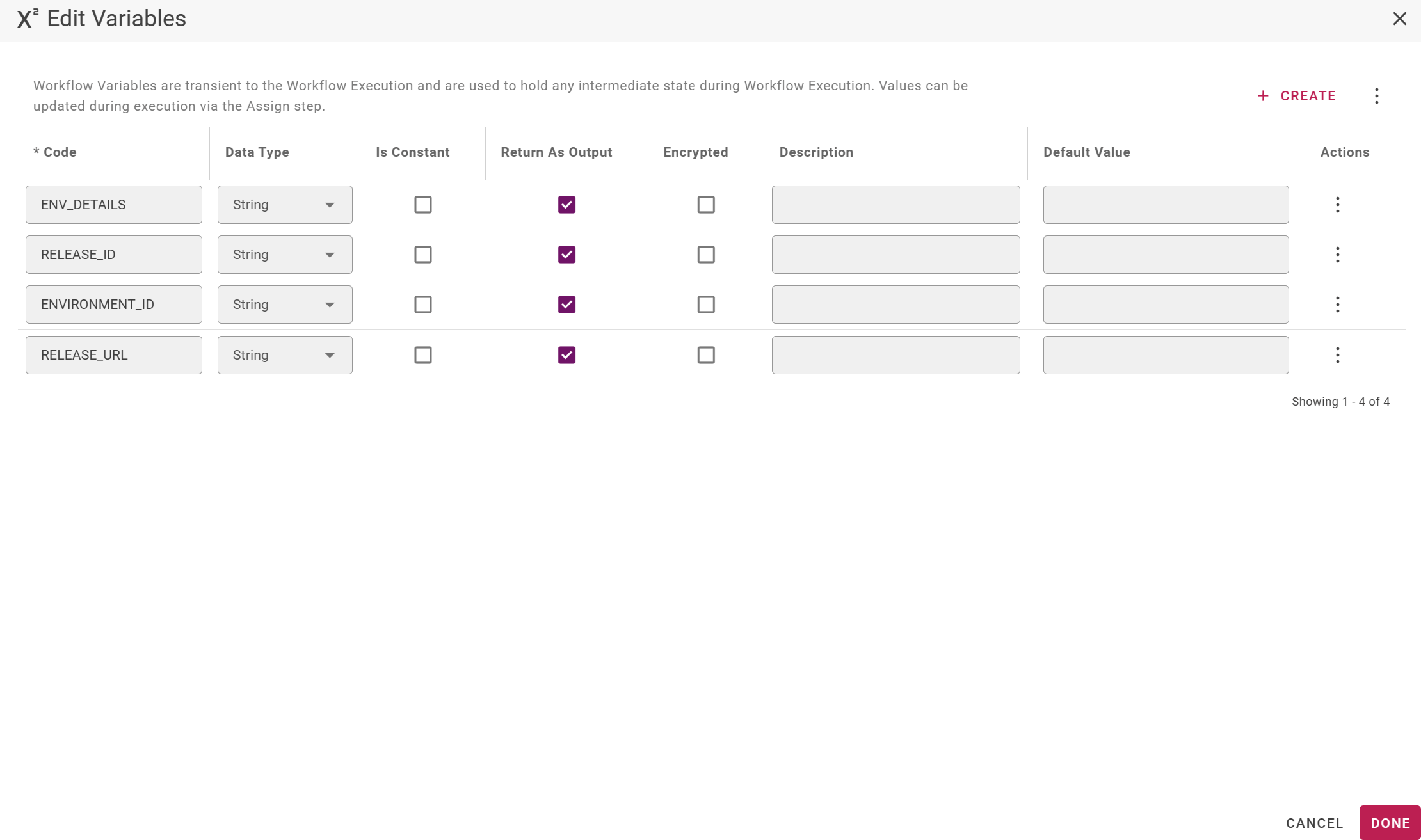
Explanation
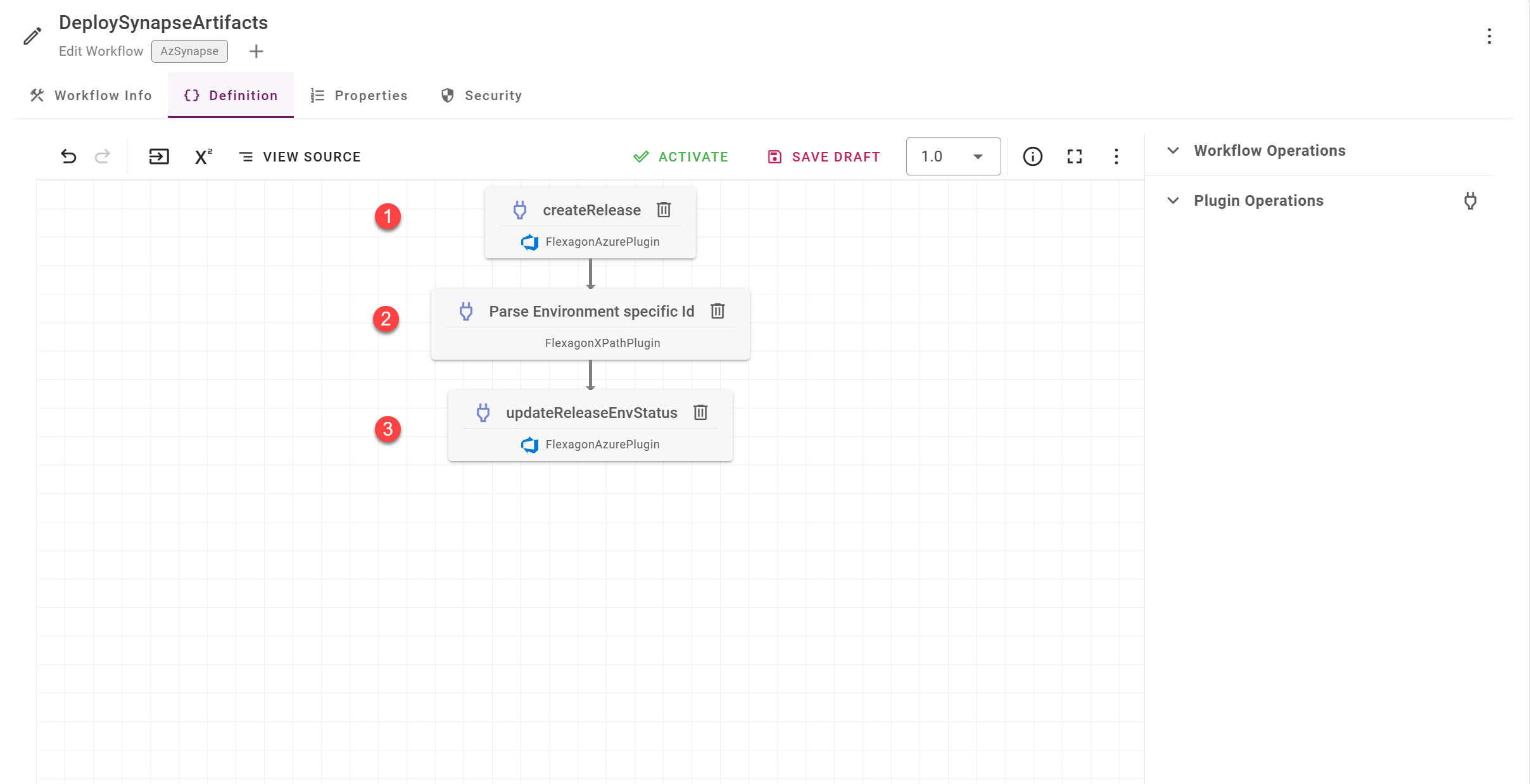
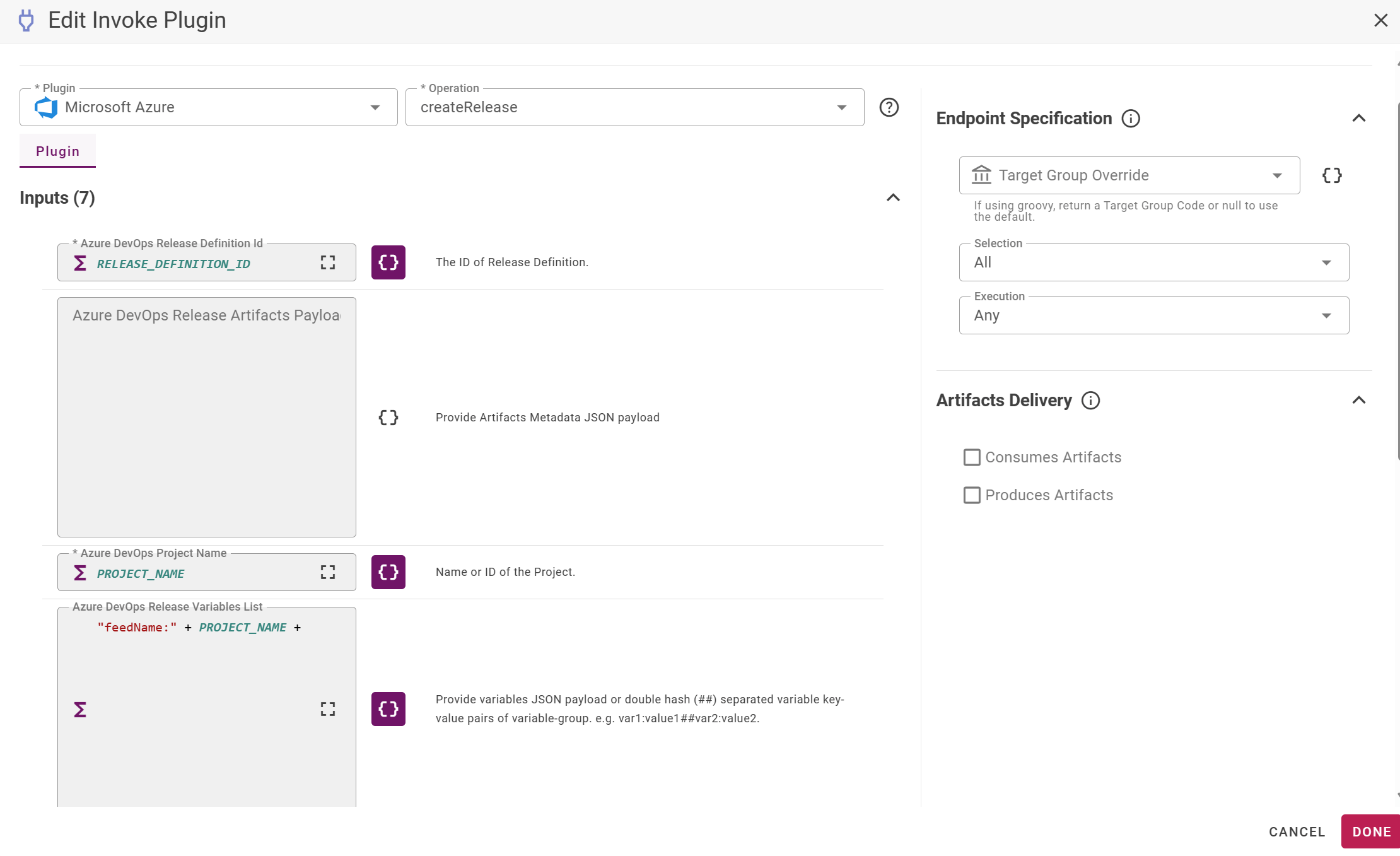
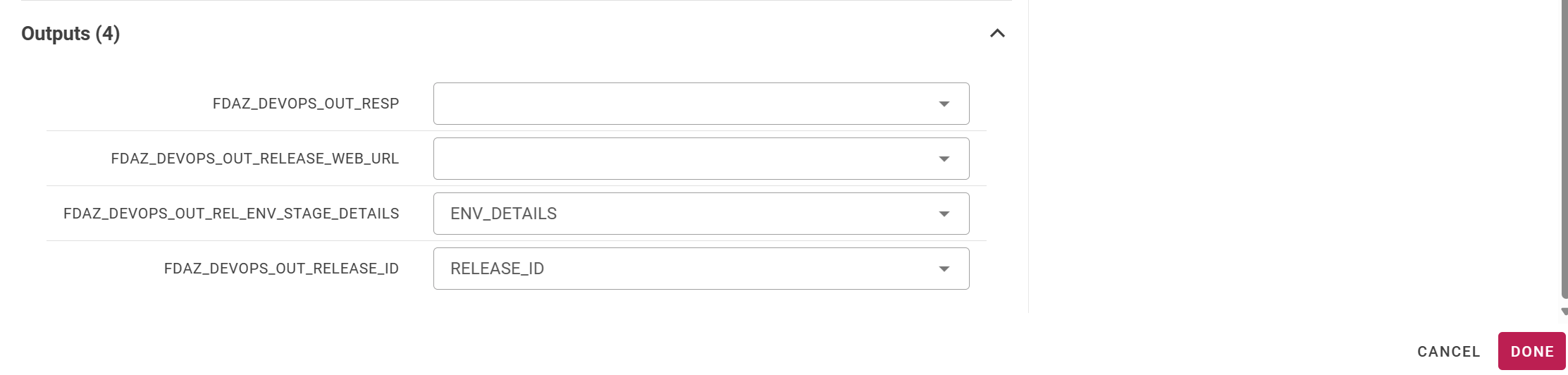
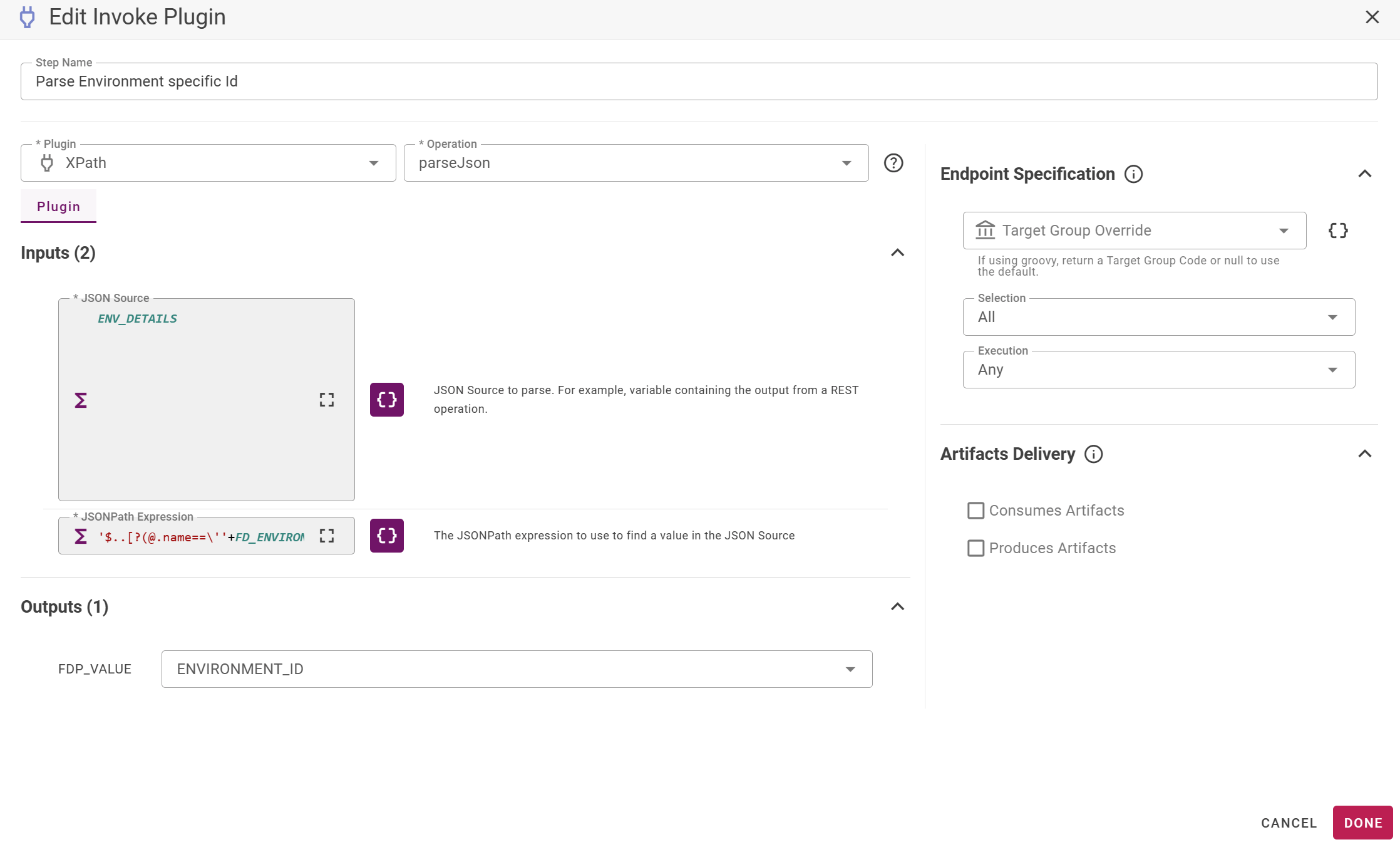
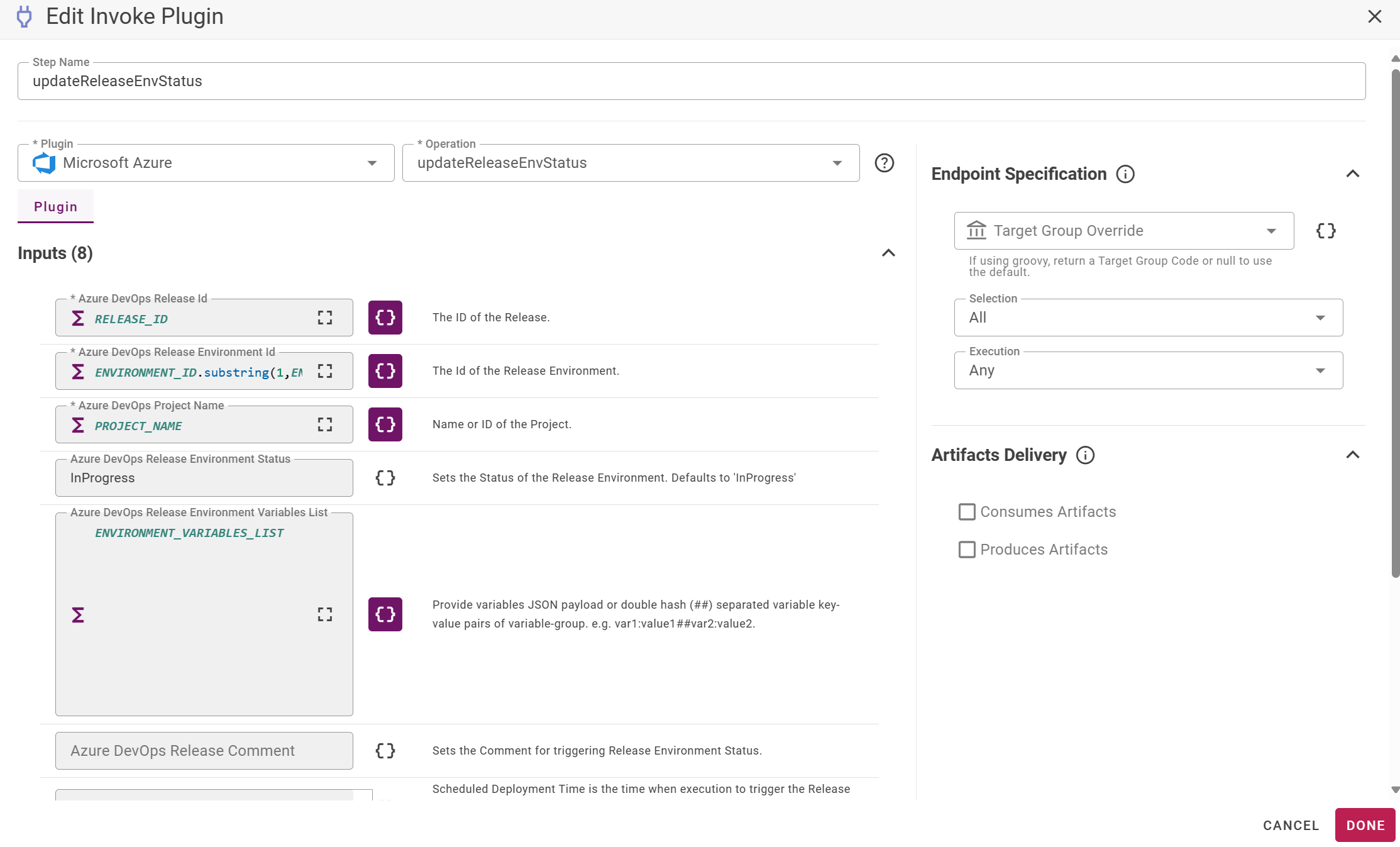

Project Configuration
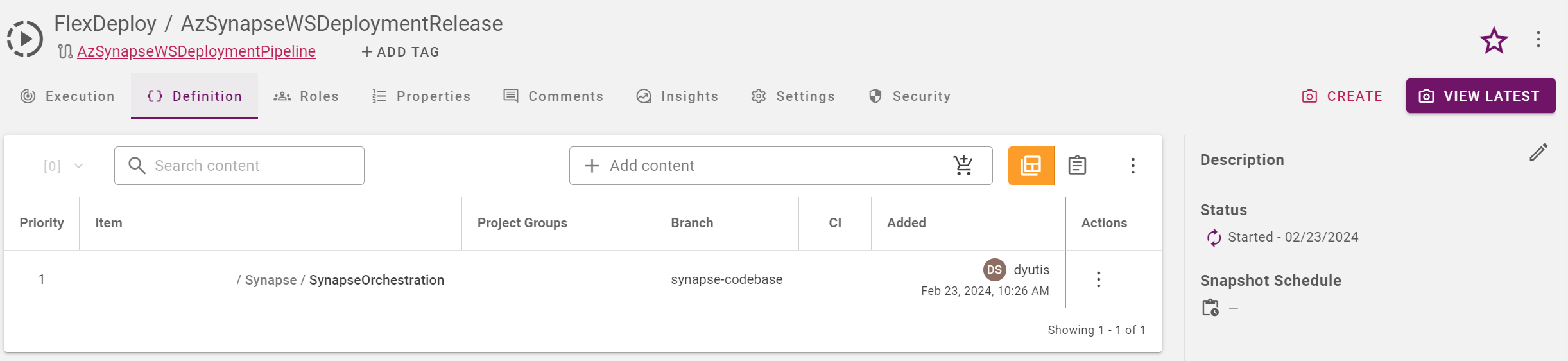
Create Blank standard project: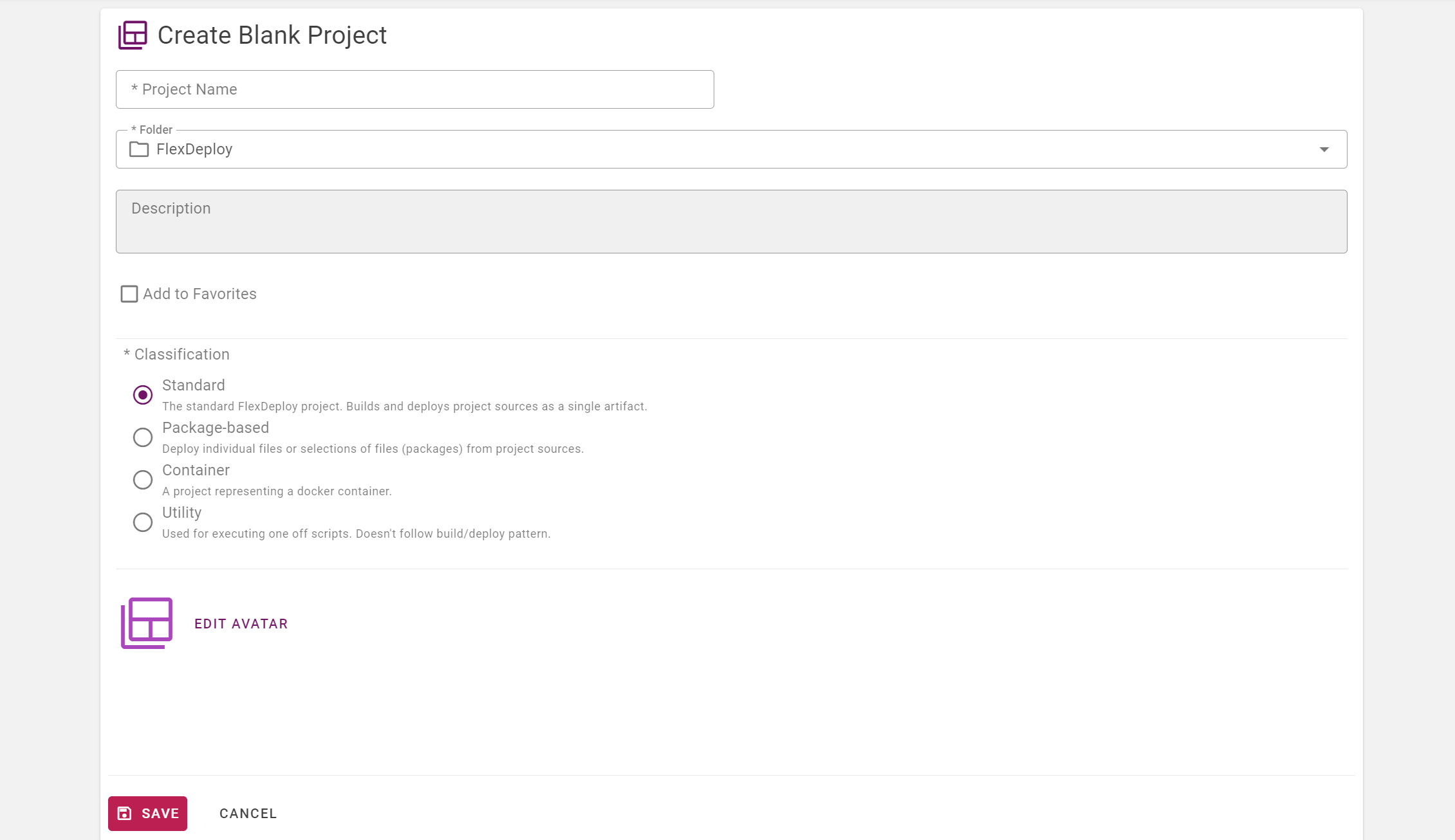
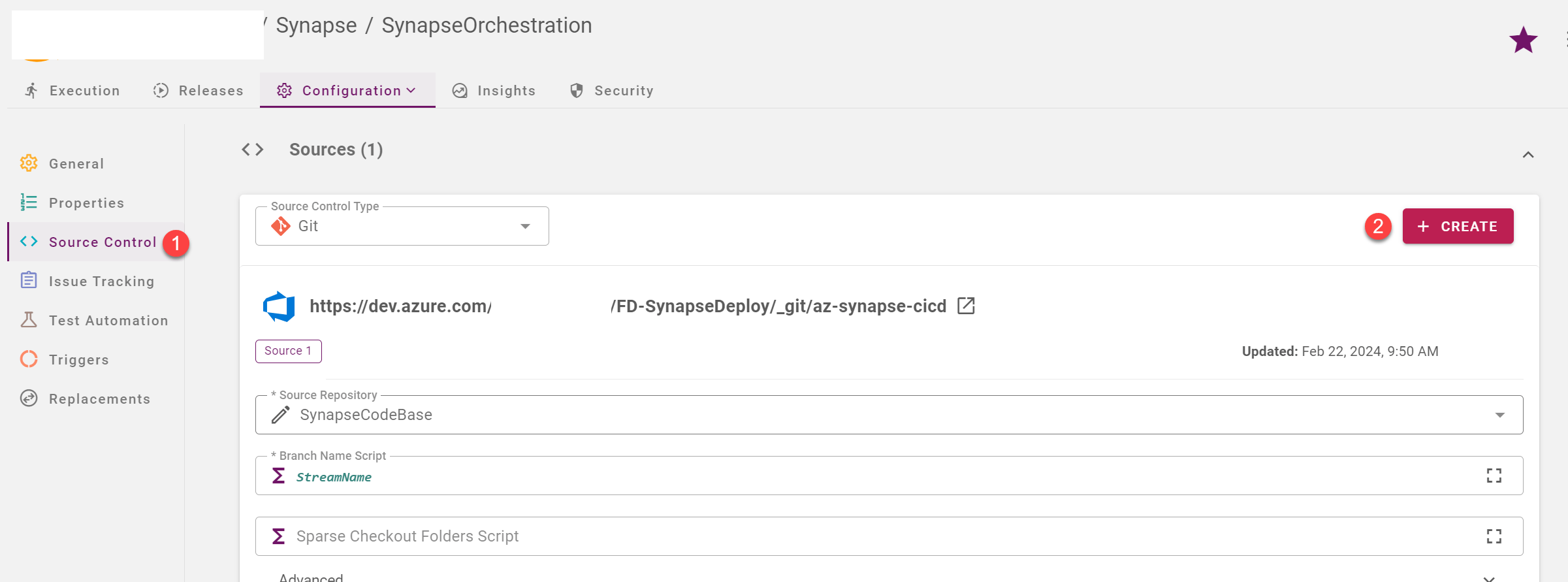
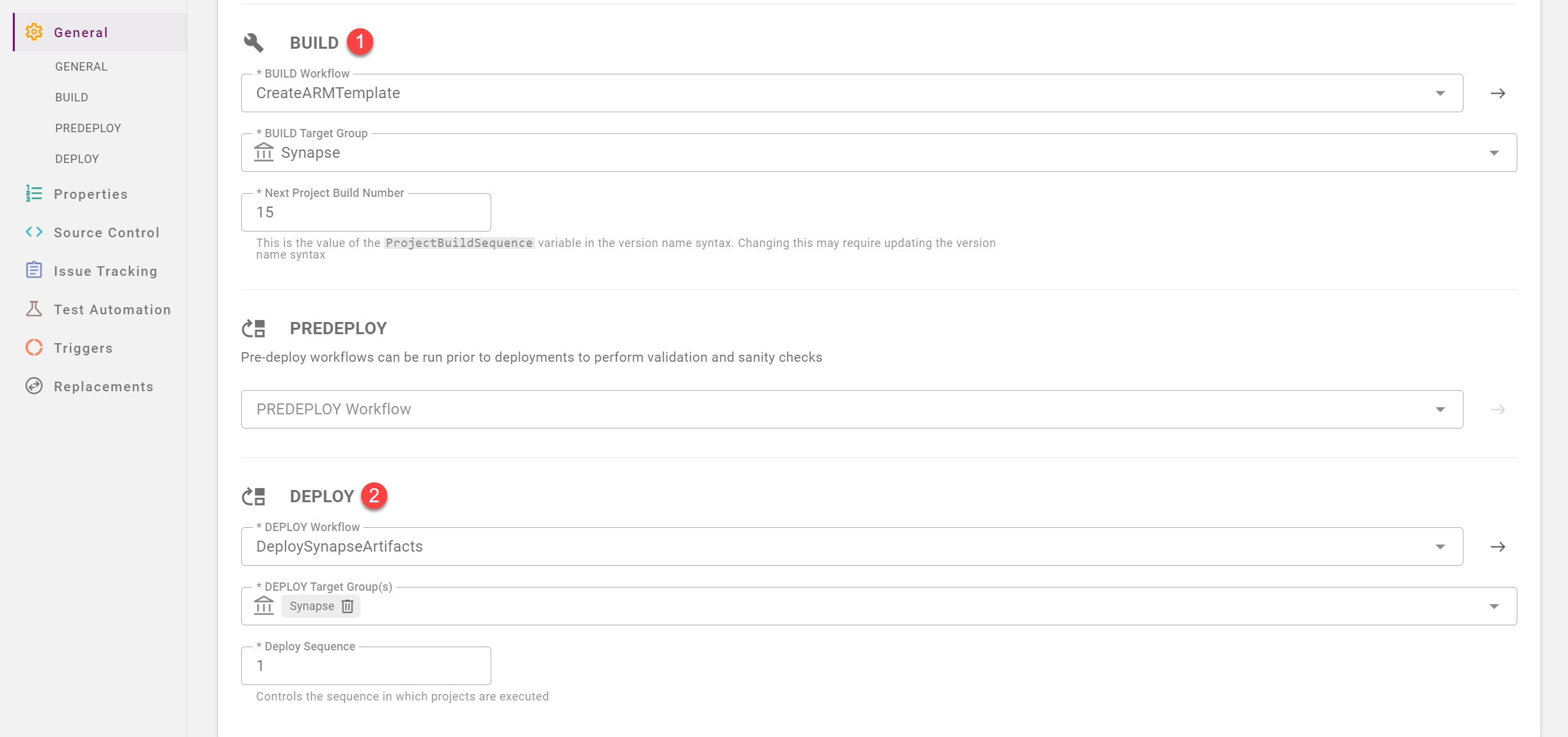
Project properties
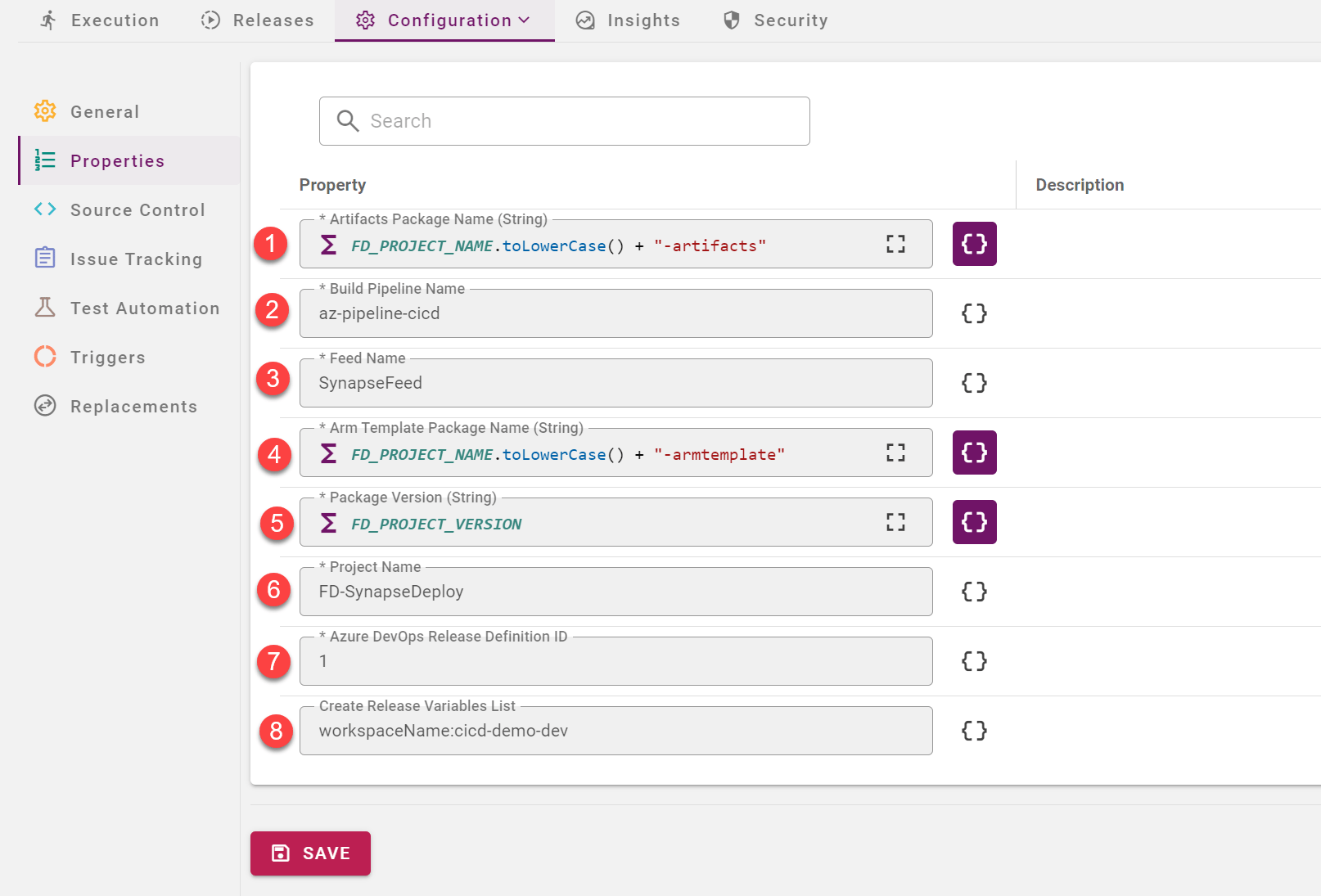
- ARTIFACTS_PACKAGE_NAME = This is the package name with which Build Workflow uploads the codebase of Workspace artifacts to Azure DevOps feed.
- BUILD_DEFINITION_NAME = Azure DevOps Build pipeline definition name.
- FEED_NAME = Azure DevOps feed Name
- PACKAGE_NAME = This is the package name with which Azure DevOps Build pipeline packages the ARM templates into.
- PACKAGE_VERSION = Version of the packages. We are versioning it as per FlexDeploy Project version.
- PROJECT_NAME = Azure DevOps Project Name.
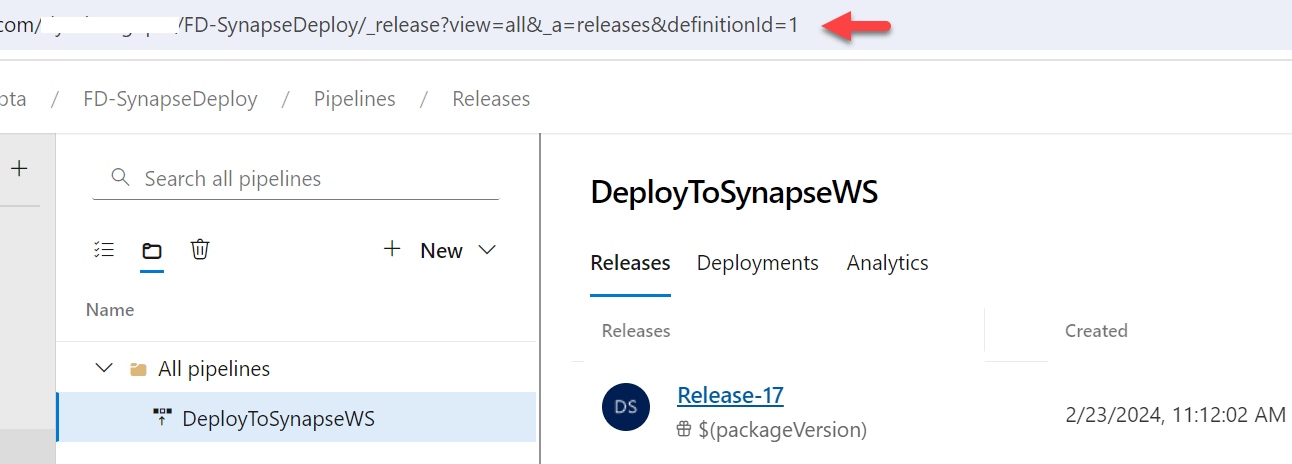
- RELEASE_DEFINITION_ID = Release Pipeline’s definition id from DevOps. It is shown in the URL in Azure DevOps upon clicking on the Release pipeline:
- VARIABLES_LIST = Sending the variable’s values through this to the Build Pipeline in DevOps. All the variables those were defined in the Build Pipeline there, are getting the values through this step from FlexDeploy.
Target Group Properties
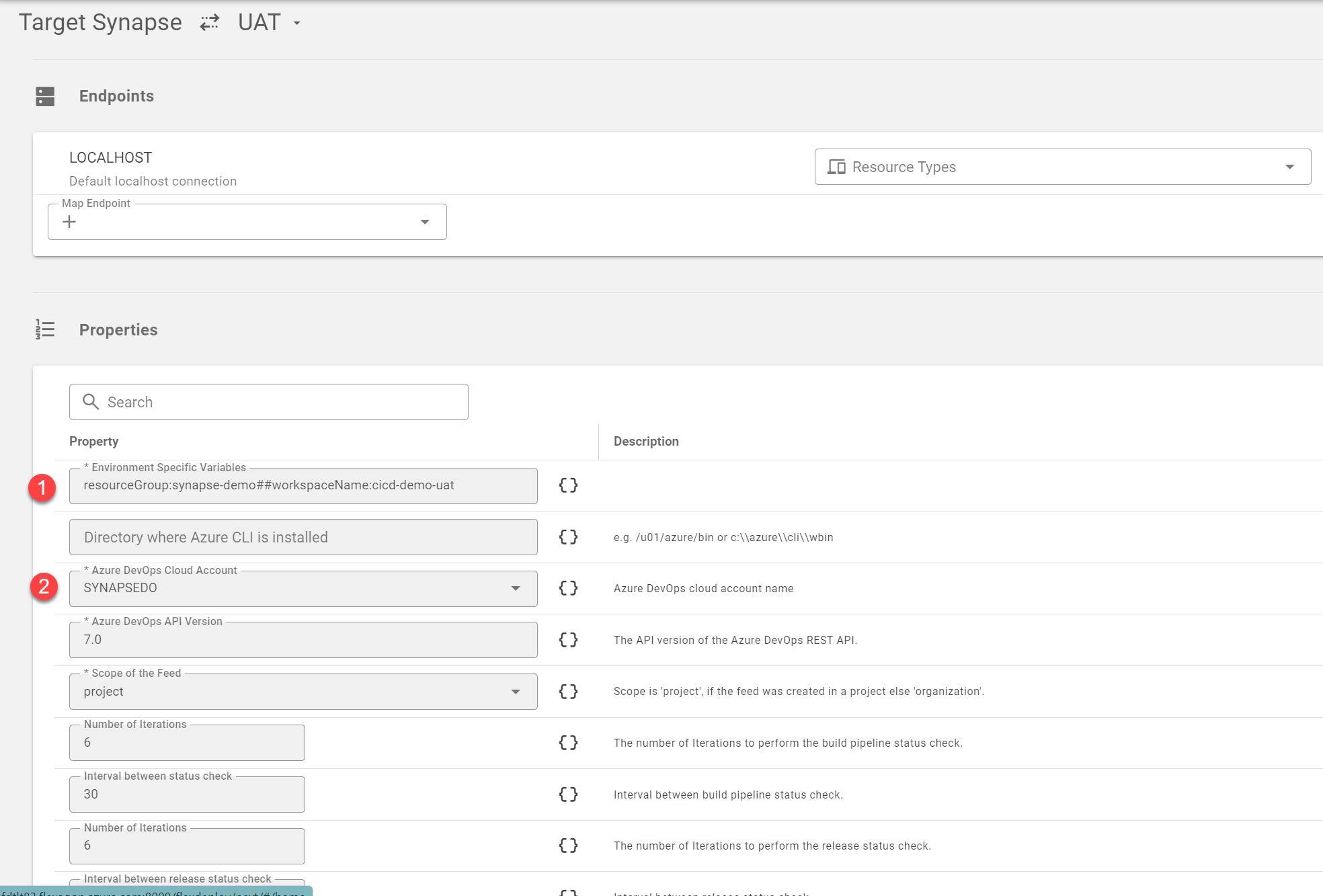
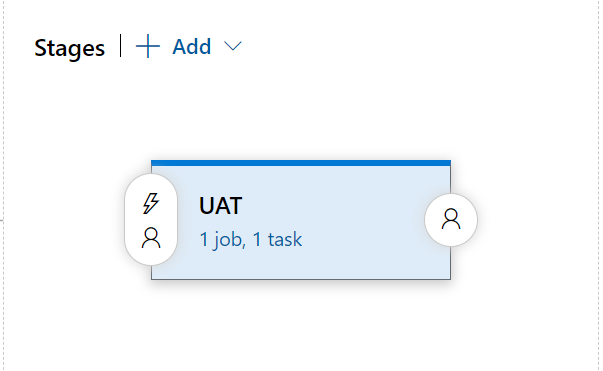
- ENVIRONMENT_VARIABLES_LIST = This is used to pass the environment specific variables to the Azure DevOps release pipeline for the UAT stage’s deployment.
- FDAZ_DEVOPS_CLOUD_ACCOUNT_CODE = This is the Cloud Account configured in FlexDeploy with PAT, to interact with DevOps.
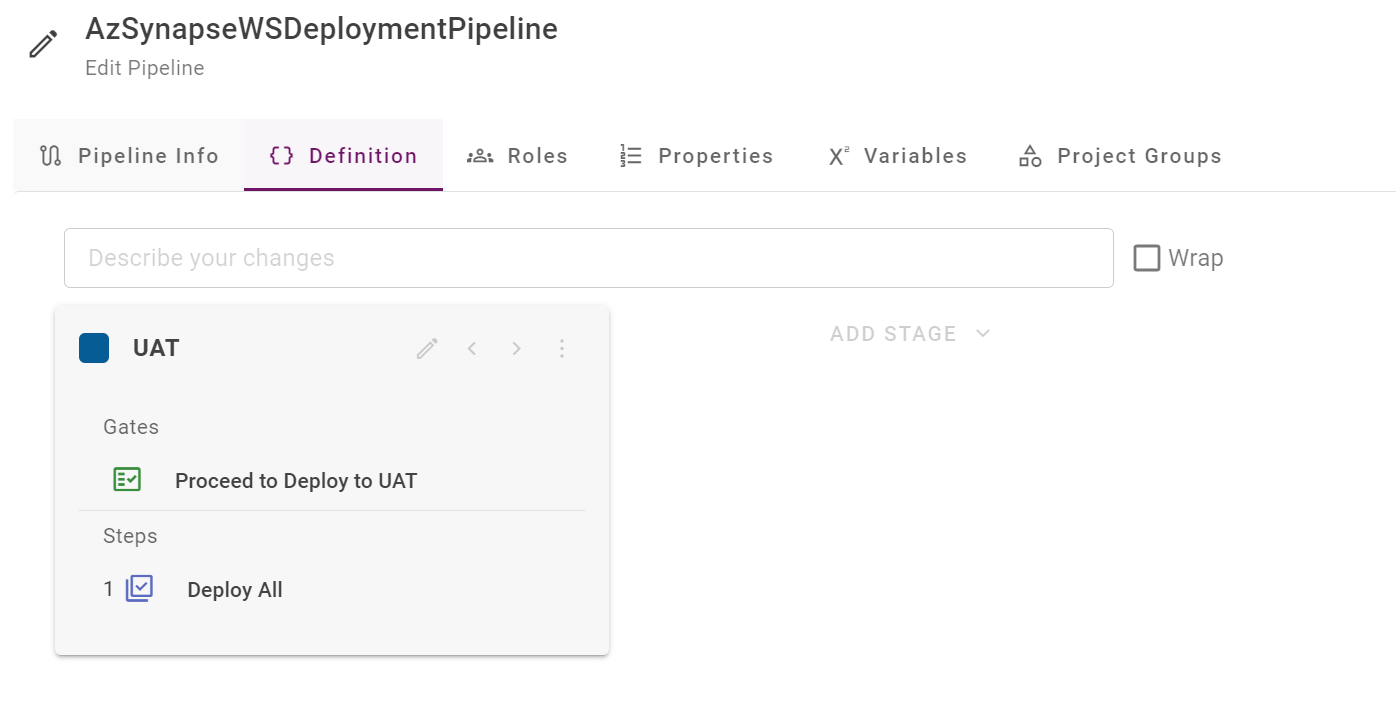
Monitoring the Execution
Click on the create button to create a snapshot