Objective
- Support for PeopleTools 8.40+
- Allows sourcing customizations from SCM repositories or development PeopleSoft instances.
- Explore PeopleSoft Package Object Types - FlexDeploy 8.0 - Confluence (atlassian.net) Reference for detailed information on supported types.
- Benefit from automated change detection during deployment.
- Enable Continuous Integration capabilities.
- Utilize flexible build options tailored for PeopleSoft.
- Seamlessly integrate with FlexDeploy Pipeline & Release features for enhanced project management.
Create a PeopleSoft Project using Blueprint
The assumption is that you have FlexDeploy installed and ready for use. When logged into the FlexDeploy, you will see the Home page. Click on the + icon top and click “Create Project” to create a new project.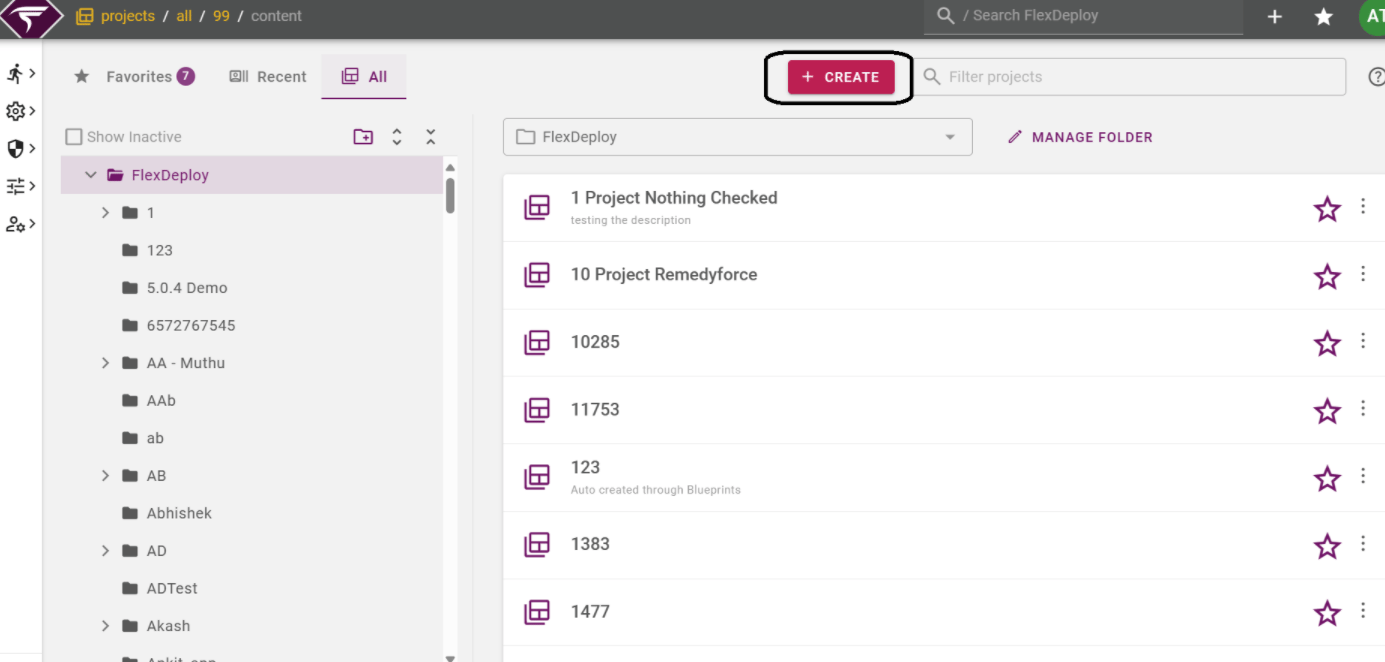
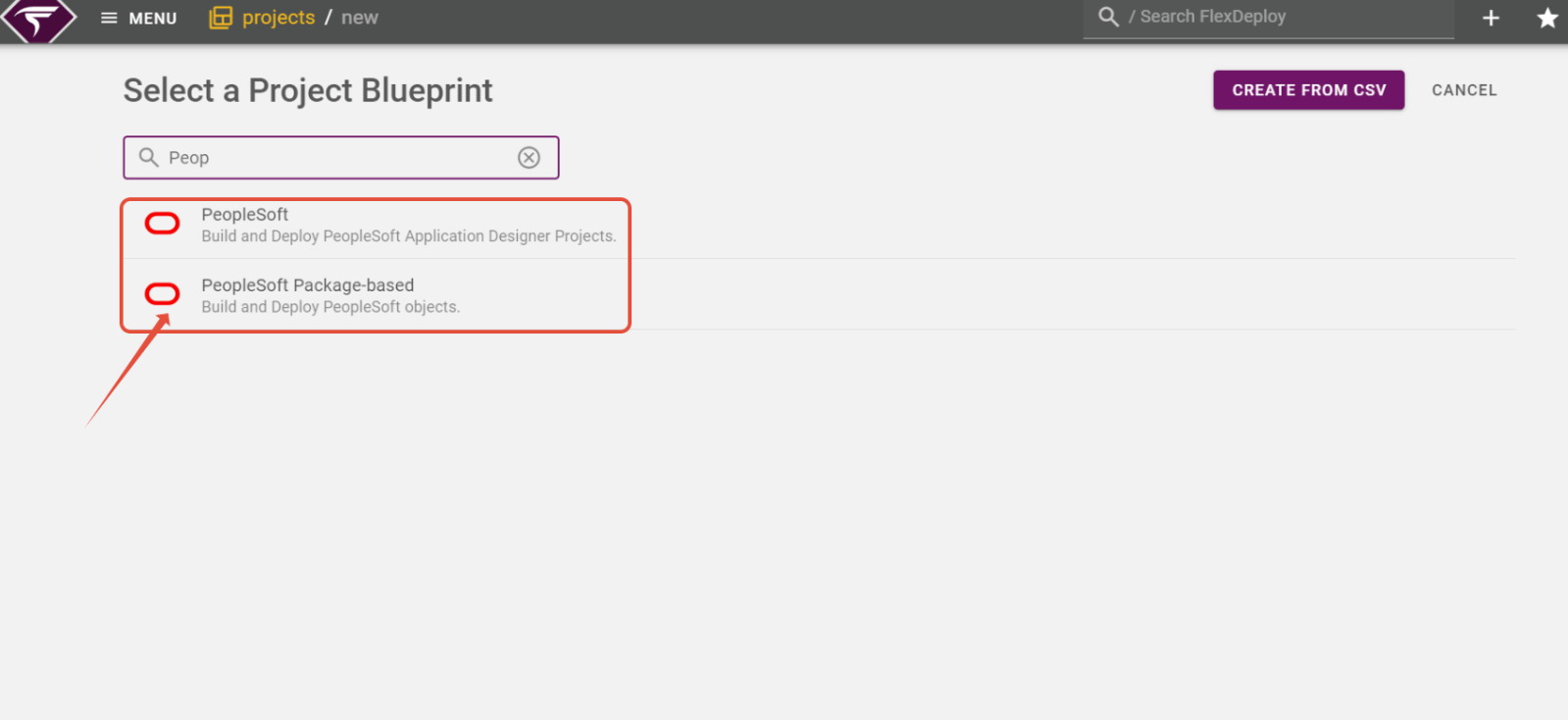
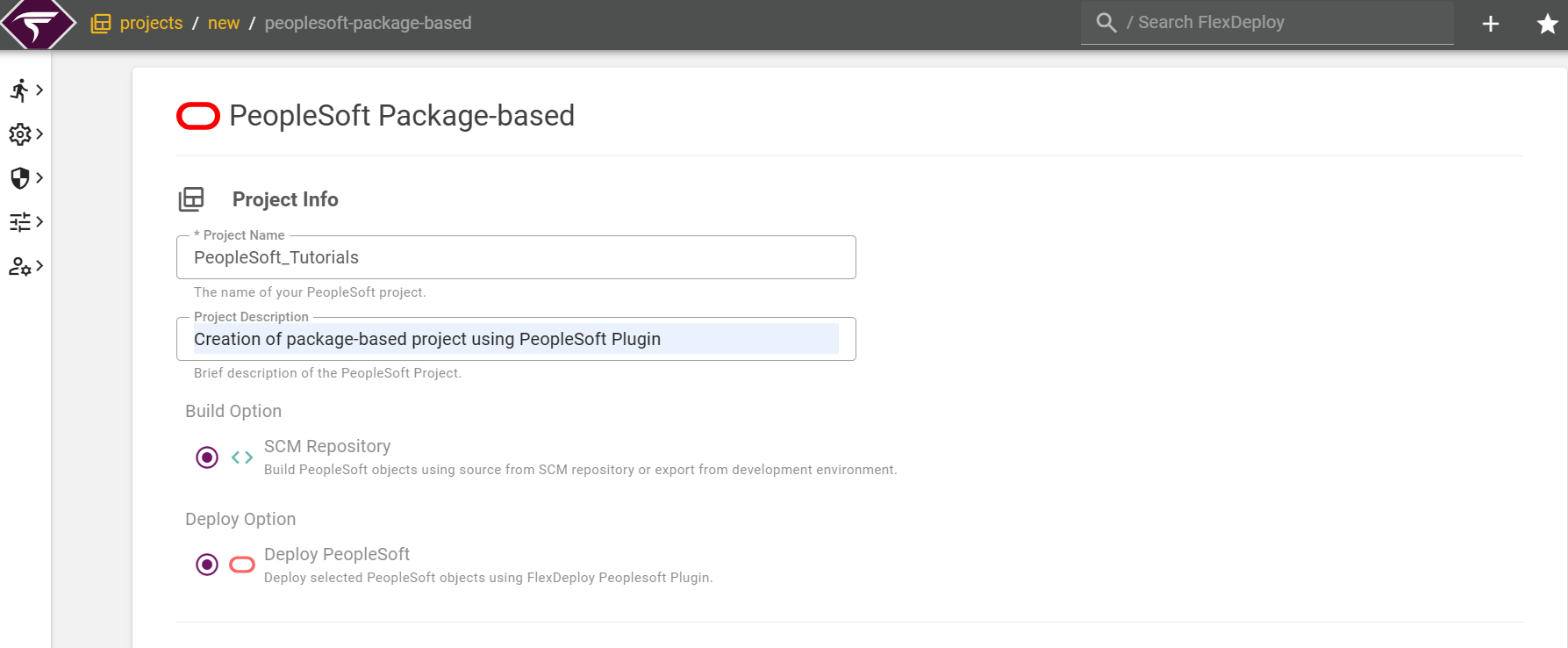
Gather Build and Deployment Information
Enter values for any workflow properties that are required for the build and deployment. In the image below, the properties required for the build need to be filled. Select the target endpoint that the build and deployment should execute on. The below image shows the Build-Development Fields.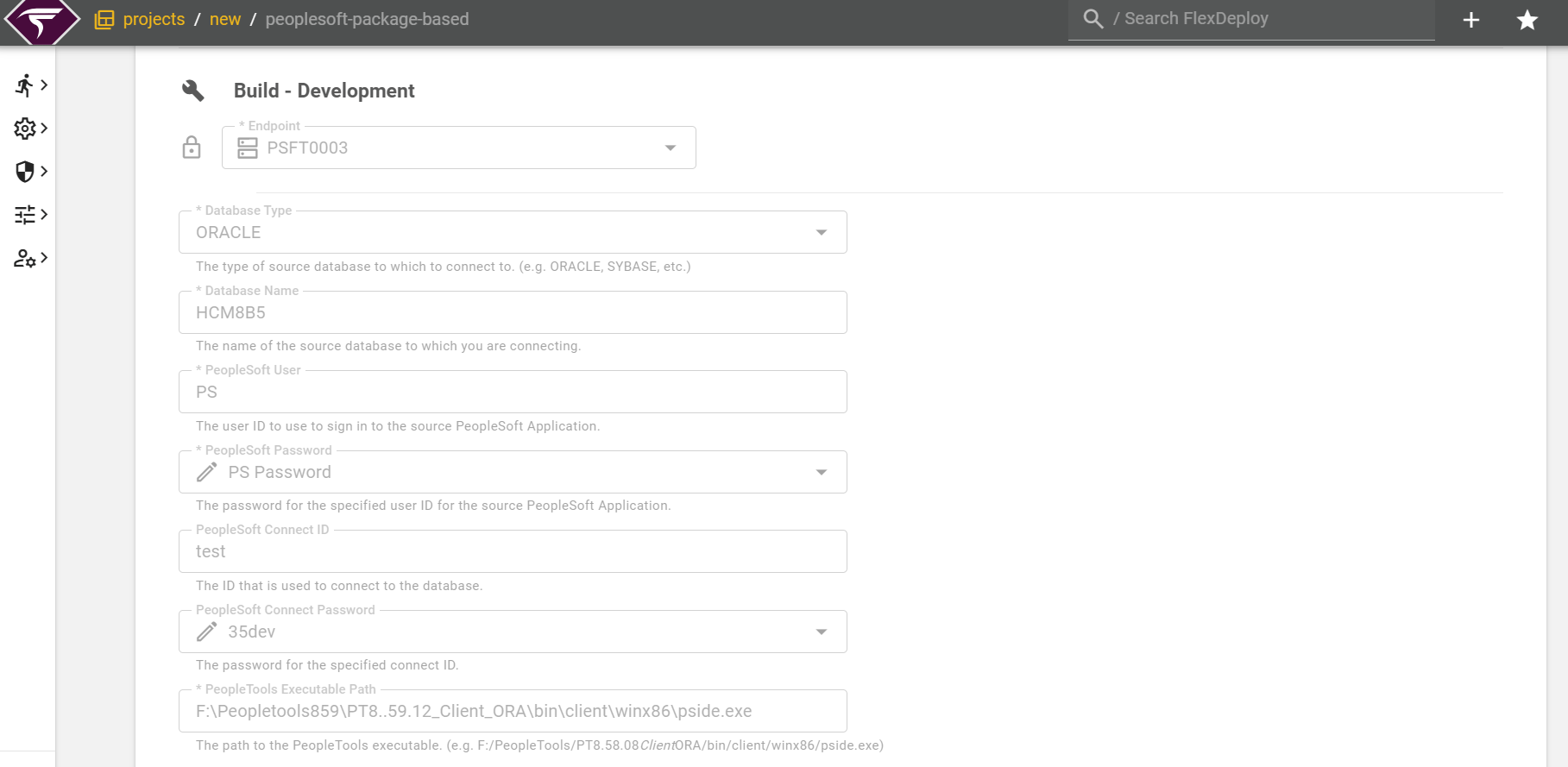
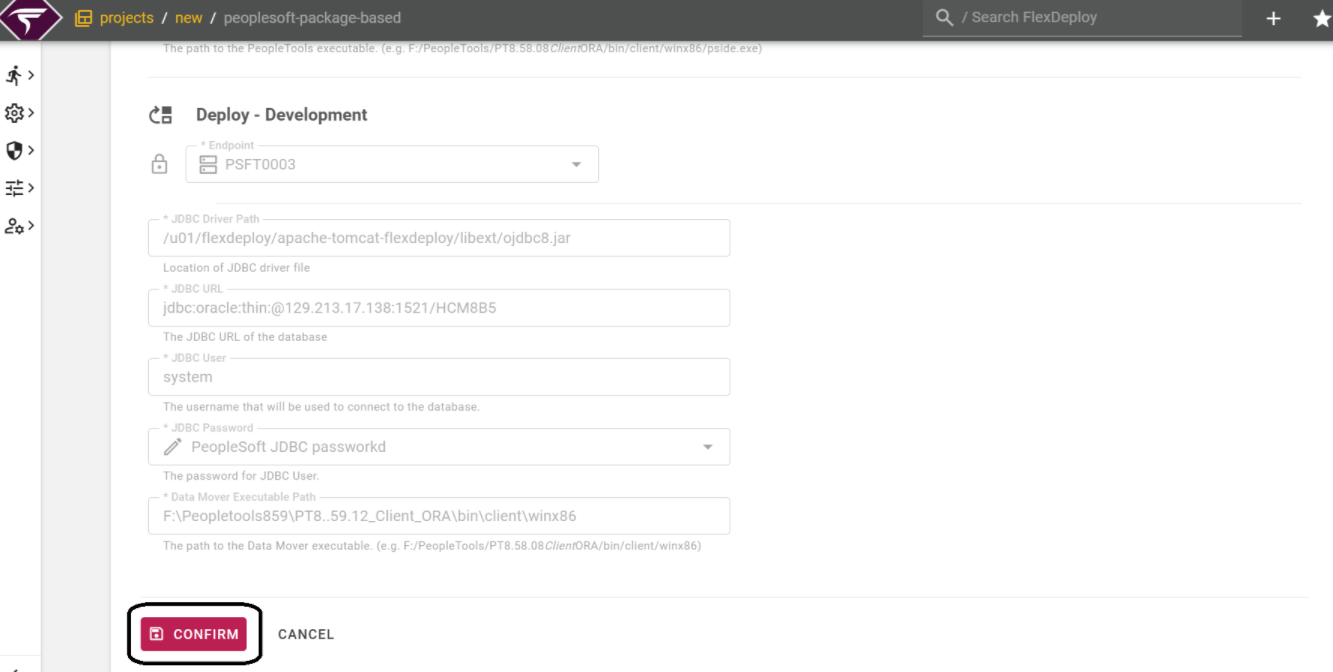
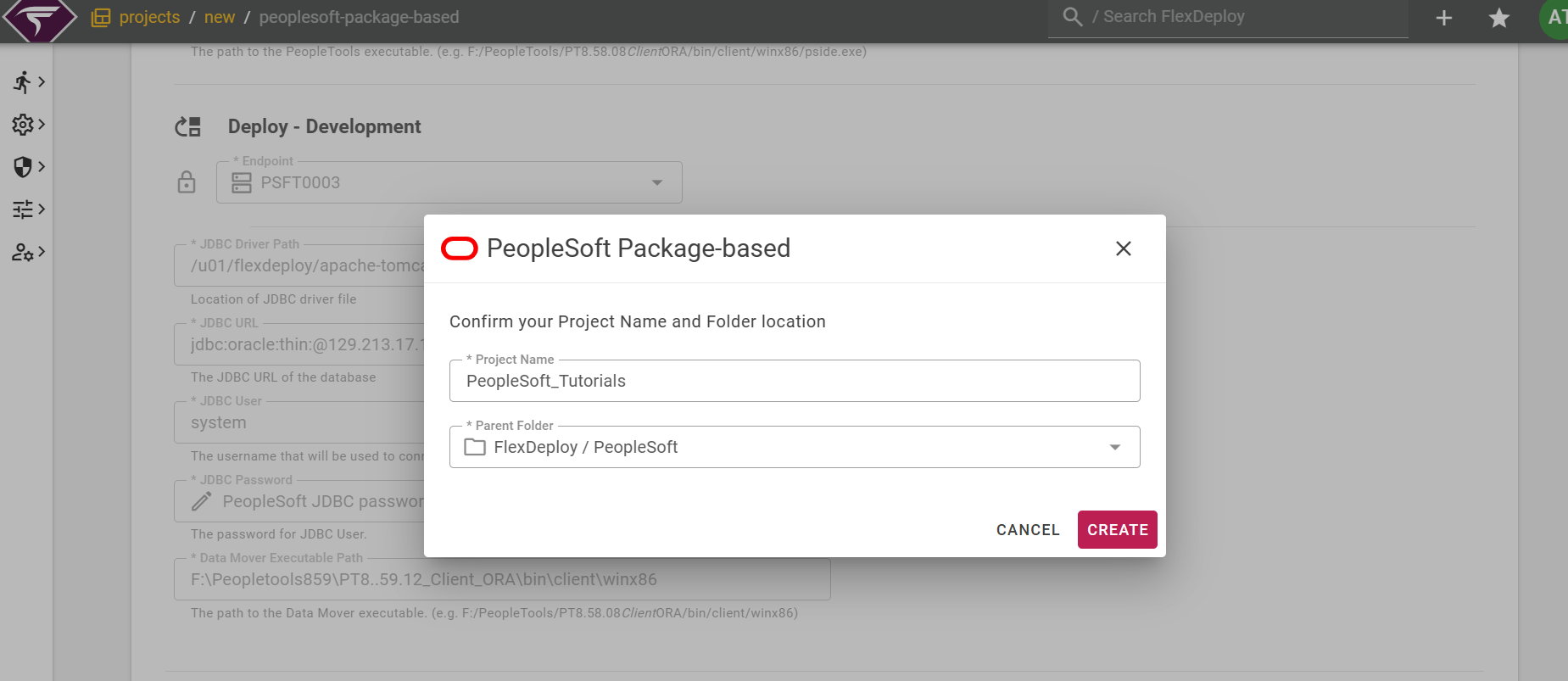
General Configuration
After successful configuration, open the created project, click on “Configuration,” and select “General Configuration.”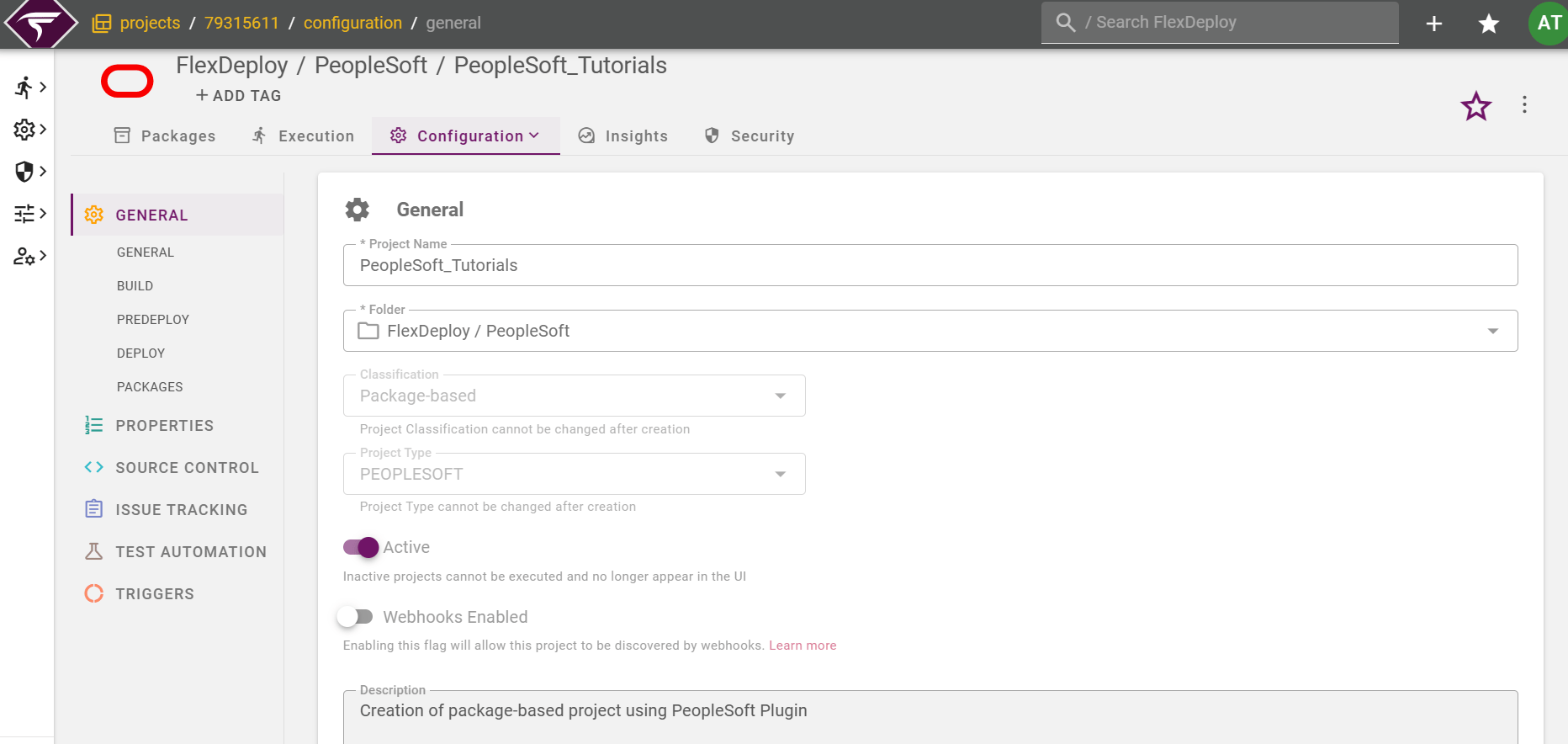
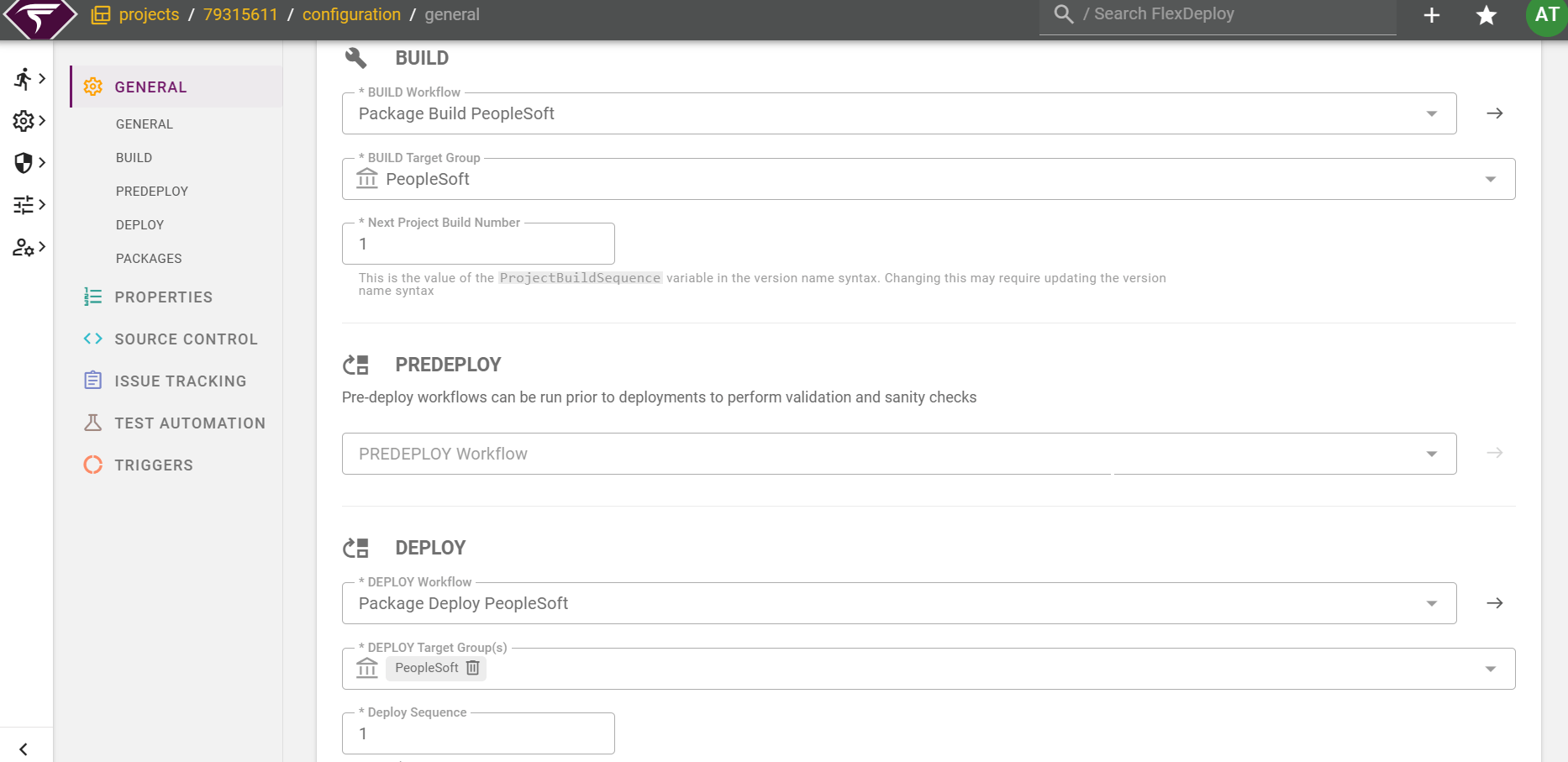
Build and Deploy Workflows
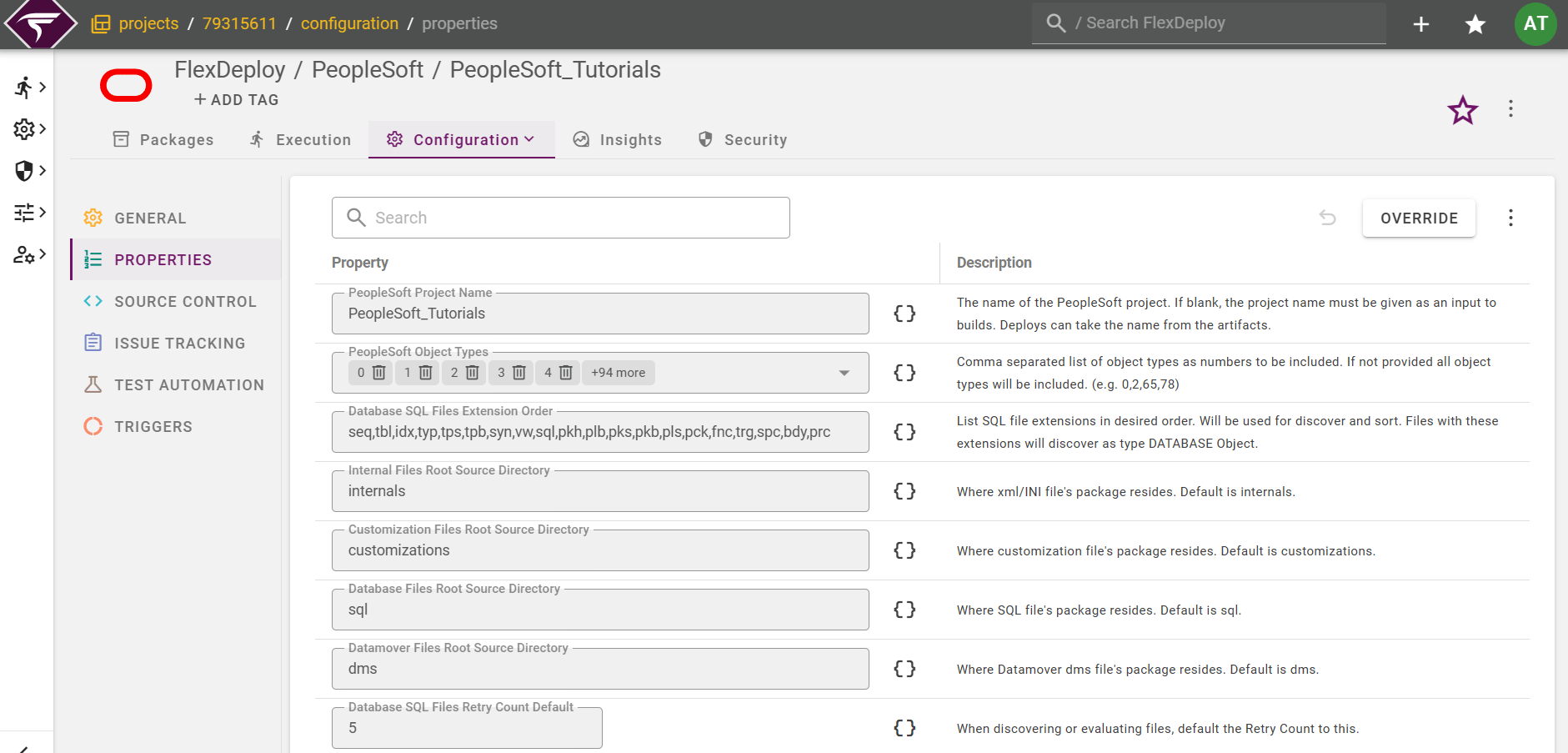
Project Properties
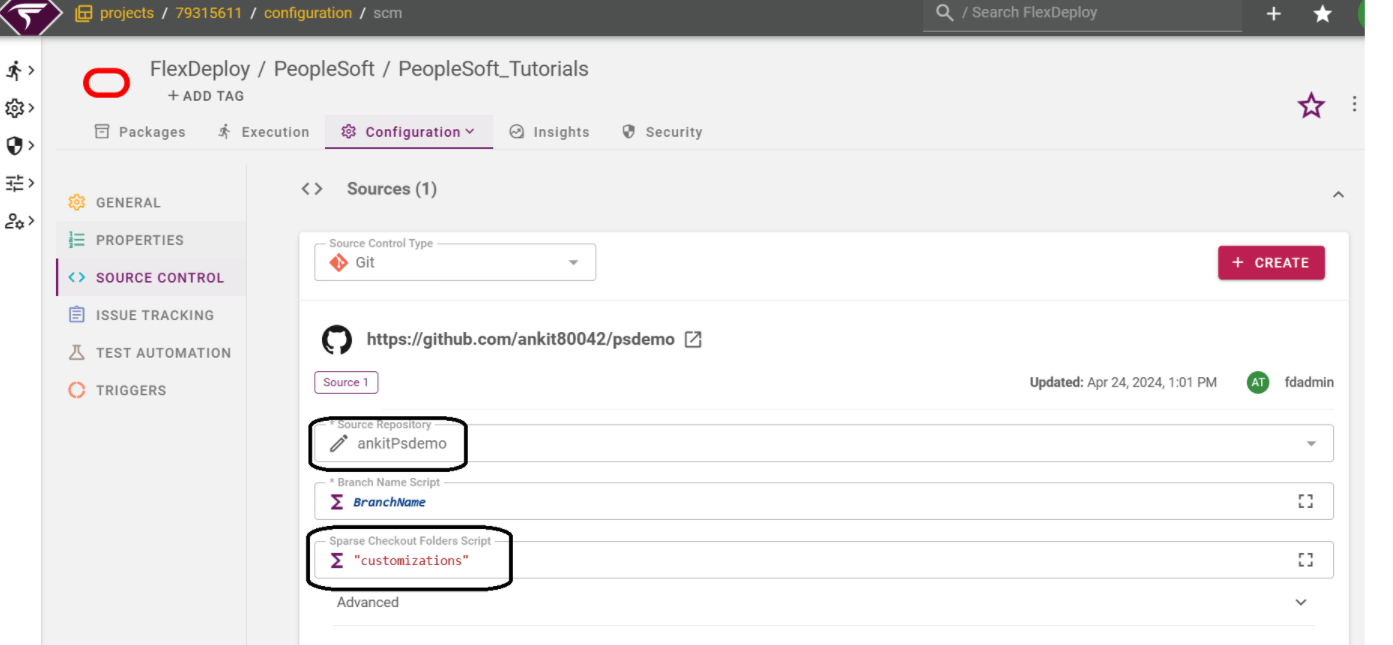
Source Control
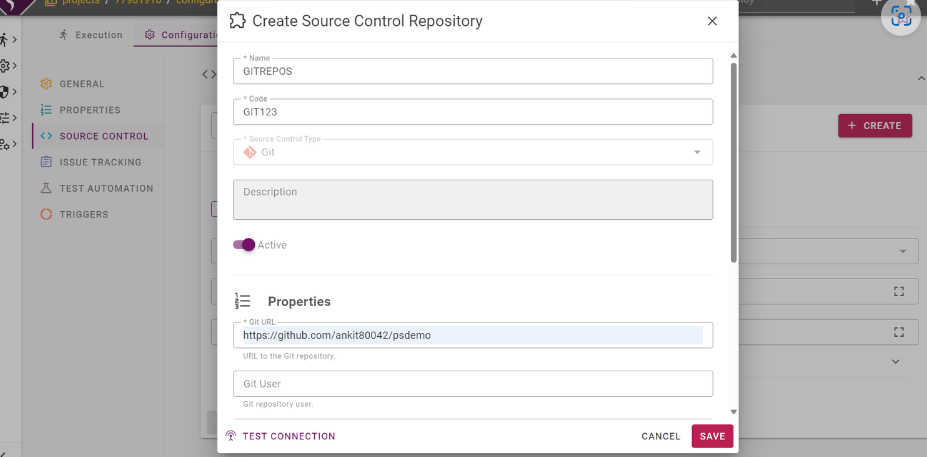
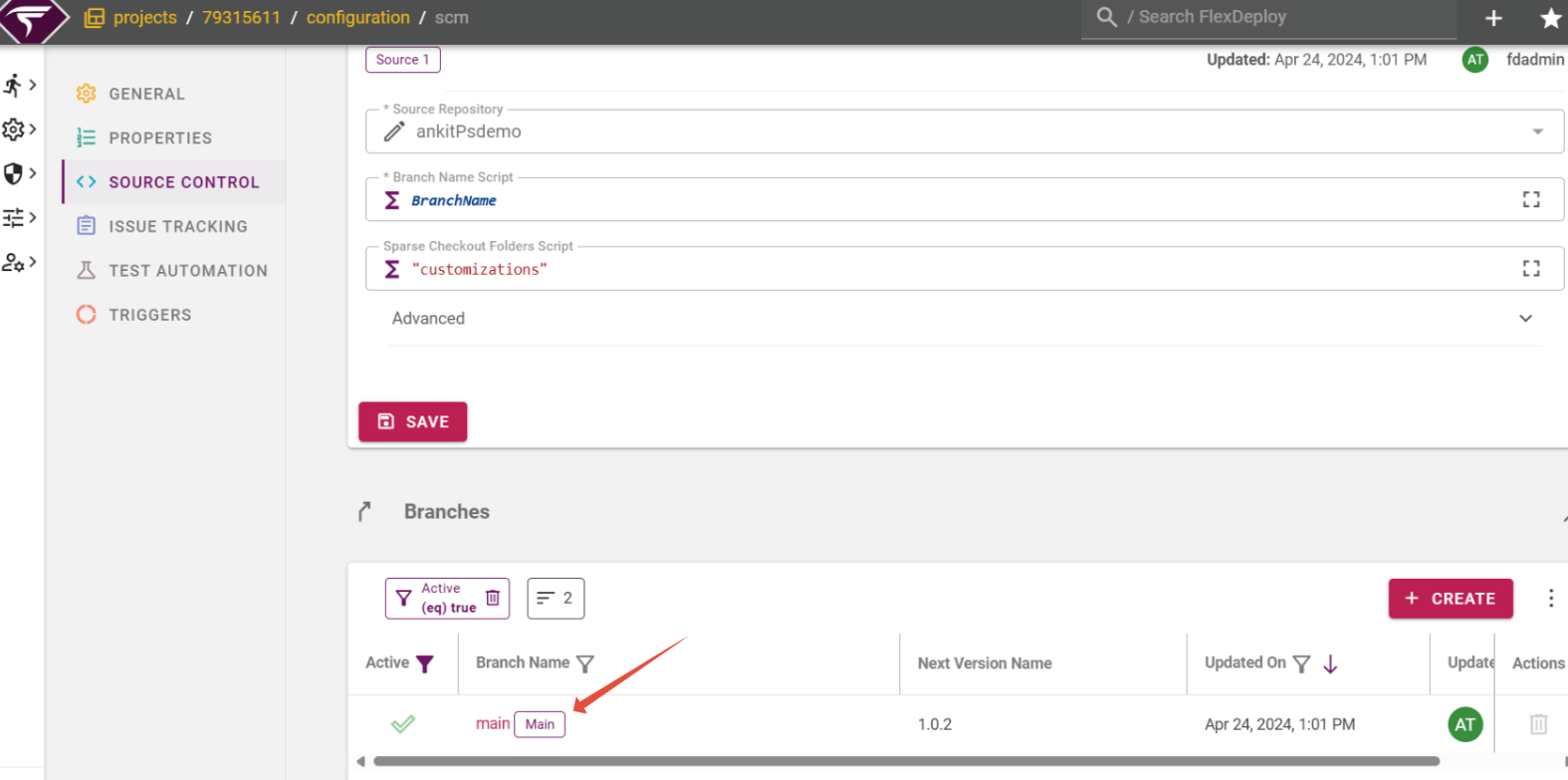
Click on the source repository dropdown. If you have already created a connection to your source code repository, select it from the list. Enter the sparse checkout folder, if any.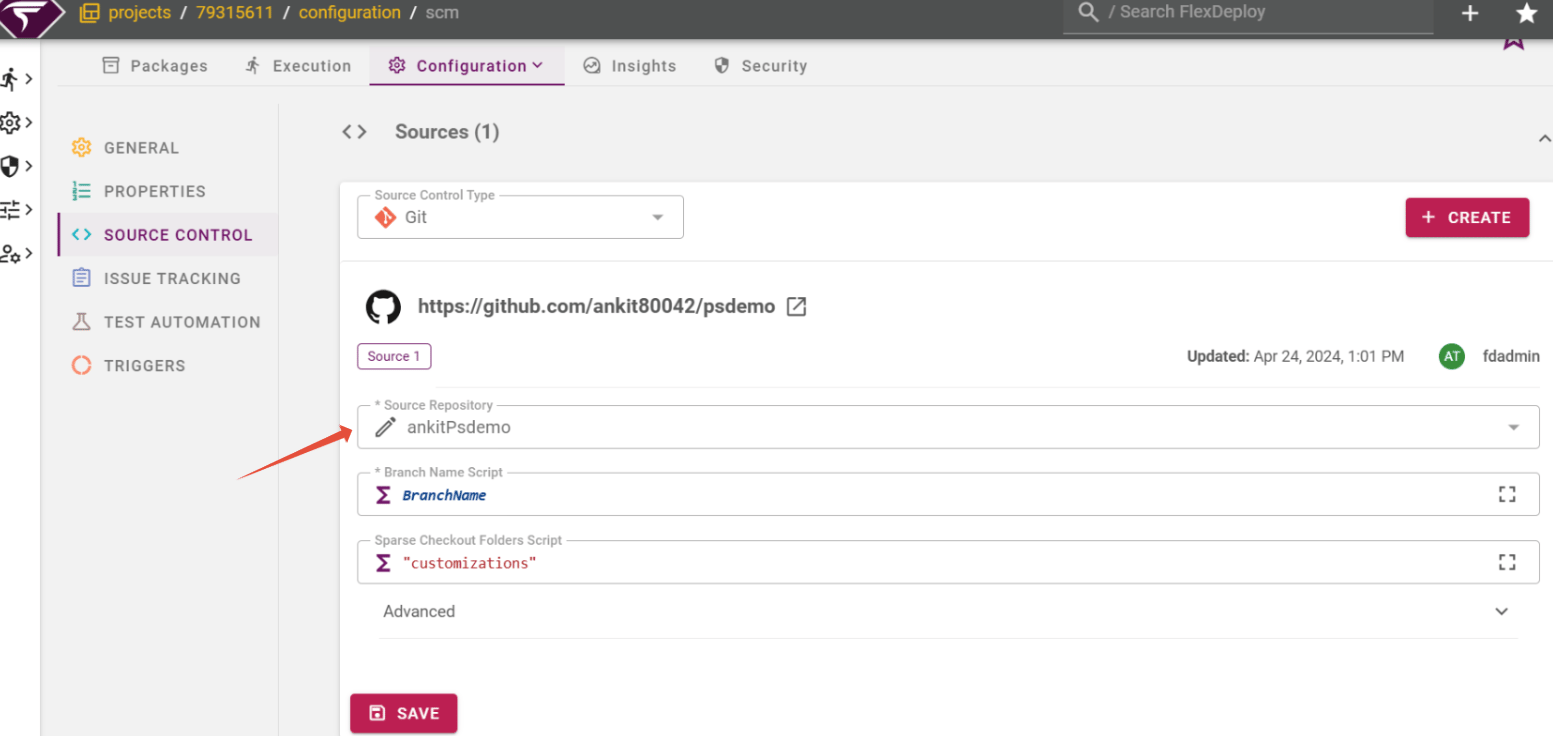

Branch Name
Topology
Navigate to the Topology from the Menu. The Page with the Target Groups, Environments, and Endpoints sections will be displayed. Choose a Target Group on the left. You will see a list of Environments on the right with colored circles representing each Target.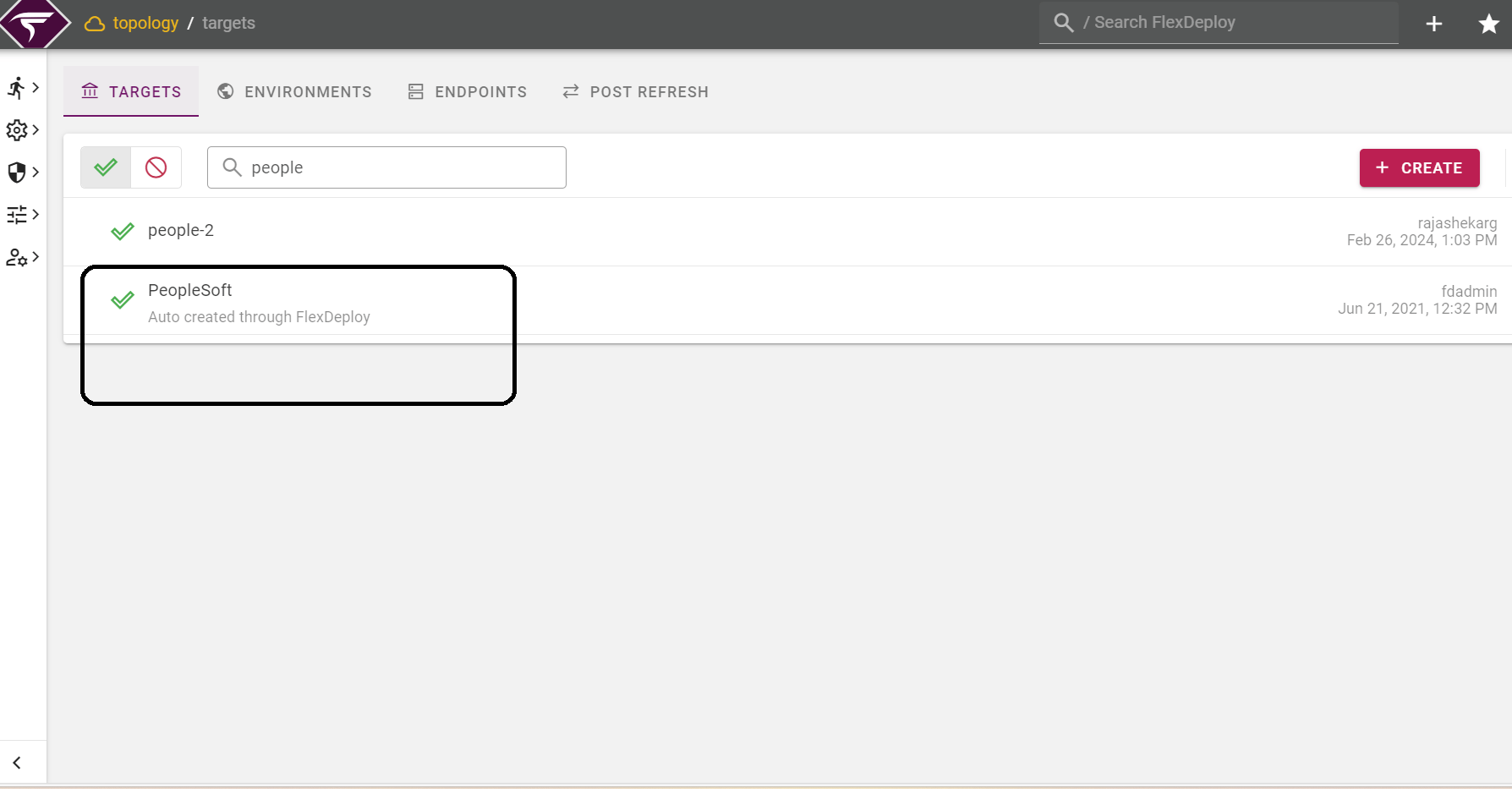
- RED - The Endpoint is not configured
- YELLOW - some of the required properties are not set,
- GREEN - all required properties are set and the Endpoint is configured.
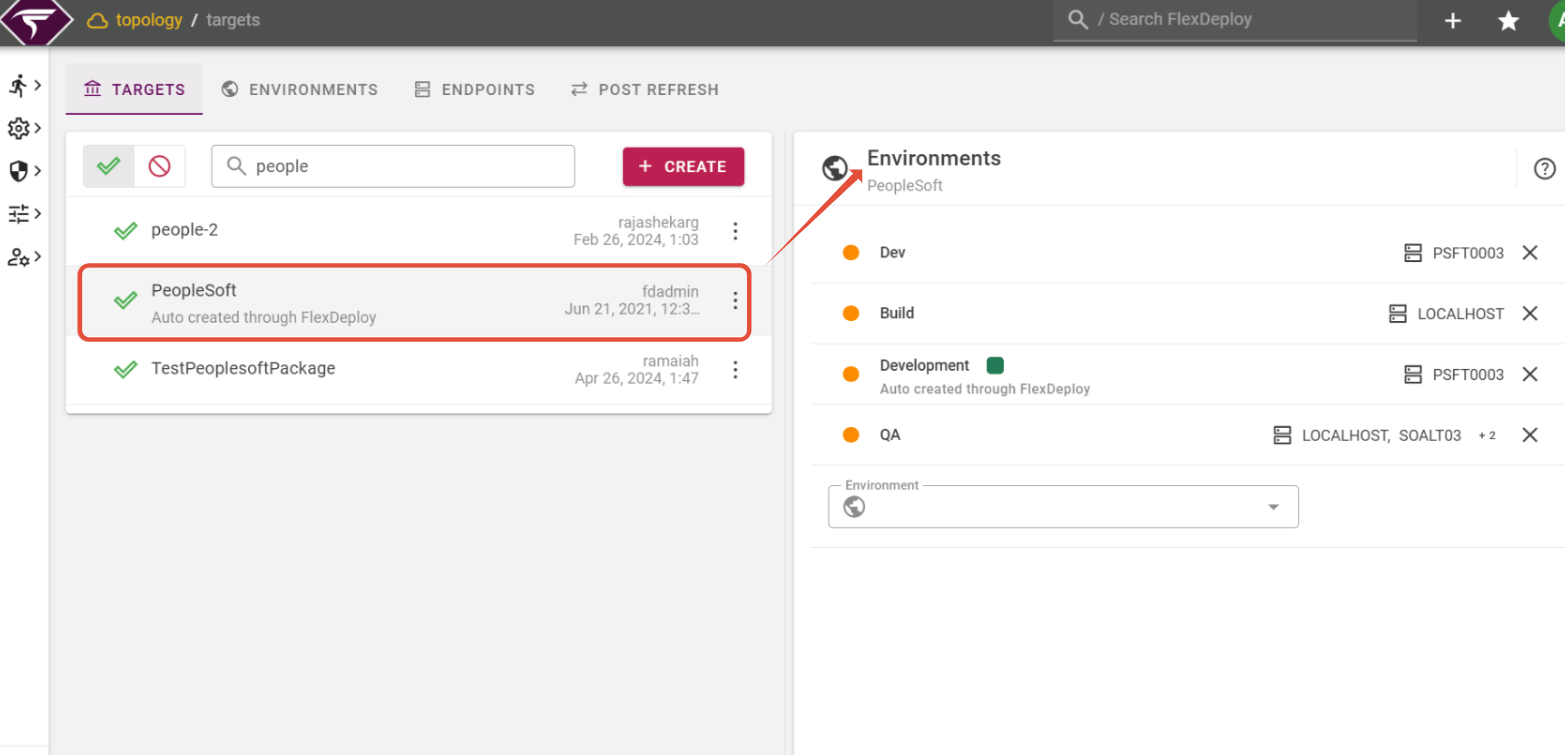
Targets Properties
Clicking the environment row for Development allows modifying the Endpoint and properties. We can select the endpoint from the Map Endpoint option and Resource Types from the Resource Types option from the below screen.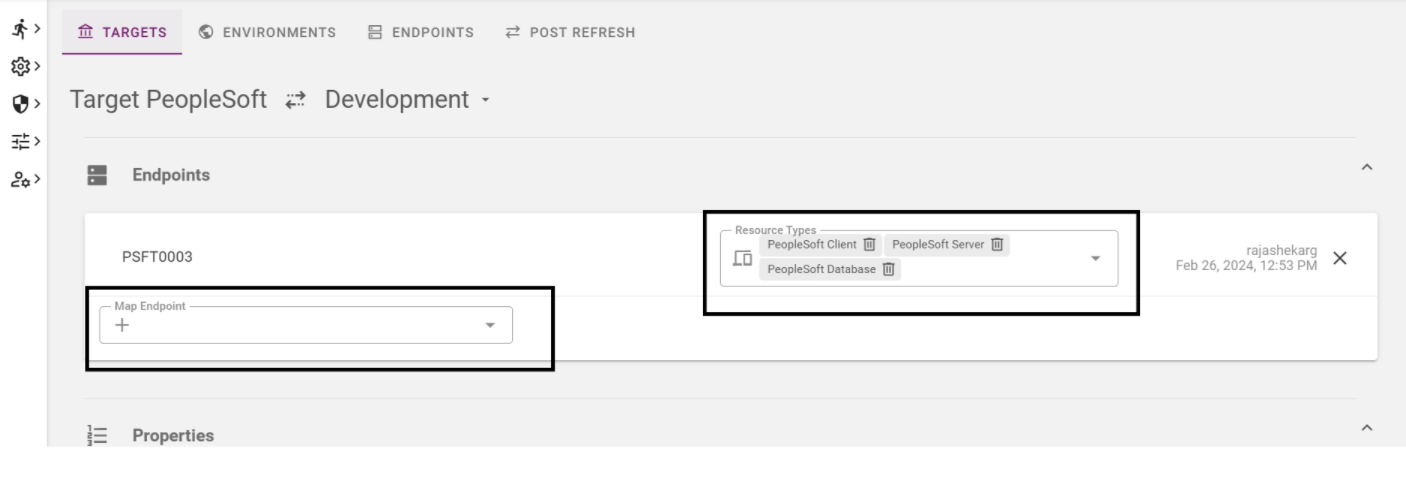
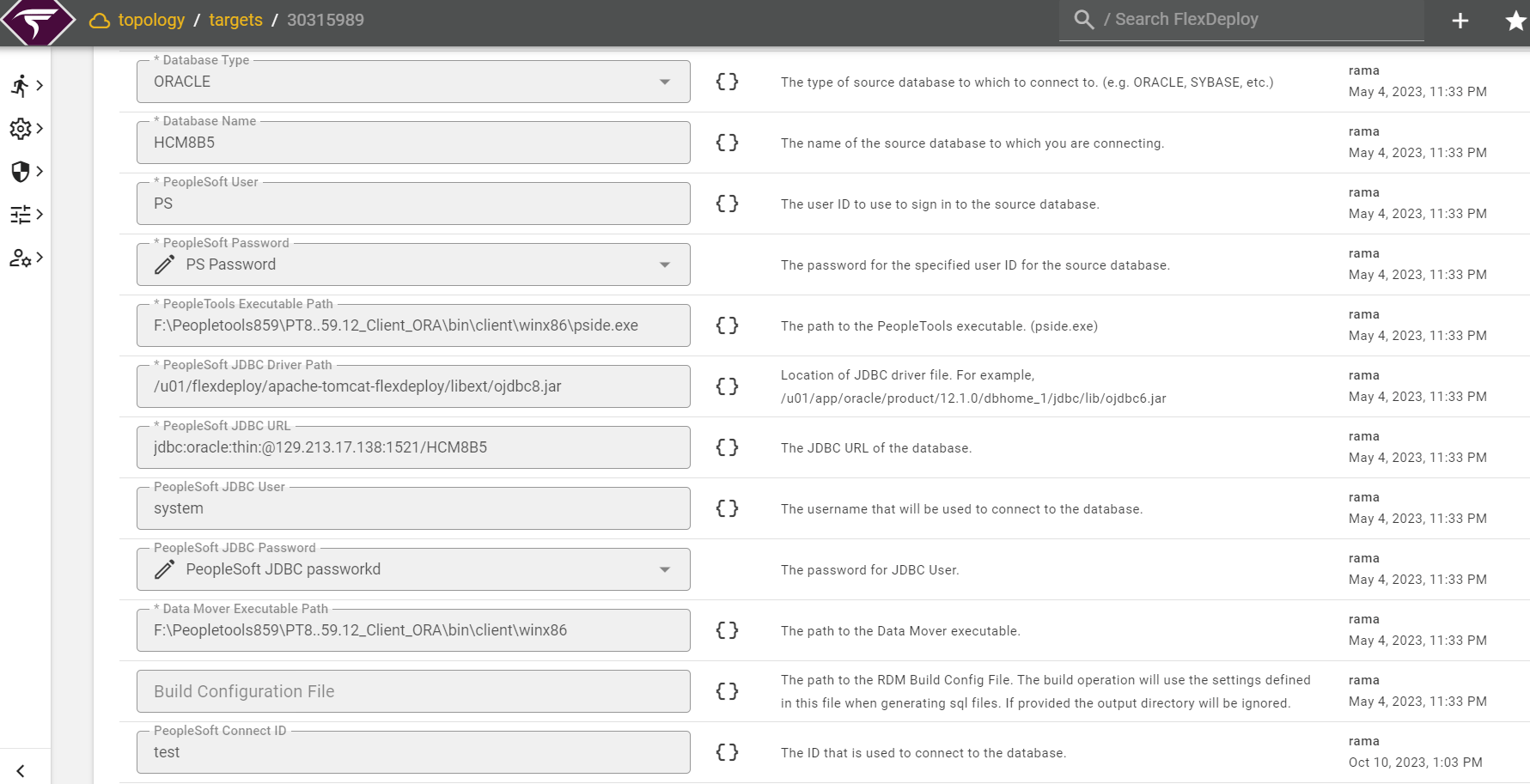
Endpoint Properties
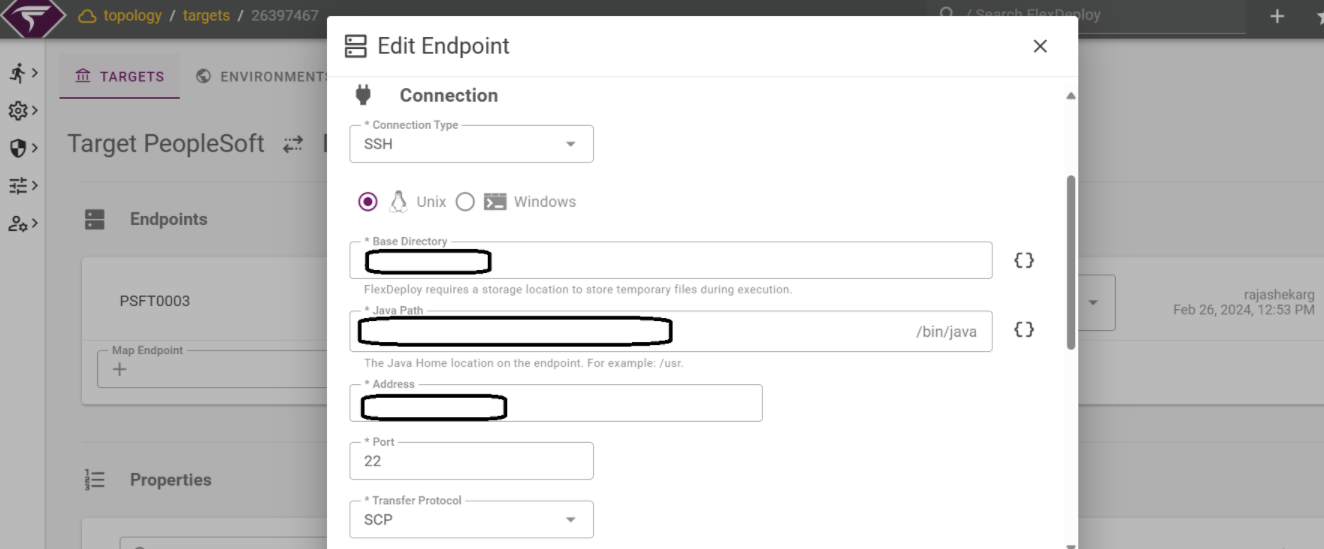
Populate the files
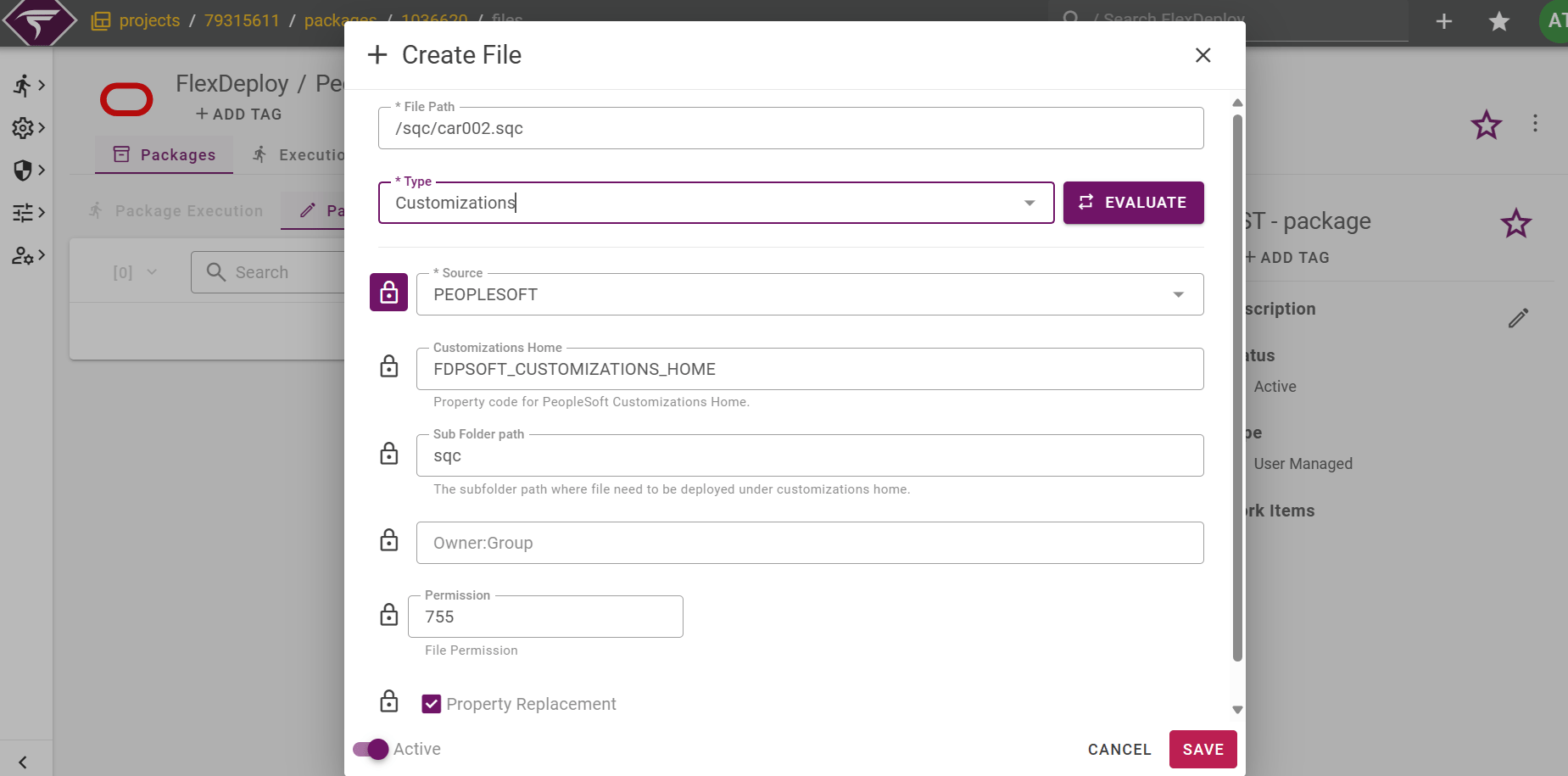
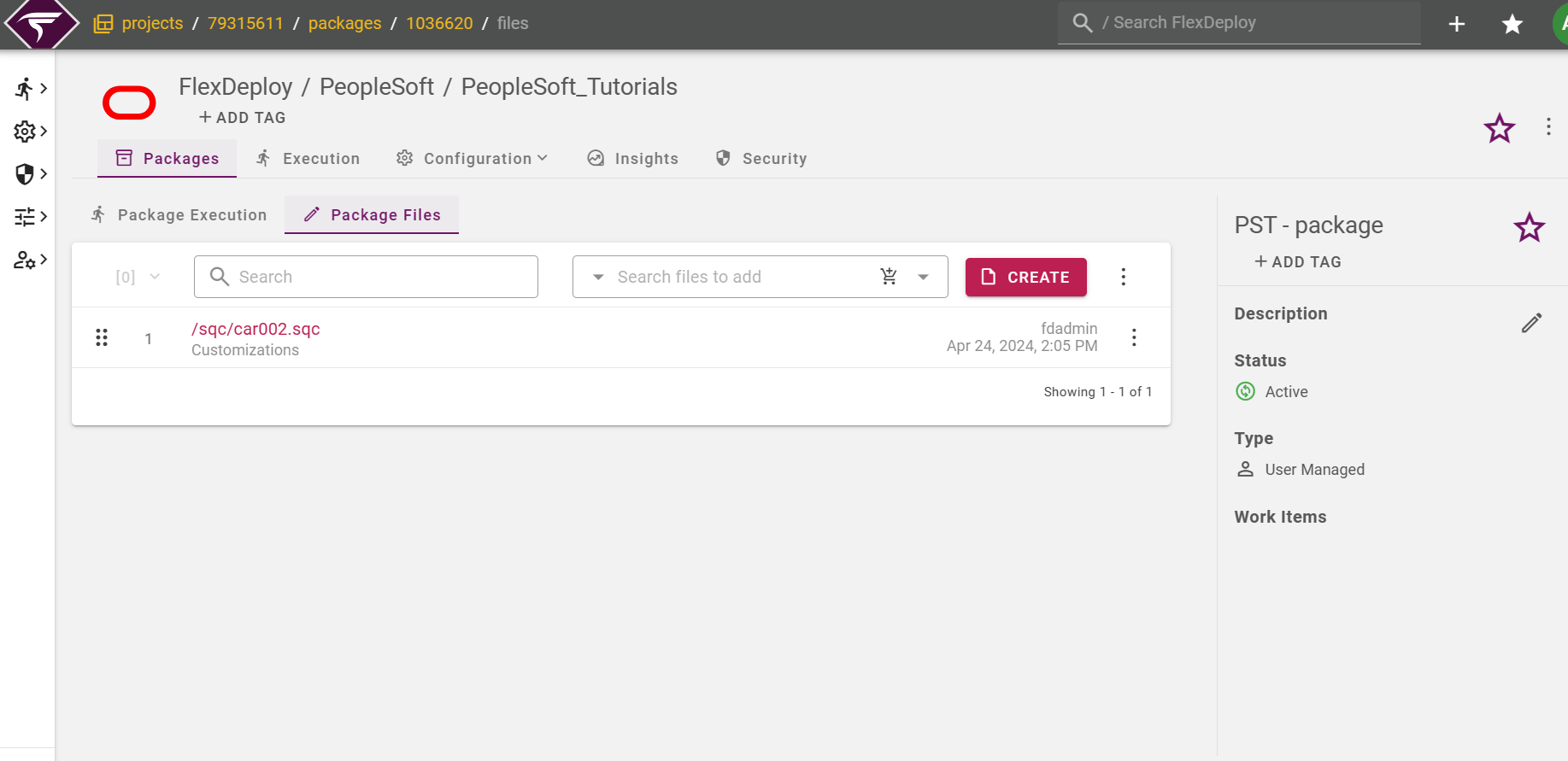
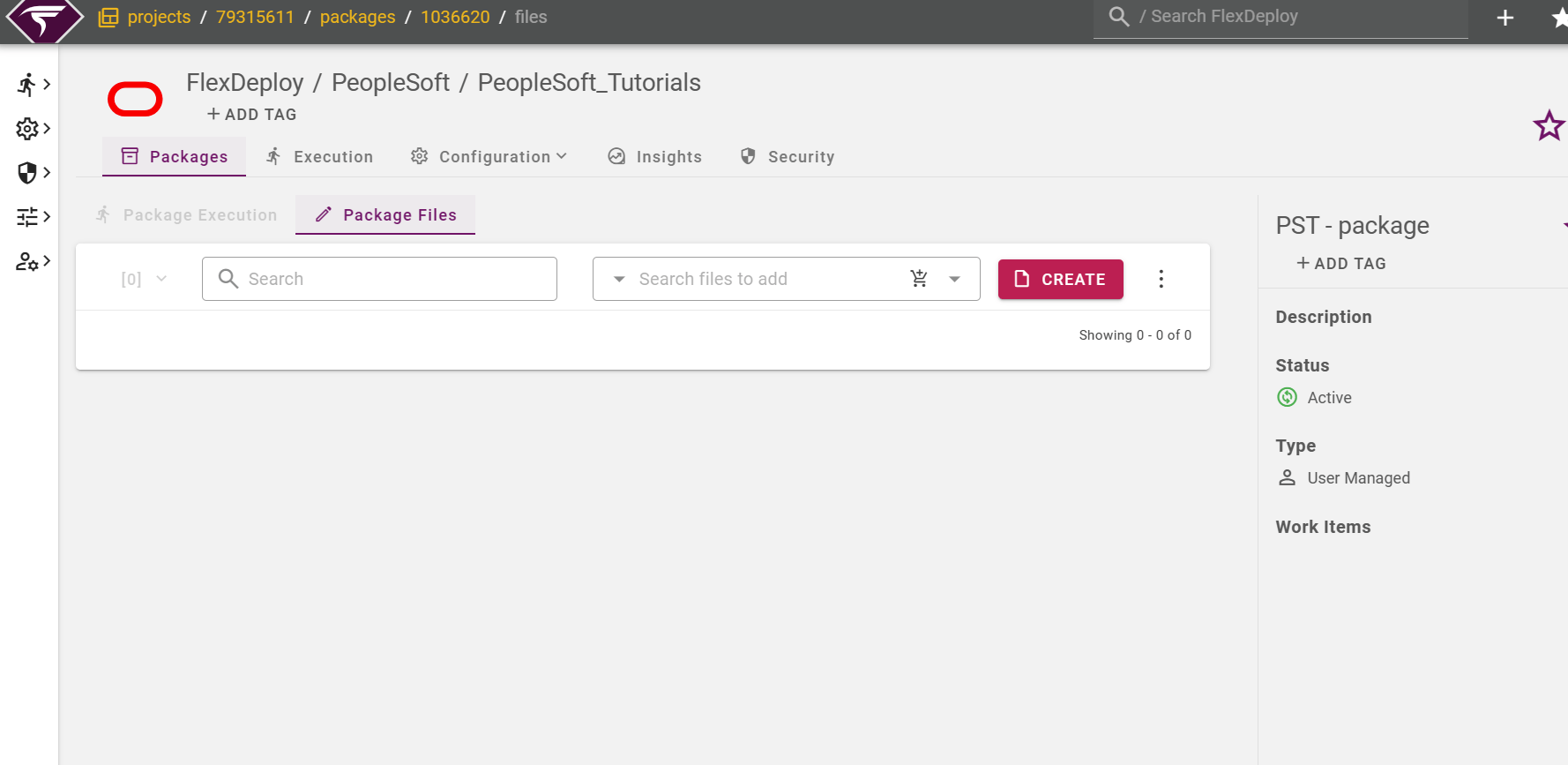
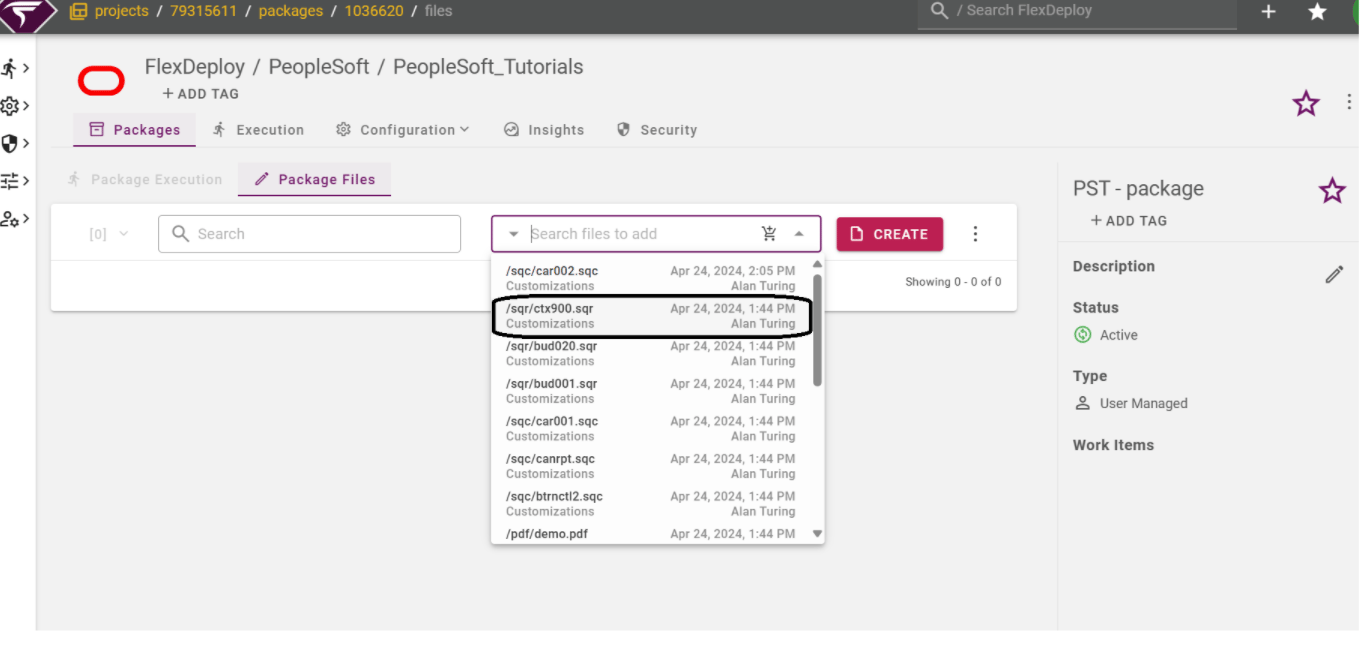
For the package-based project click on File Catalog under the Package screen. In the File Catalog, there is a discover files option which helps to fetch files from the SCM repository,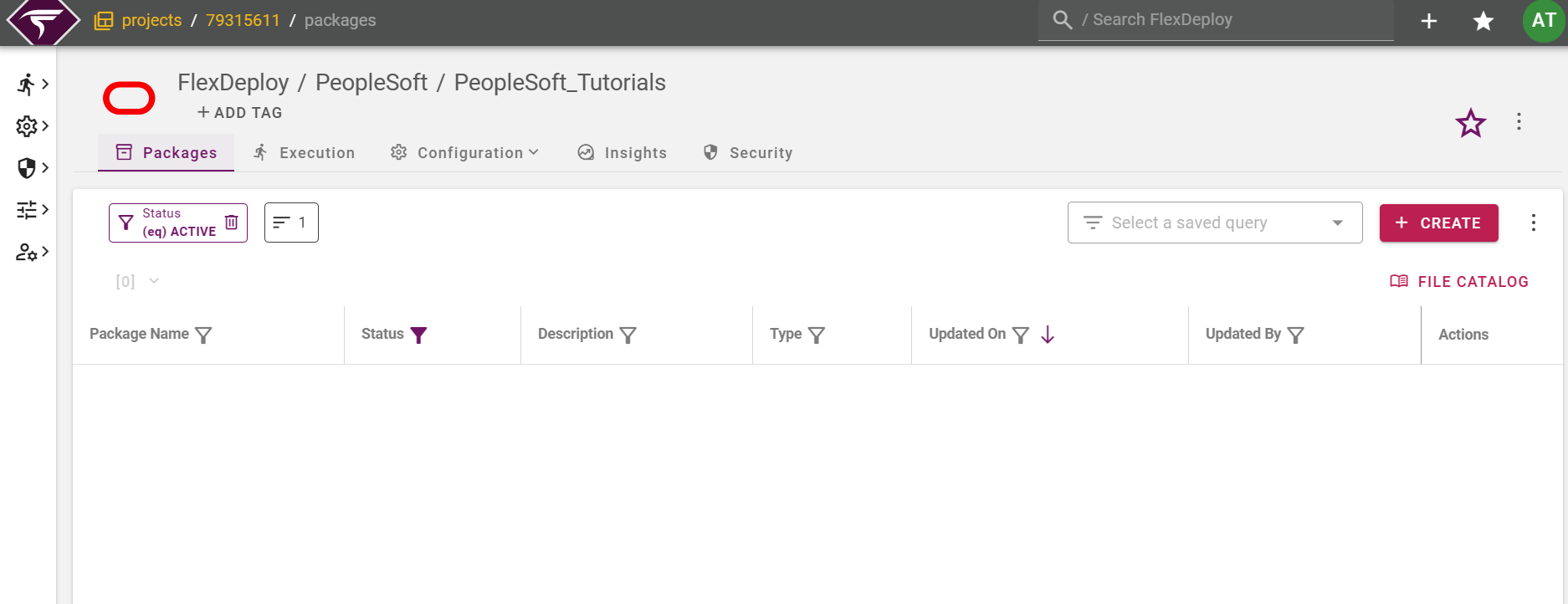
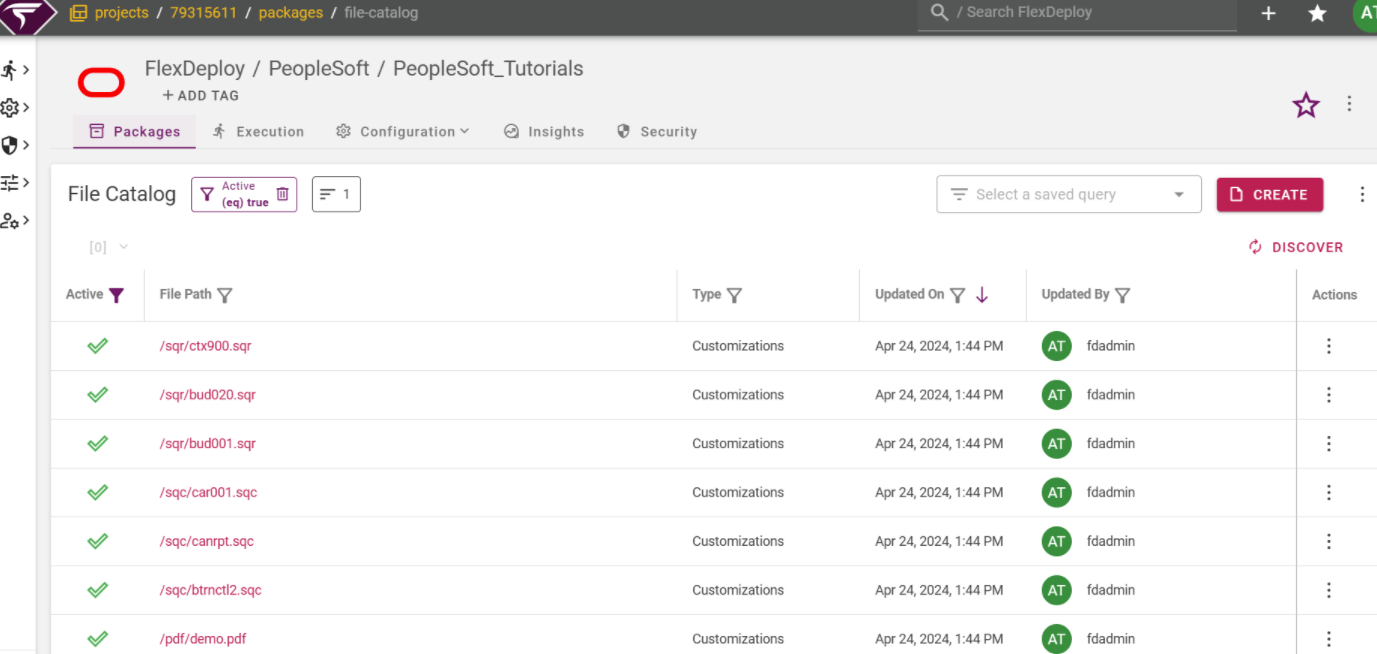
Create a Package
On the package screen, click on the create button to create a new package. Enter the package name and select the package type. We select the “User Managed” in our use case.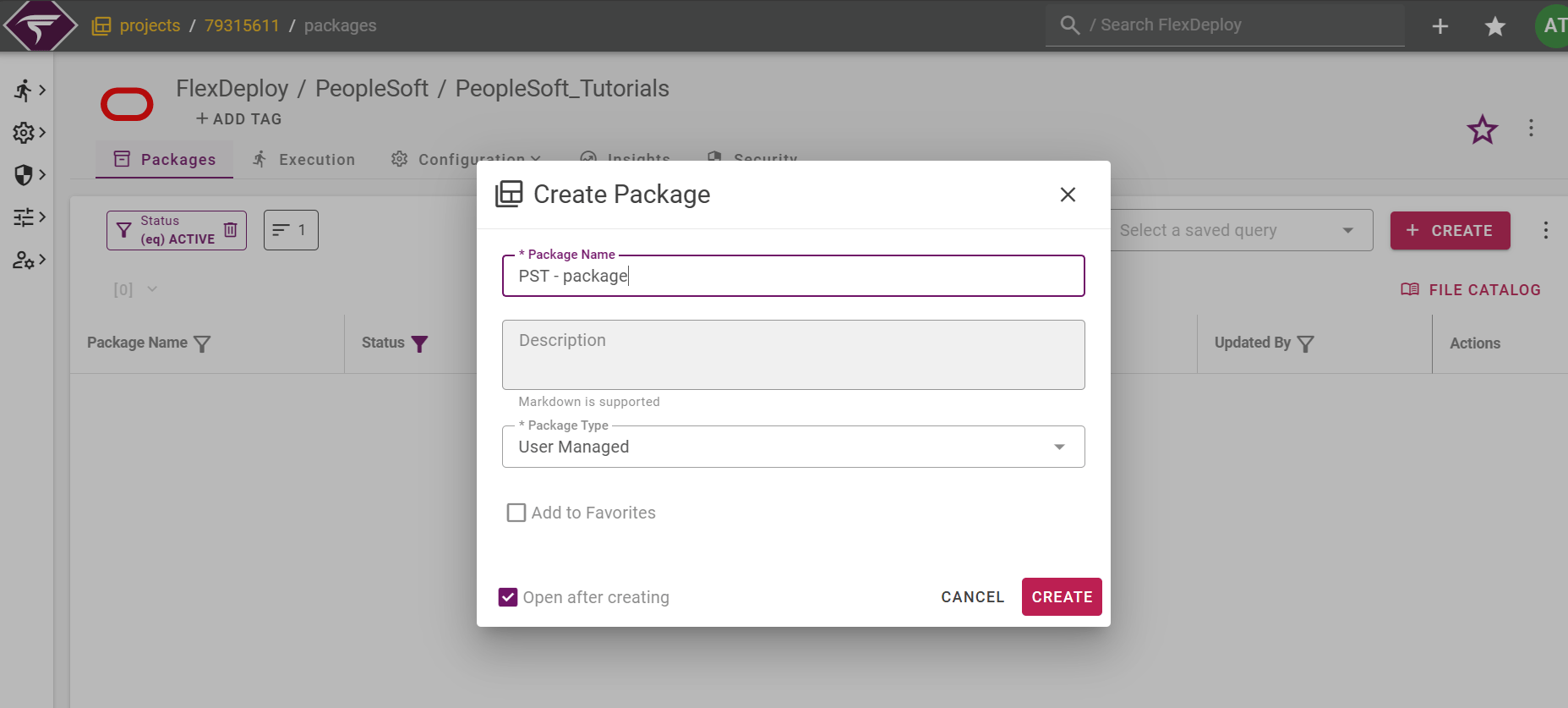
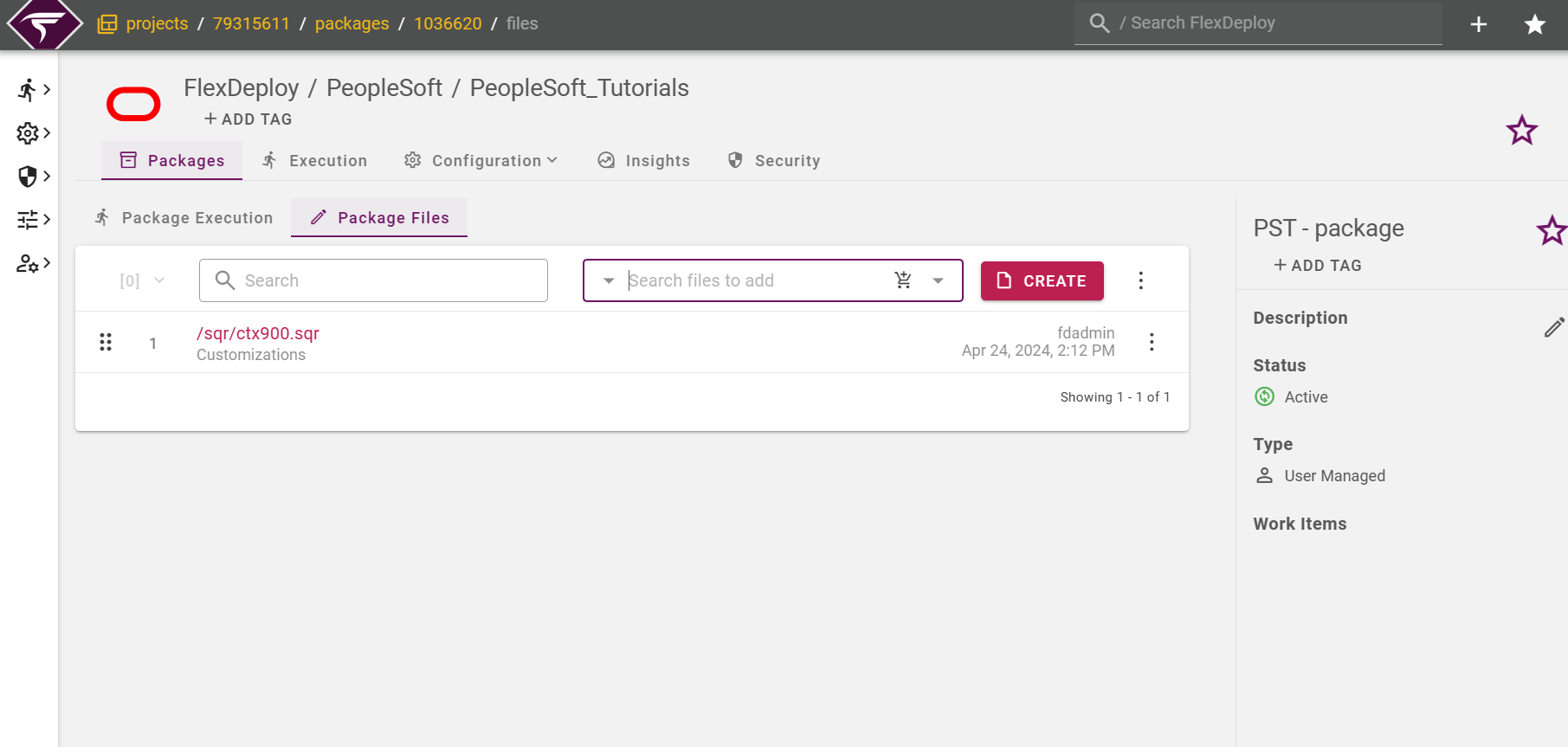
Building Package
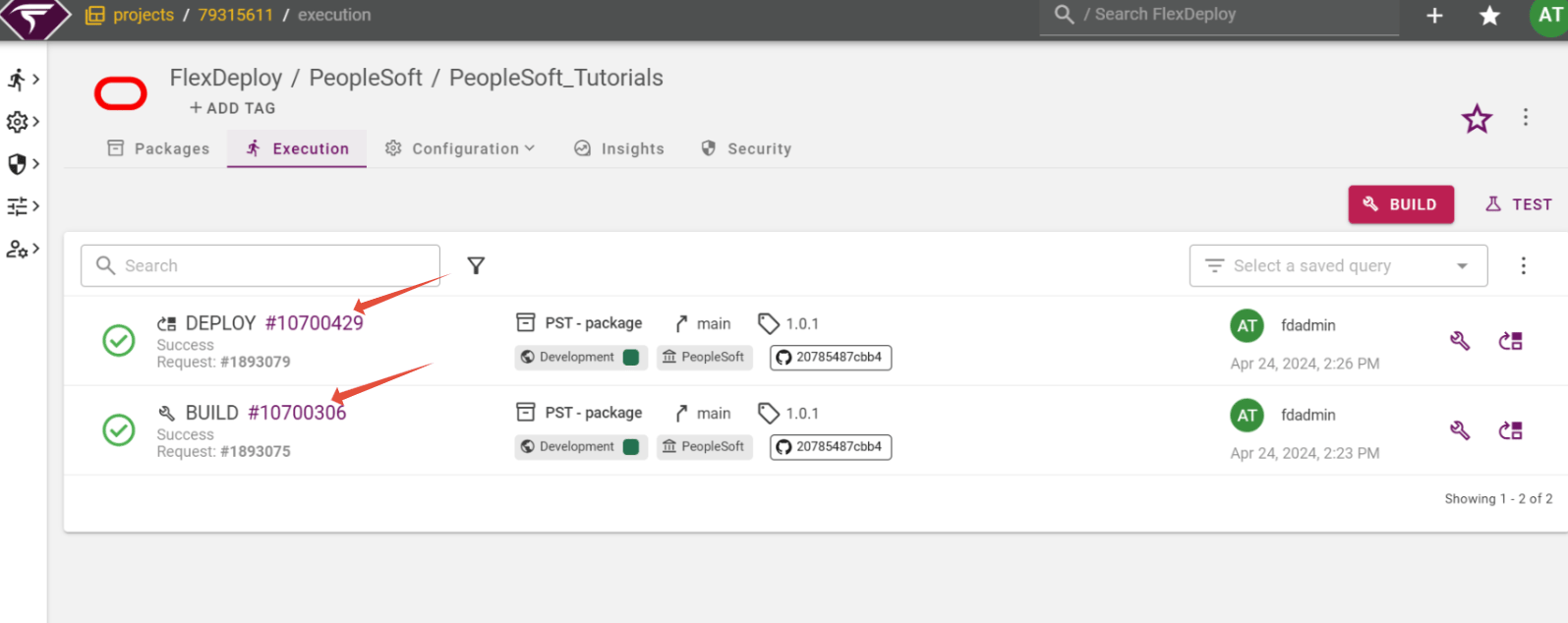
Click on the Execution tab to submit the build request for that package. Click on Build.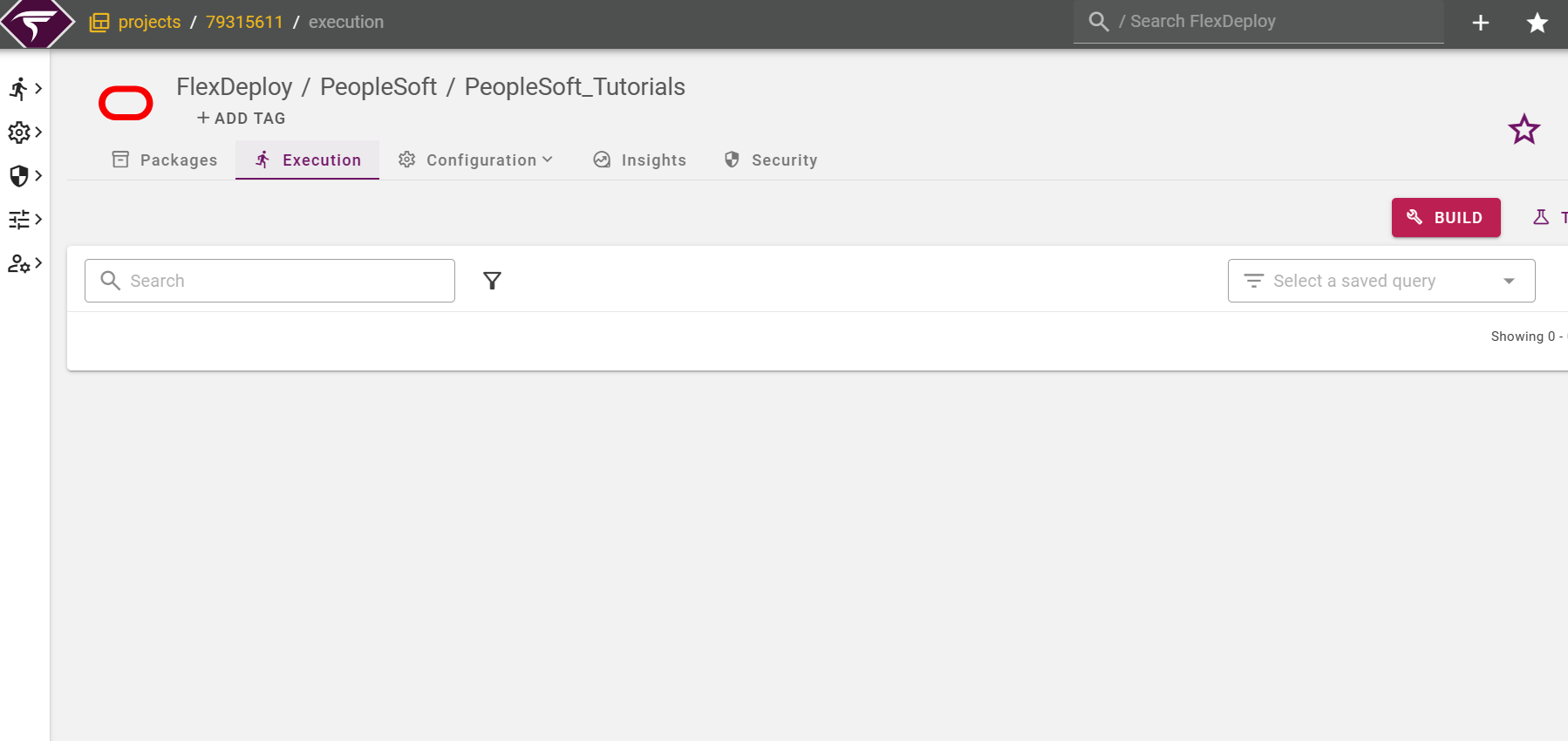
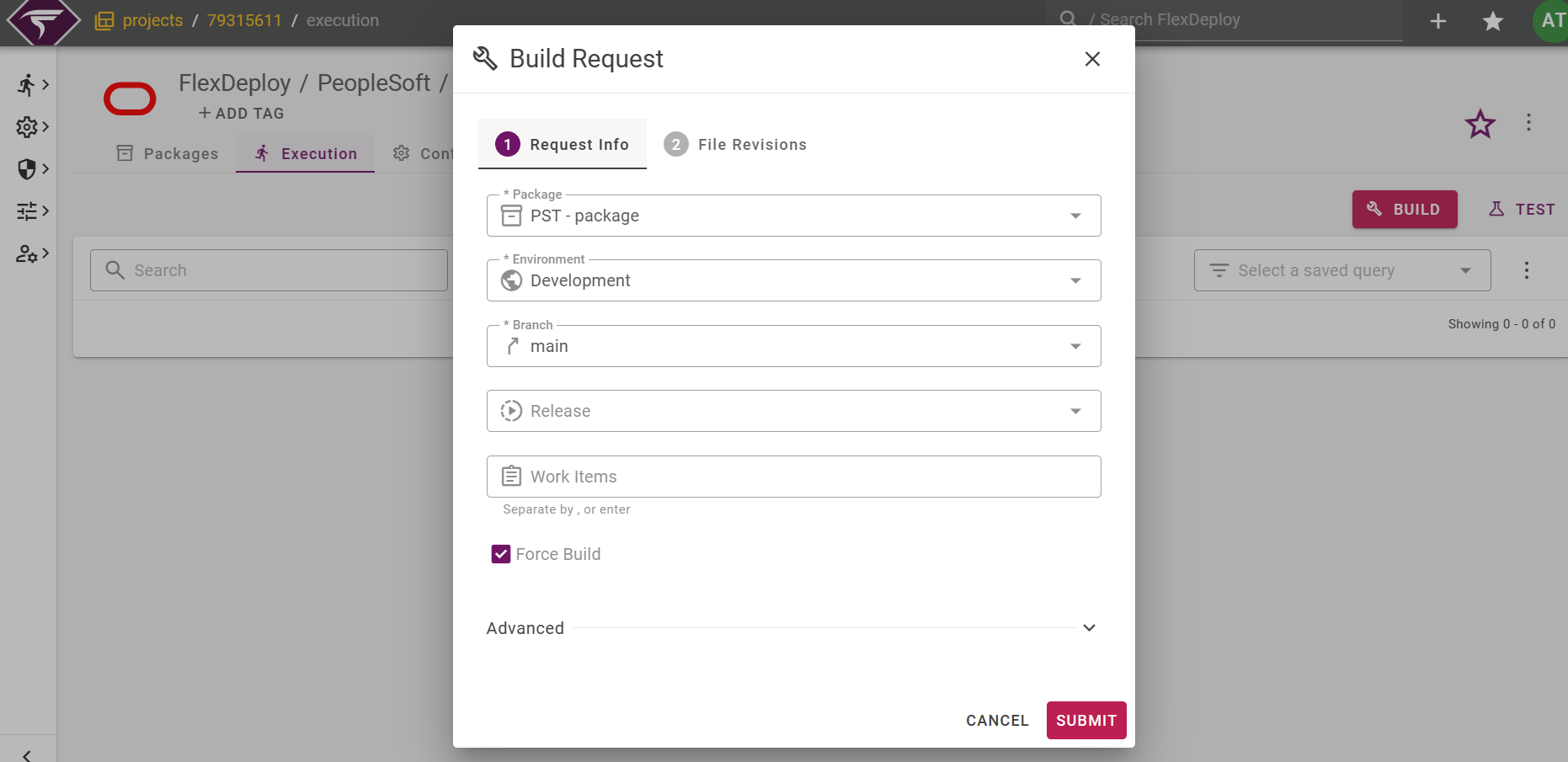
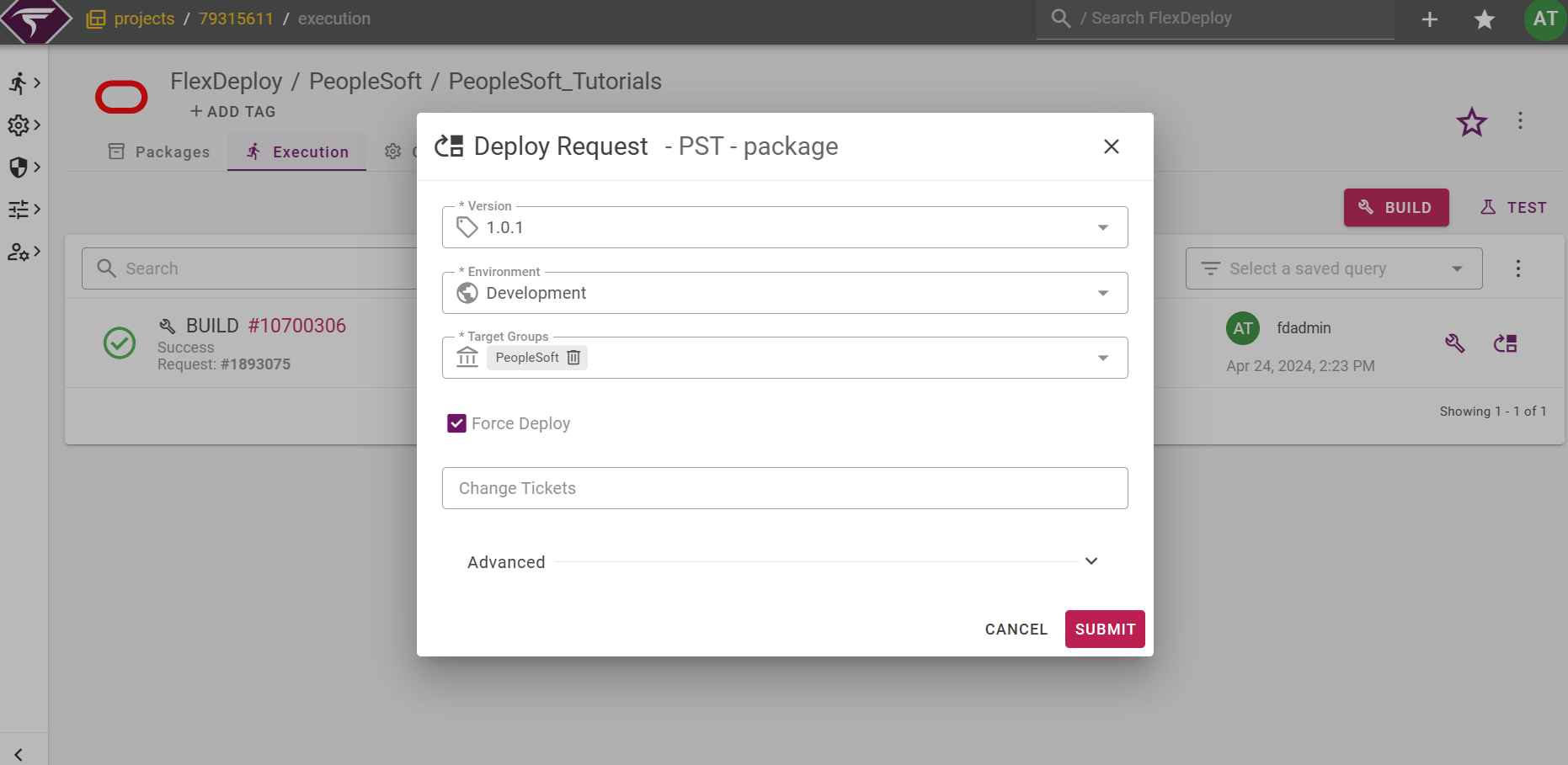
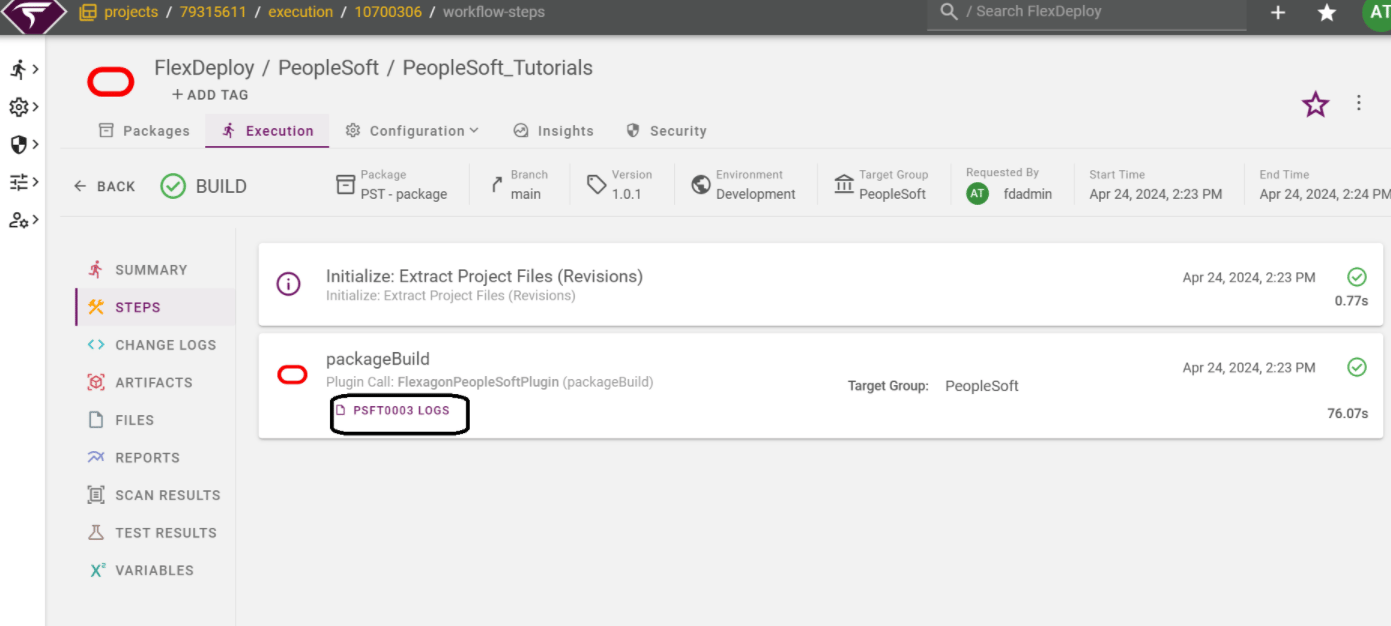
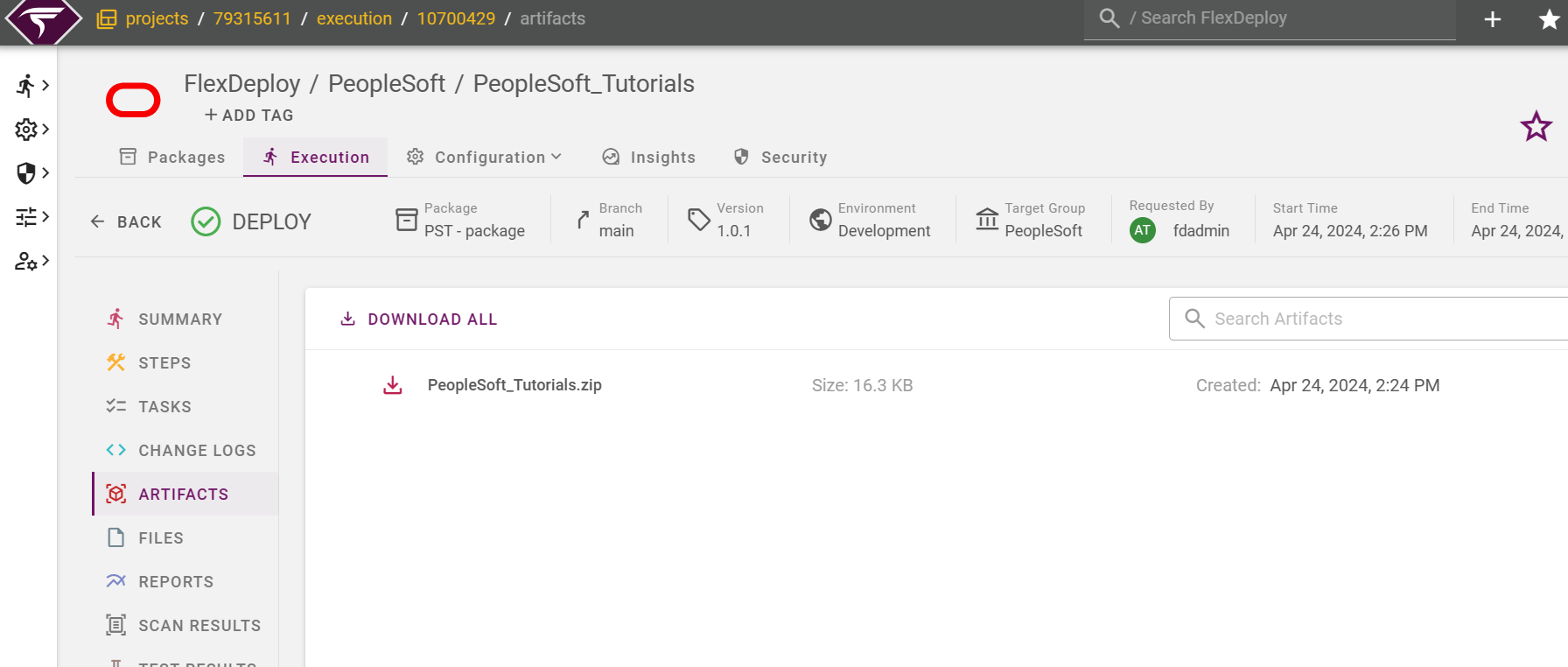
Artifacts Tab
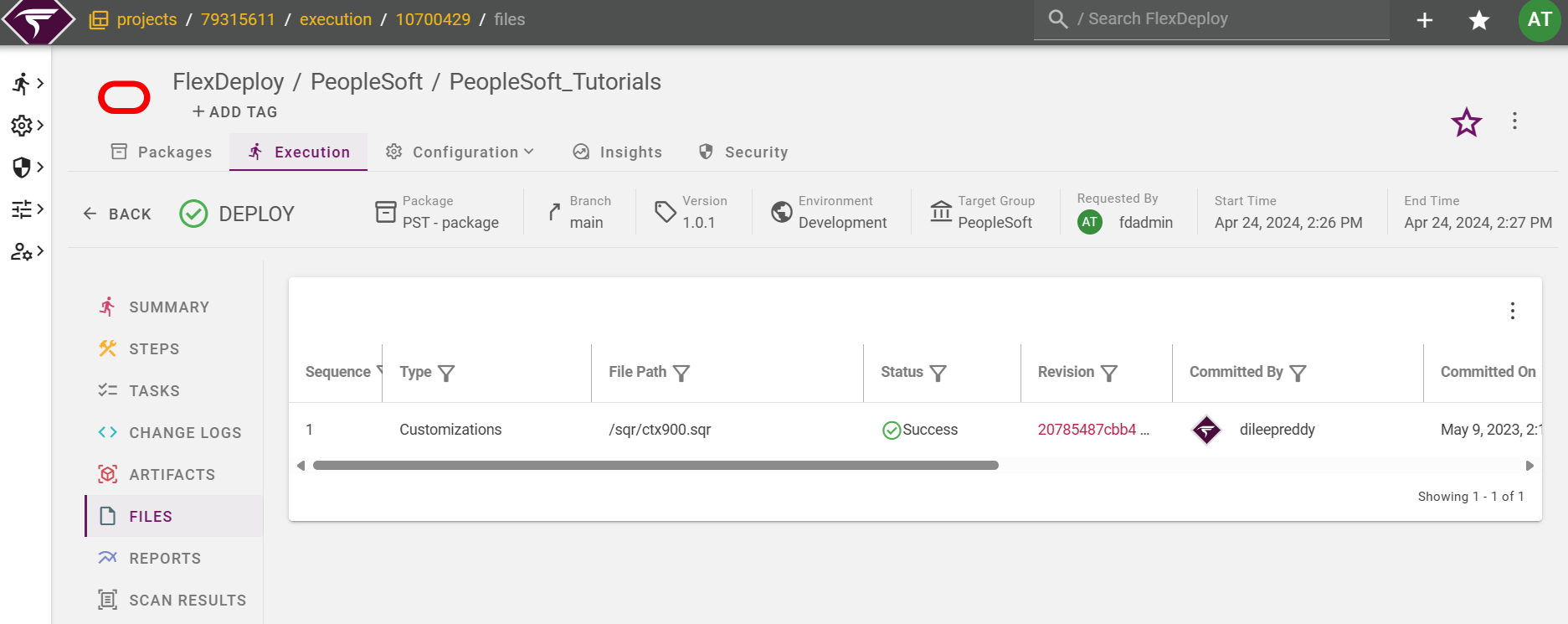
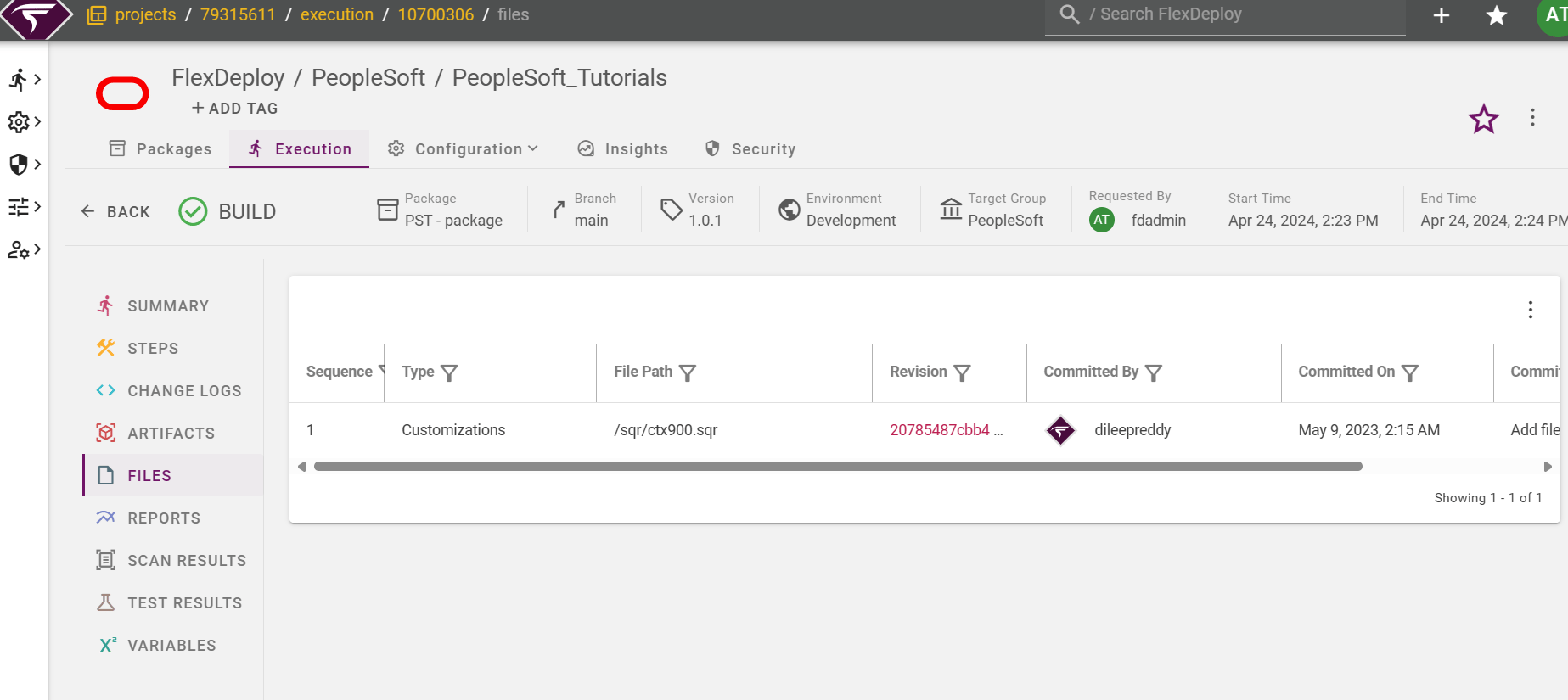
Files tab
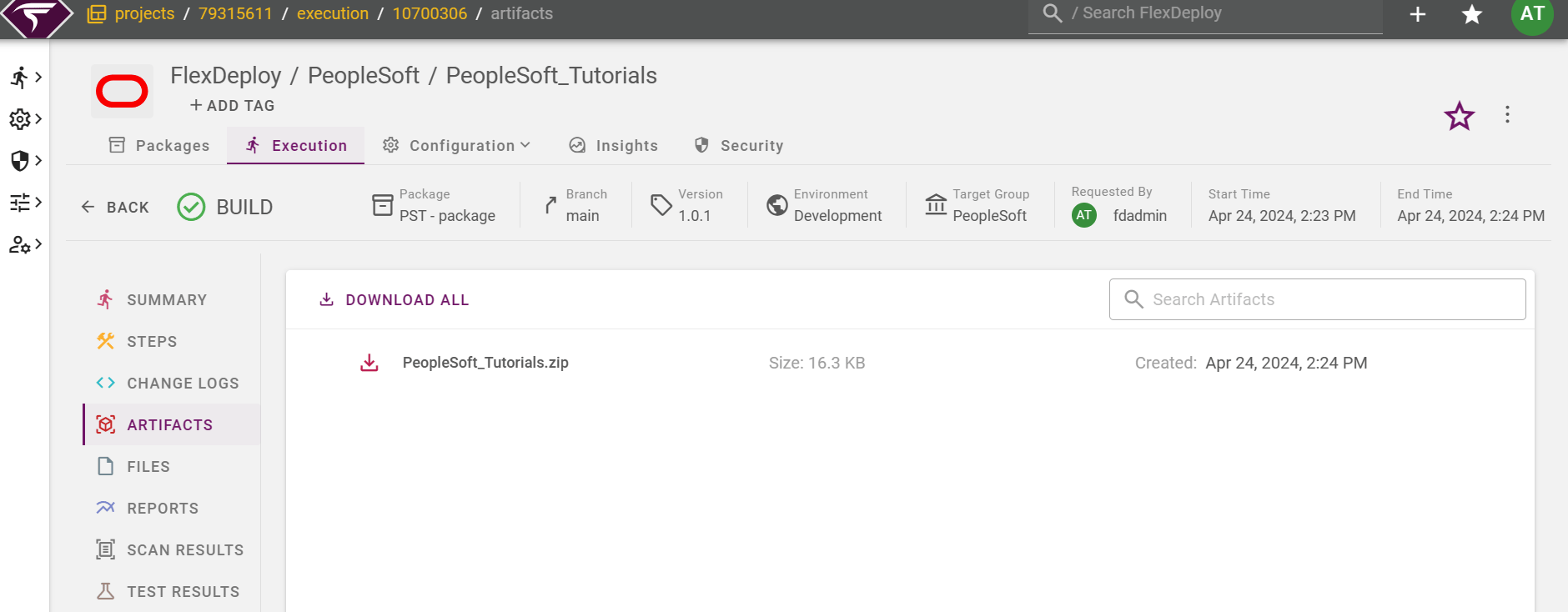
Artifacts tab