Objective
We have previously specified how Azure Synapse Artifacts deployment can be achieved using FlexDeploy in this article. In the current article we are going to elaborate more on how to implement package-based deployment for the same.Design
There are two approaches we follow here:- Approach A:
- Approach B:
$\{\{\}\} syntax.
Users can opt for any of the above strategies, based on their specific scenario and overall deployment process.
Flow (Approach A)
Workflow configuration for generating ARM template and upload to Repository
Build Workflow:
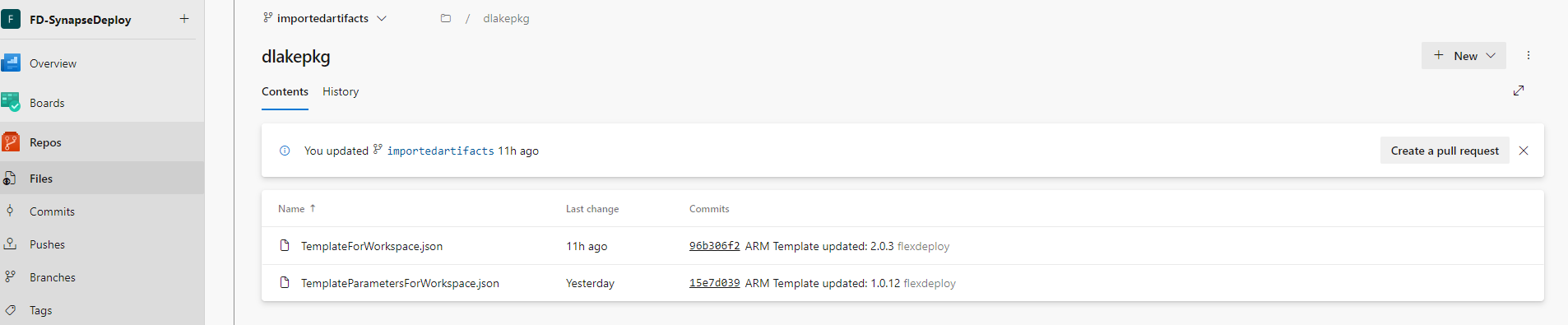
Note: For uploading the ARM template to repository, we have created another DevOps repository as az-synapse-arm and configured it in FlexDeploy-Integration with the code
SYNAPSEARM.If you have some other repository present in GITHUB or Azure DevOps anywhere and want to use that, then please create accordingly and use the correct Instance Code in the workflow pasted below.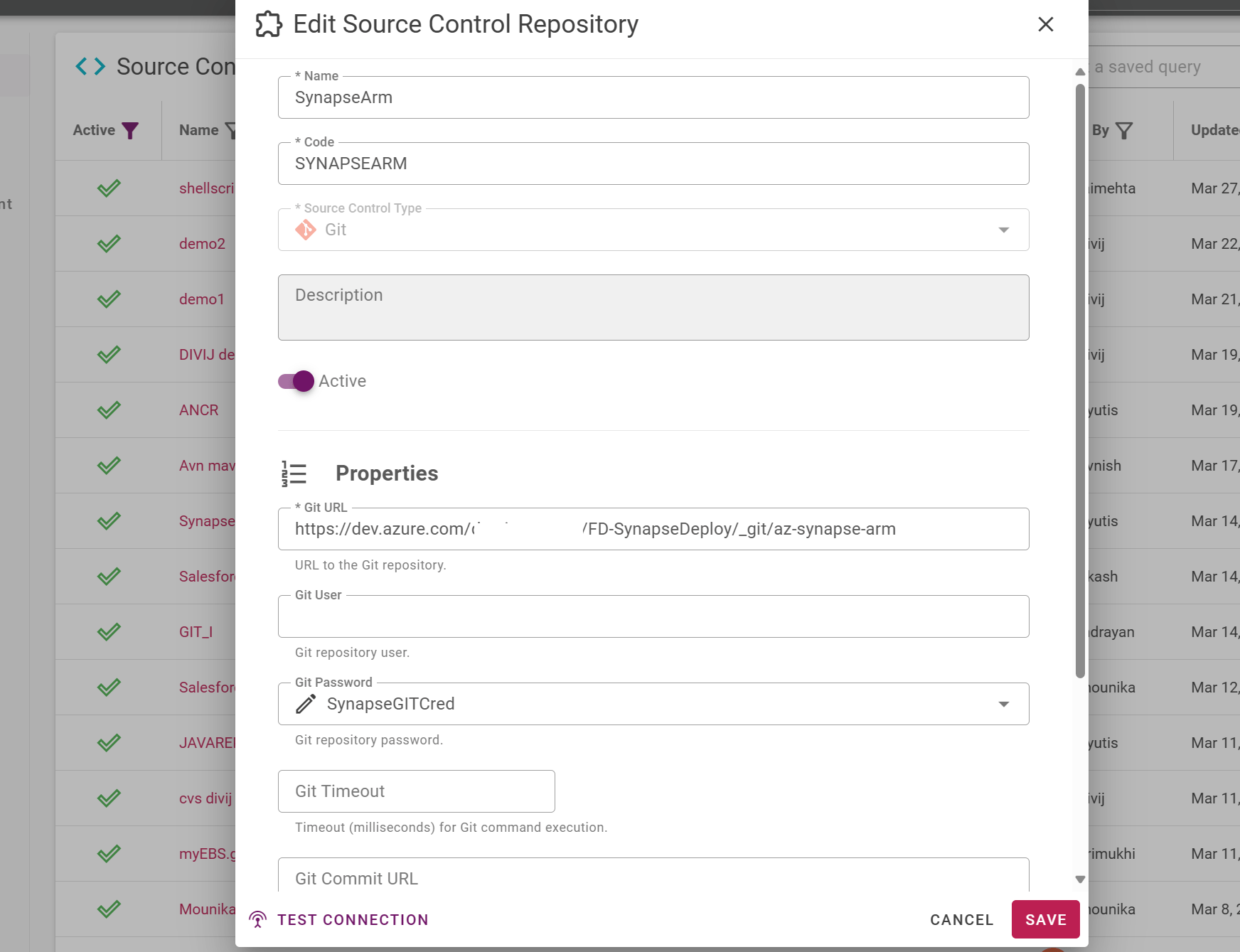
 GenerateARMAndSyncToGIT
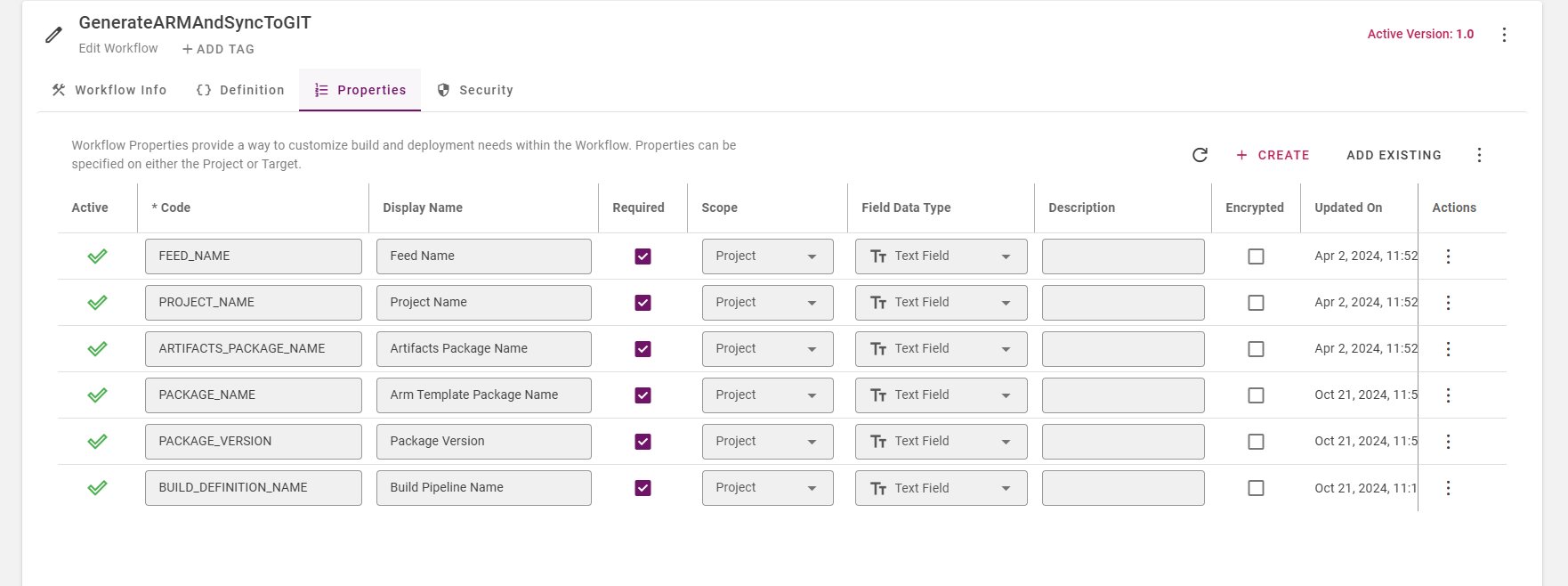
Project Configuration
Create a Project by choosing the Classification: Package-based and Project Types as Generic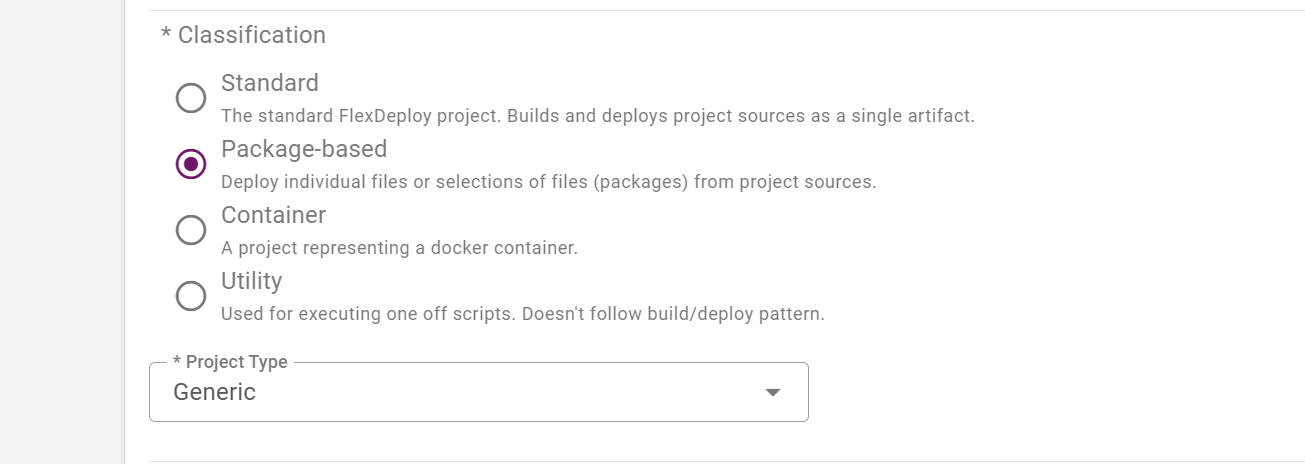
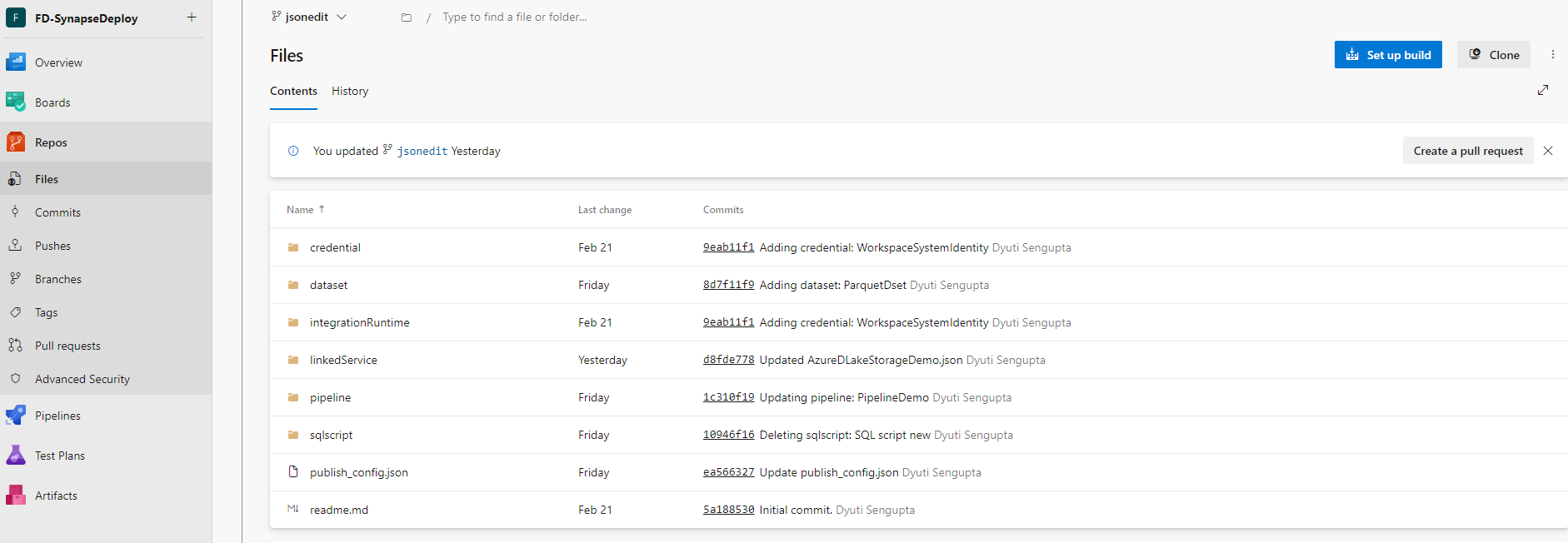
If you want to keep the ProjectName in the checkout folder script, then you would require tweaking the shell scripting accordingly for the first step. 
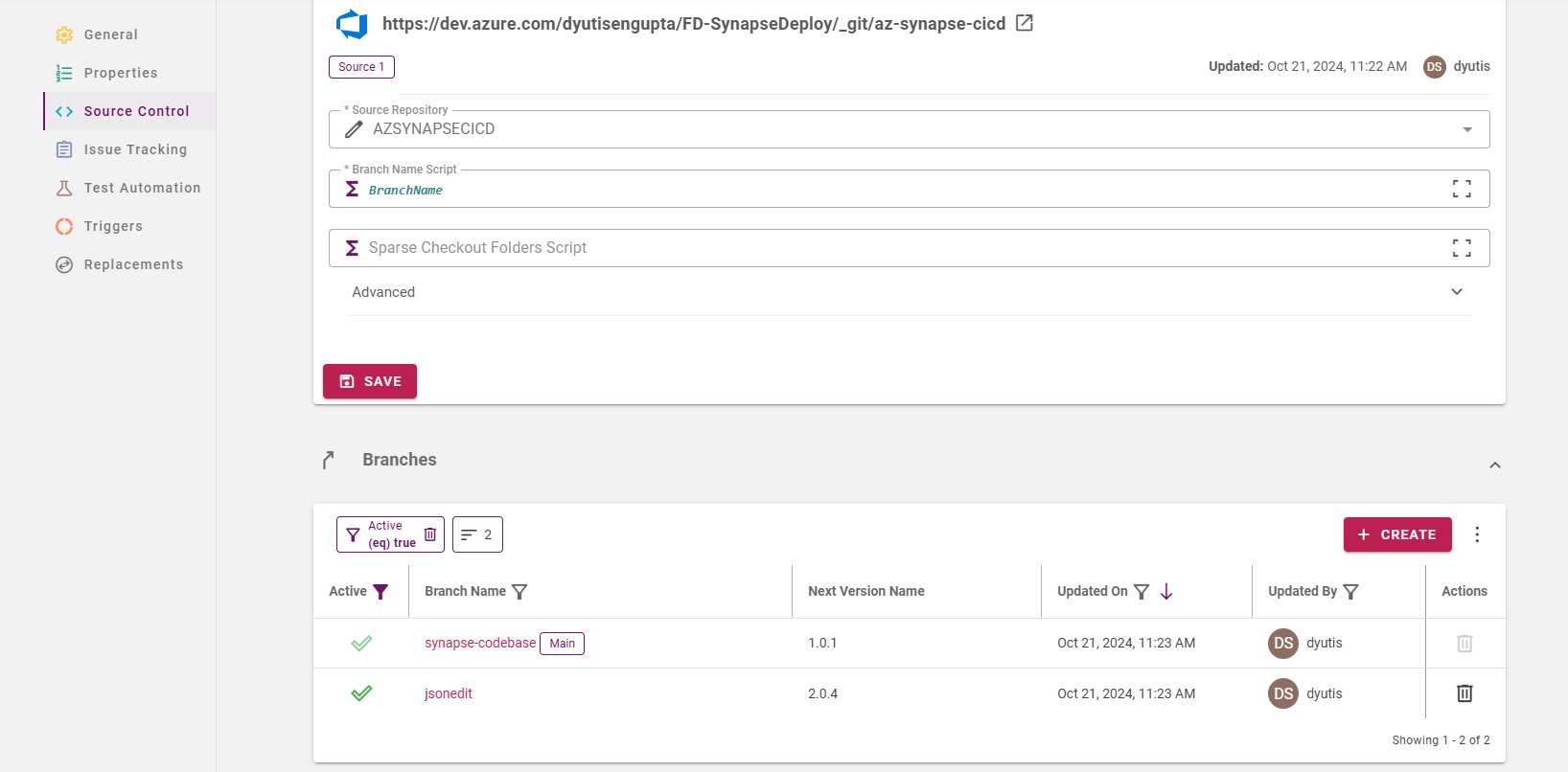
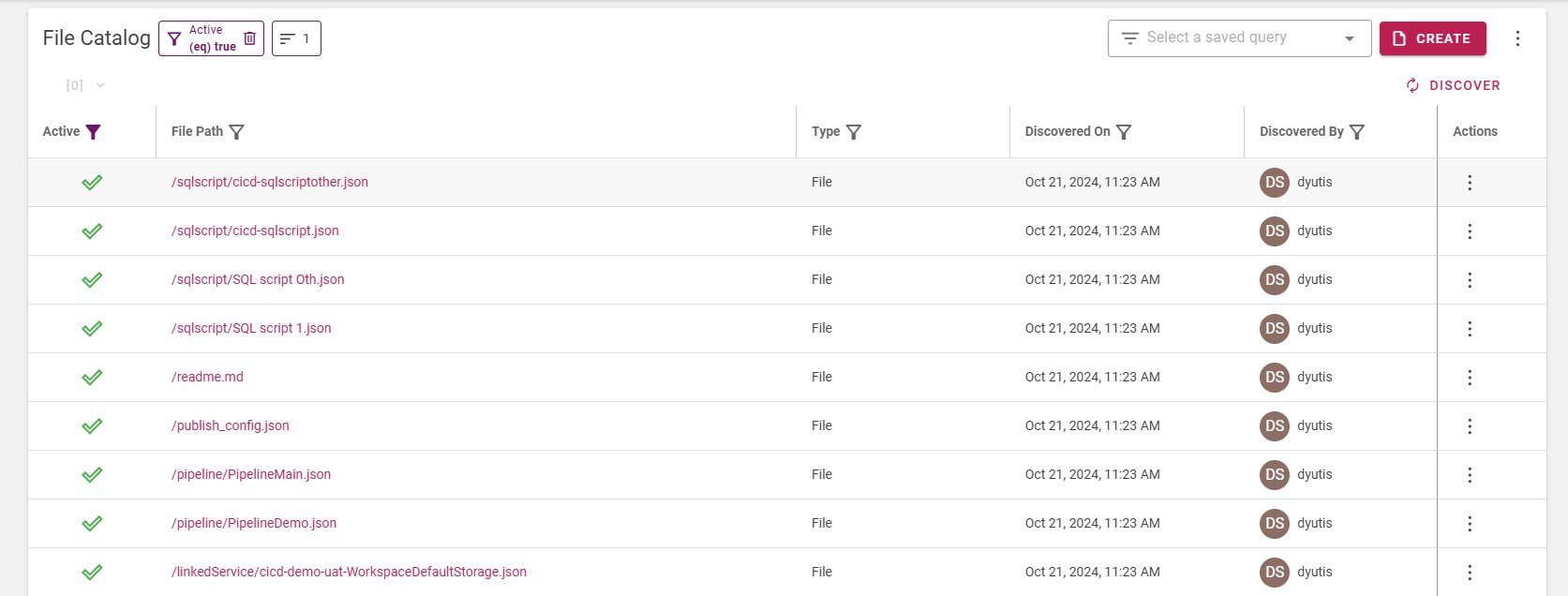
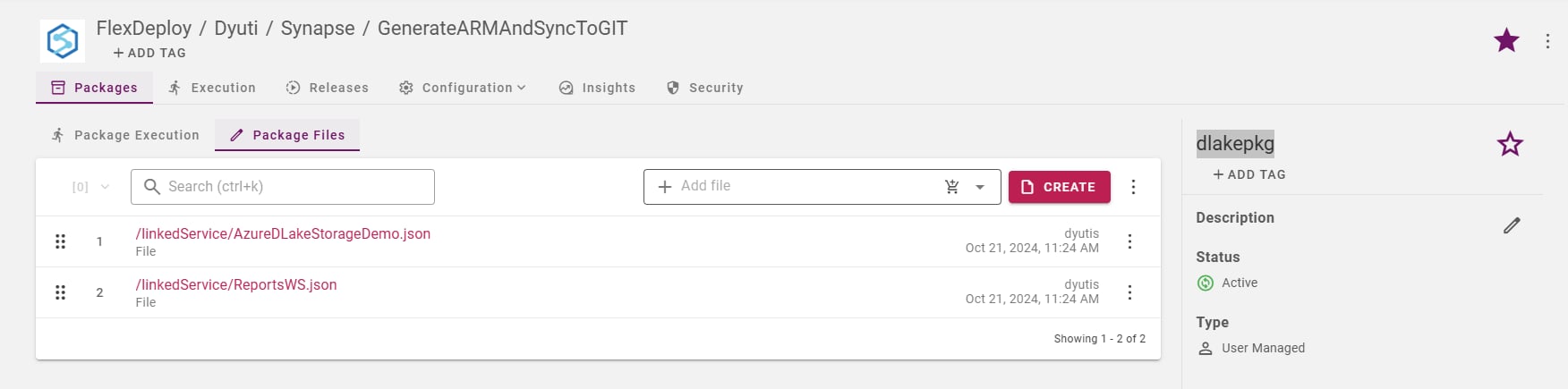
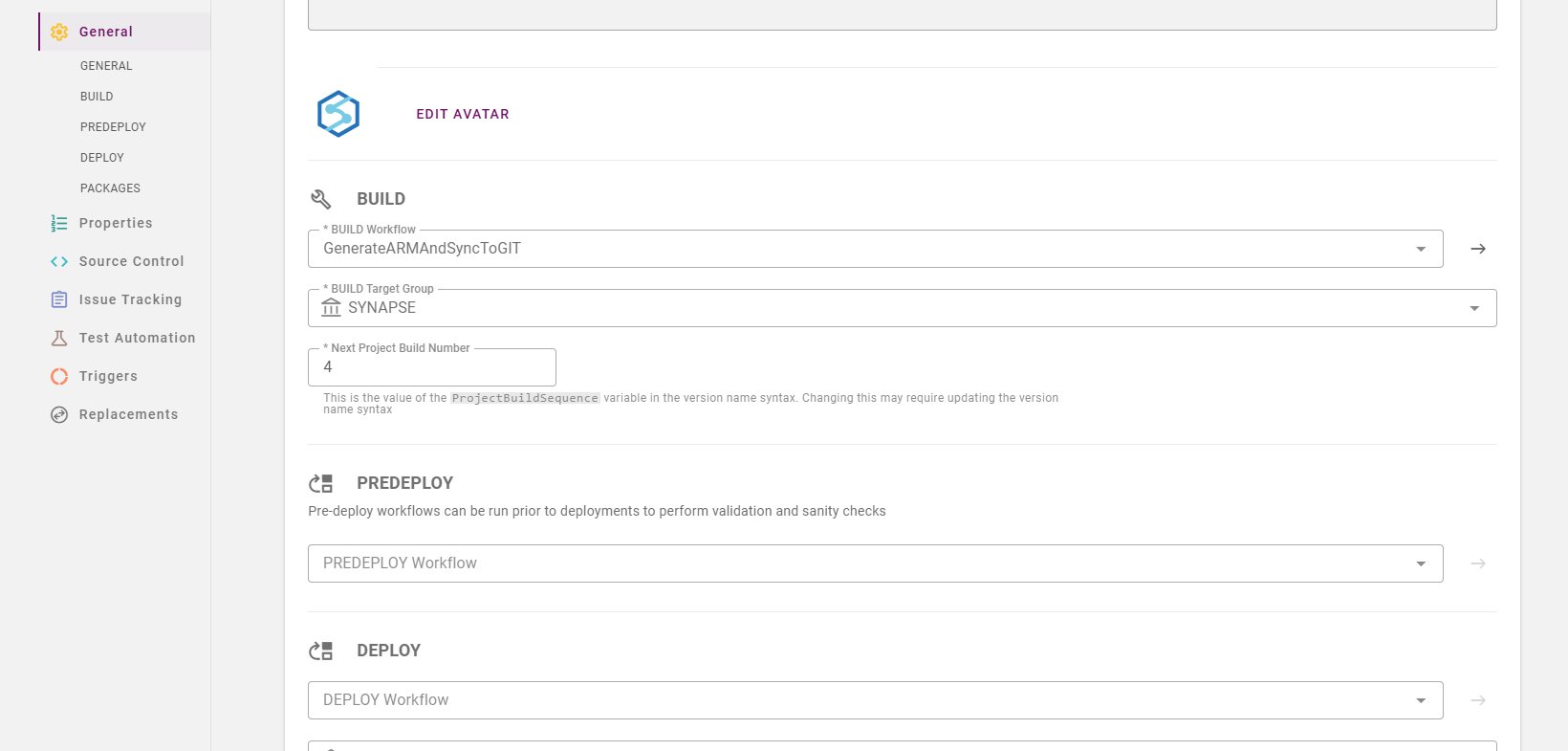
Project properties
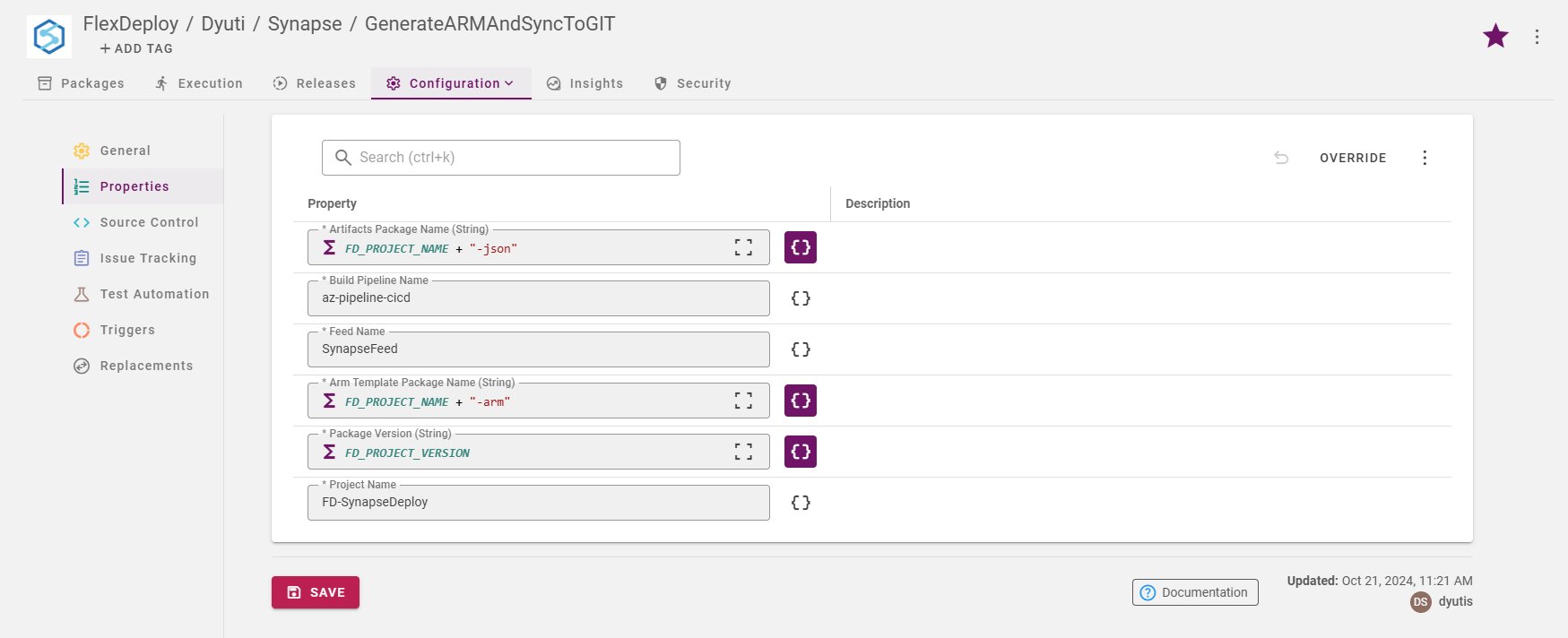
Execution
Initiate Build on the selected Package.Note: The ARM templates are published to Azure DevOps Feed as Artifacts with the package name as a keyword in it. Example: <packagename>-<fdprojectname>-json & <packagename>-<fdprojectname>-arm. Now Microsoft has certain restrictions on the naming of the Azure Artifacts, hence please follow the guide before you name the package that you create in FD or else adjust your workflow to be in compliance. https://learn.microsoft.com/en-us/azure/devops/organizations/settings/naming-restrictions?view=azure-devops
Workflow configuration for fetching the ARM template from the repository and initiate the Synapse Release pipeline
Build Workflow:
SynapsePackageBuildARM
Deploy Workflow:
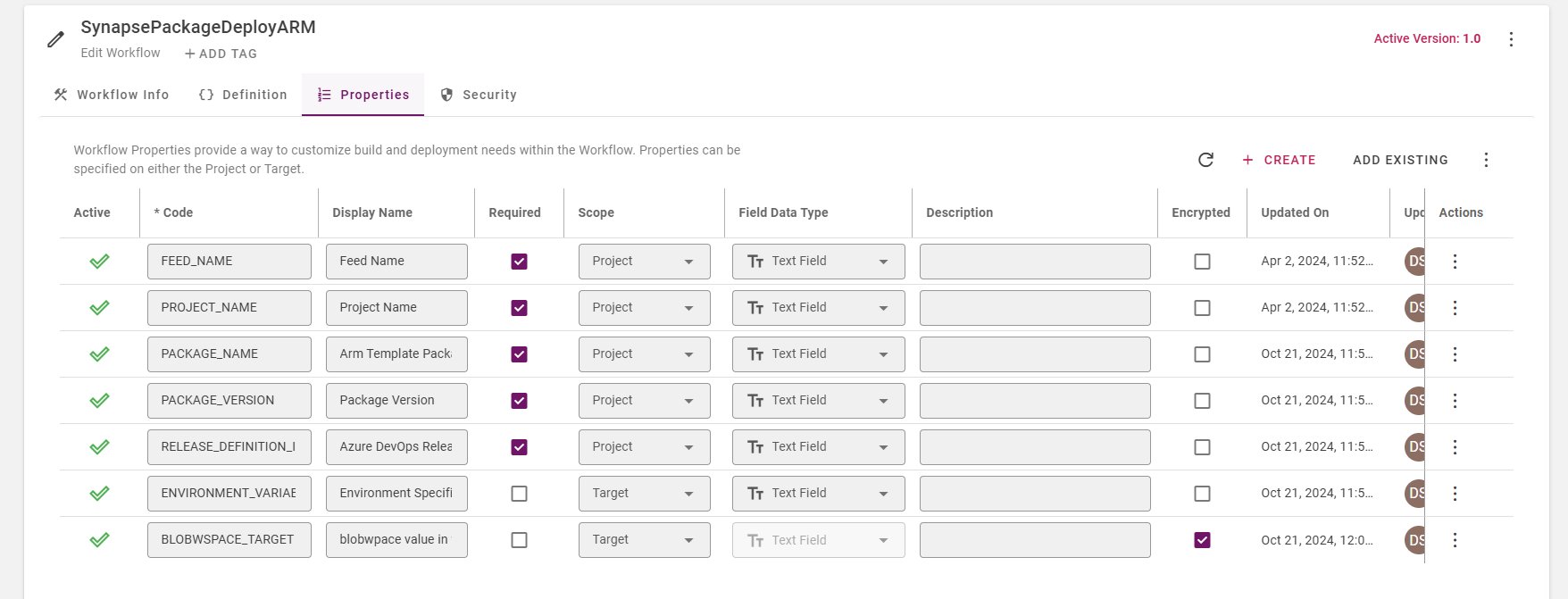 SynapsePackageDeployARM
Project Configuration
Create a Project by choosing the Classification: Package-based and Project Types as Generic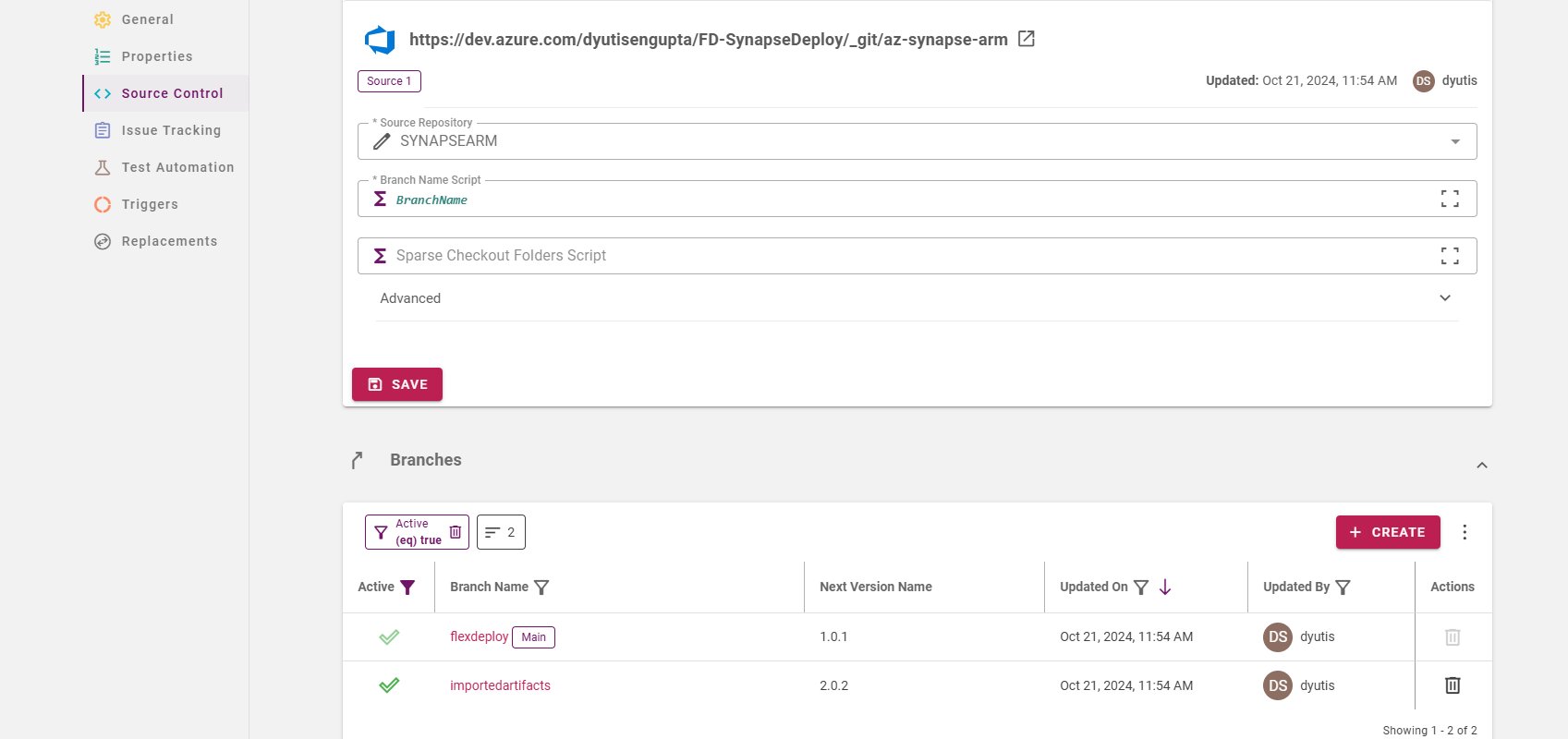
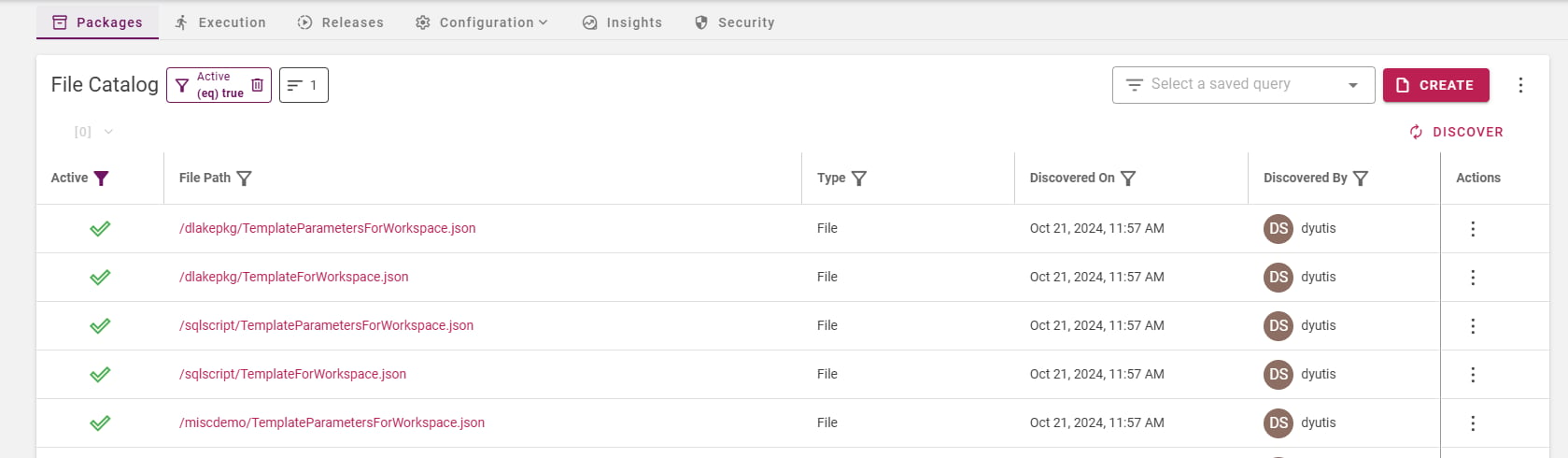
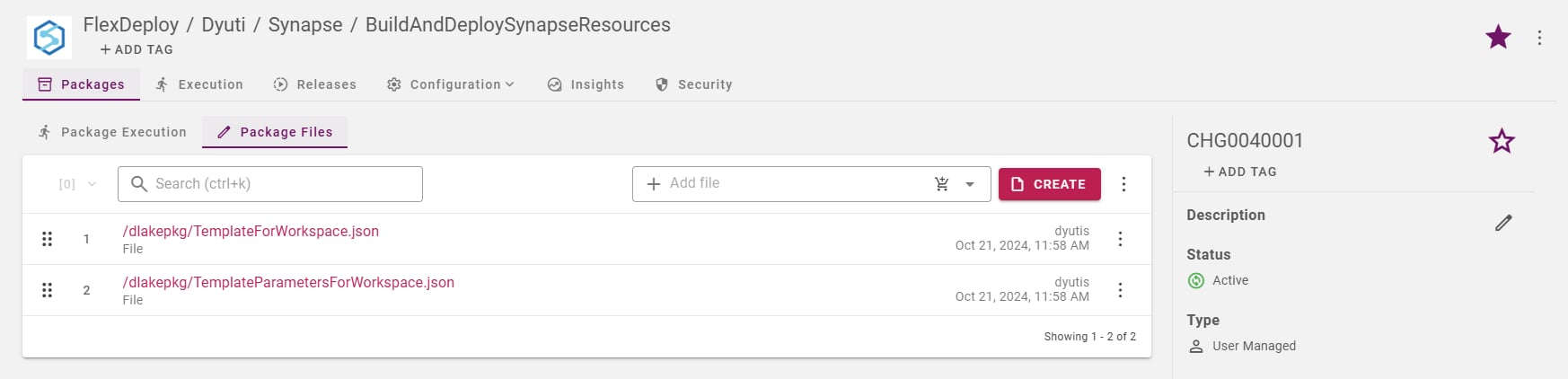
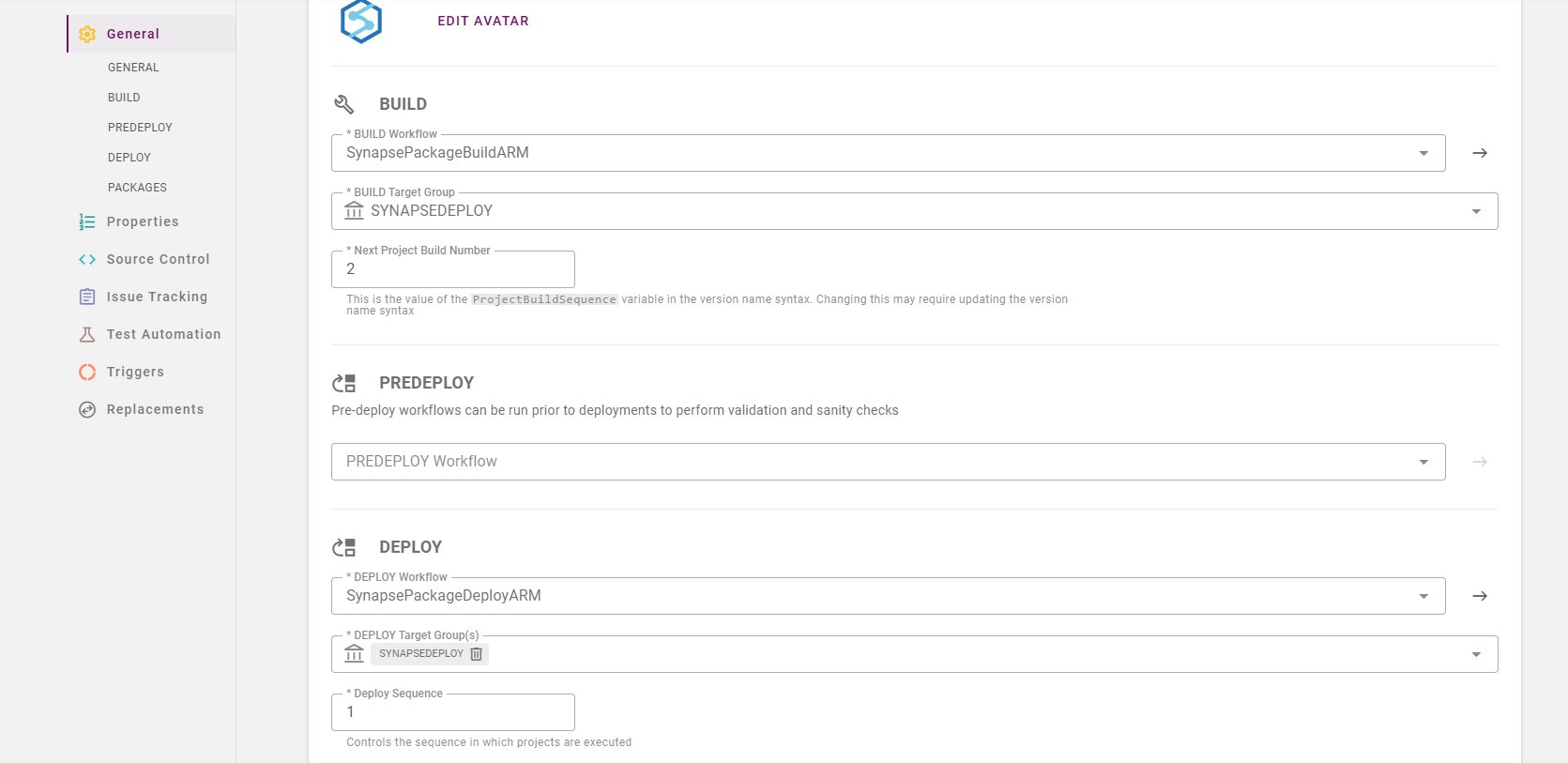
Parameterizing the values
There are many ways to do environment specific parameter value customization. 1) Using Replacement configuration of Project 2) Specifying the parameter as ${{}} in the source json file itself or the generated ARM template 3) Edit the generated ARM template to include the parameter as ARM template parameter. We will show option 2 in the following example.Replacement configuration on Project
Starting 7.0 we have a new feature that allows us to replace a string in any file with another string based on as it is executed to different environment. Ref: Replacements - FlexDeploy 7.0 - Confluence (atlassian.net)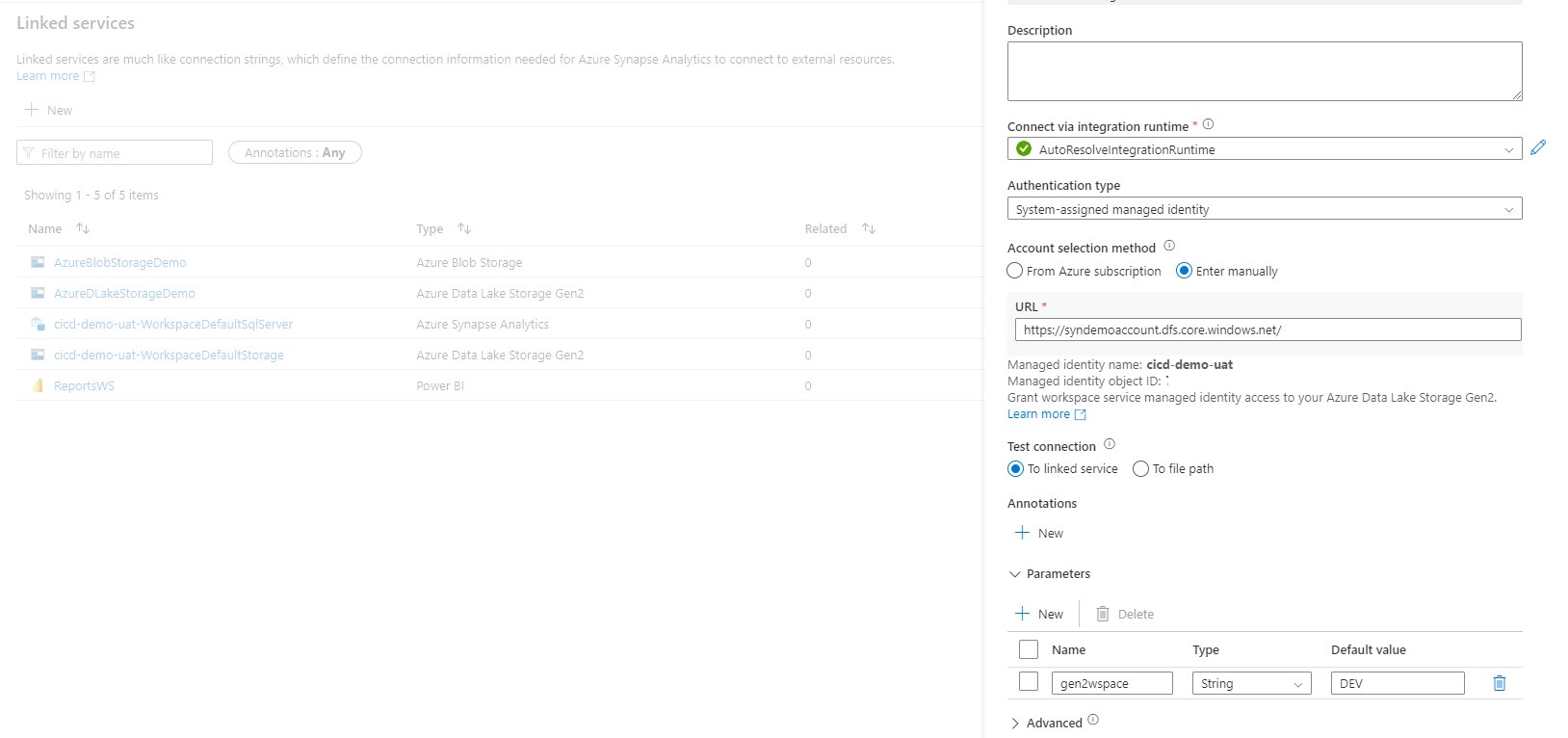
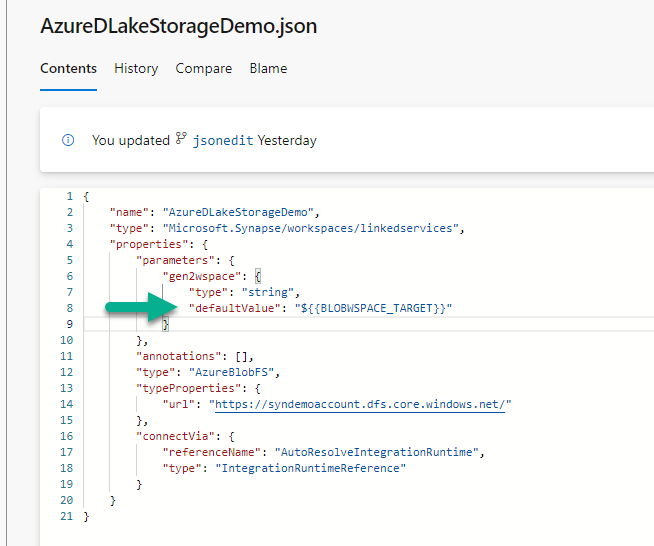
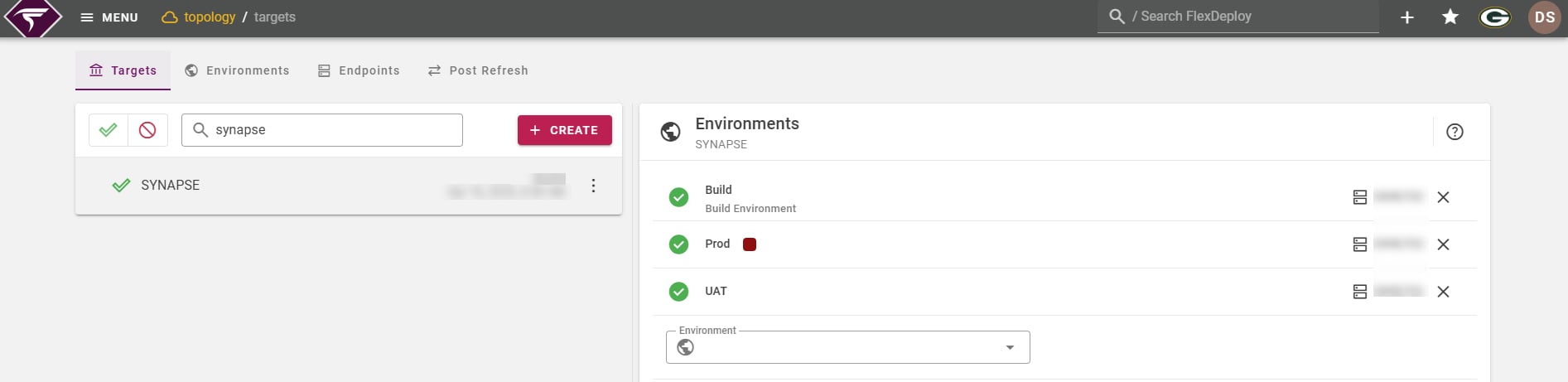
Target Group configuration

Build
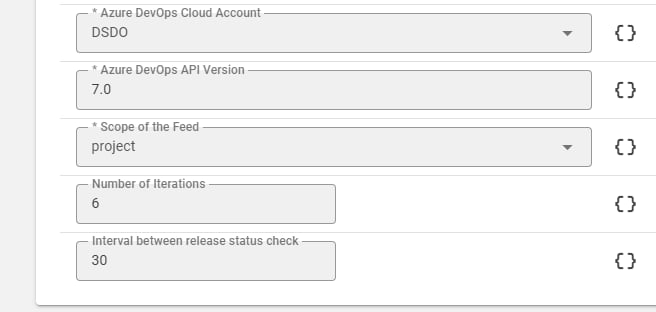
UAT
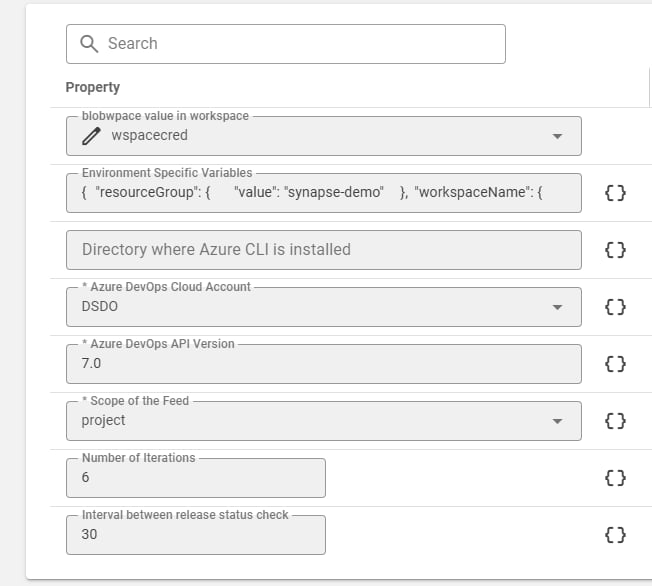
Execution
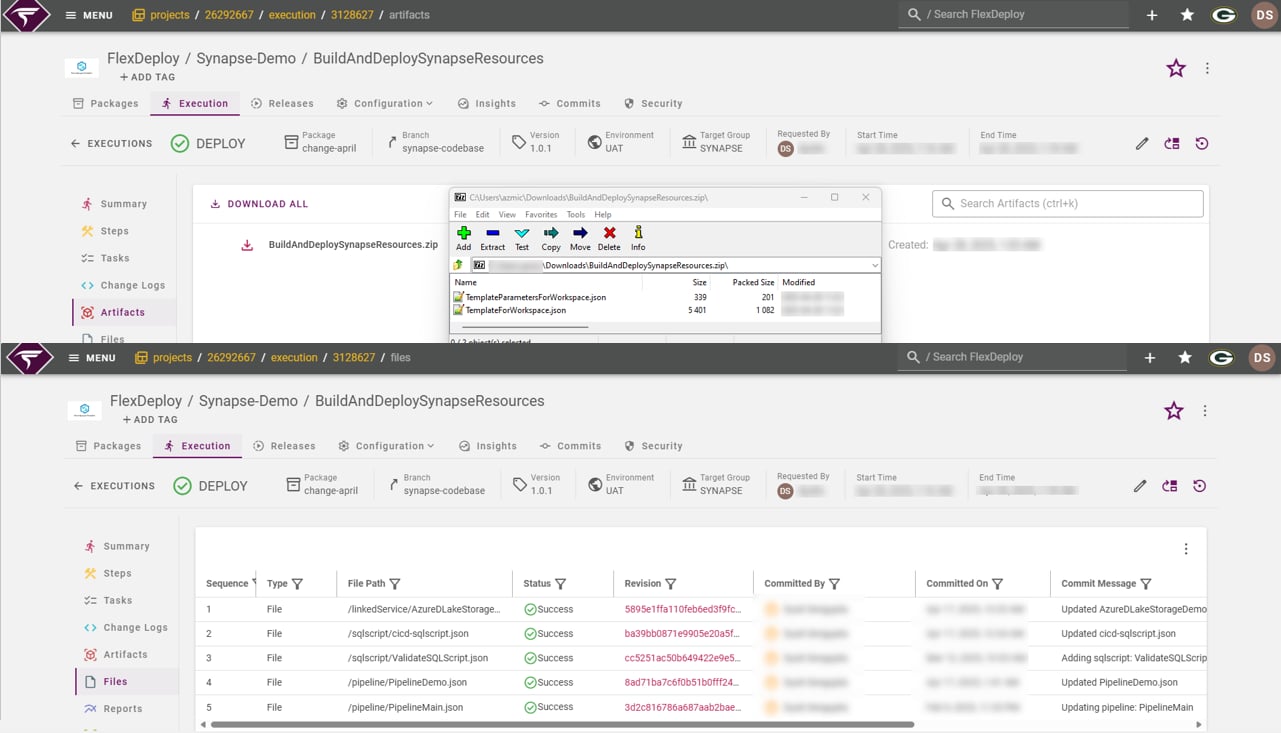
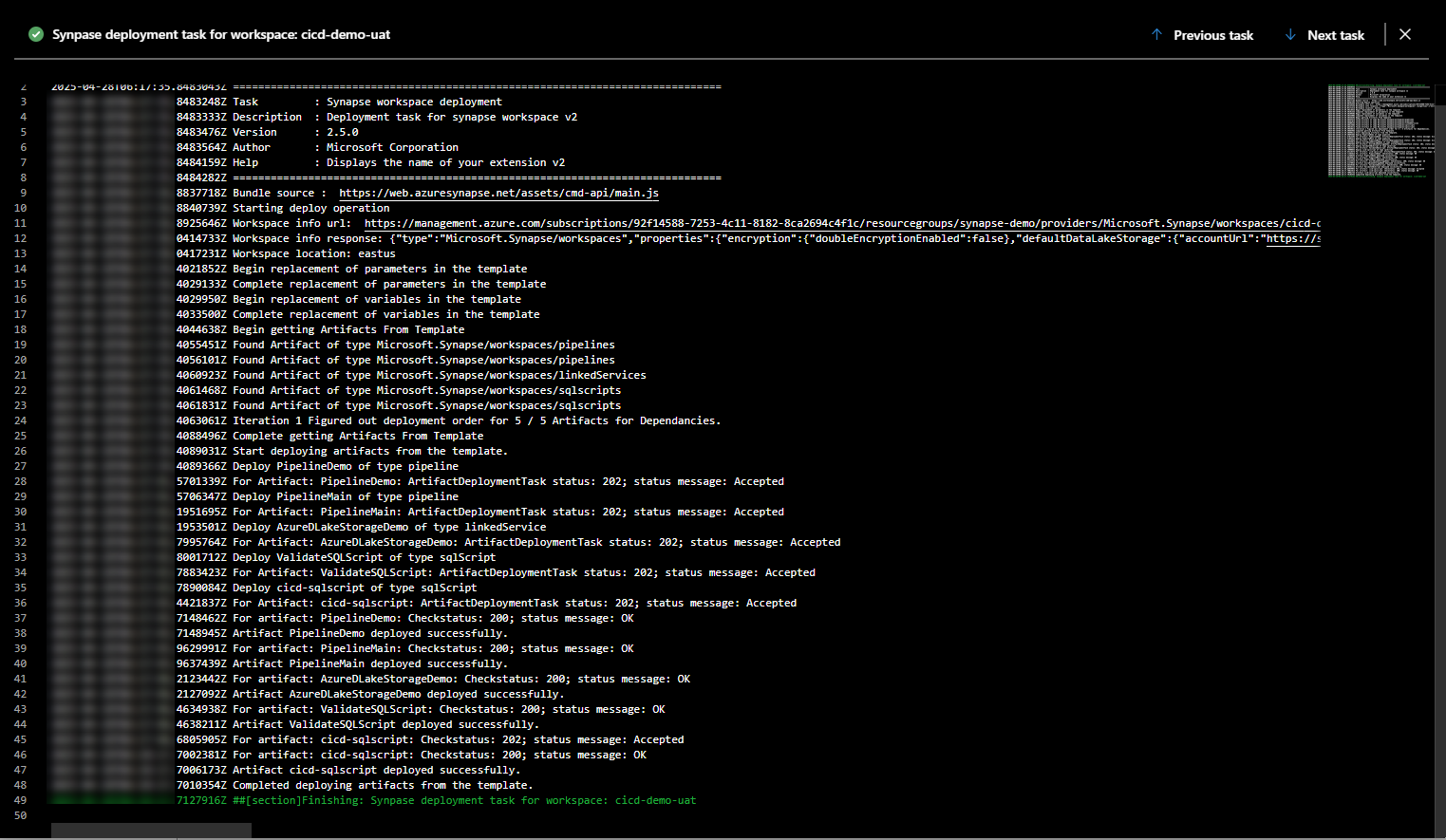
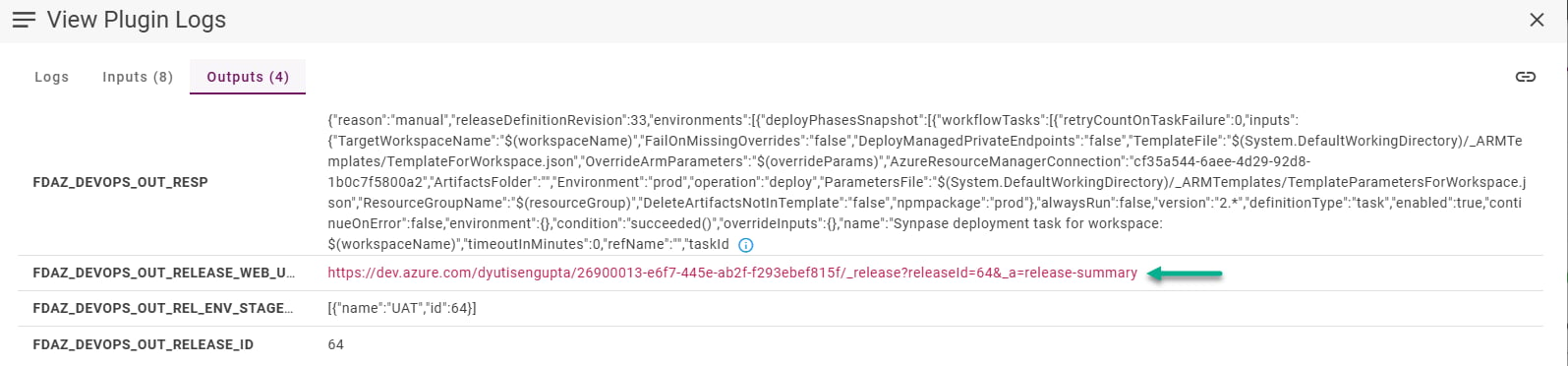
Initiate Build on the selected Package. Once done initiate the Deploy. Build produces the ARM templates as a zip bundle, which Deploy further passes on to the Azure DevOps Release Pipeline to deploy to target workspace.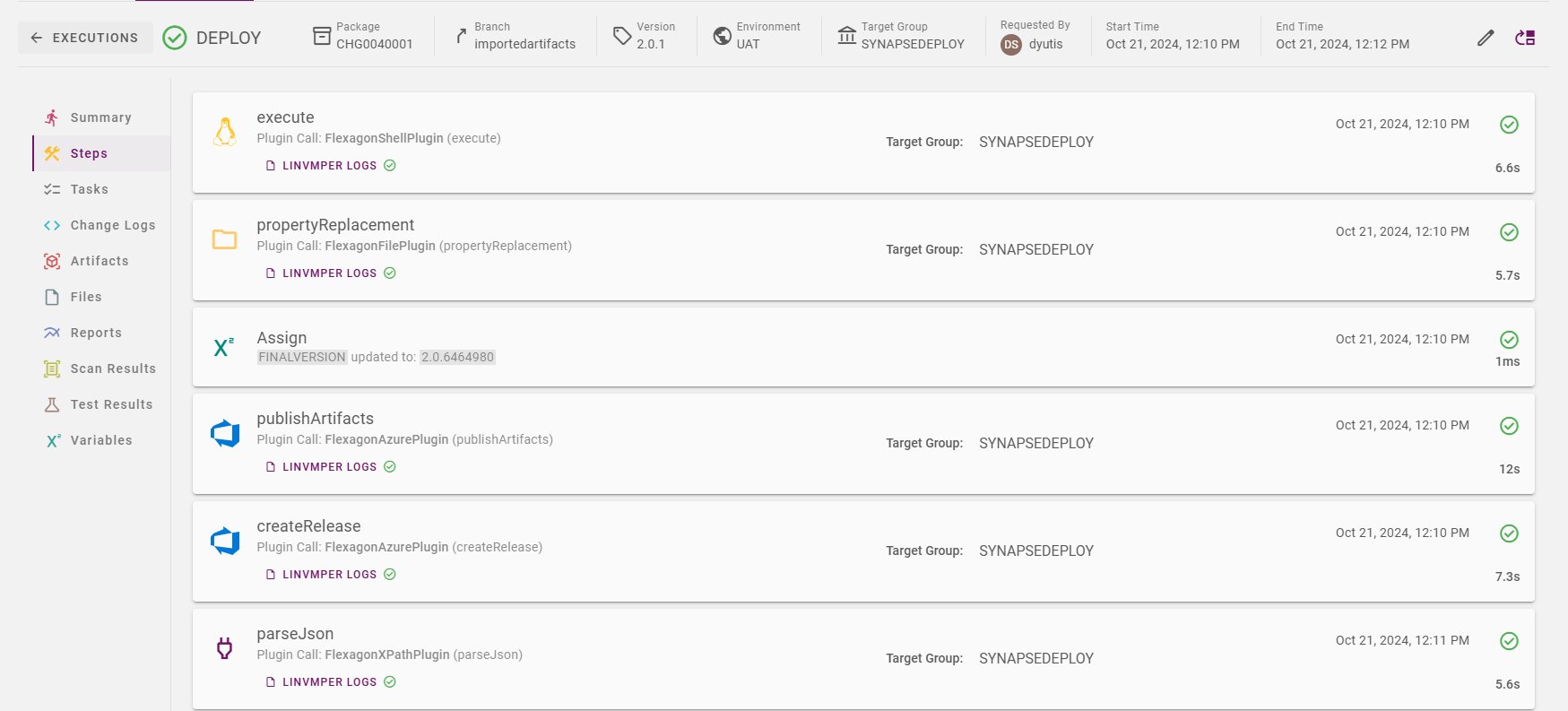
Flow (Approach B)
Azure Devops pipeline configuration
More information is hereWorkflow configuration
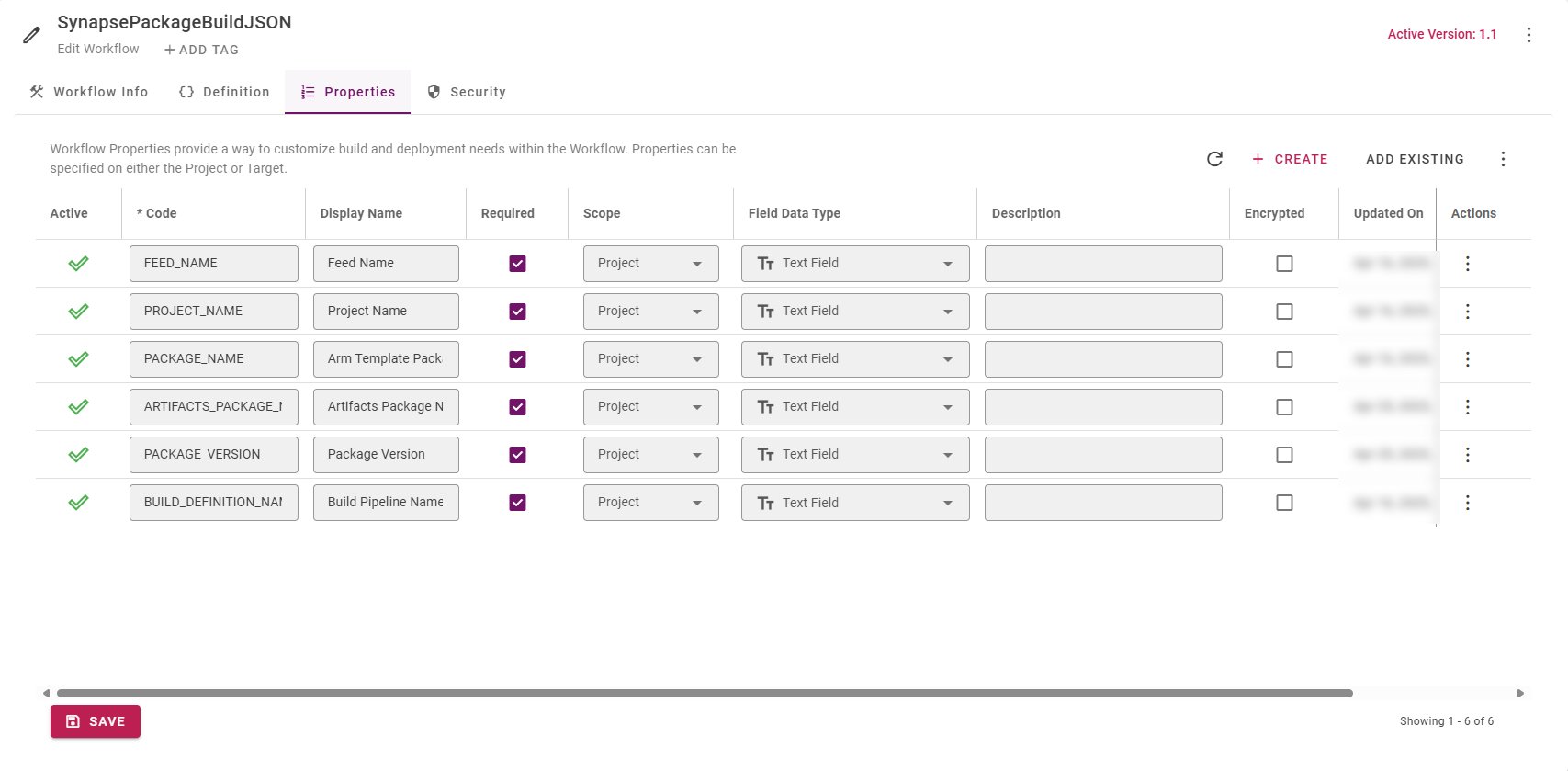
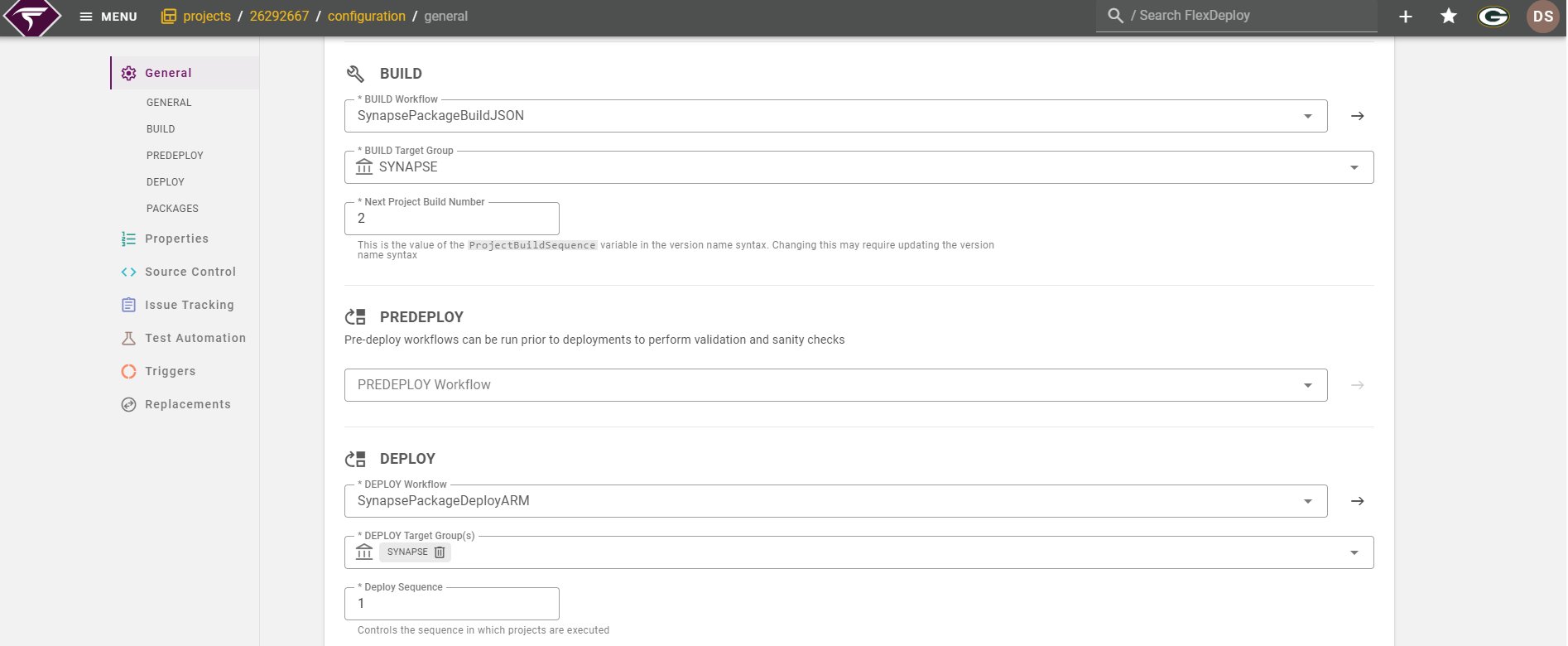
Build Workflow:
SynapsePackageBuildJSON
Deploy Workflow:
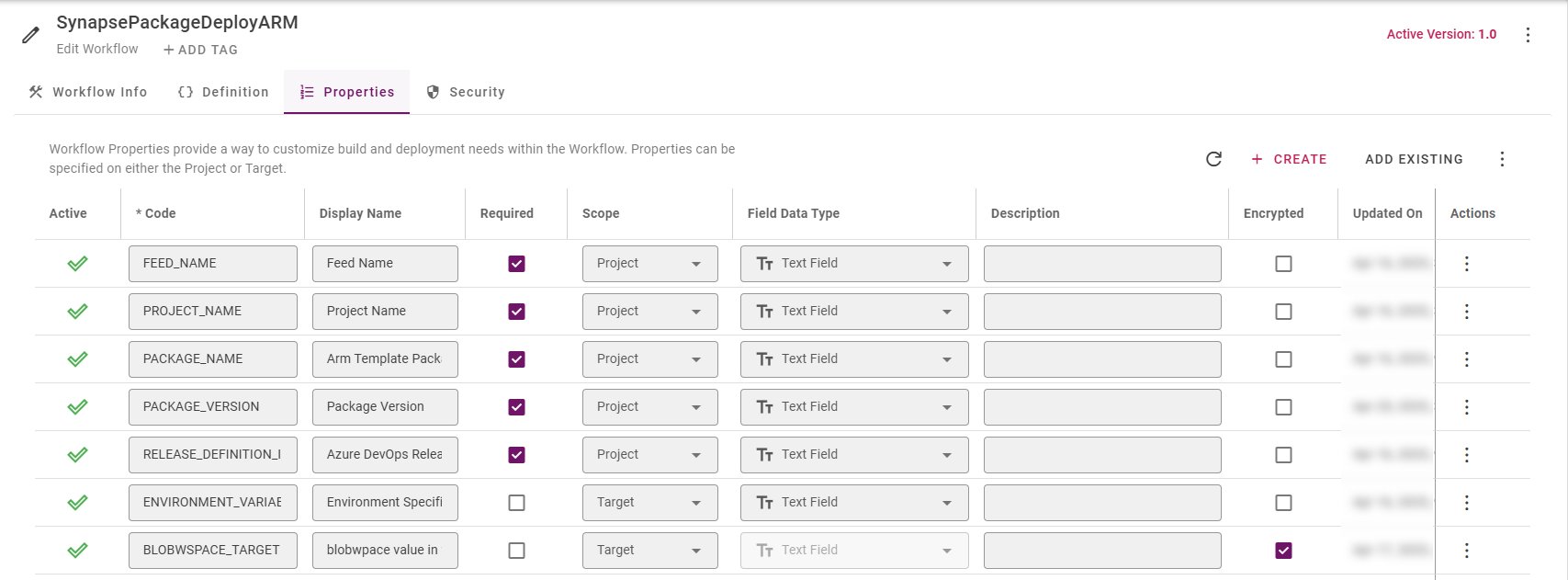
Note: Here ${{BLOBWSPACE_TARGET}} is configured in the input json, which is why we are configuring it here as Target properties.
SynapsePackageDeployARM
Project Configuration
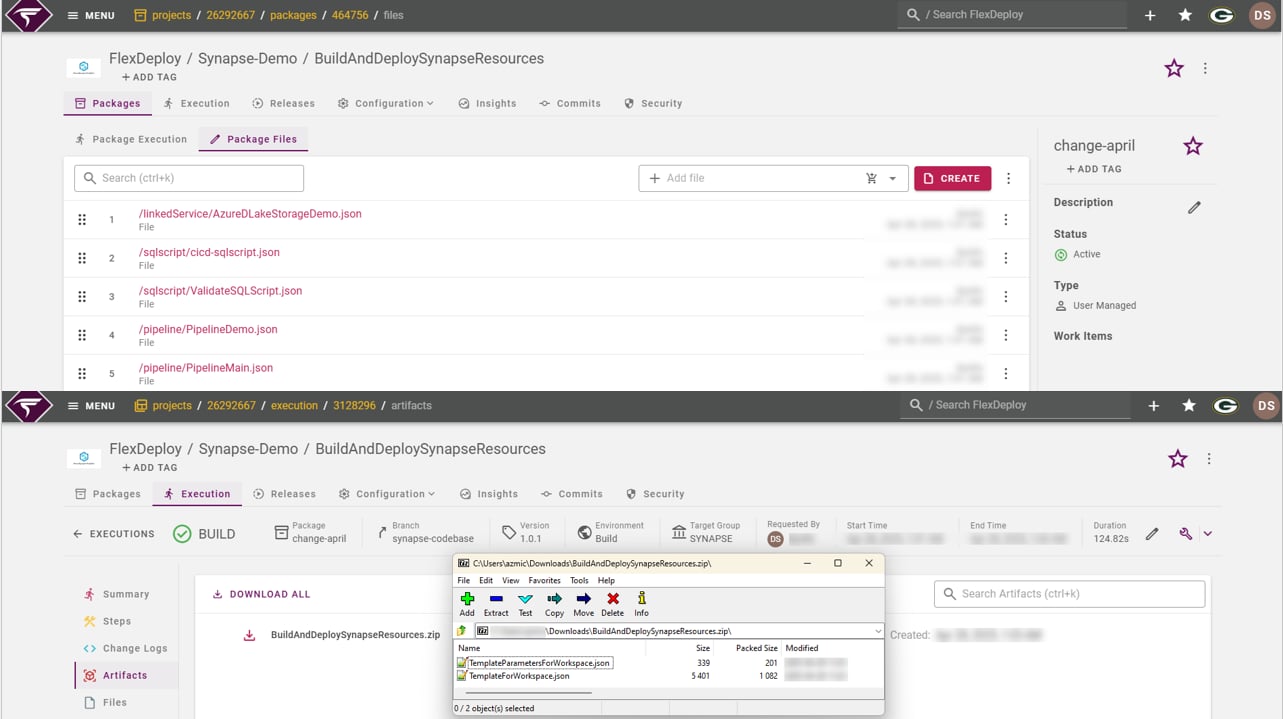
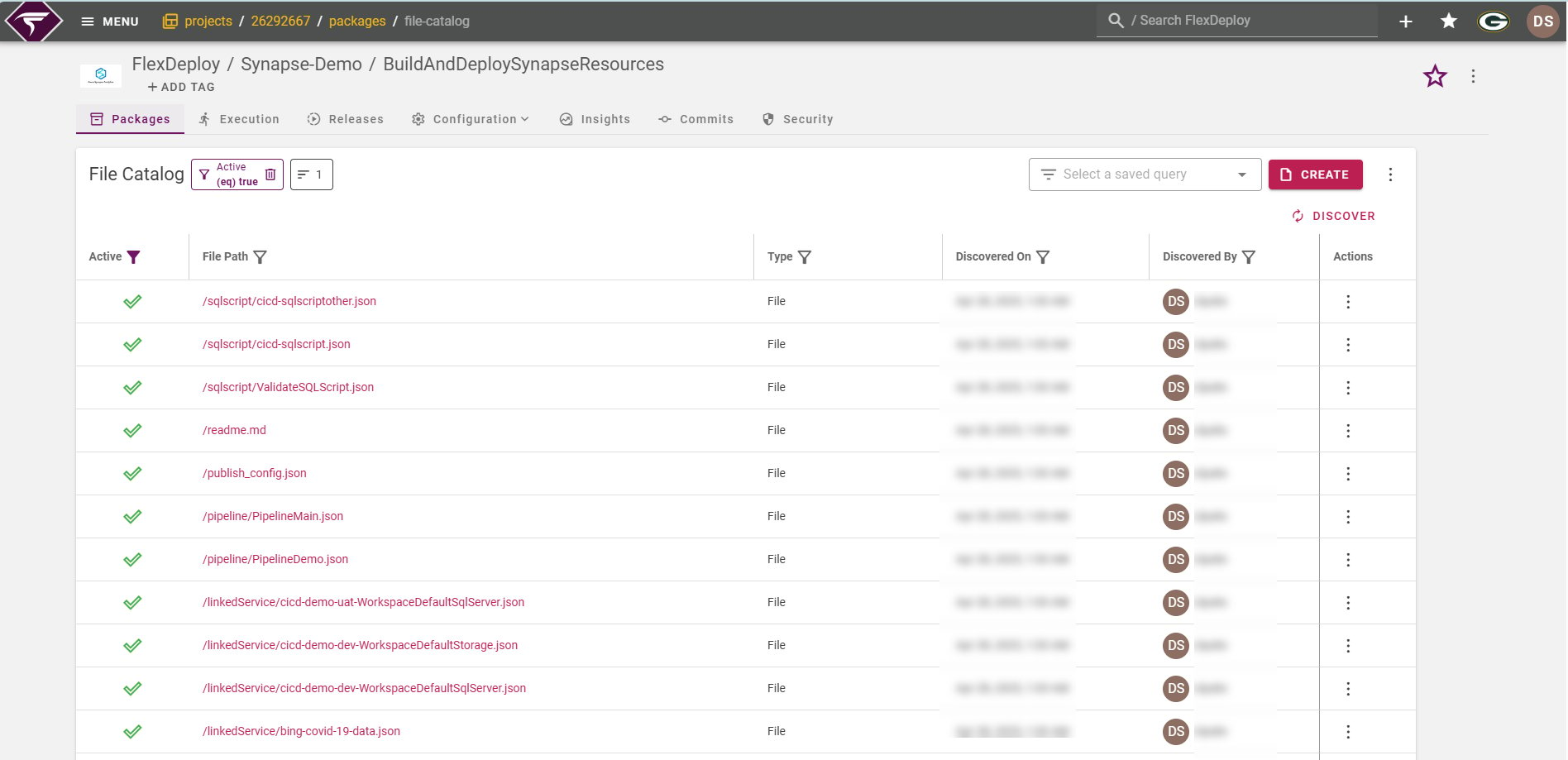
Create a Project say BuildAndDeploySynapseResources, by choosing the Classification: Package-based and Project Types as Generic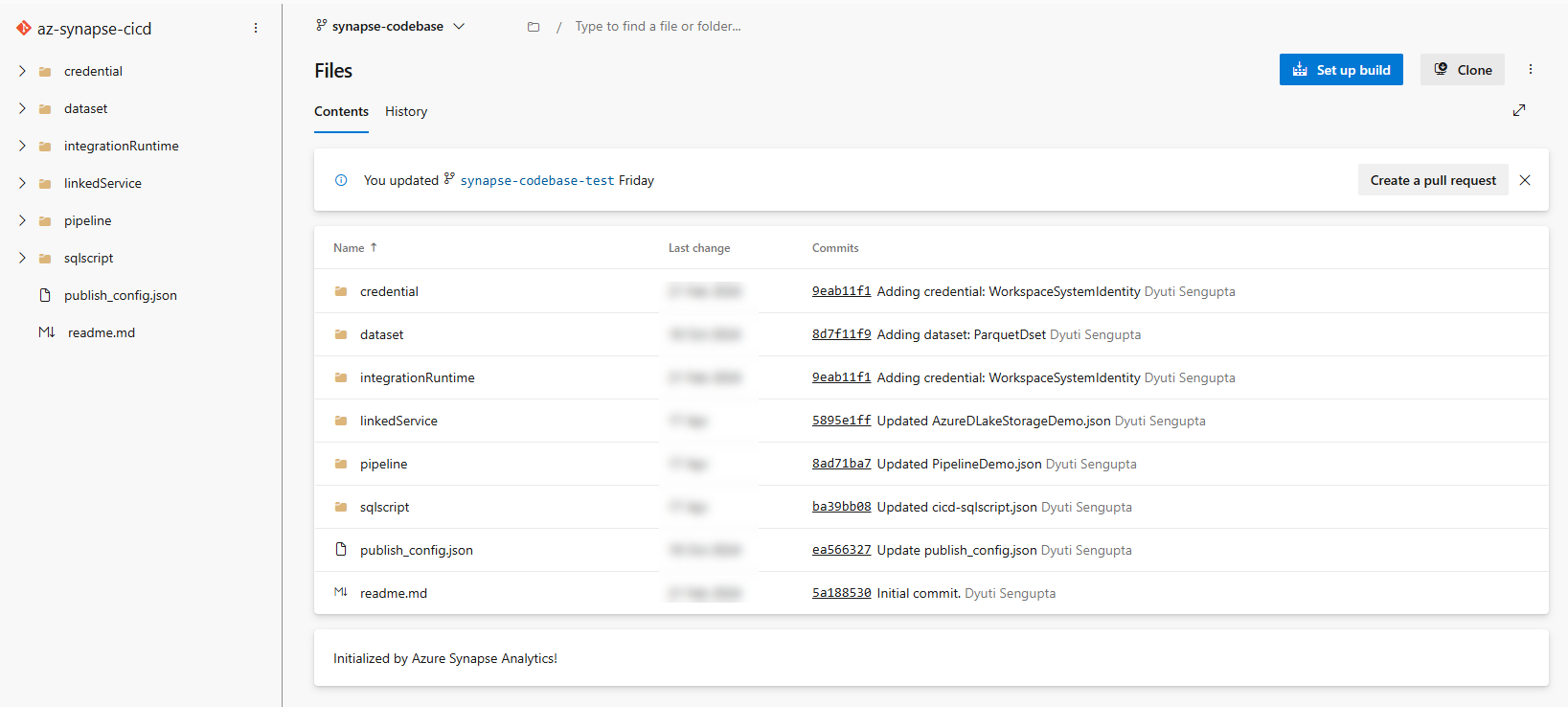
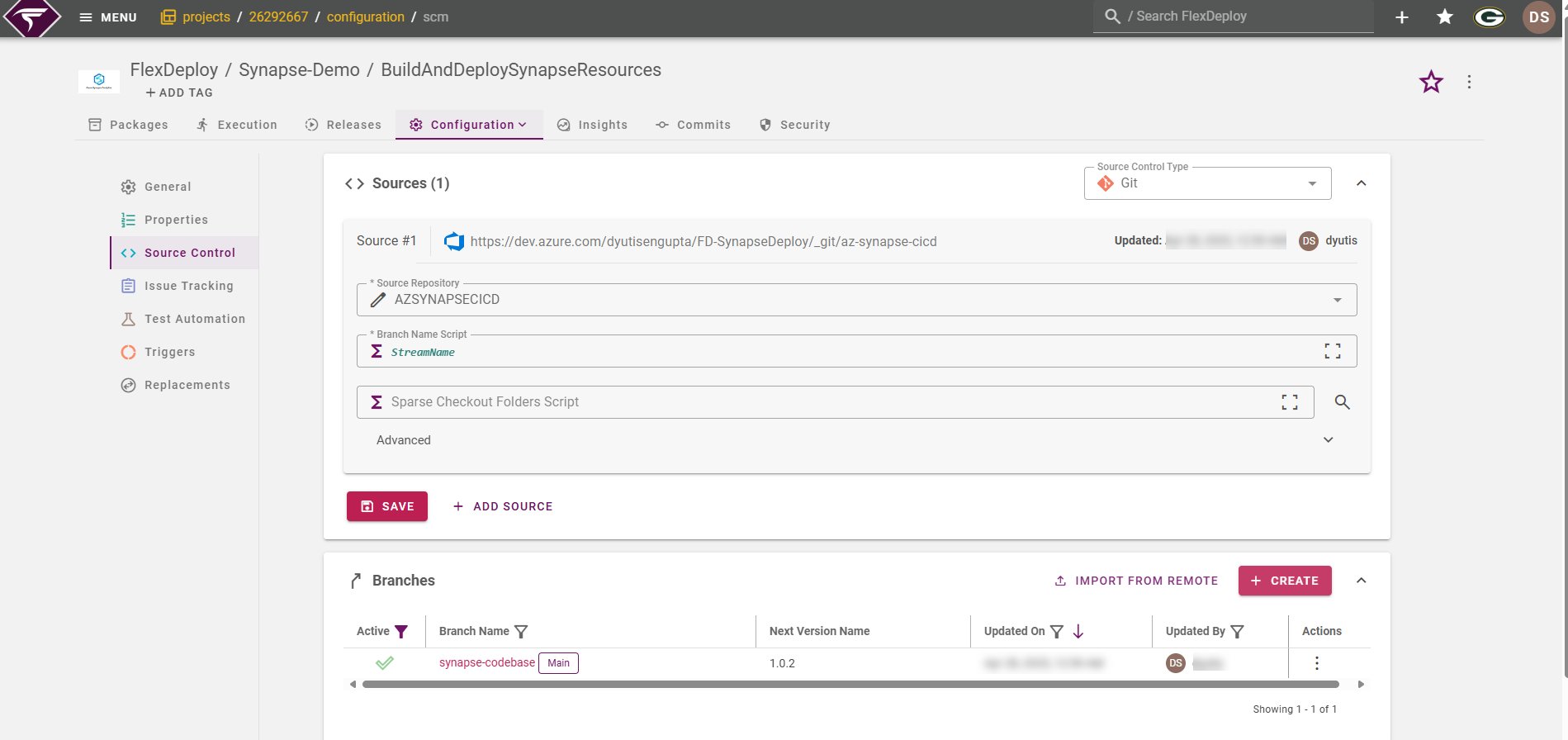
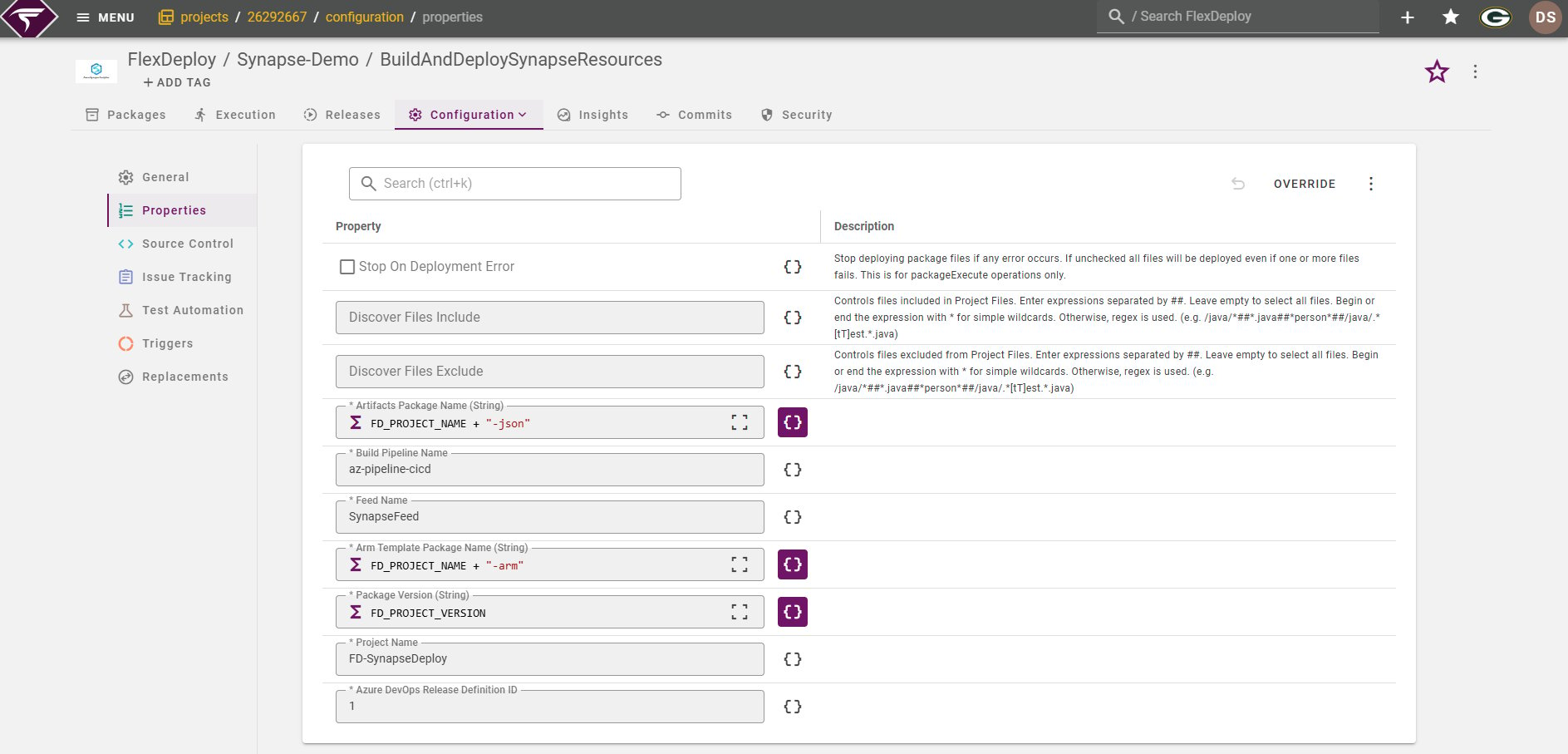
Project Properties
Note: These are the values from the Azure DevOps Feed, Project Name that you already have configured. We have explained their configuration more here.
Target Group configuration
Build
UAT
Execution
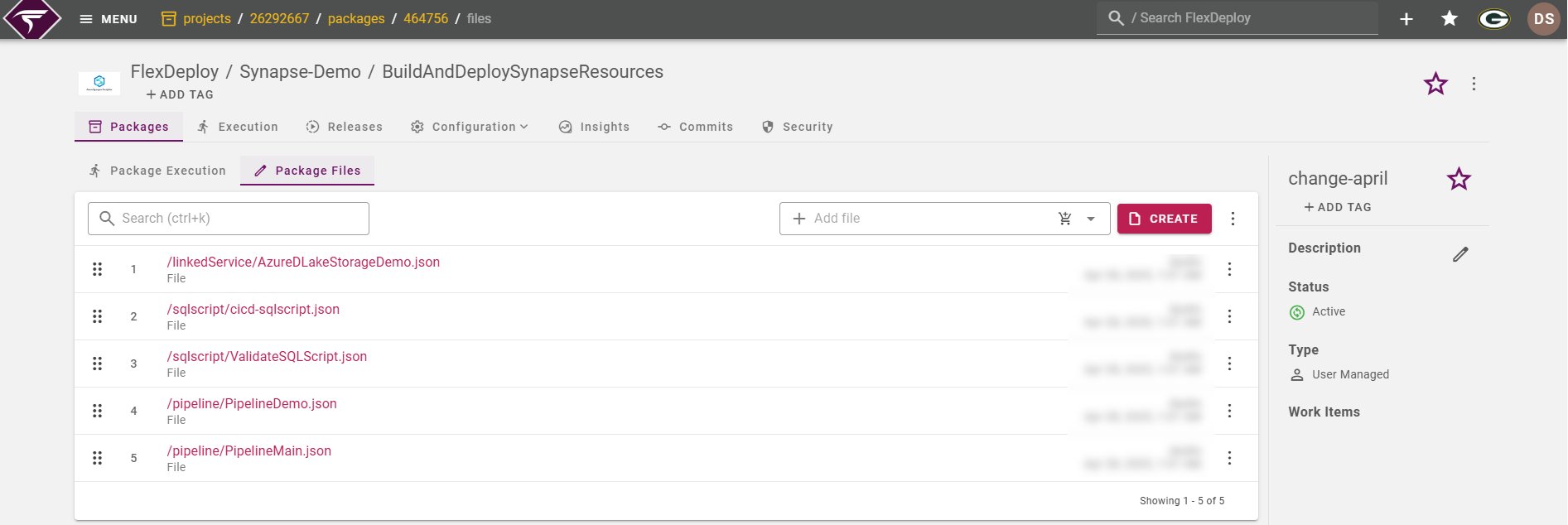
Initiate Build on the selected Package change-april.**Note: The selected JSON files are published to Azure DevOps Feed as Artifacts with the package name as a keyword in it. Example: <packagename>-<fdprojectname>-json-<environmentcode>. Now Microsoft has certain restrictions on the naming of the Azure Artifacts, hence please follow the guide before you name the package that you create in FD or else adjust your workflow to be in compliance. https://learn.microsoft.com/en-us/azure/devops/organizations/settings/naming-restrictions?view=azure-devops