- EBS 11.5.10, 12.1.x, and 12.2.x (with or without online patching)
- One or many custom EBS Tops
-
Source your customizations from either an SCM repository or a development EBS instance.
- See FlexDeploy Plugins for a list of supported Source Control Management (SCM) systems.
- See EBS Object Types Reference for details on supported types.
- Automated change detection on deployment
- Continuous Integration
- Flexible Build options
- Integration with FlexDeploy Pipeline & Release features
Objective
You have a global instance of Oracle E-Business Suite with customizations in a custom top called XXHR. The goal of this tutorial is to configure FlexDeploy to manage the lifecycle of building and deploying the customizations across the environments in your organization. In this tutorial, we will source the customizations from a GitHub repository, and deploy them to a Development Environment. Once the configuration is complete we will walk through the build and deployment life-cycle for managing your EBS software delivery.Checklist
Checklist | Description |
|---|---|
Tomcat | Recommended install option contains Tomcat (no separate install required) |
SCM provider | Git provider : GitHub, Gitlab, BitBucket, Azure Devops, Oracle etc. Other supported source control management:
|
SCM repository URL | The URL of the source control management repository. |
SCM account user name | The username to login to the repository. |
SCM account password | The password to login to the repository. |
Review existing SCM directory structure | Recommended source control structure Source Control Folder Structure . |
EBS Custom TOP name | Name of the custom top you will deploy to. |
EBS Environment File (e.g. EBSapps.env) | The Fully qualified path to the environment file. This is the environment file outside of fs1/fs2 filesystem. |
Apps Password | The password for apps user. |
User id which runs EBS (e.g. applmgr) | FlexDeploy will connect to target server using this user. |
Password for user id | Password to connect to the target server. |
JDK home for primary app-tier host | Recommend JDK 1.8 installed outside of fs1/fs2. |
If EBS 12.2.x, do you deploy customizations using ADOP? | If using EBS 12.2.x, check whether you have any ADOP patching phases. |
Create EBS Project using Blueprint
The assumption is that you have FlexDeploy installed and ready for use. When logged into the FlexDeploy, you will see the Home page. Click on the + icon on the top and click “Create Project” to create a new project.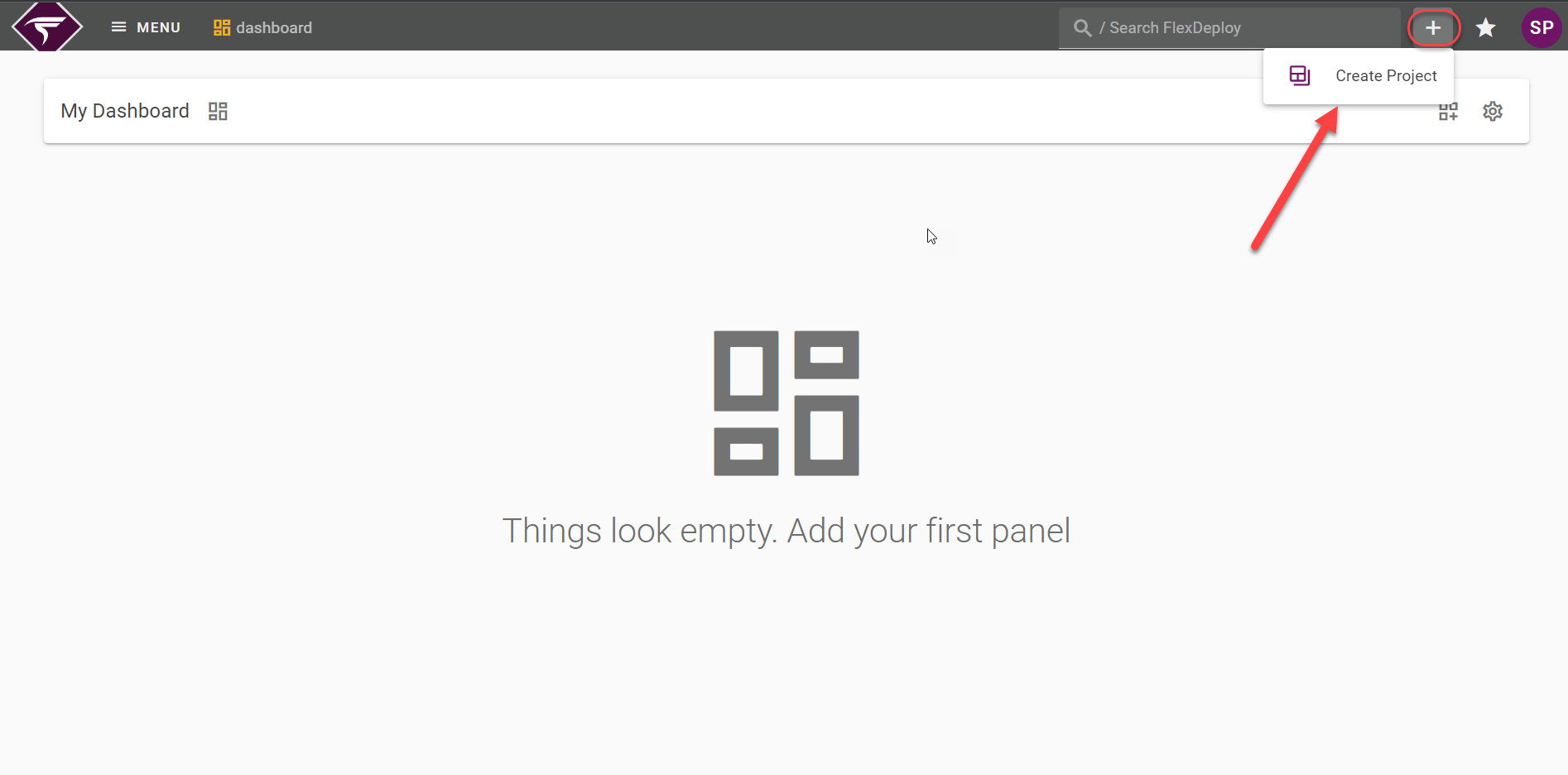
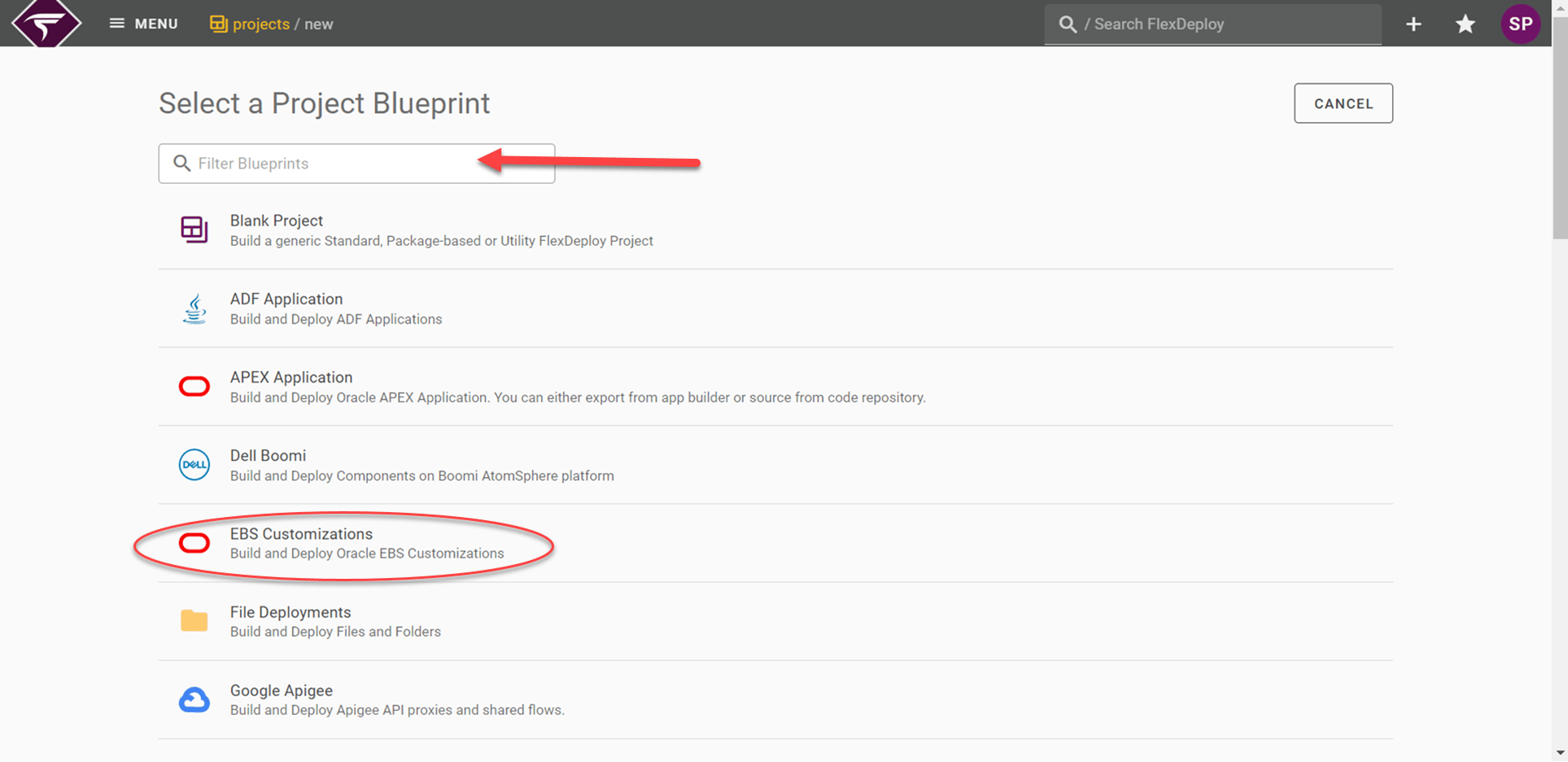
General Configuration
Scroll through this guide to fill in the blueprint properties whereas the Build and Deploy options are auto-selected.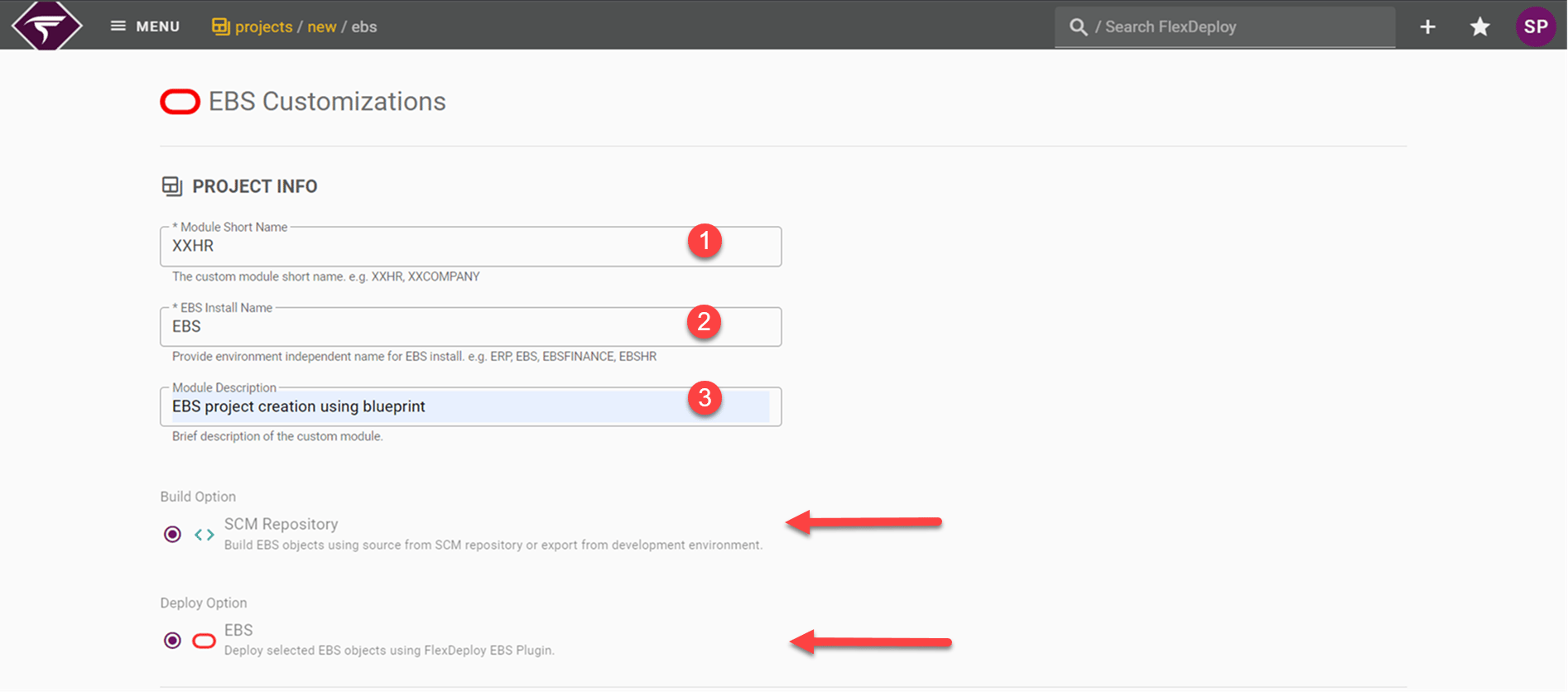
Project Info
Property Name | Value for this tutorial | Description |
|---|---|---|
Module Short Name | XXHR | This property defines the short name of the custom top for this project (eg. XXAR, XXHR). |
EBS Install Name | EBS | This value will provide environment independent name for EBS install (eg. ERP, EBSHR ). The default is EBS. |
Module Description | EBS Project creation using blueprint | Brief description of the custom module. |
Source Control
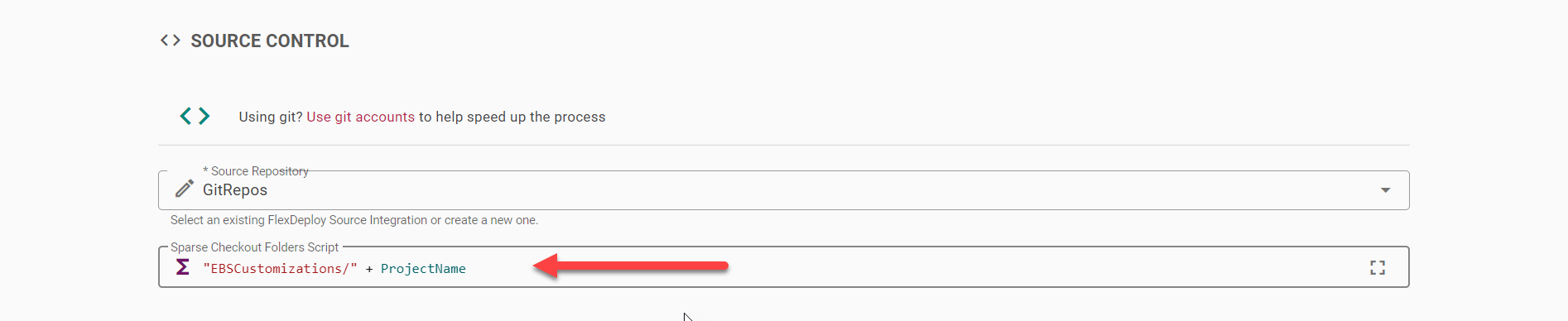
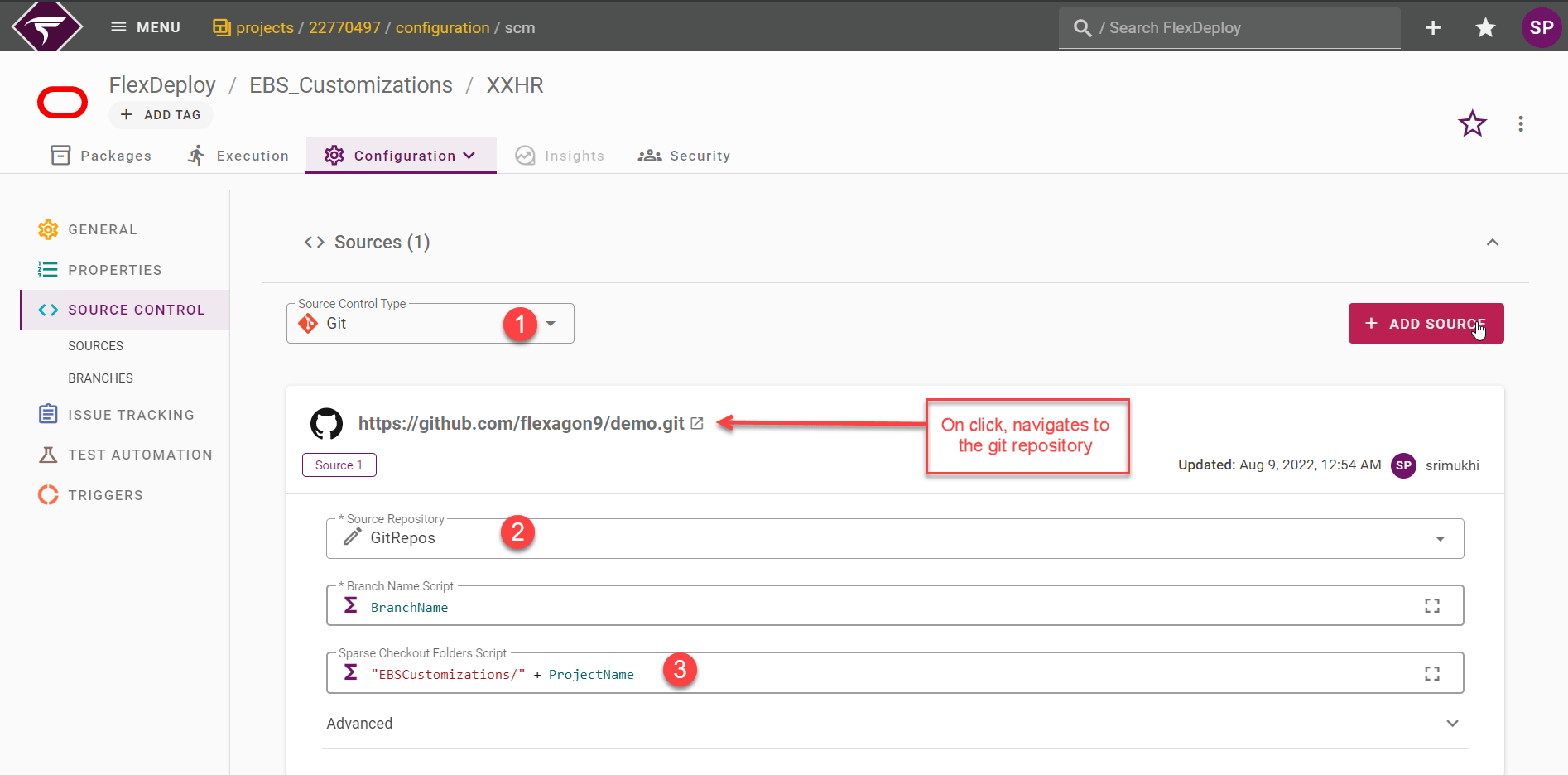
Click on source repository dropdown. If you have already created a connection to your source code repository, select it from the list. Enter the sparse checkout folder, if any.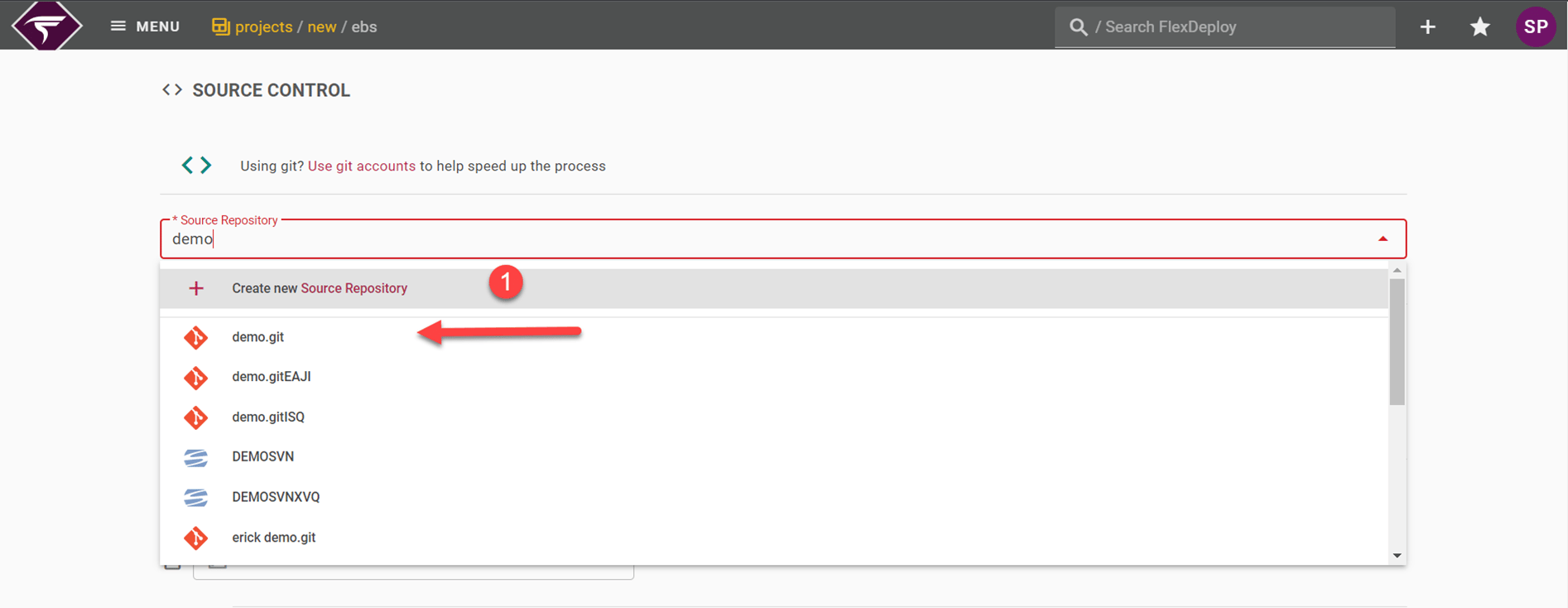
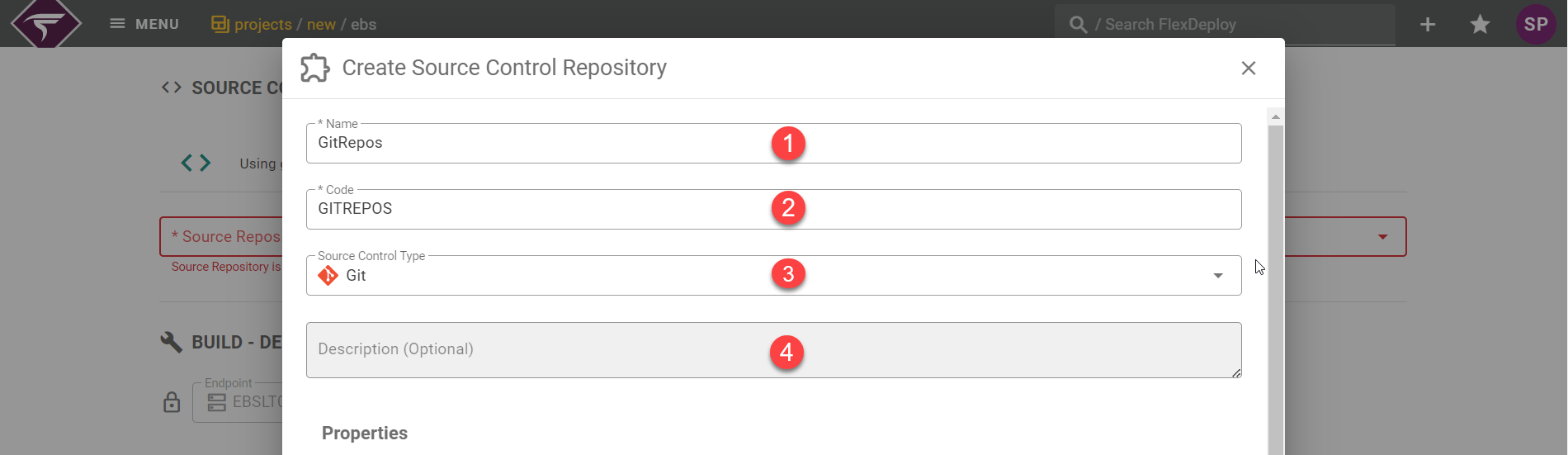
Inputs Info
Field | Required | Description |
|---|---|---|
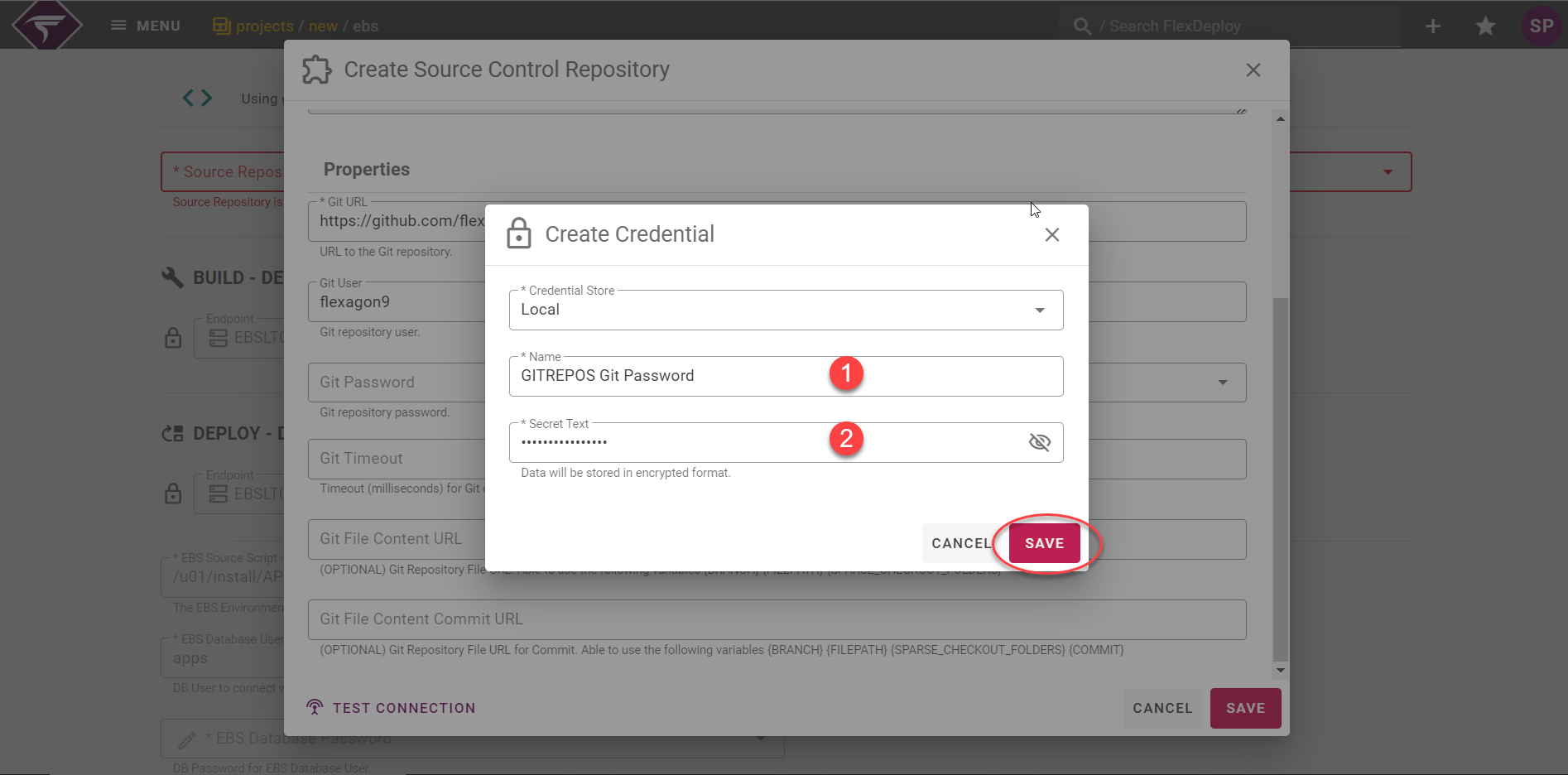
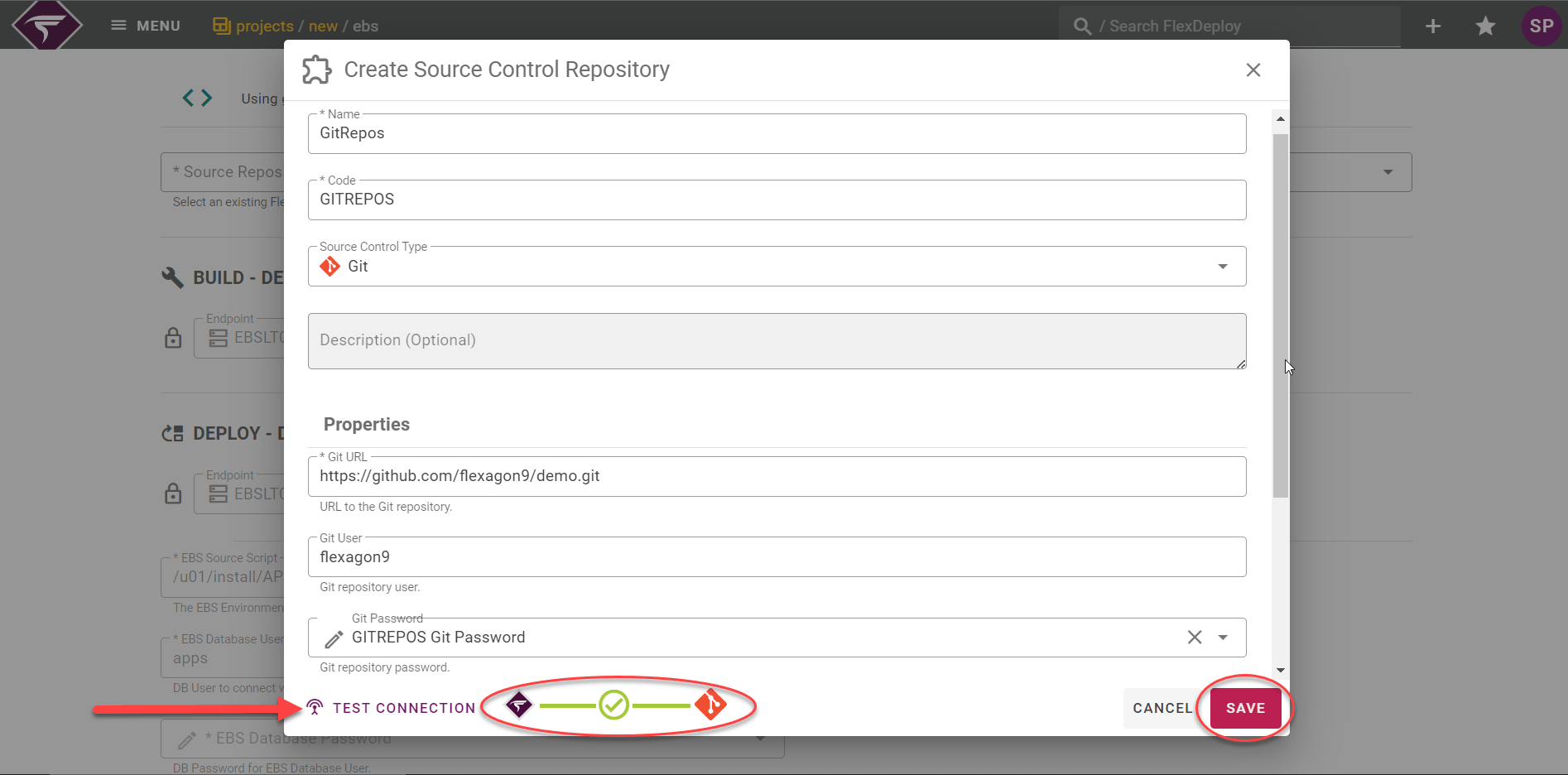
Name | Yes | A descriptive name for this SCM instance. |
Code | Yes | A technical code for the instance, without any spaces. The codes are available as variables to shell and Groovy scripts, and therefore needs to comply with their limitations. |
Source Control Type | Yes | Type of Source Control Management System. We will use Git for this tutorial. Supported Source Control Management Systems are:
|
Description | No | |
SCM Properties | Yes | The remaining properties are specific to the selected SCM. For Git:
|
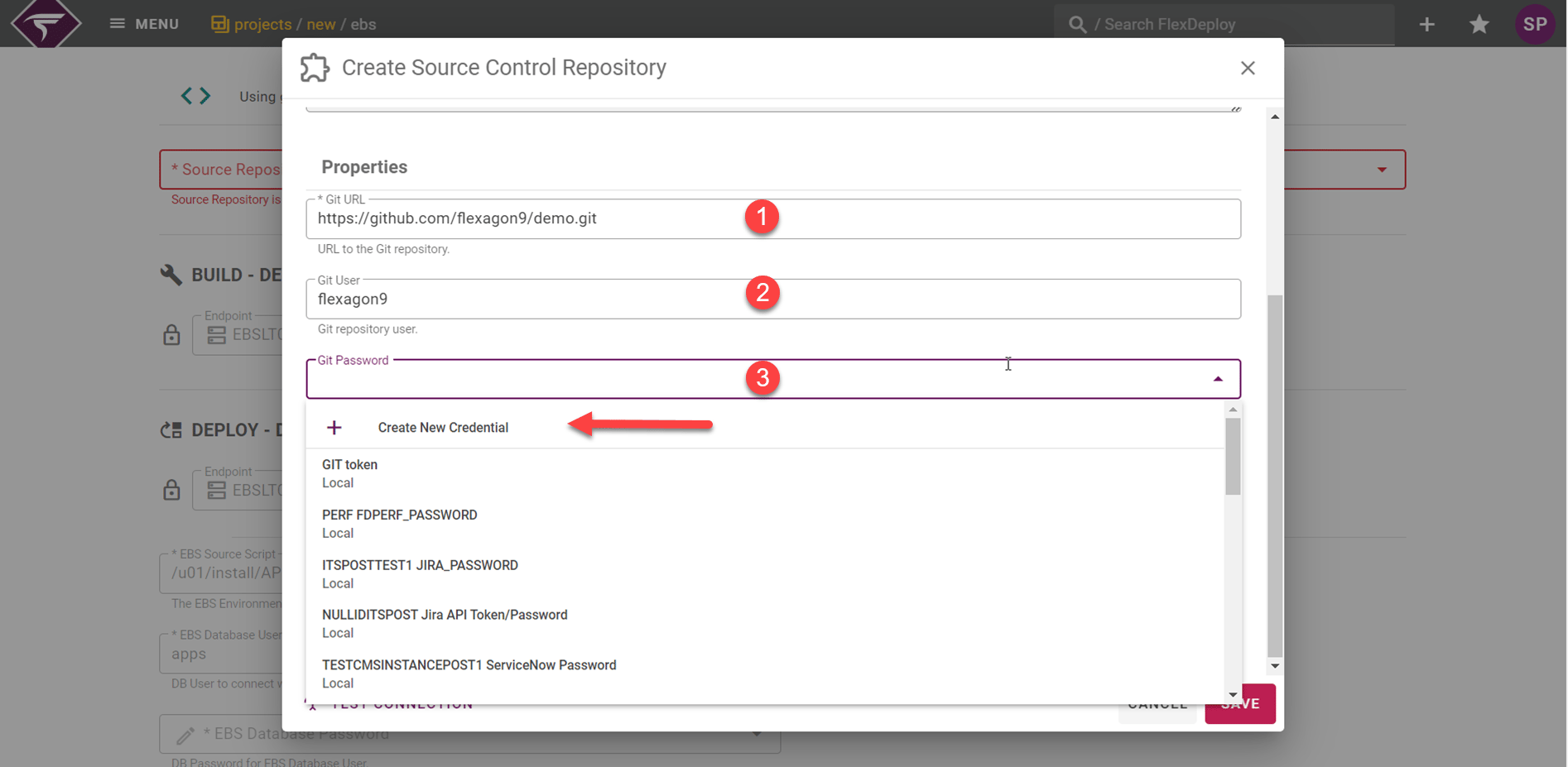
Gather Build and Deployment information
Enter values for any workflow properties which are required for the build and deploy. In the image below, no properties are required for this build. Select the target endpoint that the build and deploy should execute on.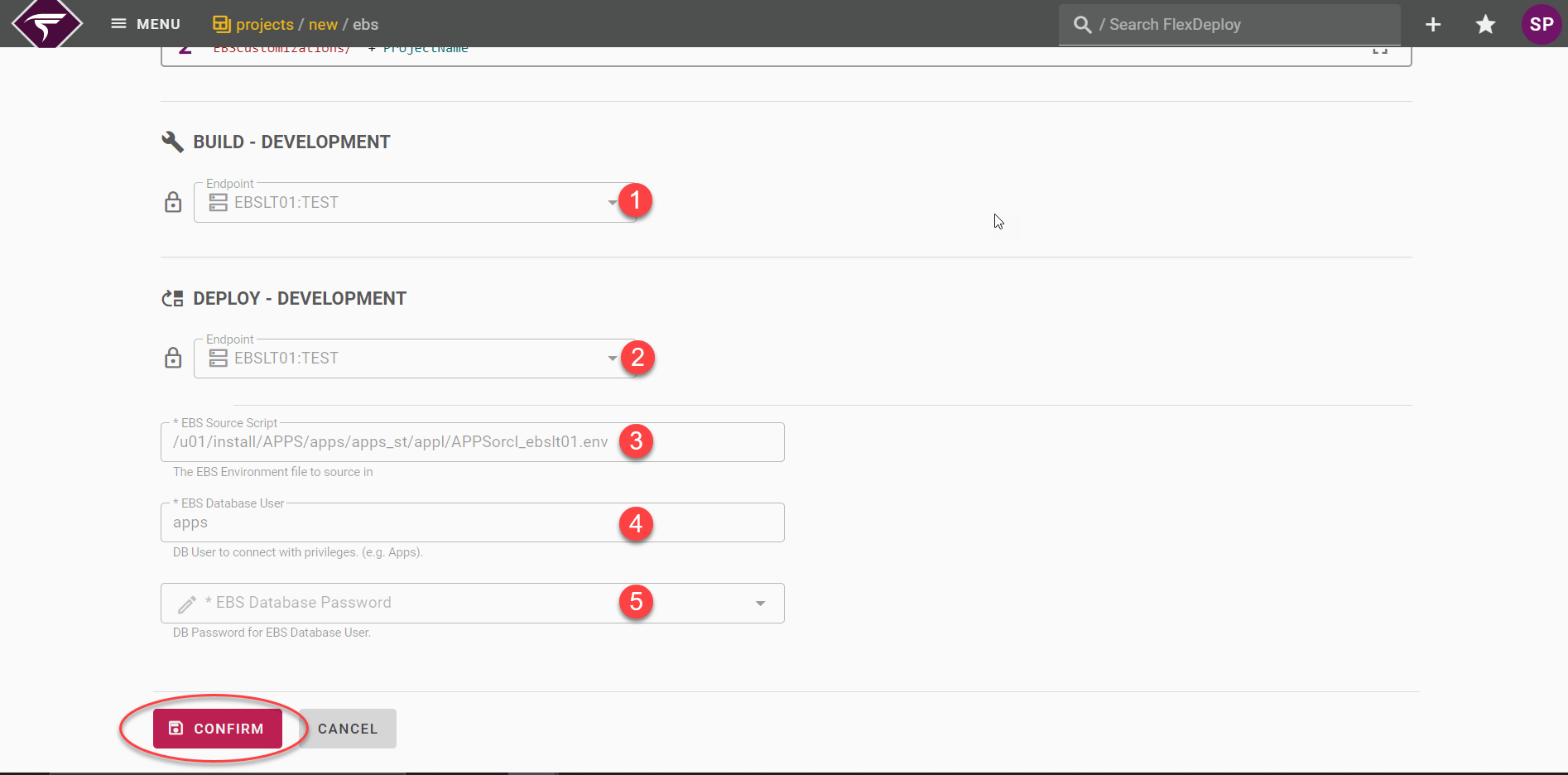
Target Properties
Property Name | Values for this Tutorial | Description |
|---|---|---|
EBS Source Script | locate this value from your EBS server. | Source Script with full path. |
EBS Database User | apps | DB User to connect with privileges. |
EBS Database Password | locate this value from your EBS server. | Password to connect for |
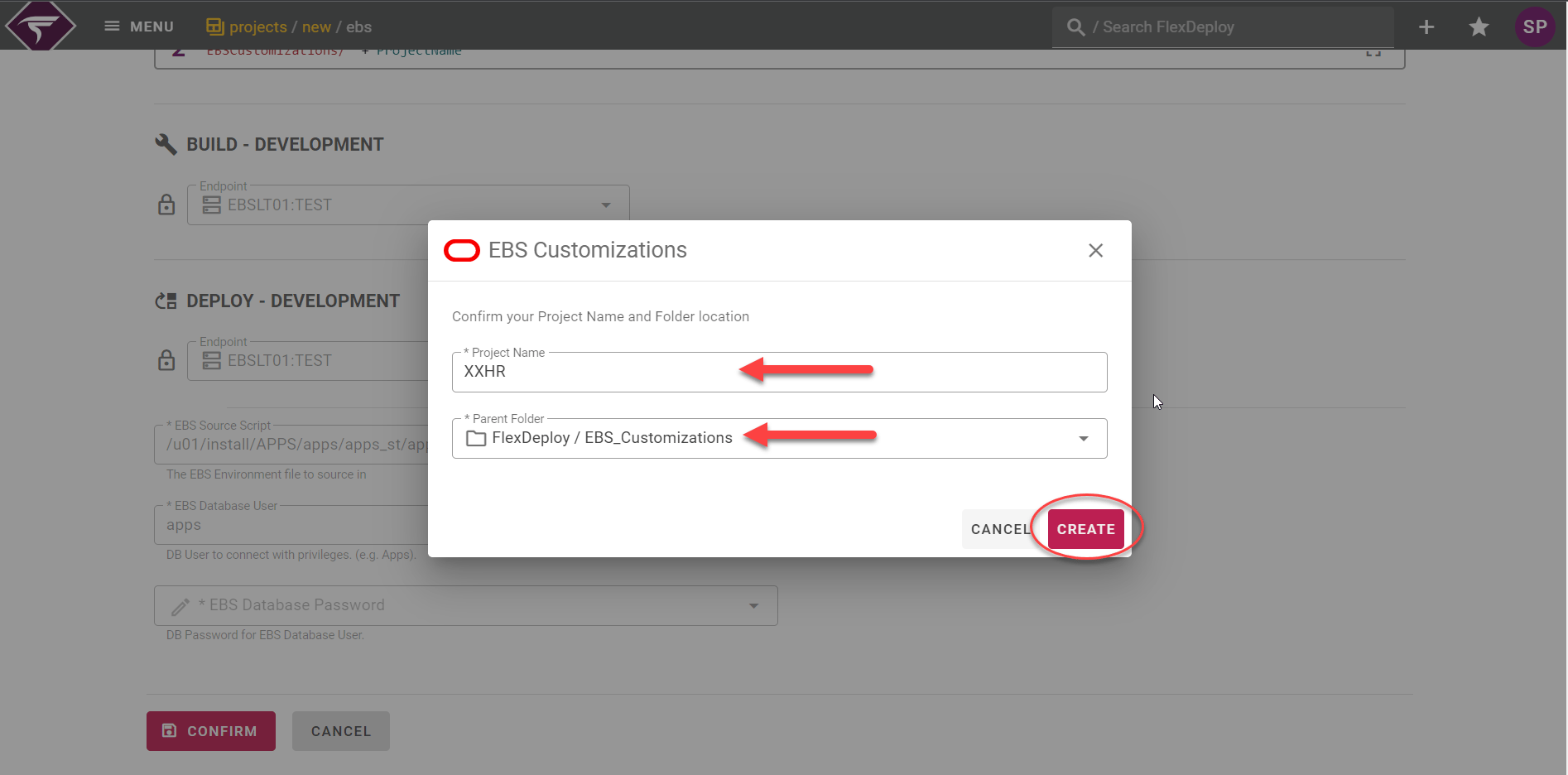
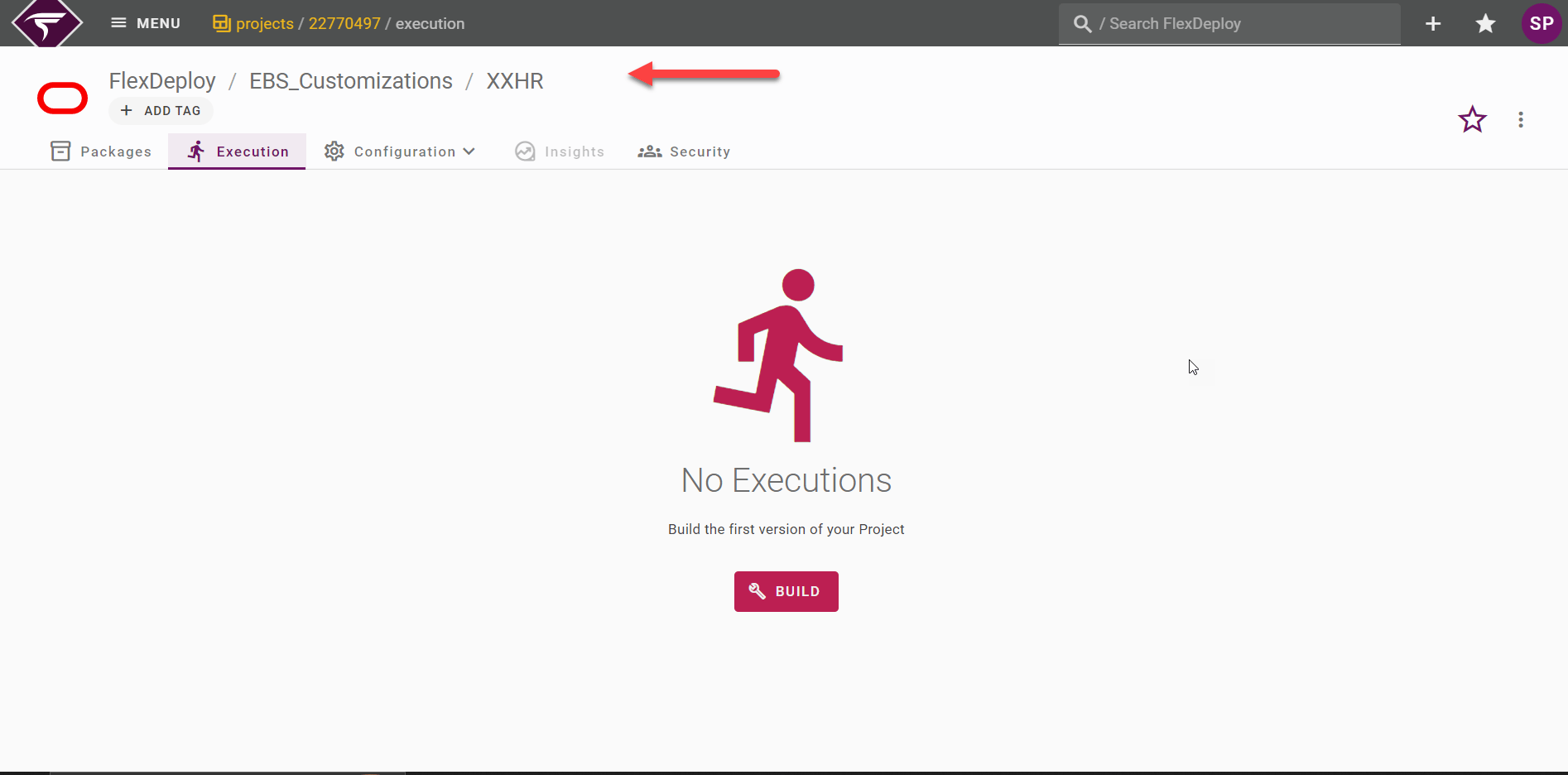
Summary
General Configuration
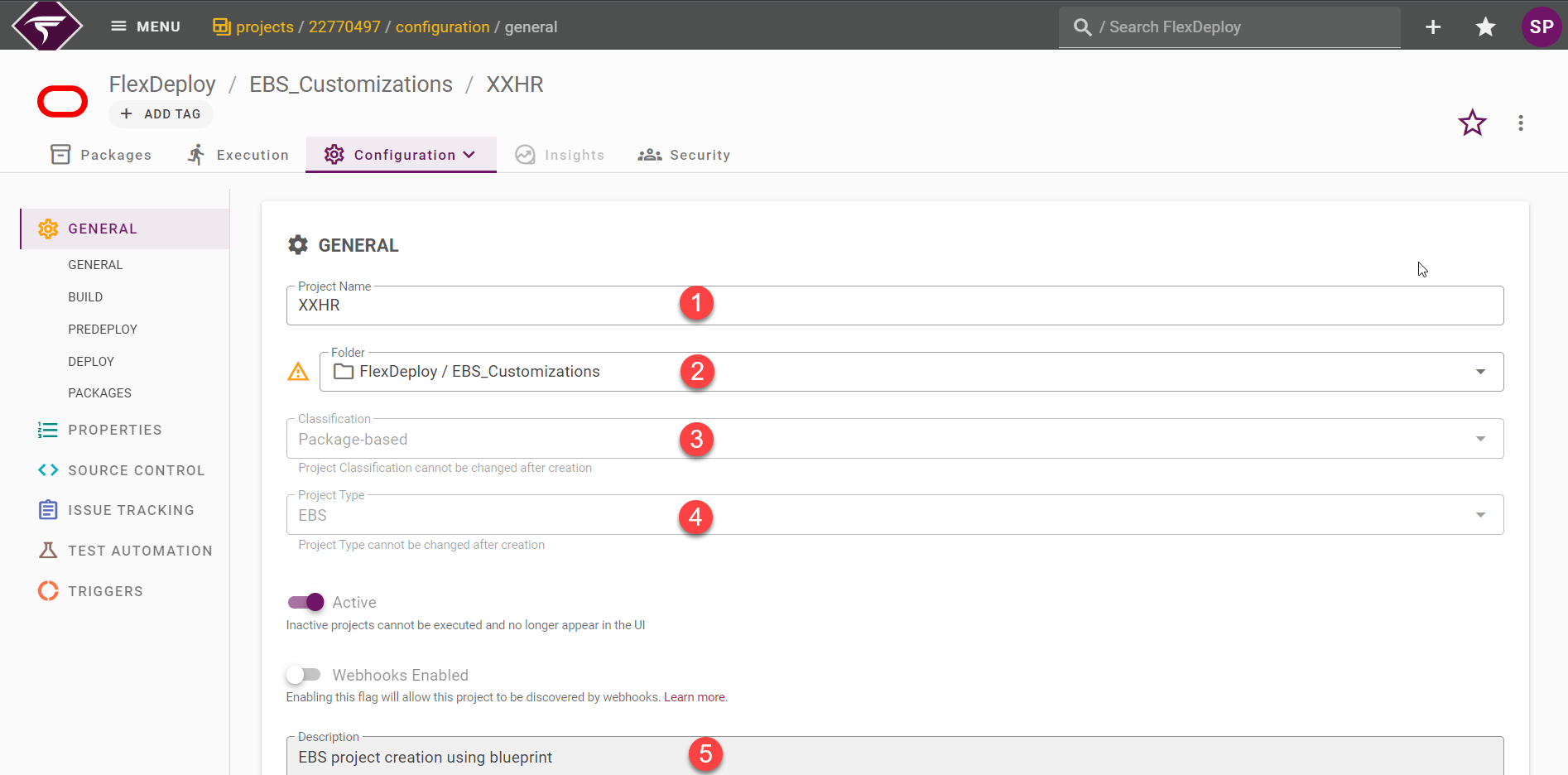
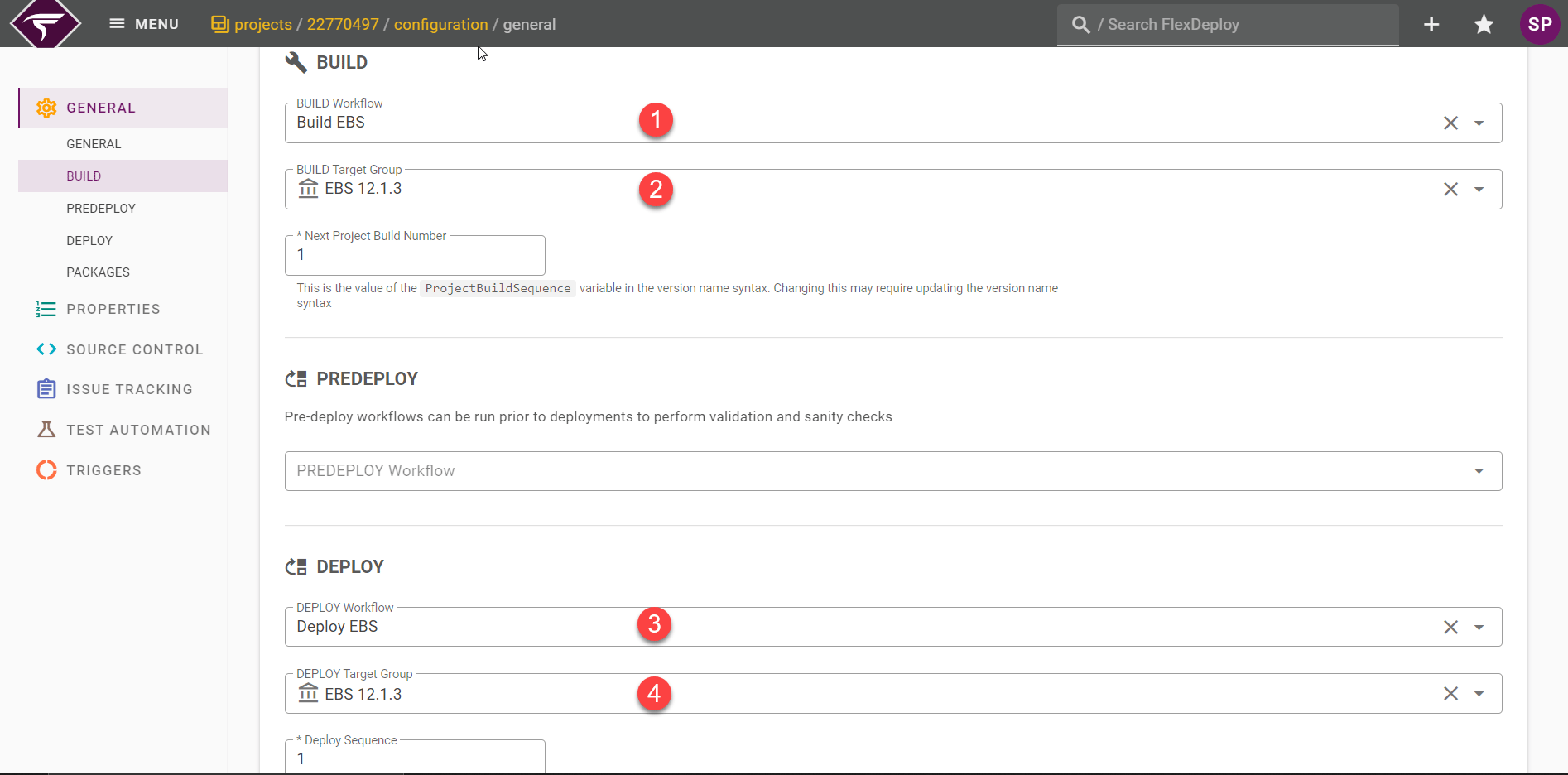
Build and deploy workflows
Project Properties
There are many properties for EBS, but only one is required - EBS Module Application Short Name. This property defines the short name of the custom top for this project. The value for EBS Module Application short name i.e. XXHR will be auto populated from the blueprint itself. You can filter out the properties by using the search filter properties in the top.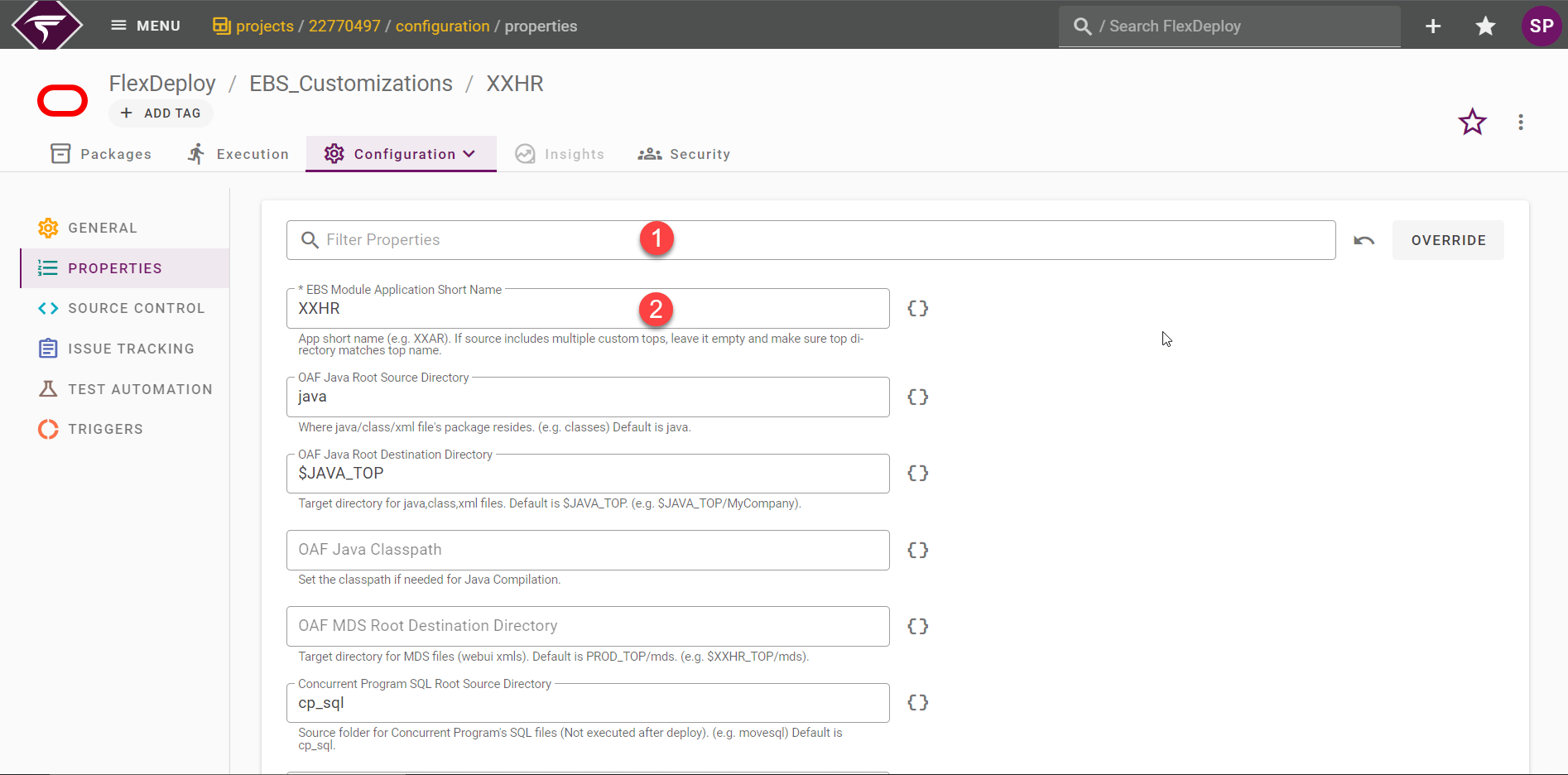
Source Control
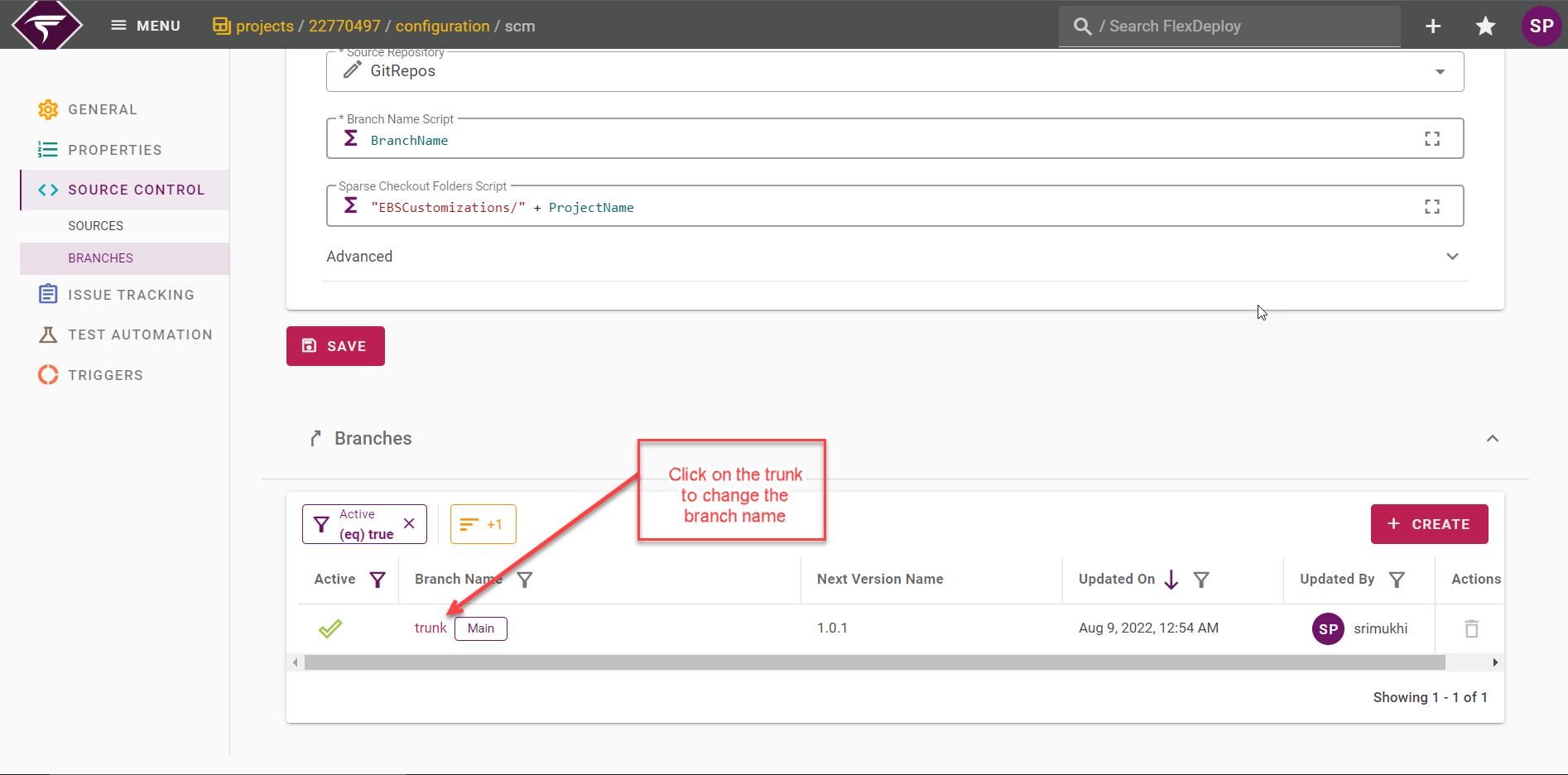
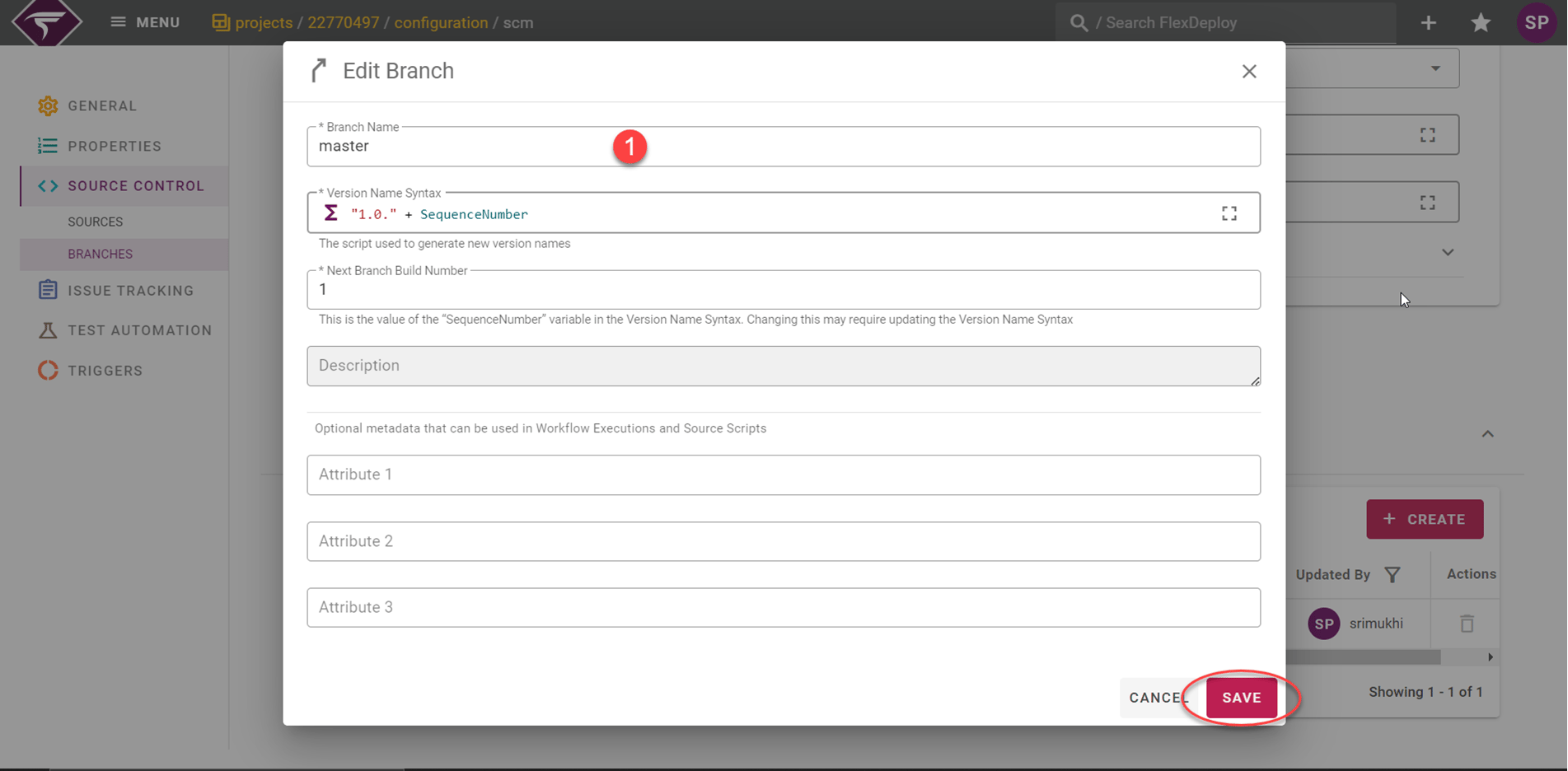
Branch Name
SCM Instance
Viewing the current list of Integrations is achieved by selecting Integrations from the menu. There are eleven types of integrations in FlexDeploy, but we will focus on Source Control in this tutorial.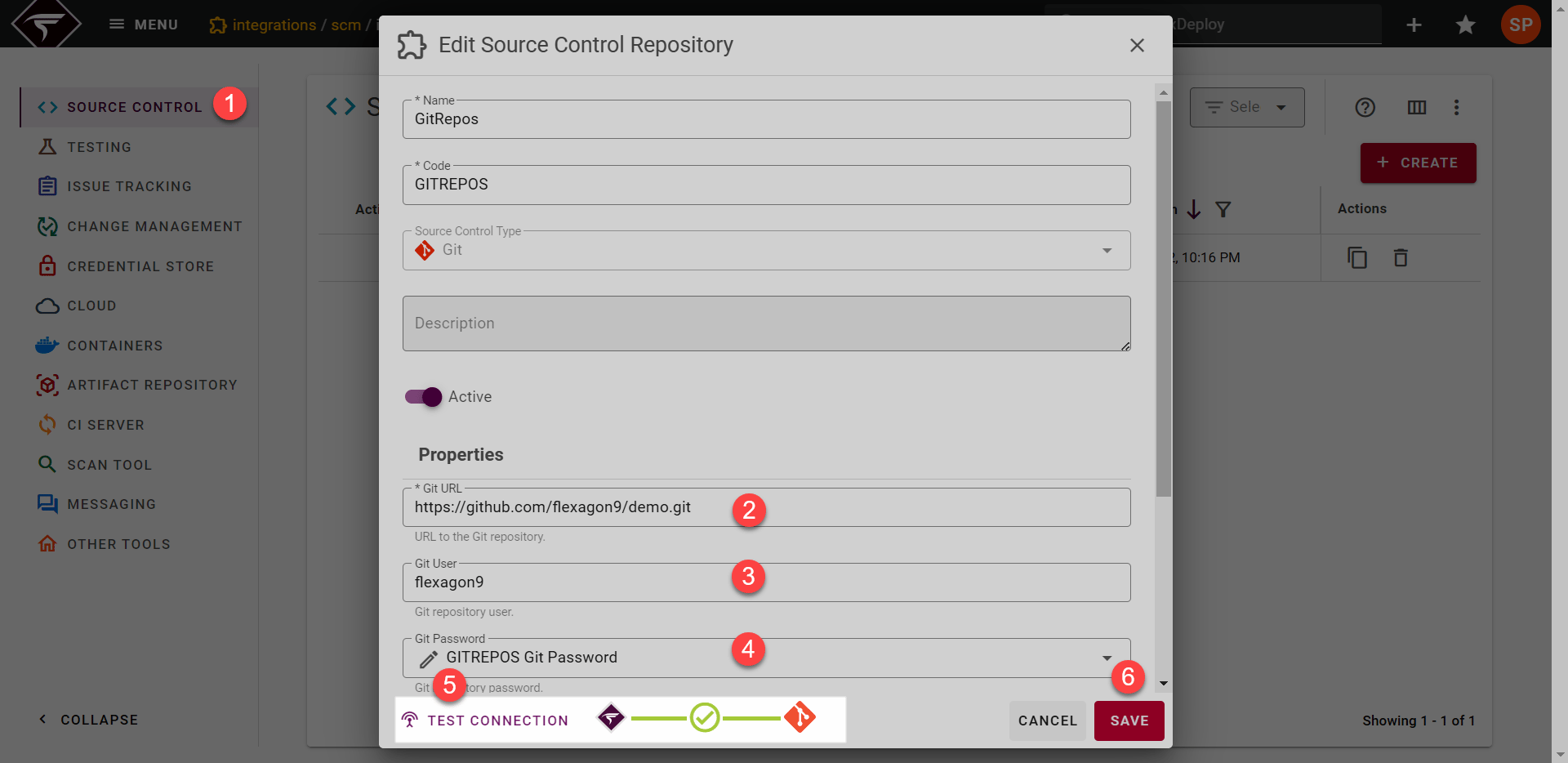
Topology
Navigate to the Topology from the Menu. The Page with the Target Groups, Environments and Endpoints sections will be displayed. Choose a Target Group on the left. You will see a list of Environments on the right with colored circles representing each Target.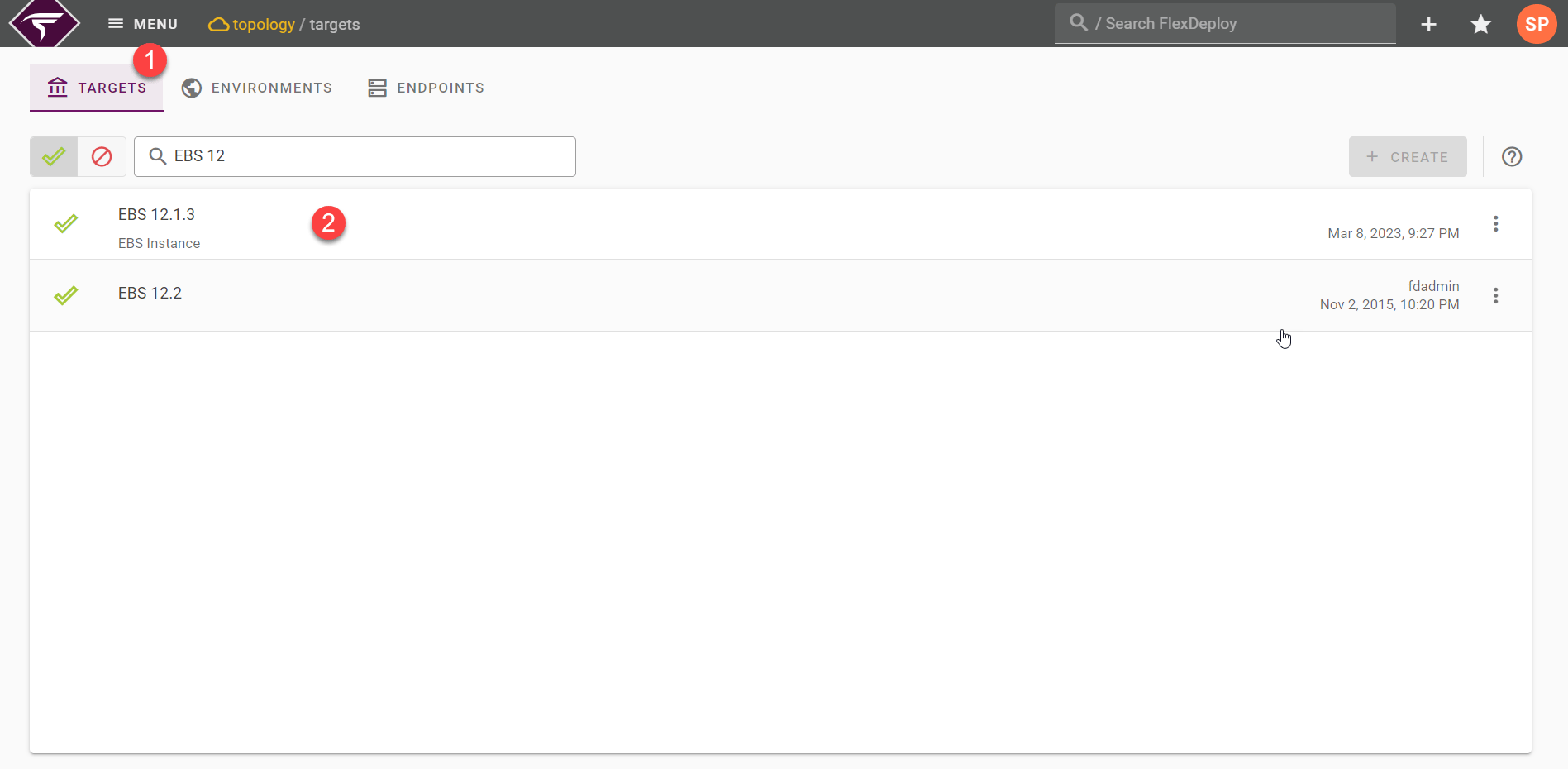
- RED - The Endpoint is not configured
- YELLOW - some of the required properties are not set,
- GREEN - all required properties are set and the Endpoint is configured
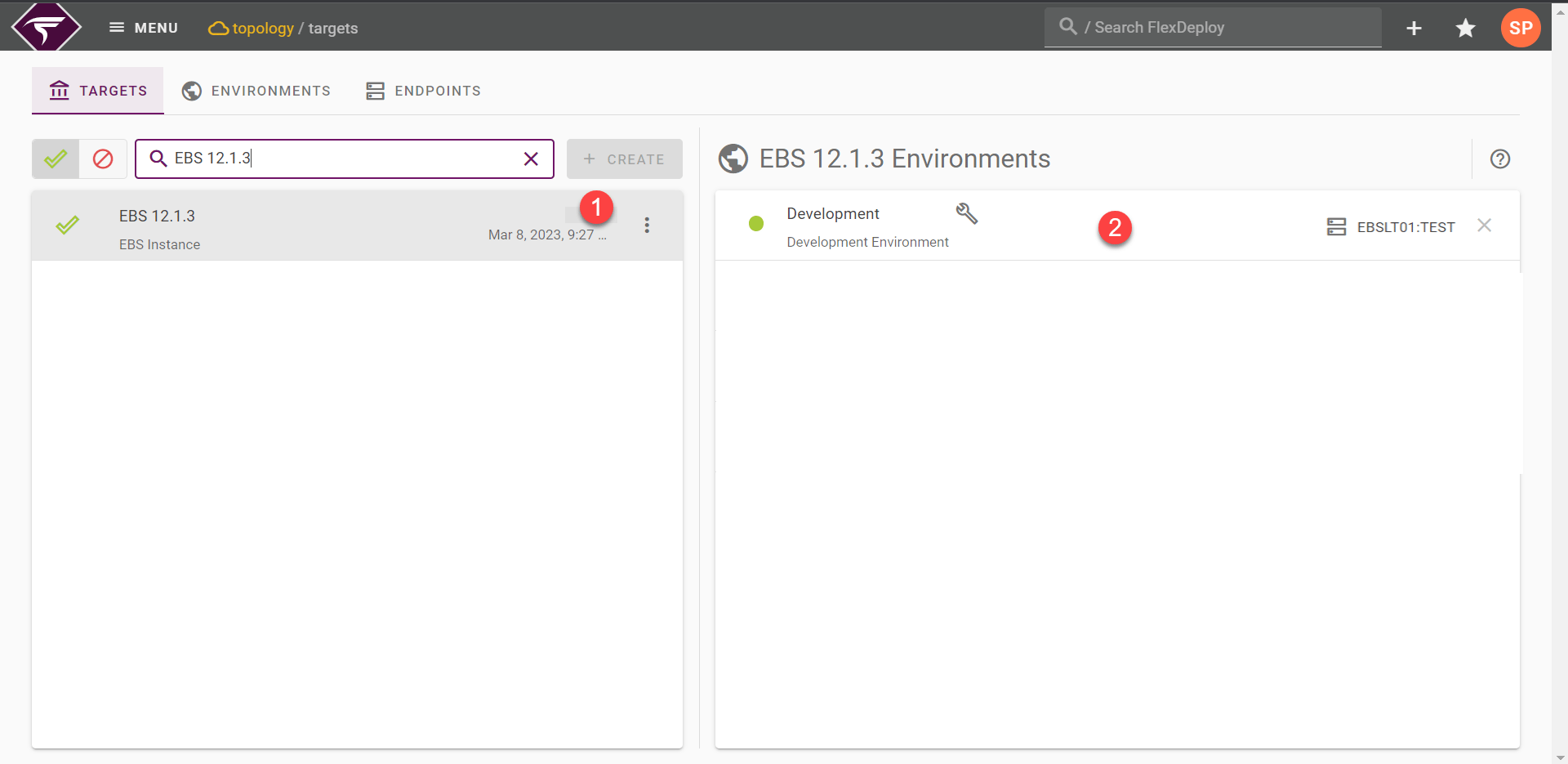
Targets Properties
Clicking the environment row for DEV allows modifying the Endpoint and properties.Populate the files
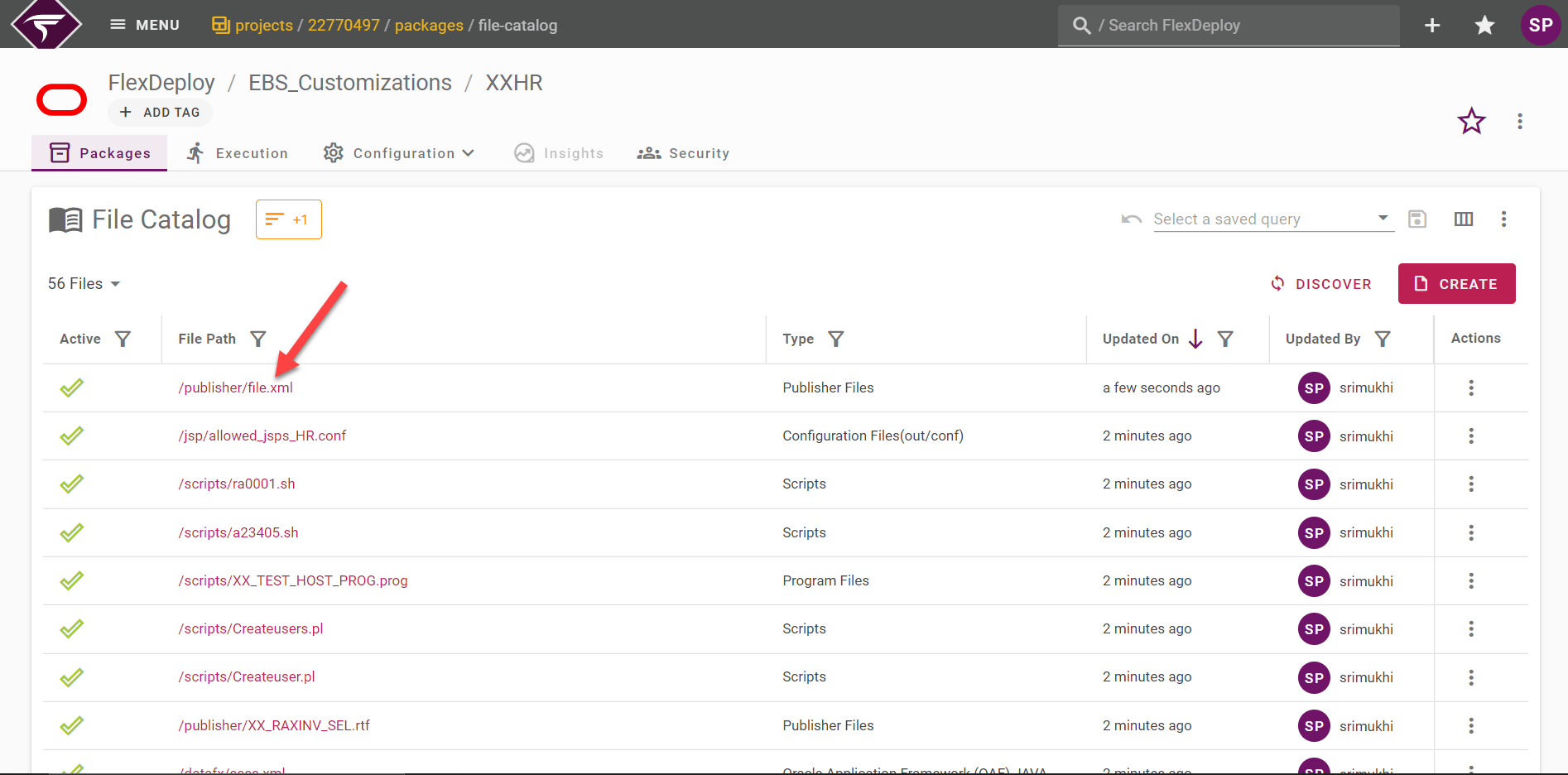
Click on File Catalog under Package screen.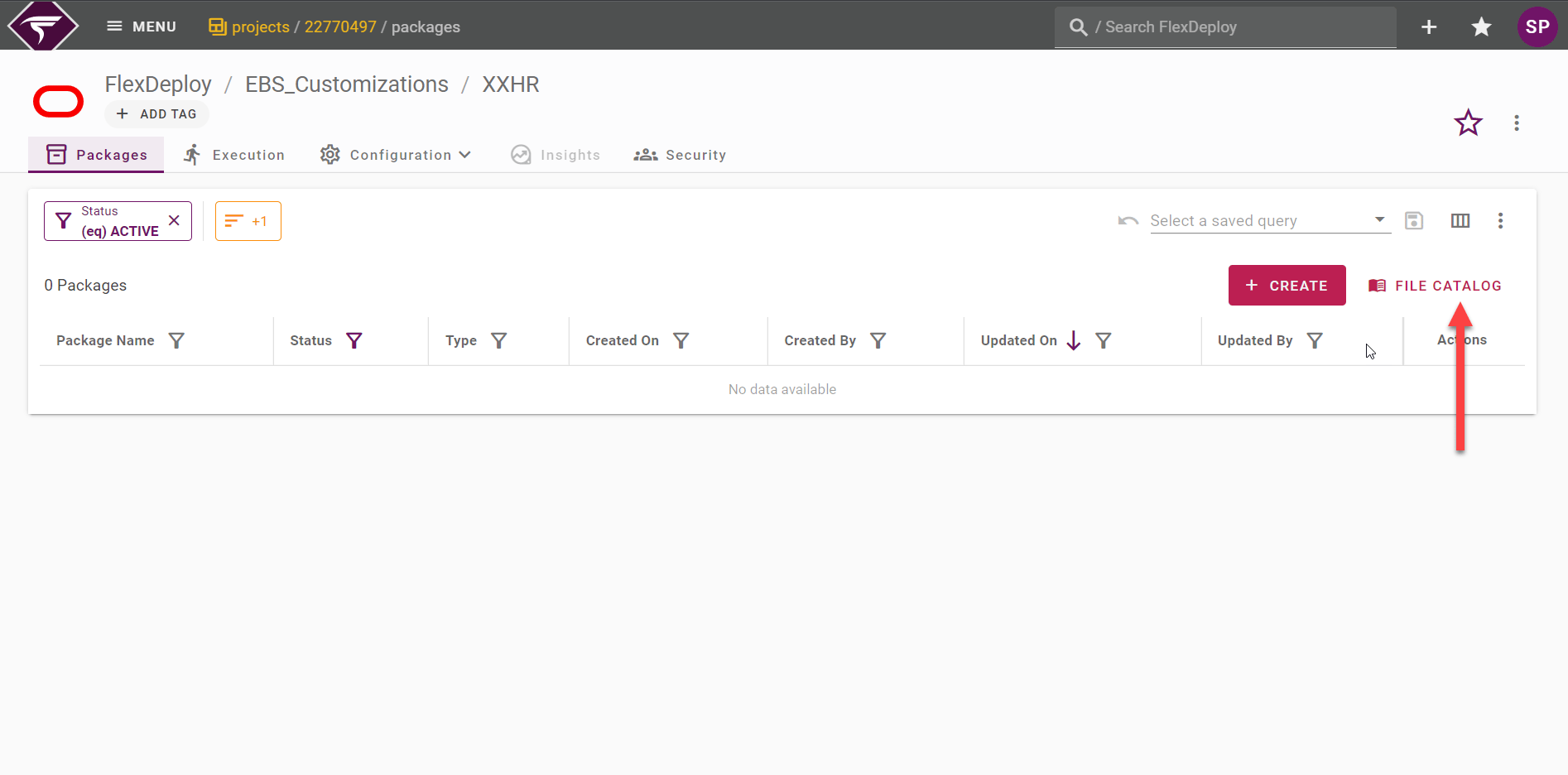
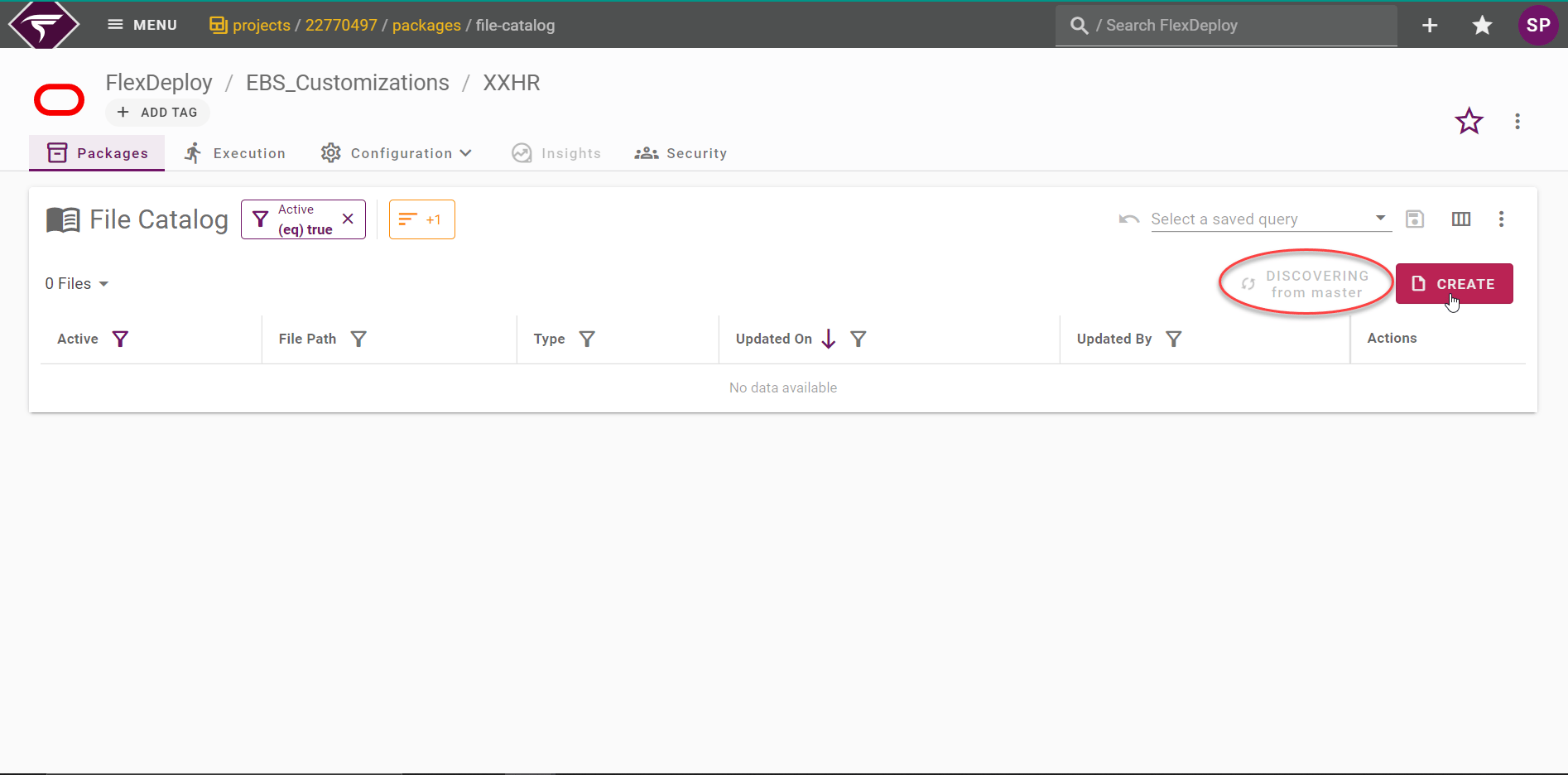
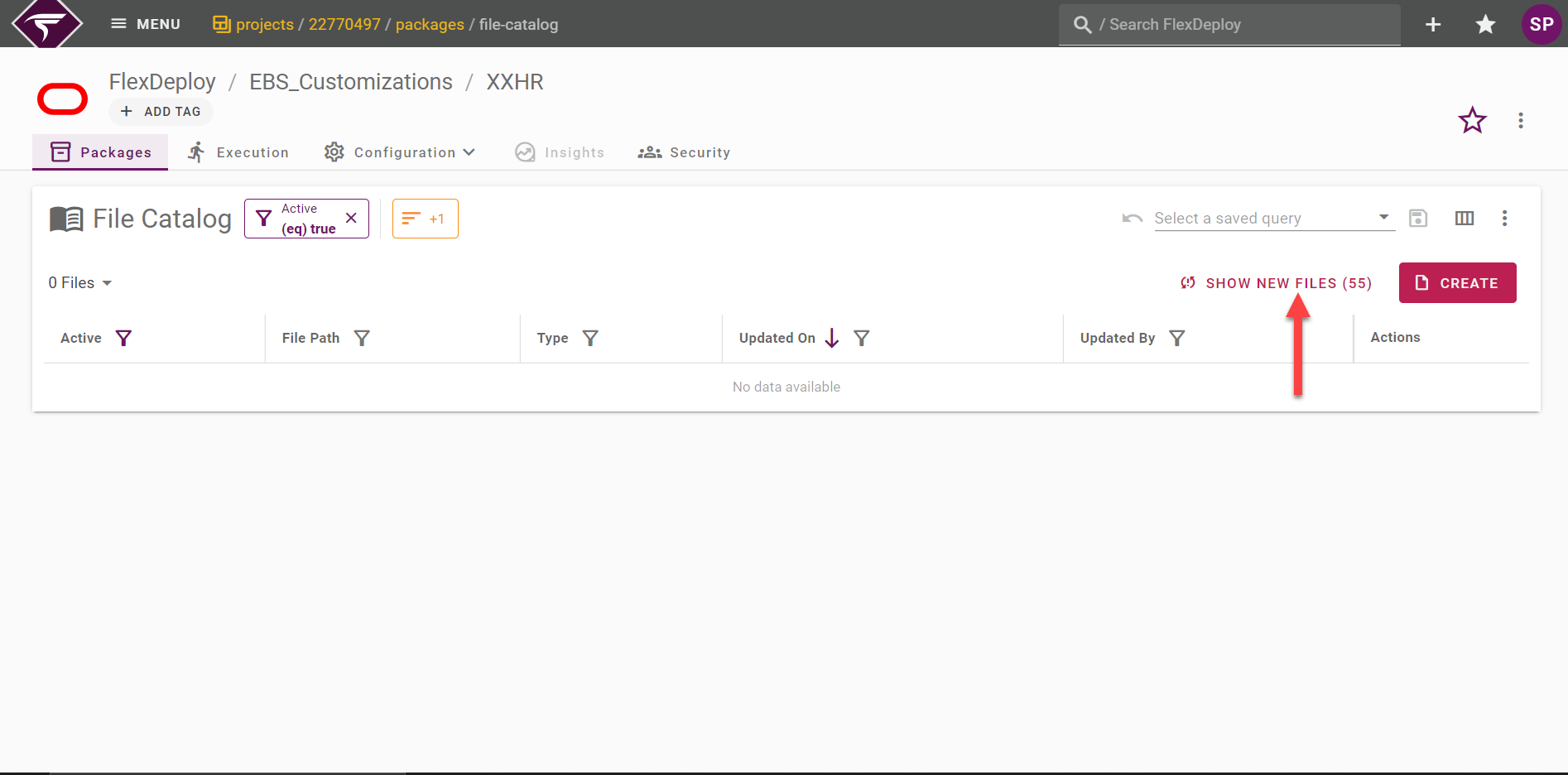
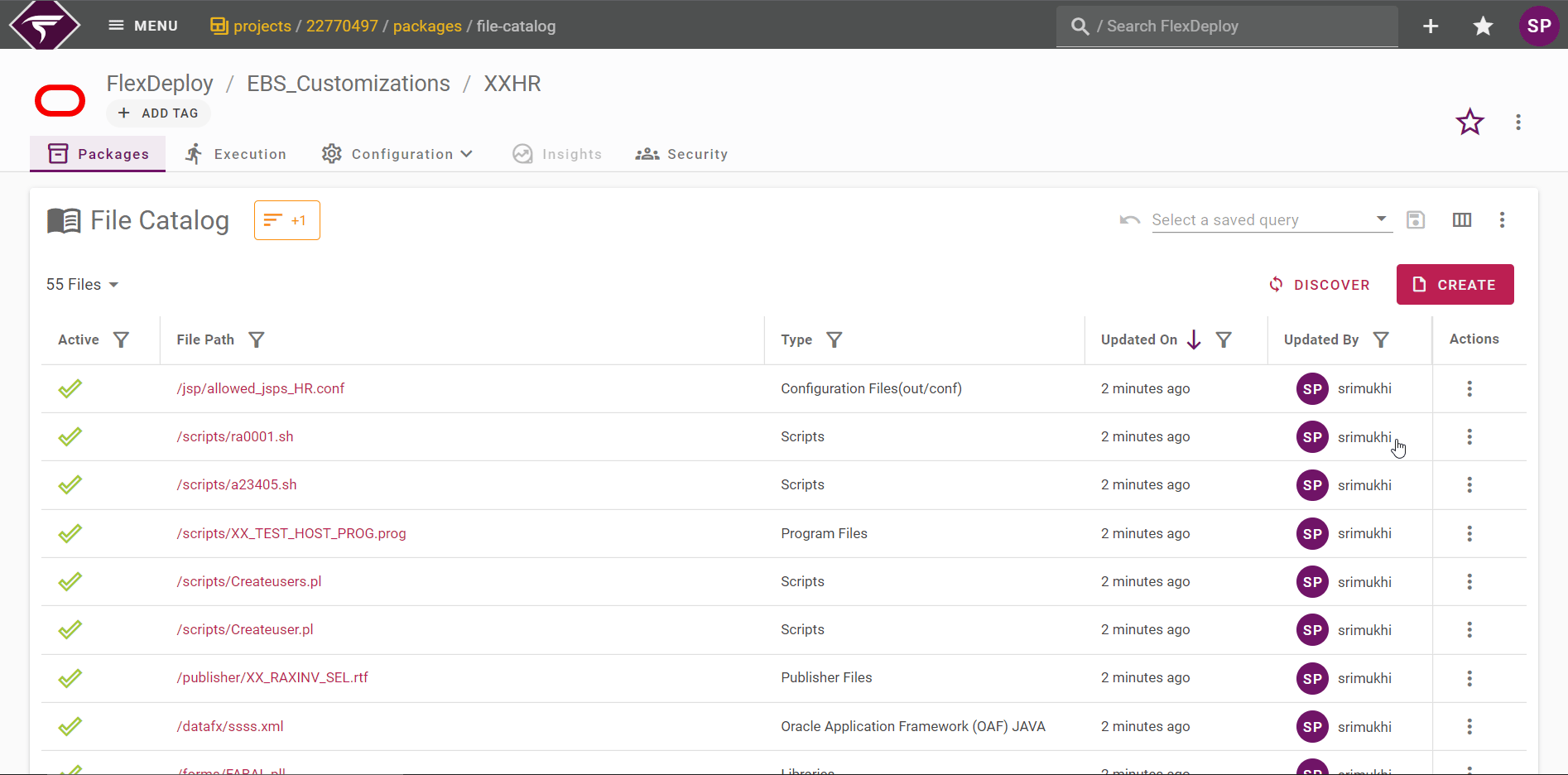
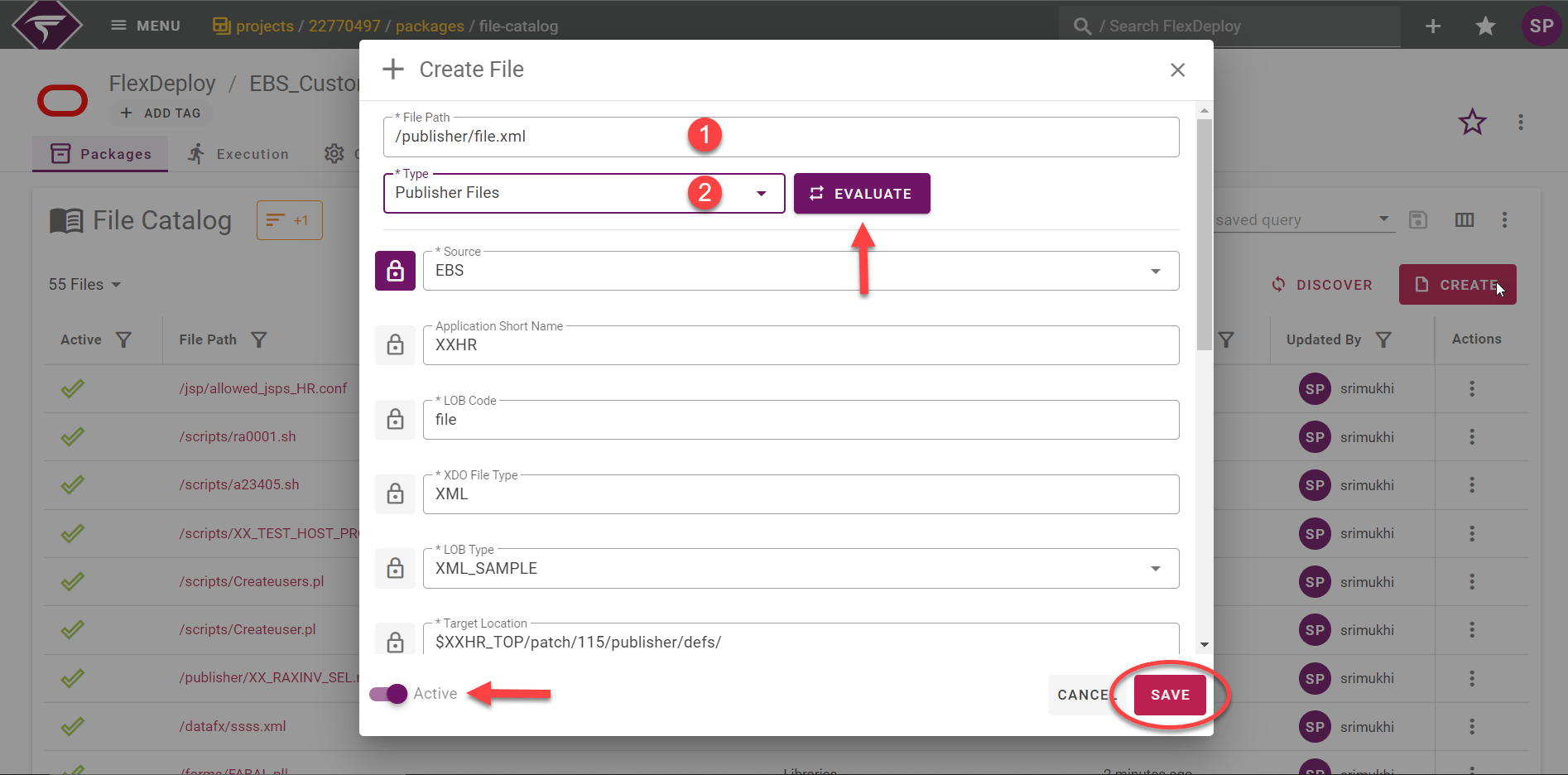
Create a package
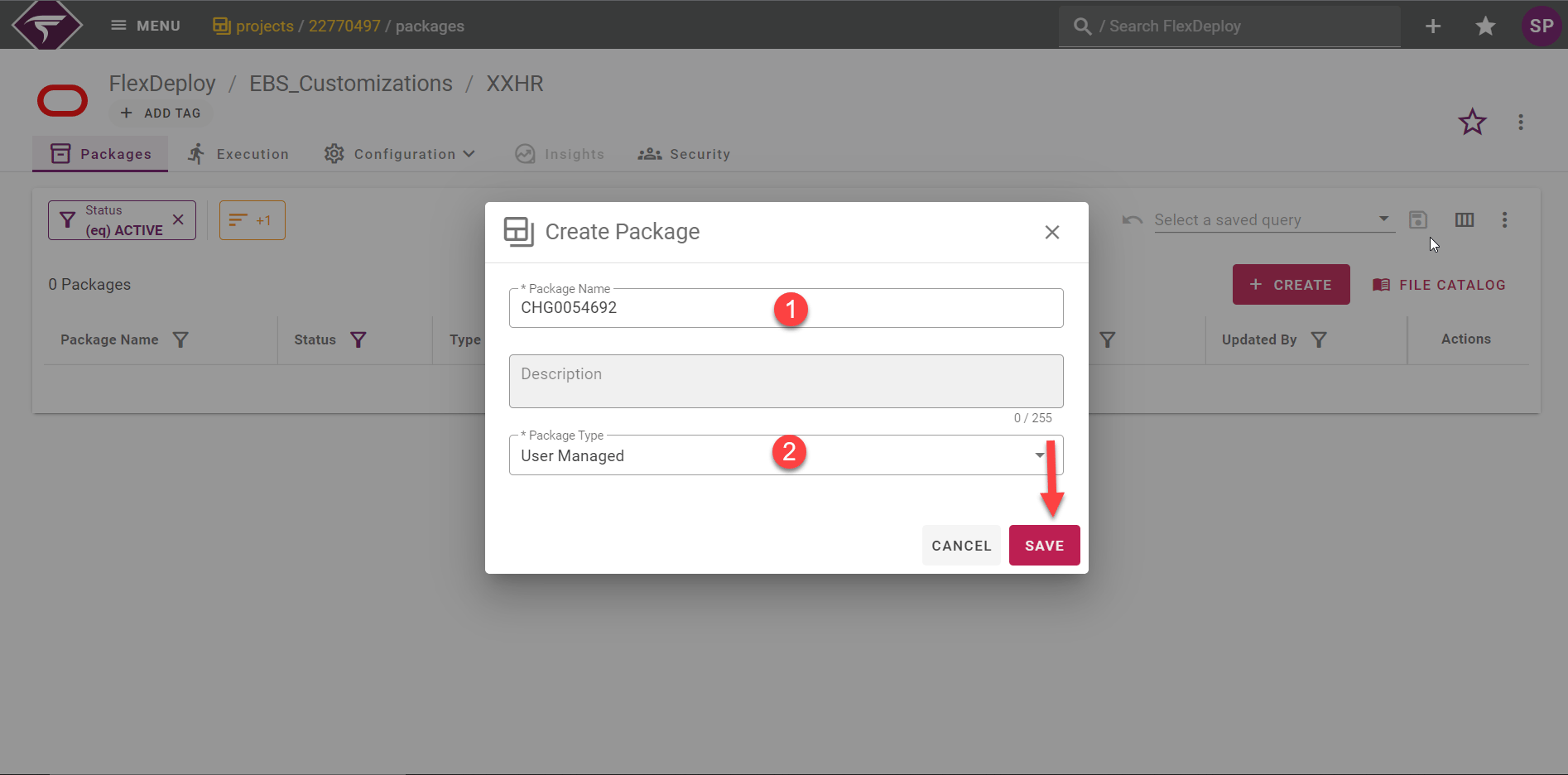
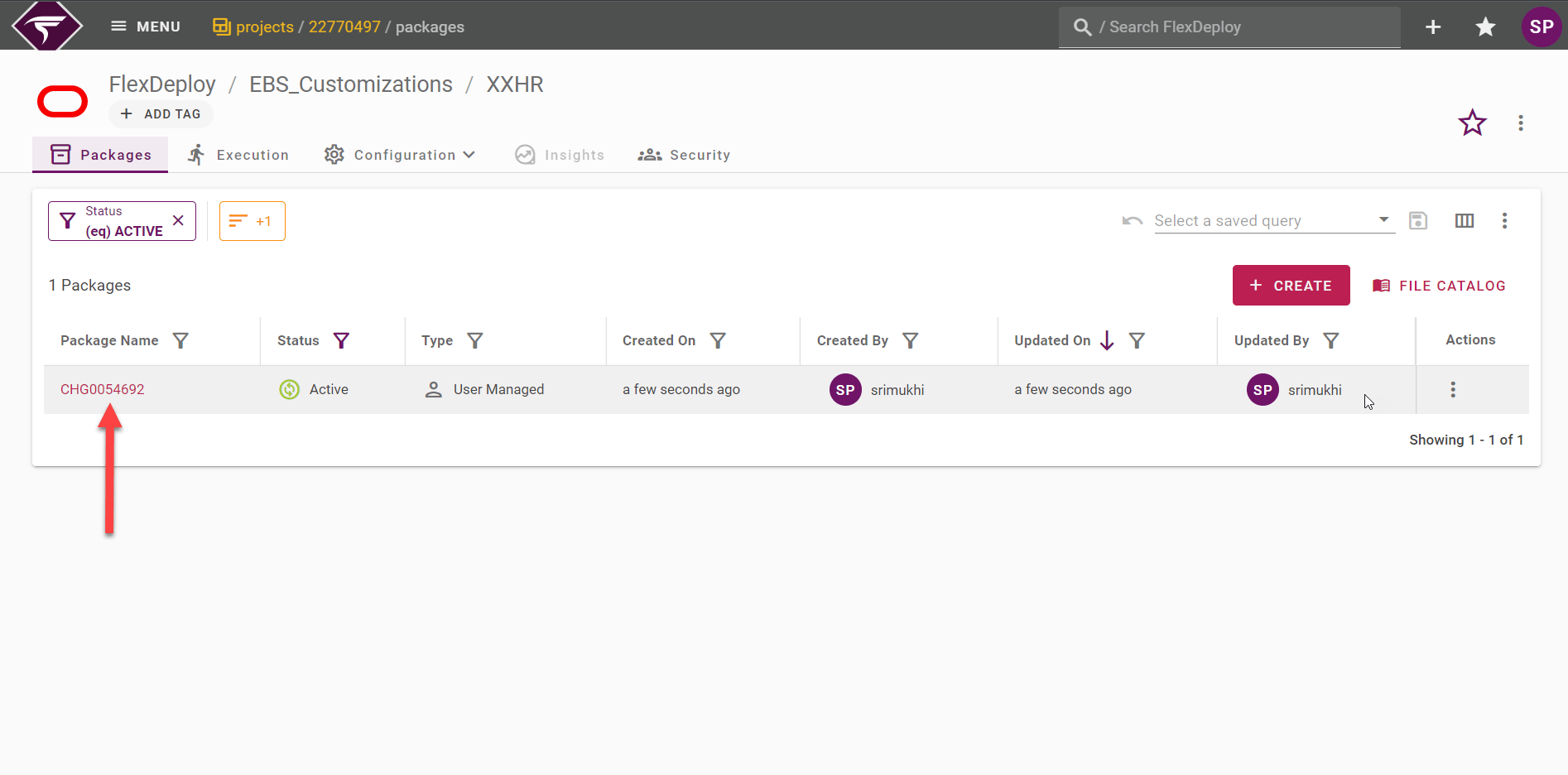
On the package screen, click on create button to create a new package.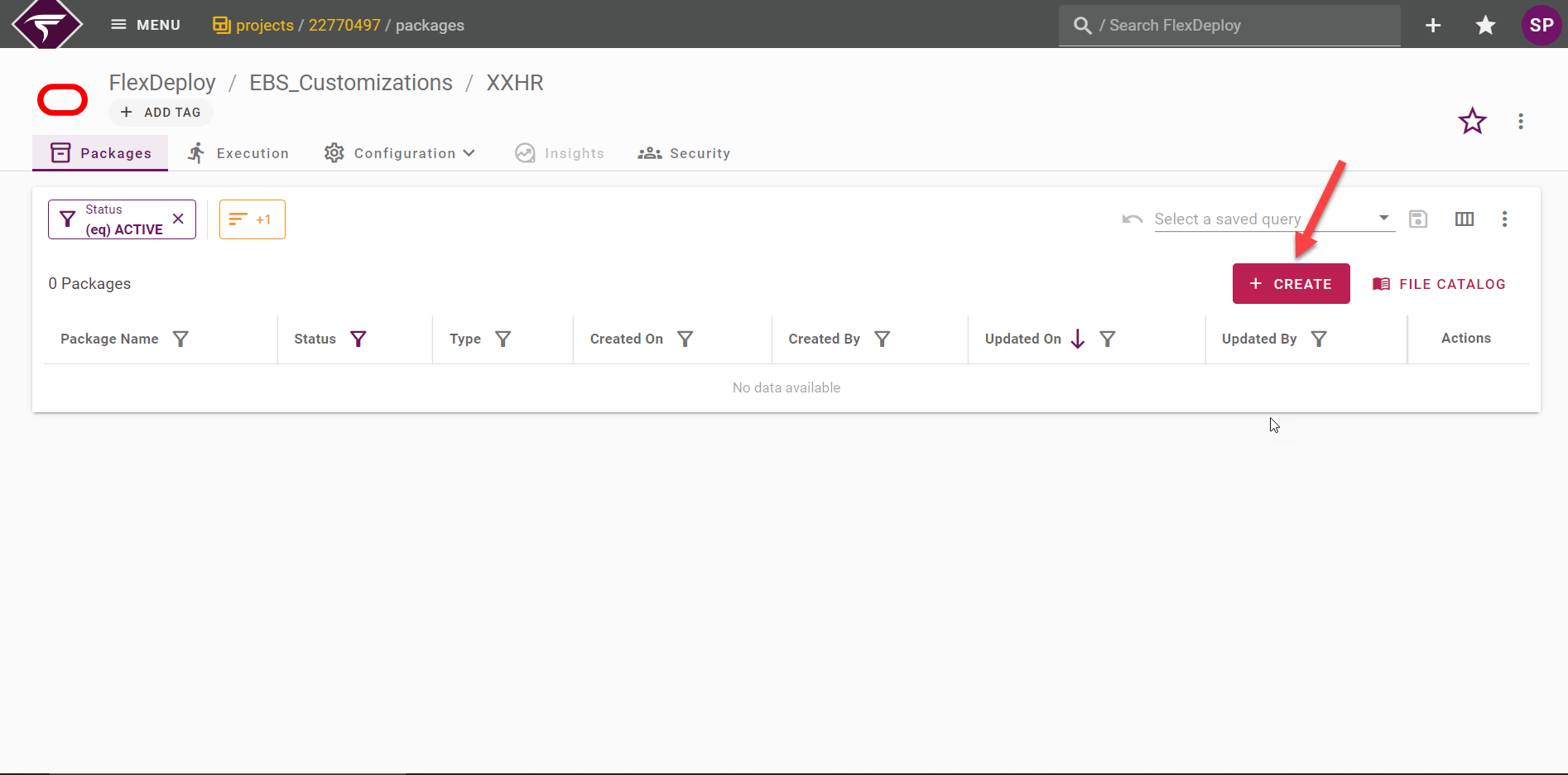
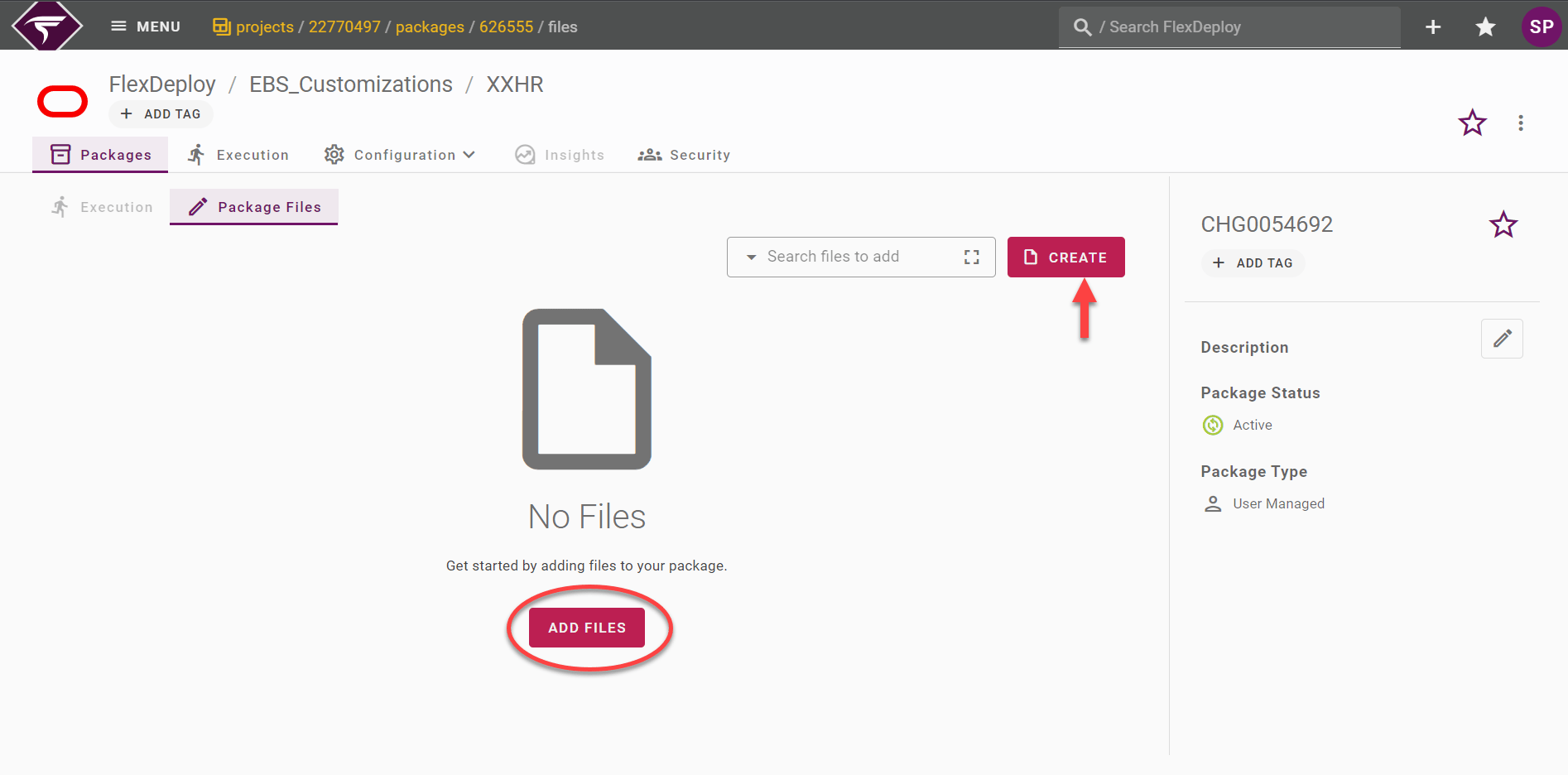
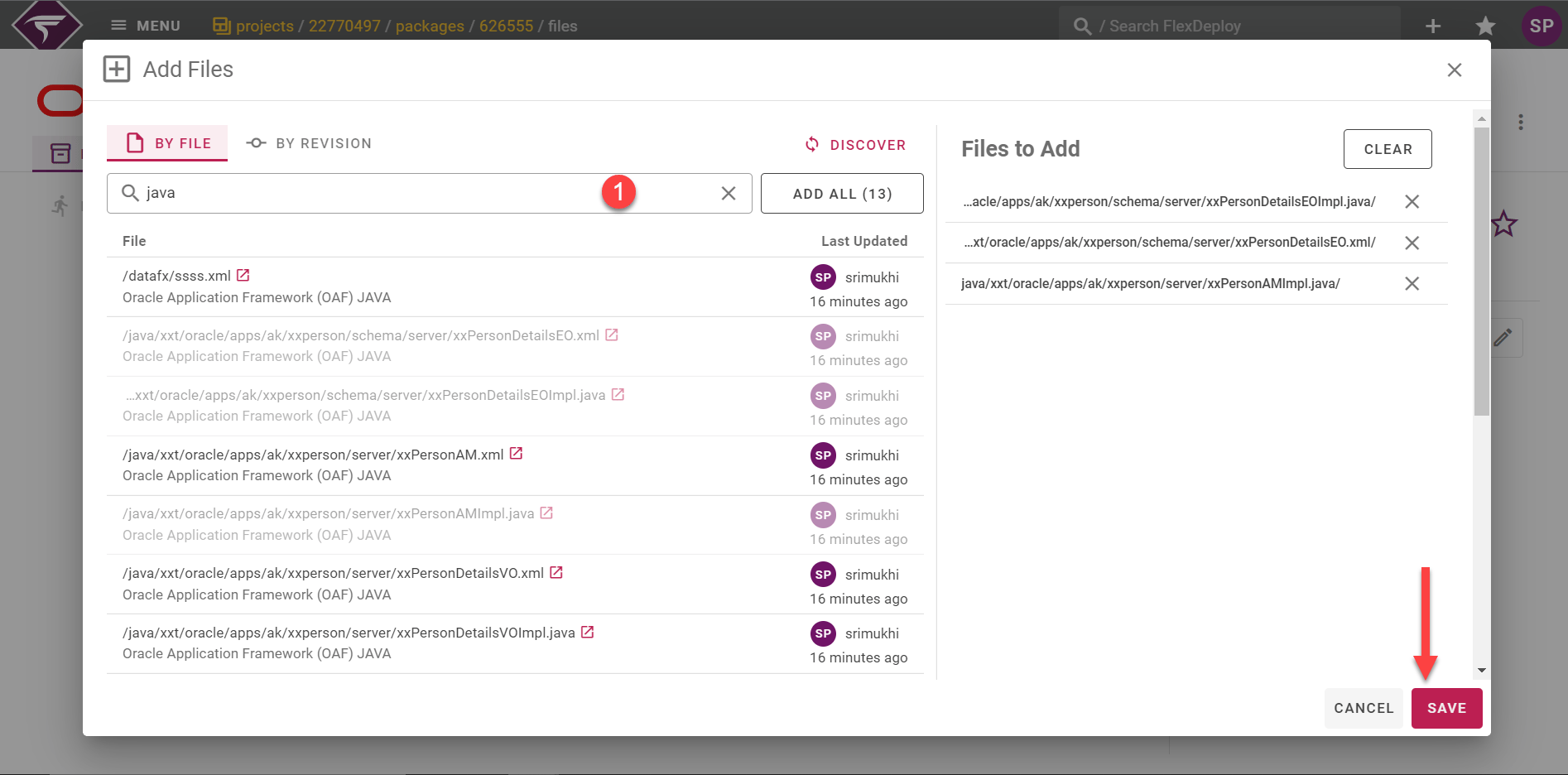
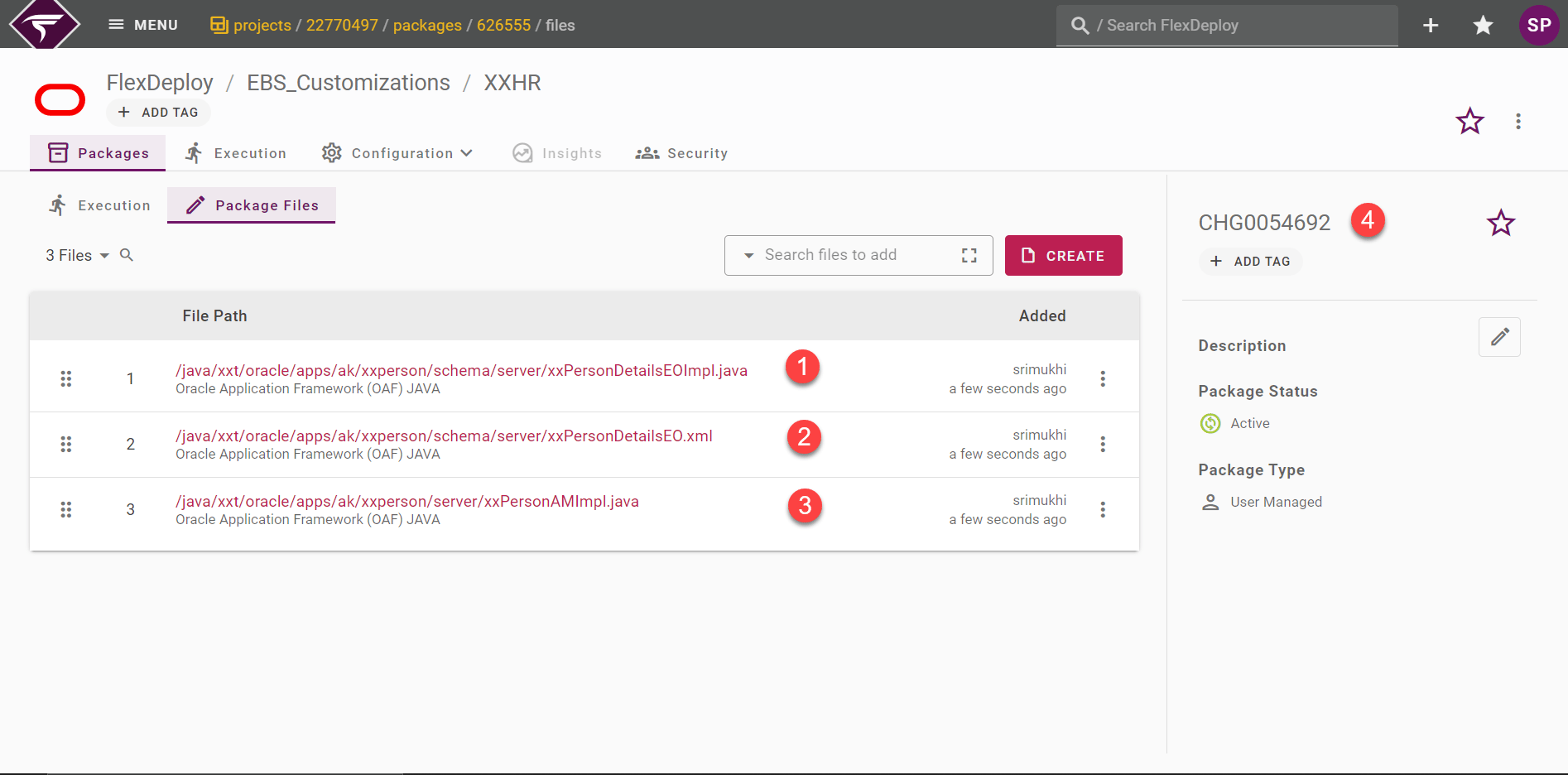
Building Package (EBS)
Click on Execution tab to submit the build request for that package. Click on Build.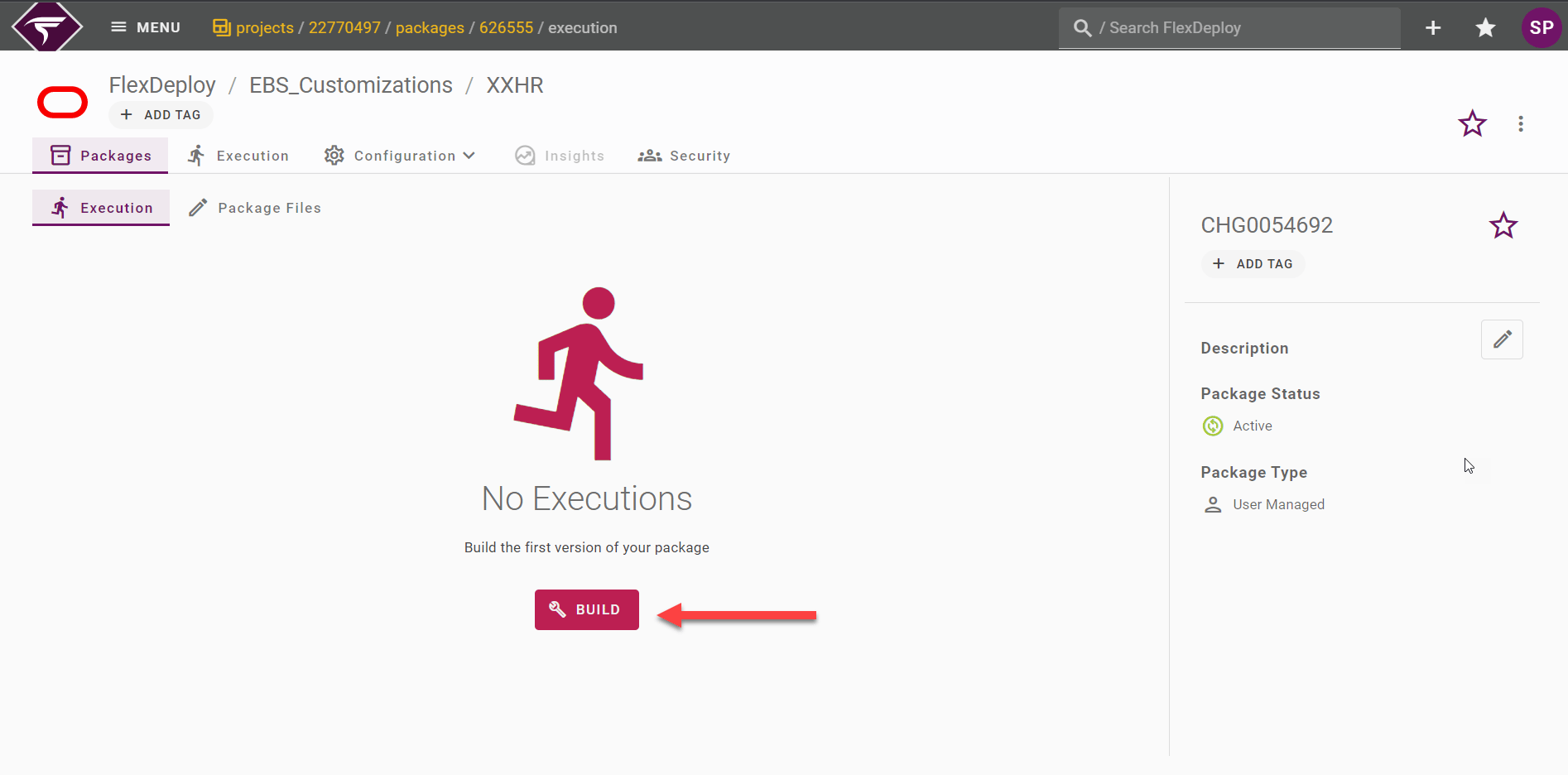
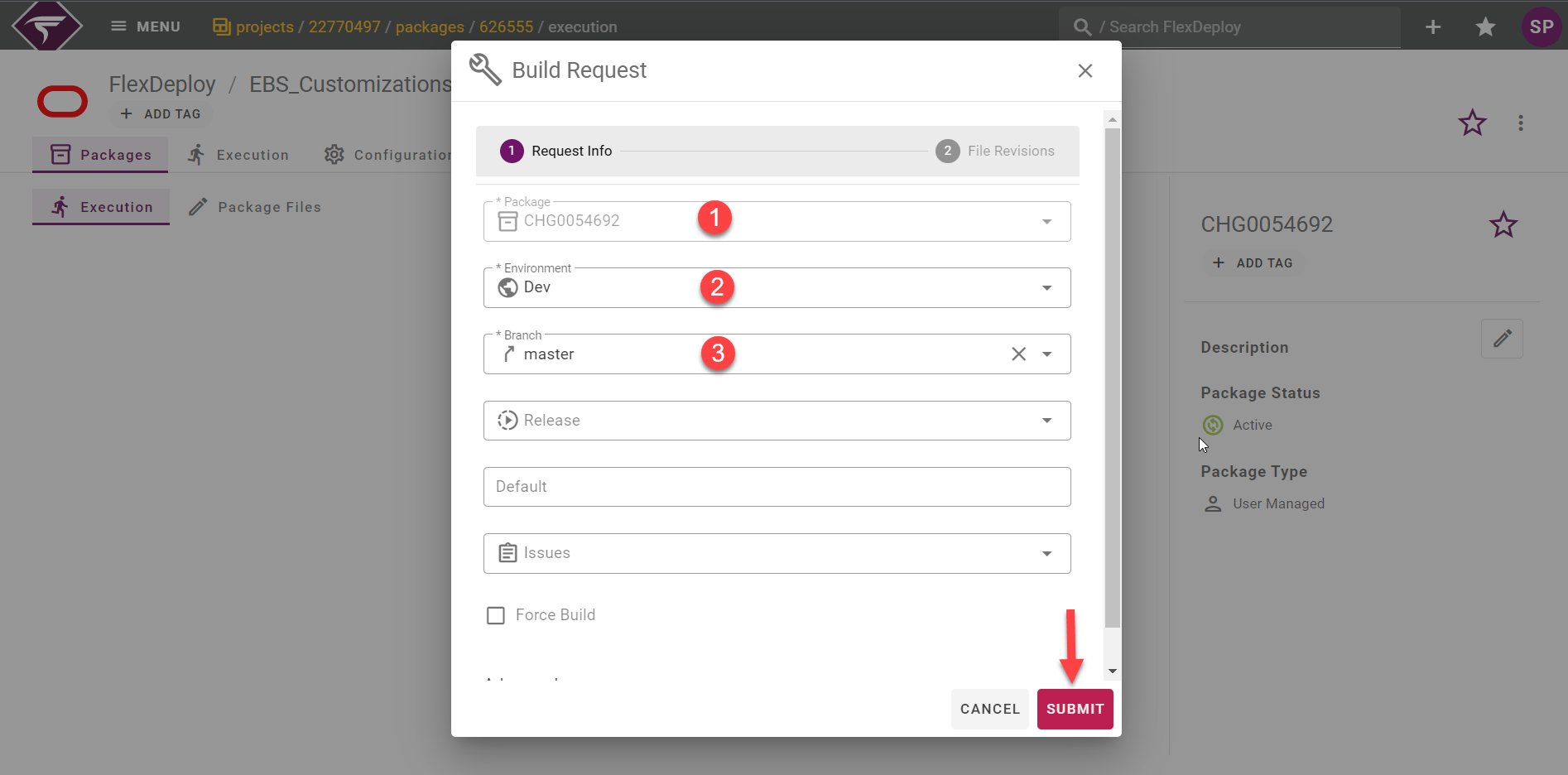
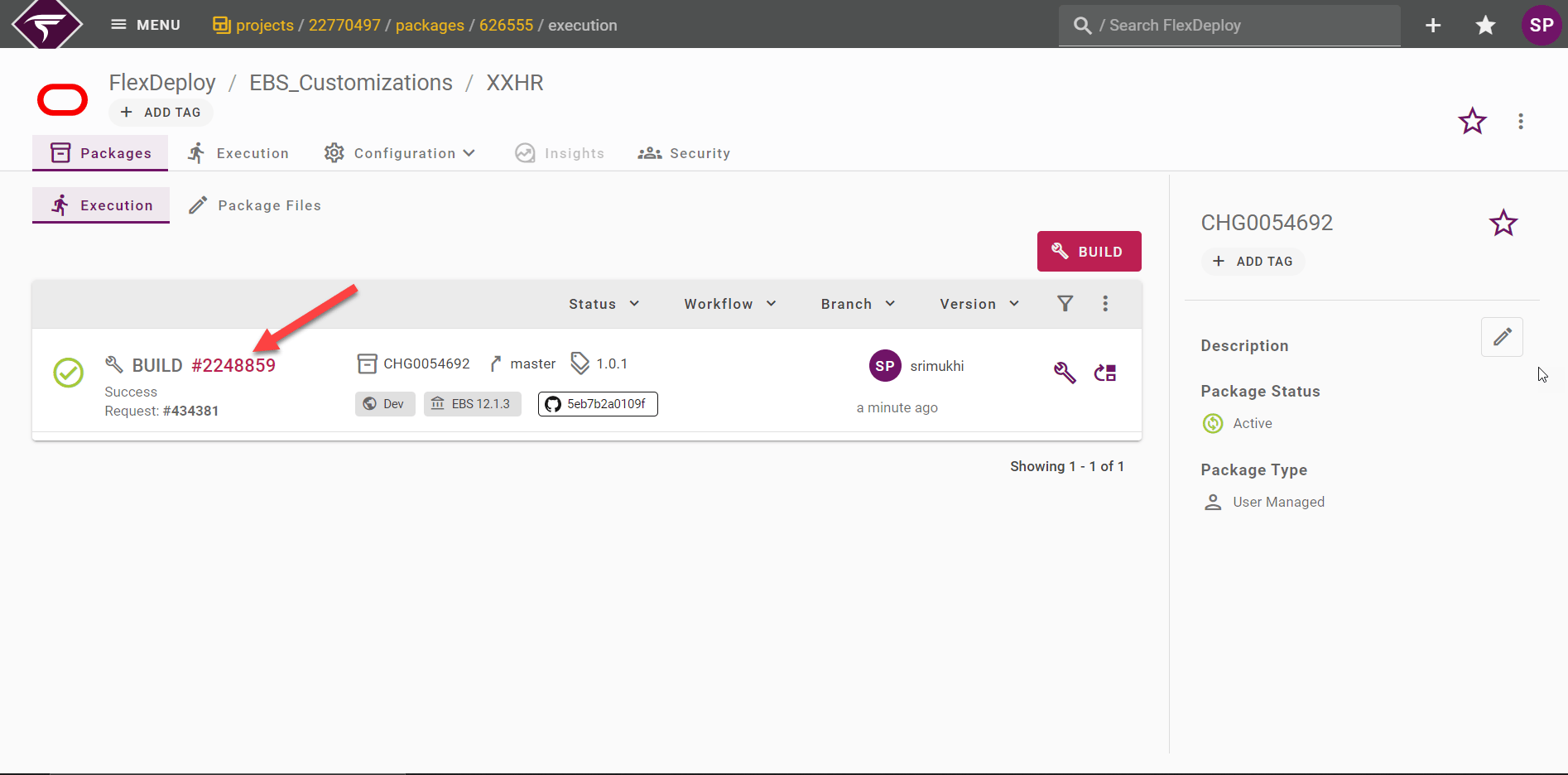
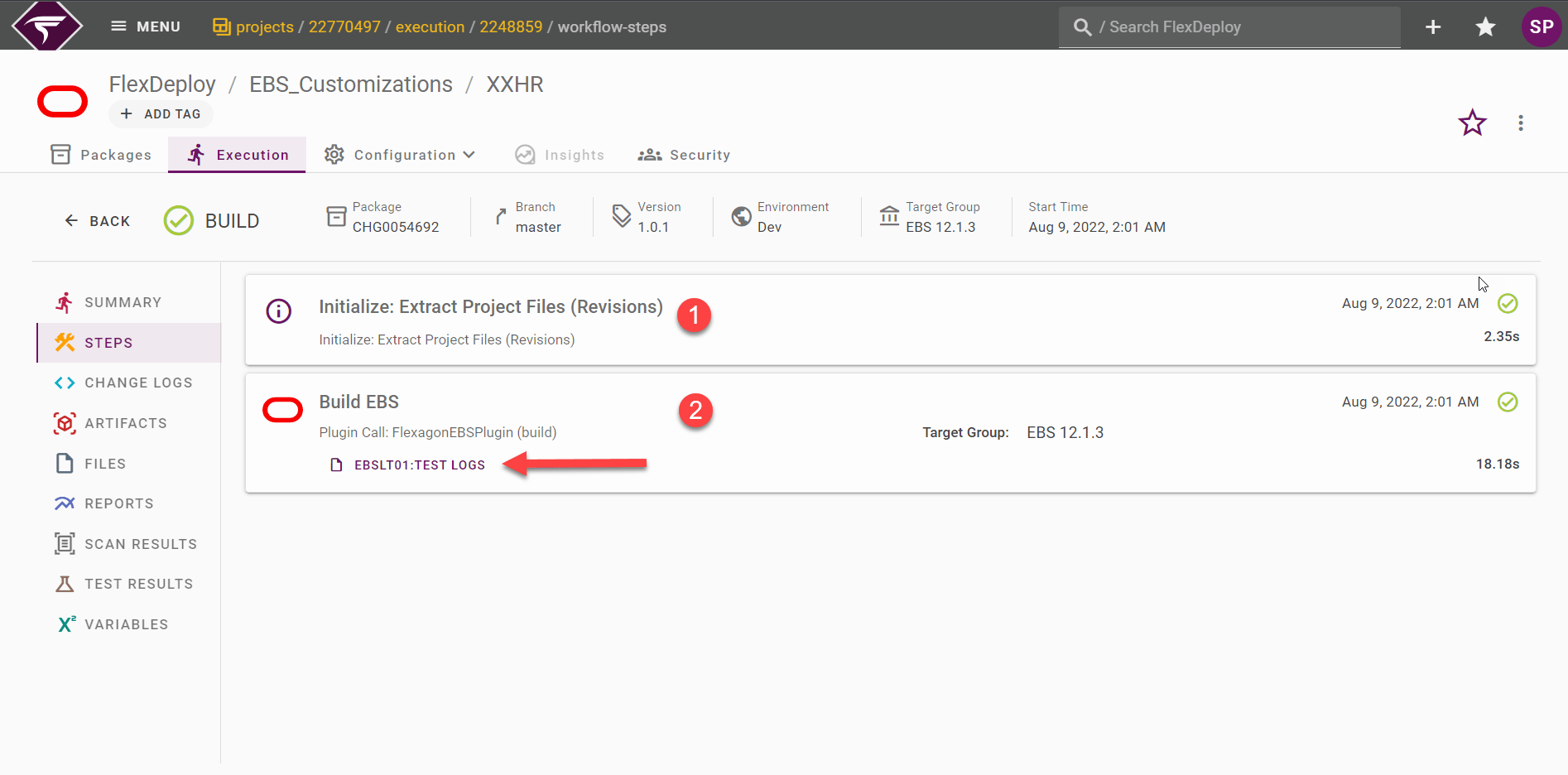
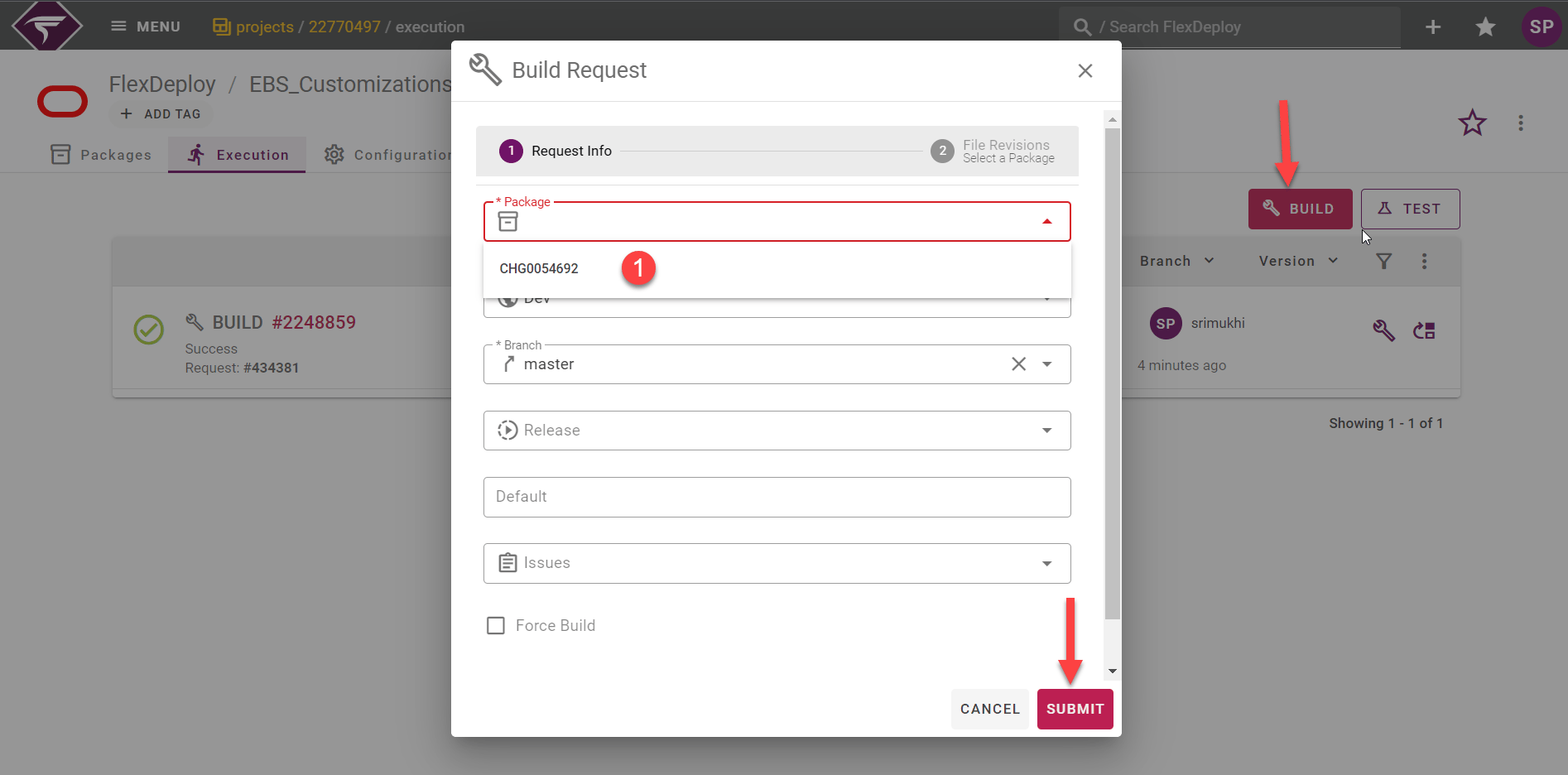
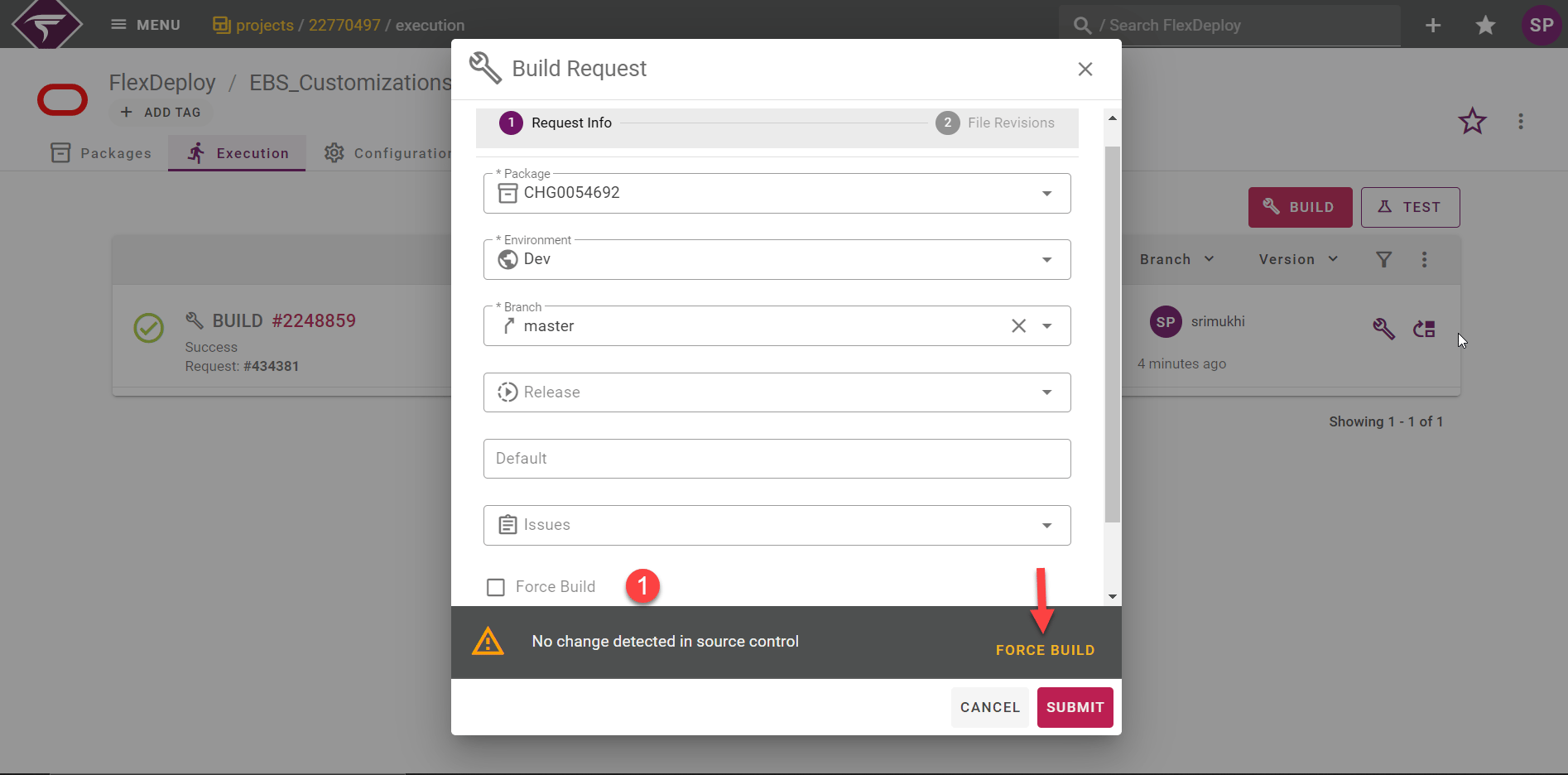
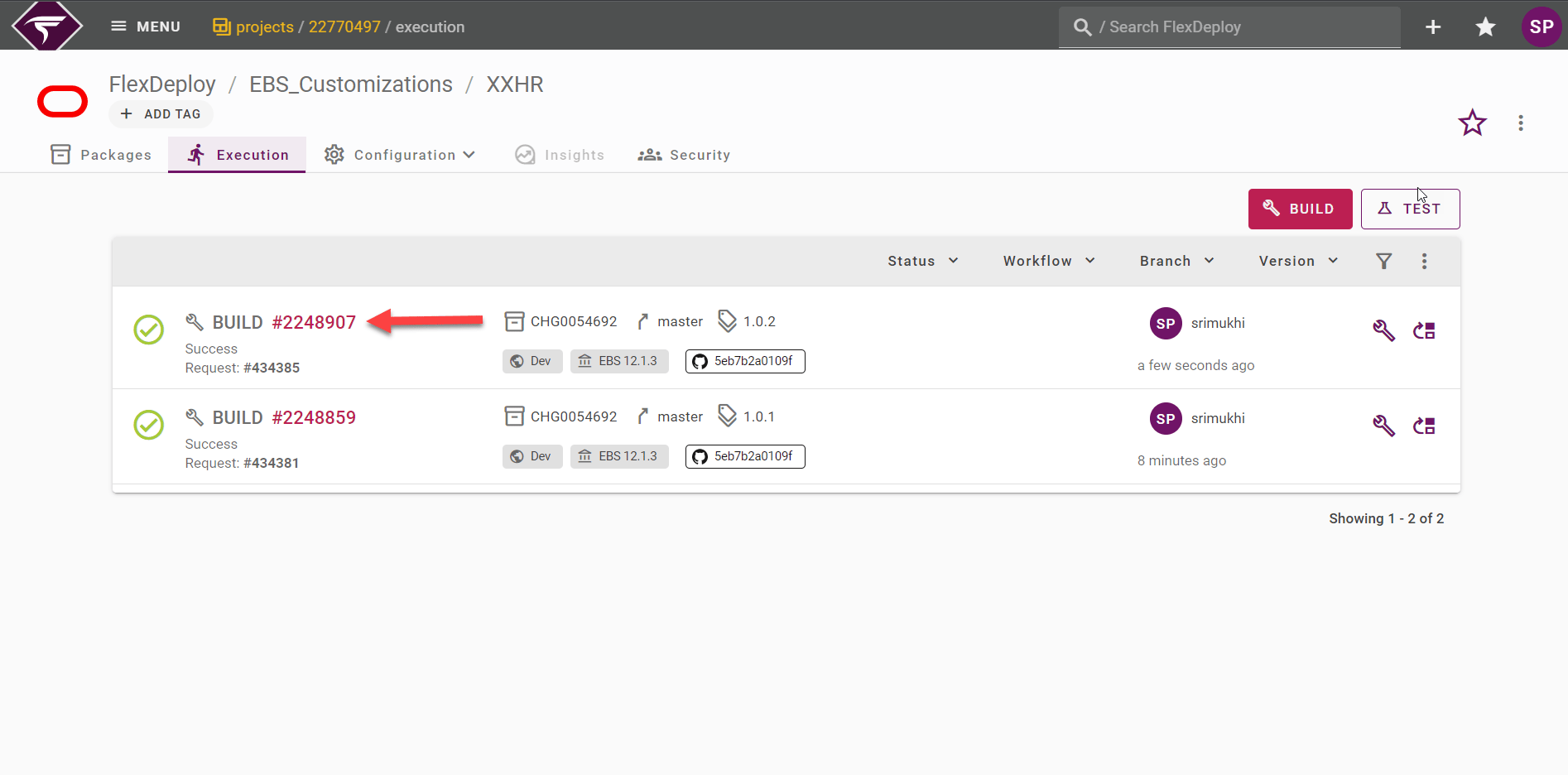
Rebuilding an Existing Package
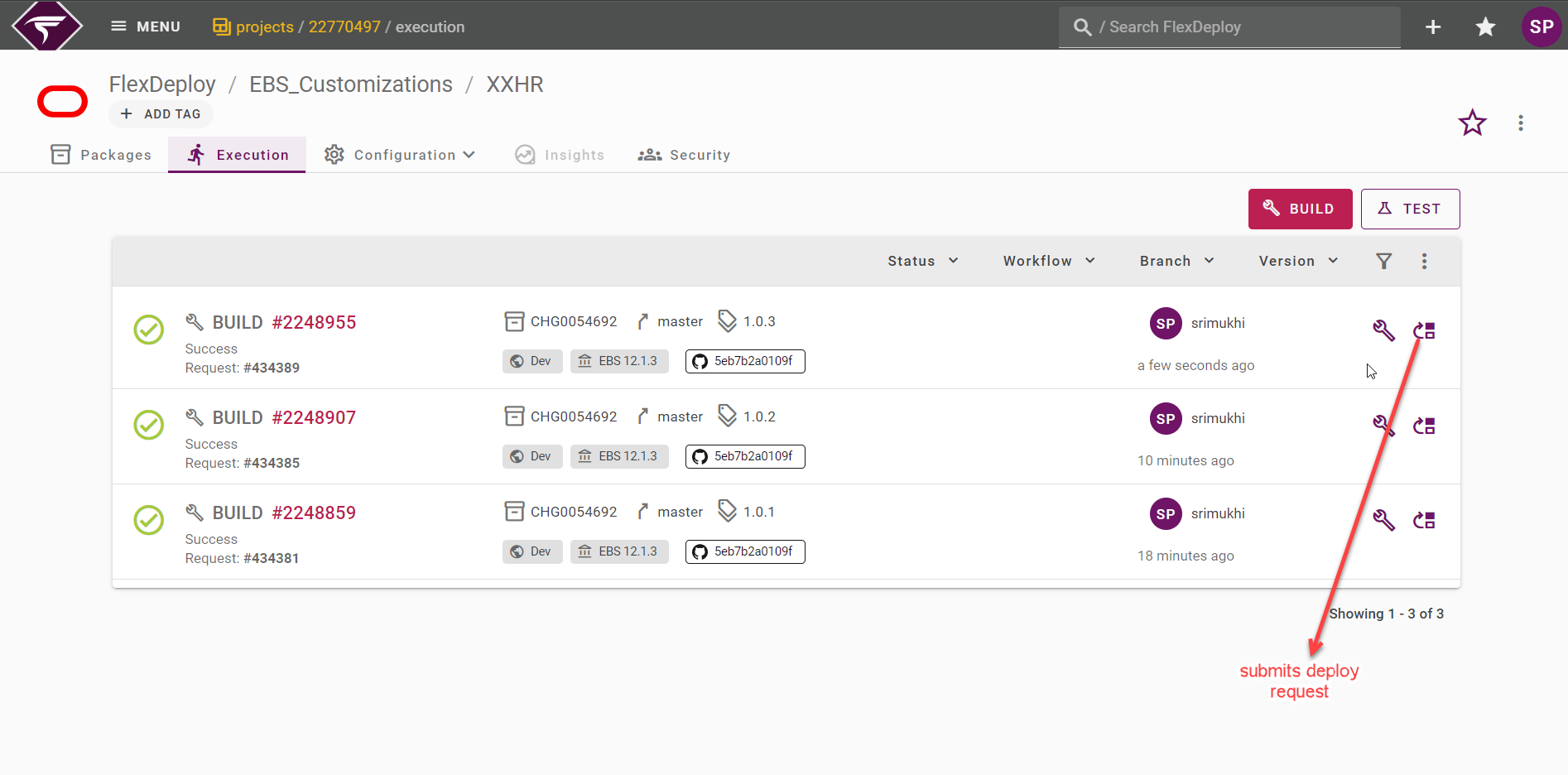
Now suppose you need to make a modification to one of the files in your package in GitHub. After pushing the change to the master branch, we need to initiate a new build. To rebuild an existing package, click on the single gear icon next to the user name, you want to rebuild. Here we will rebuild project version 1.0.2 of the CHG0054692 package. Click the wrench icon as shown below will again launch the build request form with package name pre-filled and the same project files added.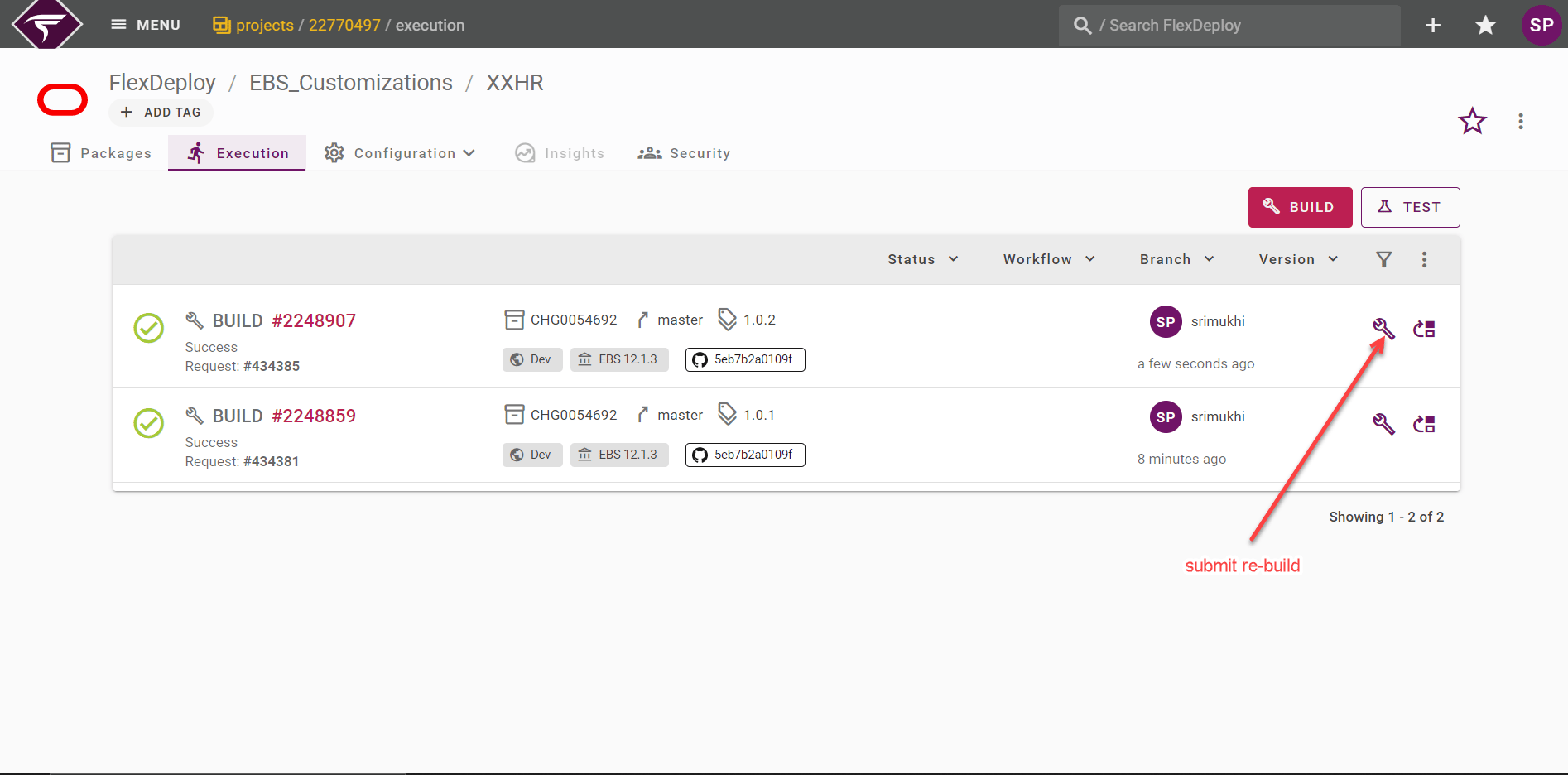
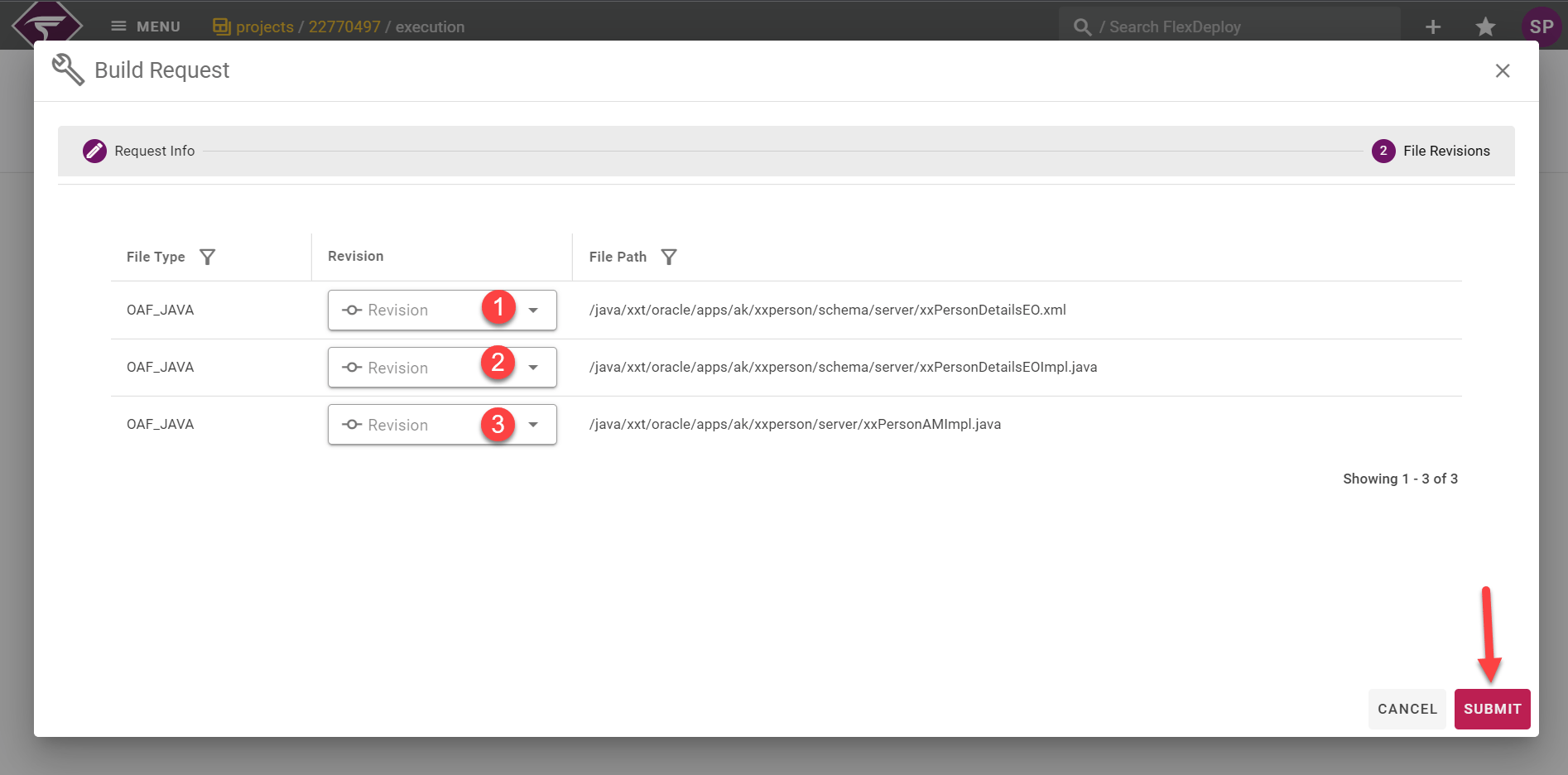
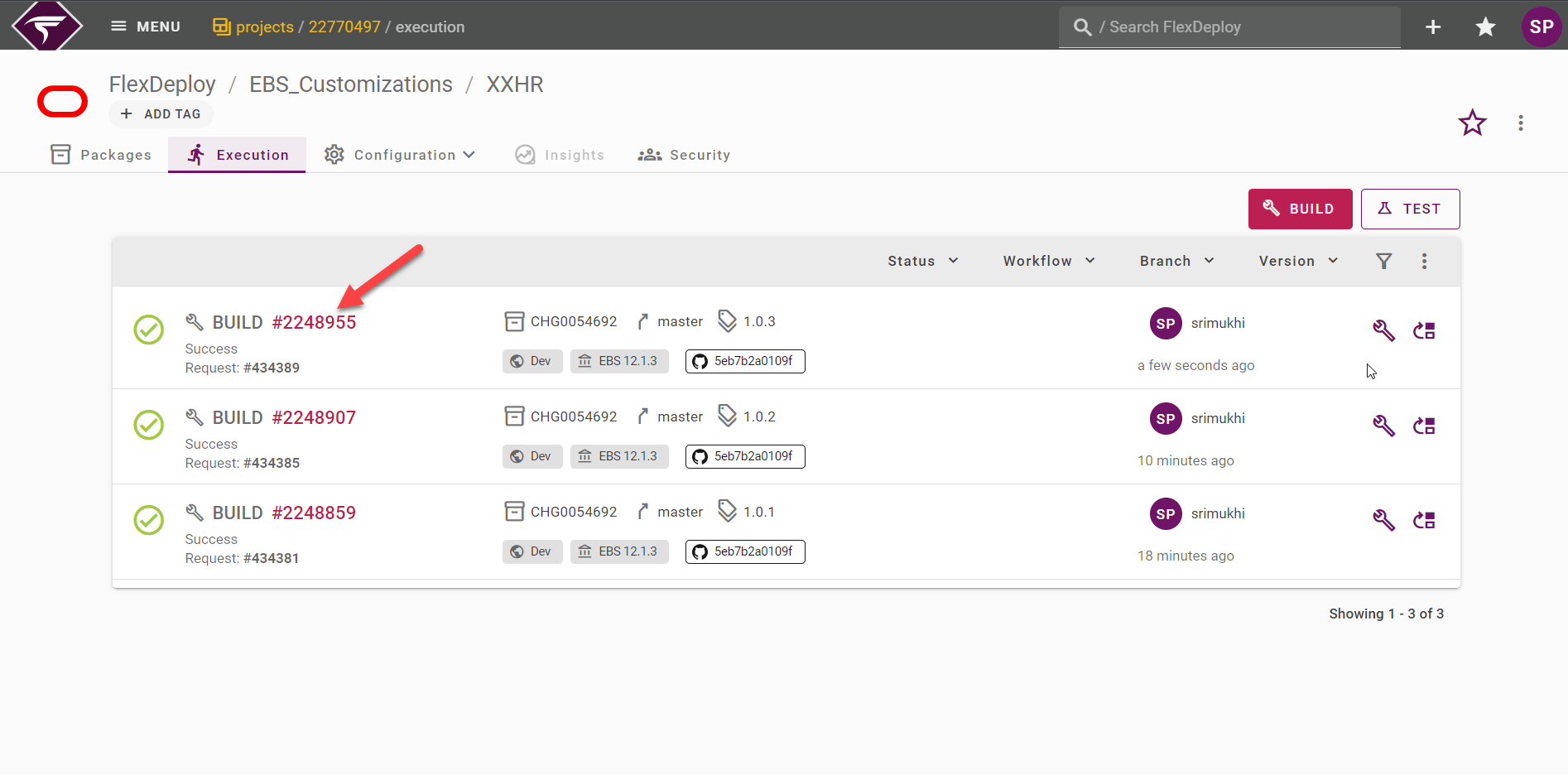
Deploying Packages
In the previous module, we performed three builds of one package. In this module, we will perform deployments of that package into the Dev Environment. To submit the deploy request for a package, first click on the Execution tab of the XXHR Project. Click on the icon as shown in the image below will launch the deploy request form for that project version 1.0.3.