Objective
You have a given SOA composite that was developed in JDeveloper and the source code is managed in a GIT repository. The goal of the tutorial is to automate the deployment of the composite across multiple environments. This automation will include:- cloning the composite from a GIT repository
- compiling and packaging the composite into a SAR file
- deploying the SAR file to multiple environments
- utilizing a global config plan to adjust environment-specific URLs as deployments progress through the environments
Checklist
Checklist | Description |
|---|---|
Are configuration plan files stored in a separate folder or along with composite? | Know where the configuration files are stored so that you can modify the build and deploy workflows accordingly. |
Oracle SOA Home (installation path) | Location to Oracle SOA Home i.e. indicates where SOA Suite is installed. |
SOA Server Host | Host name of the SOA-managed server. |
SOA Server Port | Port number of the SOA managed server, which will be the SSL Listen Port or Listen Port based on whether you desire to connect using SSL. |
WebLogic Admin User | Admin user name for WebLogic server. |
WebLogic Admin Password | Weblogic Admin User password for WebLogic server. |
MDS User Id | Username of MDS Access |
MDS Password | Password for MDS UserID. |
MDS JDBC URL | Database URL for MDS access. |
Connectivity to WebLogic Node(s) | FlexDeploy should be able to communicate over SSH with WebLogic domain nodes. |
User id which runs Oracle SOA (eg. Oracle) | FlexDeploy will connect to target server using this user. |
Password for user id which runs Oracle SOA | The password for the User Id which runs Oracle SOA. |
JDK Home for WebLogic Node(s) | Recommended JDK used by Oracle SOA |
Base Directory on each WebLogic Node | Minimum of 4GB space on each WebLogic node. Avoid /tmp and /var/tmp as Linux processes may clean up files automatically and conflict with FlexDeploy. |
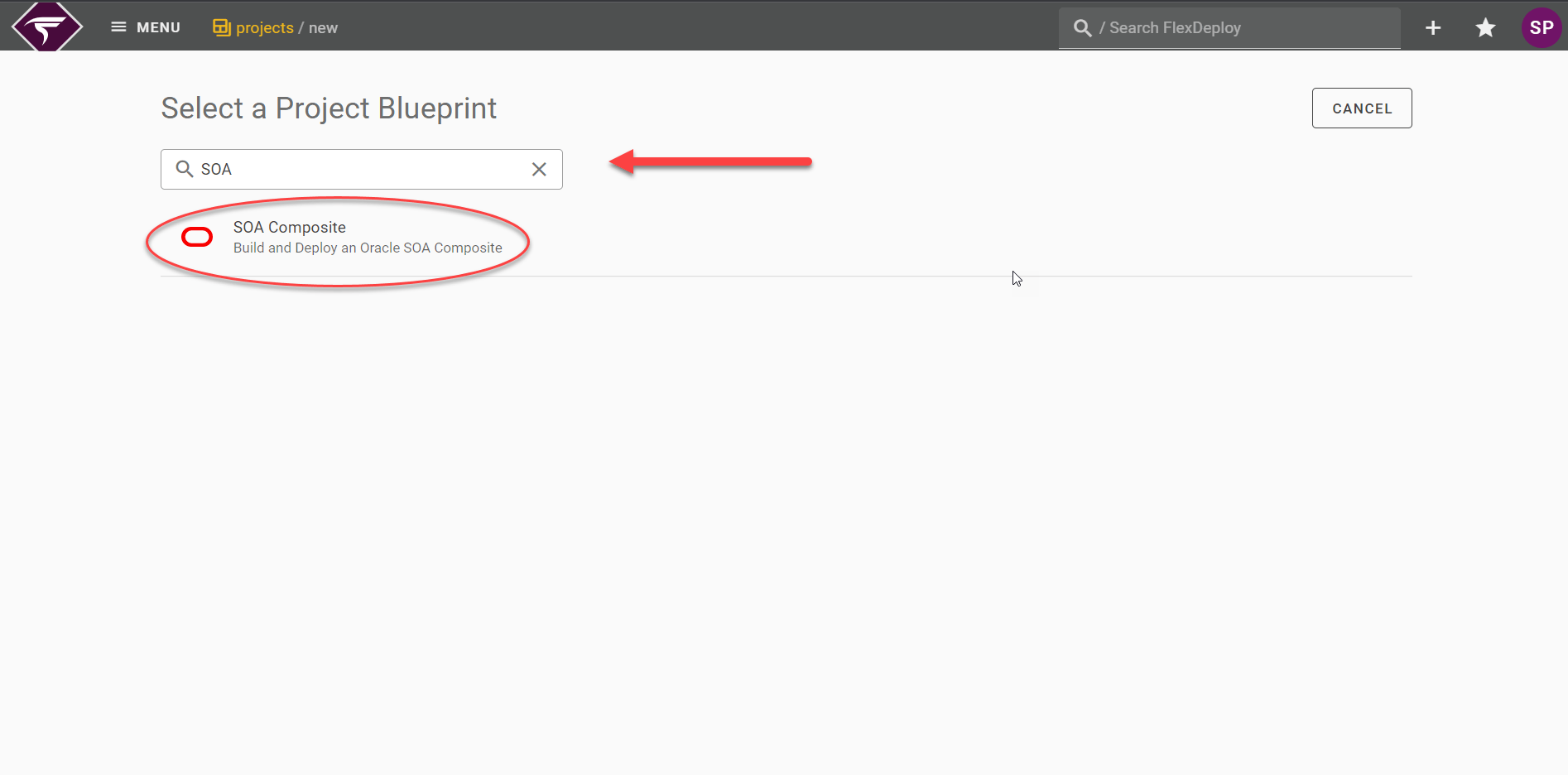
Create SOA Project using Blueprint
The assumption is that you have FlexDeploy installed and ready for use. When logged into the FlexDeploy, you will see the Home page. Click on the + icon on the top and click “Create Project” to create a new project.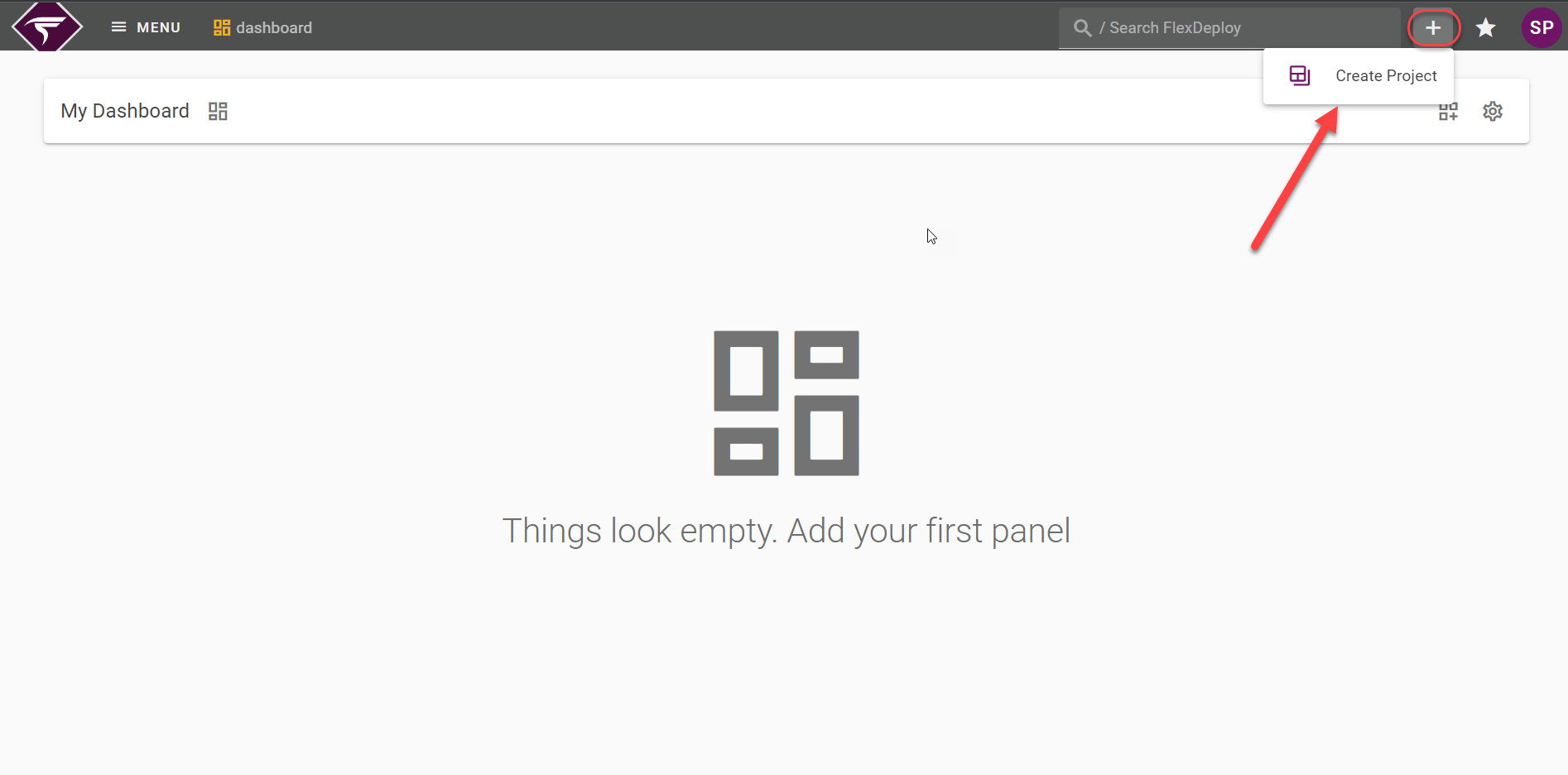
General Configuration
Scroll through this guide to fill in the blueprint properties. It is a best practice to name the Project with the same name as the SOA Composite, a FlexDeploy property (ProjectName and FD_PROJECT_NAME) will be automatically set and can be utilized during the configuration.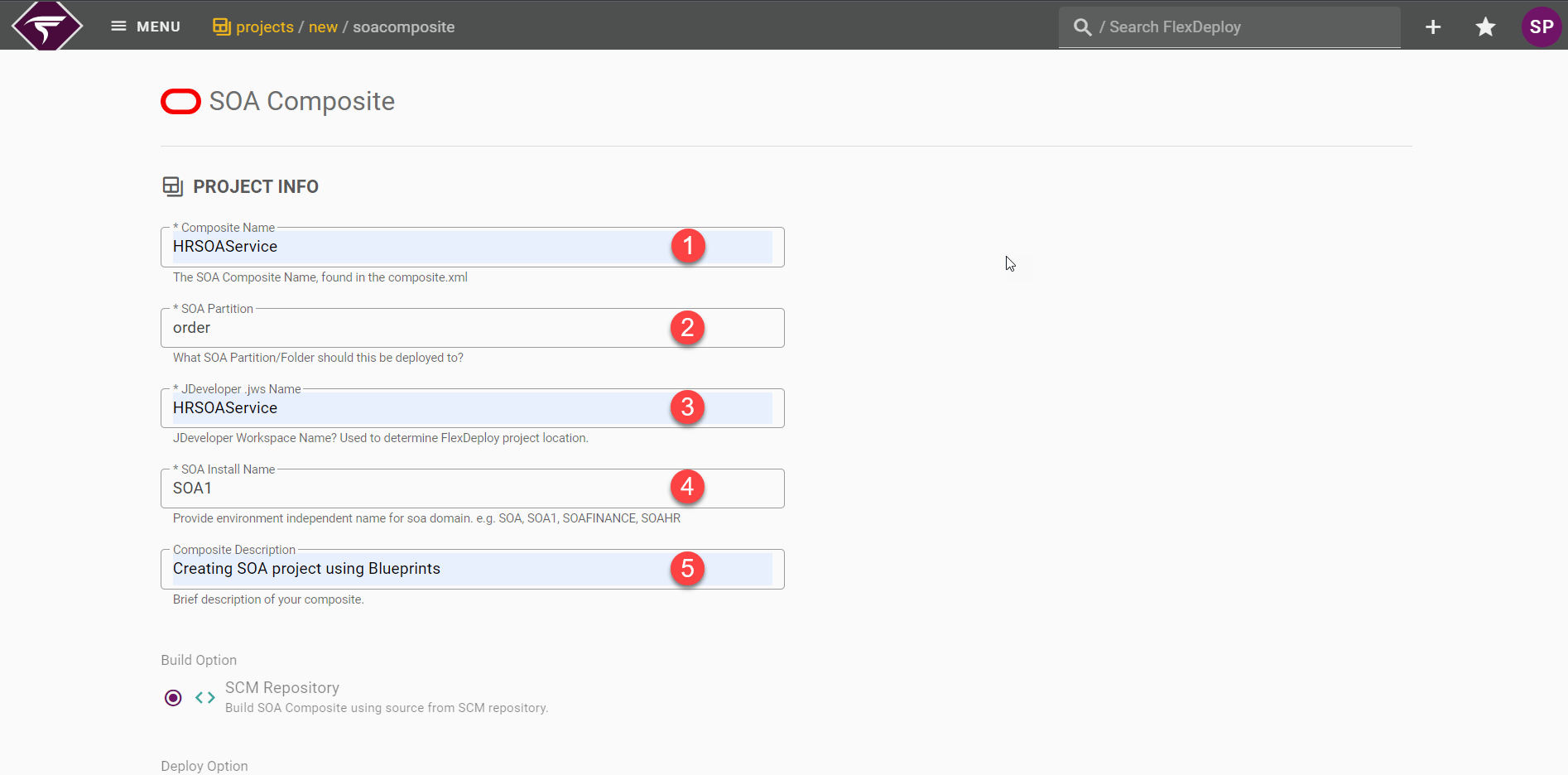
Project Info
Property Name | Value for this tutorial | Description |
|---|---|---|
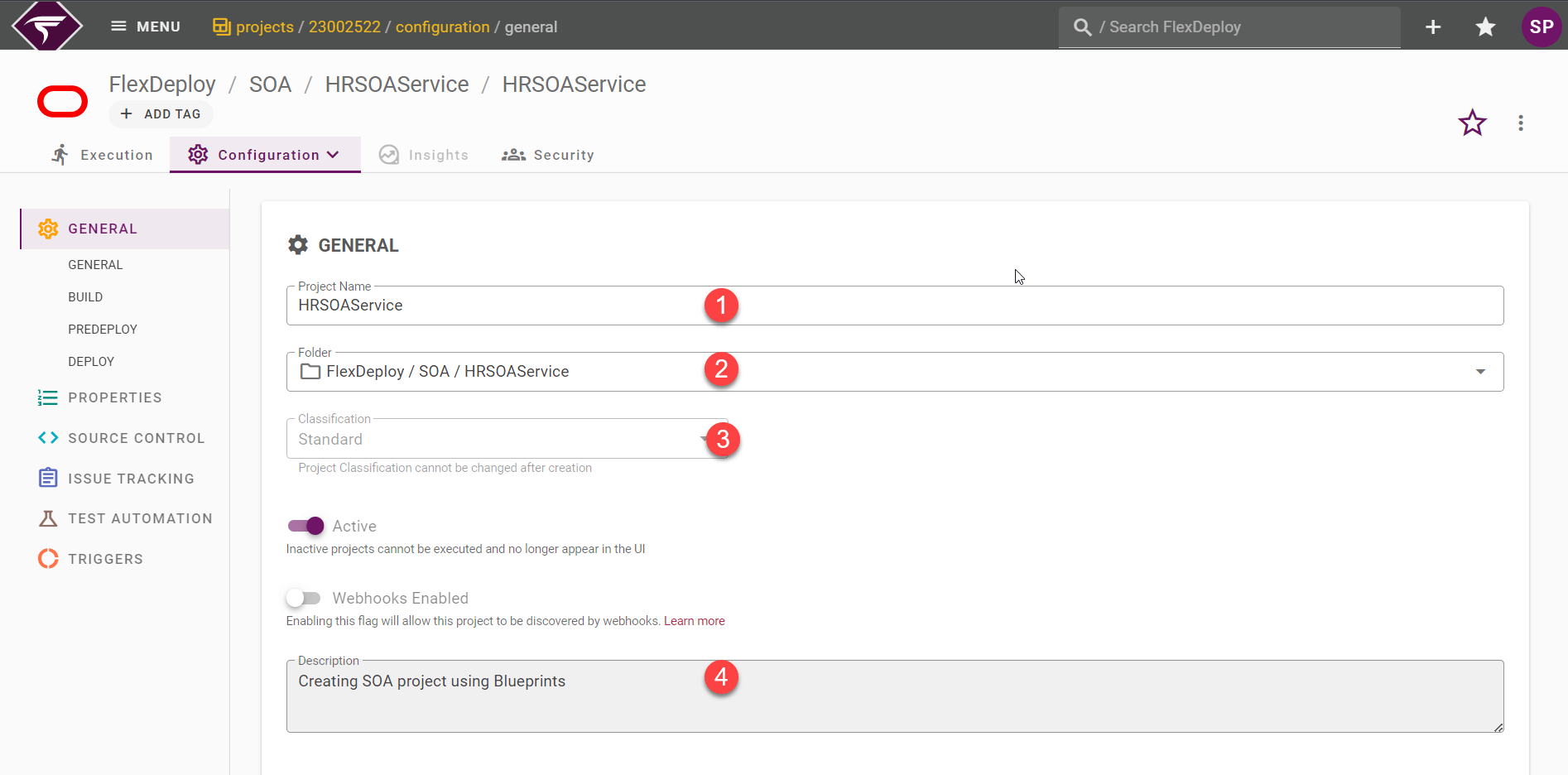
Composite Name | HRSOAService | Name of the composite that is being built and deployed. |
SOA Partition | Order | SOA Partition / Folder should this composite be deployed to. |
Jdeveloper .jws Name | HRSOAService | Brief description of the custom module. |
SOA Install Name | SOA1 | This value will provide environment independent name for SOA install (eg. SOA, SOAHR ). The default is SOA. |
Composite Description | Creating SOA project using Blueprints | Brief description of the composite. |
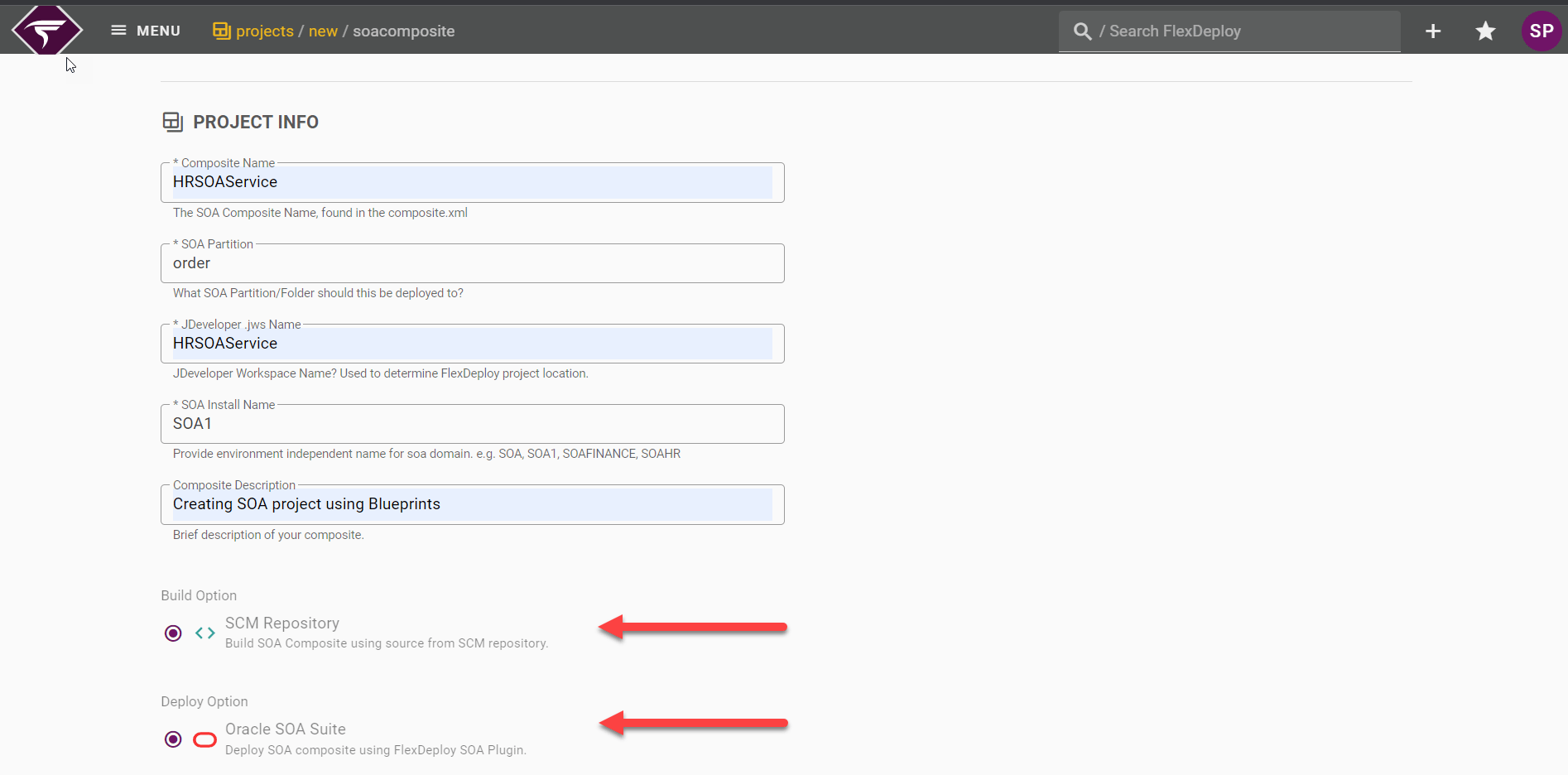
Source Control
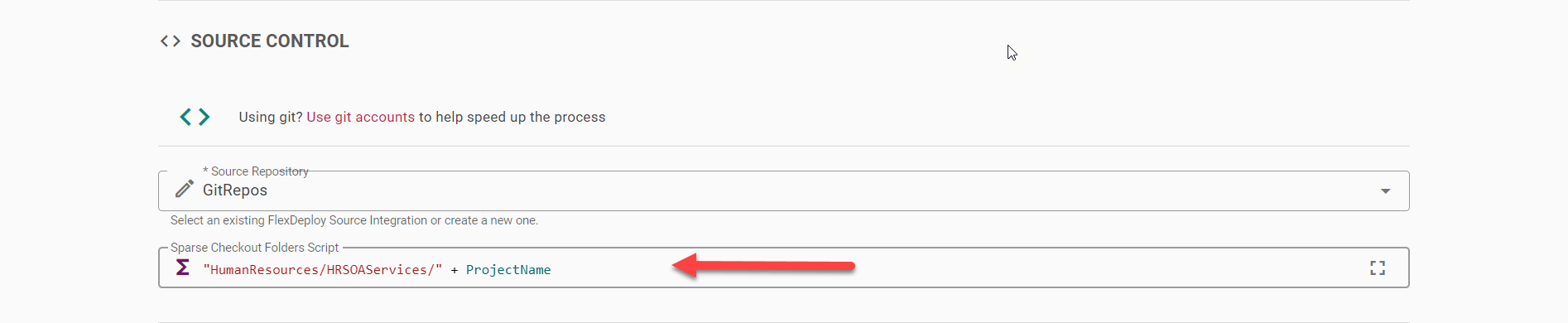
Click on source repository dropdown. If you have already created a connection to your source code repository, select it from the list. Enter the sparse checkout folder, if any.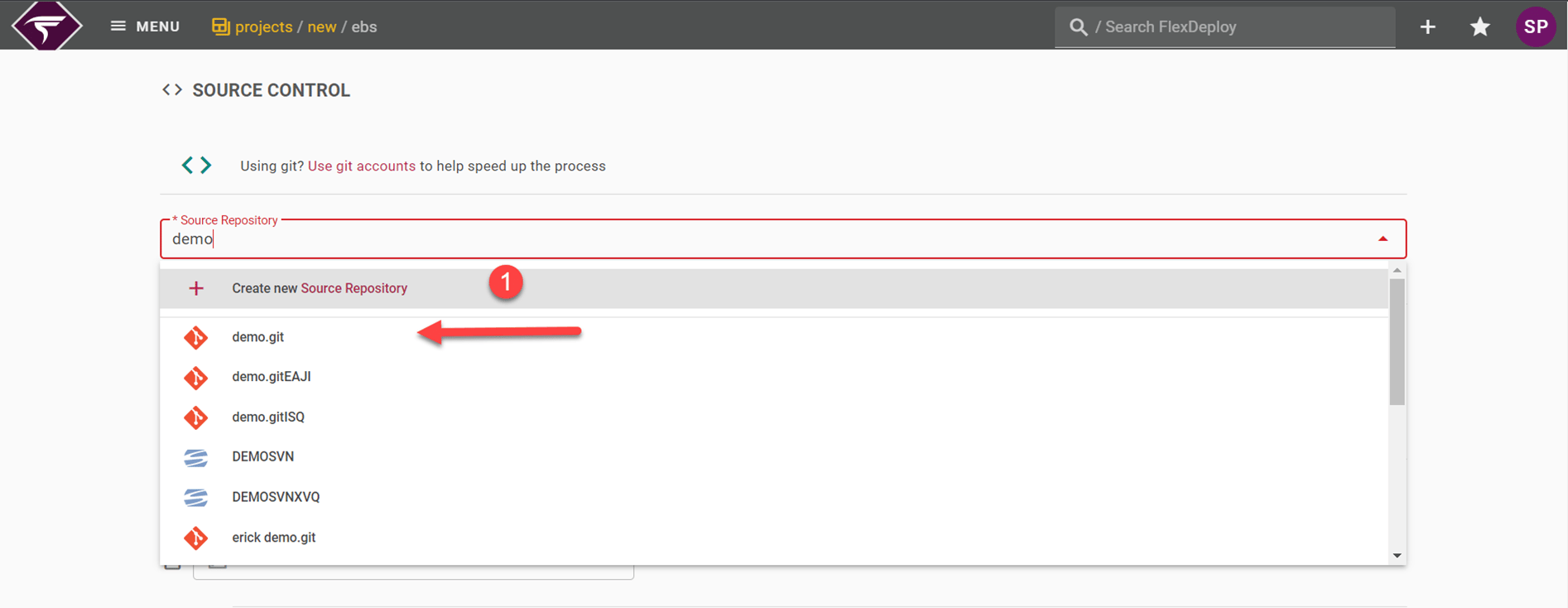
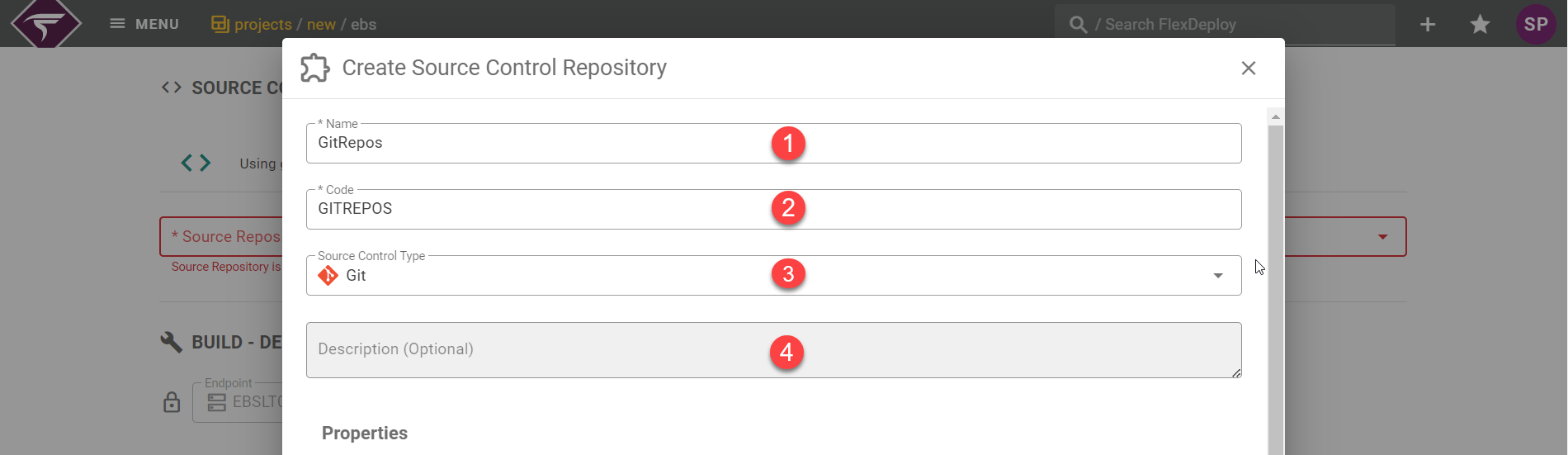
Inputs Info
Field | Required | Description |
|---|---|---|
Name | Yes | A descriptive name for this SCM instance. |
Code | Yes | A technical code for the instance, without any spaces. The codes are available as variables to shell and Groovy scripts, and therefore needs to comply with their limitations. |
Source Control Type | Yes | Type of Source Control Management System. We will use Git for this tutorial. Supported Source Control Management Systems are:
|
Description | No |
|
SCM Properties | Yes | The remaining properties are specific to the selected SCM. For Git:
|
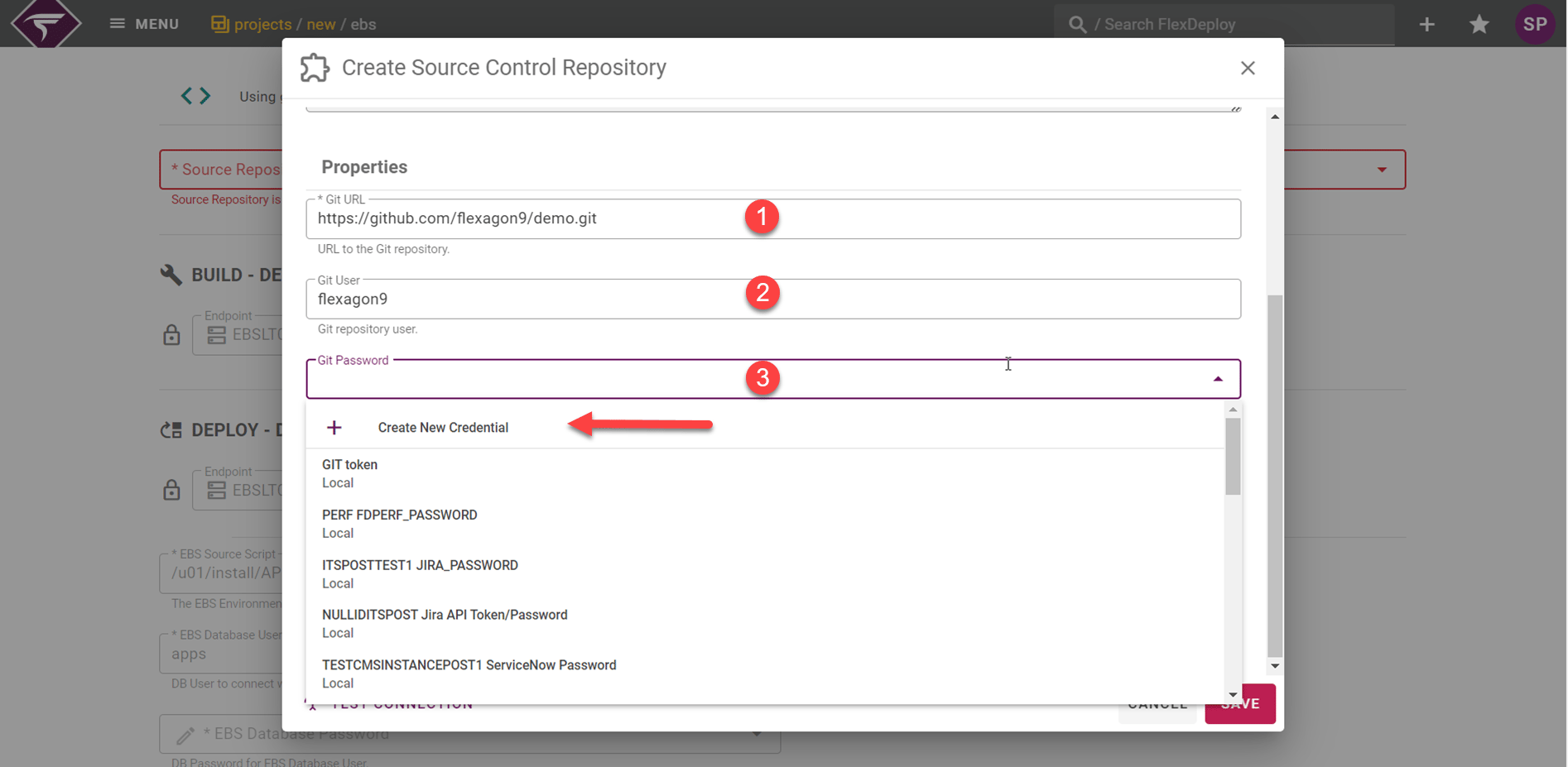
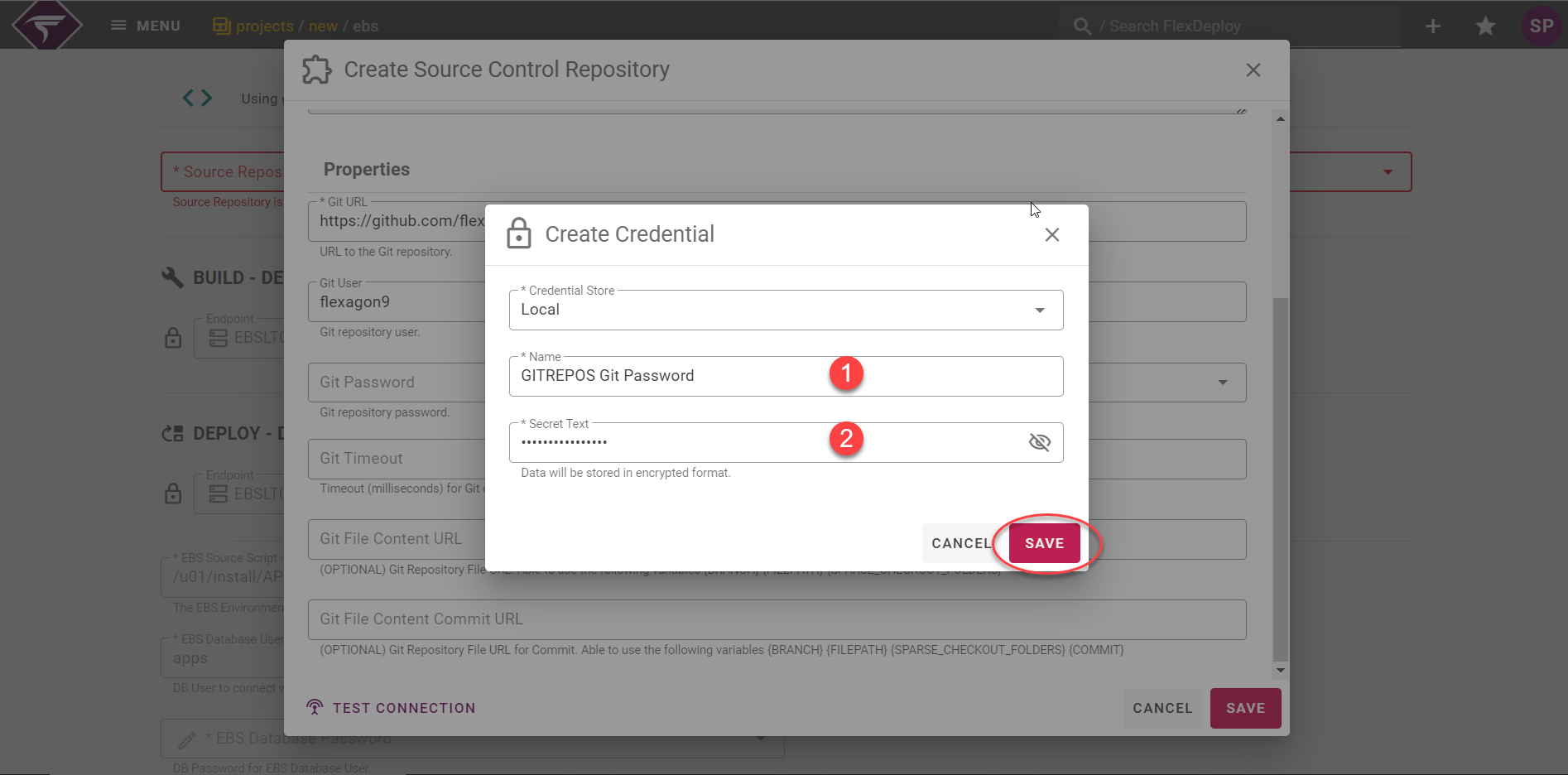
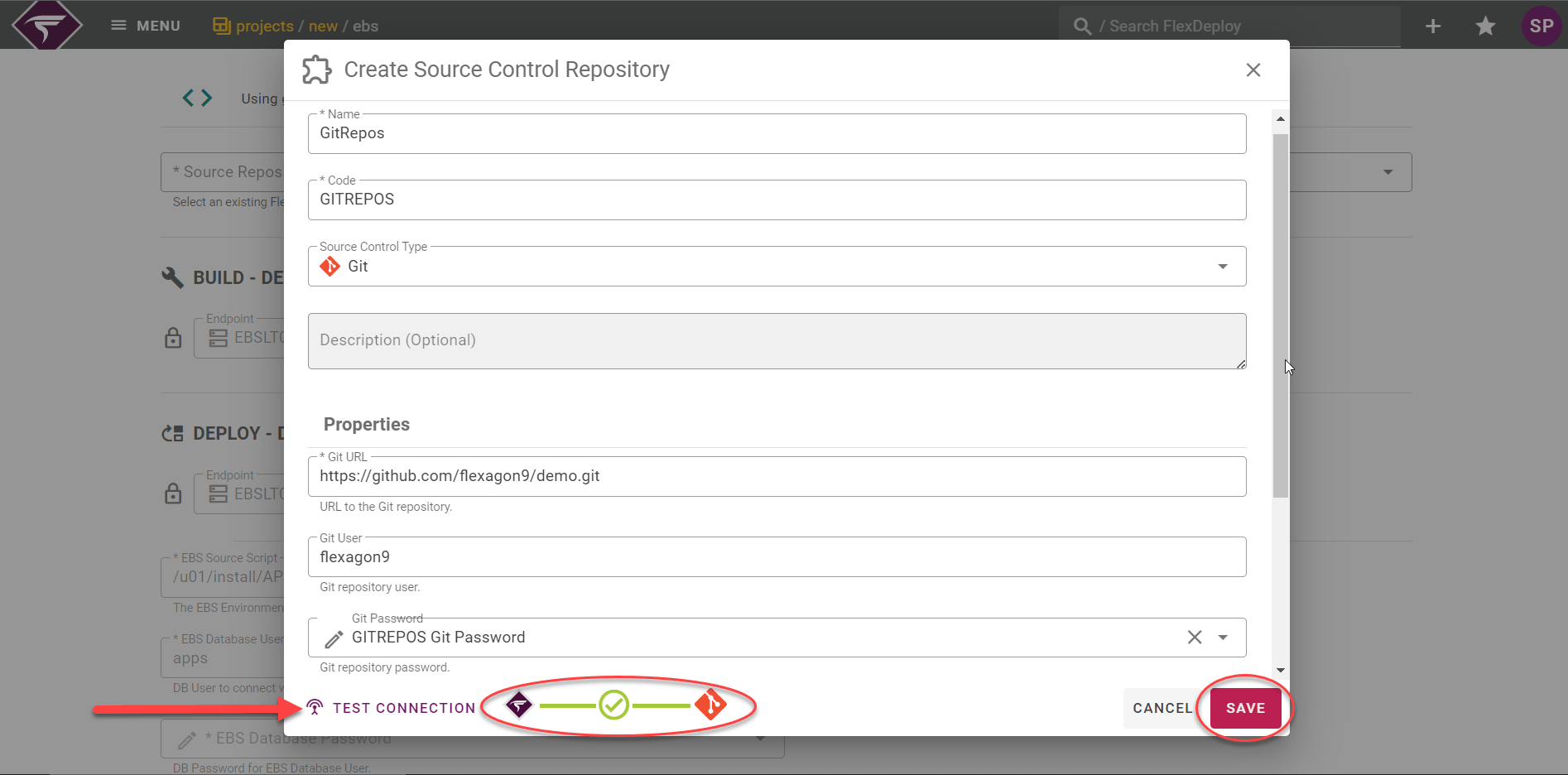
Gather Build and Deployment information
Enter values for any workflow properties which are required for the build and deploy. In the image below, no properties are required for this build. Select the target endpoint that the build and deploy should execute on.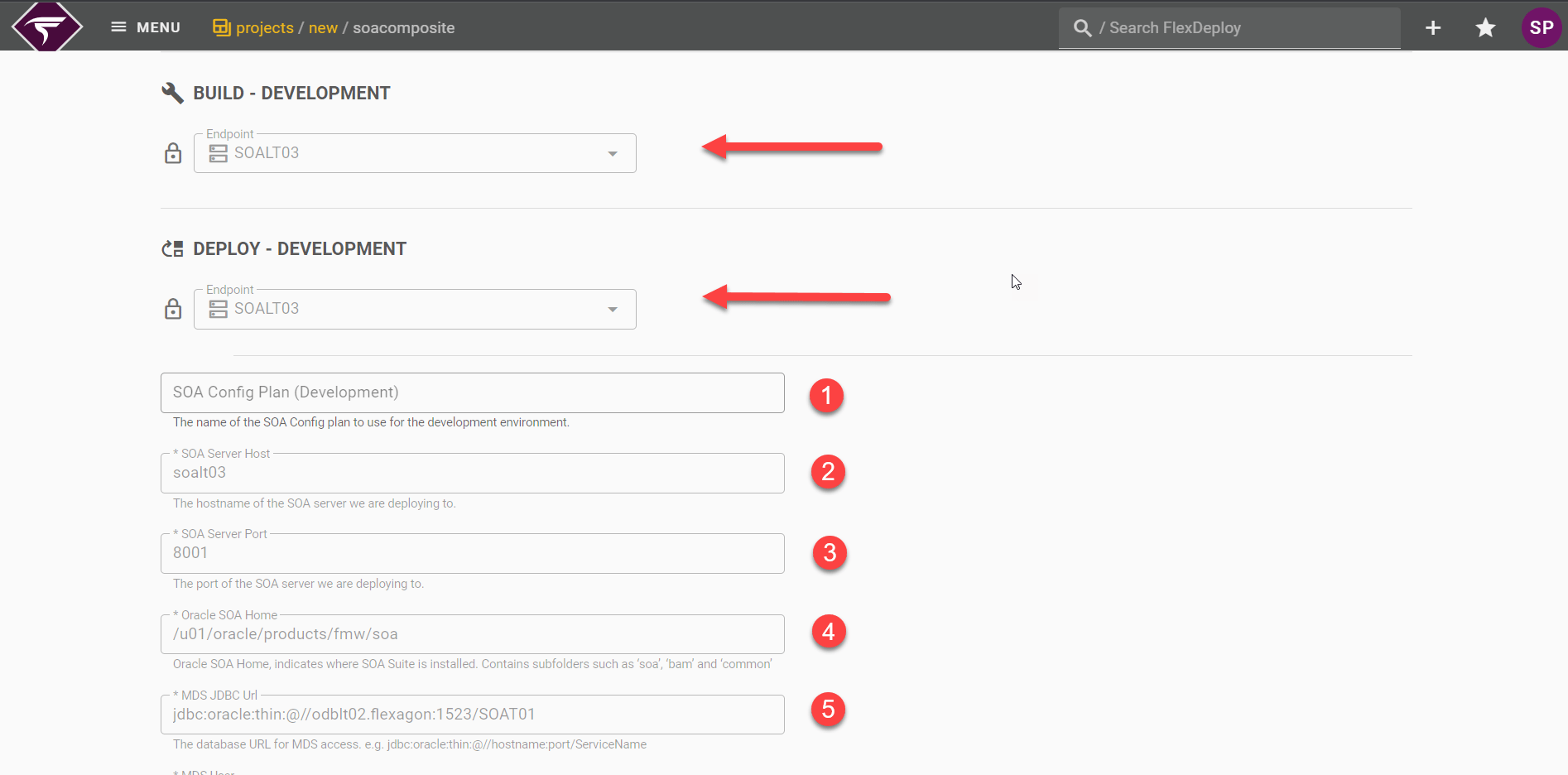
Target Properties
Property Name | Values for this Tutorial | Description |
|---|---|---|
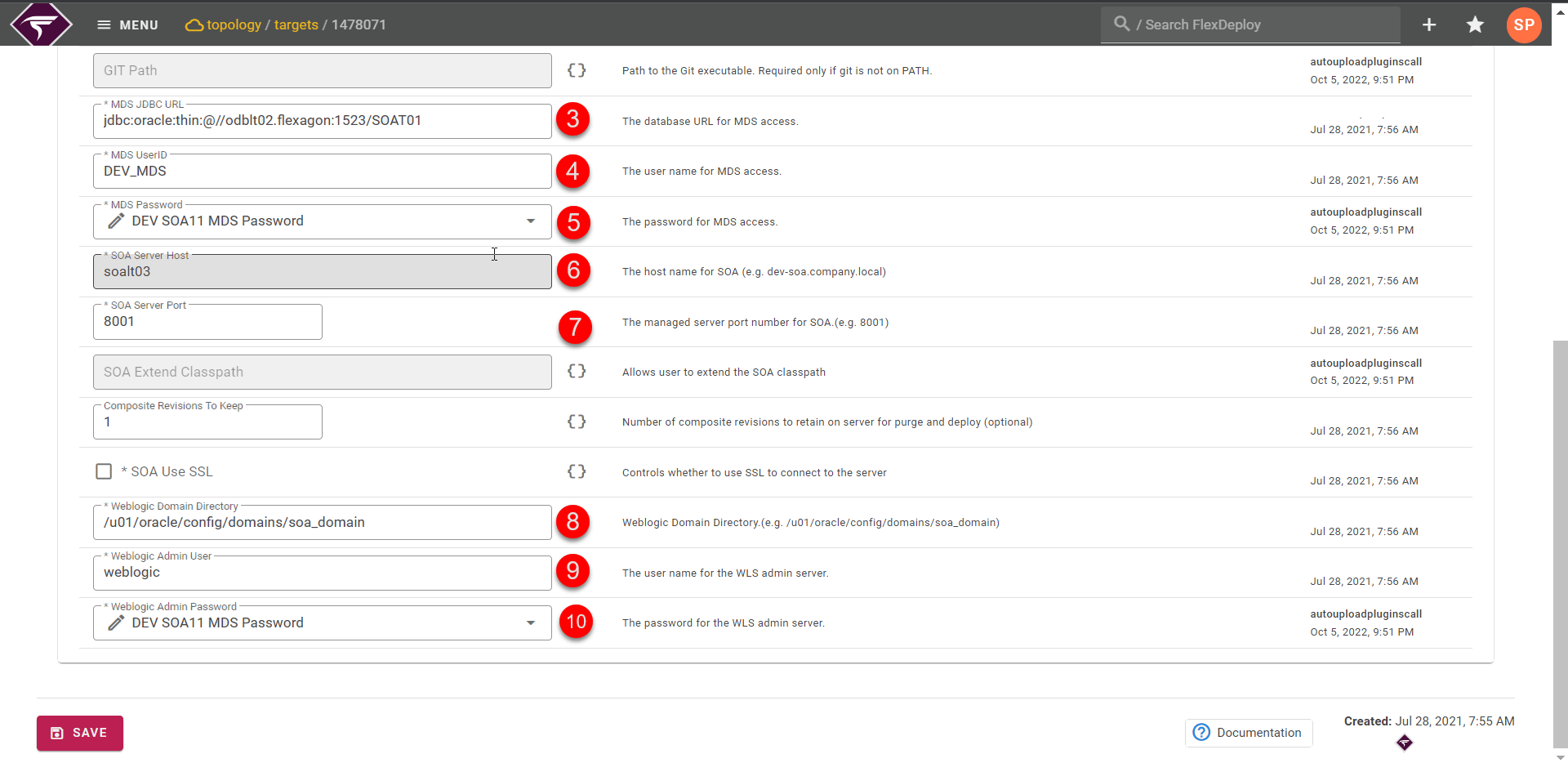
SOA Server Host | locate this value from your SOA server. | The hostname of SOA Server. |
SOA Server Port | 8001 | The Port number of the SOA Server. |
Oracle SOA Home | locate this value from your SOA server. | Oracle SOA Home, indicates where SOA Suite is installed. |
MDS JDBC URL | locate this value from your server. | The database URL for MDS Access. |
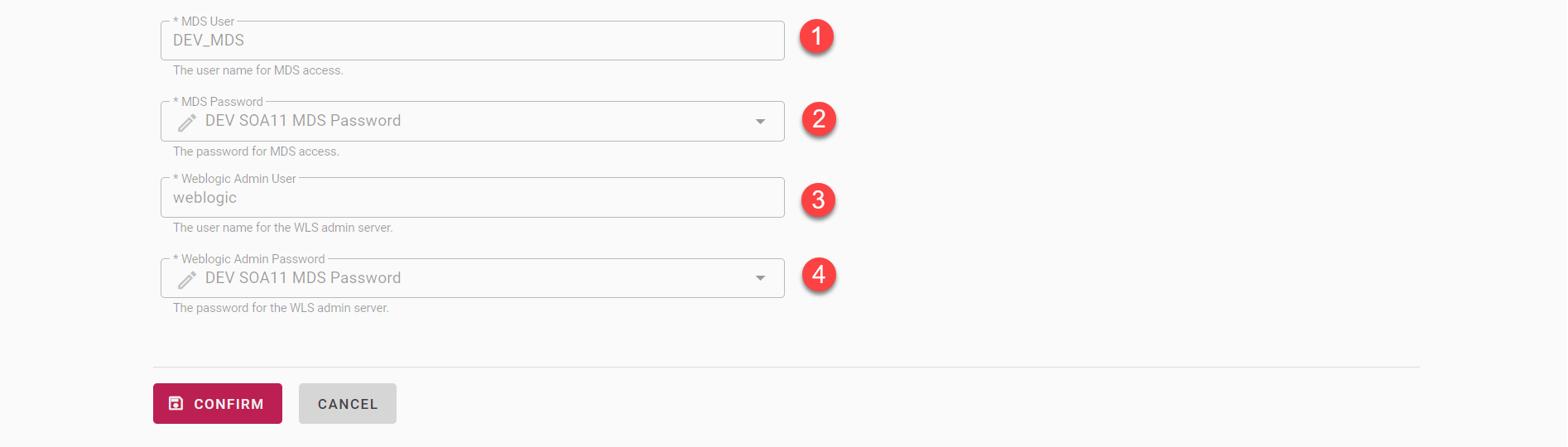
MDS User | DEV_MDS | The Username for MDS Access. |
MDS Password | locate this value from your MDS Access. | Password to connect for MDS Access. |
WebLogic Admin User | weblogic | The admin username for the WLS Admin Server. |
WebLogic Admin Password | locate this value from your WLS admin server. | The admin password for the WLS Admin Server. |
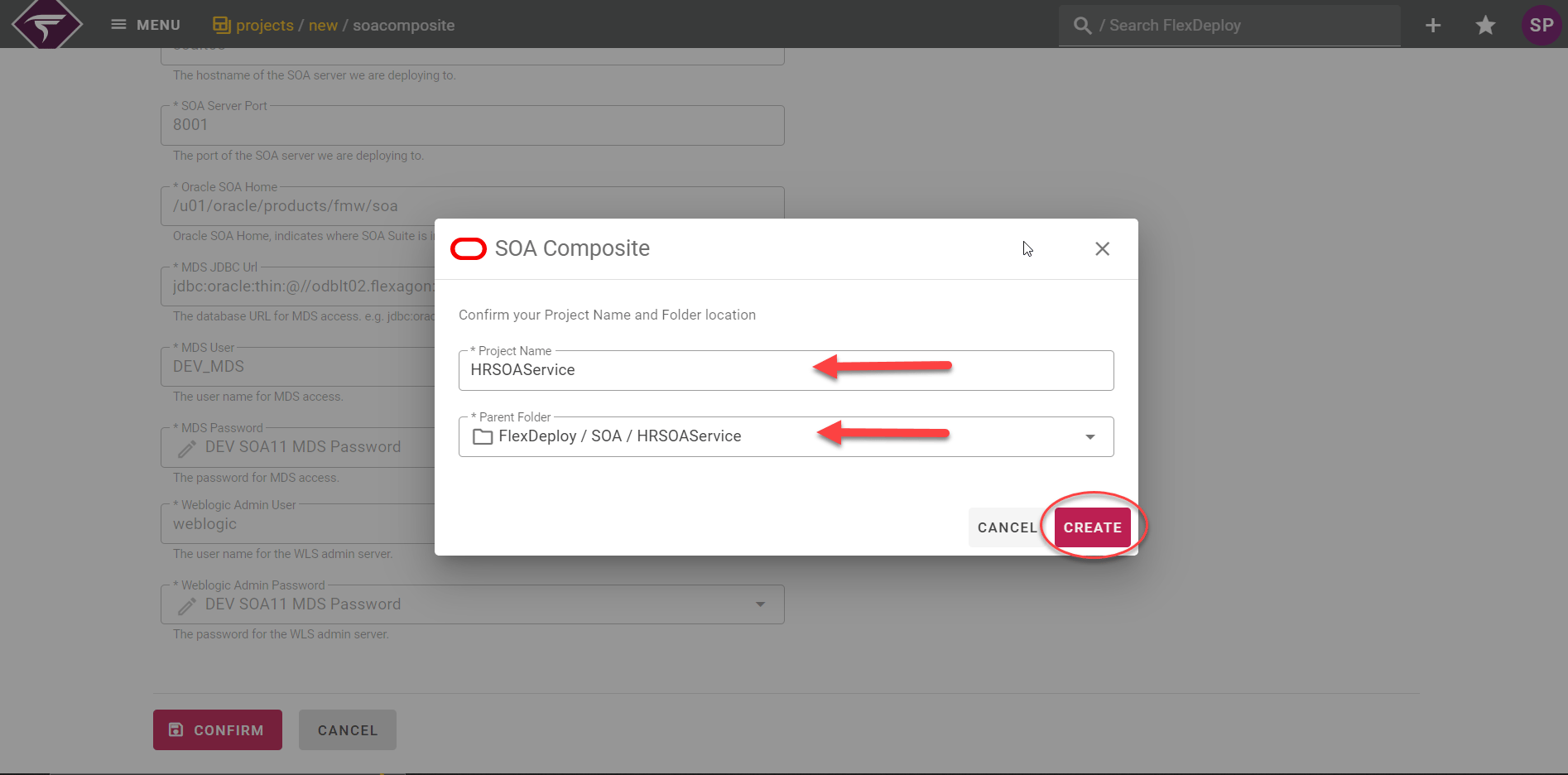
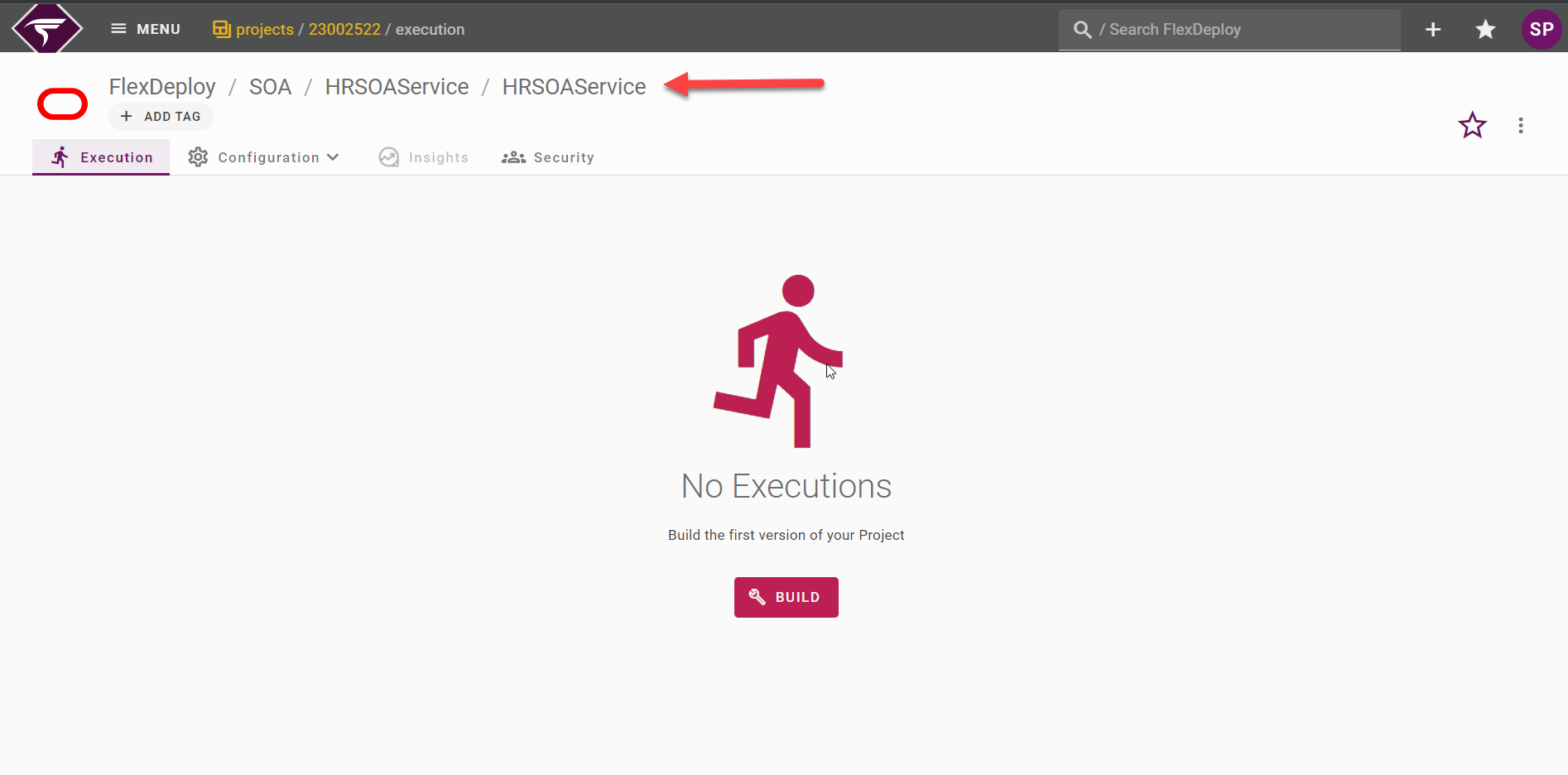
Summary
General Configuration
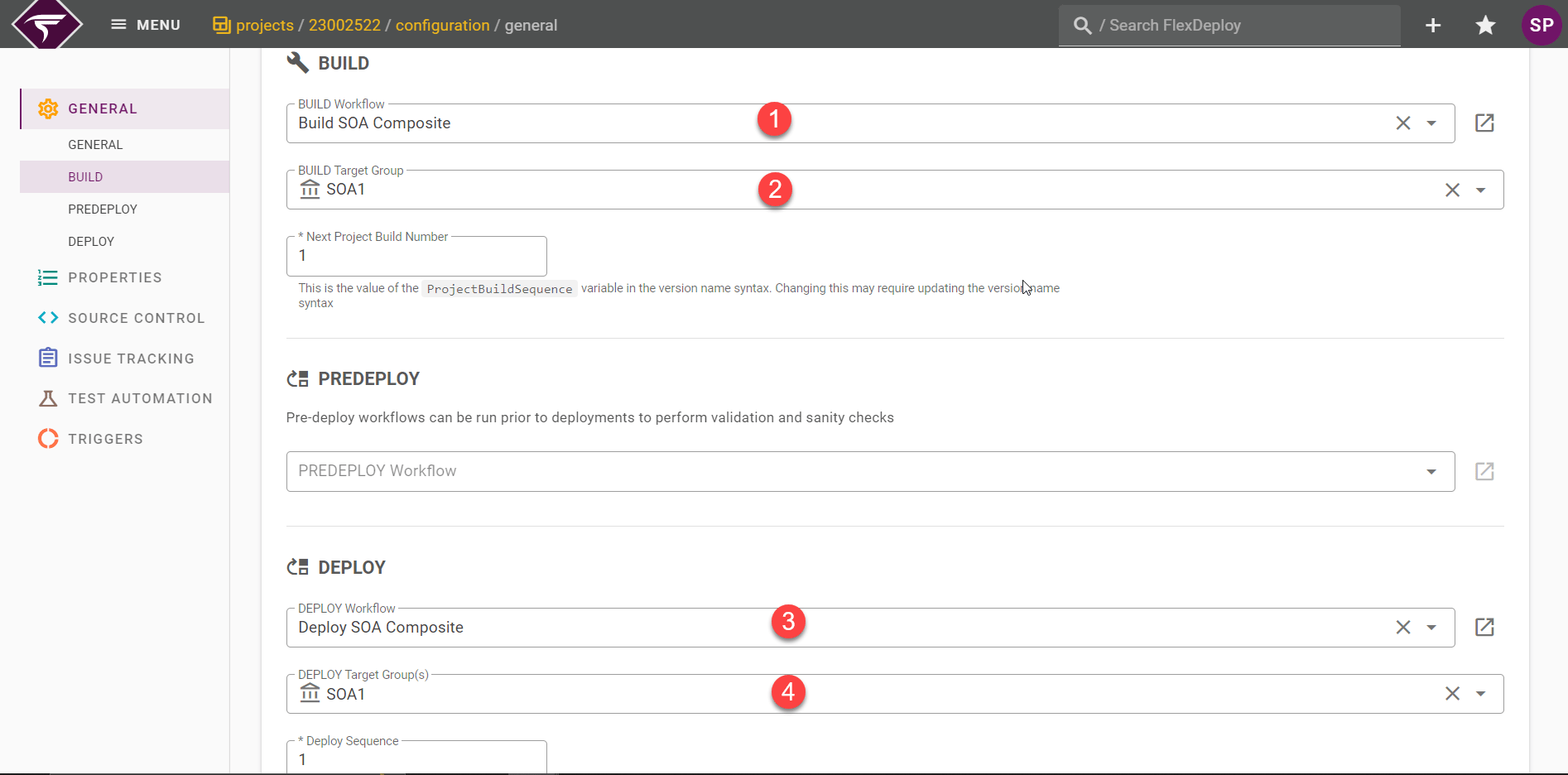
Build and Deploy Workflows
Project Properties
These properties are project scoped resources and can be changed per project. The plugin operations that were added to the workflows determine the available project properties that can be configured. The property that are updated are the and SOA Composite Name and SOA partition, which is the organizational structure for composites on the SOA server. You can filter out the properties by using the search filter properties in the top.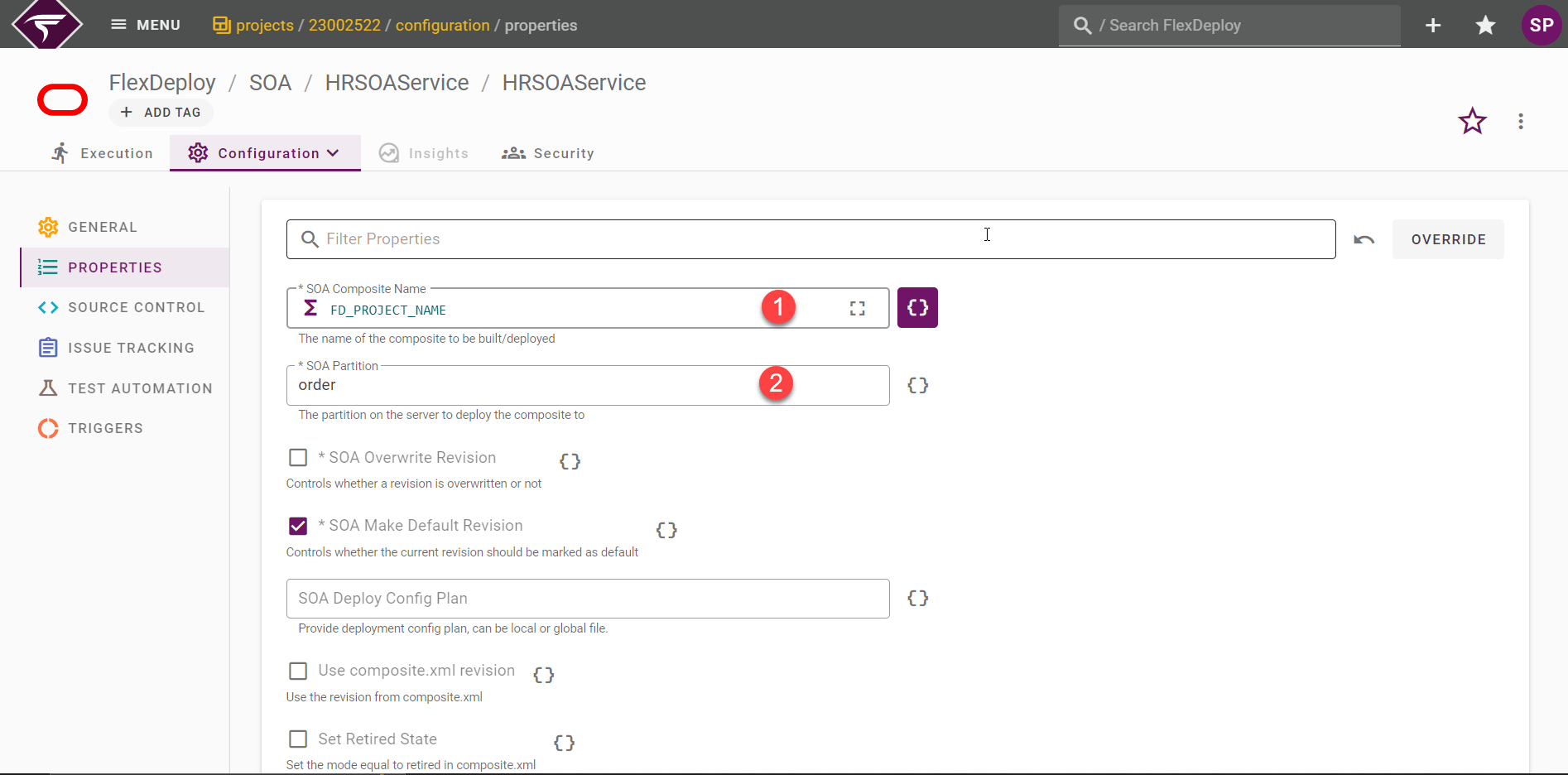
Source Control
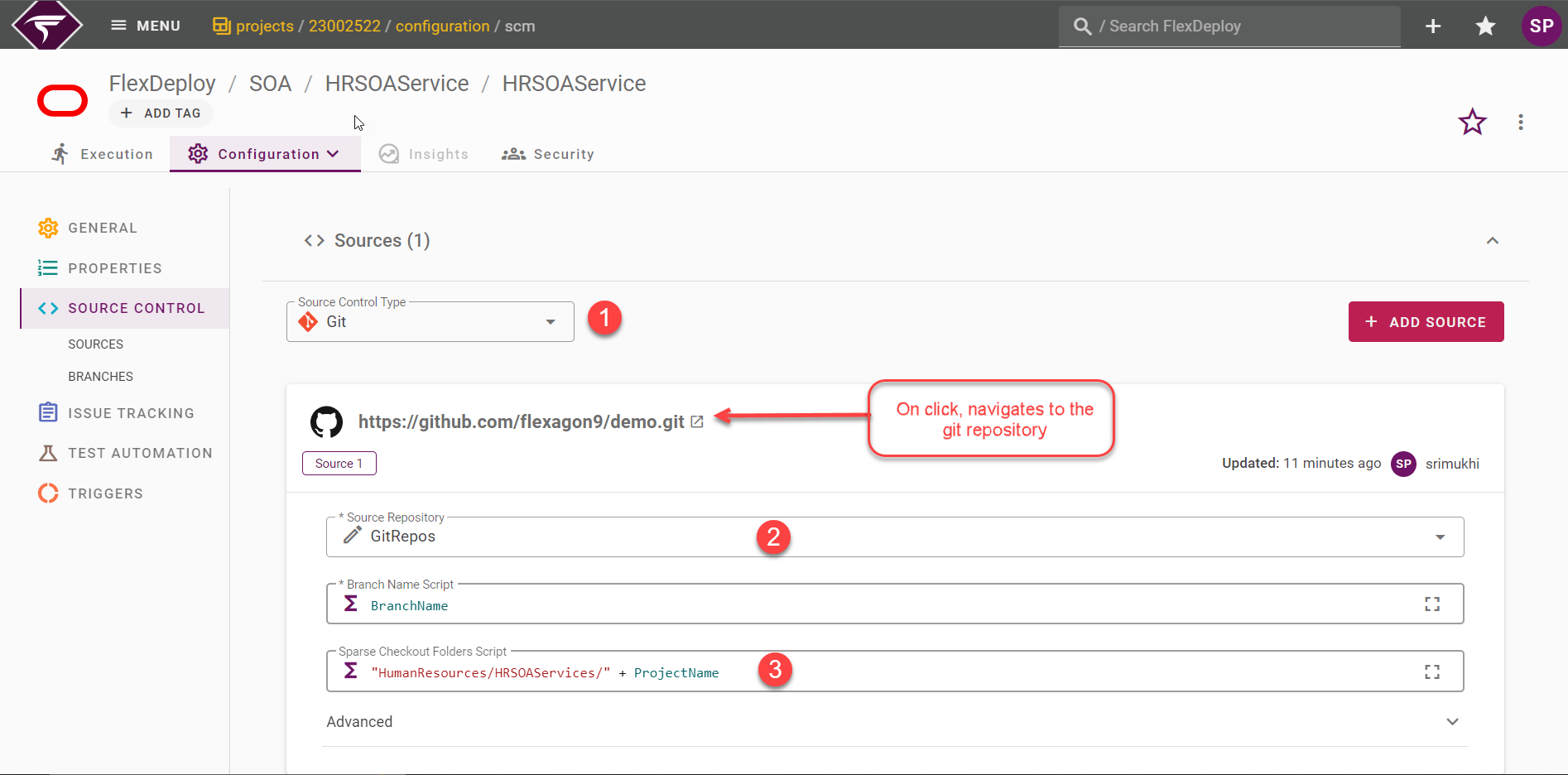
Branch Name
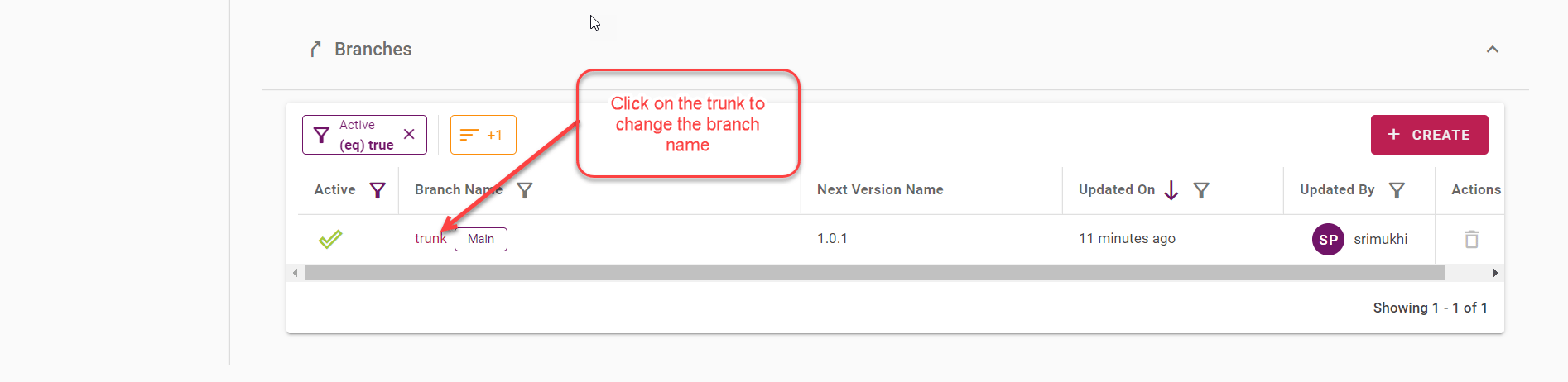
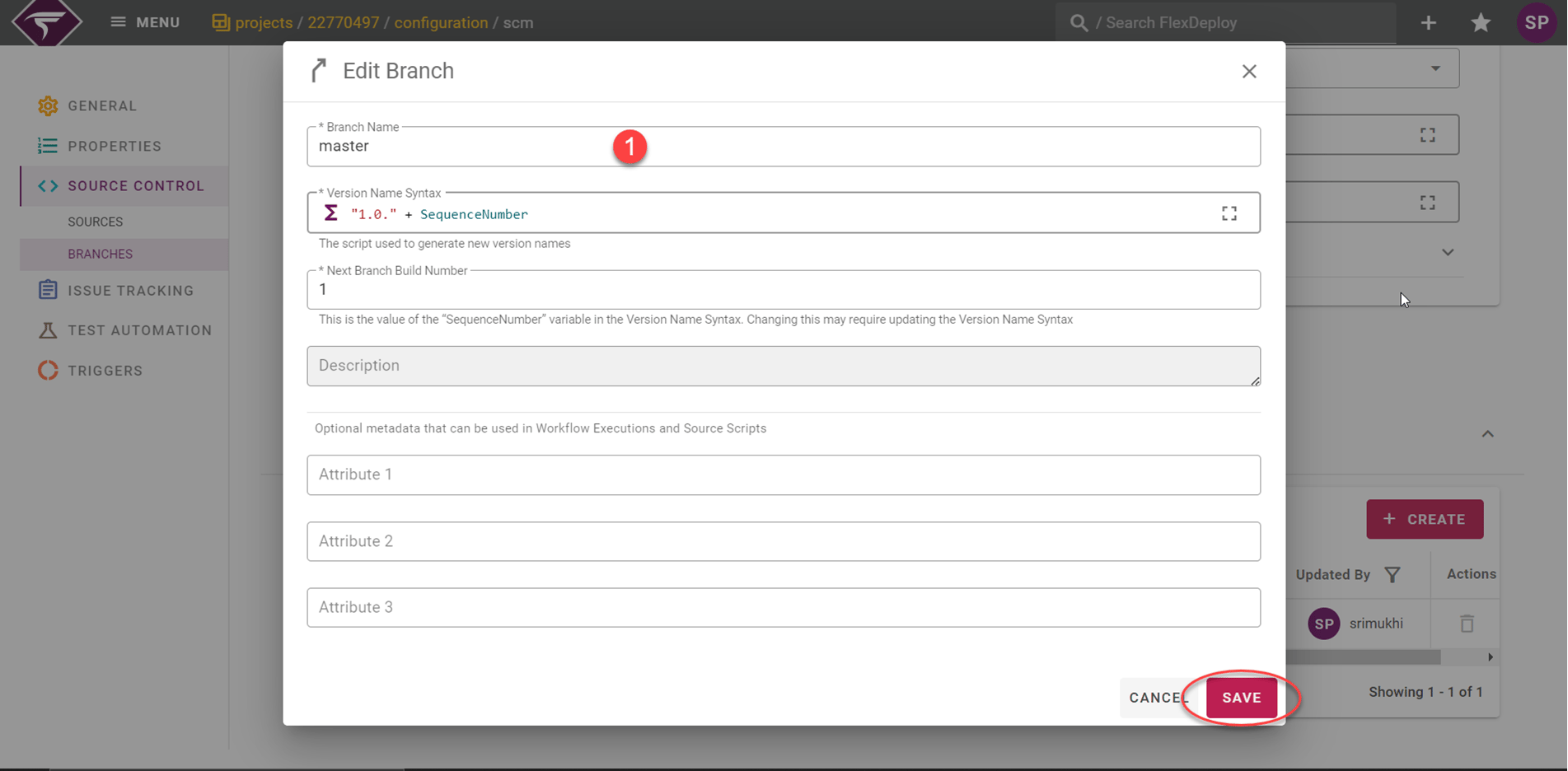
SCM Instance
Viewing the current list of Integrations is achieved by selecting Topology from the menu, then the Integrations tab from the left-hand pane. There are eleven types of integrations in FlexDeploy, but we will focus on Source Control in this tutorial.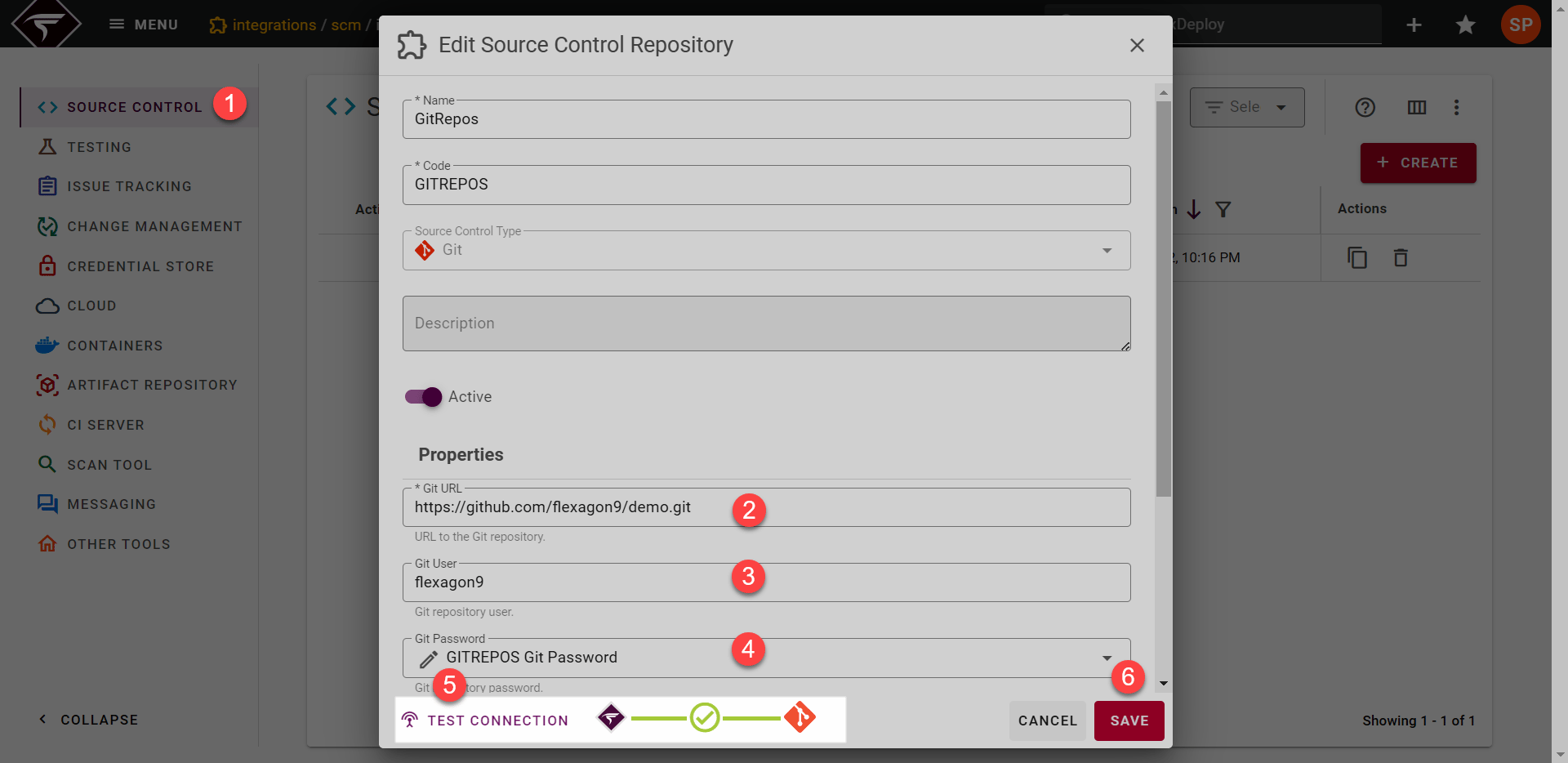
Topology
Navigate to the Topology from the Menu. The Page with the Target Groups, Environments and Endpoints sections will be displayed.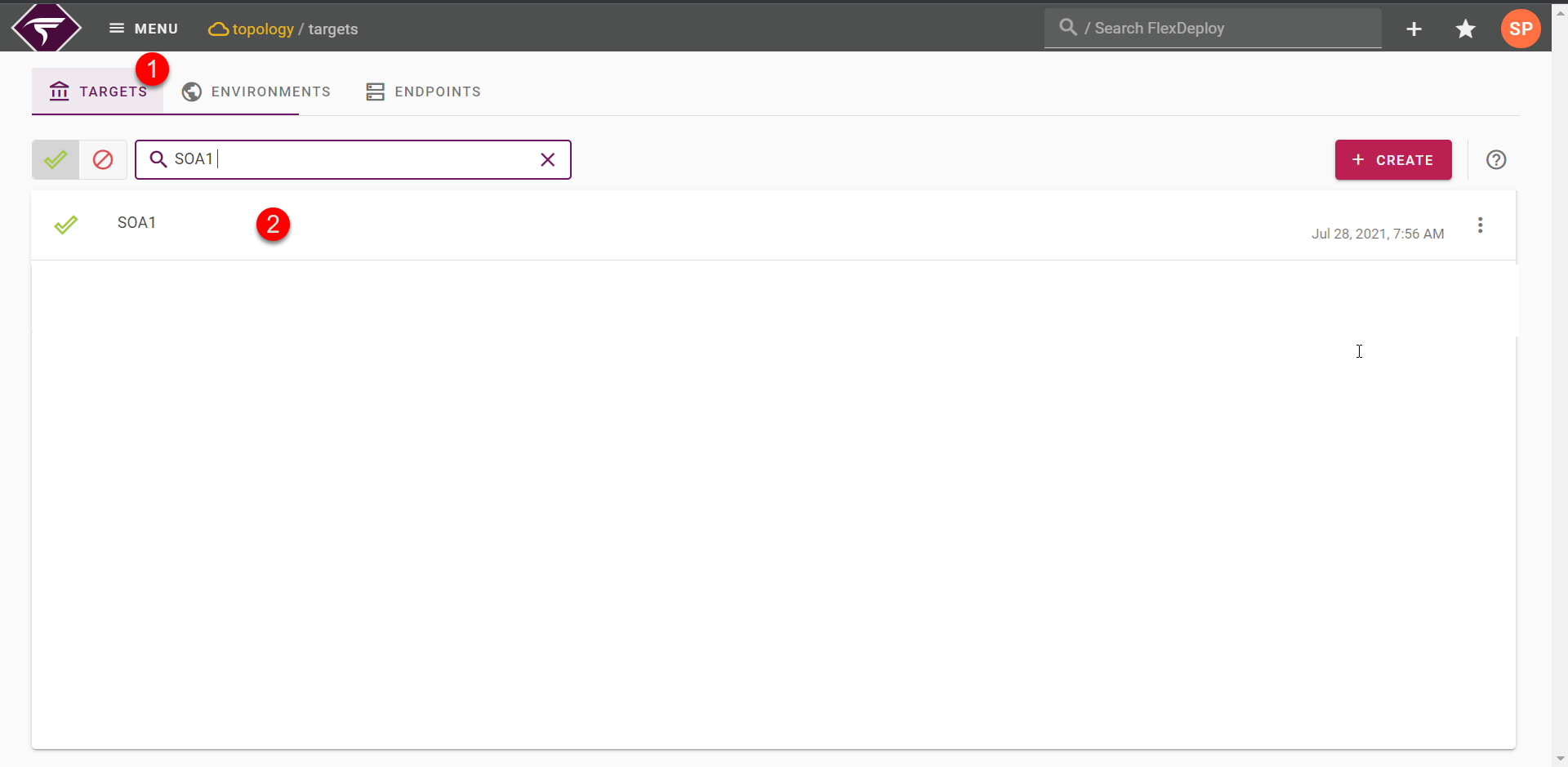
- RED - The Endpoint is not configured
- YELLOW - some of the required properties are not set,
- GREEN - all required properties are set and the Endpoint is configured
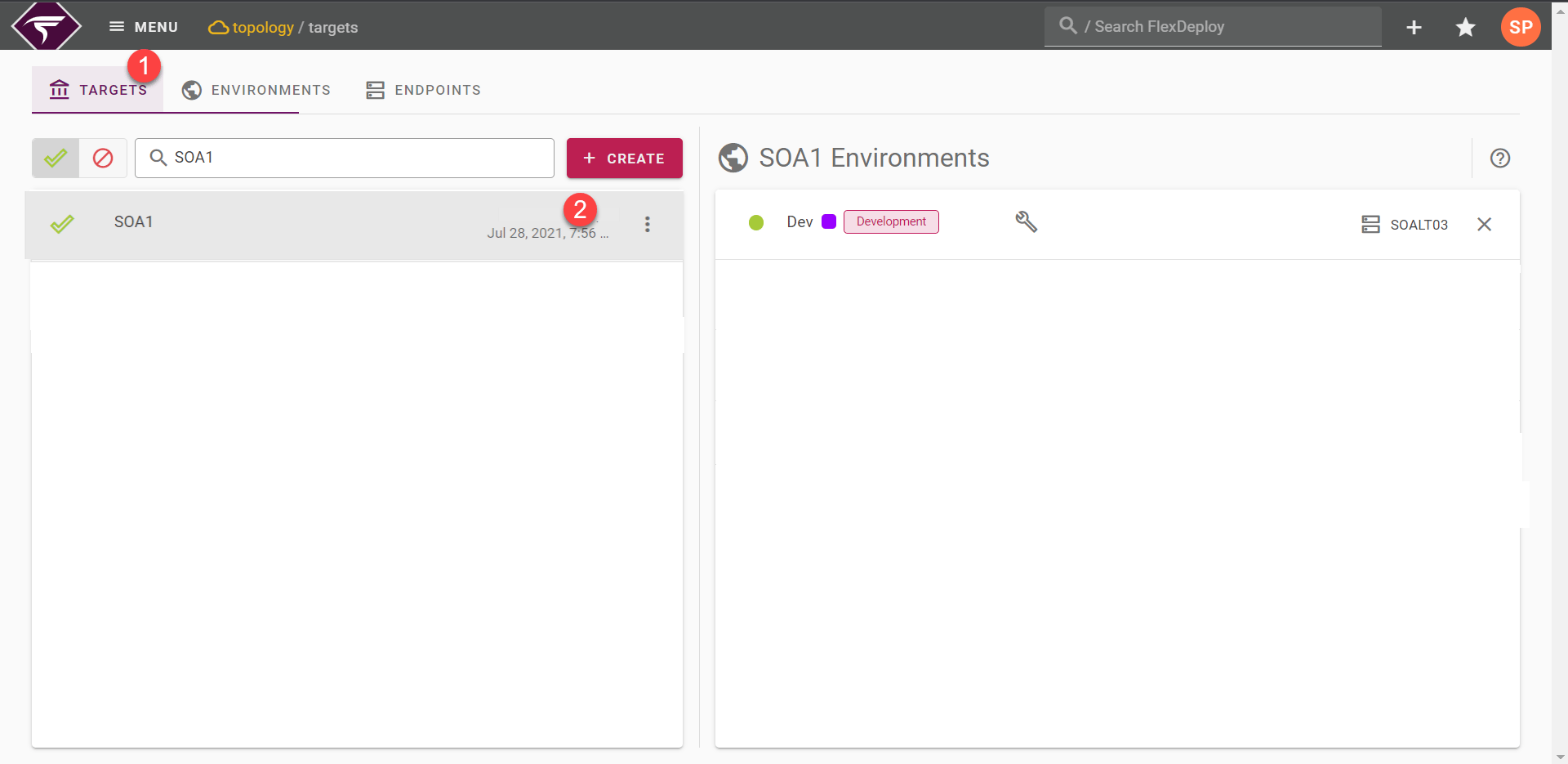
Targets Properties
Click on the Development Environment and user will be able to see the target properties and endpoints mapped.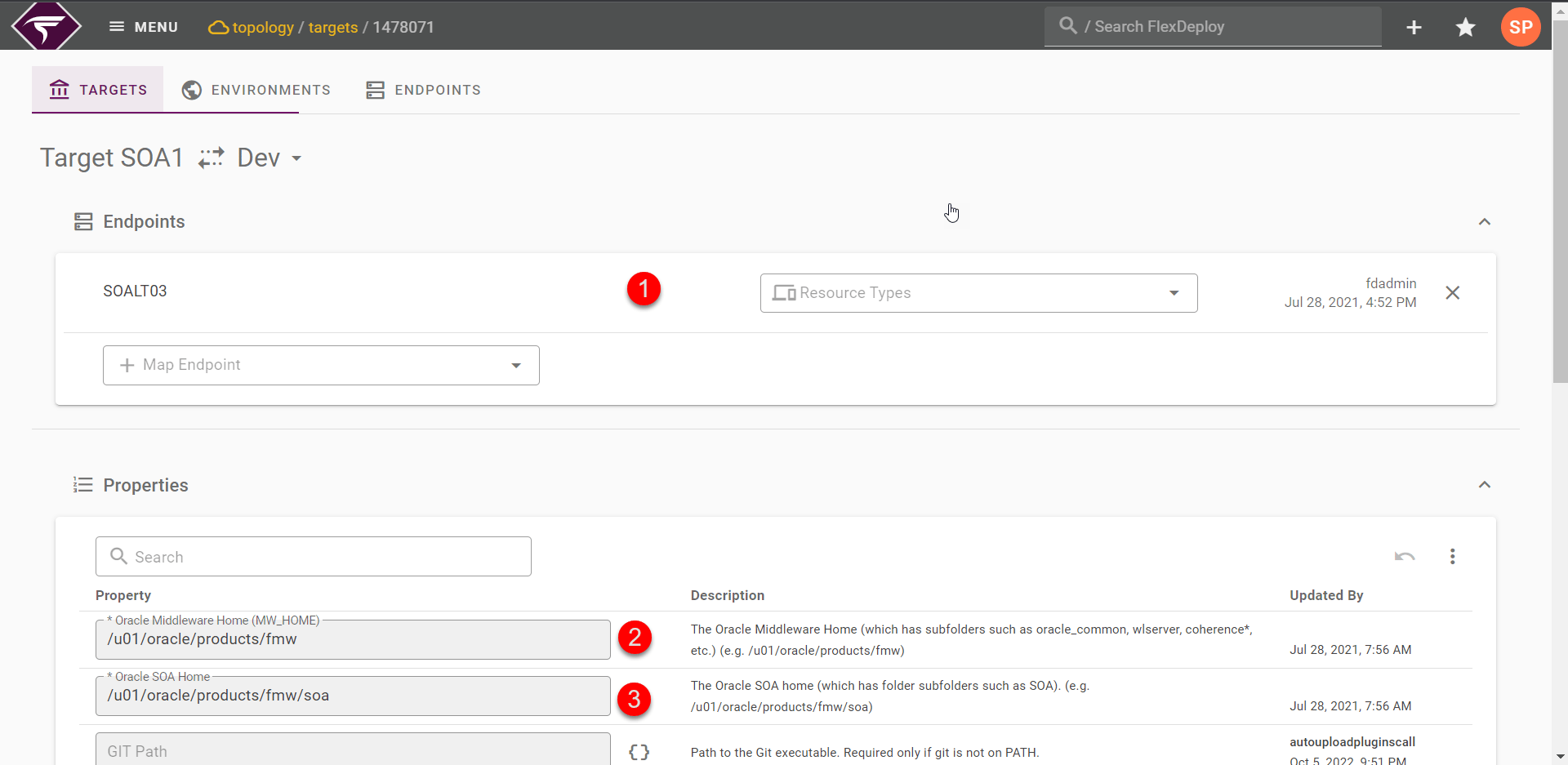
Build Execution
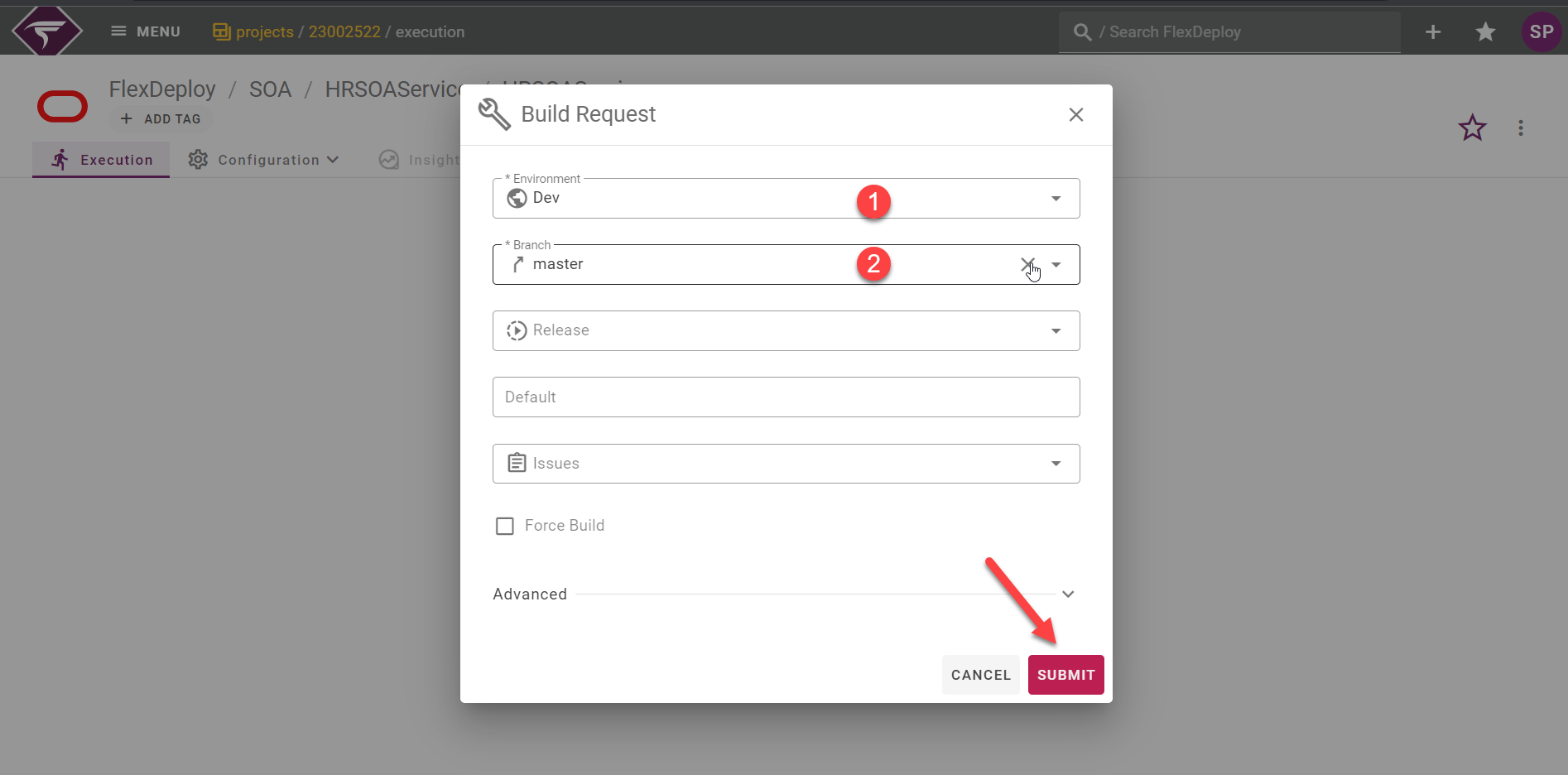
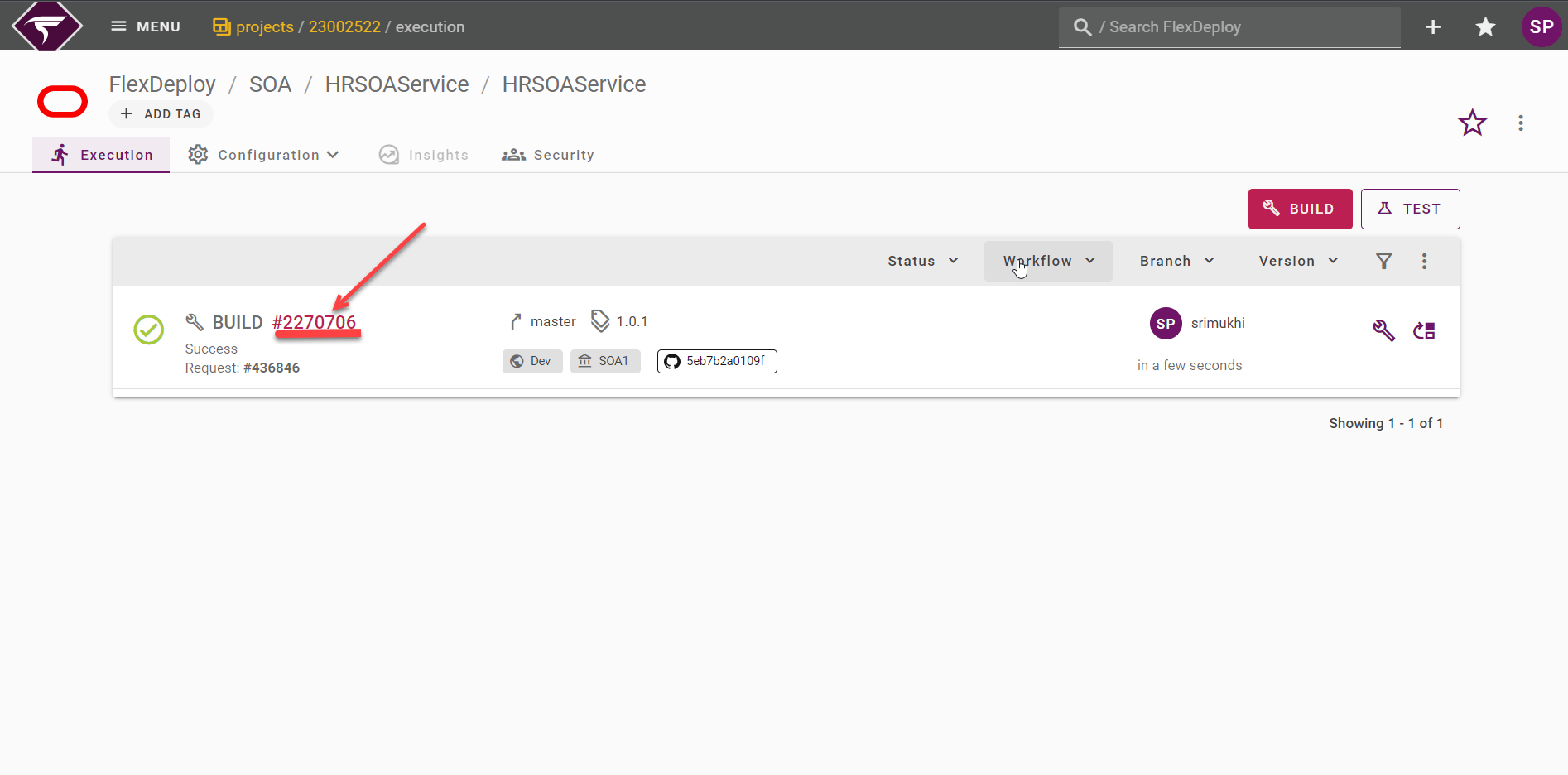
FlexDeploy is configured with everything that is required to execute a build and deploy request for the SOA composite, we can execute the first build. Click on Execution tab to submit the build request for that package. Click on Build.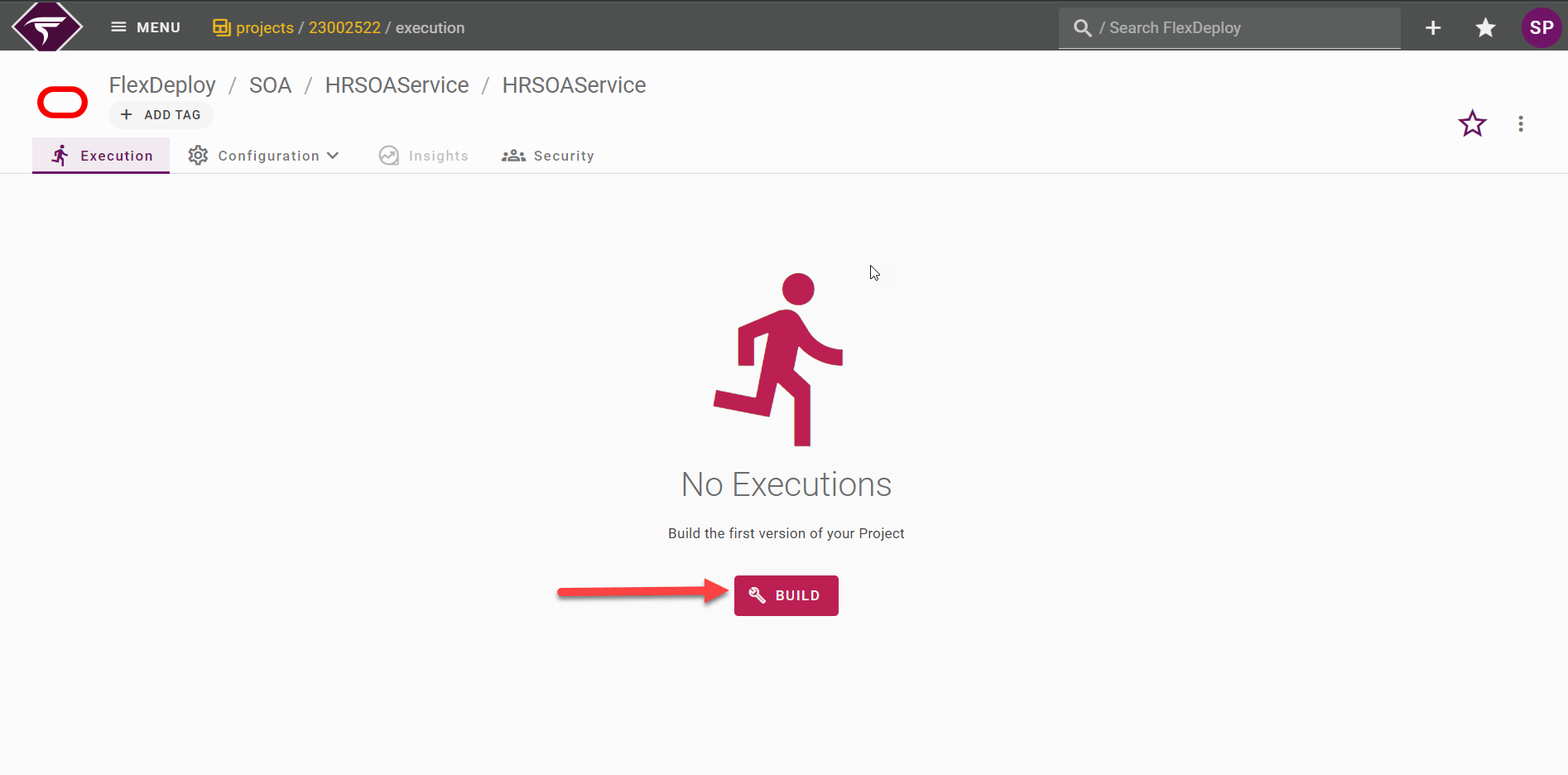
- select the environment we want to build the composite in, the environments that had the Build Environment checkbox will appear in the dropdown
- select the SCM Branch that was configured on the project, this will be pre-populated if there is only one configured Branch.
- submit the request, this will initiate the soaBuild workflow
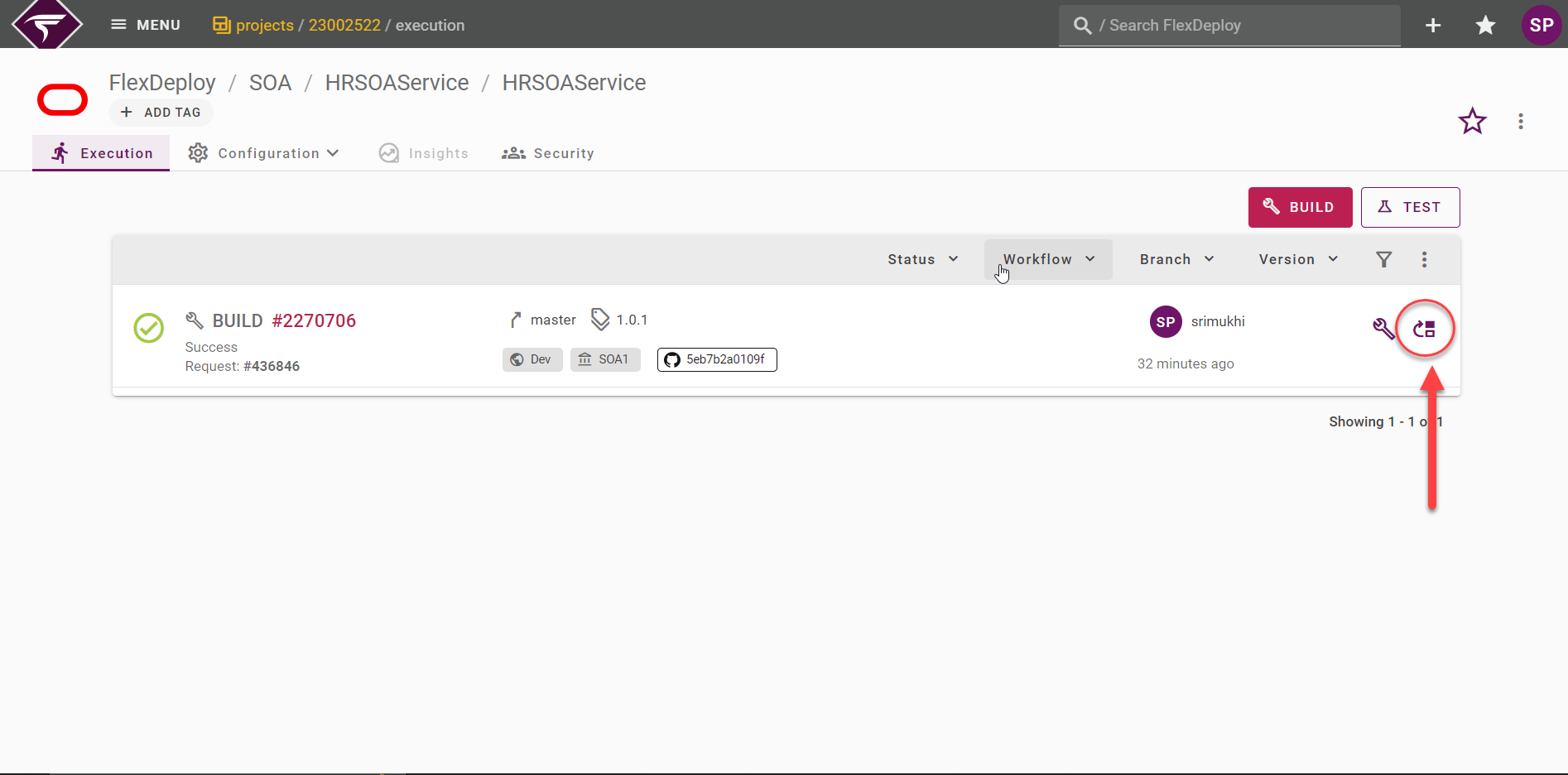
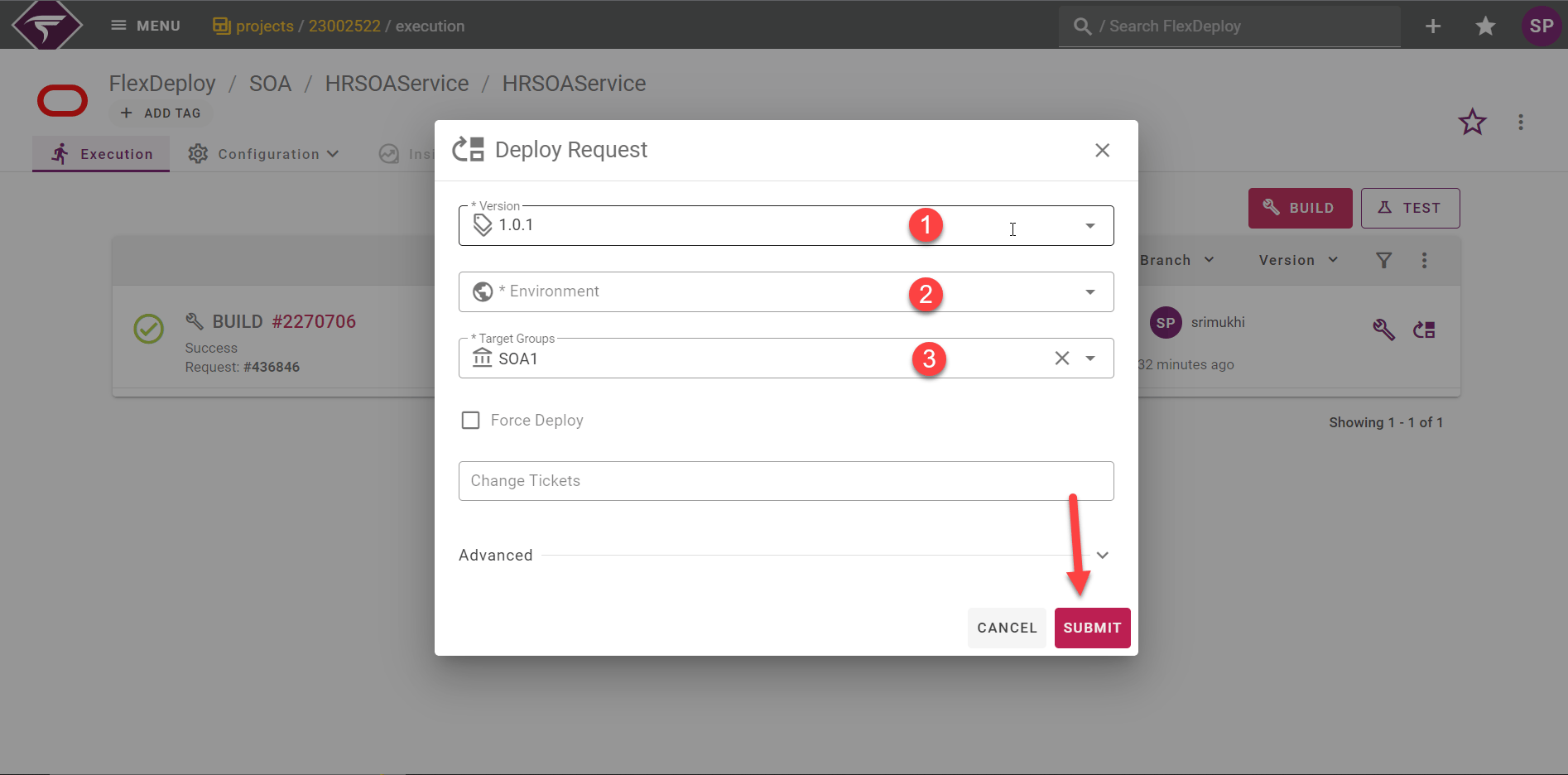
- The Project Version will be updated same as the build project version. However, the dropdown will contain all previously create Project Versions
- select the Environment that the deployment will be executed in
- The Deploy Target Group, will be updated same as the deploy instance on the General Configuration. However, Deployments can happen on multiple instances.
- submit the request, this will initiate the soaDeploy workflow
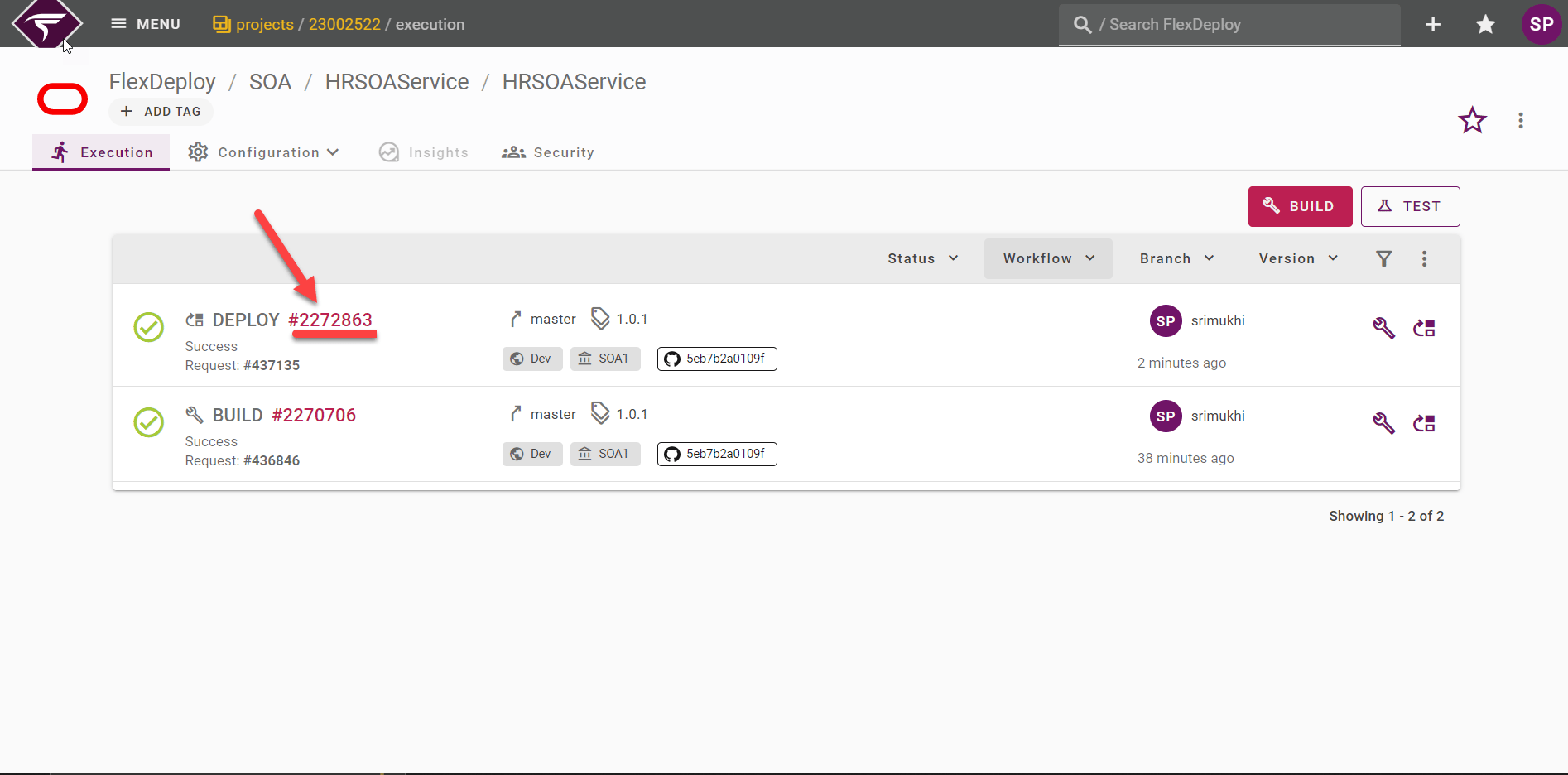
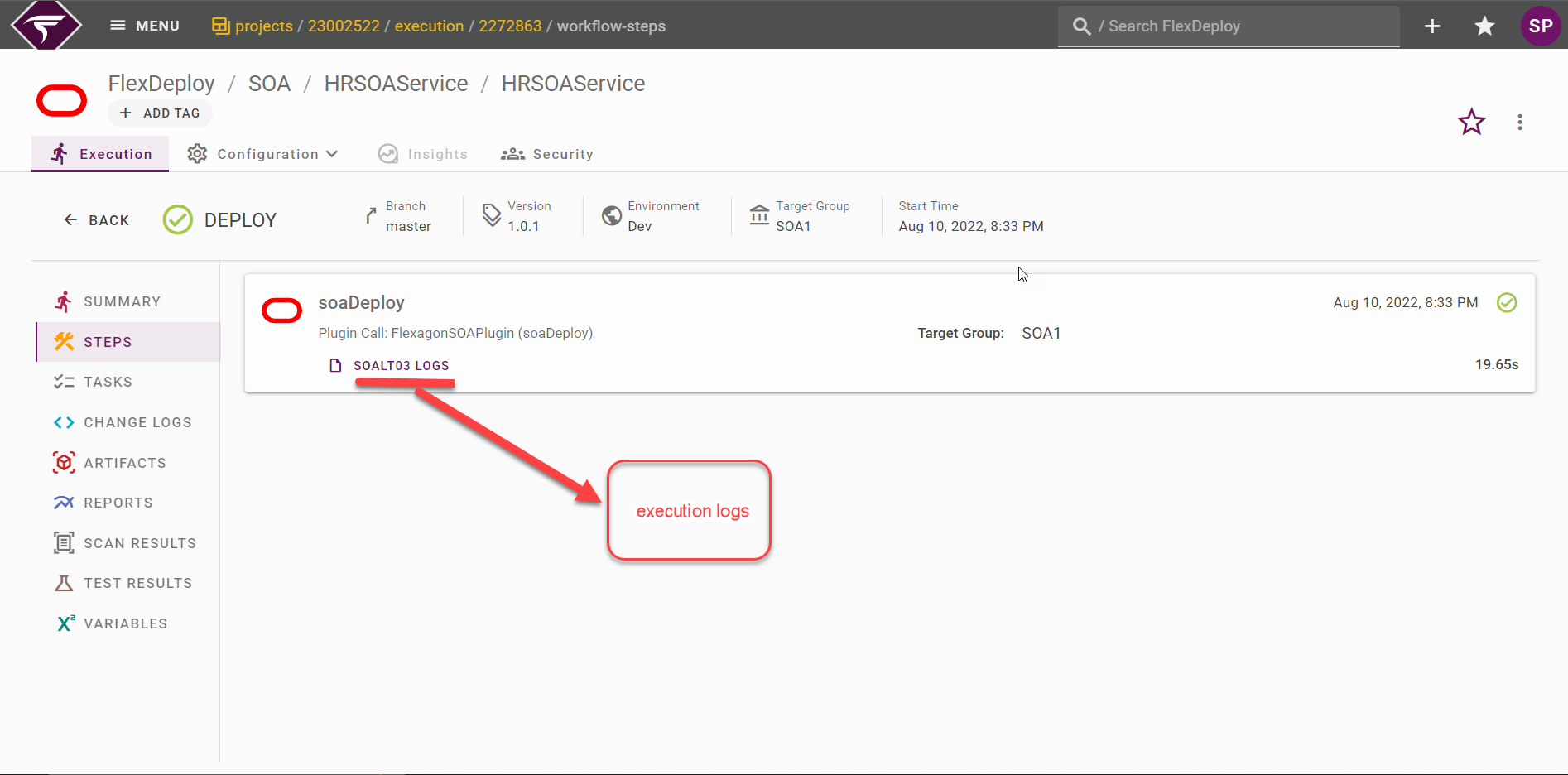
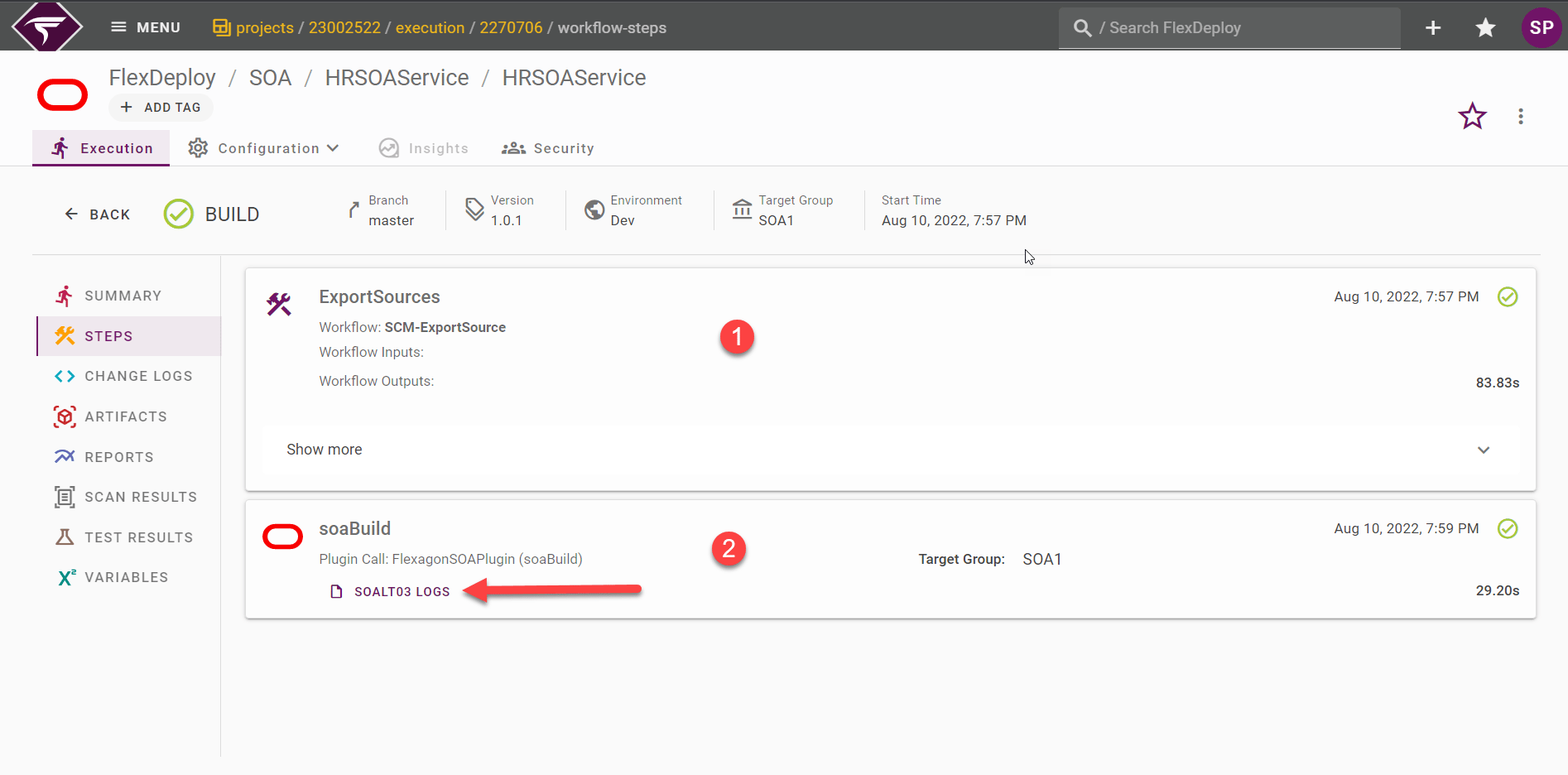
- the workflow execution steps
- the logs for each workflow step, which can be viewed by clicking on the link under the step
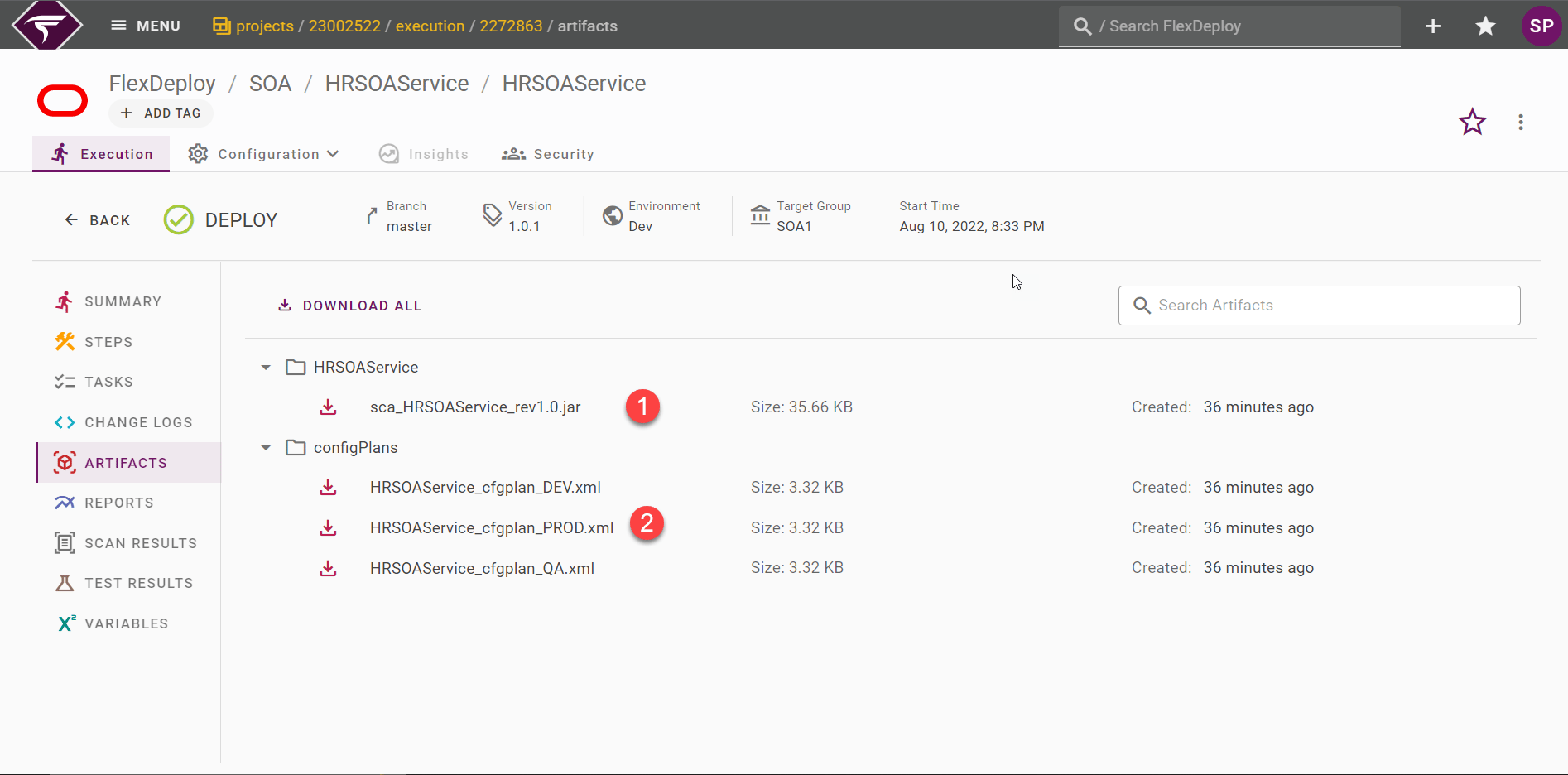
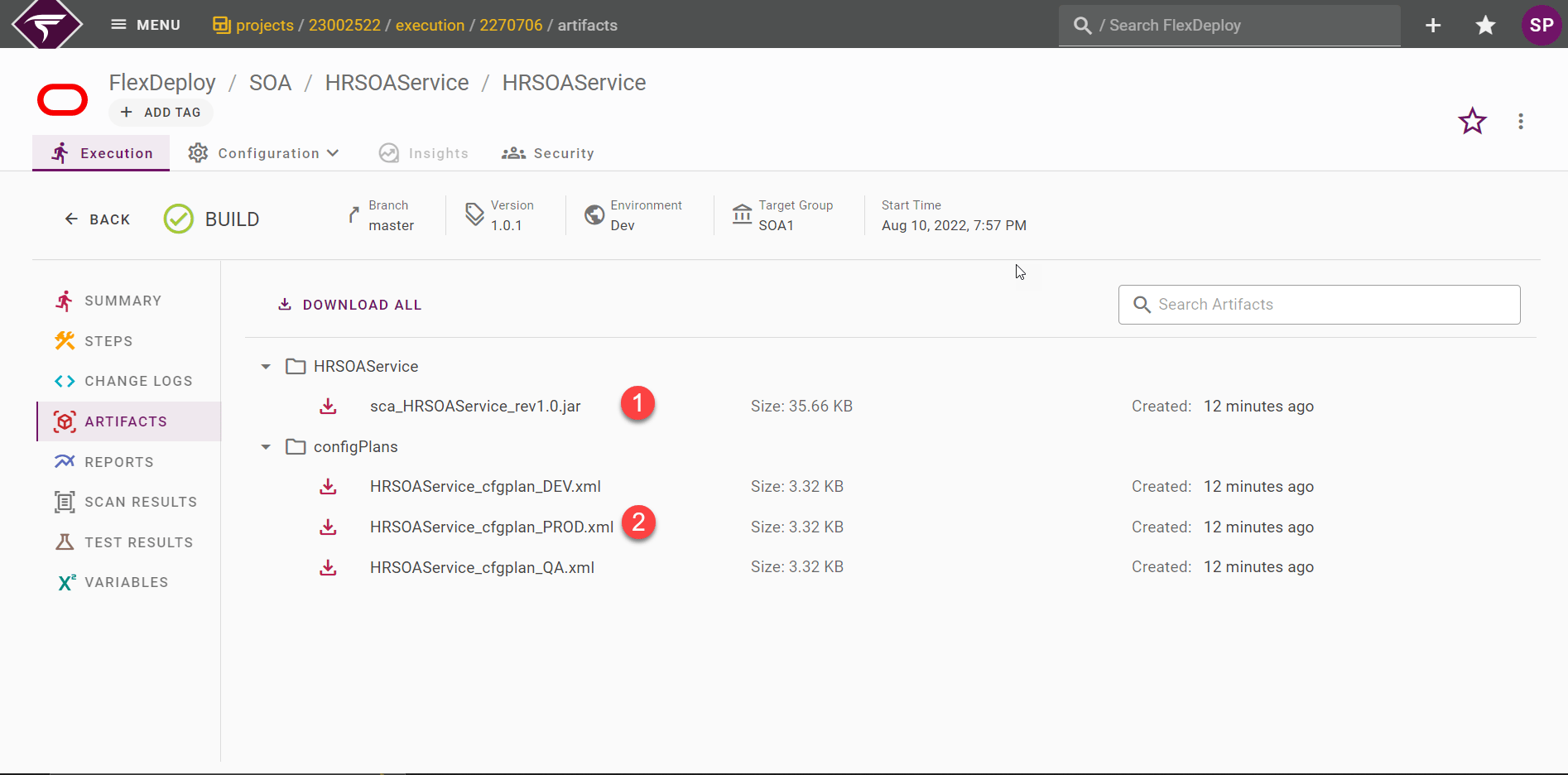
- the artifact, which can be downloaded
- the project and environment instance property values at the time of execution