
Workflow Types
Every workflow is designated a Type, with each Type serving a different purpose. To understand Workflow Types appropriately it is important to understand the Build and Deploy process within FlexDeploy. A diagram representing a typical implementation can be seen below.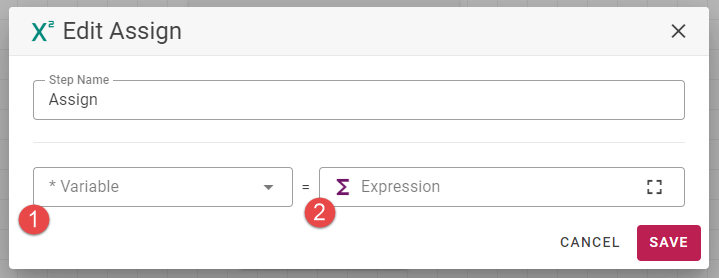
Workflow Type | Description |
|---|---|
Build | The first step in the Build/Deploy model. The Build Workflow most commonly does the following tasks:
|
Deploy | The Deploy Workflow is most commonly the next workflow run. Its duties consist of reading or consuming Artifacts published during the Build Workflow and uploading or deploying those Artifacts to your Deploy Target. An example of this could be taking html/css/javascript bundled during build and uploading to Azure to be served. |
PreDeploy | Prior to running the aforementioned Deploy Workflow, you can optionally run a PreDeploy Workflow. The PreDeploy Workflow can use the Build Artifacts and running any checks prior to the Deploy Workflow executing. Some examples of this could be:
Note: Any inputs required or optional defined in the deploy workflow, must be configured in the pre-deploy workflow. These deploy inputs must be either defined in the inputs or in variables. This will facilitate the inputs given in the deploy request form to be set when the deploy workflow is executed from pre-deploy. |
Test Definition | The last Workflow run is a Workflow testing the previous deployment on the Deploy Target. A common example being running some form REST tests, using something like Postman, to validate the Deployment. |
Utility | Utility Workflows fall outside of the typical Build and Deploy process outlined above. Utility Workflows don’t consume or produce any artifacts and are most commonly used to run adhoc on demand logic on a Target Server. A few examples would be:
Note that Utility Workflows can only be used by a specific Project Classification called |
Other | Lastly, the black sheep of the family, Other Workflows cannot be used by any Project directly. Their only usage is to have common Workflow logic that can be called from the Workflow types listed before. |
Workflow Operations
Assign
The Assign step provides the ability to assign a value to a workflow variable or a property. Property values that are overridden will keep the new value for the rest of the workflow execution.Field | Description |
|---|---|
Variable | The variable or property that we are assigning to. |
Expression | The expression (groovy) value that should be assigned. |
Error Handler
The Error Handler step essentially provides a try/catch mechanism for your Workflow Definition. The Step itself provides two “scopes” in which nested Workflow Steps can be used. The first being the Default scope and the second being the On Error scope.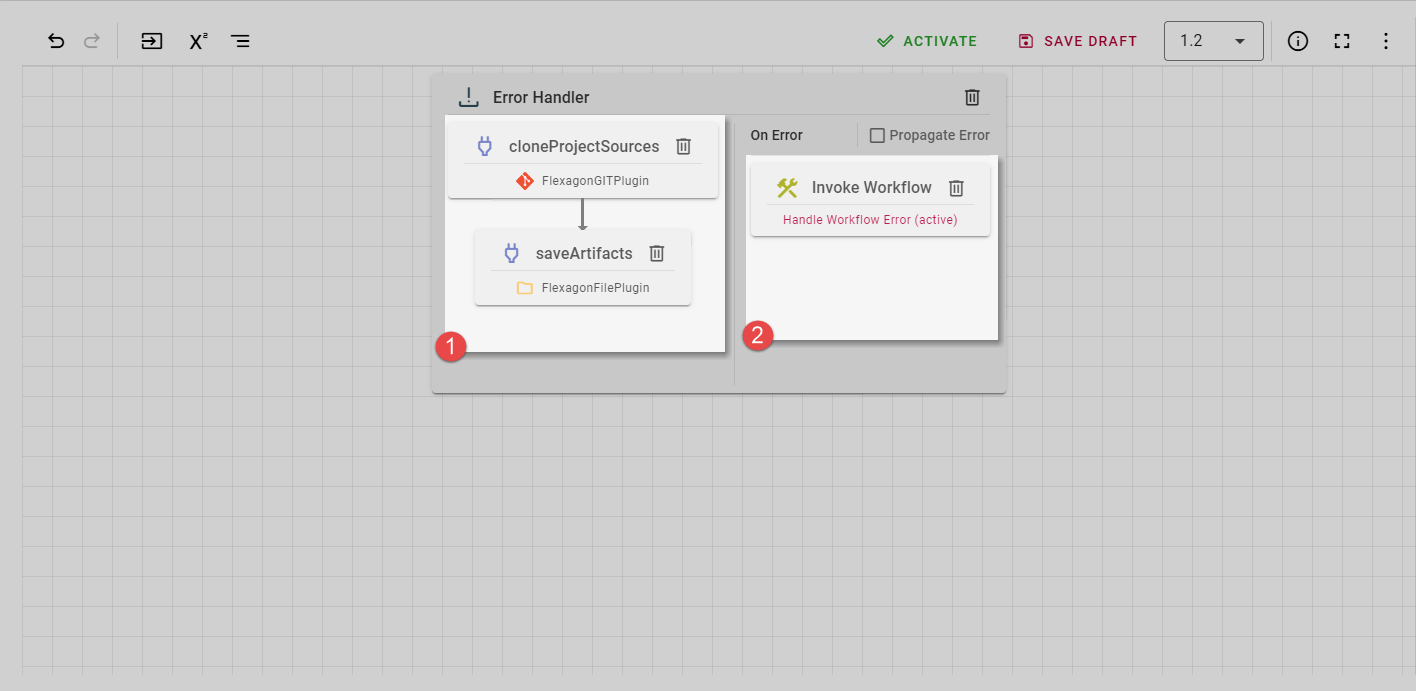
 , the Workflow Engine will immediately move to the On Error Scope
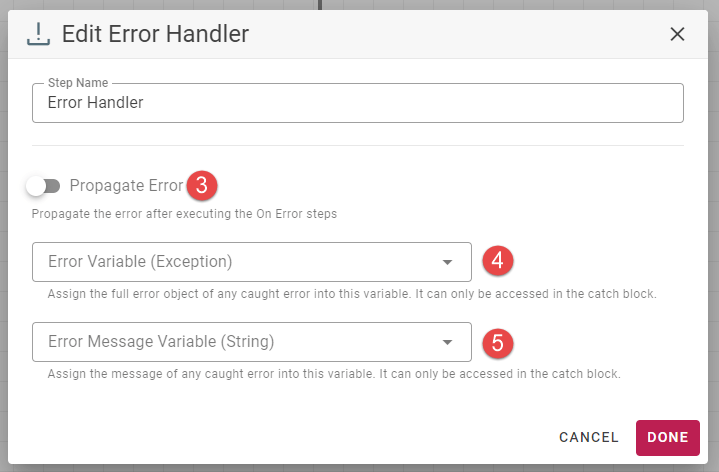
 and start running Steps. The Error Handler Step provides a few configuration options outlined below:
Field | Description |
|---|---|
Propagate Error | Determines what action should occur after executing the Steps defined in the On Error Scope
|
Error Variable | Once an error occurs it can be useful to get access to the error object in your On Error Scope. Specifying a variable in this input will assign that error object into that variable so it can be accessed. Error Variable Scope Note that both Error Variable and Error Message Variable are scoped to the Error Handler On Error block. Both variables will not be accessible outside of this Scope. |
Error Message Variable | Identical to Error Variable except it only contains the text of the error instead of the full object. |
If
The If Step is a flow-control operation that allows your Workflow to dictate which Steps should be run depending on conditions.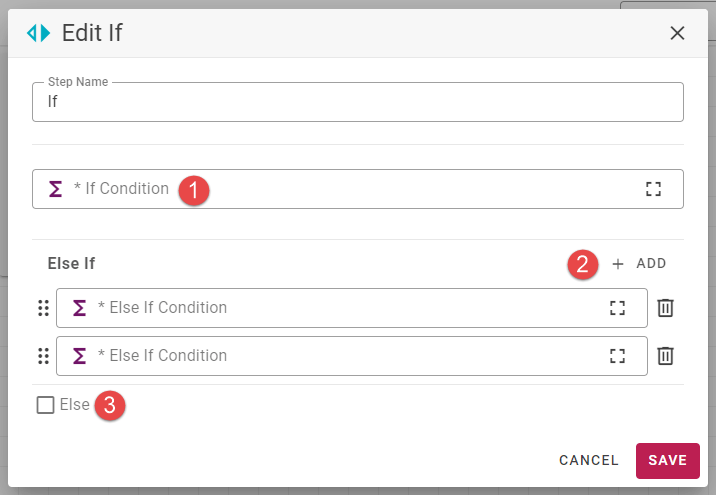 . One more Else If Conditions can optionally be added and finally an optional Else block can be added
 . Every condition gets the full suite of available variables and properties at its disposal. Each condition/block can also run any number of Steps. A full example implementation of the If Step is below:
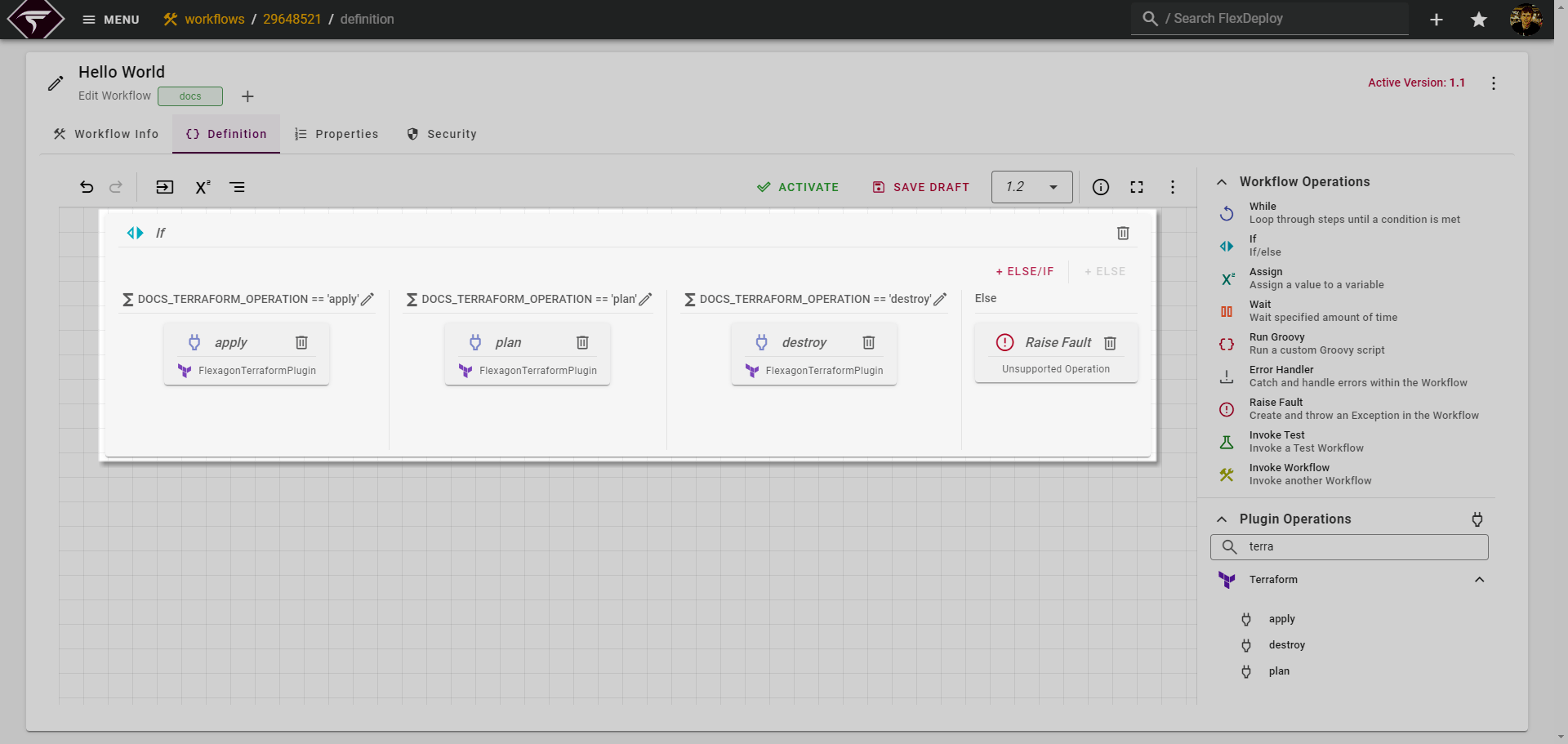
Display Conditions
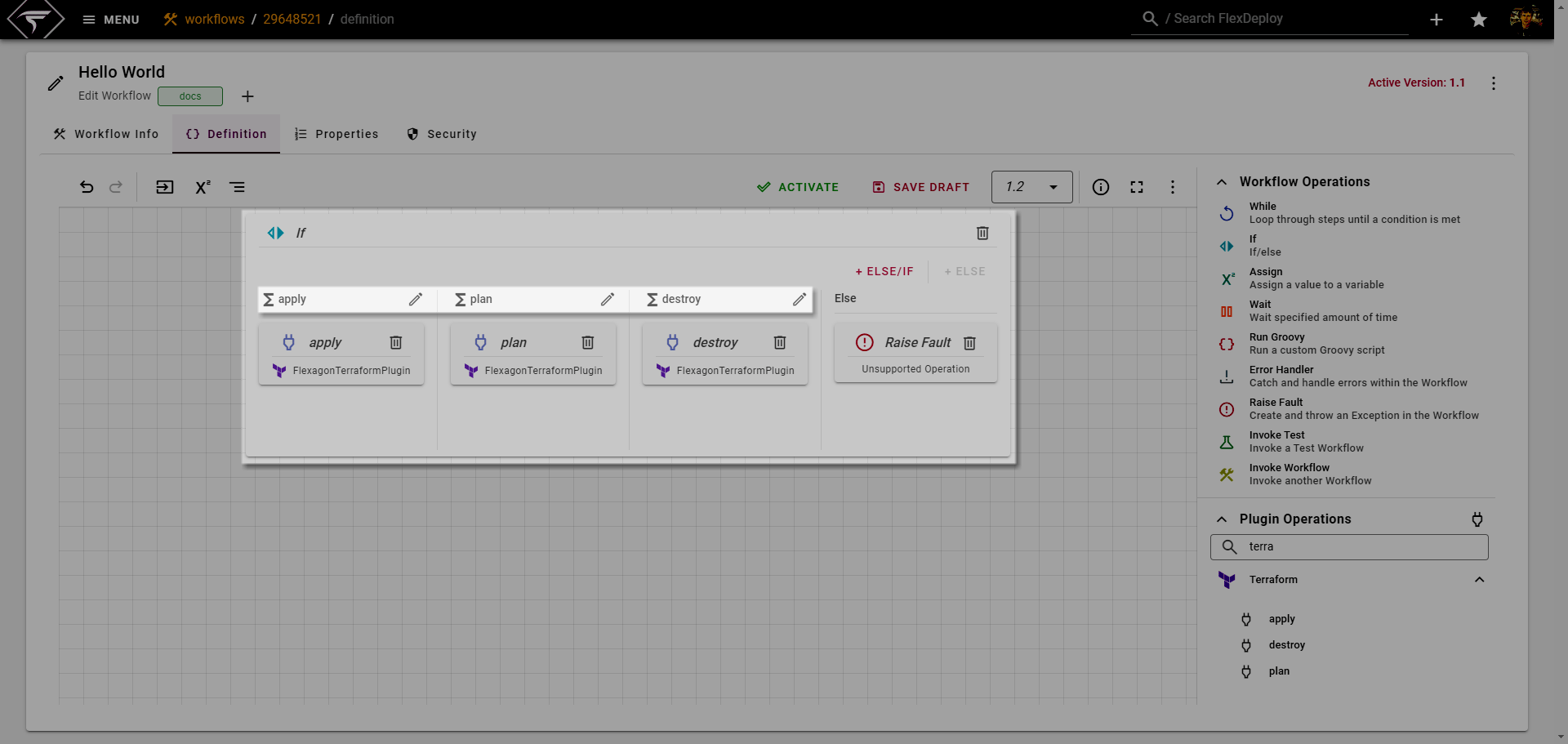
In the example above there is some redundancy in the conditions that makes it slightly harder to understand than it should be. We can simplify this by clicking the edit icon :Pencil_Edit: next to the conditions.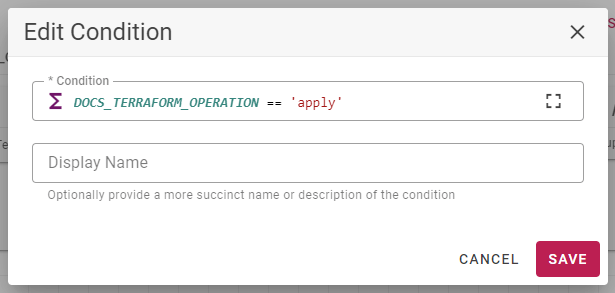
Invoke Plugin
Invoke Plugin provides the ability to invoke Plugin Operations for any installed Plugin in FlexDeploy. Unlike the rest of the Workflow Operations, Invoke Plugin cannot be dragged directly onto the Canvas. Instead, a list of available Plugins and Plugin Operations are shown below the Workflow Operations.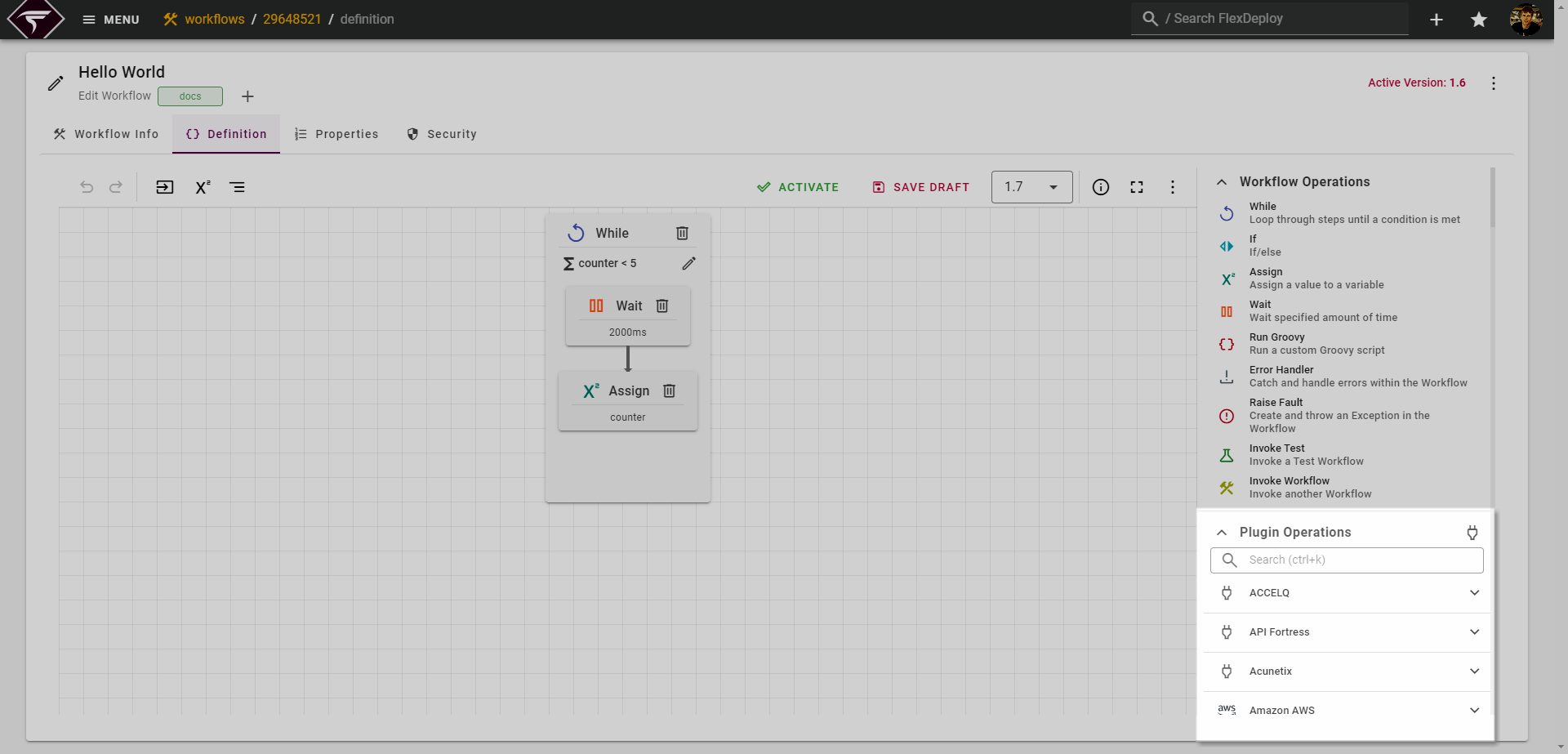
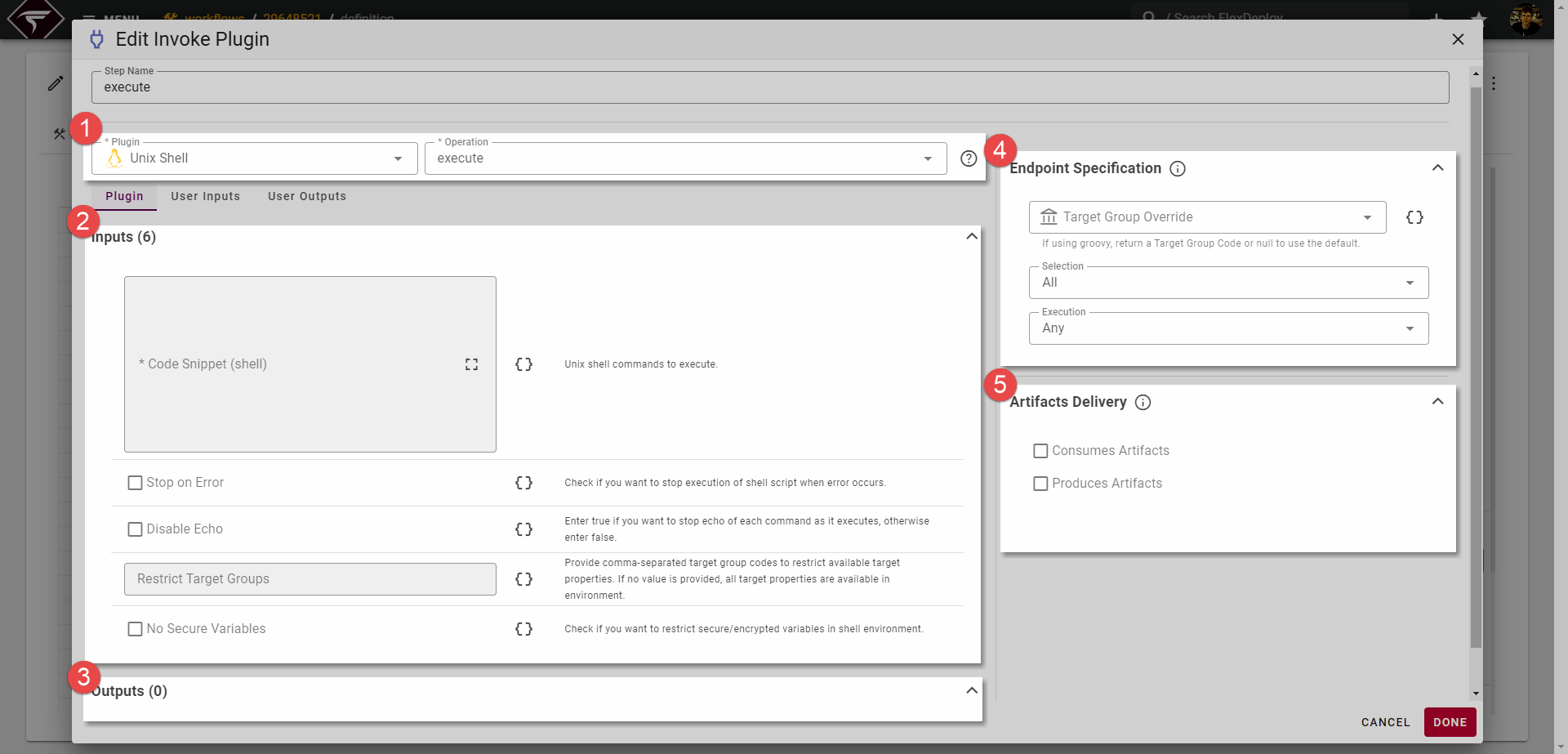
Plugin Operation
The chosen Plugin and Plugin Operation shown here, are populated by default based on the Plugin Operation that was dragged into the canvas and rarely need to be changed.
Plugin Inputs
Plugin Inputs are 1 of 3 ways a Plugin Operation can receive configuration values from the user. The other 2 are Project Properties and Target Properties. The Plugin Inputs presented depend entirely upon the chosen Plugin and Plugin Operation. More detailed information about specific Plugin Inputs can be found in the respective Plugin Guides.
Plugin Outputs
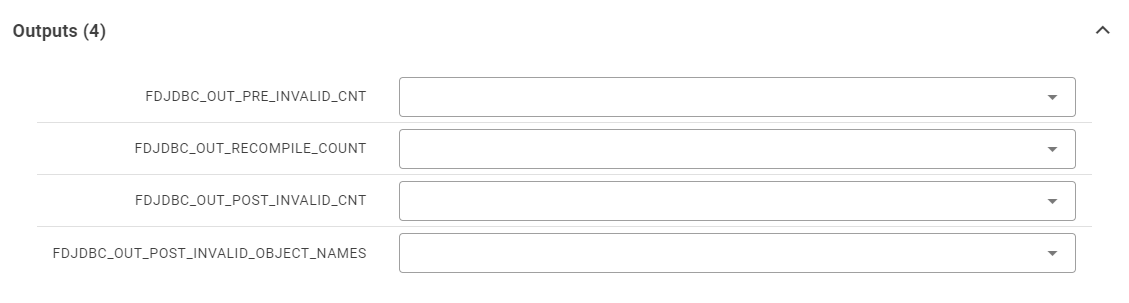
Plugin Operations can optionally return Plugin Outputs. A Plugin Output is any meaningful piece of data that was calculated during Plugin Execution, for example the JDBC Plugin’s compileInvalid operation returns 4 Outputs:
Endpoint Specification
 Generally the Endpoint Specification does not need to be touched or modified. However, it can still be good to understand what it is and why it is present.
Whenever a Workflow executes, it executes on a specific Target which is decided when selecting an Environment and Target Group in the Workflow Request form. The cross-section of an Environment and Target Group is called a Target. The decided Target will have 1 or more Endpoints associated with it. These Endpoints are the physical machines/servers where this Plugin Execution will ultimately take place.
Having said all of that - we are ready to take a look at the available configuration:
Field | Description |
|---|---|
Target Group Override | As mentioned above the Target Group and Target are decided when the Workflow Request form is submitted, should you wish to use a different Target Group, that can be specified here. This will result in a different set of Endpoints being used for Plugin Execution. |
Endpoint Selection | A Target can have multiple Endpoints associated to it. This input allows you to specify which of those Endpoints are considered “candidates” for Plugin Execution. Available options are:
|
Endpoint Execution | Once the list of Endpoint candidates is chosen based on Selection criteria above, we can then decide which of those Endpoints should actually perform Plugin Executions. Available options are:
|
Artifacts Delivery
 A Plugin Operation can Produce or Consume Artifacts from FlexDeploy’s Artifact Repository.
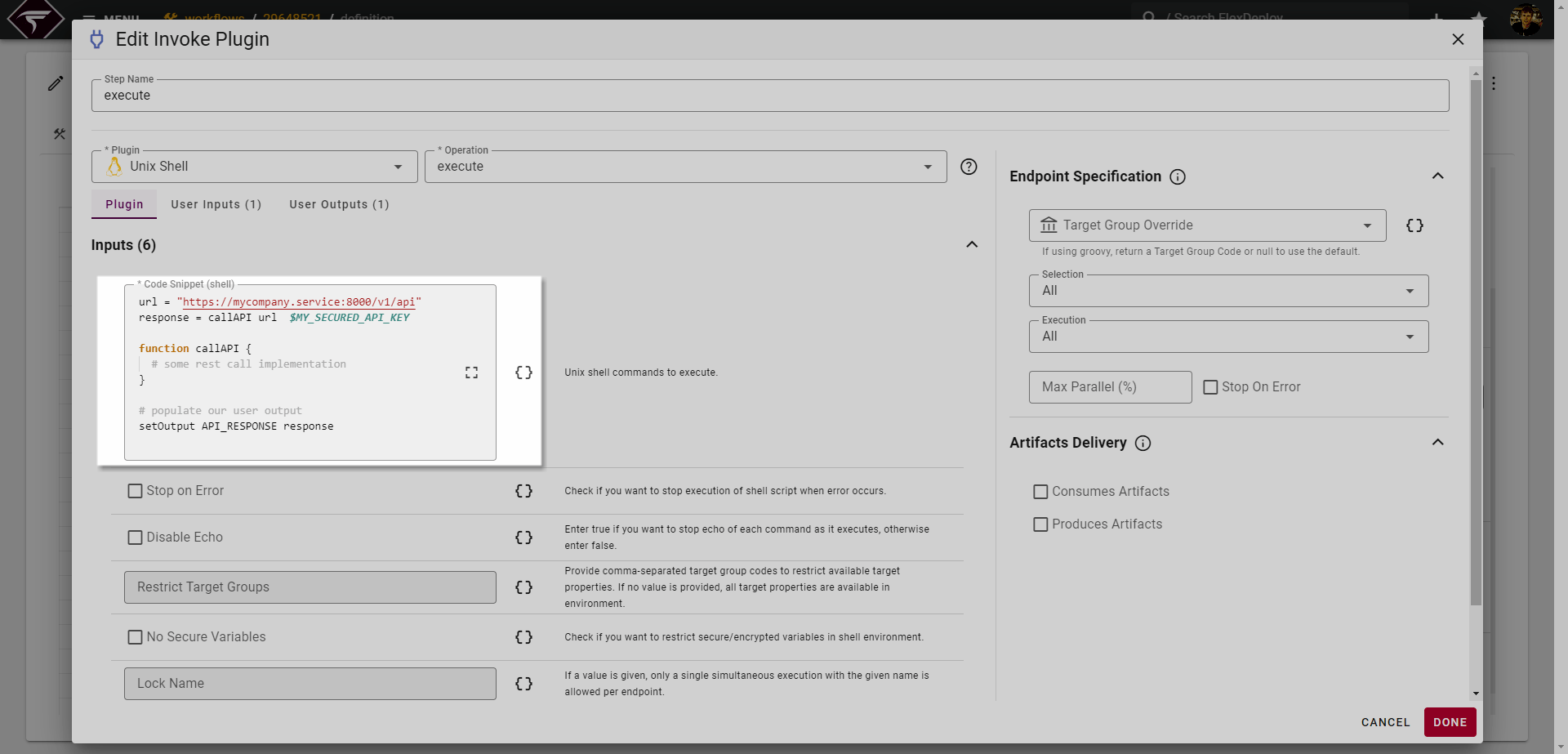
Most Plugin Operations will default these values, for example, most “Build” operations will have Produces checked, and vice versa with “Deploy” operations and Consumes. There are, however, a few Plugin Operations that are more build/deploy agnostic, such as the Shell Plugin - Execute in our example. Those Plugin Operations can either Consume, Produce, or do neither. It largely depends on the purpose of the Shell script and in these cases the options must be selected manually.
User Inputs
Some Plugin Operations allow for passing custom User Inputs into the Plugin Execution.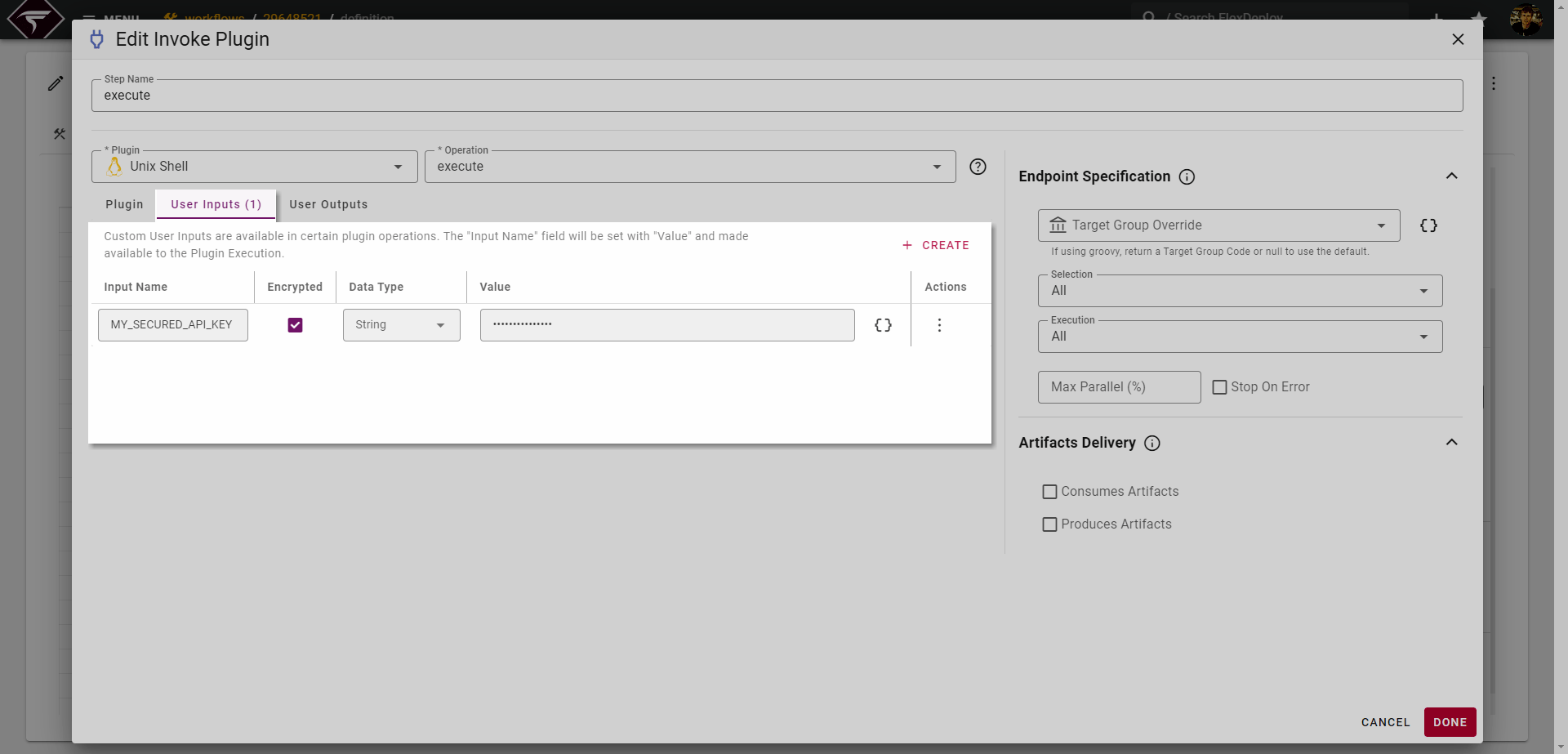
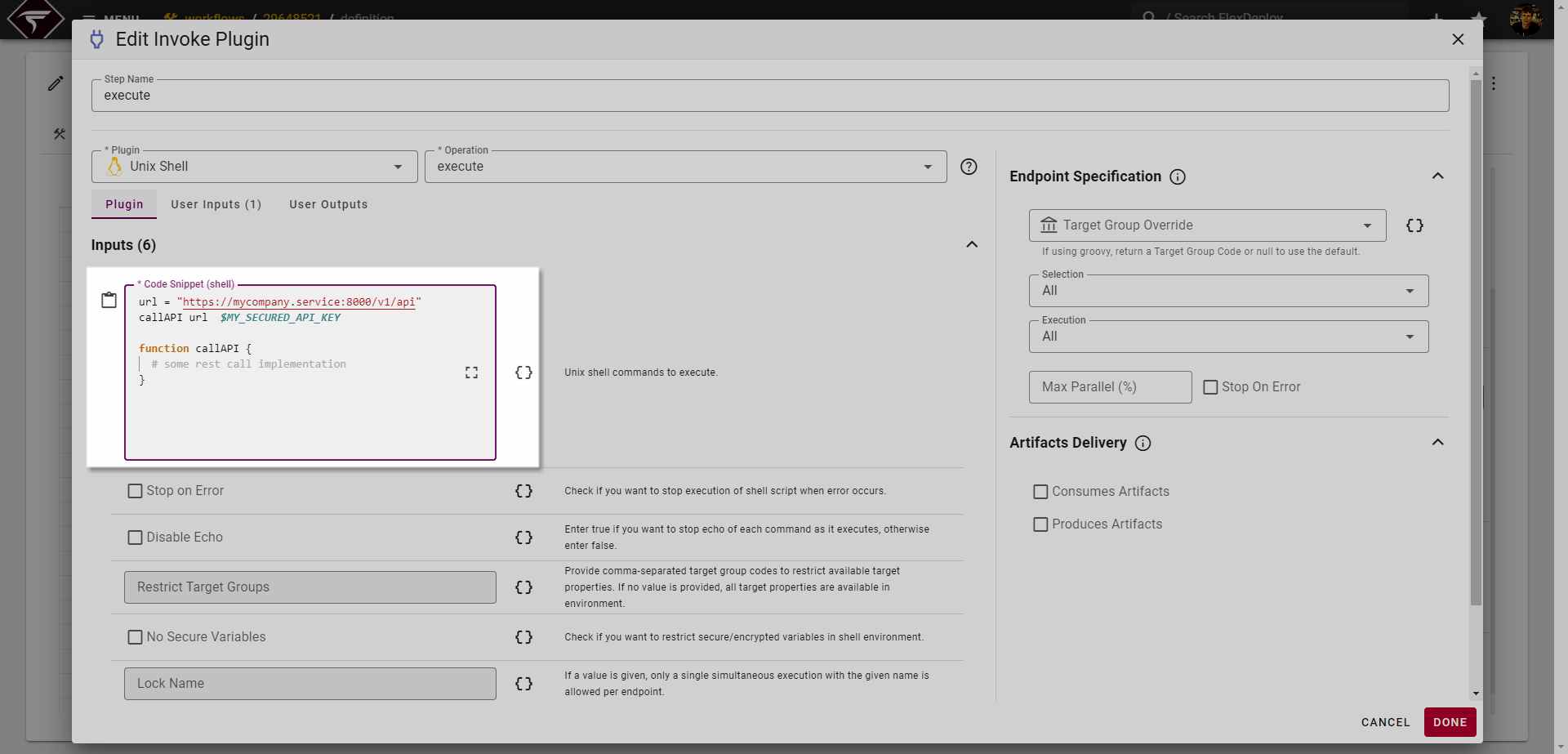
User Outputs
Similar to User Inputs, a Plugin Operation can also allow custom User Outputs. They serve the same function as Plugin Outputs but are just user specific. Lets update our Shell API call example above to return the API response as an example. To start we need to add a new User Output.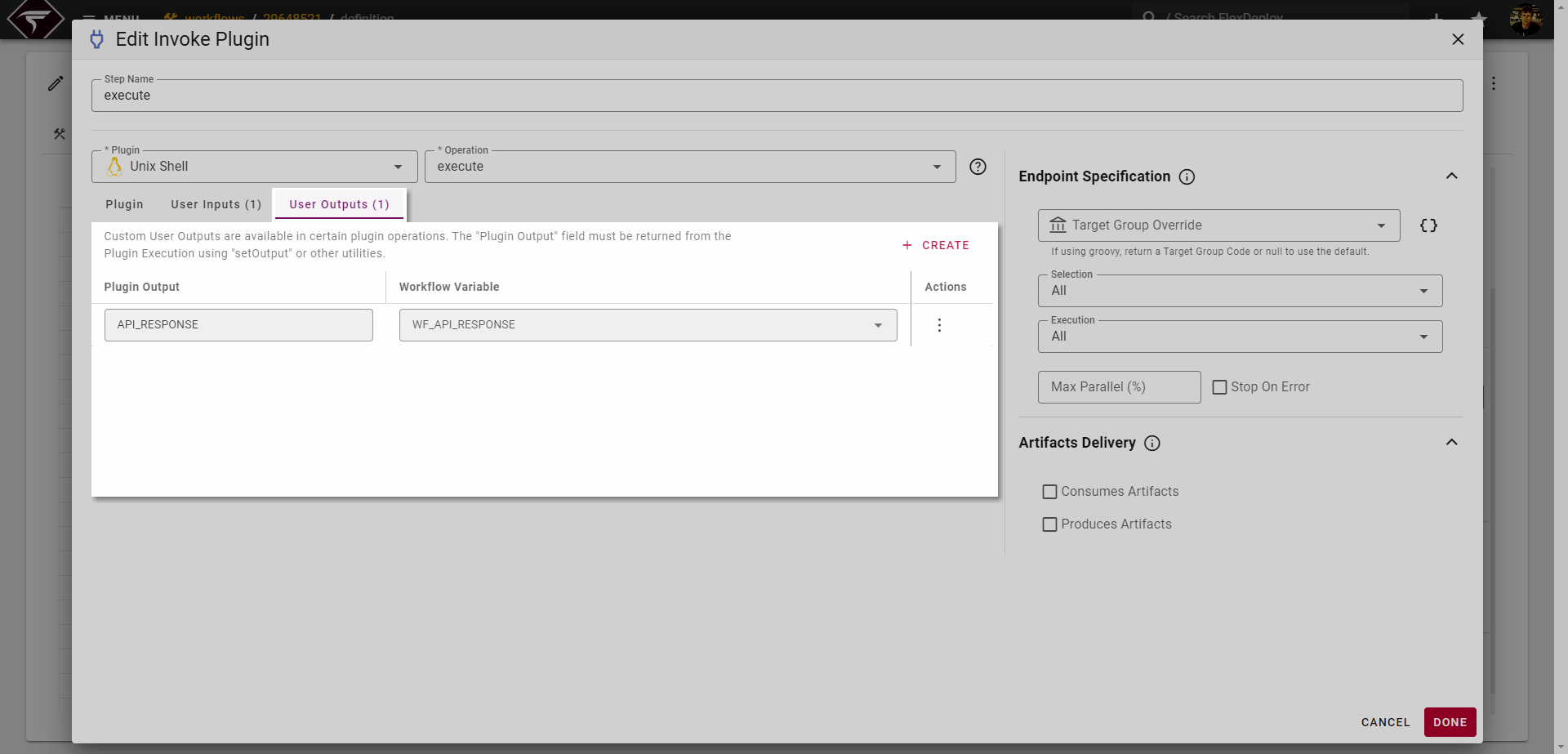
API_RESPONSE is the output that should be returned from our Shell script, and WF_API_RESPONSE is the Workflow Variable that will capture this value and be usable elsewhere throughout the Workflow.
Invoke Test
The Invoke Test step provides the ability to invoke a group of tests for the Project executing the Workflow. The Step will take into account any filters present in the Test Automation YAML configuration when determining what tests should be run. Several other configuration inputs can be specified to further refine the tests that should be executed.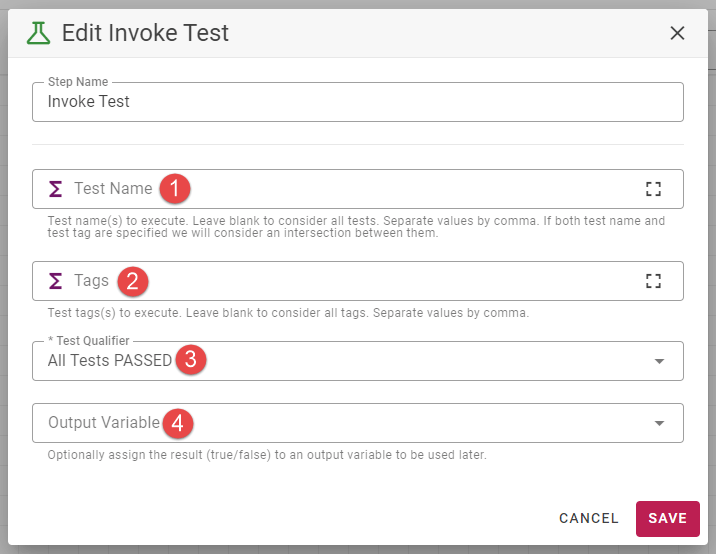
Field | Description |
|---|---|
Test Name | Test Name allows further refinement of the tests considered for execution. Test Name and Test Tag will union the results should both be specified. Allows multiple entries separated by comma. This input is a Groovy Script so be sure to enclose any literal text in quotes. |
Tags | Run specific tests with specific tags in the Test Automation yaml configuration. Test Name and Test Tag will union the results should both be specified. Allows multiple entries separated by comma. This input is a Groovy Script so be sure to enclose any literal text in quotes. |
Test Qualifier | We can configure the Step itself to fail should the test results not meet expectation. The Test Qualifier input determines what those expectations should be. Depending upon the value chosen, Test Qualifier Value may be presented to be filled in. Set to No Qualifier to pass the Step regardless of the results. |
Output Variable | You can optionally assign the result of the Step to an output variable that can be used later in the Workflow. |
Invoke Workflow
The Invoke Workflow Step allows the execution of other Workflows from the current Workflow. This allows common Workflow logic to be isolated and reused where needed.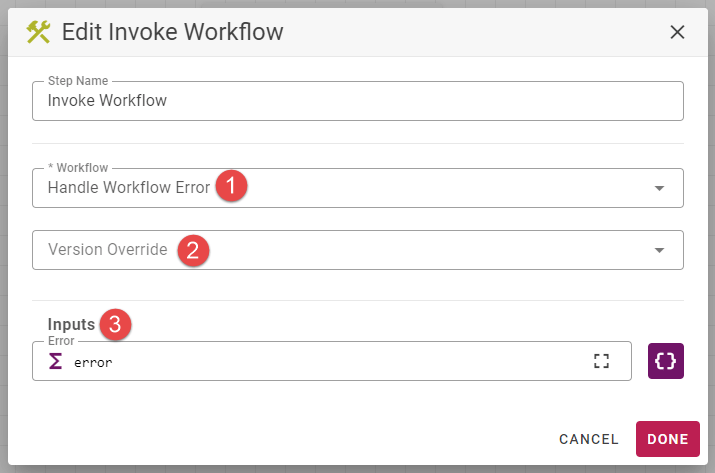
Field | Description |
|---|---|
Workflow | This is the Workflow that should be called. While the field allows calling ANY other active Workflow, it doesn’t necessarily mean that you should. Generally its good practice to have your common Workflow logic created with the Workflow type Other. |
Version Override | By Default, the active version of the invoked Workflow will be used when running this Step. You can however choose a specific version with this input. |
Inputs (if any) | If the invoked Workflow has any defined Workflow Inputs, those will show up in this section. |
Raise Fault
Raise Fault is a Step that will throw a custom error during Workflow execution. This can be useful if you are doing some upfront validation or if you recognize the Target or Endpoint state is not as it should be.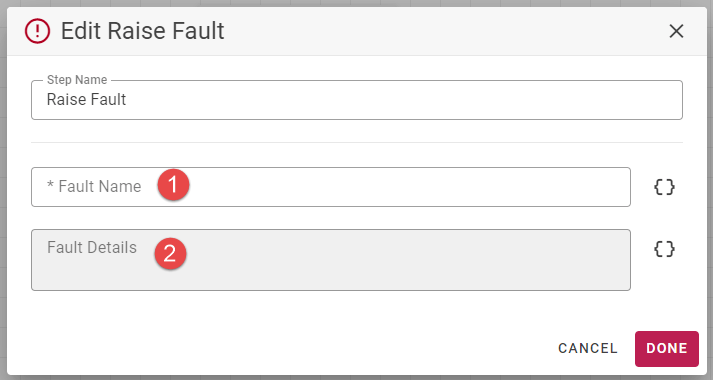
Field | Description |
|---|---|
Fault Name | Fault Name should be a shorthand identifier for the particular fault that was thrown. For example CUSTOMERPREFIX_VALIDATION_FAULT |
Fault Details | Fault Details is a longer form description or message of the failure. |
Run Groovy
The Run Groovy Step provides a blank Groovy script with access to all of the Workflow properties, variables, inputs, and FlexDeploy utility functions. Think of the Run Groovy script as a catch-all that can implement any solution if there is not a specific operation for it.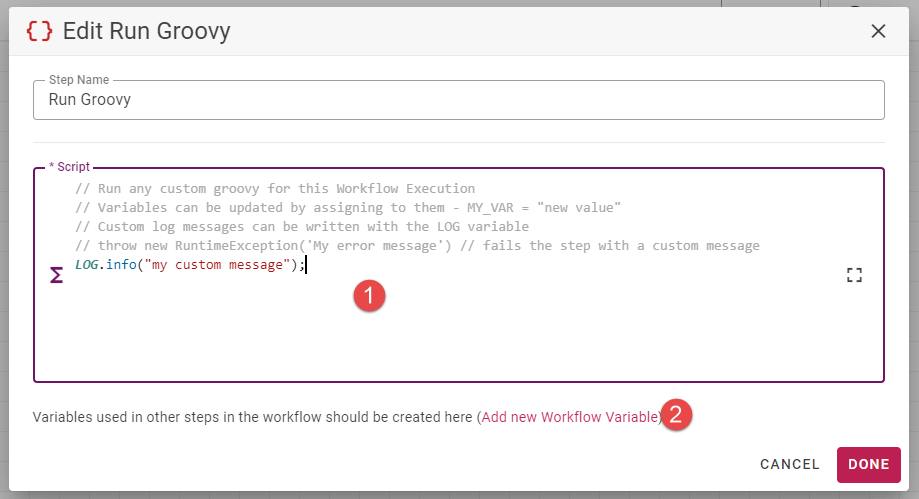 . As you are writing your script you may find the need to create additional Workflow Variables that you would like to use outside of this step, in that case, you can quickly add more with the Add new Workflow Variable shortcut .
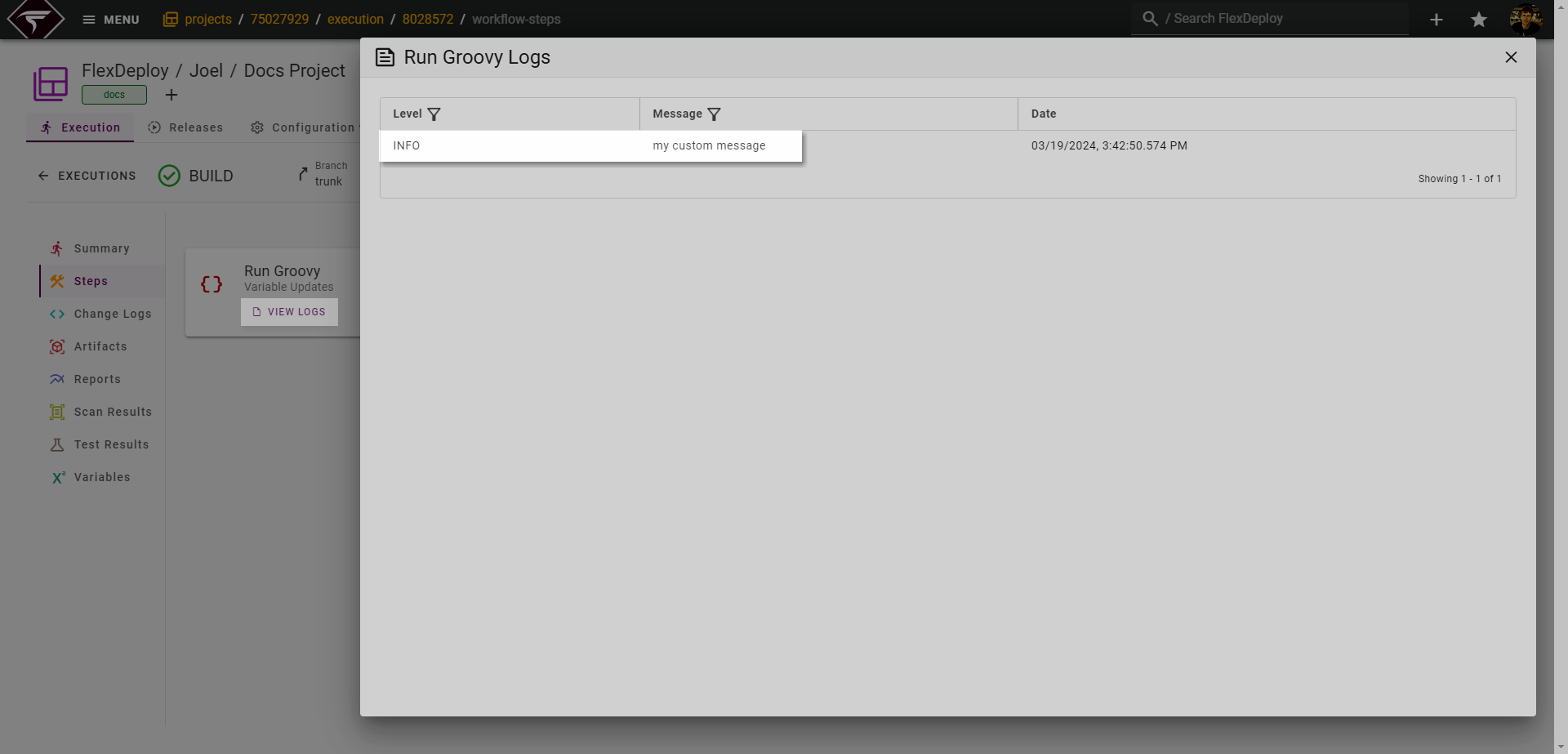
In addition to the variables and utilities mentioned above, it also has access to the LOG helper which is a nice way to write custom log messages which will be shown on the Workflow execution.
Wait
The Wait Step, you guessed it, waits for a set amount of milliseconds to pass before completing and allowing subsequent steps to continue.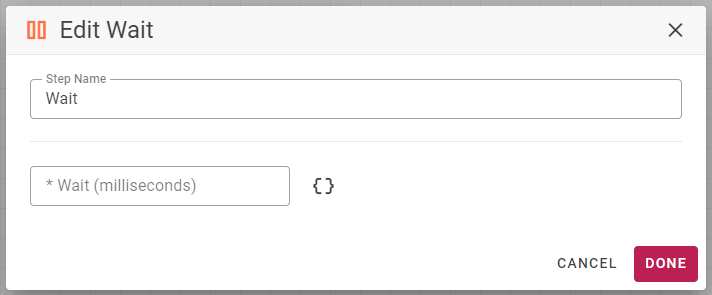
While
The While Step allows repetition of the Steps defined in its “scope” while some condition evaluates to true. The most common example is running the same set of steps n number of times before exiting.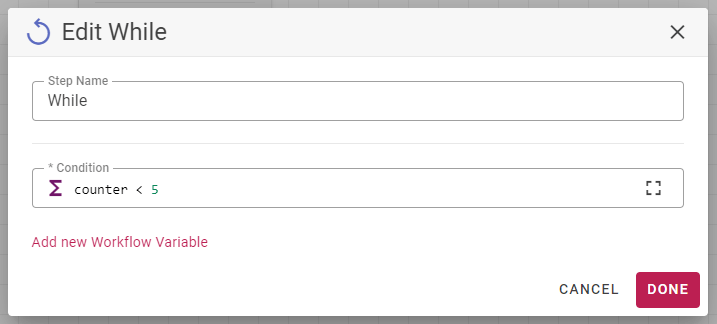
counter with a default value of 1. The loop condition then says we are going to continue executing while the counter is less than 5.
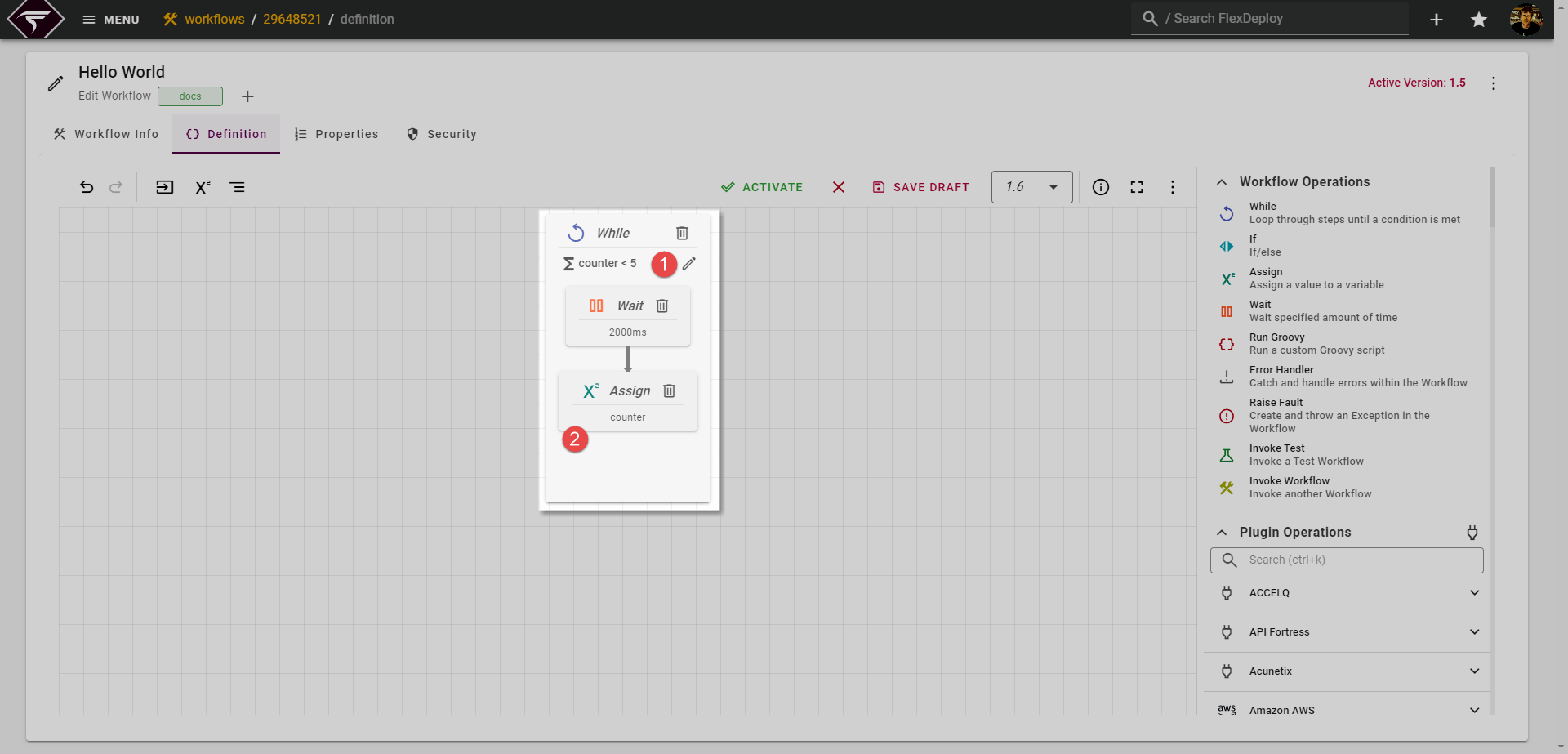
counter < 5 condition are waiting for 2 seconds and incrementing our counter variable by 1 .
false. Had we not added the assign step which increments our loop counter , we would keep executing the wait step over and over as the counter variable would always be equal to the default value of 1Retry
The retry steps allows retrying of the Steps defined in its “scope” in case an error occurs in one of the steps. The most common example is retrying the step which might be making an external REST Call.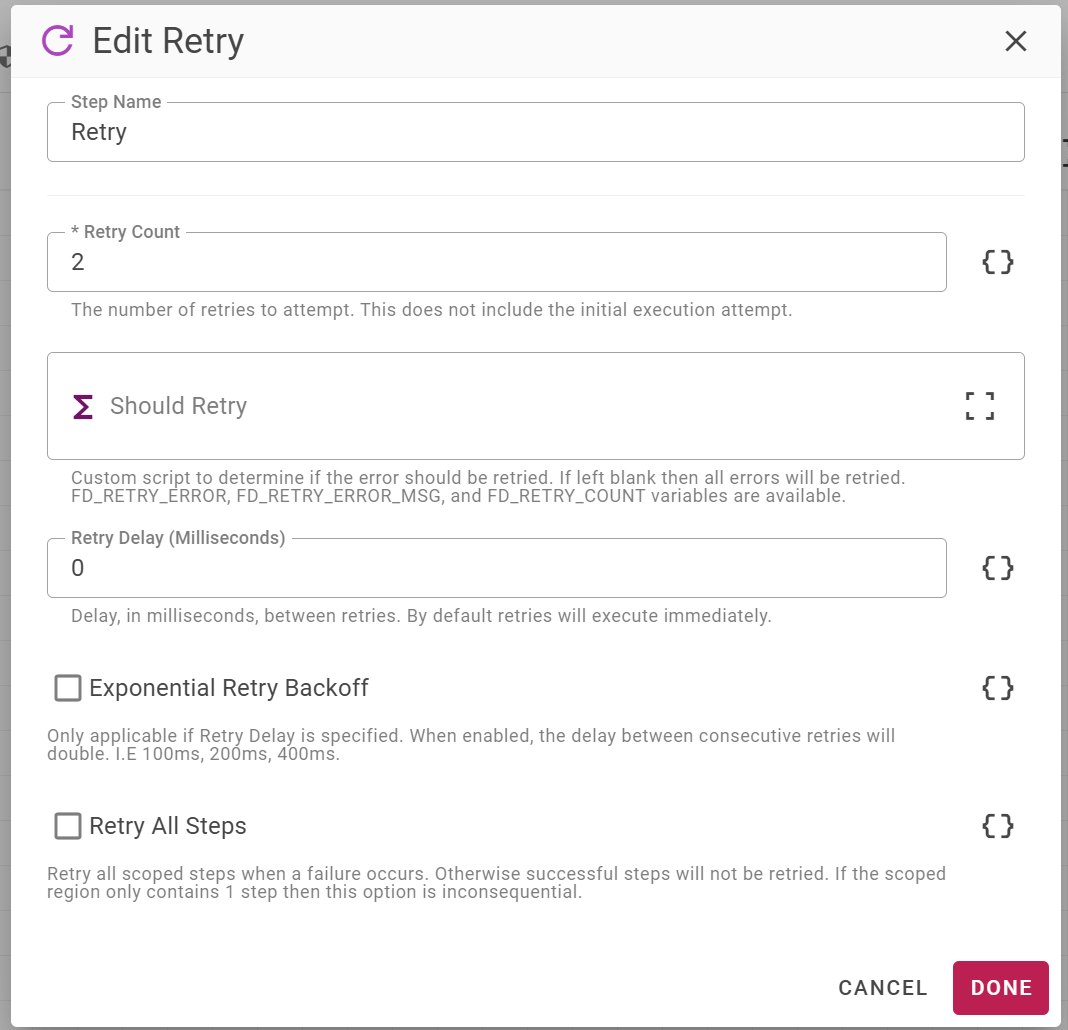
Field | Description |
|---|---|
Retry Count | This is the number retries to attempt (excluding the initial execution attempt) the workflow will make before failing the execution. |
Should Retry | An optional custom script that will determine if the error should be retried. For example, if the error message contains |
Retry Delay | The number of milliseconds to wait before retrying the step. If left blank, will execute immediately. |
Exponential Retry Backoff | This will double the delay between consecutive retries. Only applicable if Retry Delay is specified. |
Retry All Steps | This will Retry all the steps in the “Scope” when a failure occurs. By default, it will only retry failed steps. |