
Assumptions
- FlexDeploy is installed on each isolated environment, and plugins are also installed as part of the installation.
- All FlexDeploy installations participating in isolated network architecture must be at the same version. At times, even minor releases also introduce database changes, so a strict version match is required.
- There will be only one such source server, but there can be one or more such target servers.
- Builds are executed on the source server and are imported to the target server(s). Builds can not be performed on the target server.
- Environments, Target Groups, Projects, etc. will be configured on the source server. Configuration export will be done for import to the target server.
-
Topology
- Target Groups and Environments must be configured on the source server and imported to any target servers.
- Environments and Property Sets must also be assigned to Target Groups on the source server and imported to the target server.
- Endpoints can be created and assigned to Targets on the target server. Also, property values can be edited for Targets on the target server.
-
Projects
- Projects can not be created or configured on the target server. Projects can only run builds on the source server, which can then be imported to the target server where they can be deployed and tested.
- Folder and Project issue tracking configurations should also be managed on the source server and imported on the target server.
- Project and folder security is managed separately on source and target servers.
- Folder settings are managed only on the source server and imported to any target servers.
-
Release
- Releases and Snapshots can be created on the target server. However, since build can not be performed on Projects on the target server, these can only be created with existing project versions.
- Release-level Settings and Security can be managed on target servers.
-
Pipeline
- A pipeline must be created on the target server as it will handle deployments to different endpoints than the source server. Note that the source server may be deploying to zero or more environments depending on isolation requirements.
-
Integrations
- Integration Providers can not be created on the target server and will be imported from the source server. Integration Instances can be created on the target server.
-
Security
- All users, groups, and permissions are managed separately on source and target servers.
- Workflows cannot be configured on the target server, hence must be imported from the source server. Workflow-level security is not allowed on target servers, must use global permissions for workflow security.
Configuration
The following assumes that you have upgraded to use setenvoverride.sh (or setenvoverride.bat) files. If you are still using setenv.sh, then changes will be slightly different. Configurations shown below must be performed in addition to following the installation document or automated installation process. Configure the source tomcat server with the following command line option.Source environment setenvoverride.sh
Target environment setenvoverride.sh
Execution
- Make sure to configure the source environment for Projects, Environments, Target Groups, etc. Additionally, map Environments with Target Groups, making sure to include isolated environments managed by target servers only.
- Perform configuration export from the source server and import onto the target as and when necessary. This export can be done from the Administration - Admin Operations page.
- Builds can be exported individually from each workflow execution page or as a group from the Release Snapshots page.
- All export files (configuration, build, snapshot etc.) should be placed in fdexports sub-folder on the server working directory on the target server. Files will be automatically imported and deleted on successful import.
- If you are working with snapshot export and the release does not yet exist on the target server, then the release will be created with the status set to Not Started. This means that the snapshot is only partially imported. You must associate a pipeline to that release and then start it. Snapshot import will be completed after that automatically.
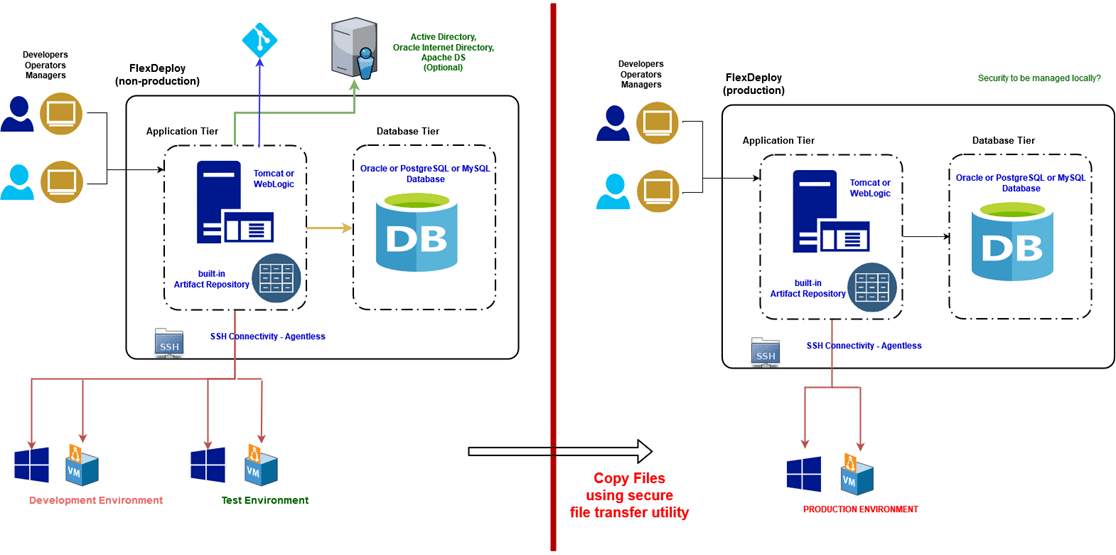
Export from Source Server
FlexDeploy allows Configurations, Builds, and Snapshots to be exported. For these options to be enabled, FlexDeploy must be configured as an Isolated Network Source Server. See the Configuration section above.Export Configurations
FlexDeploy configurations can be exported which includes the environments, target groups, workflows, and projects of the server. The user must have administrator privileges to download the server configuration. To do this, go to the Administration → Admin Operations screen and change the operation name to Export Configurations, then click the Export button that appears.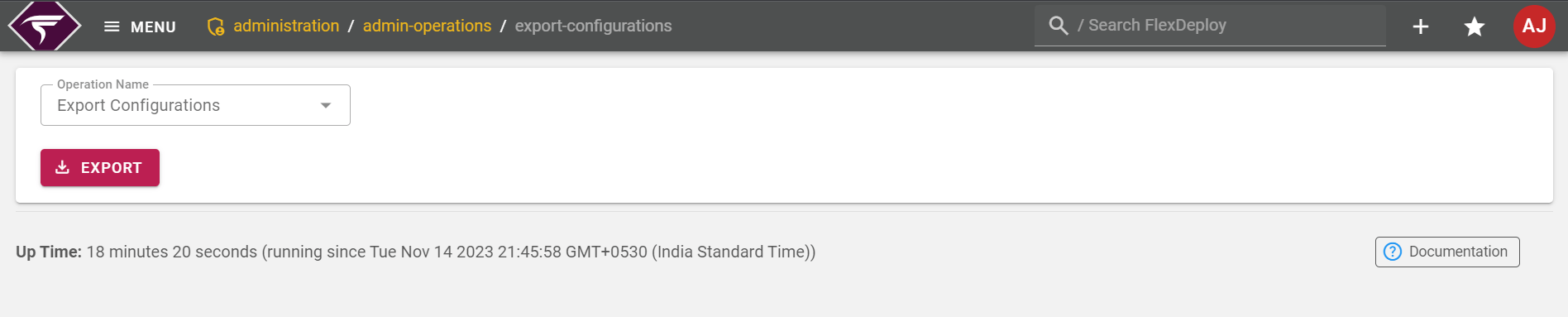
The configuration export may take some time depending on the amount of data on the server.
Configuration Export Content
-
All Workflows (Internal and Read-only workflows are excluded).
- Only active version. The version will be activated on the target server on import.
- Workflow Properties (Property Set).
-
Topology
- All Environments and Target Groups.
- Target Group mappings with Environment and Workflow / Plugin Operations. Note that Target Endpoint and Property Value configurations are not exported.
- Custom issue tracking systems including their Properties.
- SCM and Issue Tracking integration instances with Property Values. The Credential used for property value is not imported, hence it will need to be set on the target server. Once the credential is set up, it will be kept as is for future import of the same Integration Instance.
-
All Folders
- Folder level Release Settings.
- Folder level issue tracking configurations are exported since FlexDeploy 8.0.0.1 only.
-
All Projects
- including sources, branches, workflow, and target group configurations.
- Project File Catalog.
- Project Property Values.
- Test, Replacement, and Issue Tracking Configurations.
Export Snapshots
Snapshots can be exported from any release assuming that they were :Initiated: Initiated. To do this, navigate to the Releases screen and click on a release from the folder content.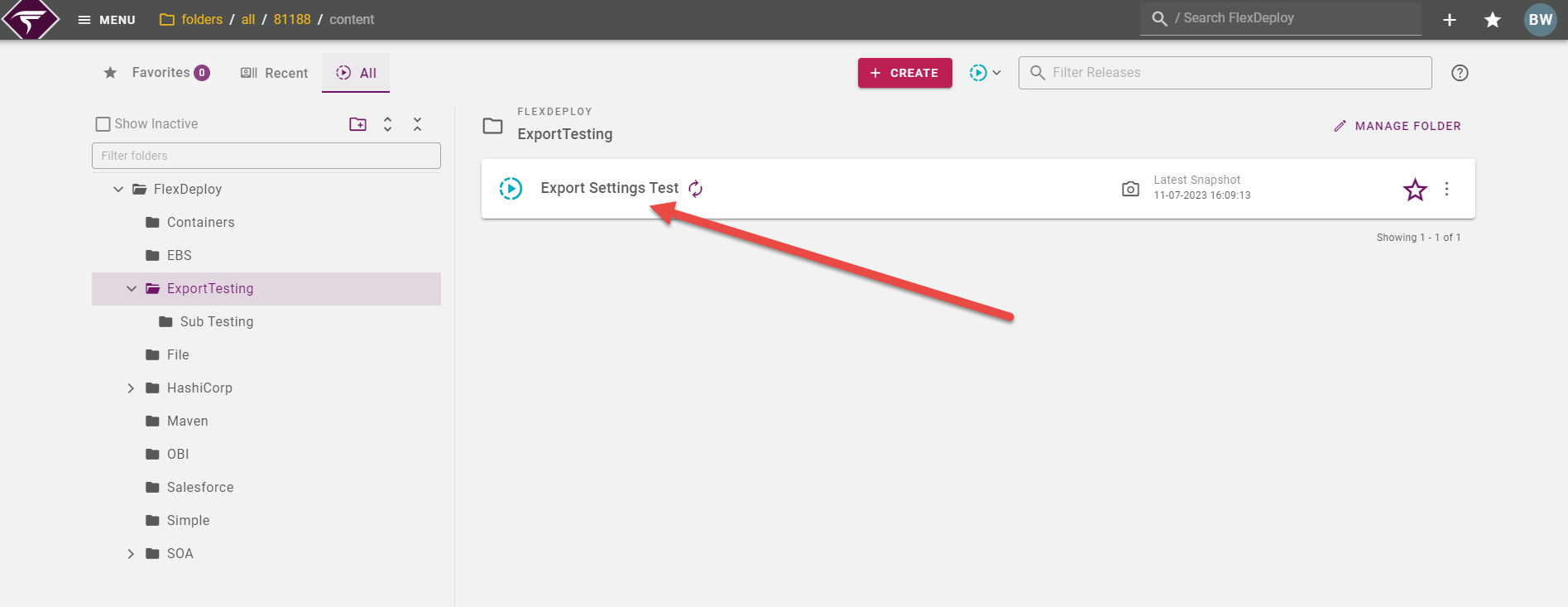
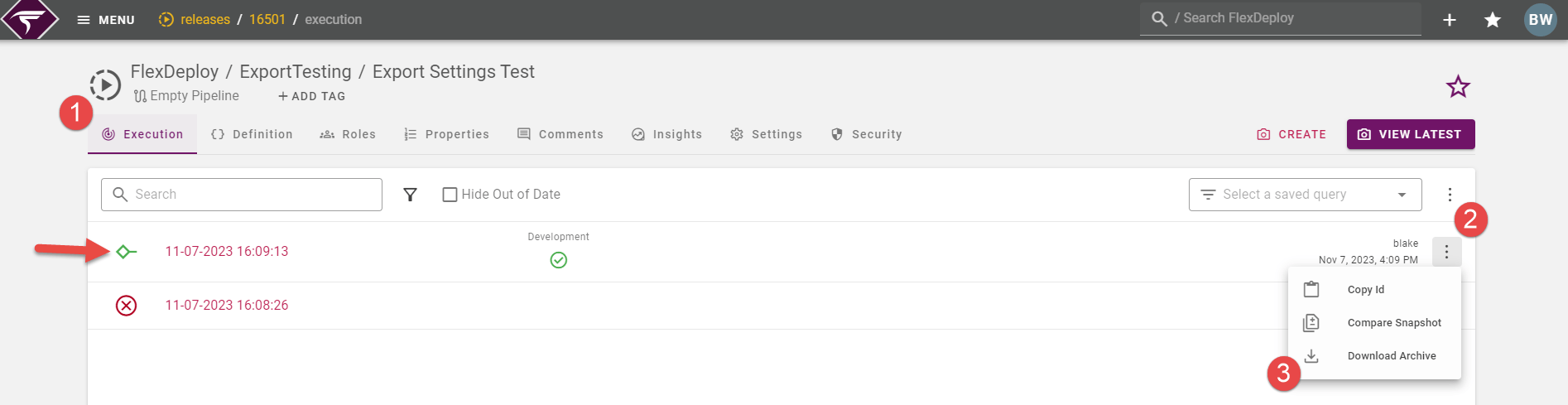
The snapshot export may take some time depending on the amount of data on the server.
Snapshot Export Content
- Only Successfully built snapshots can be exported.
- Release definition including project content.
-
Snapshot versions including workflow execution details for each project version
- Build execution and project version (including package) details
- Build Artifacts
- Associated Work Items and Commits
- Scan and Test results
- Build Request details including Inputs
-
Project details of all projects in the Release
- including sources, branches, workflow, and target group configurations.
- Project File Catalog.
- Project Property Values.
- Test, Replacement, and Issue Tracking Configurations.
Export Builds
Build workflow executions can be exported from any project assuming that they are completed successfully. To do this, go to the Execution tab of a project and click on the id of a successful build.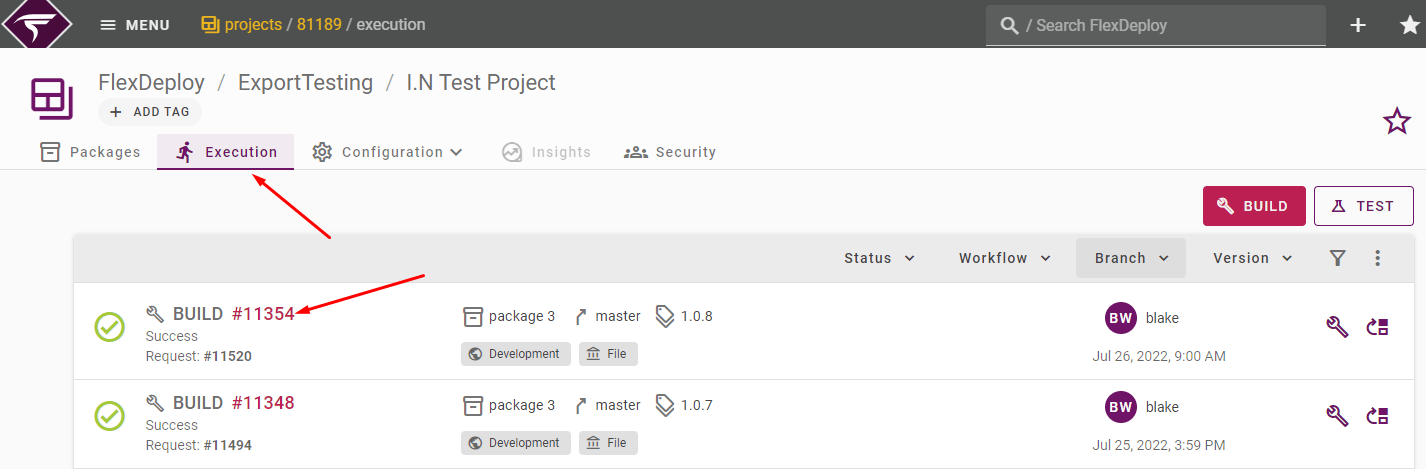
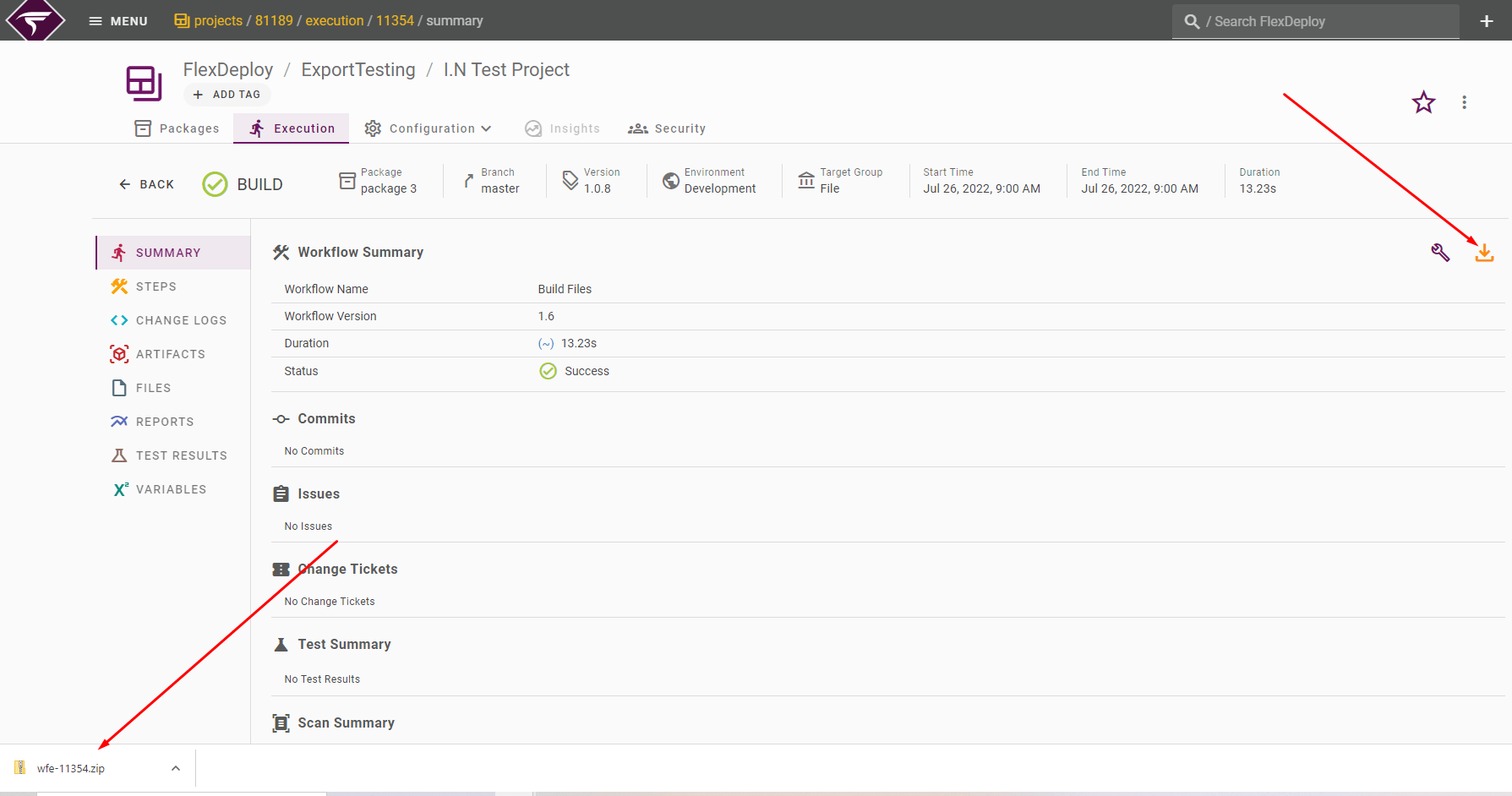
If the downloaded file is instead a .txt with the message “Failed - Needs authorization” (shown below) then log out and into FlexDeploy and try again.
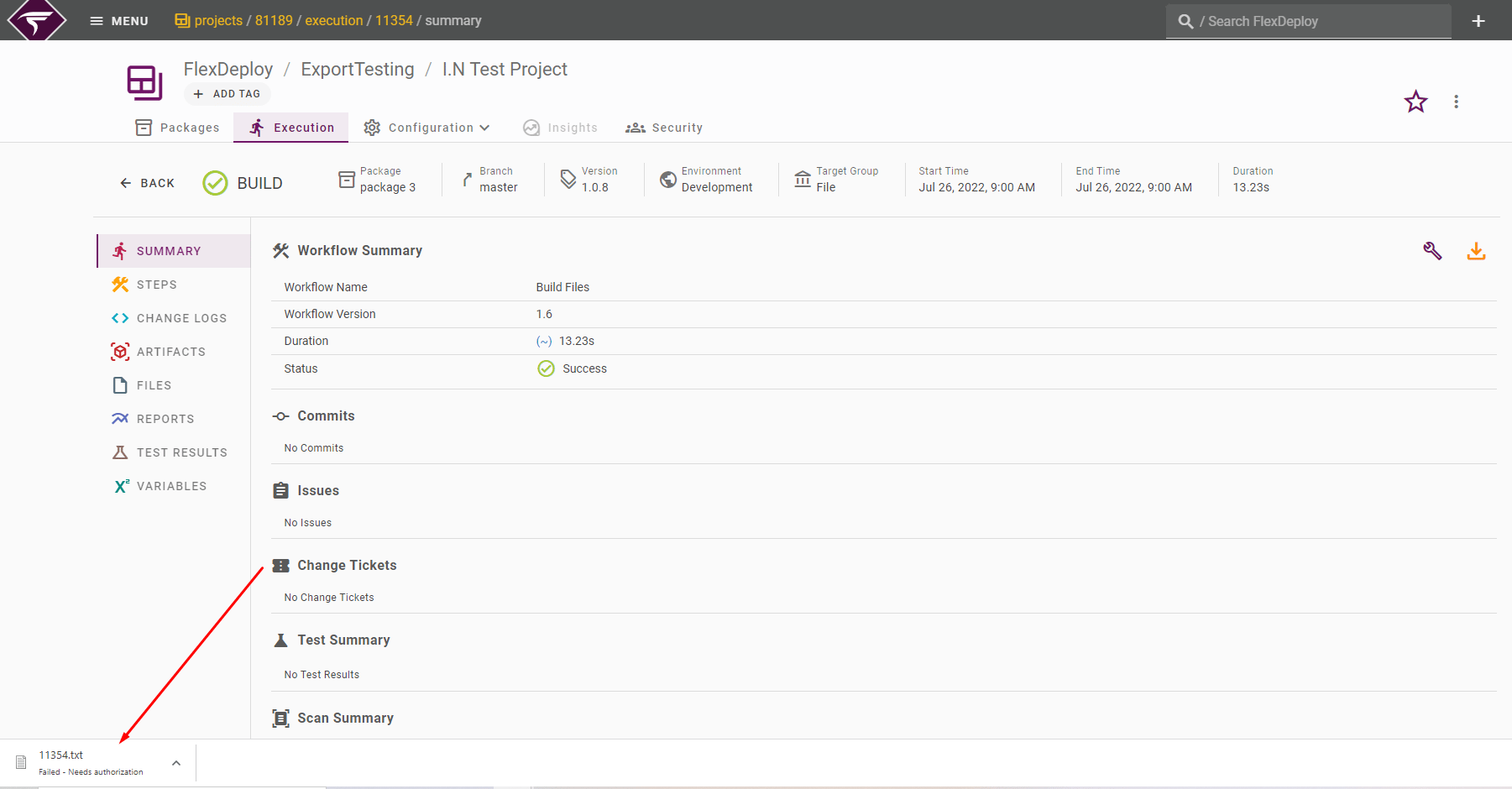
Note that the project configuration must also exist on the target server for the import to be successful. See Export Configurations.
Build Export Content
- Only successful builds can be exported.
- Build execution and project version (including package) details. The package will be Activated on import if it was previously completed.
- Build Artifacts
- Associated Work Items and Commits
- Scan and Test results
- Build Request details including Inputs
Import on Target Server
First, make sure you are connected to a target server. Then you must take an export and put it inside of your fdexports folder. This may be <flexdeploy_home>/application/fdexports depending on how FlexDeploy was installed. To do this, you may use any file transfer tool or method available and approved by your network and security teams.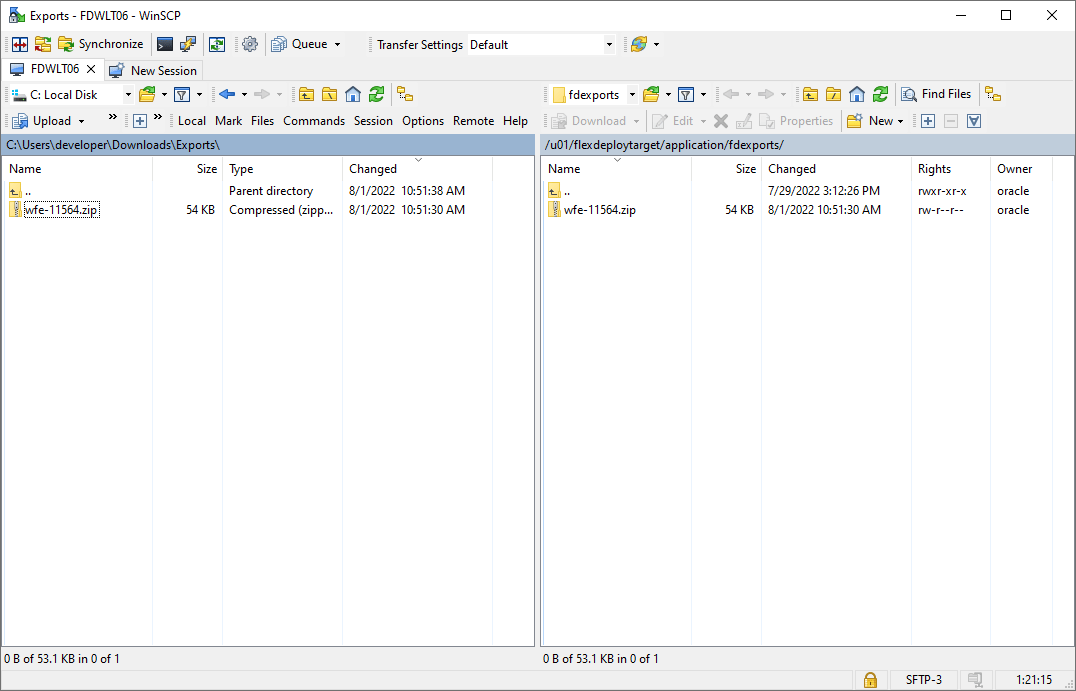
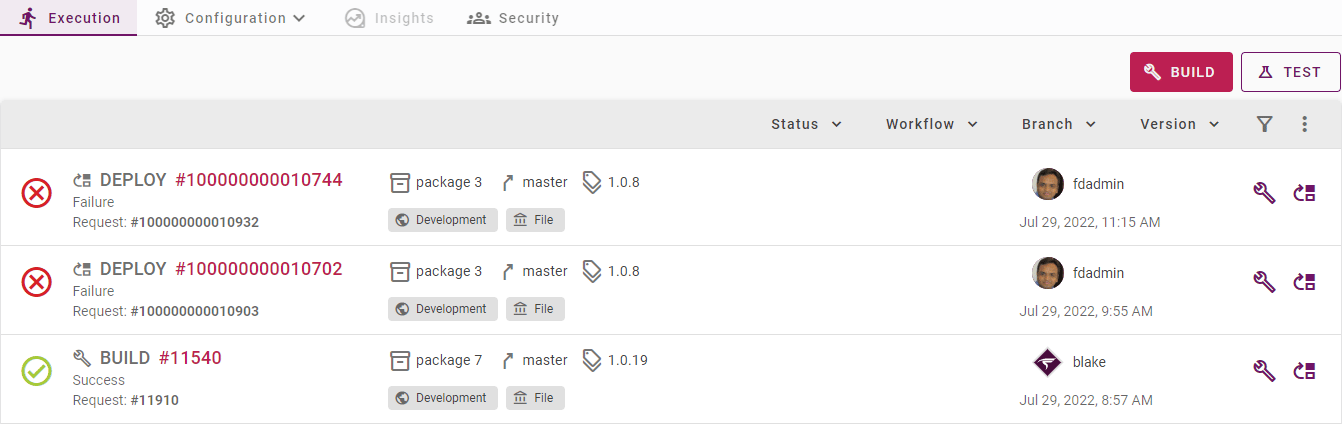
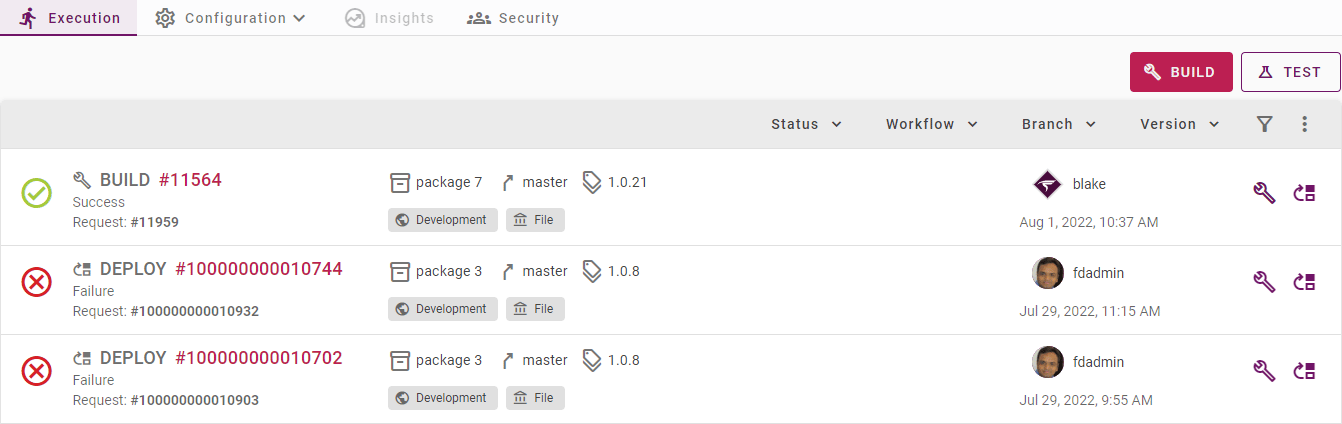
When a new plugin is installed on your source server, make sure to also install it on your target server prior to importing.