Tags provide a visual way to organize, group and search for items in FlexDeploy.
Tags are freeform colored labels in FlexDeploy that have multiple uses including:- Categorizing
- Quick Access/Identification
- Organization
- Projects
- Packages
- Releases
- Topology objects such as Target Groups, Environments, and Endpoints
Adding Tags
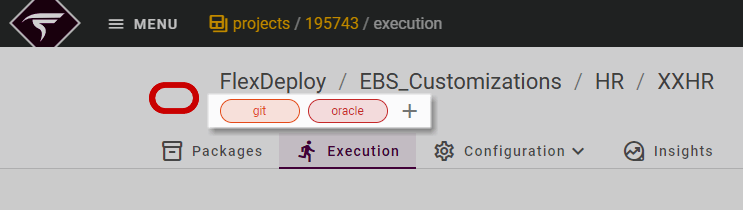
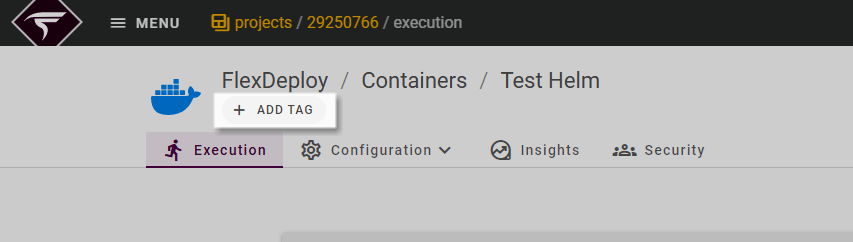
 Tags can be added by navigating to the object where the tag should be added and clicking the Plus Icon or Add Tag button.
 Next search for existing tags and select the tag you want to add.
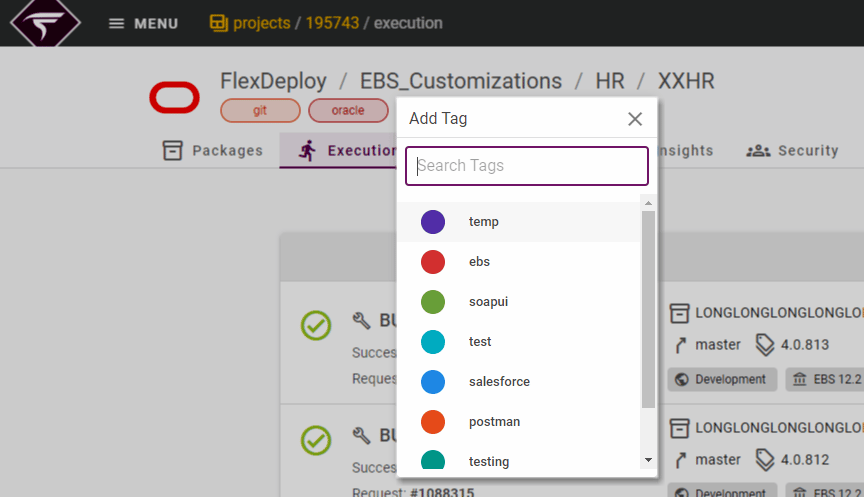
Add New Tag
If you want to create a new tag, type the tag name you want to create and click Create New Tag
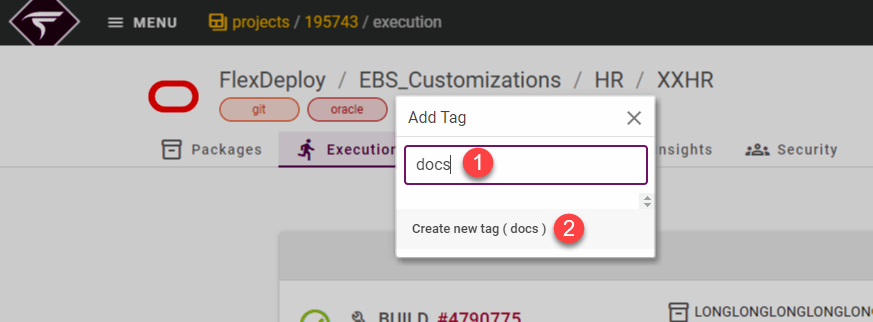
Random Color
Creating a new tag in this fashion will pick a random color for the tag. This can be changed by editing the tag after creation.Editing Tags
Tags can be edited from the Manage Tags page or by clicking on a tag and selecting Edit Tag from the menu.
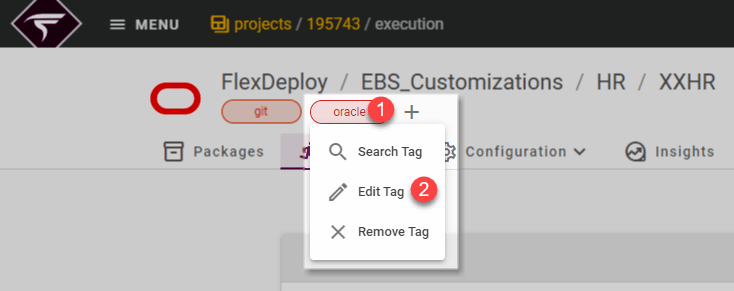
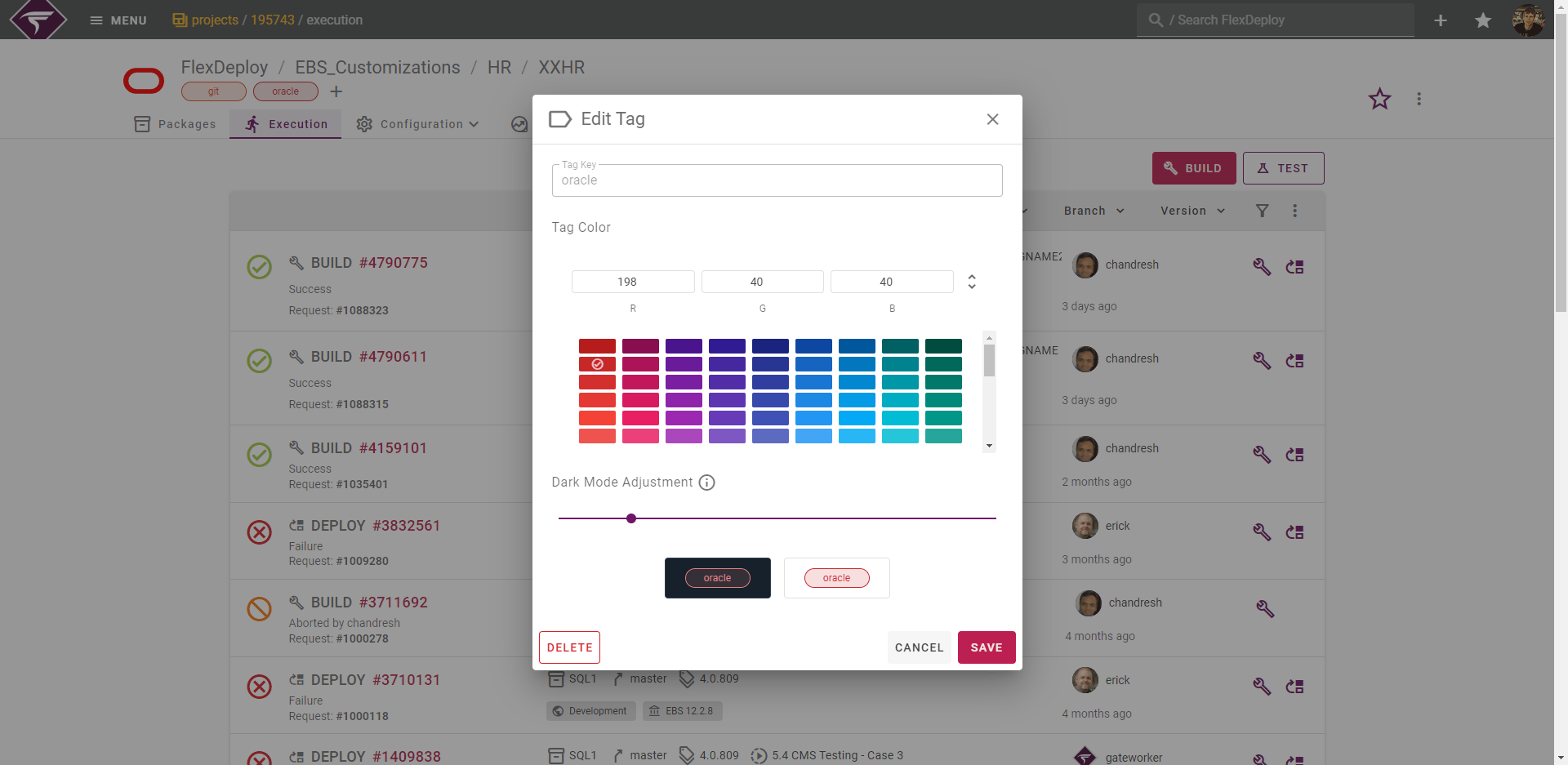
 Make any necessary changes and click Save.
To limit undesired consequences of Tag edits, the Tag key/name cannot be modified.
Who can Edit Tags?
 The original owner of the tag or FlexDeploy Administrators have privilege to edit existing Tags.
Who can Delete Tags?
 Tags can only be deleted by FlexDeploy Administrators. This means even the Tag’s creator cannot delete the tag. This is the case since Tags can be assigned to multiple objects, objects the tag owner may not even have access to. So deleting a tag can potentially have undesired consequences for other users. As such only Administrators can delete Tags.
Dark Mode Adjustment
FlexDeploy supports both light and dark themes. Often times a color does not contrast well on both themes. Dark Mode Adjustment will apply an increase to the brightness of the color, only in dark mode. You can think of it as having a separate color when your tag is viewed in dark mode.Managing Tags
In most circumstances you can perform all of the actions needed to maintain Tags right from the objects, as shown above. However there is also a dedicated Manage Tags Screen where these actions can be performed as well.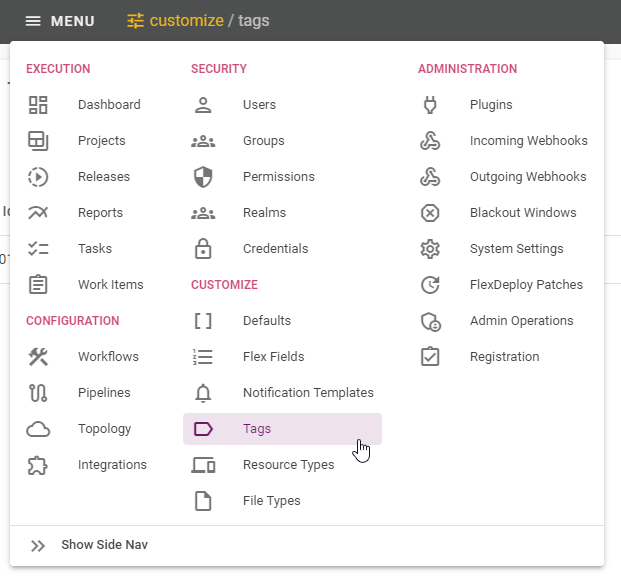 create new ones, and edit/delete existing tags.
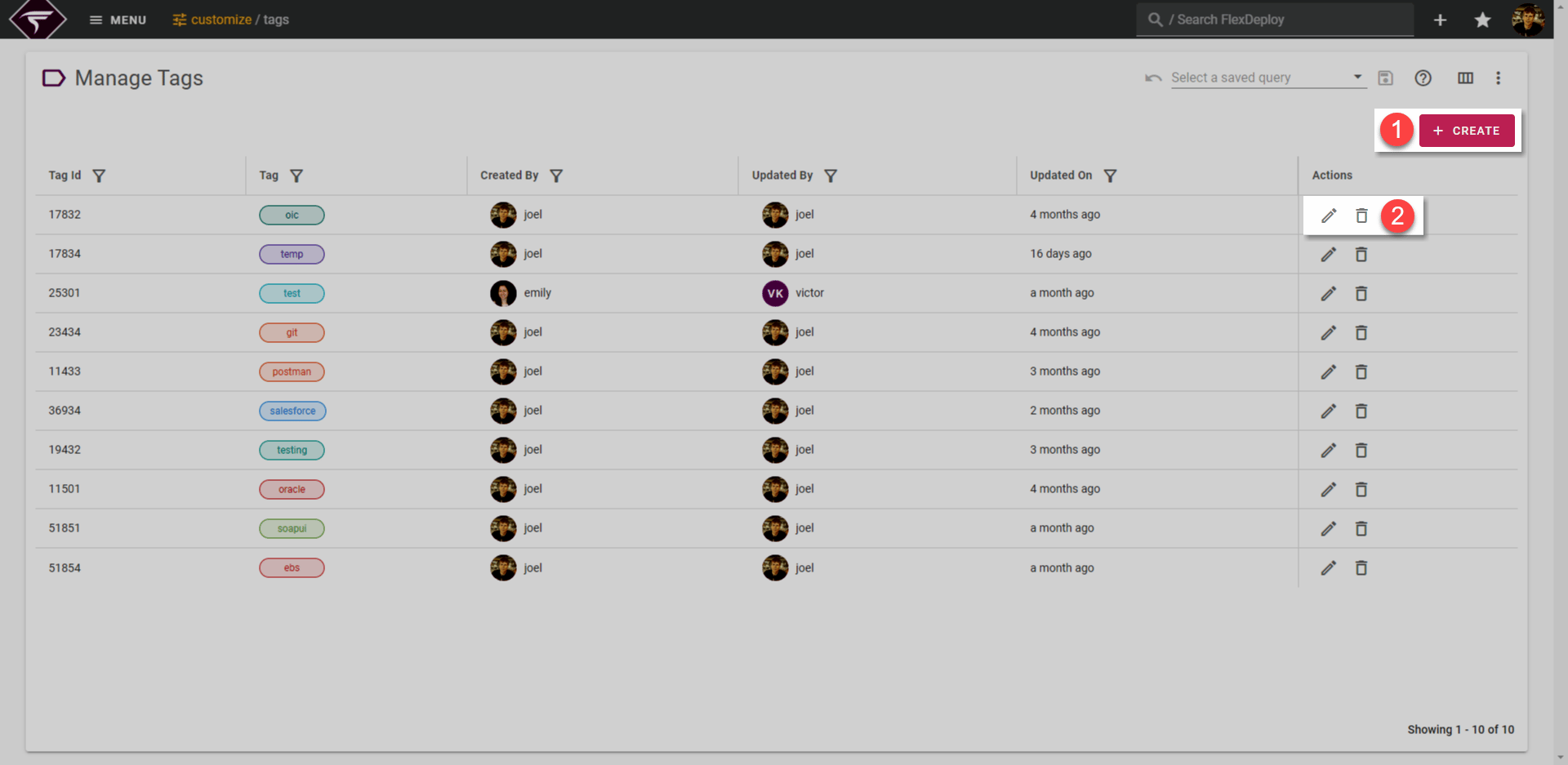
How can Tags be used
Global Search
One of the biggest benefits of tags is further refining global search. In the below XXHR search you can see multiple results coming back: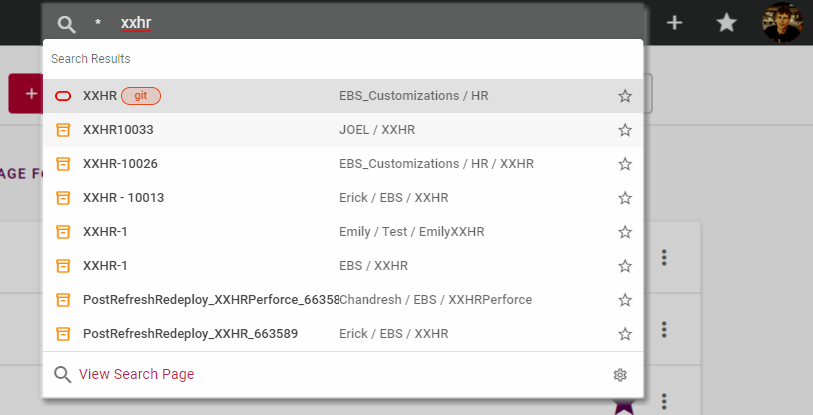
oracle tag. Simply changing our search to xxhr ora gives us exactly what we are looking for
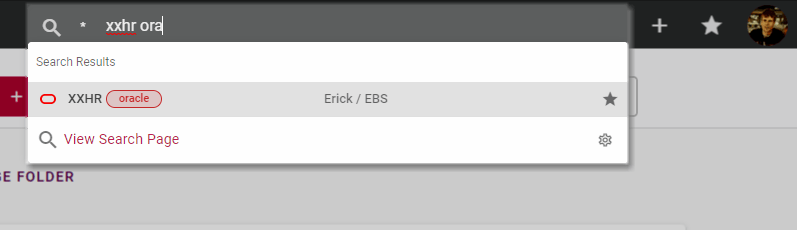
 More Reading
For more tips on maximizing your productivity with Global Search, take a look at the wiki.Dashboards
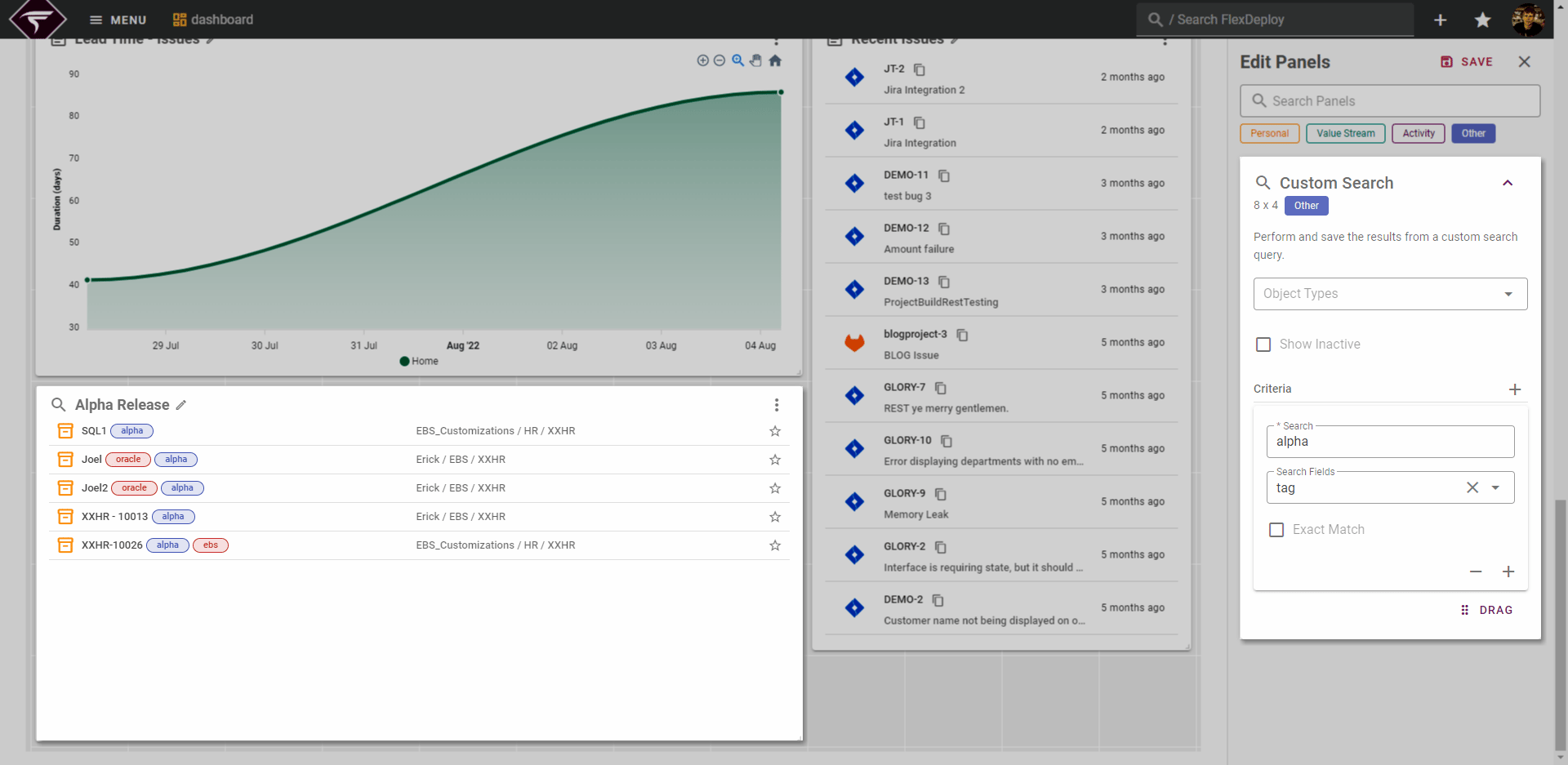
Tags can also be utilized to show related content on the dashboard. Custom Search is a dashboard panel that allows you to display search results in the form of a dashboard panel. For example, lets say we had an Alpha release we wanted to track. We can add a custom search to show everything tagged withalpha on the dashboard.