Blackout Windows are used to block project executions - such as builds, deployments, tests, or utility runs—as well as snapshot stage executions, from running in a specific environment or on a designated target group for any environment. During an active Blackout Window, executions cannot be overridden or forced to run. If a deployment is necessary during a scheduled Blackout Window, the window must first be deactivated, ended, or modified. Blackout Windows come in two types: repeating and one-time.
  • Repeating Blackout Windows use Quartz Cron expressions to define recurring time periods during which executions are blocked. While a window is active, no executions are allowed. Once the blackout period ends, the Cron expression calculates the next scheduled window and prepares to block executions again. Each occurrence is recorded in the system’s execution history.
  • One-time Blackout Windows are configured with a specific start and end date and time. During the defined period, all executions are blocked. Once the window ends, it is automatically deleted and the event is logged in the execution history. Unlike repeating windows, no subsequent blackout window is scheduled.
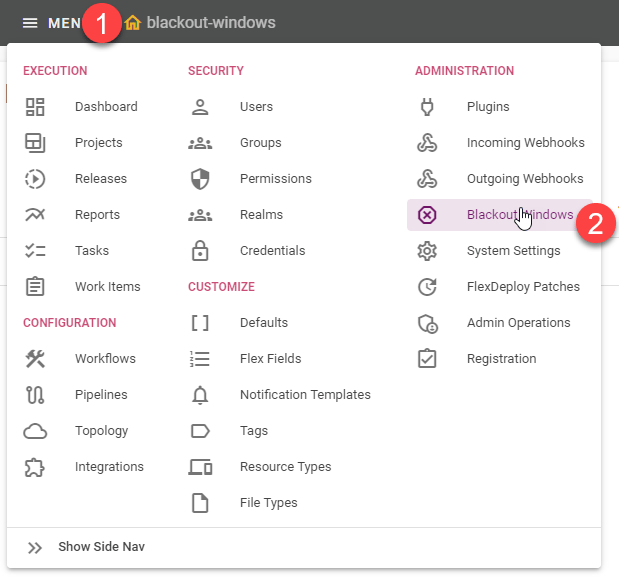
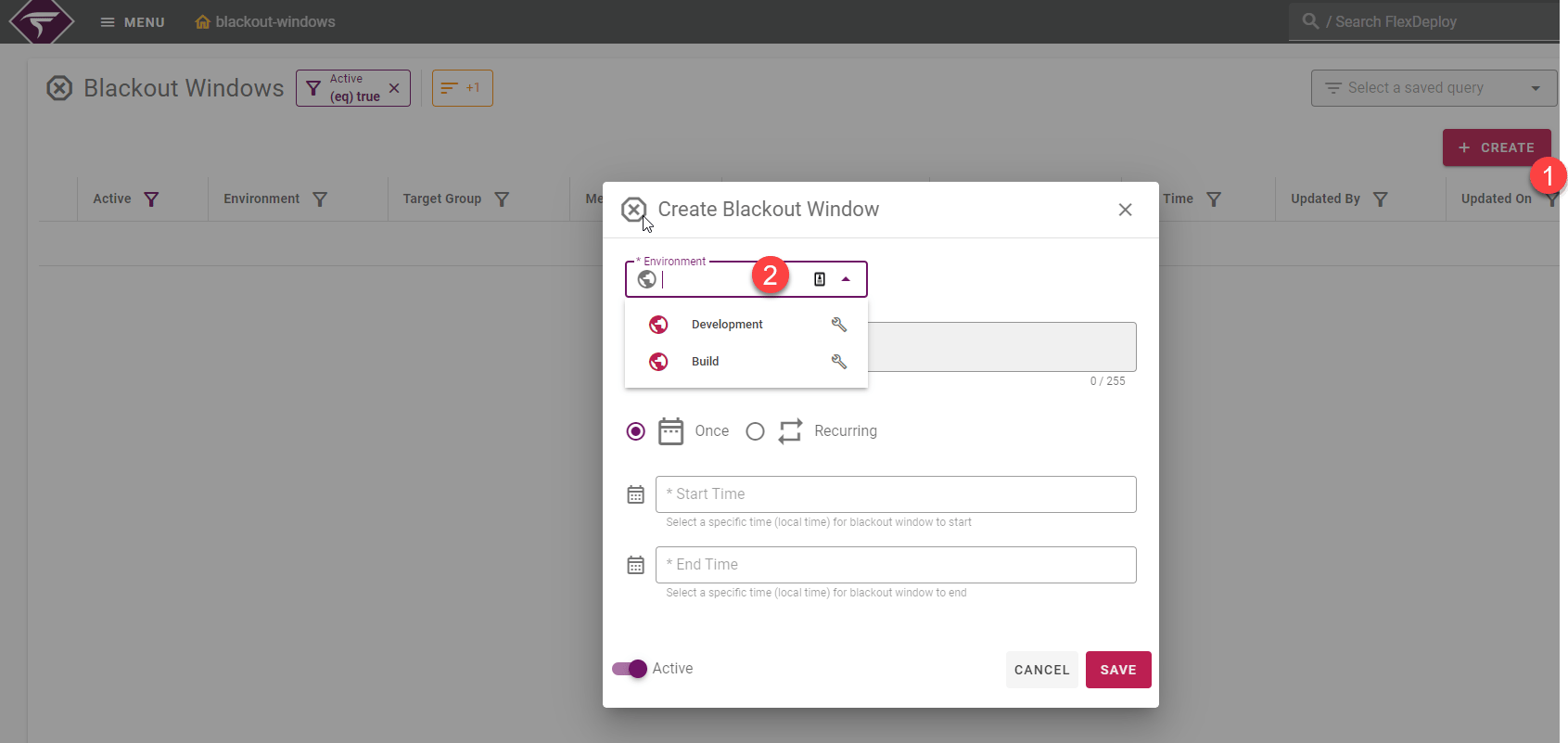
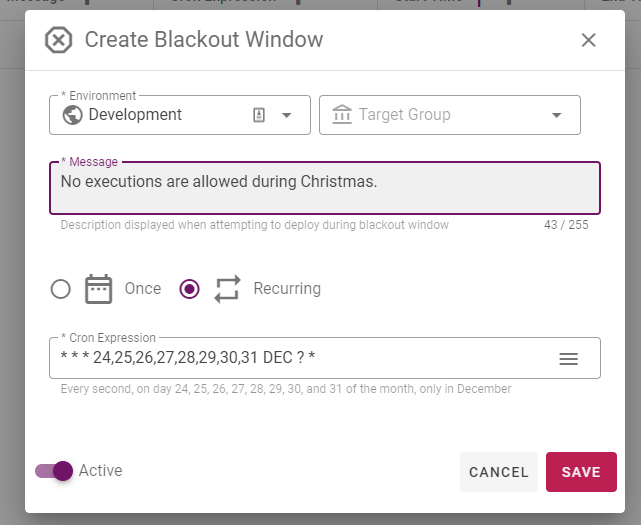
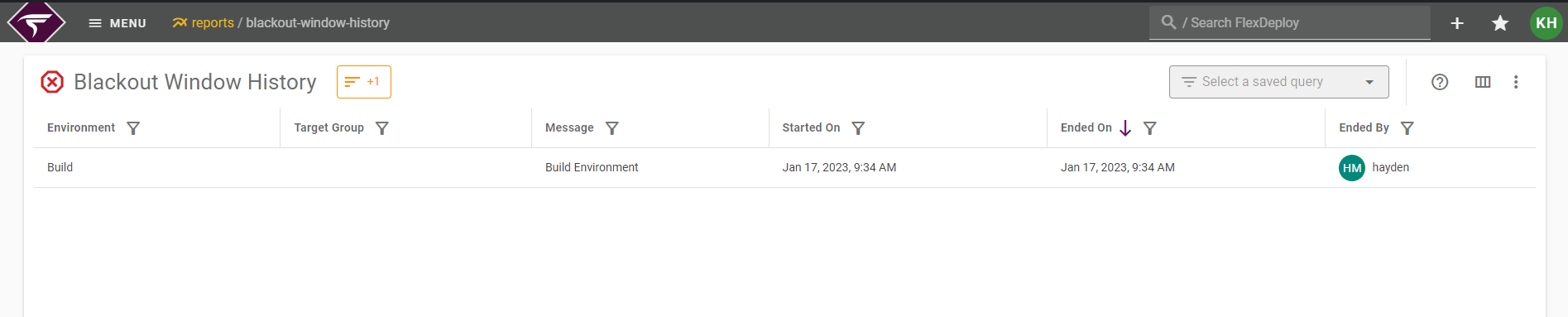
If a user ends a Blackout Window while it is active, the system records the event in the execution history. All blackout windows are viewed and modified in the menu under Administration → Blackout Windows. Image To create a Blackout Window, click +Create. Then select the environment that you wish to blackout. Once that is selected, an option to specify only a certain target group will appear to the right. Determine if you want to have a One-Time, or Recurring (repeating) Blackout Window. If you want a Blackout Window that only happens Once, then choose your start and end times and click save. Image If you want a Blackout Window that reoccurs on a schedule, then select Recurring and enter a cron expression. Cron expression examples are available on the right side of the input in the … hamburger button. Quartz Cron Expressions can be designed and tested using the FlexDeploy UI, but if you would like a more powerful tool, https://www.freeformatter.com/cron-expression-generator-quartz.html is a great resource. Image Historical Blackout Windows can be viewed in the Blackout Window History Report. Image