
Check Salesforce Tutorial to Configure and start using for Salesforce deployments.

Prerequisites
Make sure the following items are configured before using this screen:- Complete the configuration of the Salesforce Account to connect to your Org in Cloud Account.
- Selecting the Salesforce Cloud Account(s) in the Target properties for the Build instance.
- Complete the SCM, Build Instance configurations in the Project Configuration tab.
- The following domains/IP addresses are whitelisted/allowed in your firewall configuration
SCM to Org Compare
This option will help you identify the changes done in your Salesforce Org by comparing the files against your Source control Systems like Git. You can view the line-by-line difference of the files, and review and commit the changes to your Source Control System.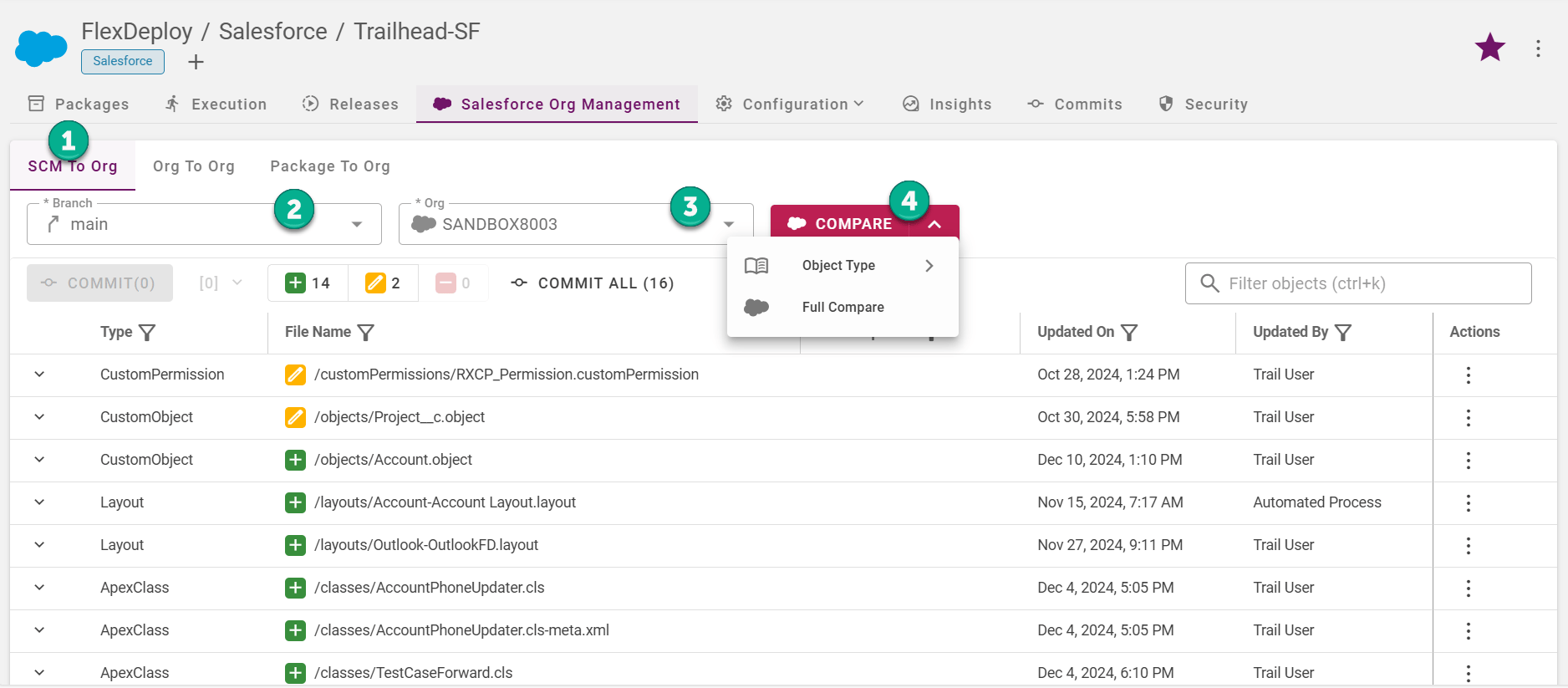
- Select Compare type as SCM to Org
- Select your branch of your SCM like Git. It defaults to the main/master branch from the Project Configuration.
- Select the Salesforce Org.
-
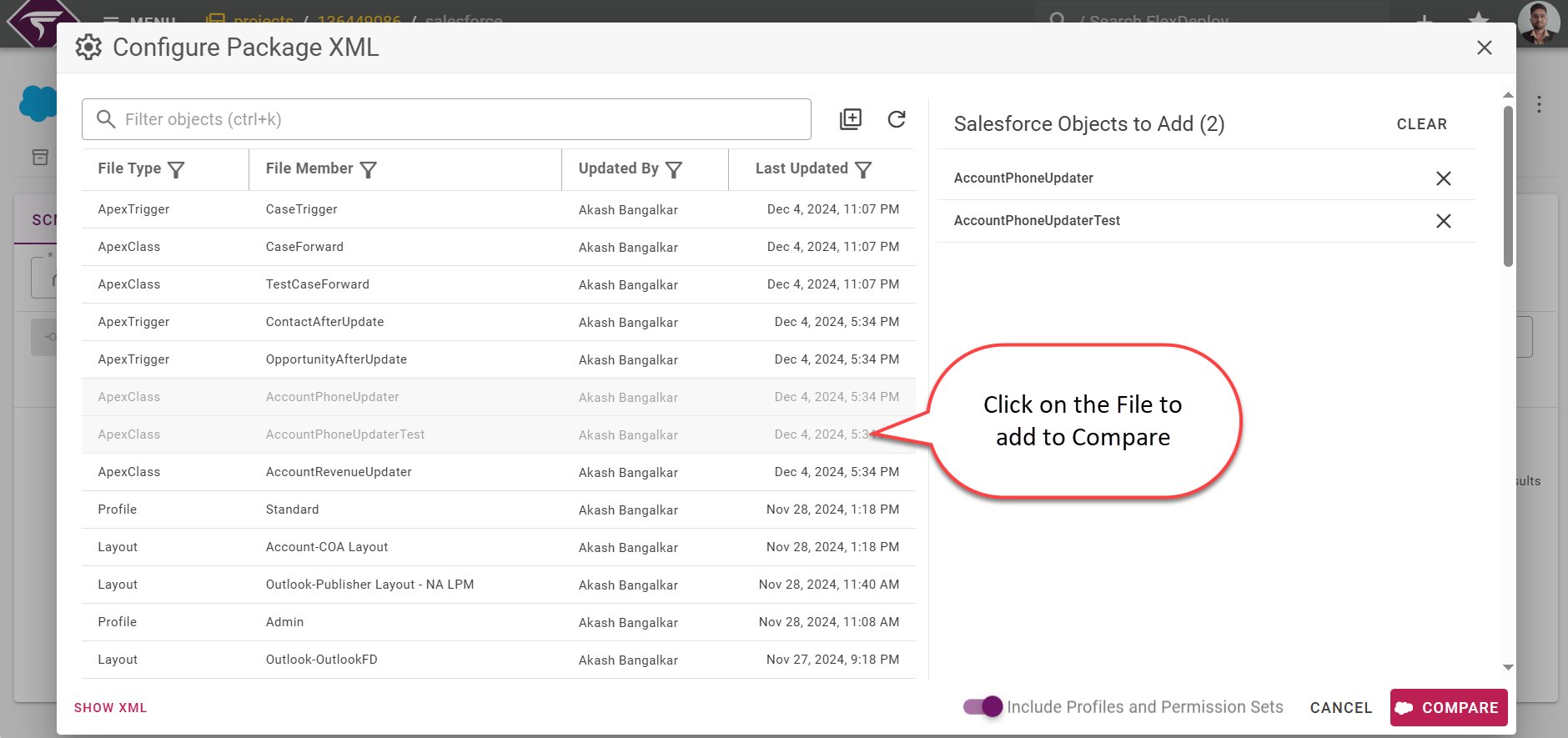
Click on the Compare to view all the files available in the org. Click on the files that you wanted to compare and click on Compare.
- Click on Object Type to select and quickly compare based on the Object types like Apex Class, Custom Object, etc.
- Optionally you can click on Full Compare button that is available as a drop-down button to compare all the files.
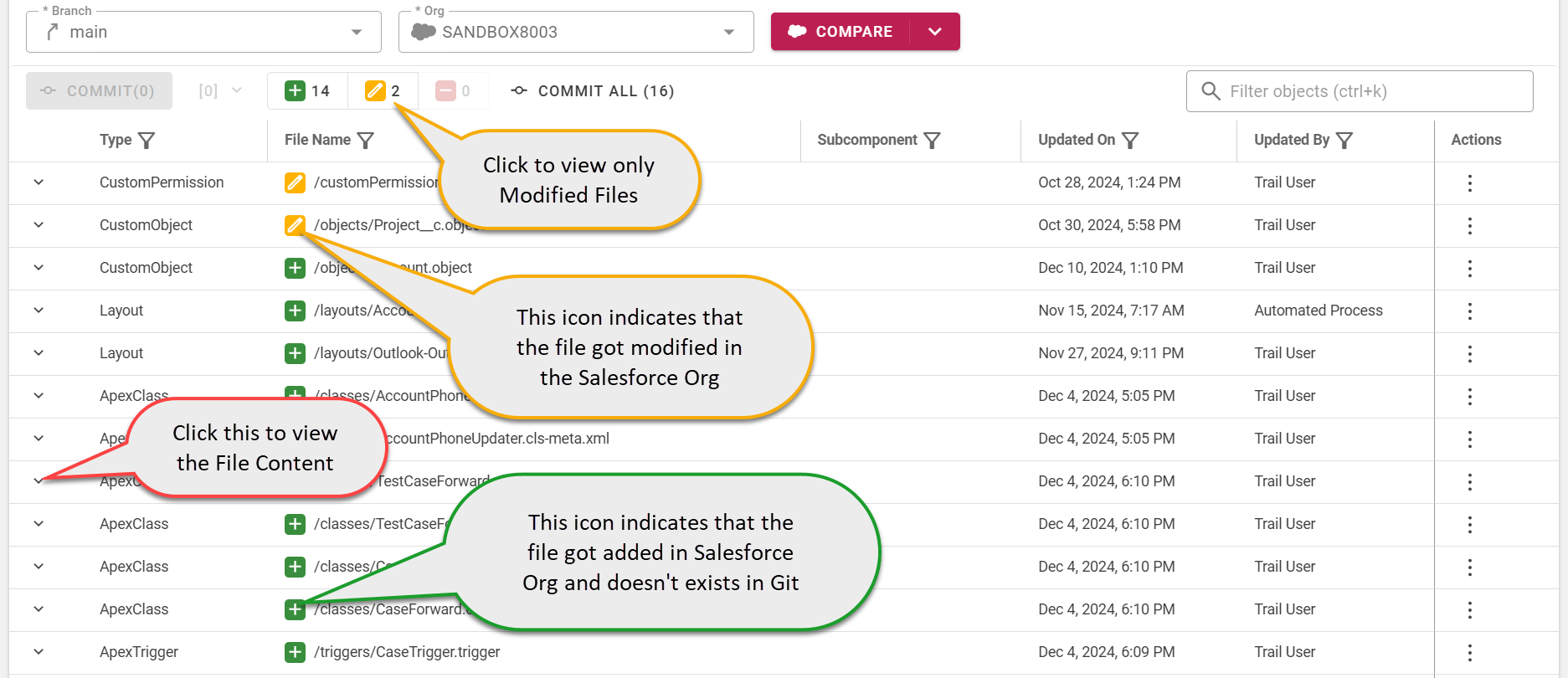
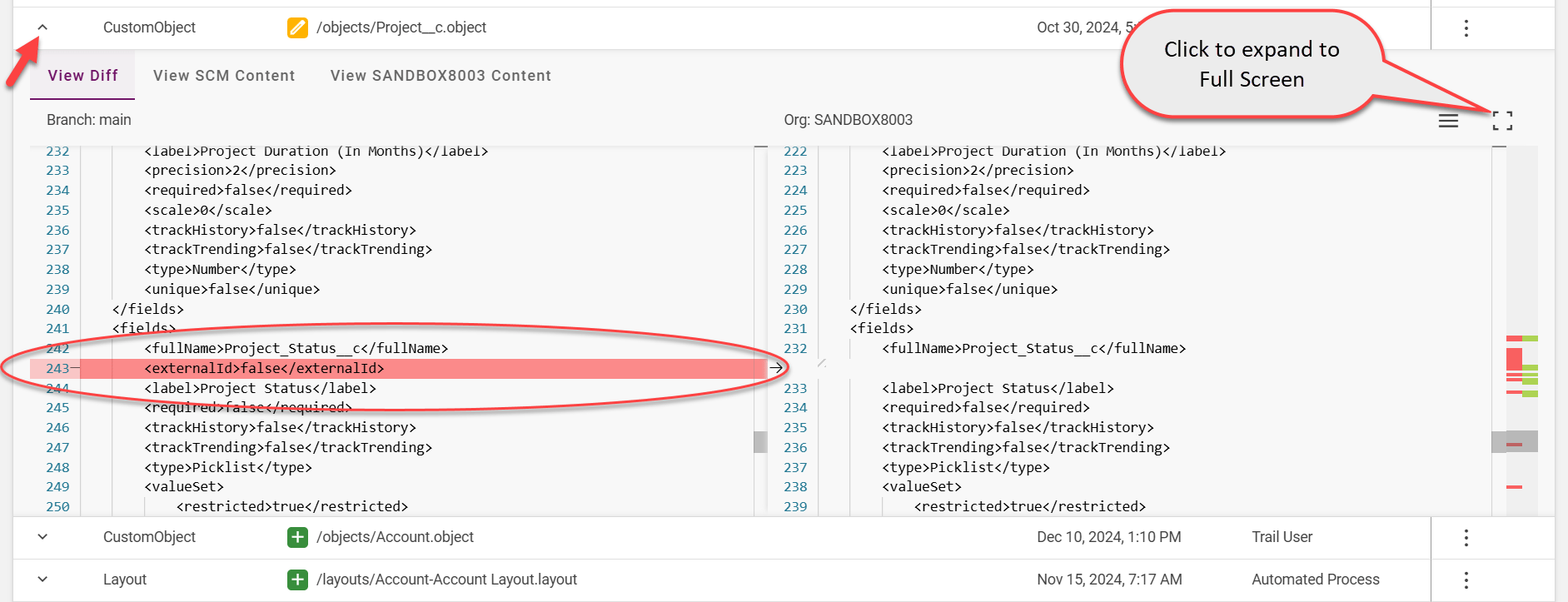
Commit Files to SCM
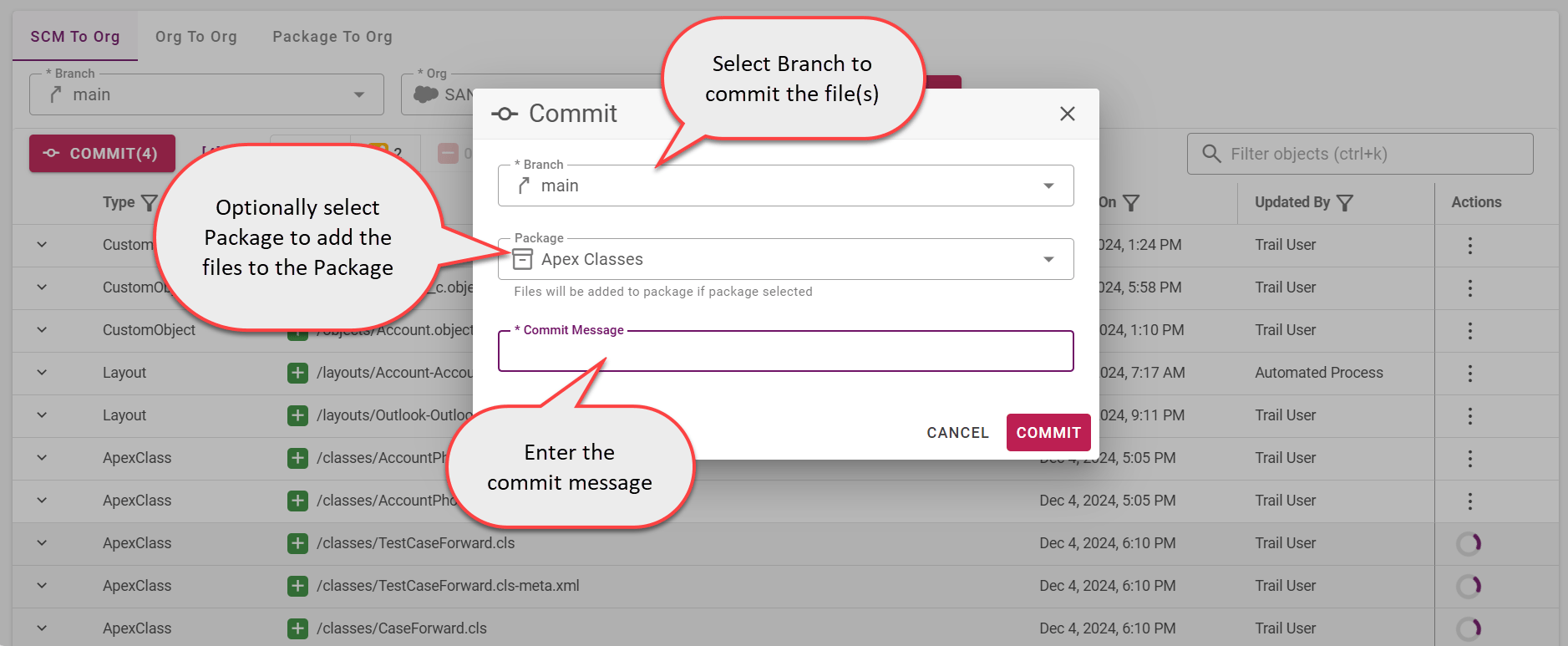
You can select files and click on Commit button to commit the selected files into your Configured Git repository configured. You can select multiple files using the Ctrl.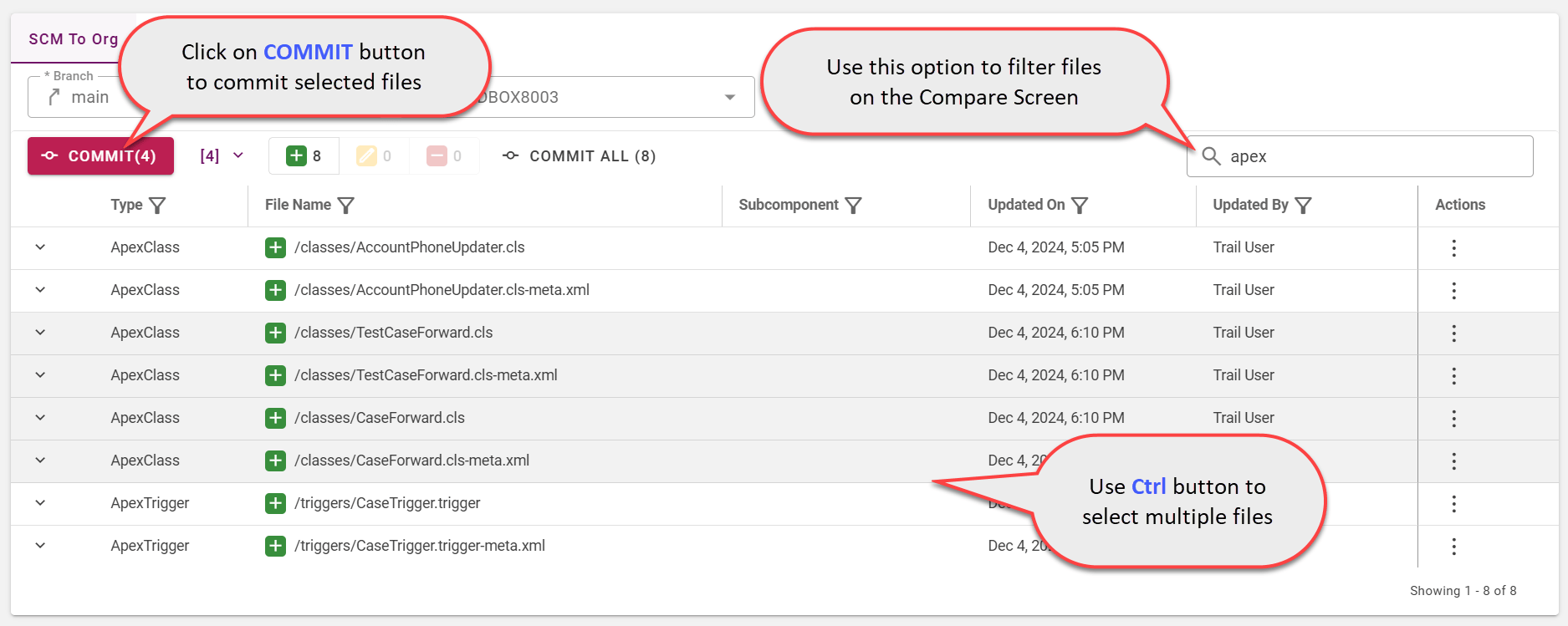
Salesforce Org to Salesforce Org Compare
This option will help you to compare changes between two Salesforce Orgs. You can view the list of files that are different (added or modified or deleted), and review the line-by-line differences.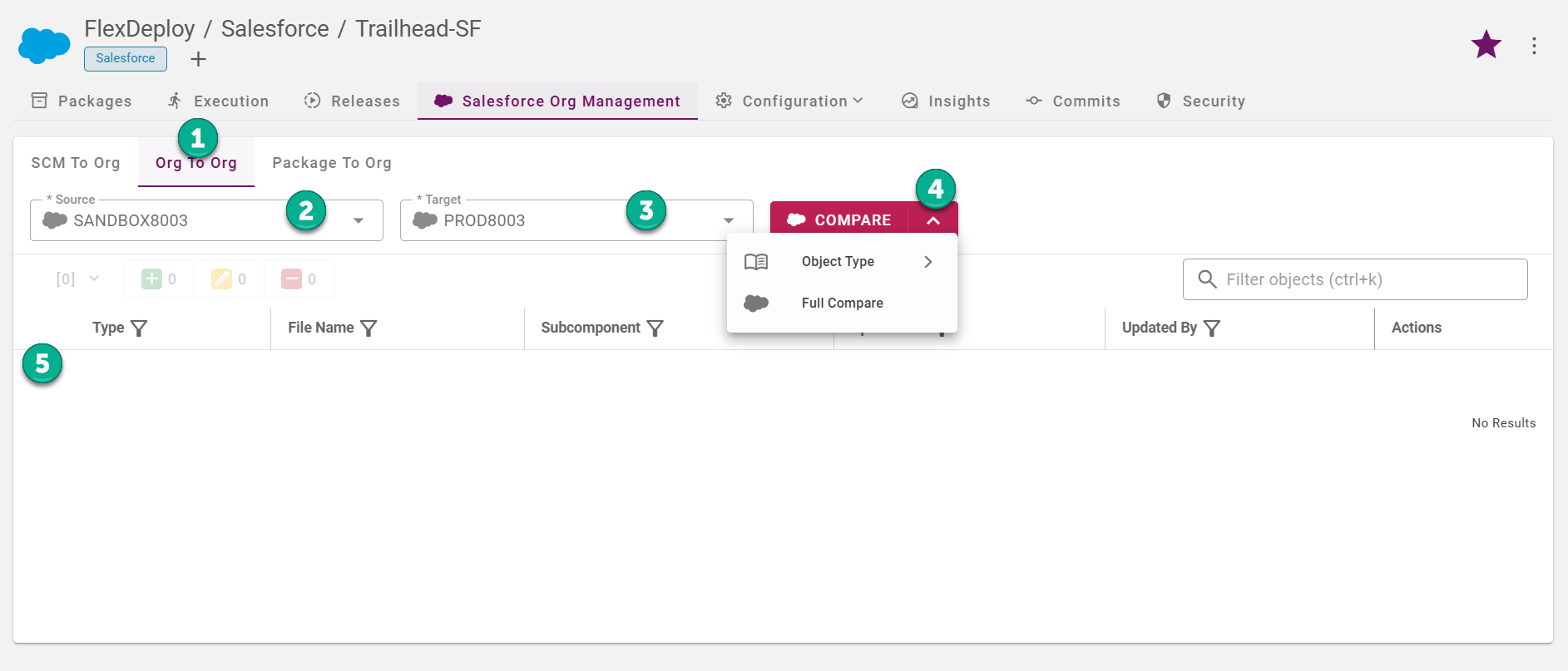
- Select Compare type as Org to Org
- Select the Source Org to compare.
- Select the Target Salesforce Org.
-
Click on the Compare to view the file differences. Compare drop-down displays all the files to filter.
- Click on Object Type to select and quickly compare based on the Object types
- You can use Full Compare to compare all the files.
- The results table will display all the files that are different (added or modified or deleted).
Package to Salesforce Org Compare
This option will help you to identify the changes done in your Salesforce Org by comparing the files in the Package or Package version. You can view the line-by-line difference of the files, and review them. This option can be used to view the changes that will be applied to your target Salesforce Org before deploying or approving the deployment.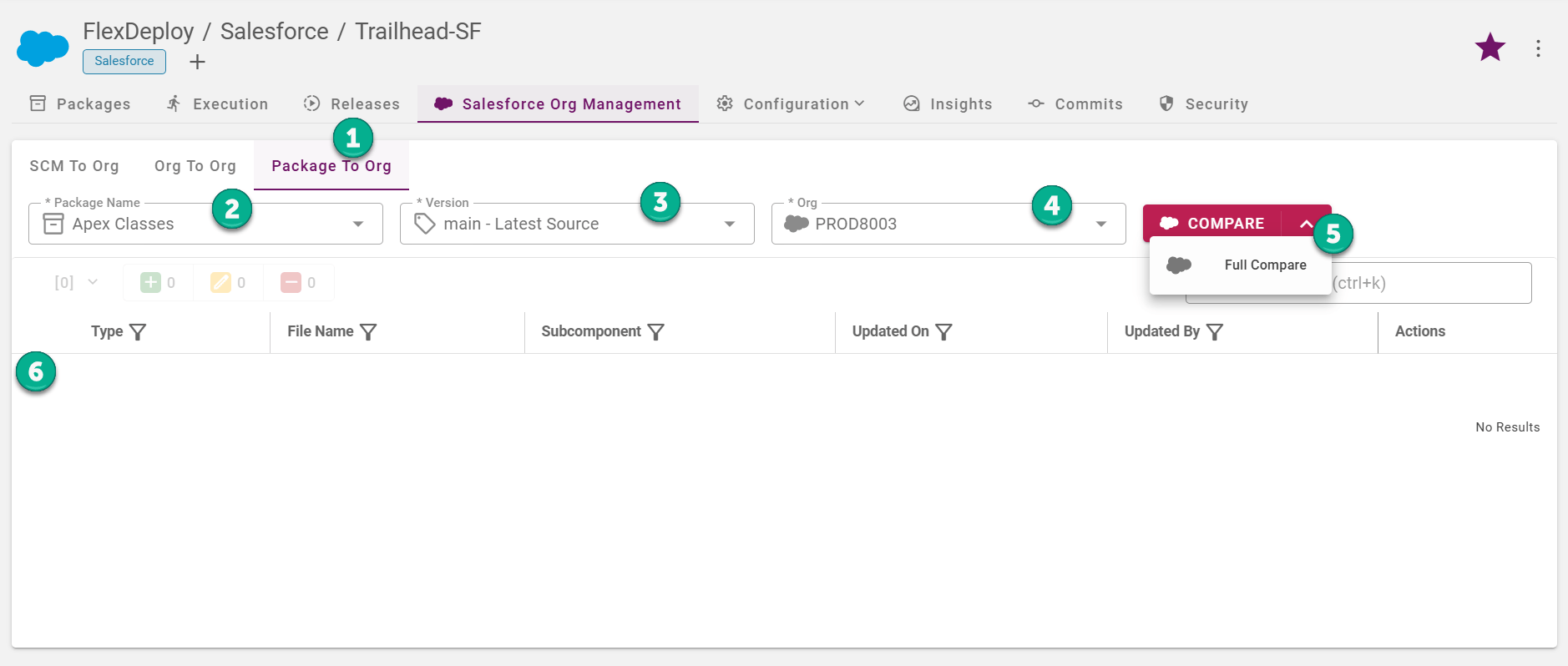
- Select Compare type as Package to Org
- Select the Package Name. If you don’t see the package in the list, go to the Packages tab and create one as needed.
- Select Package Version or Latest Version to compare with the latest files in the Source Control System.
- Select the Salesforce Org.
- Optionally view the package objects by clicking on the compare. We default all Salesforce objects. You can click on Full Compare.
- The results table will display all the files that are different (added or modified or deleted).