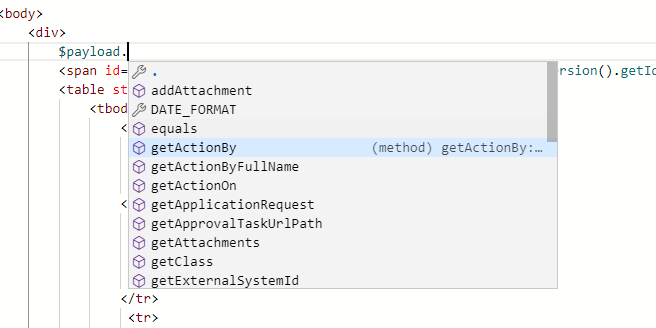
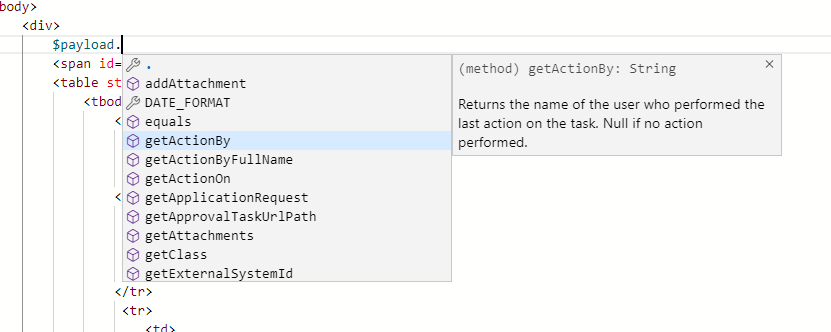
About the Editor
The Code Editor used throughout FlexDeploy Next Generation is built from the Monoco Editor by Microsoft, the popular editor that also powers VS Code. This means that the majority of commands and shortcuts you use in VS Code will also work here. For those unfamiliar a brief description of the layout components is described below: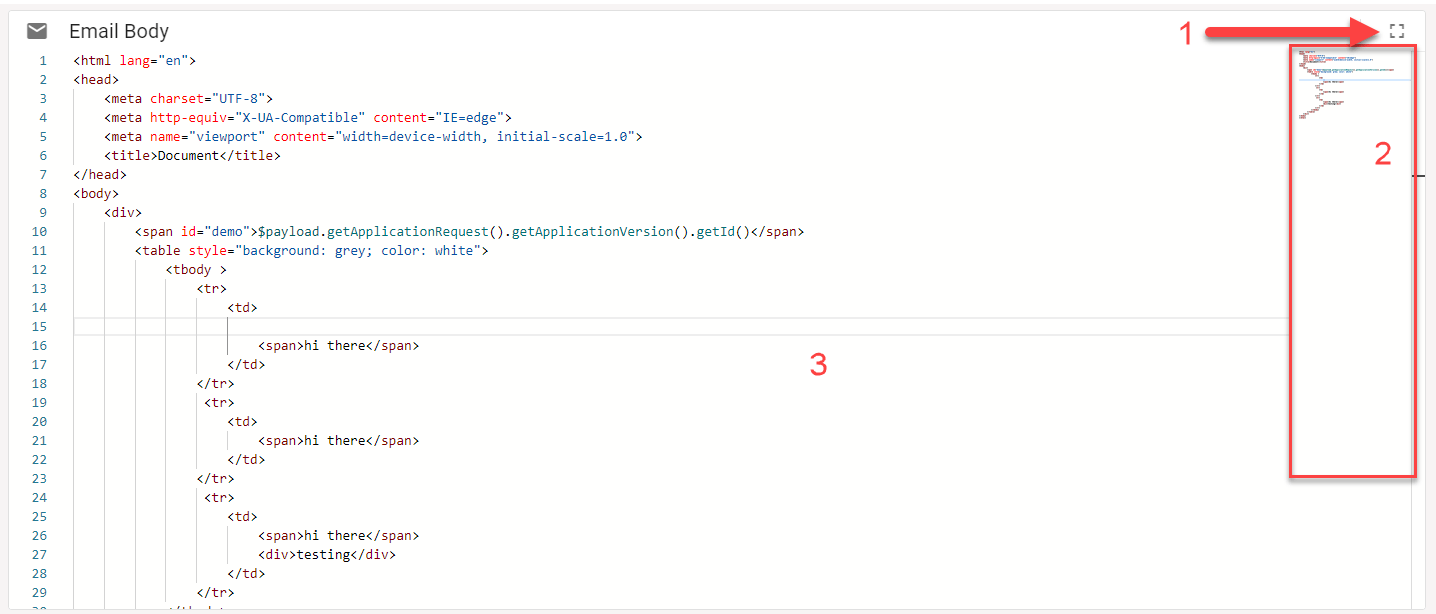
- Fullscreen toggle - Clicking this will take you to a full screen view, clicking while in full screen will restore the editor to its normal dimensions
- MiniMap display - A mini preview of the entire file you are currently editing. This can be useful to quickly navigate around larger code blocks.
- The Editor - …For editing
Depending upon the context of the Code Editor you may find additional buttons and features along the toolbar.
Saving your Code
Often times you may want to save your work while editing but not actually publish your changes. In this case simply hit ctrl+s while in the editor to save the contents locally. After doing so you will see a marker in the toolbar: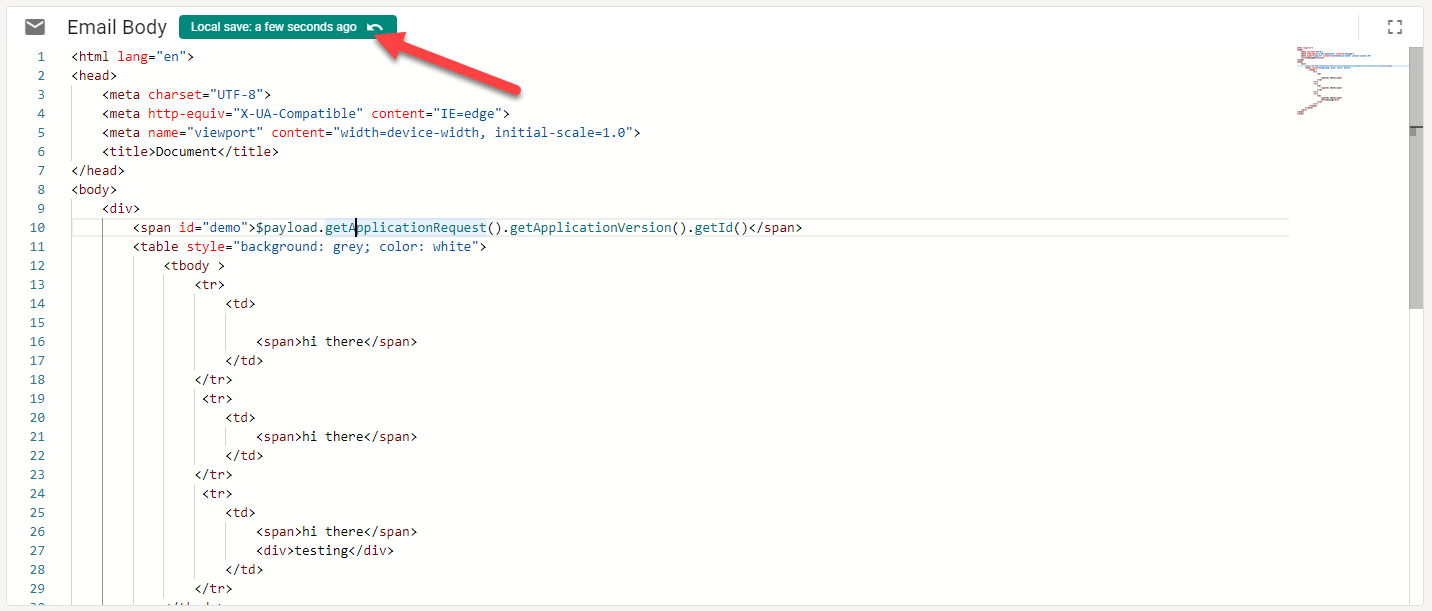
Shortcuts Worth Knowing
Keyboard Shortcut | Description |
|---|---|
Ctrl + Space | Brings up the suggestion menu. Hitting Ctrl + Space again while the menu is open will toggle suggestion descriptions
|
Ctrl + Shift + Space | Brings up function argument help. Needs to be used while editing function arguments.
|
F1 | Show command palette. The palette shows all available commands and their keyboard shortcuts. Note that not all commands listed may be enabled. |