
On Windows, folders and files cannot begin or end with spaces. If this occurs, Windows endpoints will be unable to function properly, and FlexDeploy on Windows may encounter similar issues. While most special characters are supported on Linux, they can cause failures on Windows. Additionally, Windows reserves certain file and folder names (e.g., COM2, CON). Using one of these protected names as a folder name will result in failure on Windows.Starting with FlexDeploy 9.0.0.3, the colon (:) character is handled differently in folder or file names. If your files contain a colon in Oracle BI, OAC, or OTBI projects, you should rediscover them with the “Inactivate Missing Files” checkbox selected. For other projects, files and packages will function as they did previously.
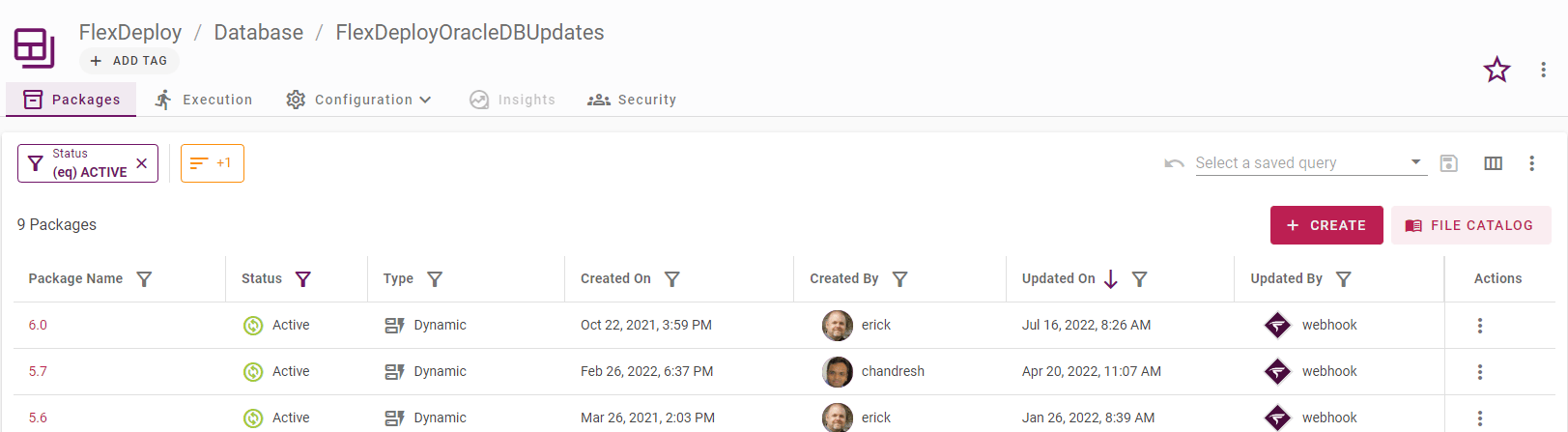
Discovering Project Files
When you first create a Package-based project, the File Catalog will be empty. Before discovering Files, make sure you have updated the Project Properties. You can discover files from within a package, or in the File Catalog.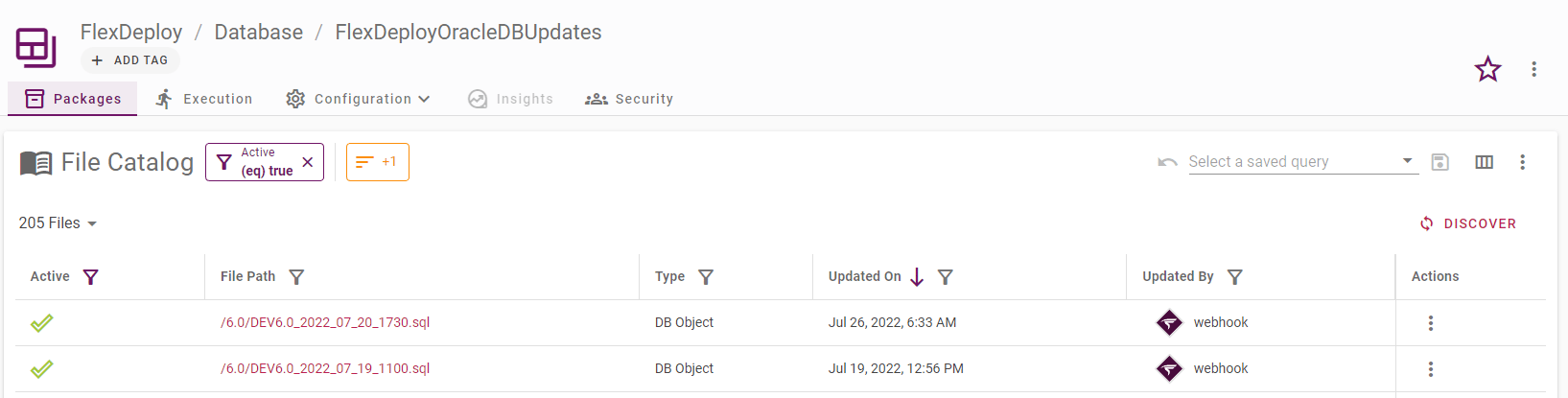
Using the Discover Button
When you click the Discover button, the following screen will pop up.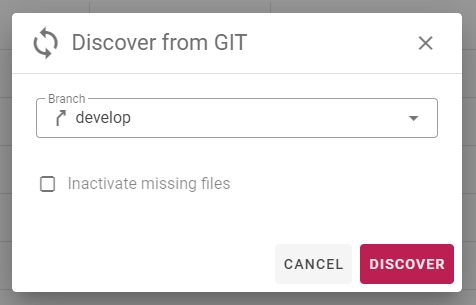
FlexDeploy allows for custom sorting of all files when performing Populate from SCM action. This allows for sorting files as per FD_ORDER.seq file in root of your project. Just add full file as it shows on screen File Name (with Path) in this file in custom order. You just need to add the files that need to be ordered and not all files.Also, in case of EBS (DB Objects) / JDBC plugins sorting is based on project properties for extension based ordering. For example, if new .tbl file is discovered from SCM, then this helps you arrange it appropriately in DB Objects for EBS project.For example, FD_ORDER.seq may look like this.
Adding Files Using the Create Button
Some project types allow creating files manually. When you click the Create button, the following screen will pop up.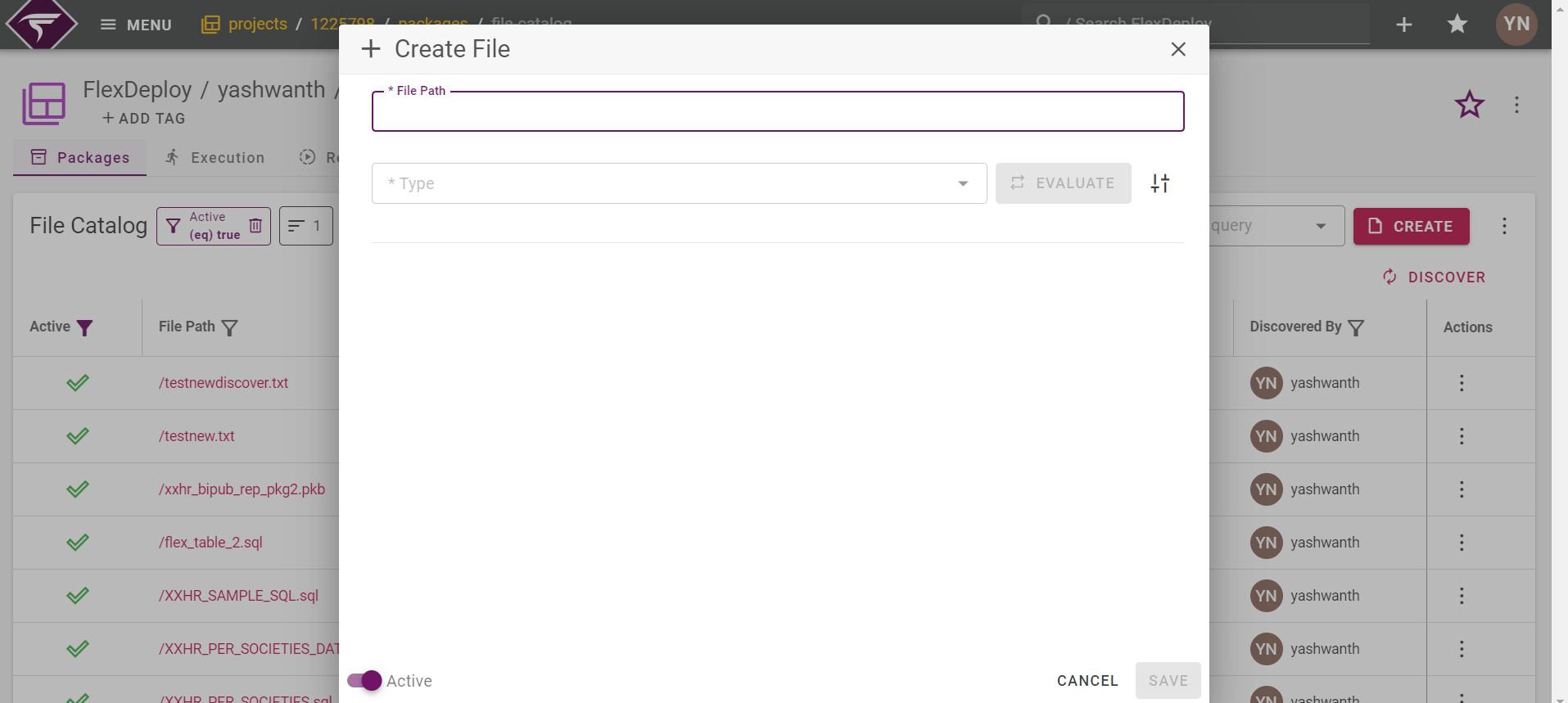
Updating Project Files
You can modify the files in your project in the Package Files tab of a package, or in the File Catalog. Click on a file path to edit the file. Each type of file will have different options.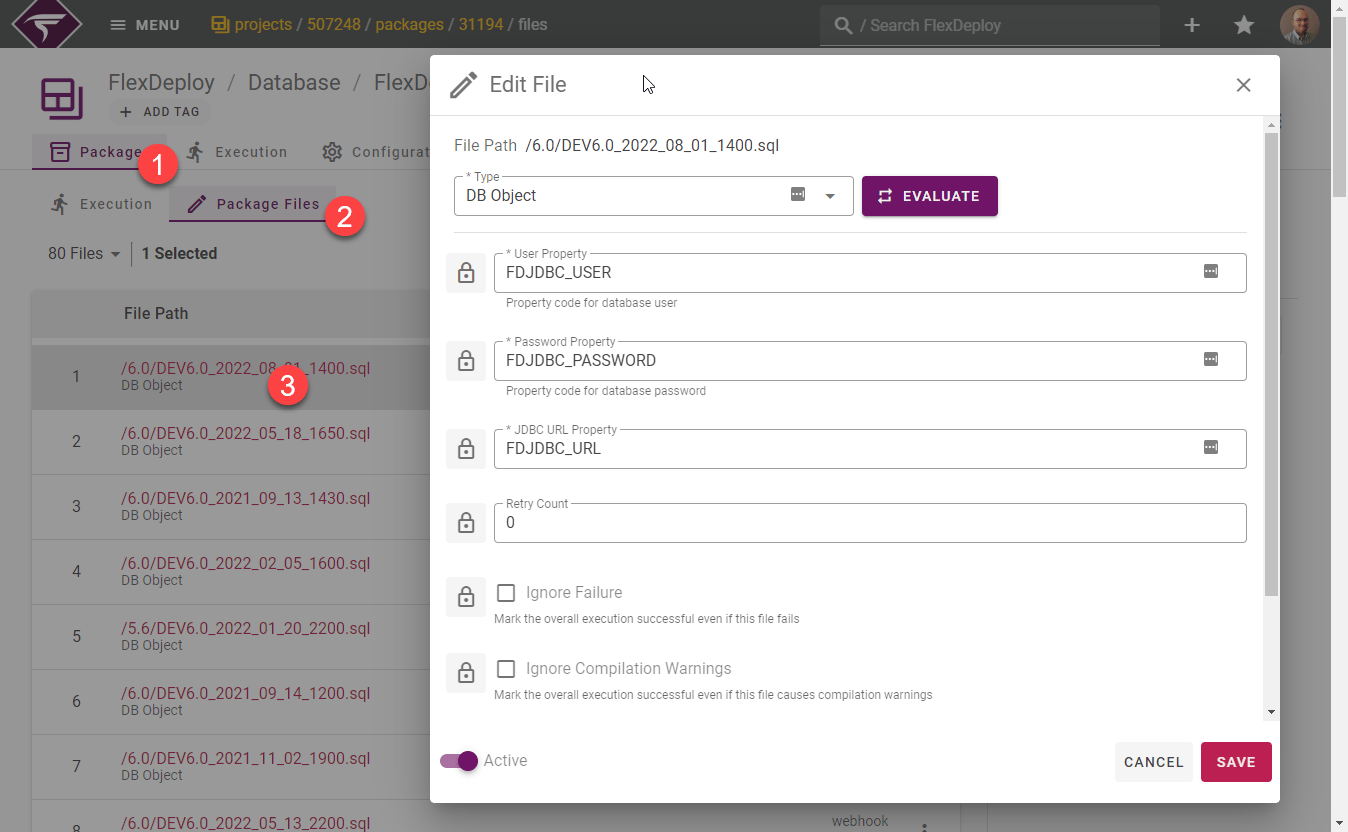
Editing Multiple Files
You can select one or more files in order to either Inactivate, Activate, Move to a different Object Type, or Evaluate the file attributes.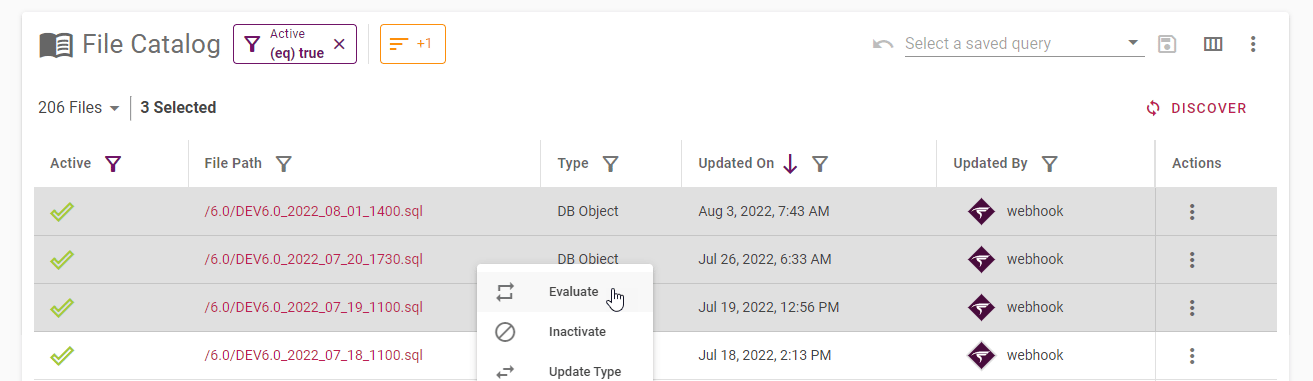
Building Selected Files Directly
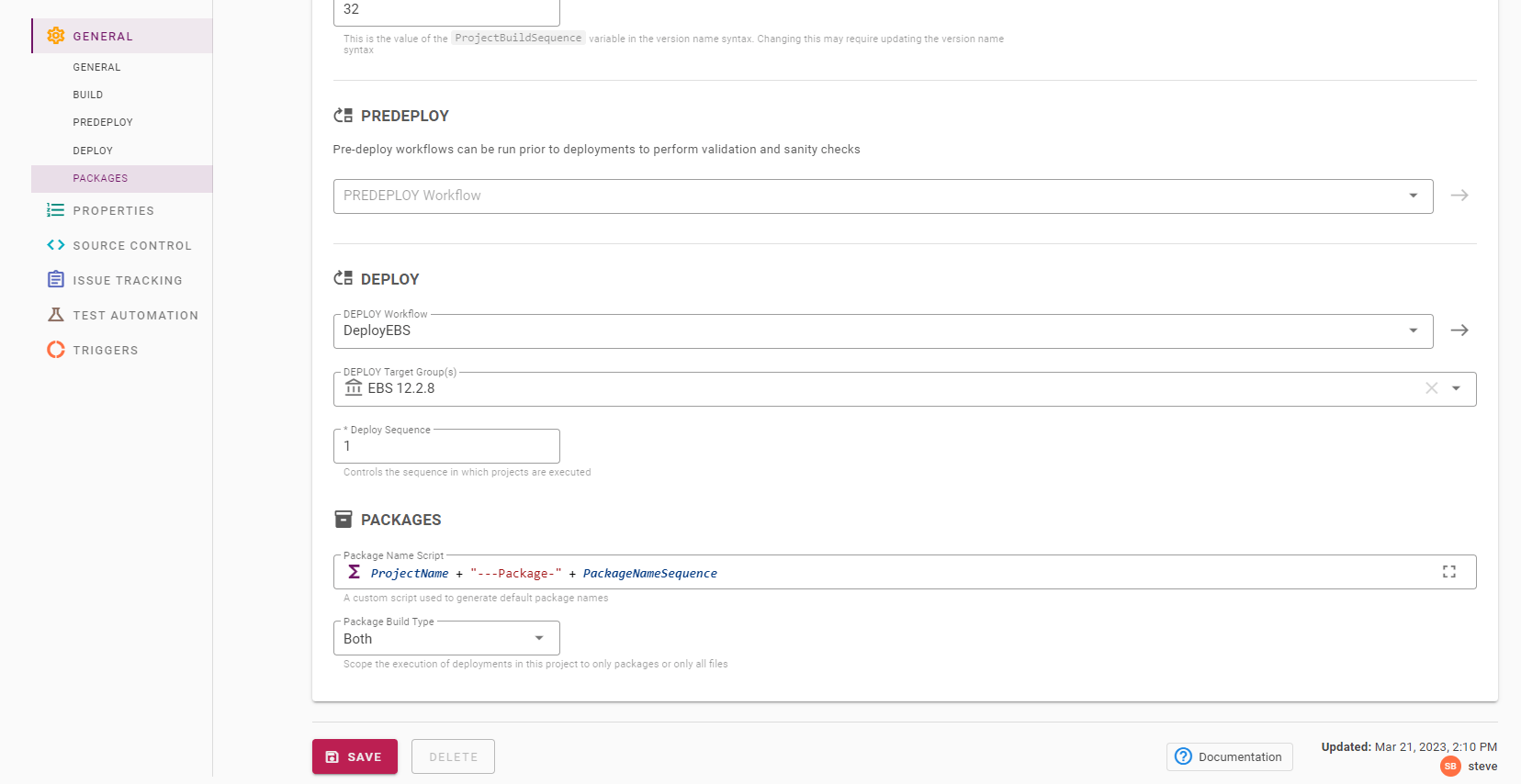
You can select one or more files to directly add them to a new package and have options to build right away.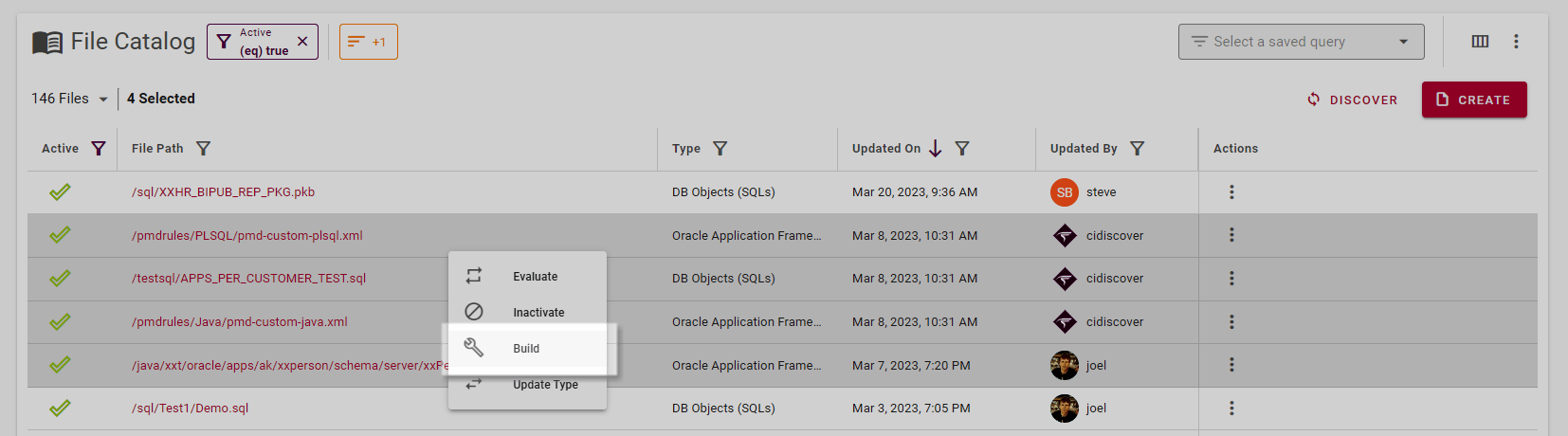
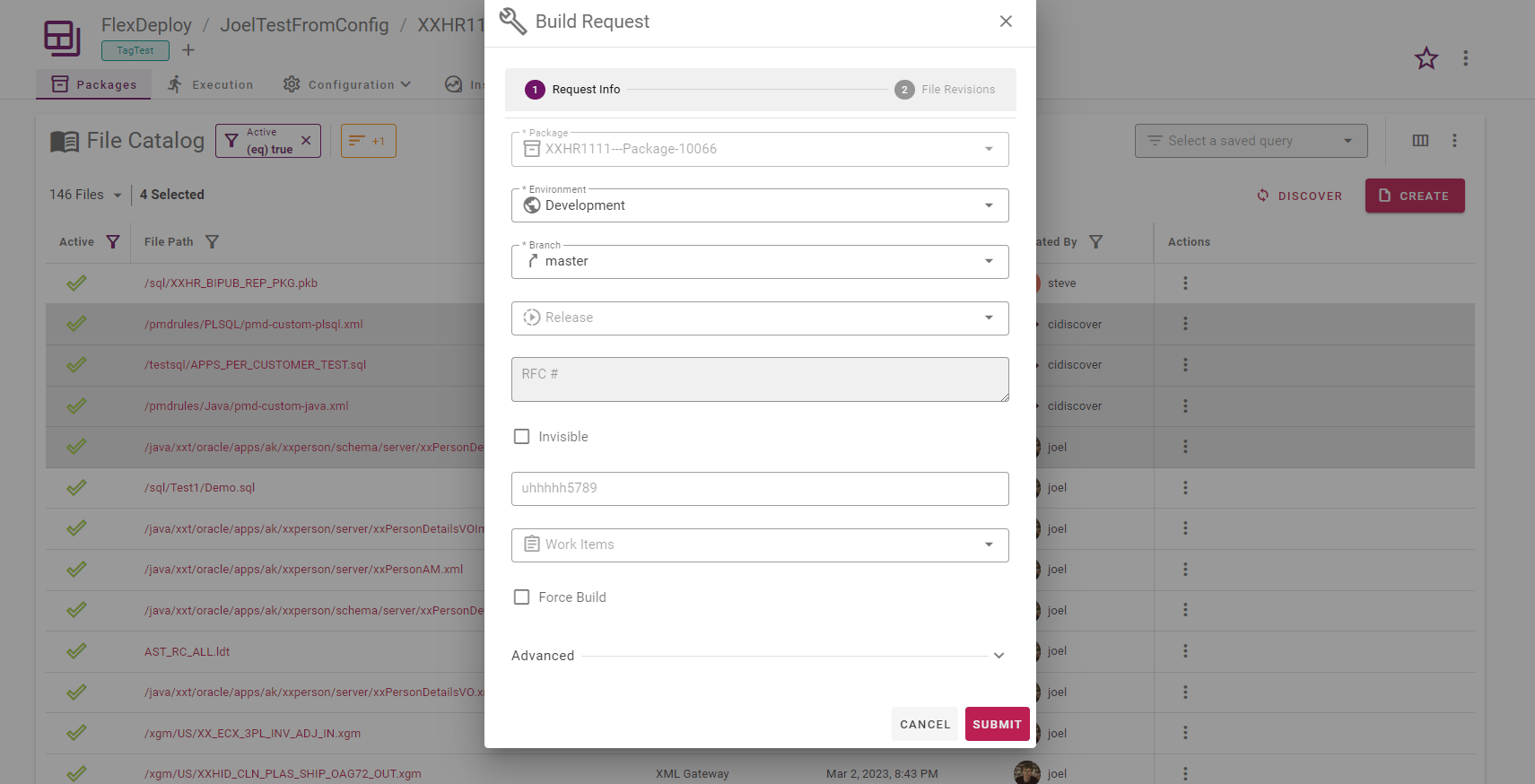
Mass Editing Files
The file catalog lets you edit all the files that match the current filters in one operation. These operations are found in the table options menu in the top right corner above the create button. This is the best way to modify more than 50 files in a single operation. You can use this menu to quickly activate or inactivate all the files that you have filtered in the table, or clear all the filters to modify all files.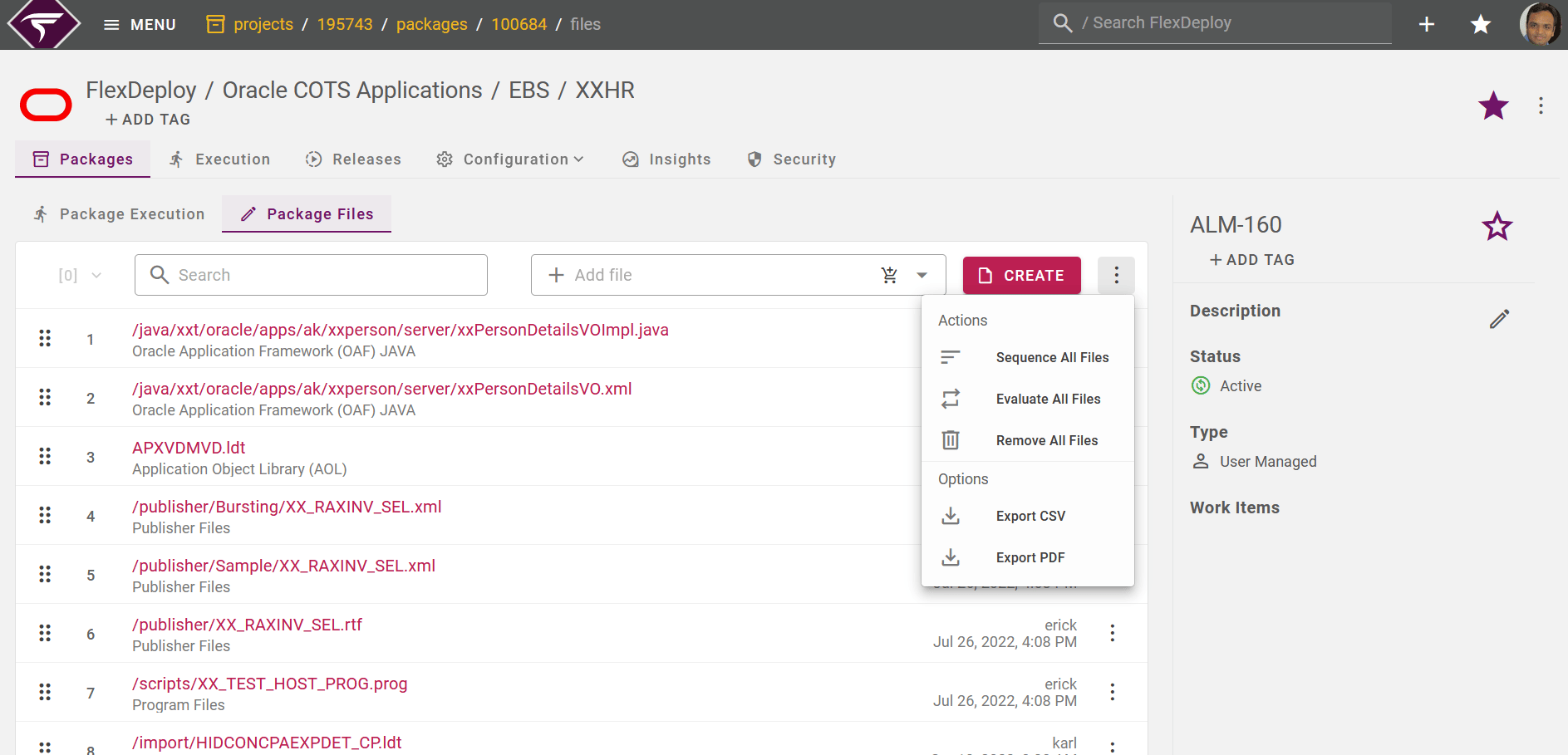
Manual Files
Project files can be marked Manual @Since 11.2.0.0. Manual files do not support automated deployment and are used with manual packages.- On the File Catalog list, manual files show a person/user icon (tooltip Manual File).
- When creating a file, select Manual if the file should only belong to manual packages. After create, the Manual flag is not editable on the edit popup.
- For Configuration Management projects, Discover sets or refreshes the file’s Manual flag from the migration’s manual mode.
- When adding files to a package, only files whose Manual flag matches the package are available.