
High Level Features
-
Create and manage work items.
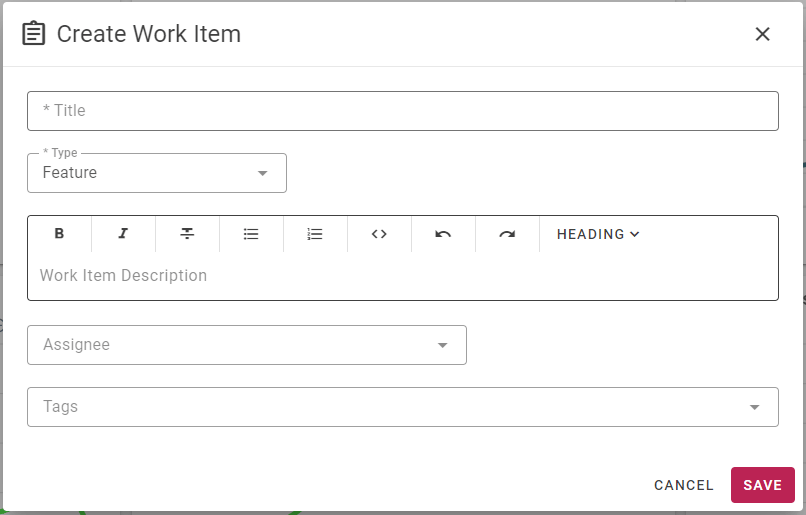
- Work item is created with title, type, description, assignee, tags etc.
- Work item can be updated with comments, attachments, it can be assigned to a user and it’s status can be changed. Work item fields (if present) can be updated as well.
- Work item type can be changed as necessary.
- Work item detail will show linked build/deploy executions, work item update history. In addition you can view comments, attachments and source code commits associated with it.
- Link FlexDeploy or External work items with build and track it’s progress.
- External issue tracking systems like Jira, GitHub, GitLab, Azure Boards etc. can still be used in addition to FlexDeploy issue tracking system. All work items are visible on Work Items page.
- Work item details will be mostly similar for FlexDeploy or External work items, but more modification options are available for FlexDeploy work items.
- Custom Types, Statues and Fields are also available. Please see Work Item Administration page to understand customization options.
- Work Item Created and Work Item Updated outgoing webhook events are available for FlexDeploy Work Items.
- FlexDeploy work item related methods(get, create, update, update field etc.) are available in FLEXDEPLOY function, which allows for more integration capabilities from Webhook and Pipeline groovy scripts.
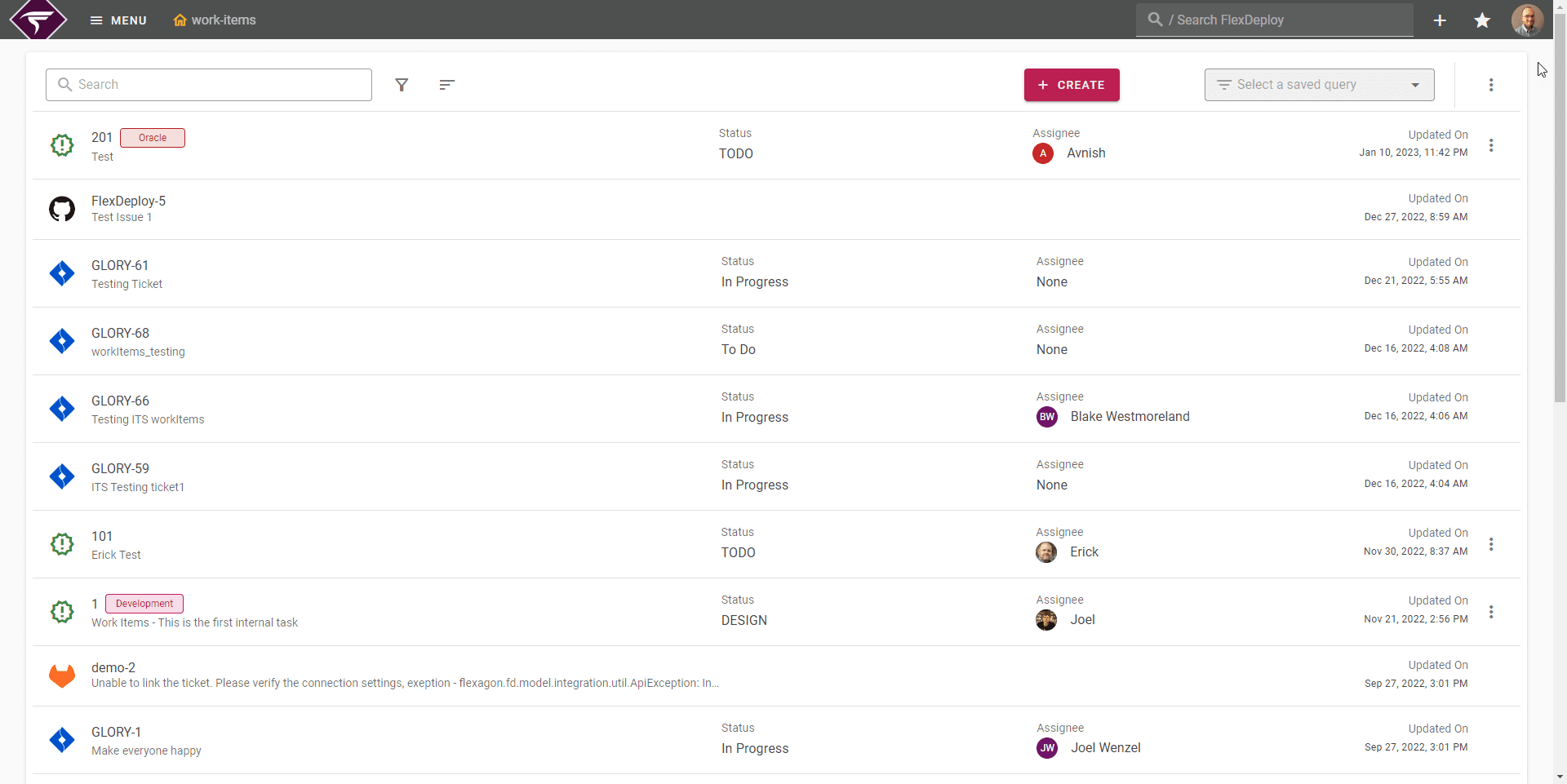
Creating a work item
Quickly create a new work item by clicking the plus icon on the navigational bar and selecting “Create Work Item”. Alternatively, create a work item from the work item screen which can be accessed from the menu or searching “Work-Item”.
Viewing / Edit a work item
You can view or edit any work item on the work-items screen. Additionally, from the a project execution, any previous execution which was linked to a work item contain a direct link to the work item aswell.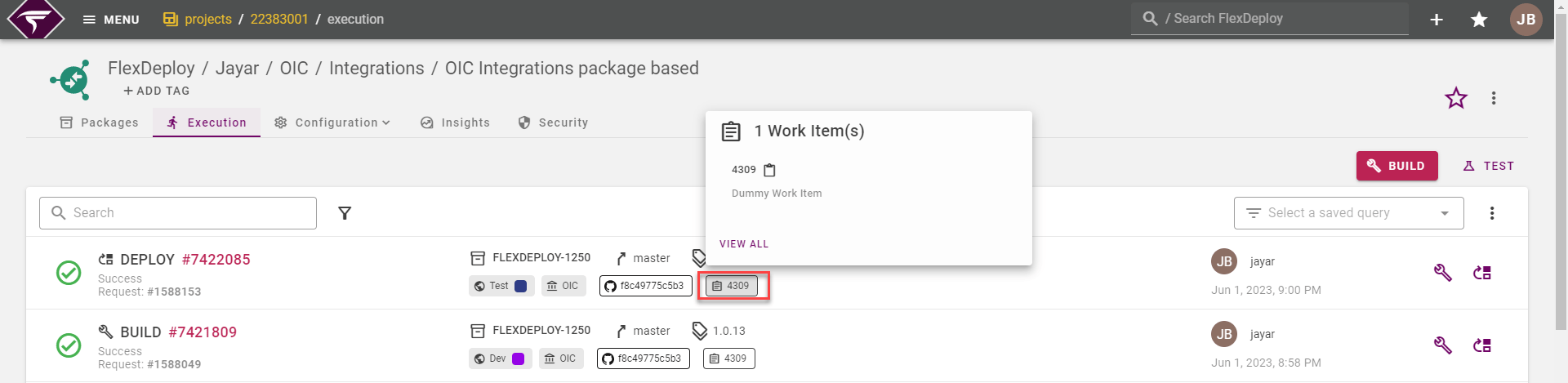
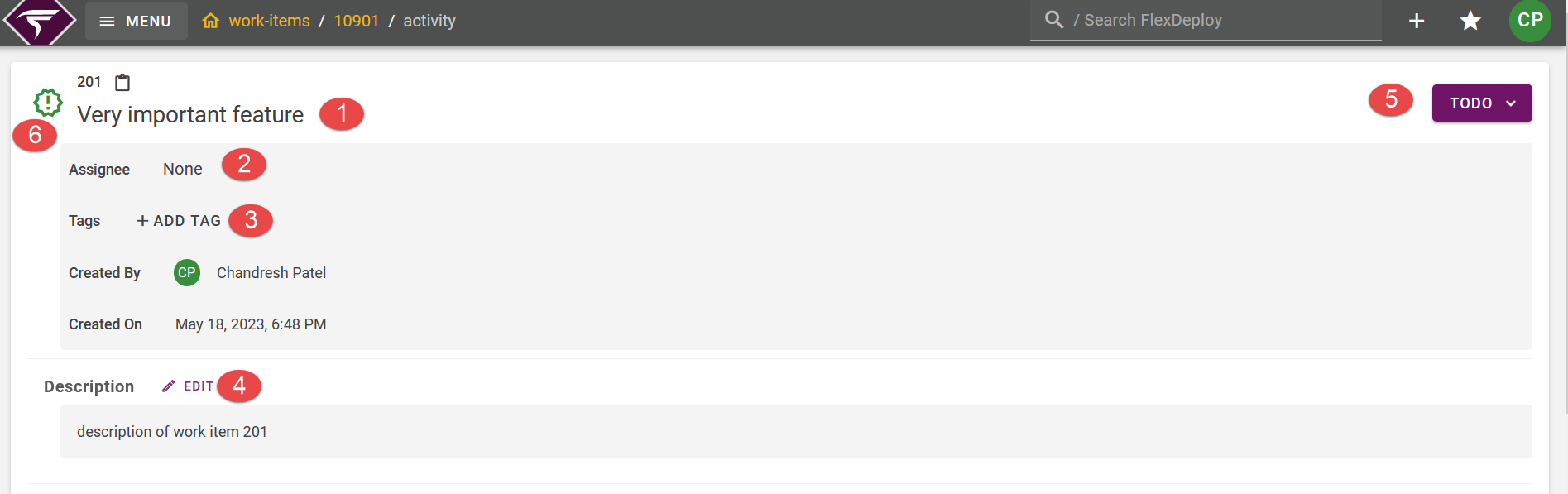
Work Item Core Details
Work item main details are shown below. You can adjust following details here.- Title
- Assignee
- Tags
- Description
- Status
- Type
Activity Tab
Builds and deployments are displayed on the Activity tab. Work item updates such as status changes or uploaded attachments will display here as well.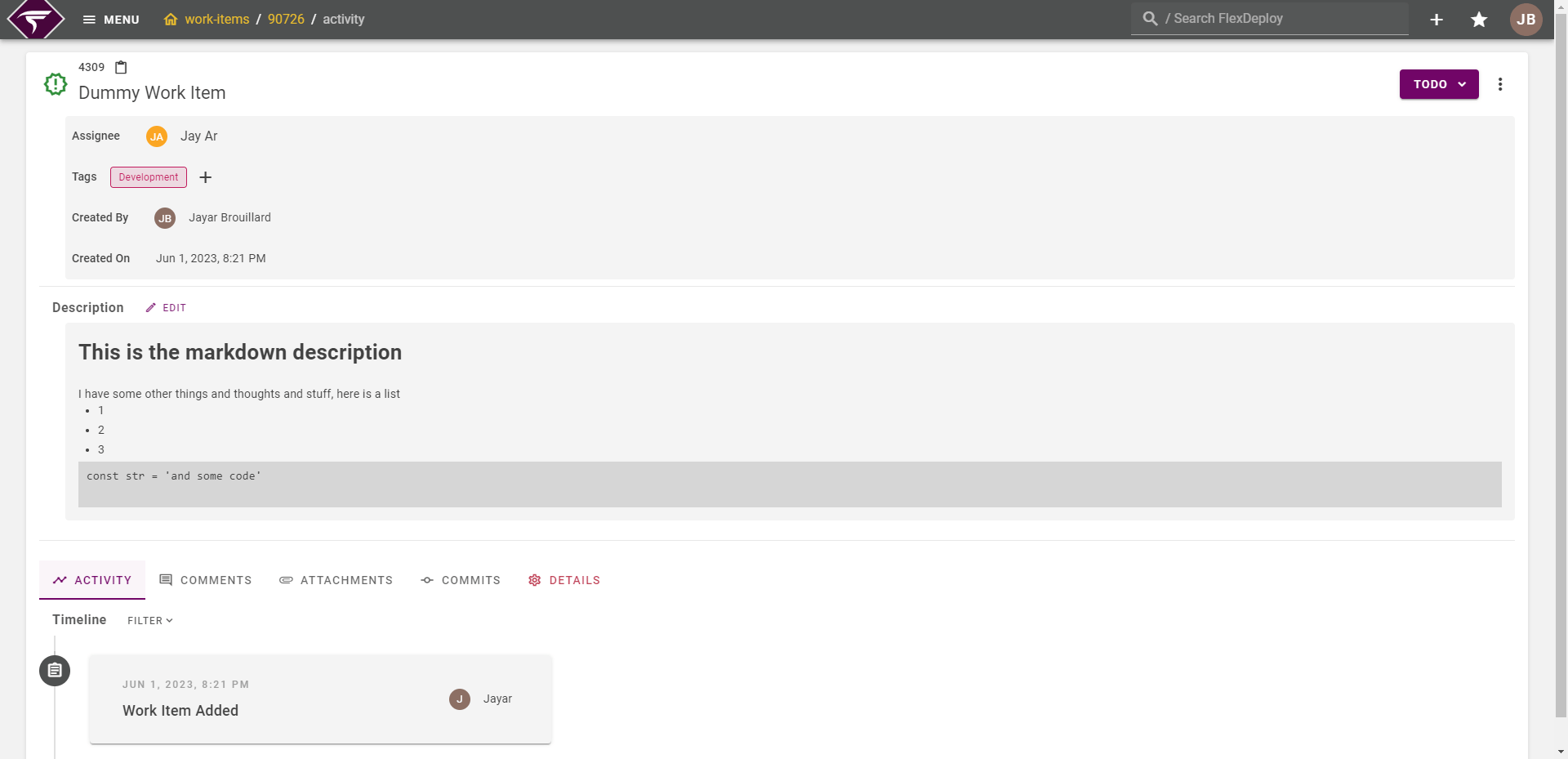
Comments Tab
A message can be added to the work item on build or deployments which would display here. The message itself is customized on the project.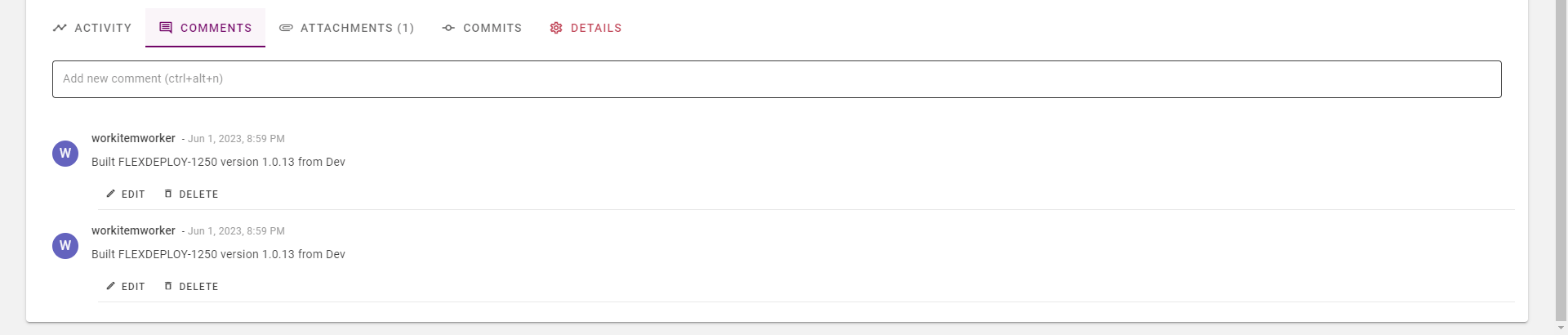
Attachments Tab
A relevant files can be added to the work item in this section such as a design document or data. Previews for the attachments are available if the file type is supported.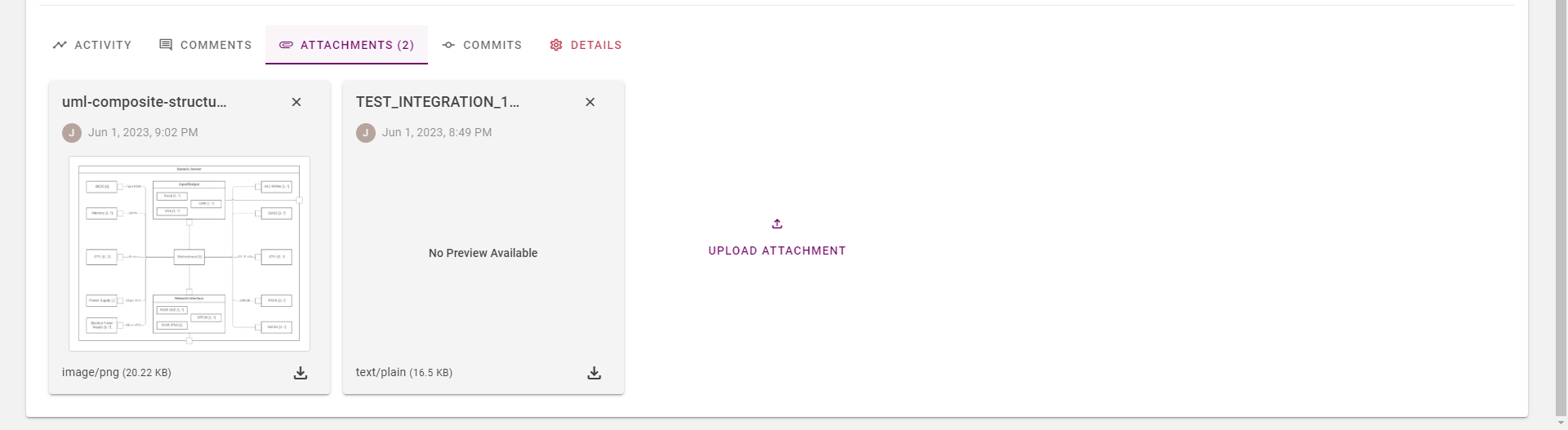
Commits Tab
If the project is configured for source control, then commits or revisions will display here. The id marked #1 is a link back to the build execution summary and the hash number marked #2 is a link to the commit in the external source control provider if it is supported (i.e. For Git, this would be a Github, Gitlab, Bitbucket commit url).