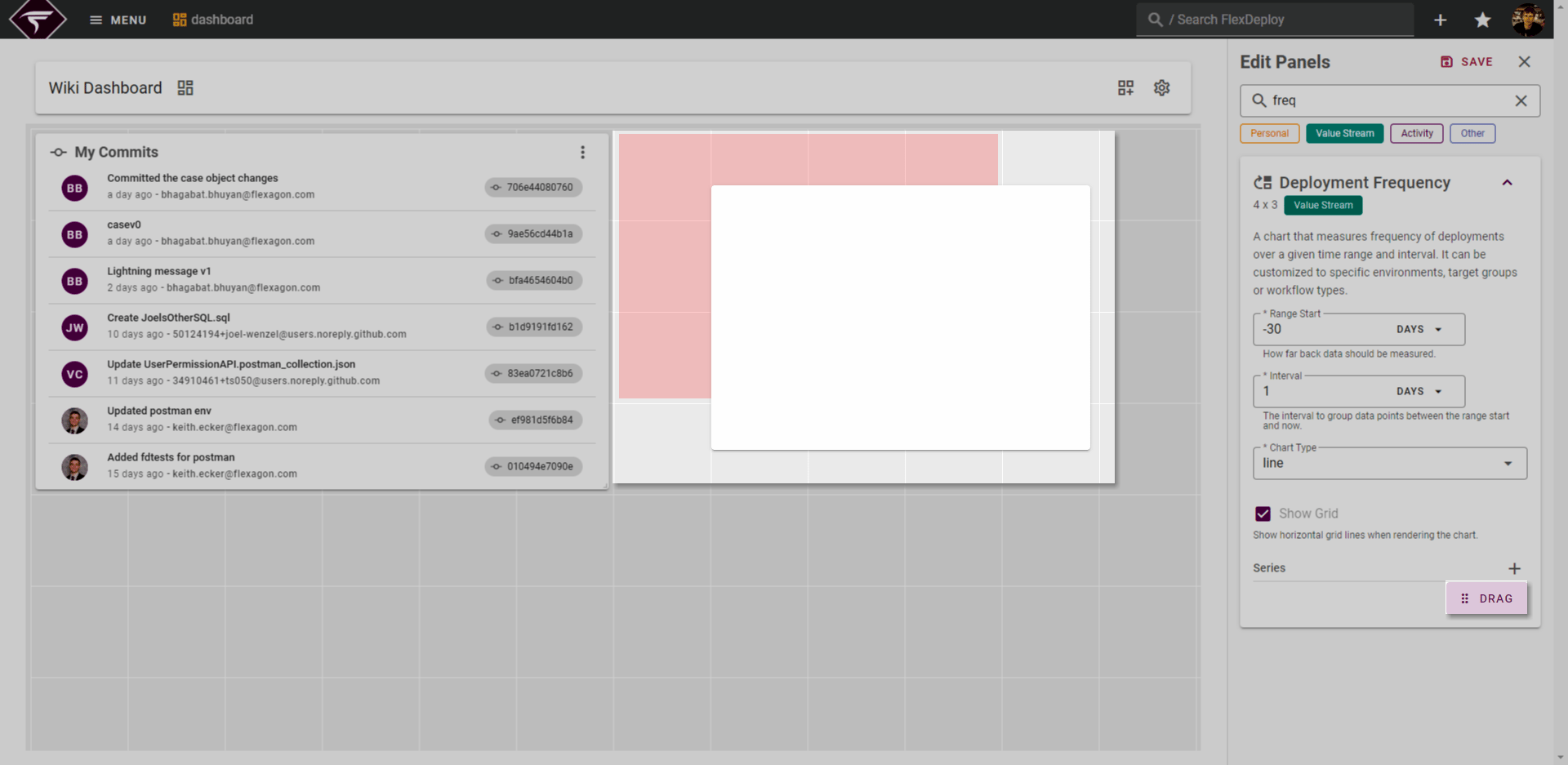
Dashboards provide a customizable means for you to visualize personally important metrics and trends.
Users can create, customize, and share any number of Dashboards. Dashboards consist of panels that can be rearranged or resized in a grid format. The panels themselves can have content ranging from value stream metrics to navigation data.Managing Dashboards
Creating a new Dashboard
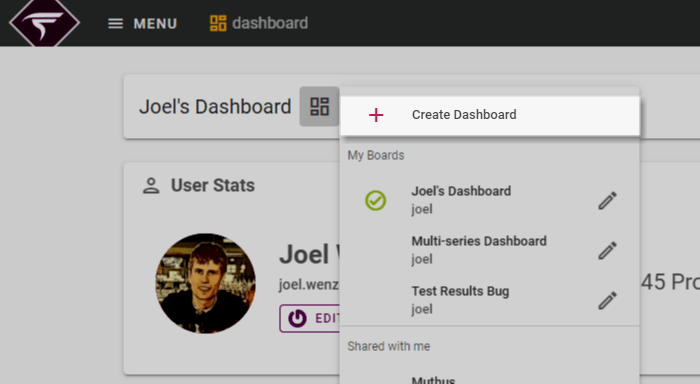
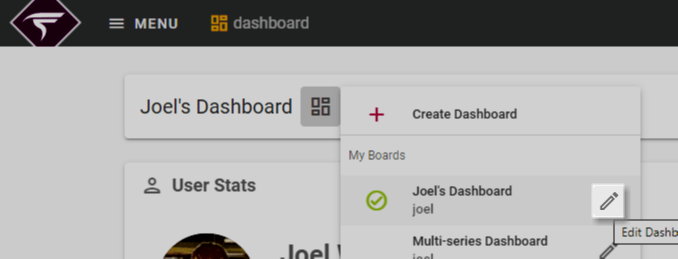
To create a new dashboard, click the dashboard selection menu and then
 click Create Dashboard.
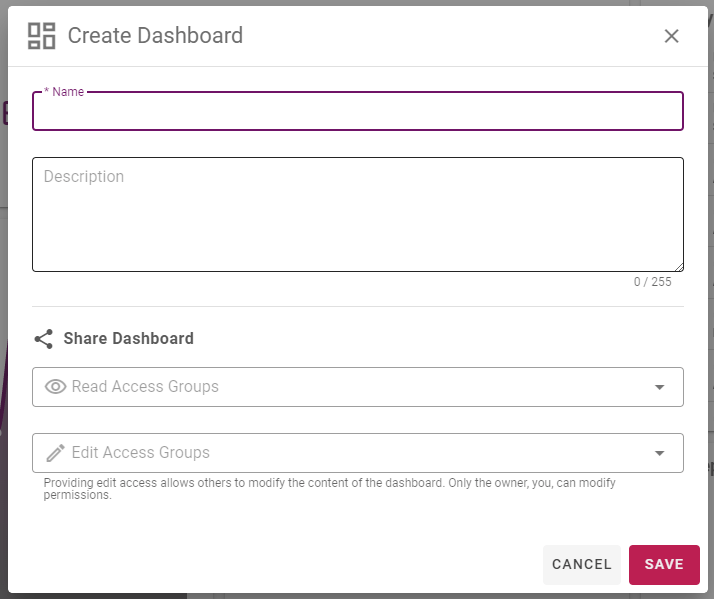
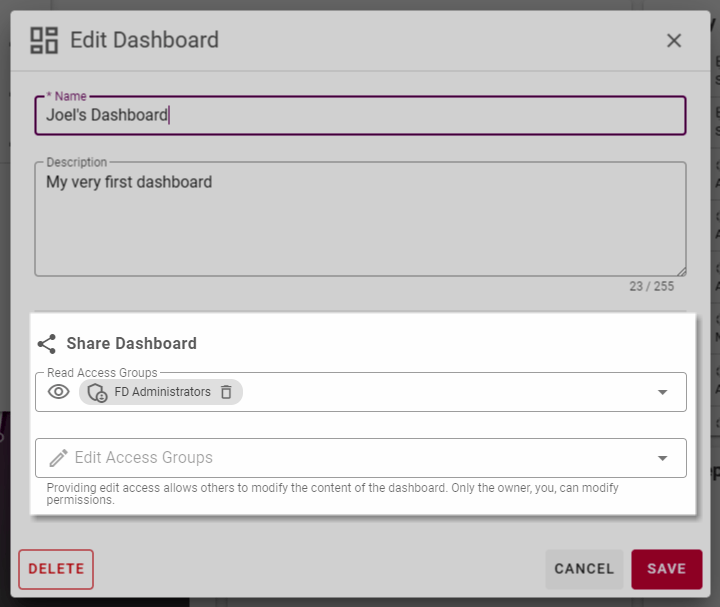
 Specify a Dashboard Name, and optionally a description and Read/Write Groups. This information can be changed later.
Sharing a Dashboard
Any Dashboard can be shared with other FlexDeploy Groups. Once shared it will show under the Shared With Me section of the Dashboard select menu.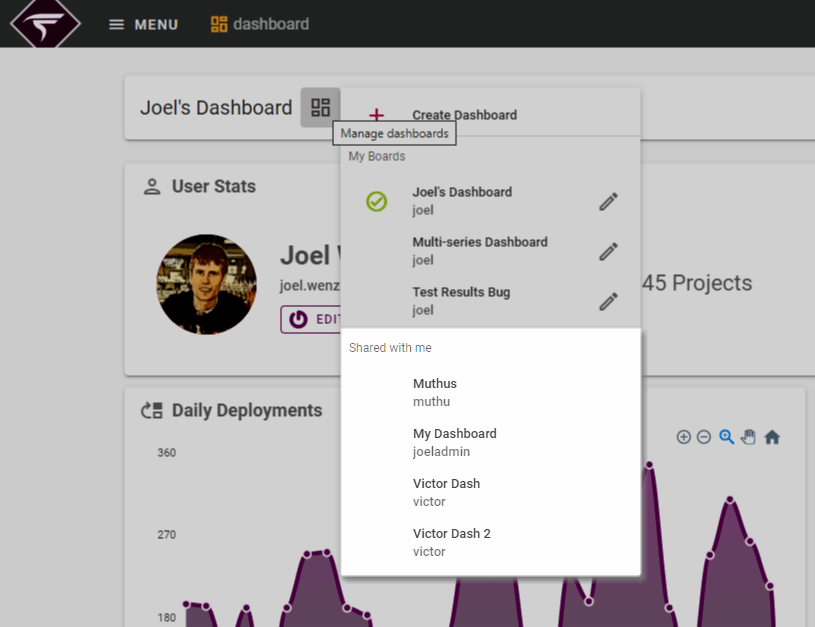 click the pencil by the Dashboard that you wish to share.
 Read Access
 allows others to view your Dashboard but they cannot modify it in any way. Write Access
 allows others to only modify the content of the Dashboard. Changing the Dashboard name, description and permissions remains solely with the owner. Add/remove groups from the Read Access and Write Access fields and click Save.
Customizing Content
To begin customizing Dashboard content, click the Customize Dashboard Icon in the header.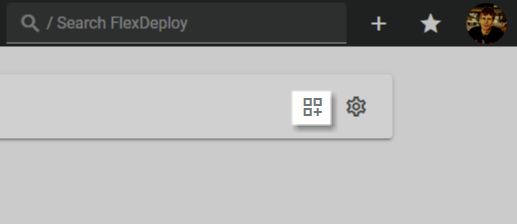
- The Dashboard Grid
- Dashboard Panels
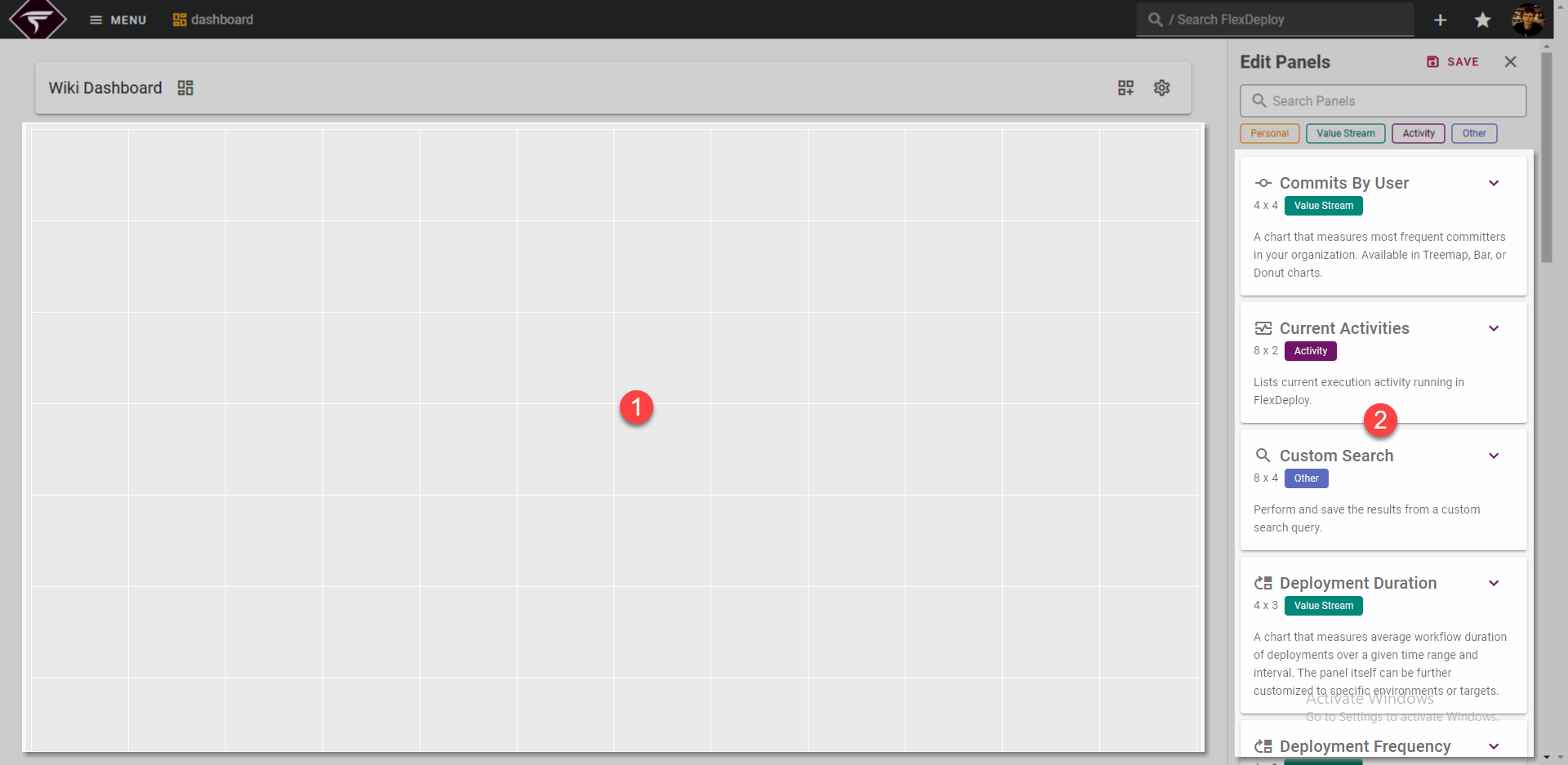
Dashboard Grid
The Dashboard Grid is a 12 column wide layout that is comprised of a potentially infinite number of Dashboard Panels. Panels can be dragged into the Grid and dropped from the right hand side Edit Panels pane.Customizing Grid Behavior
In addition to populating it with Panels, the grid itself can be customized via the Gear Icon in the dashboard toolbar.Setting | Description |
|---|---|
Squish Vertically | This will attempt to move Panels towards the top of the screen until they bump into the top of the Grid or another panel. *This change only applies while dragging new Panels into the Grid. |
Prevent Collision | When toggled on, you can’t drop a Panel onto the space another Panel occupies. When toggled off, already placed Panels will “move out of the way” to make room for the Panel being dropped. *This only applies while dragging a new Panel into the Grid. |
Show Scrollbars | When toggled on, certain panels gain scrollbars to show that you can scroll to view more content. Otherwise, the mouse scroll wheel will allow scrolling, but there is no visual cue. |
Grid Gutter | Controls the amount of white space in-between Panels. |
Changing Grid Settings
Note that changes to the Grid Settings apply globally to your view of the Grid only. For example changing Show Scrollbars to true will show scrollbars on all Dashboards for me alone.Dashboard Panels
Dashboard Panels are content sections that you can arrange and size on your Dashboard Grid. Dashboard Panels have 3 main ways to customize its appearance and content:- Panel Inputs
- Panel Title
- Panel Size
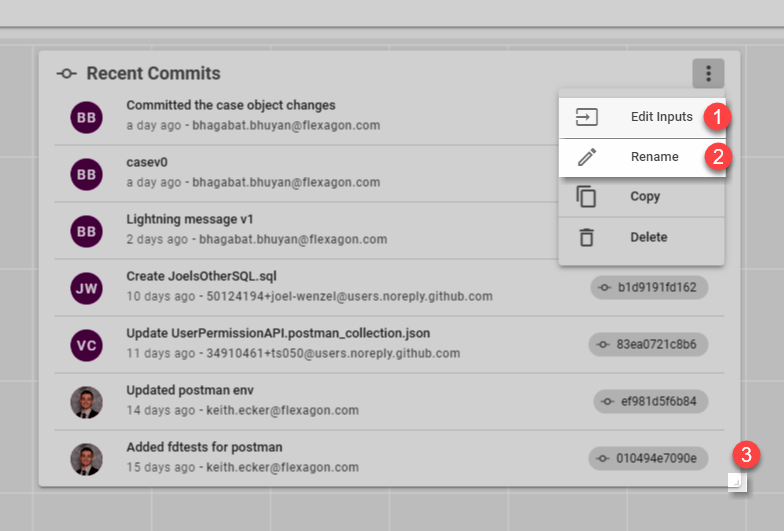
Editing Panel Inputs
A Dashboard Panel may or may not have a set of Inputs that can further customize behavior and content. To edit Panel Inputs, ensure you are in customize mode and click the Options Icon and select the Edit Inputs button.
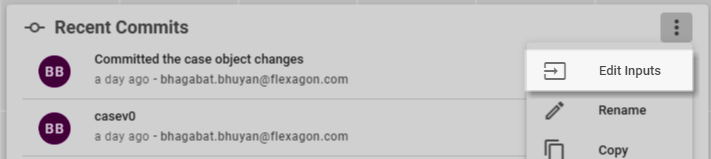 On the ensuing popup modify the Panel Inputs as desired and click Save.
For more complicated Dashboard Panel configuration check out Advanced Panel Configuration
Changing the Panel Title
Each Panel has a default title but this can be changed to more closely match the spirit of the content displayed. To change the title click the Options Icon and select the Rename button.
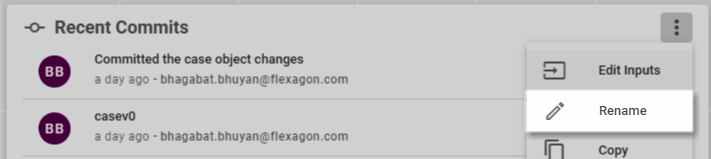 Edit the title and hit Enter or Click the Check Icon

Resizing Panels
Every Panel can be resized by entering customize mode and dragging the Corner Icon at the bottom right of the Panel.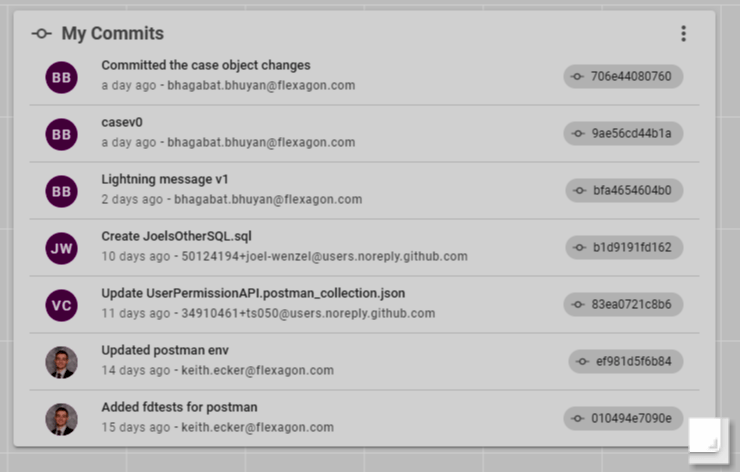
Moving a Panel
Already placed Panels can be moved while in customize mode by clicking and holding anywhere in the title region of the Panel.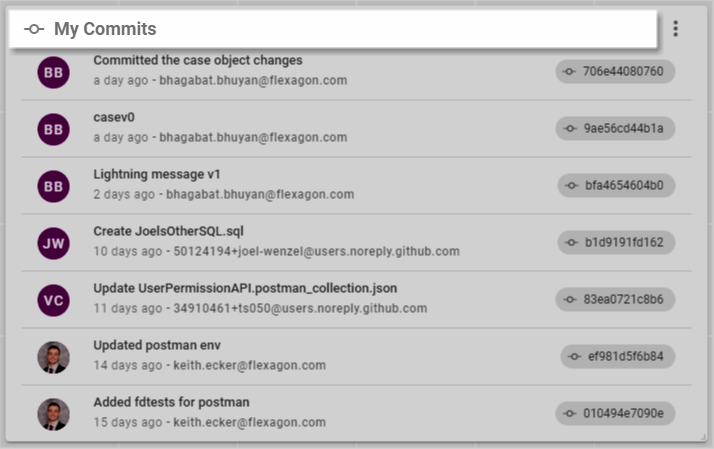
Adding a New Panel
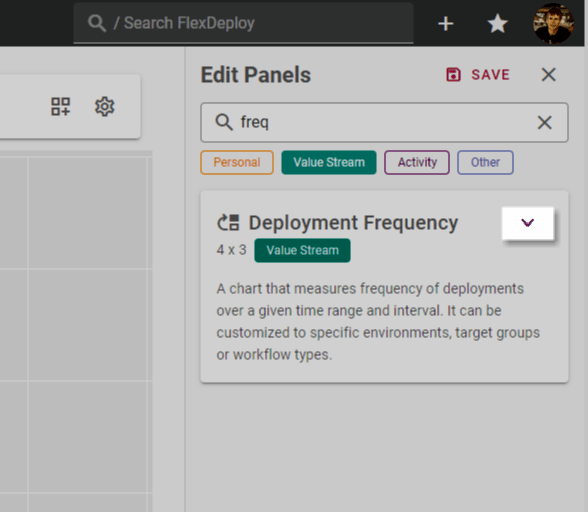
New Panels can be added to the Grid by clicking the Expand Icon on the Panel in Edit Panels pane.
 modify or fill in any inputs.
Next click and hold the drag handle and drag the Panel into the Grid.