
Value Sets are downloaded as JSON now instead of CSV if the following criteria are met:
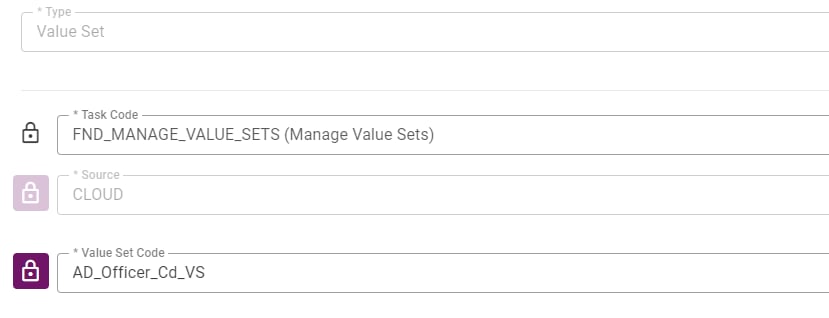
-
The
Typeis set toValue Set -
The
TaskCodeis set toFND_MANAGE_VALUE_SETS -
The
ValueSetCode AttributeValueis set to the ValueSetCode of the ValueSet that you wish to download.
Lookups are downloaded as JSON now instead of CSV if the following criteria are met:
-
The
Typeis set toLookups -
The
TaskCodecan be set to any of the following:FND_MANAGE_SET_ENABLED_LOOKUPS, FND_MANAGE_COMMON_LOOKUPS, or FND_MANAGE_STANDARD_LOOKUPS. -
The
Lookup Typeis set to the LookupType of the Lookup that you wish to download.
Target Properties
Property Name | Property Code | Required | Description |
|---|---|---|---|
Oracle SaaS FSM Account |
| No* | Oracle SaaS cloud account will be required on either the plugin input or Target. If a value is set on both then, the plugin input will take precedence. You can manage the Oracle SaaS cloud account via the Integrations > Cloud page. See Configuring Oracle SaaS Cloud Account for additional details. |
Inputs
Input Name | Input Code | Required | Description |
|---|---|---|---|
Oracle SaaS FSM Account |
| No* | Oracle SaaS FSM Account will be required on either the plugin input or Target. If a value is set on both then, the plugin input will take precedence. See Special Considerations below for instructions on how to create Oracle SaaS FSM account. |
API Timeout |
| No | Maximum amount of time (seconds) to wait for export process to complete after it is started. Defaults to 900 seconds (15 minutes). |
Stop on Error |
| No | If unchecked, the export process will continue with the remaining package files even if a failure occurs; however, the overall build will still be marked as failed. By default, this option is enabled (true), meaning the operation will stop immediately if any package file fails. If you’re using this operation to sync CSV data with SCM, unchecking the option allows successfully exported package files to be synced despite individual failures. This is available @Since 9.0.0.6. |
Save Export Result File |
| No | Saves a comparison result file to the reports directory as a JSON file. The JSON file provides a summary of the comparison process and represents the table shown in the Comparison Details section of the user interface. |
Save Export Report File |
| No | Saves a comparison report file to the reports directory as a HTML file. The HTML file provides comparison reports for each of the business objects that were processed. For each business object, a report each for Only in Configuration 1, In Both With Mismatch, and Only In Configuration 2, as applicable is provided. |
Save Export Summary Report File |
| No | Saves a comparison report file to the reports directory as a HTML file. The HTML file provides a summary of the process results, which displays a list of all the processed business objects, and whether their processing completed successfully, or with errors. |
Filter Criteria Preview Mode |
| No | When enabled no artifacts, CSV file package(s), will be generated. Instead before and after zip files will be provided in FD_REPORTS_DIR along with diff and unified diff files to validate filter criteria behavior. Make sure this is disabled at build time if you wish to deploy setup changes. Defaults to false. |
Artifacts
This operation produces artifacts that will be stored in the artifacts repository.Endpoint Selection
This operation will select all available endpoints associated to the Target.Endpoint Execution
This operation will execute on any one of the selected endpoints and will be random in the determination of which one.Special Considerations
FSM Setup Task Export Reports
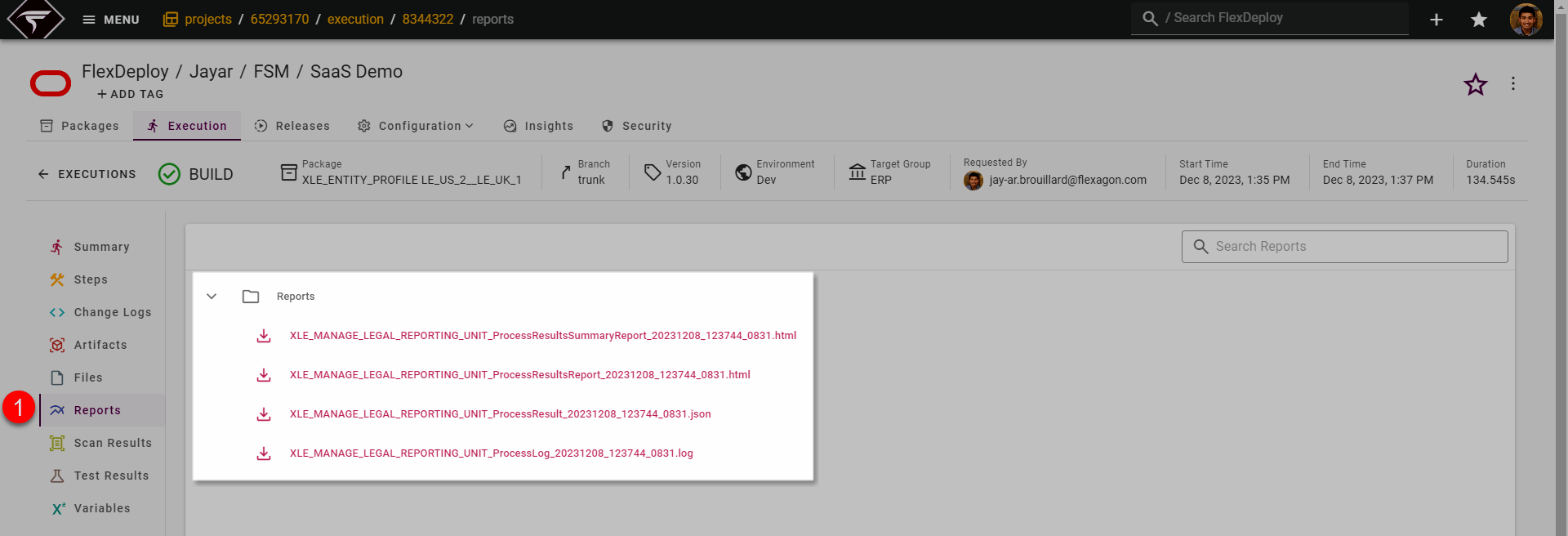
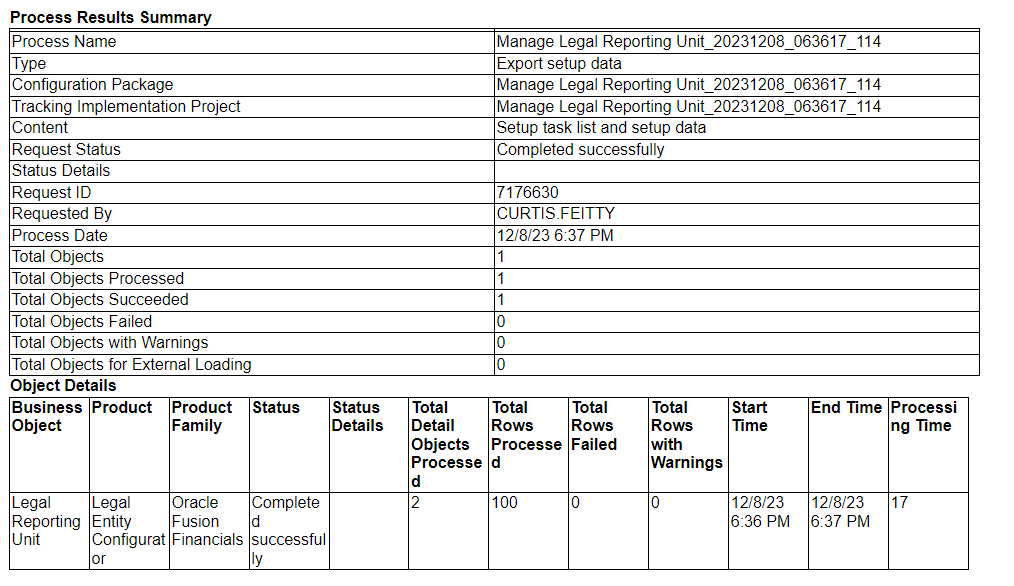
CSVExport can generate additional reports and log files which are viewable and downloadable from workflow execution → reports tab. The .log file will always be a generated report. Keep in mind, the contents of the .log file will also be outputted to the plugin log file. Additional reports that can be generated include:- <TASK_CODE>_ProcessResultsSummaryReport_<EXPORT_DATE_TIME>.html - A high level overview of the number of objects exported and the execution time
- <TASK_CODE>_ProcessResultsReport_<EXPORT_DATE_TIME>.html - A high level overview of the objects exported by business object and the execution time for each
- <TASK_CODE>_ProcessResult _<EXPORT_DATE_TIME>.json - The response body from the Export API after export has completed. This is generally not used but provided regardless.
How to find Task Code for a Setup Task?
To initiate the export or import process, Oracle endpoints requires providing a code for the task. Following these instructions to find the Task Code. We are assuming you have access to FSM resource.- Click Navigator > My Enterprise > Setup and Maintenance.
- In the Setup and Maintenance work area, click Manage Setup Content from the Tasks panel tab.
-
To search for the code of a task
- On the Manage Setup Content page, click Manage Task Lists and Tasks.
- In the Search field, select Tasks and click Search.
- In the search results, click the name of the task.
- On the Task page, look for value that appears against Code.
- Copy the code and use it where necessary