What are Target Groups?
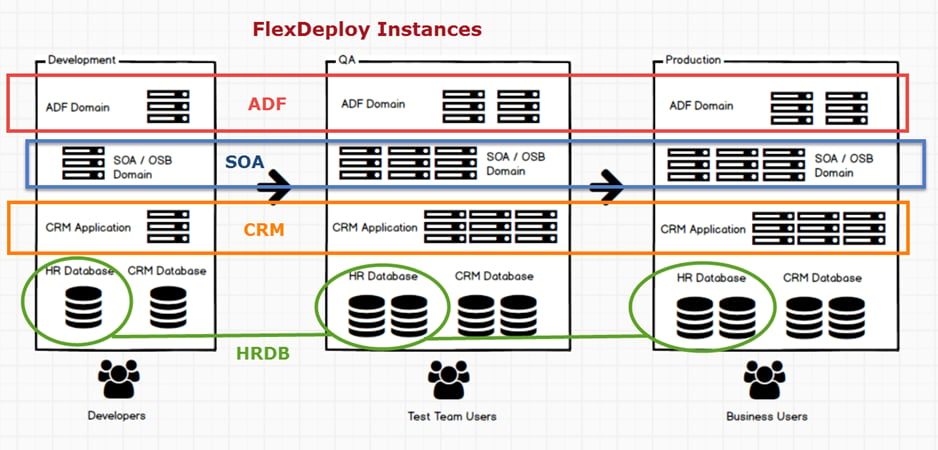
A Target Group represents a software technology running in one or more Environments, that supports builds, deployments, test, or utility executions. A Target is the combination of a Target Group and Environment. For example,- You may have an Oracle SOA Suite Instance (SOA1) for most composites, and a second Instance (SOA2) for hosting composites which contain sensitive information such as financial or HR related data. In this case, you would create two Target Groups in FlexDeploy named SOA1 and SOA2. You can define Name and Code for Target Groups.
- You may have a requirement to perform builds using multiple versions of JDeveloper, such as JDeveloper 11.1.1.9 and JDeveloper 12.2.1. In which case you can create JDEV11119 and JDEV1221 Target Groups. Then you can associate each Target Group with one or more Environments, and describe which endpoints fit in each Target.
Target Group Code | Target Group Name | Notes |
|---|---|---|
ADF11119 | ADF 11.1.1.9 | ADF runtime 11.1.1.9 installation with WebLogic 10.3.6 |
ADF1221 | ADF 12.2.1 | ADF runtime 12.2.1 installation with WebLogic 12.2.1 |
JDEV11119 | JDeveloper 11.1.1.9 | JDeveloper 11.1.1.9 installation |
JDEV1221 | JDeveloper 12.2.1 | JDeveloper 12.2.1 installation |
Target Group Code | Target Group Name | Notes |
|---|---|---|
ADF11119 | ADF 11.1.1.9 | ADF runtime 11.1.1.9 installation with WebLogic 10.3.6 |
ADF1221 | ADF 12.2.1 | ADF runtime 12.2.1 installation with WebLogic 12.2.1 |
ADFBUILD11119 | ADF Build 11.1.1.9 | JDeveloper 11.1.1.9 installation |
ADFBUILD1221 | ADF Build 12.2.1 | JDeveloper 12.2.1 installation |
Viewing Target Groups
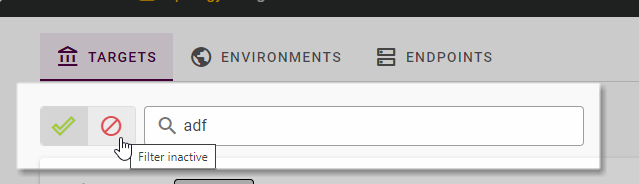
To view the list of Target Groups defined within FlexDeploy, select Topology from the menu. By default, all active Target Groups are displayed in the search results.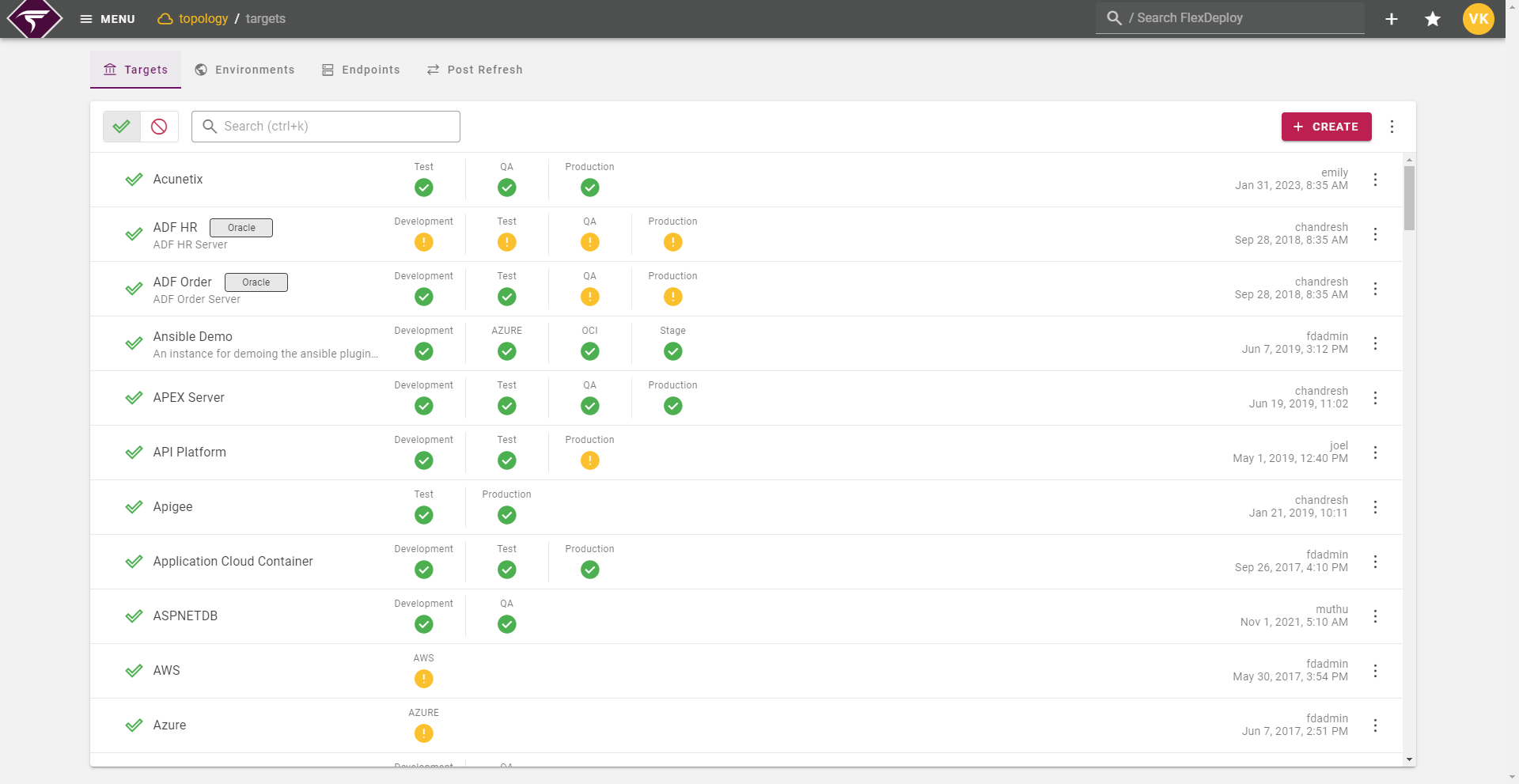
Row Fields | Description |
|---|---|
Active | Whether or not the Target Group is active in the system. |
Target Group Name | Long display name for the Target Group. |
Description | A description of the Target Group. |
Tags | FlexDeploy Tags linked to the Target Group. |
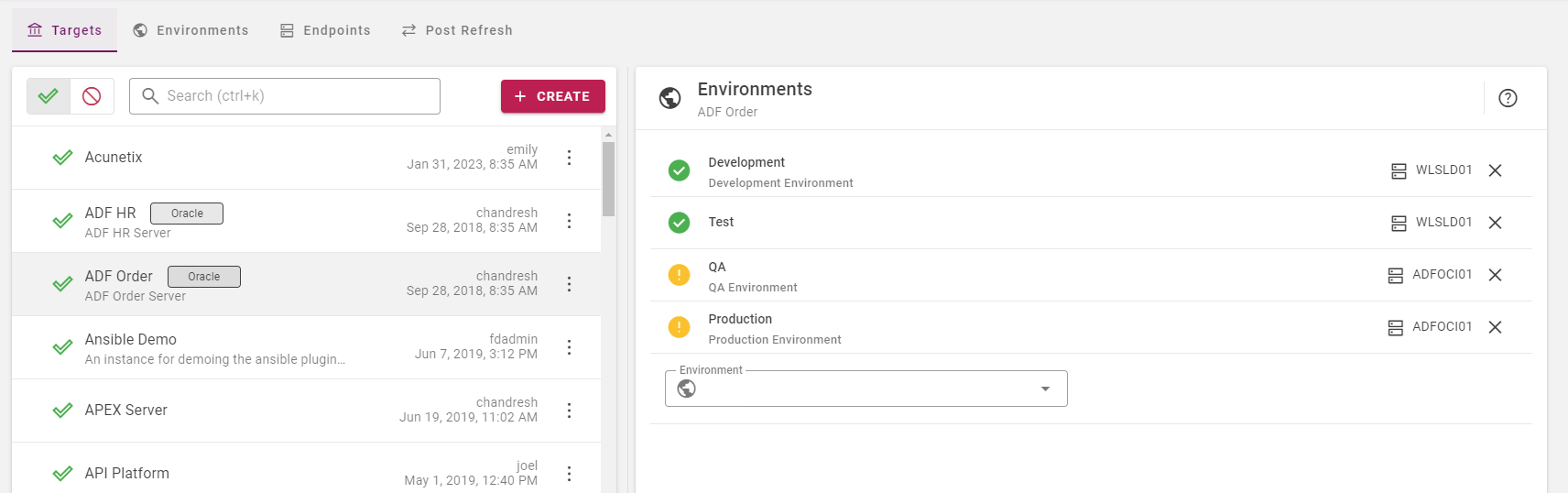
Targets @Since 8.0.0.1 | List of Environments linked to this Target Group. To view a Target’s page, click the status icon under an Environment’s name. Hovering icon will give additional details on Target’s status. For more information, view Target Endpoints and Properties Status Icons:
|
Update By and On | User that last updated this Target Group and when it was updated |
Creating and Editing Target Groups
To create a Target Group, click the :Create_Button: button in the top right. To edit a Target Group, right click a Target Group row or click on the … at the end of a row in the list, and select Edit.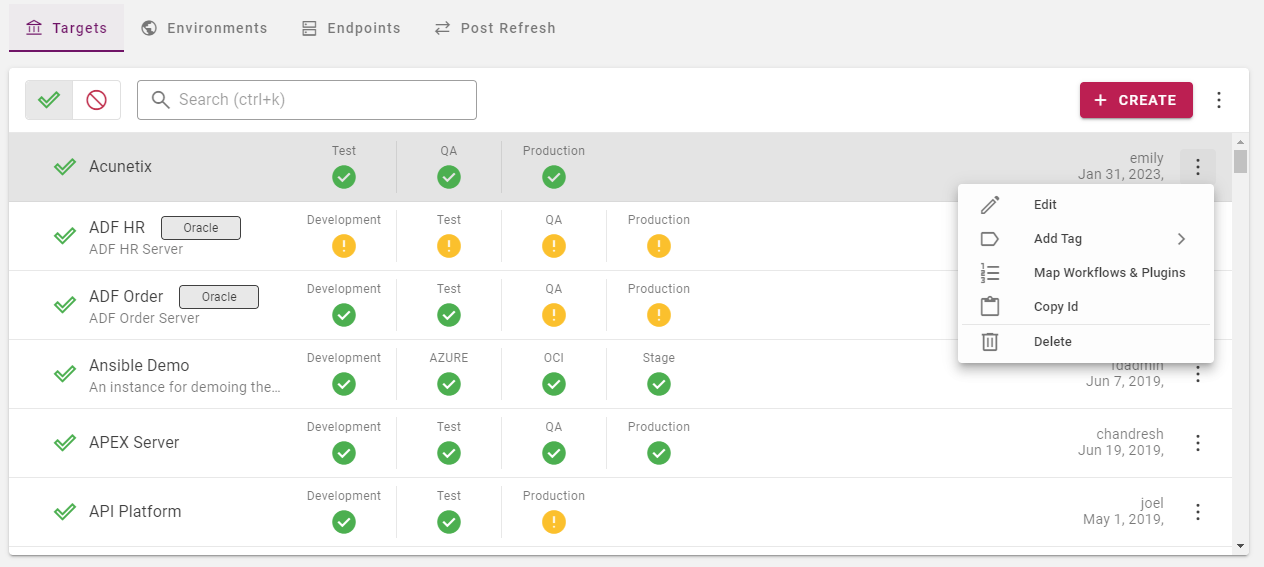
Field Name | Required | Description |
|---|---|---|
Name | Yes | Long display name for the Target Group. |
Code | Yes | Short name for the Target Group. |
Description | No | A description of the Target Group. |
Target Group Permissions | No | You can toggle a slider to override the default permissions. This allows you to give your EBS team lead group permission to modify the EBS target group, and not to any other groups if you desired. If users have write access to a both the target group and environment, then they can modify the target’s properties and endpoints. |
Active | Yes | Whether or not the Target Group is active in the system. Defaults to “Yes”. |
Target Group Properties
Before version 6.5, an additional step to associate Workflows and Plugin operations was necessary to connect available properties to targets. This is automated in version 6.5 and we don’t expect users to ever need to link them manually. If you find a need to link them manually, see Manually Assigning Target Group Workflows and Plugins. All changes on this screen take effect immediately.Target Group Tags
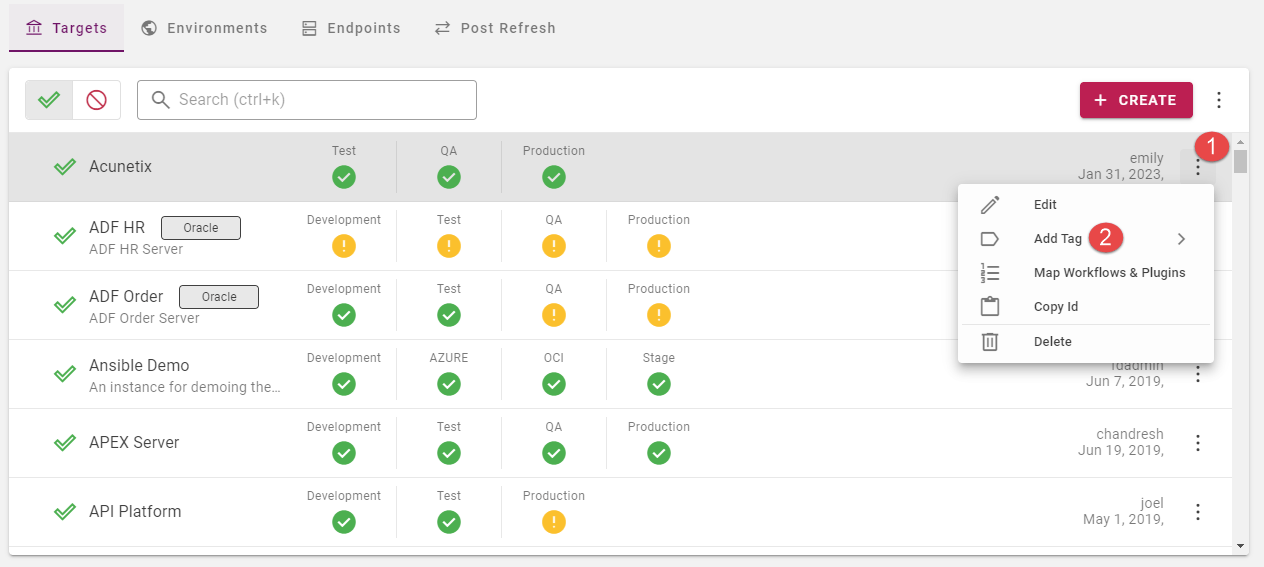
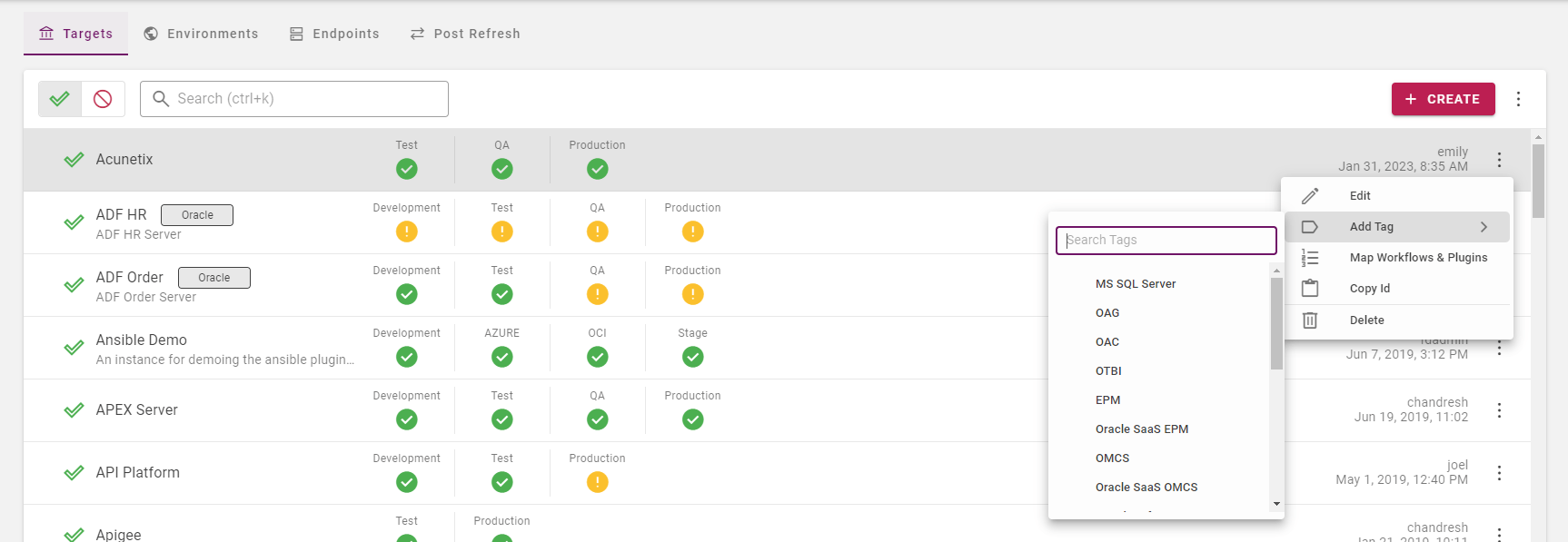
To add Tag to the Target Groups , right click on a row or click on the three dots that we are seeing on right side of the particular target group row.