
Objective
The goal of this tutorial is to execute a shell script on an AWS instance through FlexDeploy using the AWS Plugin. For this tutorial, we will be setting up an automated execution of the shell script which is present in a Git repository. The steps include:- Copying the shell script from a Git repository
- Executing the shell script
Checklist
Checklist | Description |
|---|---|
AWS Access Key | AWS Access Key ID of IAM user |
AWS Secret Key | Password for the Access Key |
AWS CLI installation | AWS CLI needs to be installed on the Target m/c where the plugin operation shall run |
AWS CLI in class path | AWS CLI should be added to the classpath in target m/c. Else the path can also be set under FlexDeploy environment level property |
AWS PowerShell | AWS PowerShell needs to be installed on Windows OS and path should be added to the classpath in target m/c. Please refer to https://docs.aws.amazon.com/powershell/latest/userguide/pstools-getting-set-up-windows.html |
Configure cloud account
First, AWS account needs to be configured under Topology. FlexDeploy will connect to the AWS cloud and execute the script- Navigate to the Integrations from the left-hand pane
- Navigate to the Cloud tab under Topology
- Navigate Create a new Cloud account of provider type “AWS” with the “+” button.
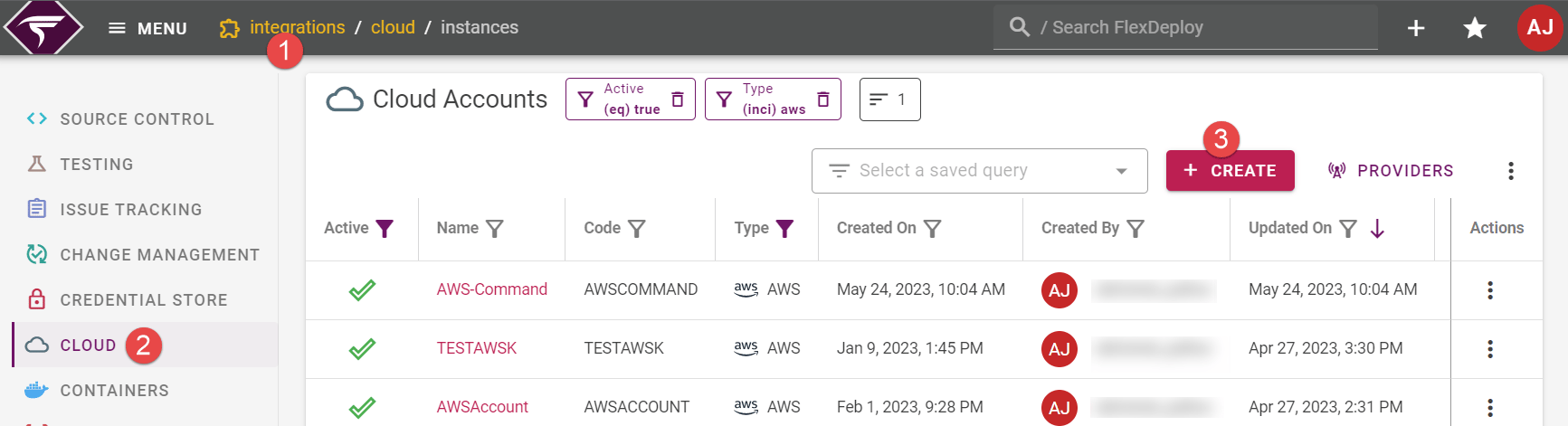
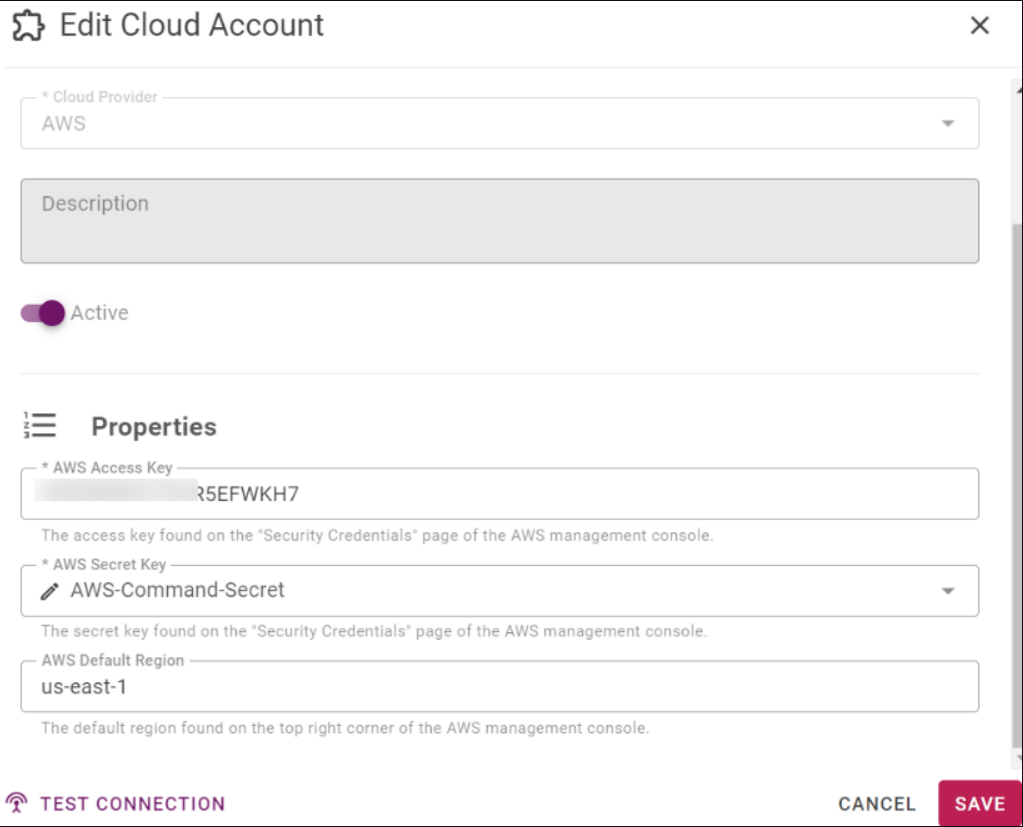
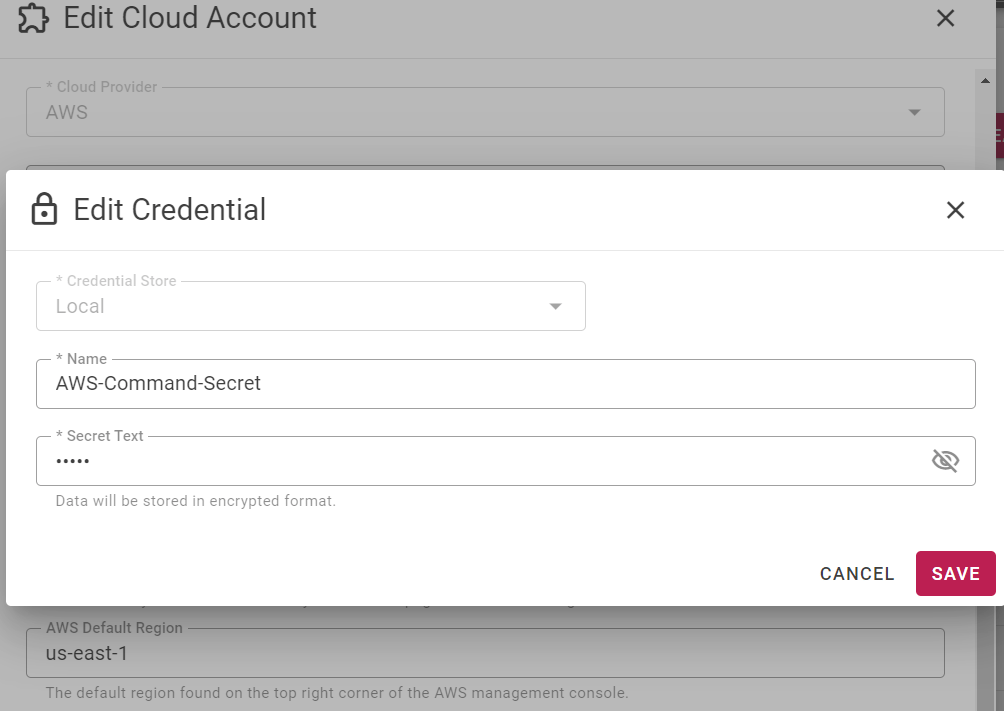
- AWS Access Key is a password field and hence needs to be kept hidden. To update the same click on the pencil icon as shown below
- next update the AWS Access Key value under Secret Text. This is to make sure no one else can retrieve the password
Git Repository Structure
The Git repository should contain shell script to execute. The Sample Git repository structure is given below: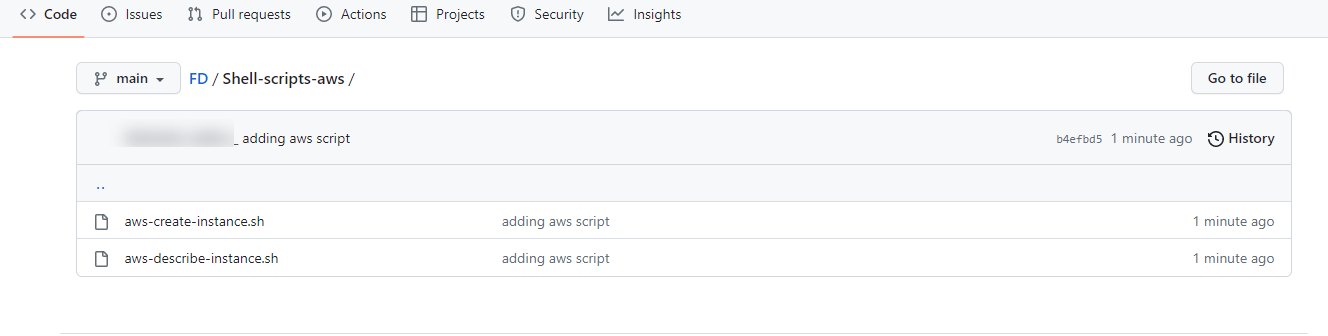
Build Workflow
Navigate to Workflows and create a workflow using the :Create_Button: button as highlighted below.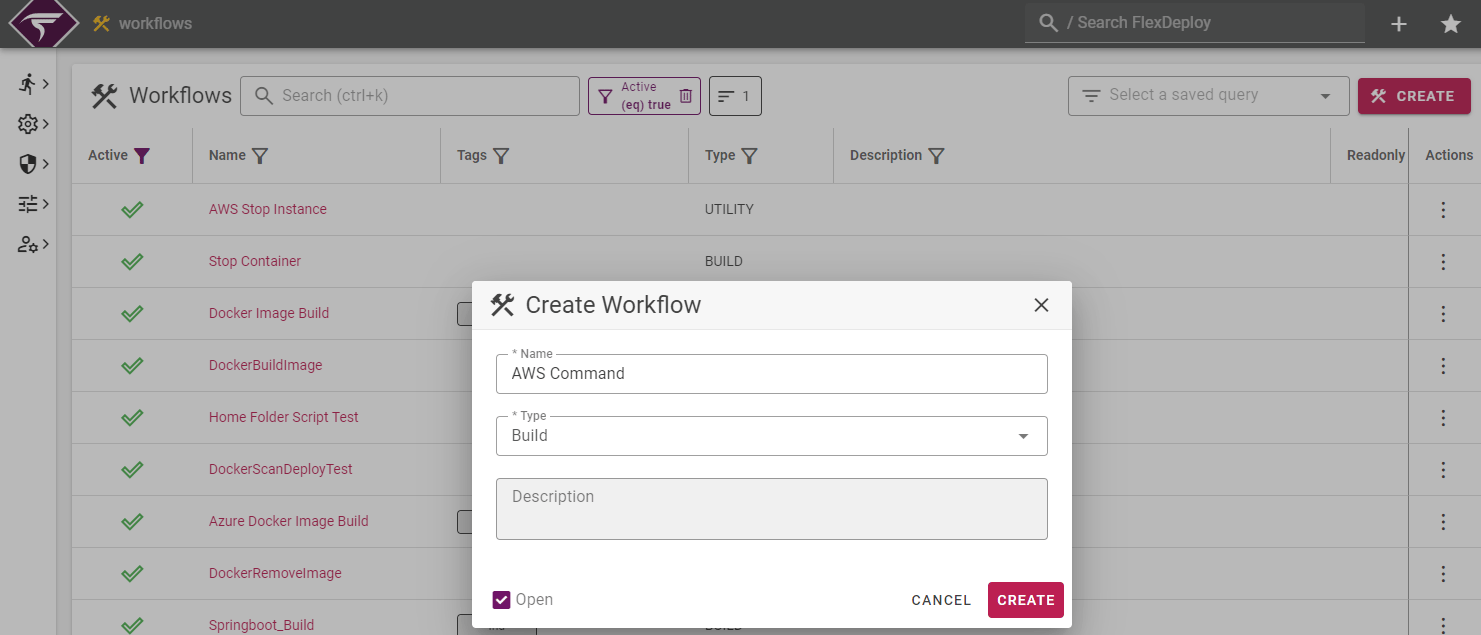
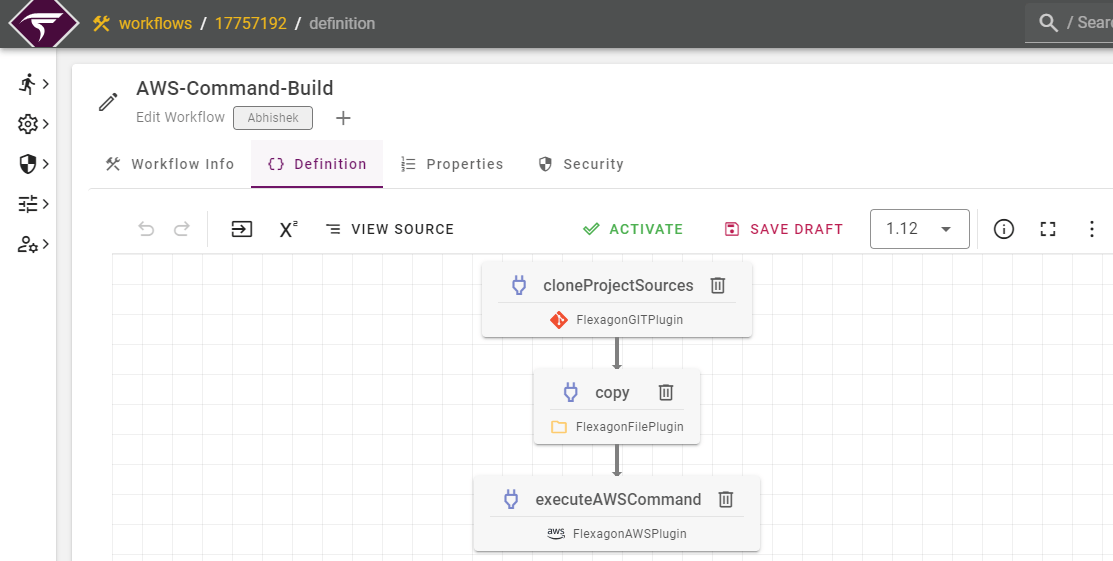
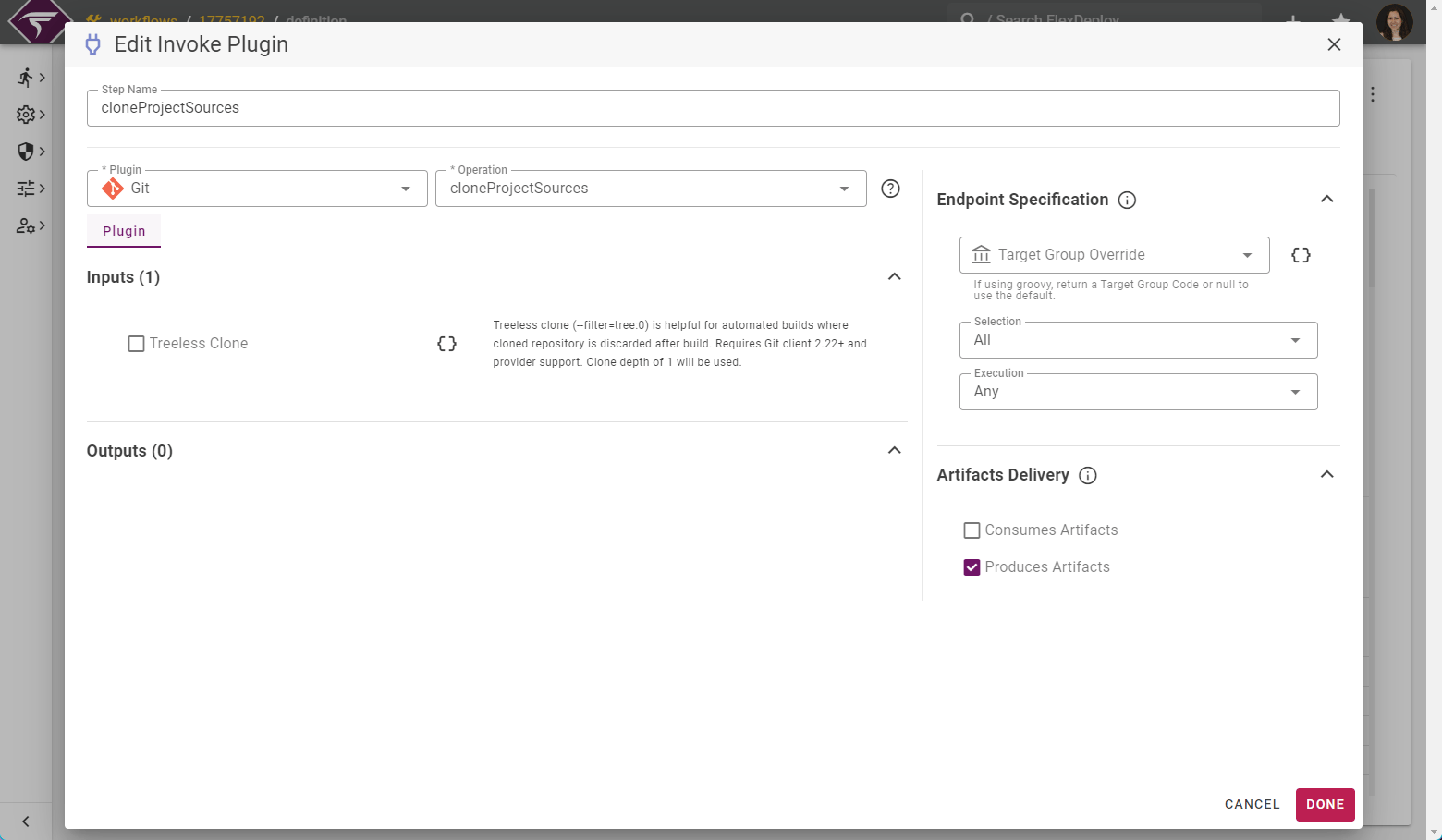
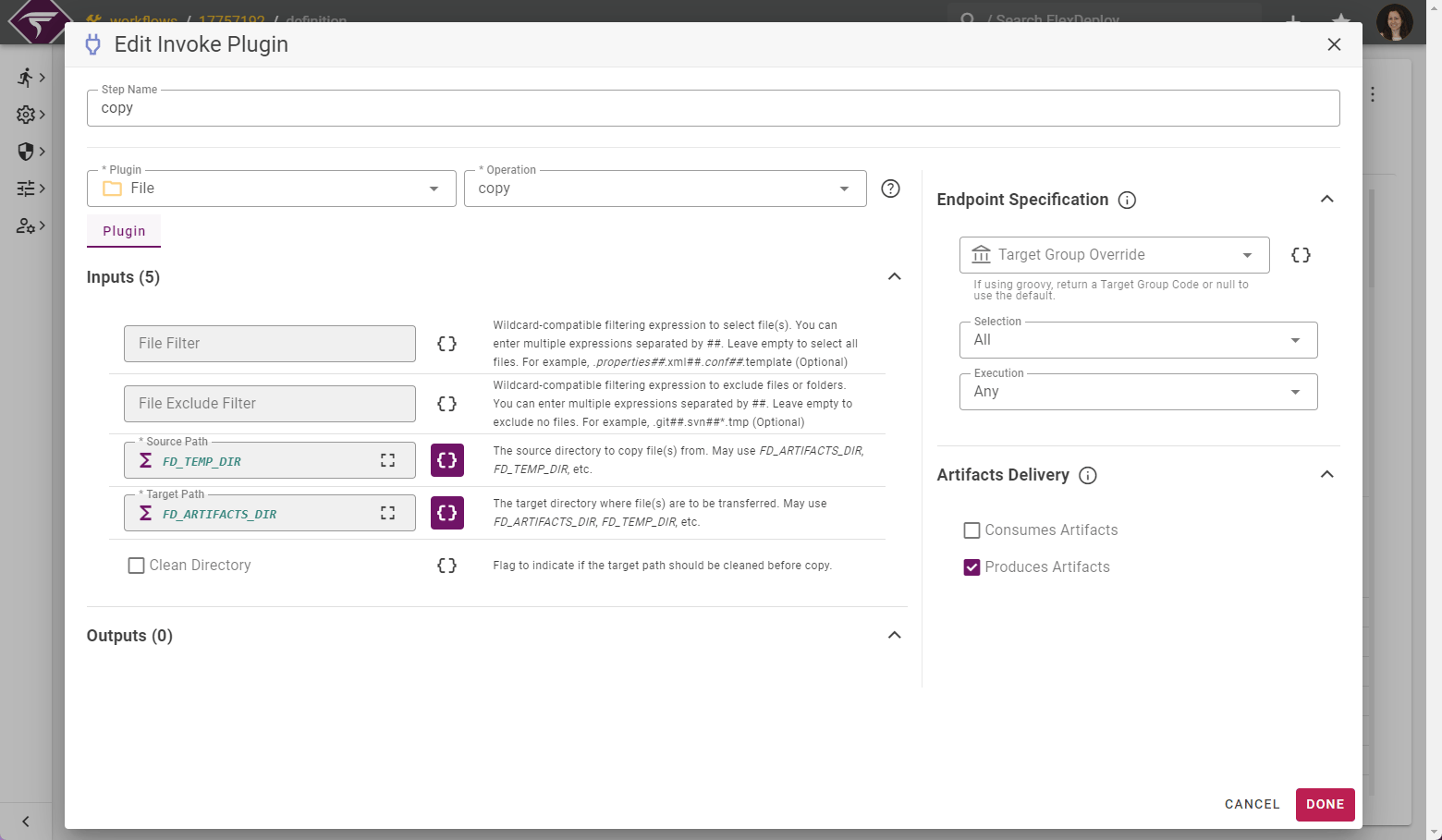
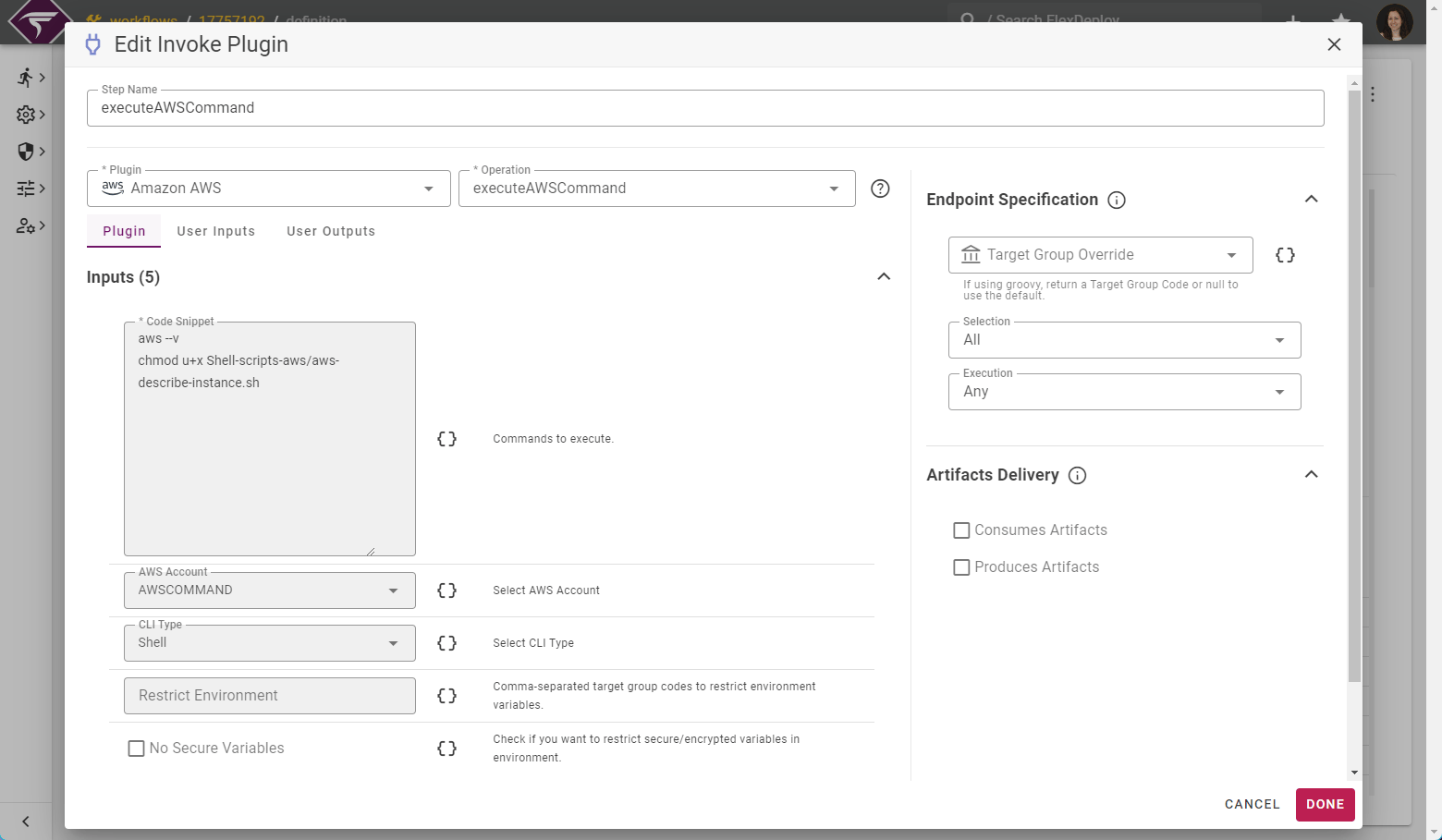
Project Configuration
Navigate to the Project tab and create a Project with a logical name(AWS-Command in this case)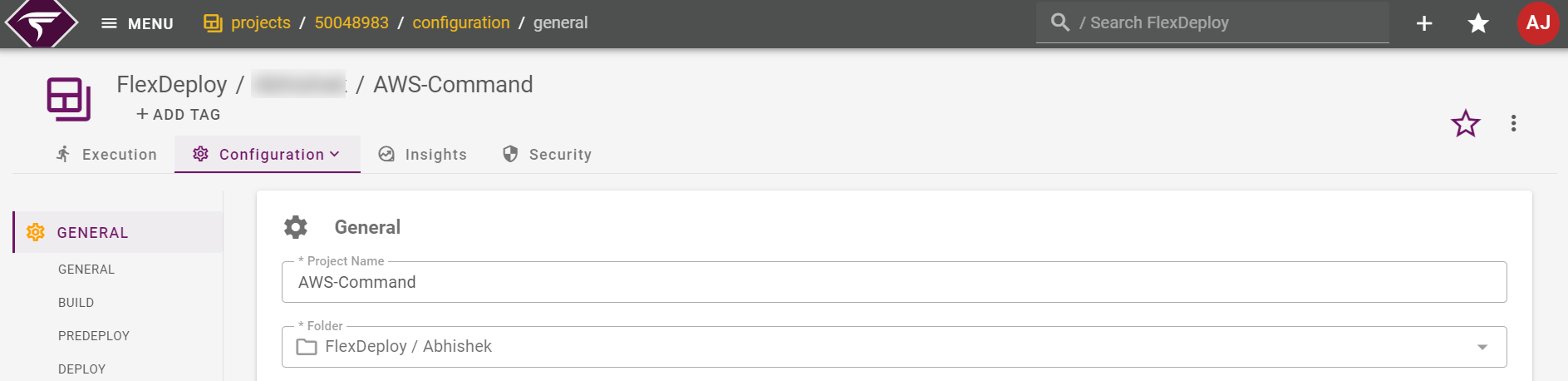
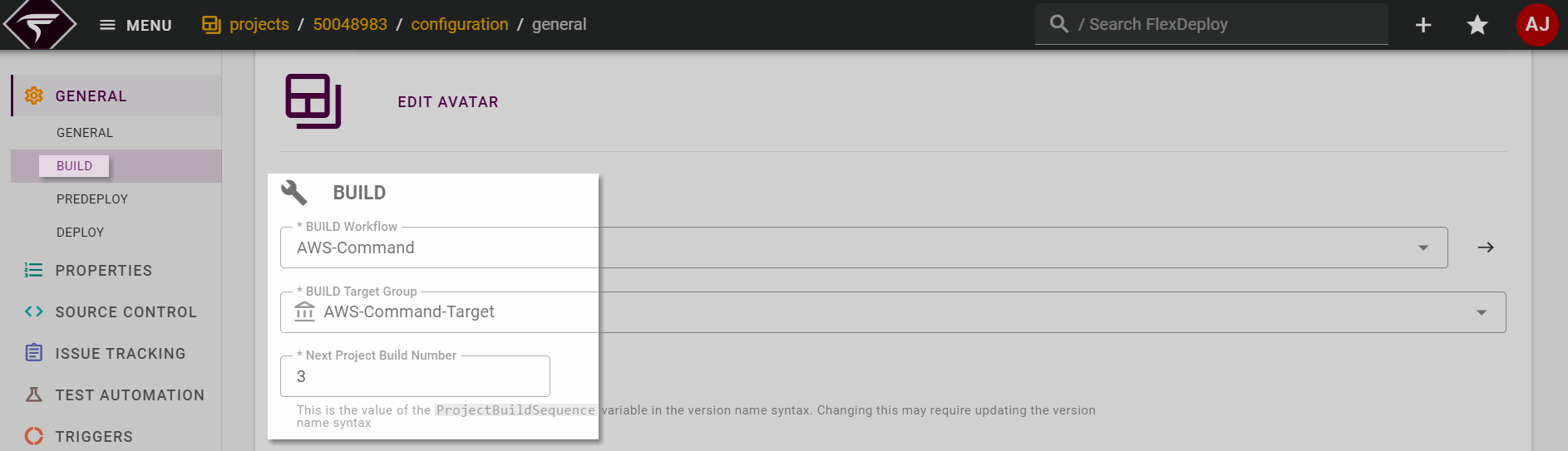
Source Control
Configure the Source SCM repository under Source Control as shown below.- To configure Project specific Source Control one first need to navigate to the Project Configuration tab.
- Next, expand the SOURCE CONTROL option from the left-hand pane.
- Select the appropriate Source Control Type
- Configure Source Repository. For detailed steps of Source Control configuration please refer to Configure Source Control in FlexDeploy
Project Properties
To configure Project specific settings one can navigate to Configuration Properties as shown below.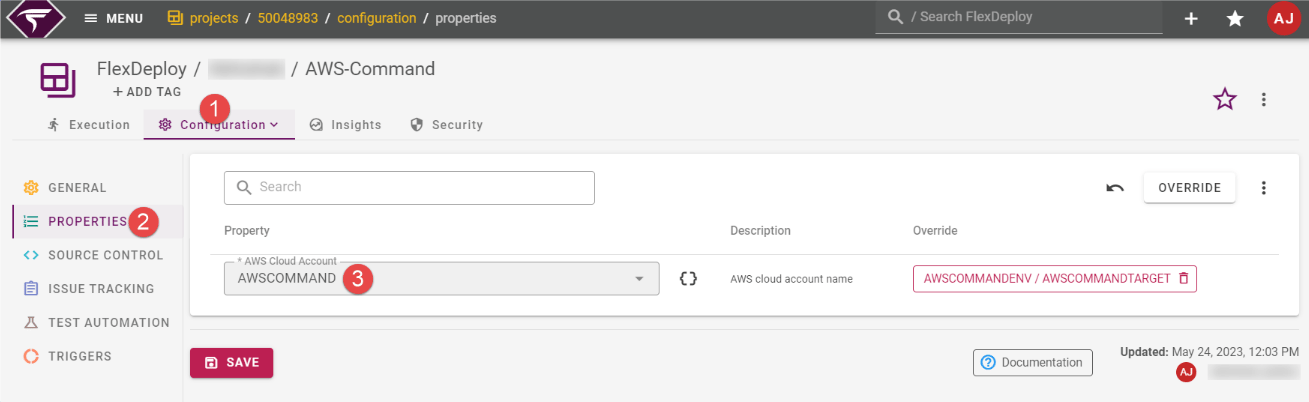
- To configure Project specific settings one can navigate to the Project Configuration tab as shown above.
- Next, select the PROPERTIES option from the left-hand pane.
- Select the target AWS Cloud Account.
Target Properties
Topology
Navigate to the Topology from the Menu. The Page with the Target Groups, Environments and Endpoints sections will be displayed. Choose a Target Group on the left. You will see a list of Environments on the right with colored circles representing each Target.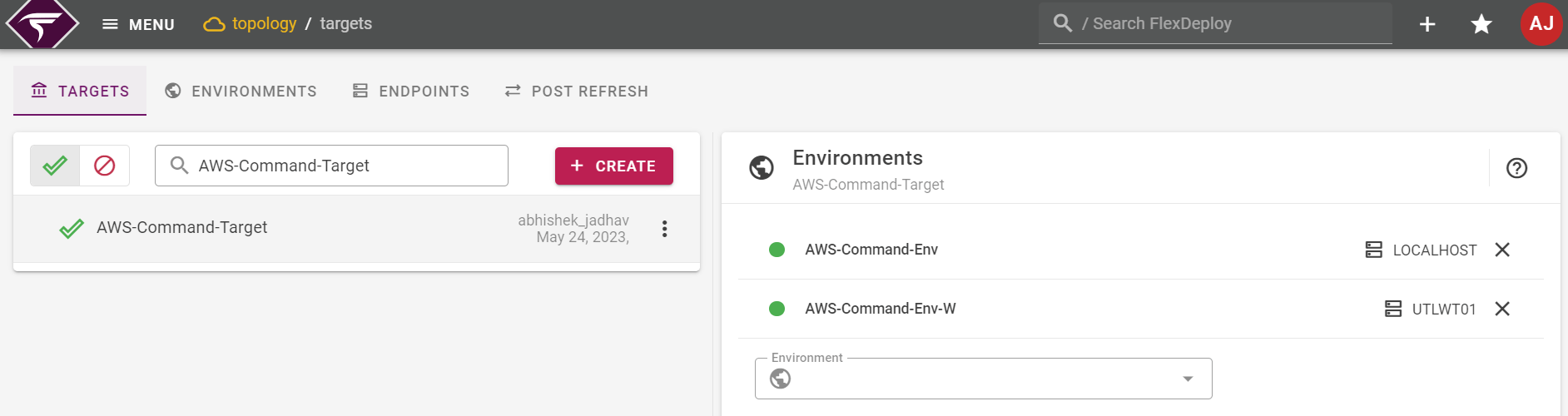
Properties | Mandatory field | Description |
AWS ACCOUNT | Optional | AWS cloud account name |
AWS CLI | Optional | Directory Where AWS CLI is installed |
GIT Path | Optional | Path to the Git executable. Required only if git is not on PATH. |