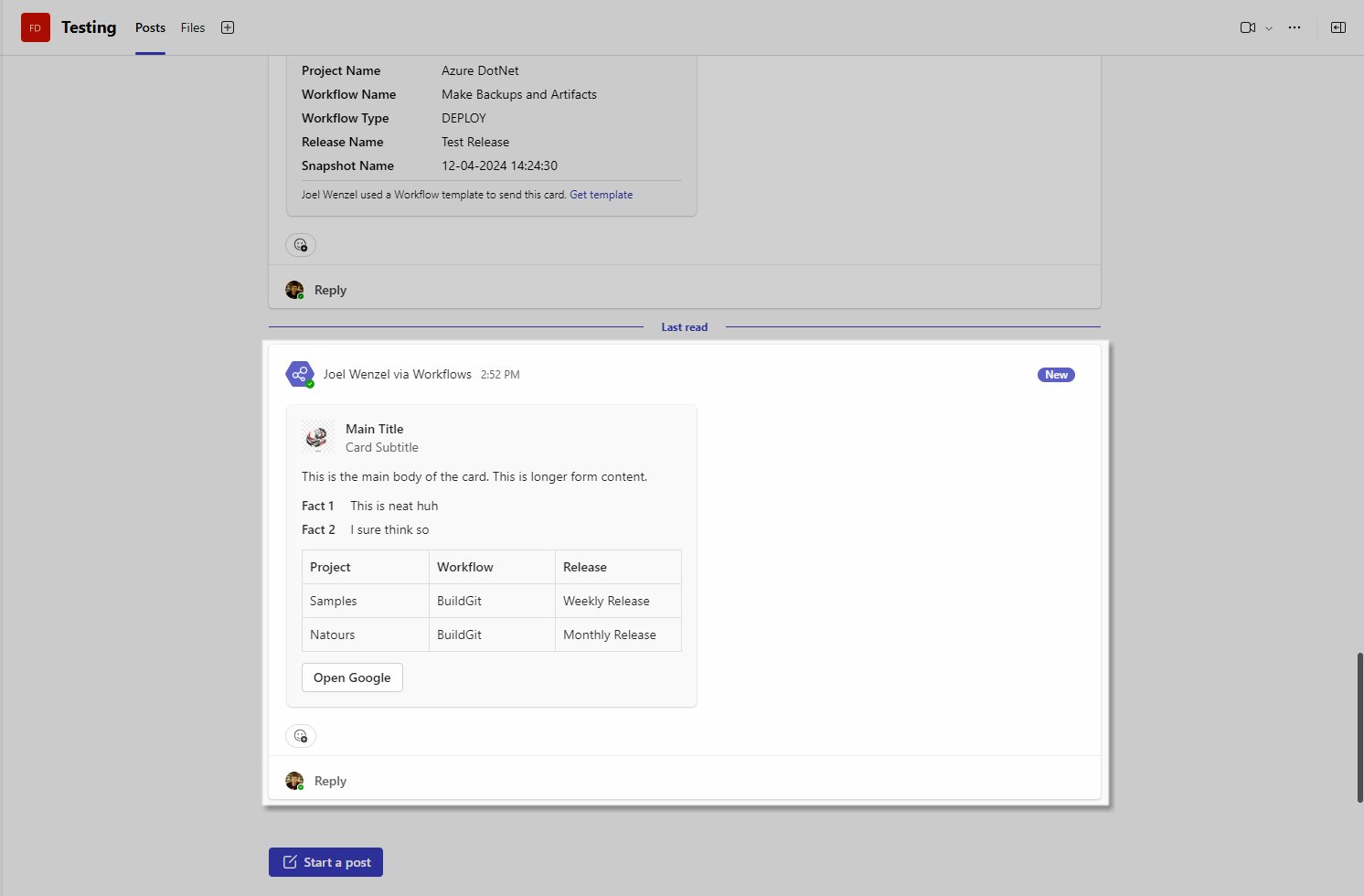
Microsoft 365 Connector RetirementWith the retirement of Office 365 connectors in Teams, the only supported approach of sending messages in Microsoft teams in through Microsoft Teams Workflows.The following page will cover how to configure FlexDeploy @since 9.0.0.1 to leverage Teams Workflows to send messages.
Adding a Workflow in Teams to receive a webhook message
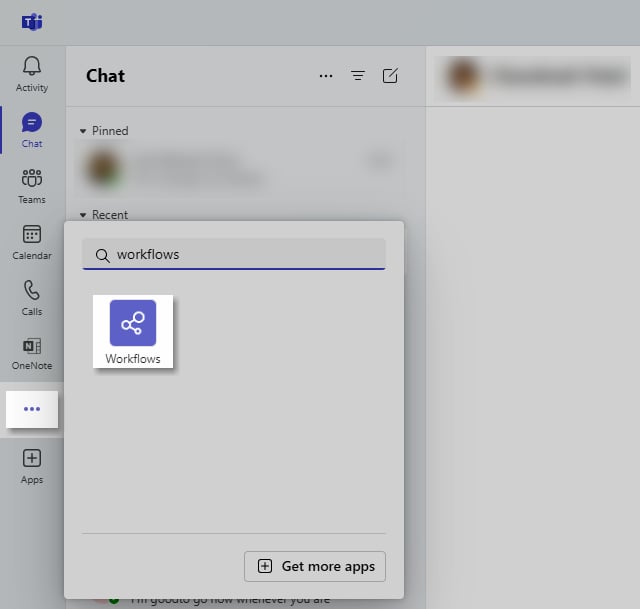
- You will need to add a Workflow in Teams by clicking the three dot menu and selecting the Workflows application.
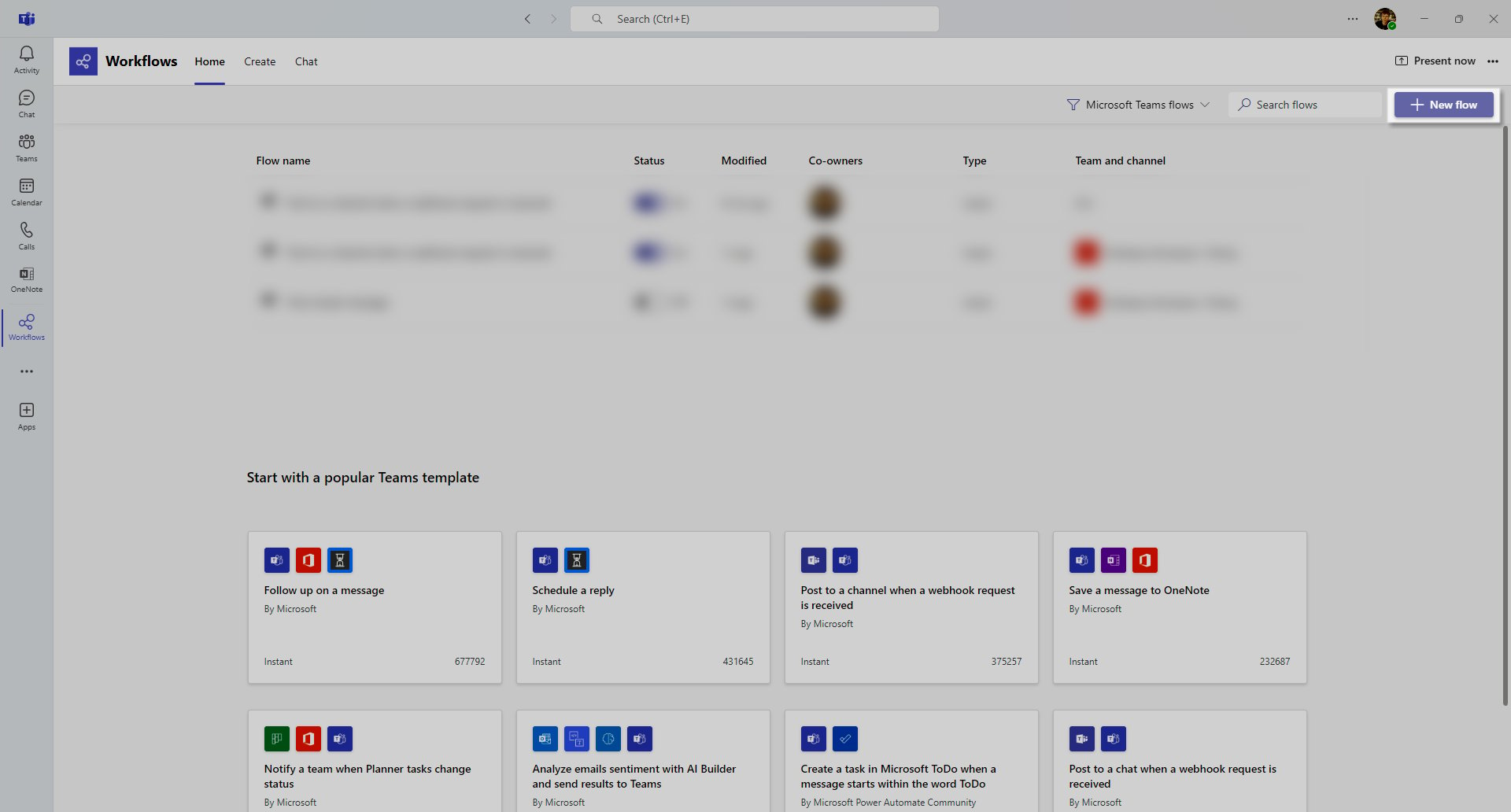
- Once viewing the Workflows page, click the
 New Flow button on the top right.
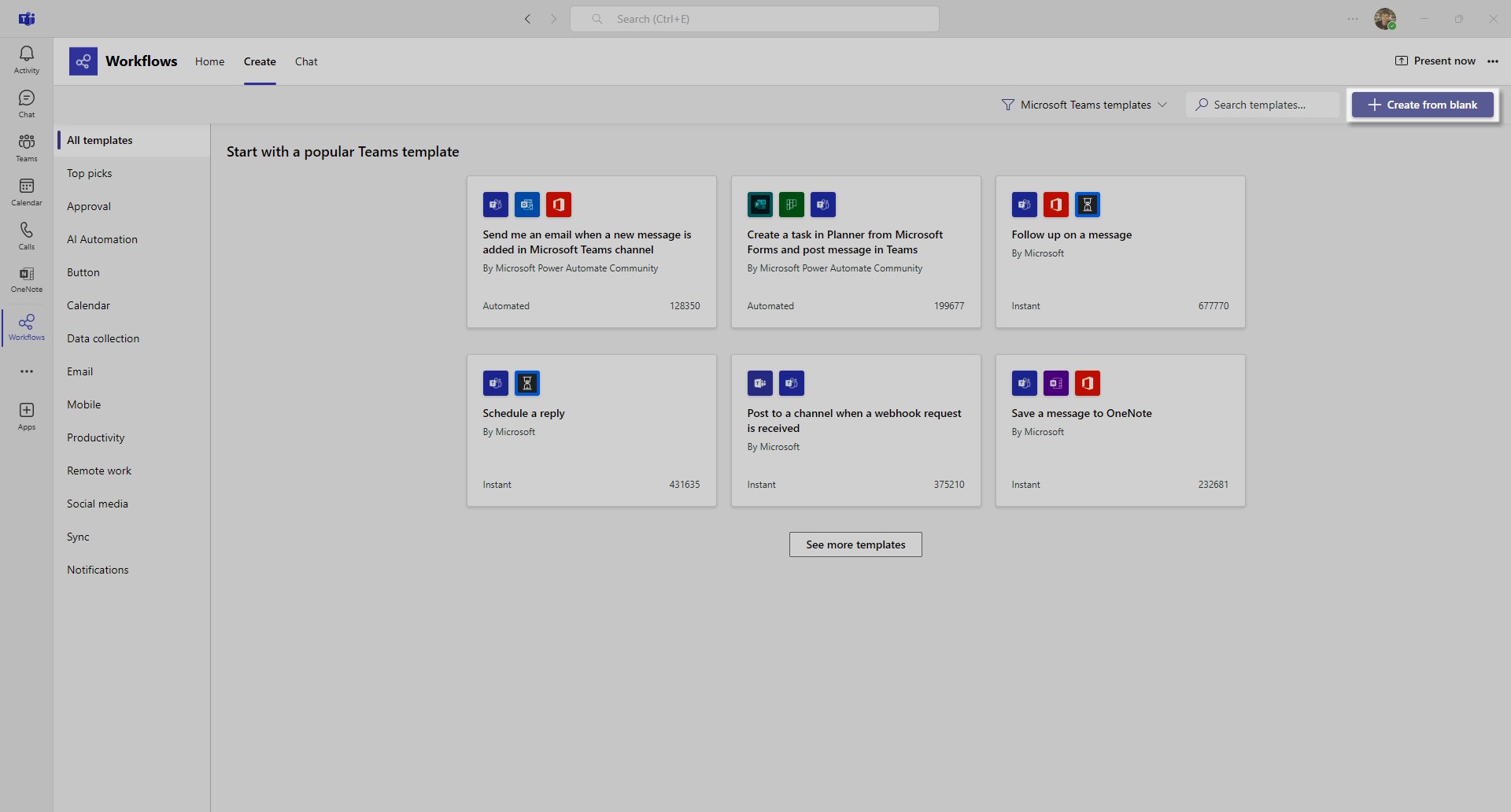
- You can optionally select a template but for this walkthrough just click the Create from blank button.
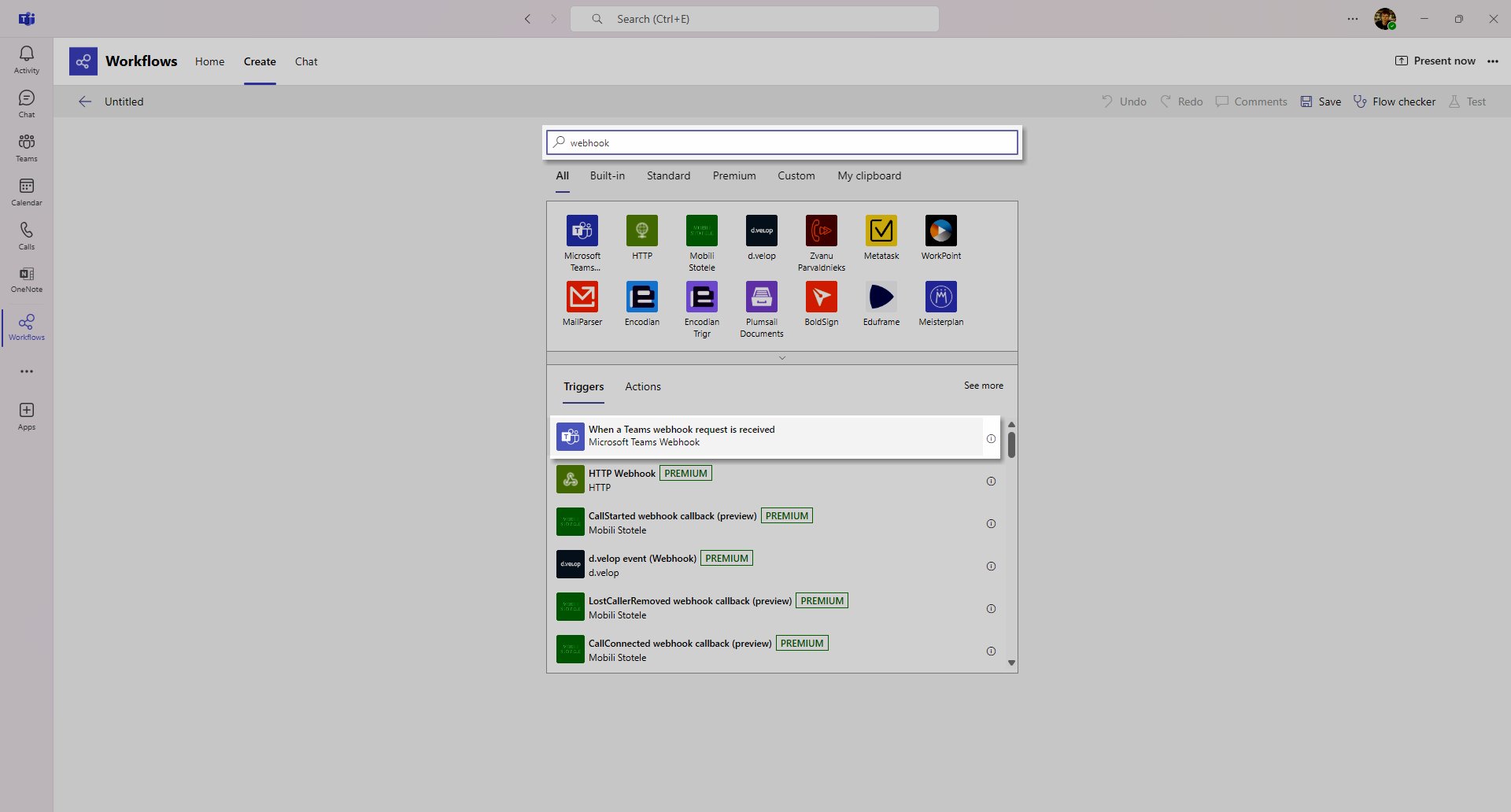
- The first step should be When a Teams webhook request is received
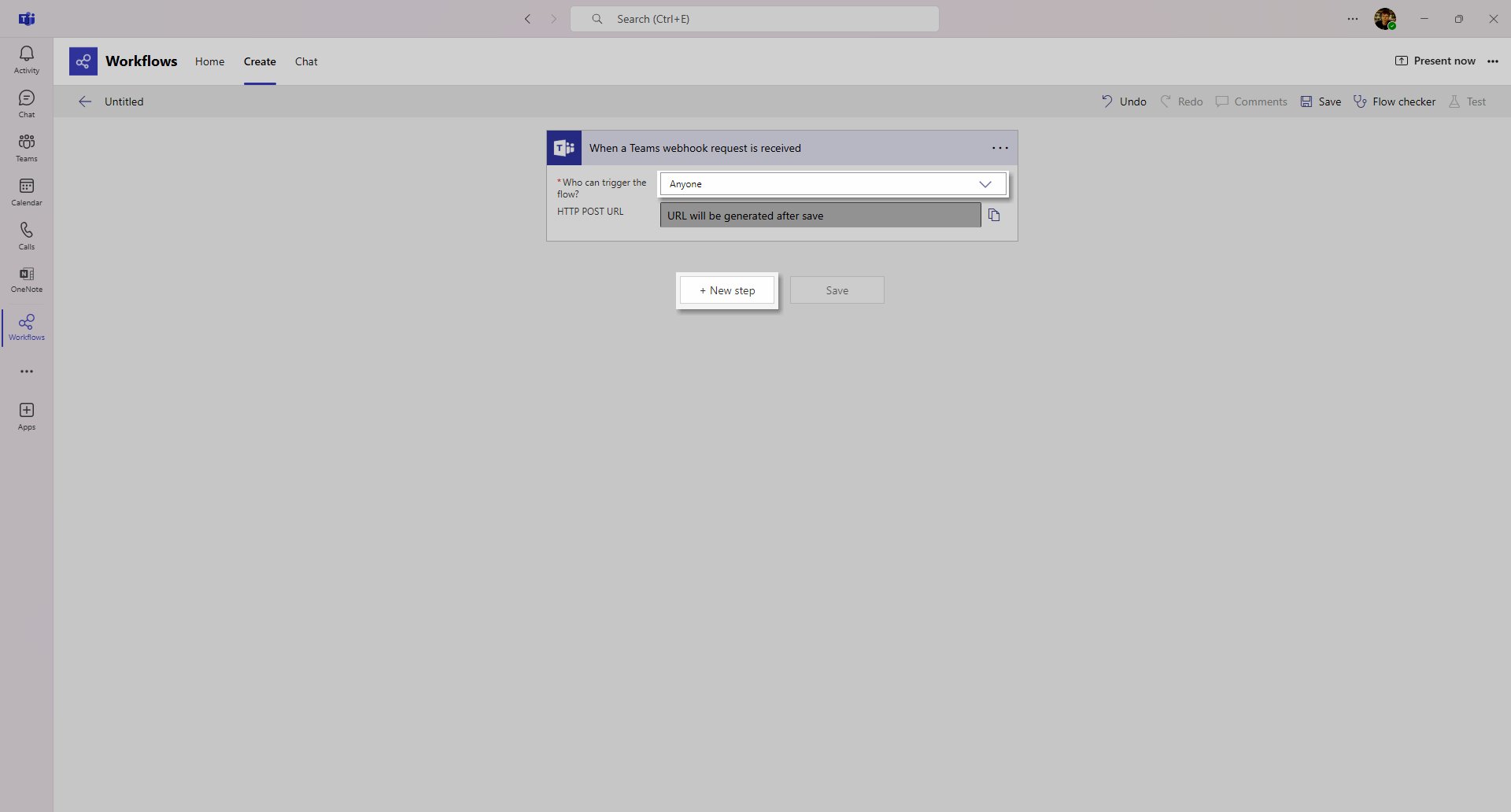
- Select Anyone for “Who can trigger the flow?” and click on the New Step button.
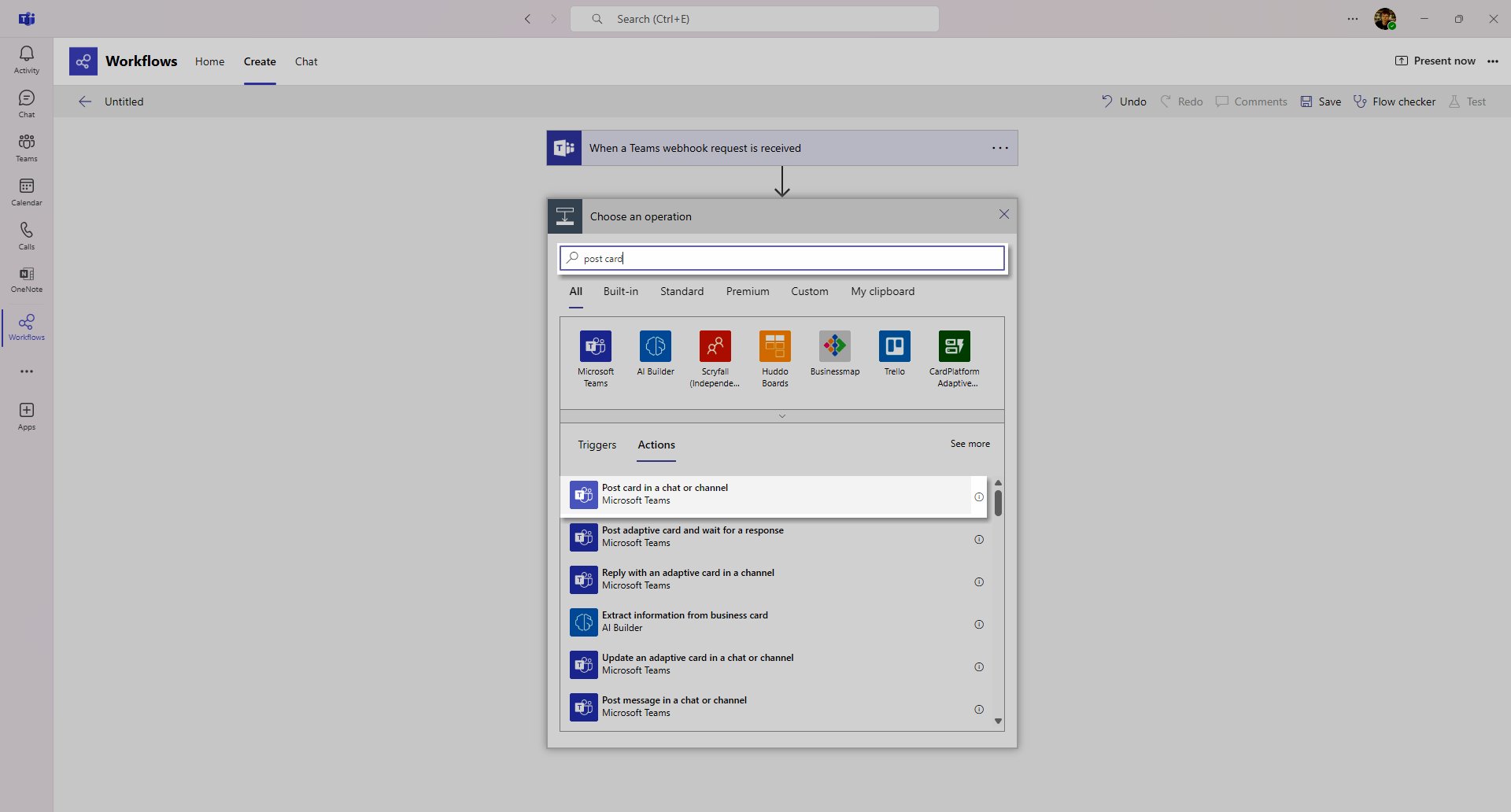
- The second and final step should be Post card in a chat or channel.
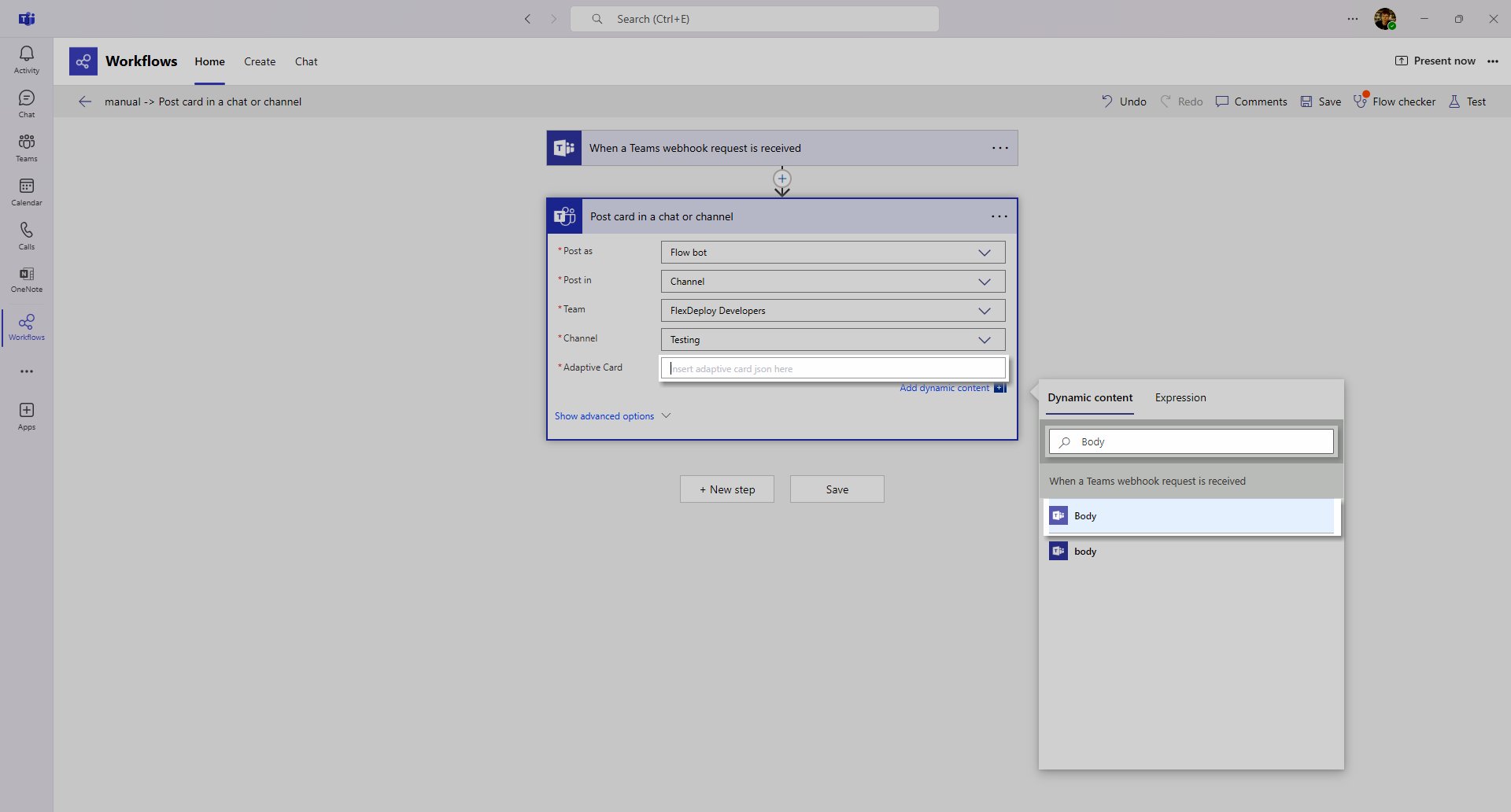
- Specify which Team, Channel, or Group Chat you want to post the message to. Finally select Body as the Adaptive Card content. Body represents the entire input payload that will be sent to the webhook.
If you do not see Body as an available option, then try saving your workflow, closing it, and re-editing it.
- Save your Workflow and re-open the first step so you can copy the webhook URL.
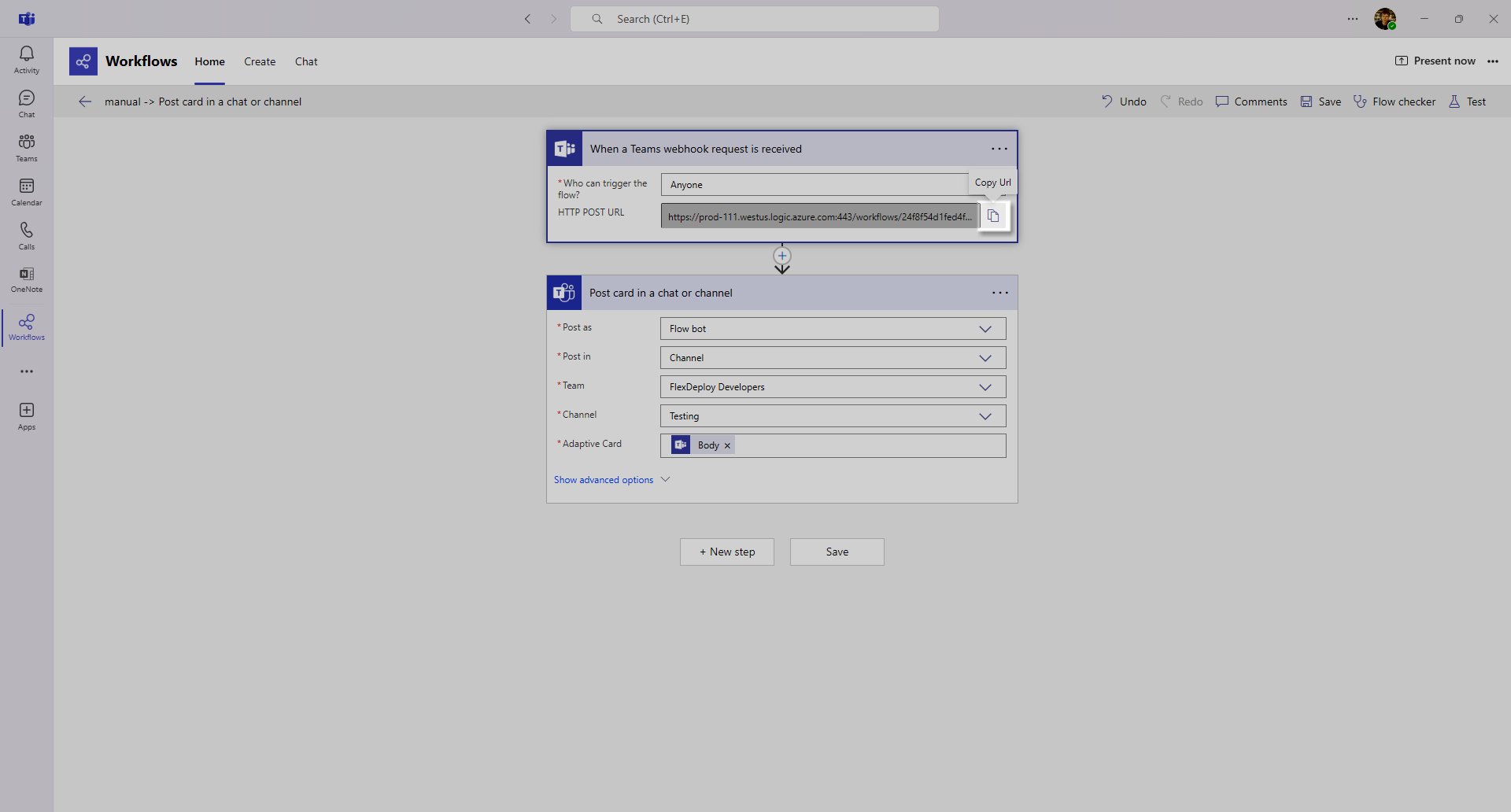
Using the Webhook URL from the Teams Workflow
The Webhook URL copied from the Teams Workflow is what will be used when configuring Plugin Operations and using ourMICROSOFTTEAMS groovy helper.
Posting Messages with MICROSOFTTEAMS helper
The following script creates and posts a message that leverages most of the card features supported by ourMicrosoftTeamsMessageCard helper class.