
Note that sending teams messages will require the configured user to have a valid O365 license.
Teams Messaging Accounts
This plugin uses a Teams Messaging Account which contains all relevant credentials to connect to the Teams workspace. Navigate to Topology->Integrations->Messaging and create a new Account with the Provider set to MicrosoftTeams.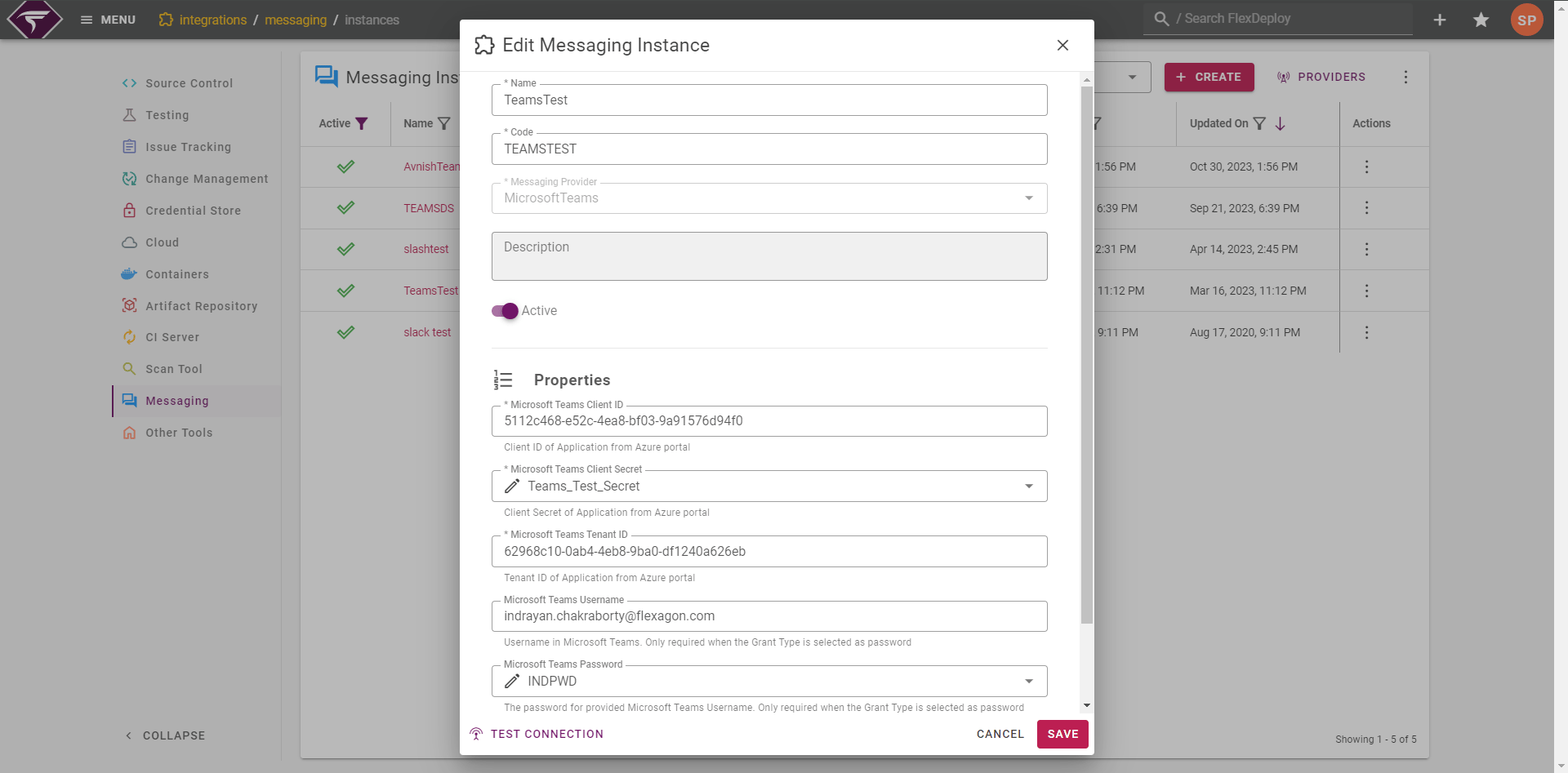
Create an Application in the Azure portal
You must create an application in the Azure portal so the Microsoft identity platform can provide authentication and authorization services for your application. Follow these steps to create the app registration:- Sign in to the Azure portal
- If you have access to multiple tenants, use the directory + subscription filter in the top menu to select the tenant in which you want to register an application.
- Search for and select Azure active directory.
-
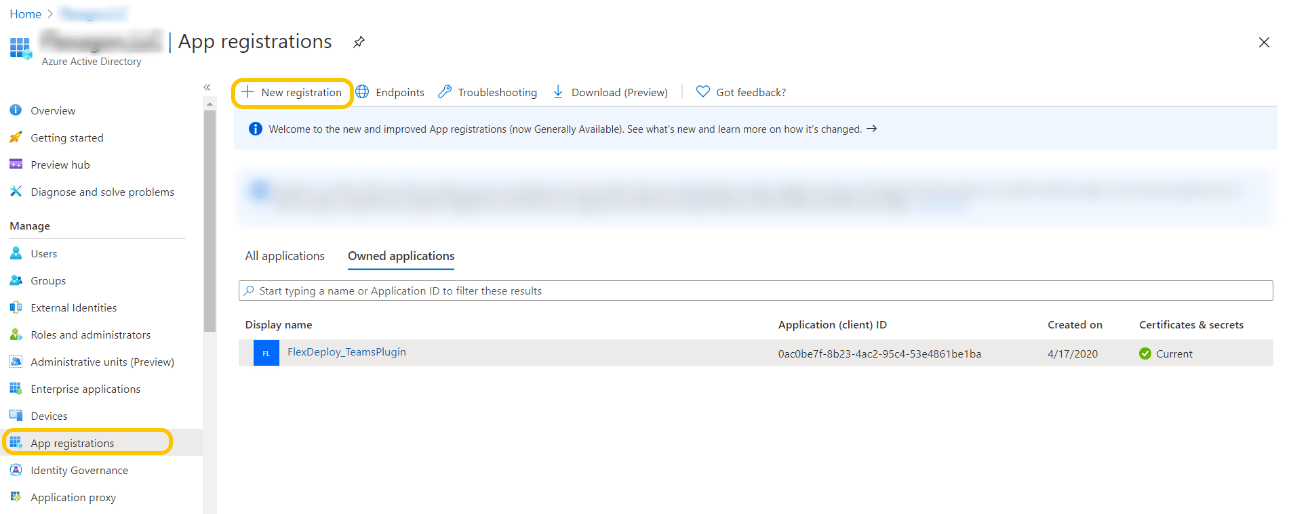
Under Manage, select app registrations, then new registration.
-
Enter a Name for your application and specify who can use the application.
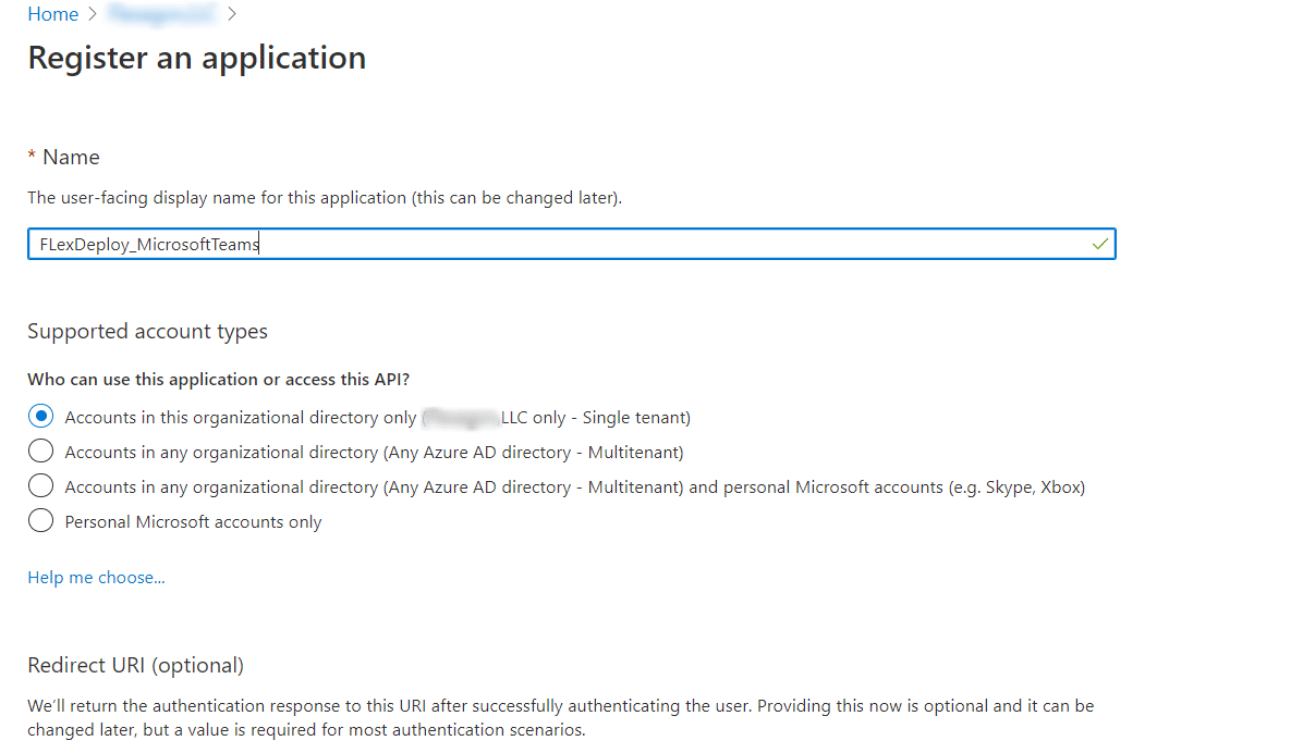
- Select register to complete the initial app registration.
-
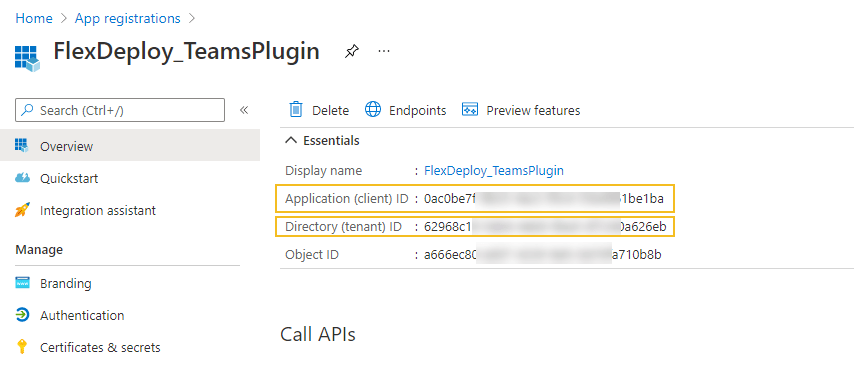
Open application capture application (client) ID and directory (tenant) ID from app registration.
-
Create a new client secret and capture client secret.
Record the secret’s value for use in your client application code - it’s never displayed again after you leave this page.
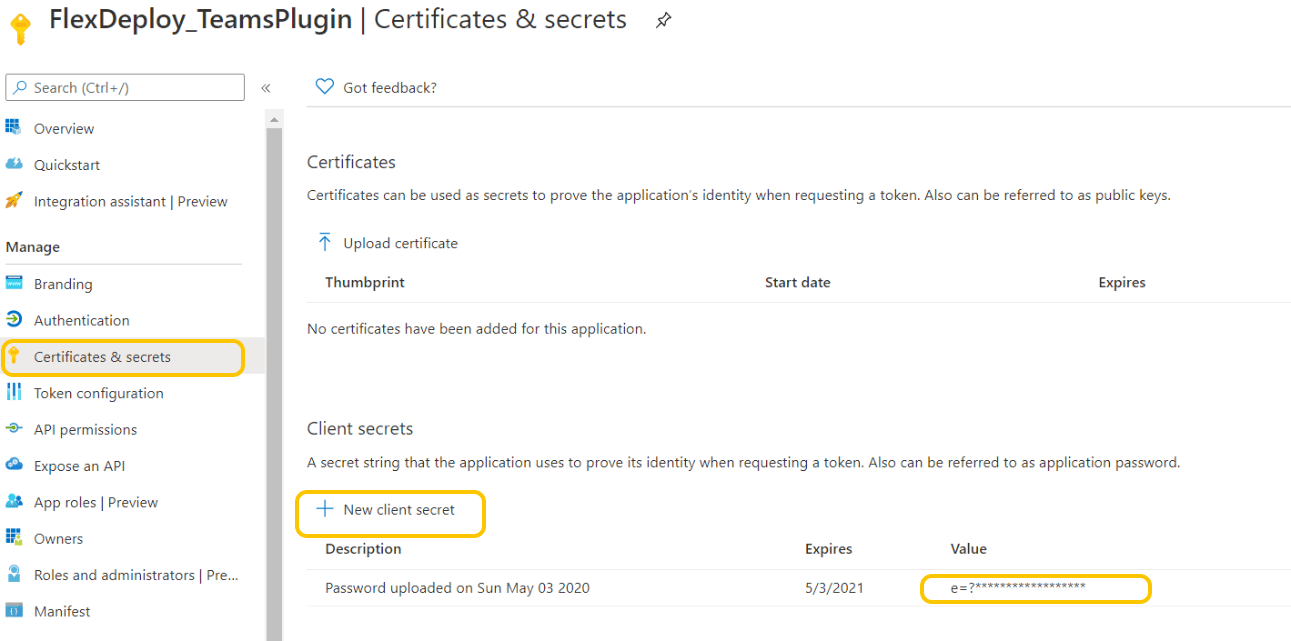
-
Create API permissions
Select API permissions > Add a permission > Microsoft Graph
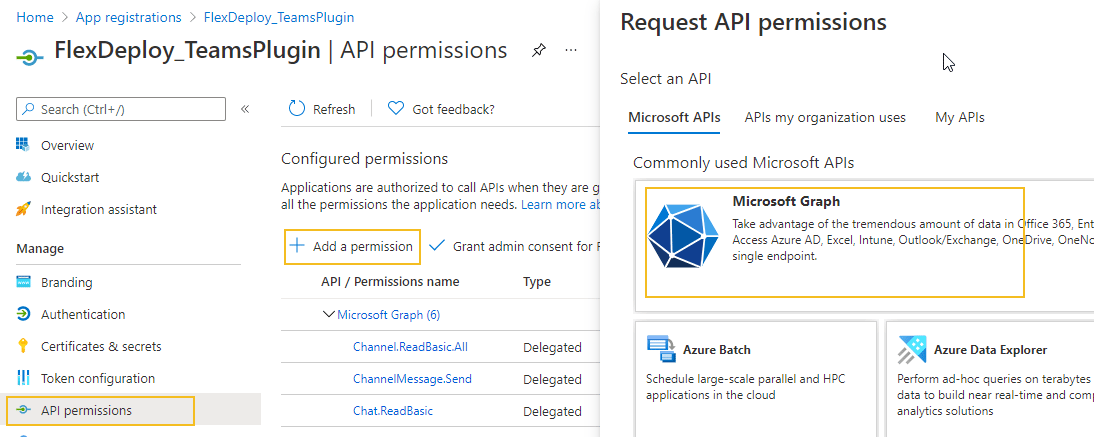
- Channel.ReadBasic.All
- ChannelMessage.Send
- Chat.ReadBasic
- ChatMessage.Send
- Team.ReadBasic.All
- User.ReadBasic.All - This permissions is required to approve tasks through Microsoft Teams.
- Chat.ReadWrite - This permission is only needed when chatting to individual users, the first time that a message is send to that user.
- Group.ReadWrite.All - Only needed if the user is not a member of the team(s) to which they are sending messages. This permission is optional.
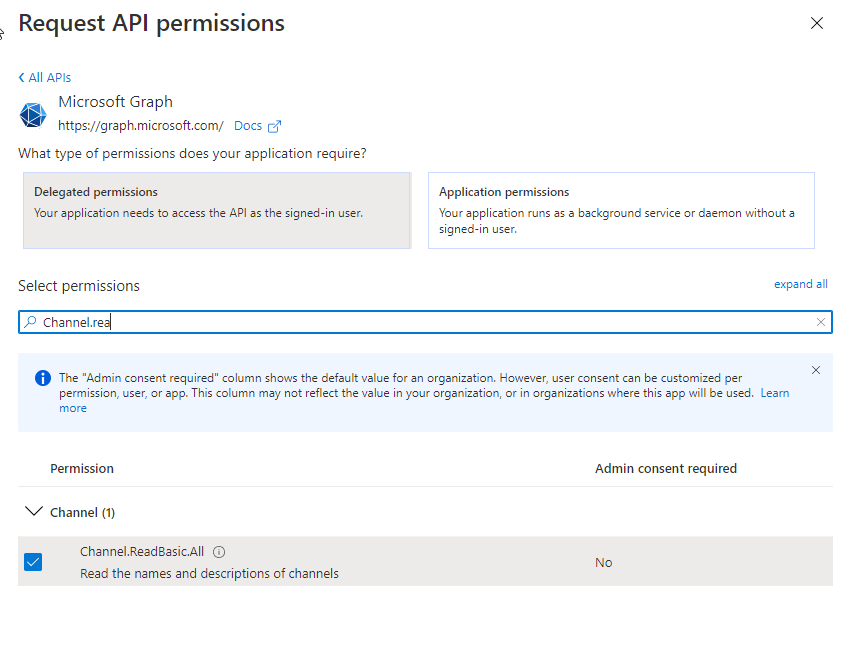
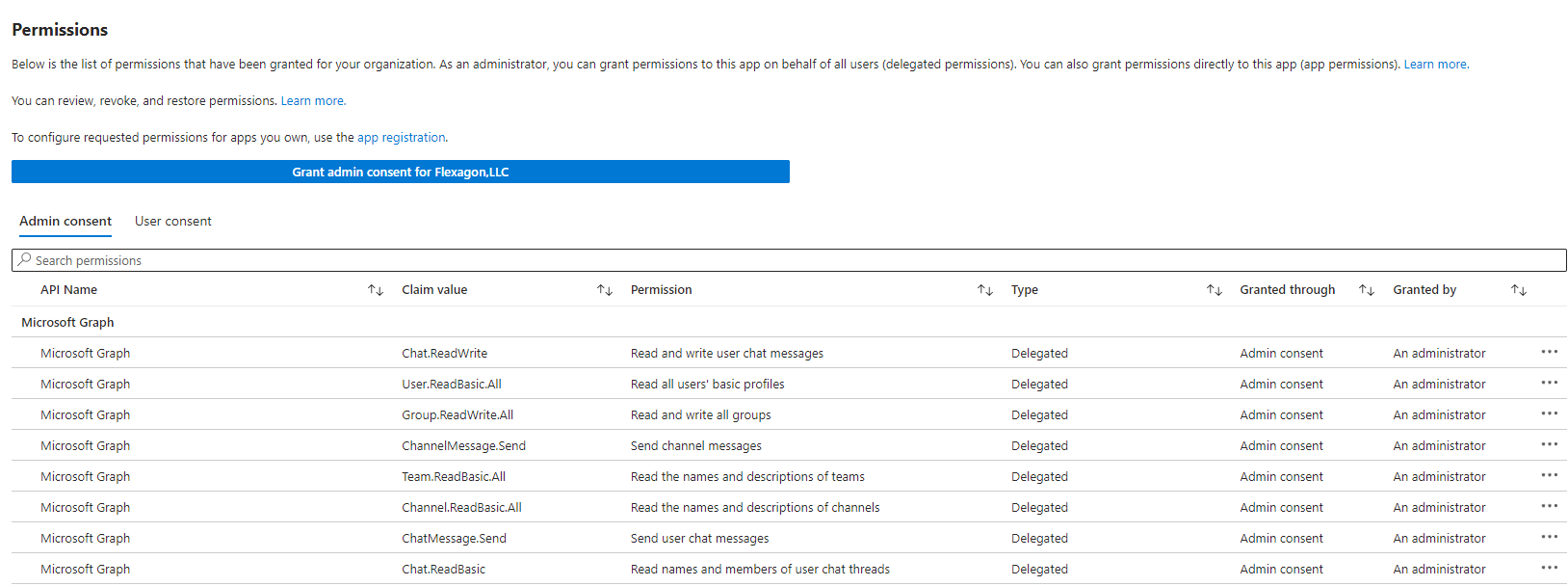
After adding them all, click the Grant admin consent button. You should see Granted by An Administrator next to each permission in the Granted through column.
Setting up Certificates
You may need to install the certificate for https://graph.microsoft.com/.default into your Java keystore. If this is the case, you will get an error about building a certificate path.Supported Versions
- All Microsoft Teams versions are supported.
Key Features
- Send messages to a Microsoft Teams channel or user.