Objective
The goal of this tutorial is to deploy an Apache HTTP Server using Helm Chart on a Google Kubernetes Engine (GKE) cluster through FlexDeploy using the Helm Plugin. For this tutorial, we will be setting up an automated deployment of an Apache HTTP Server using the Helm Chart which is present in this chart repository (https://charts.bitnami.com/bitnami) . The steps will include:- Configuring properties e.g. config file path, cloud account, and CLI path
- Deploying the Apache HTTP Server to a GKE cluster
- Verifying the application is successfully created on the GKE cluster
Checklist
Checklist | Description |
GCP Project Id | Project Id to connect to desired GCP project. |
GCP Key File | The GCP Key File to connect GKE cluster. |
GCP CLI installation | GCP CLI needs to be installed where the plugin operation will run (generally the FlexDeploy server) |
GCP CLI in class path | GCP CLI should be added to class path on the FlexDeploy Server. Else the path can also be set under FlexDeploy environment level property |
GKE Setup | GKE cluster should be created in GCP and a kubeconfig file should be present with the context of the cluster. |
Configure Cloud Account
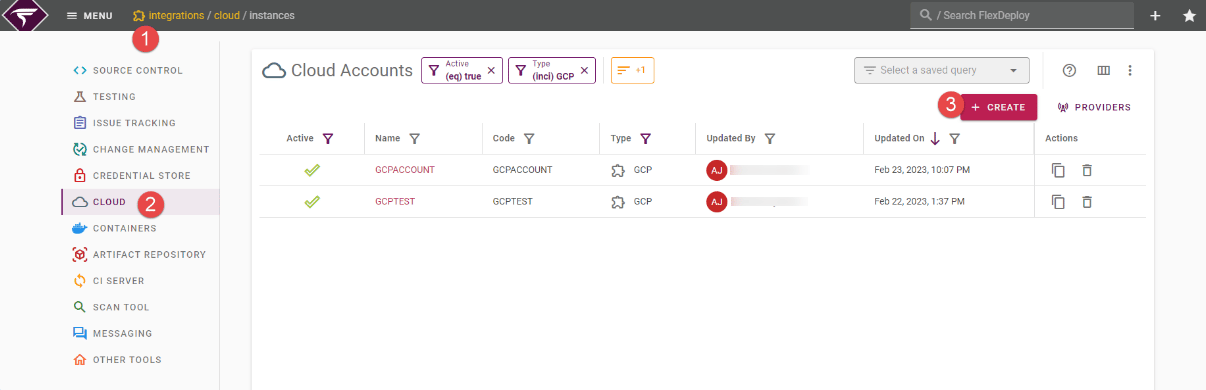
To connect with GKE cluster, we required to configure Cloud account, with credentials details. Configure GCP Cloud Account under Integration. FlexDeploy will connect to the GKE cluster and deploy the Apache HTTP Server.- Navigate to the Integrations
- Select Cloud from the left-hand pane
- Create a new Containers account with the “+” button. Create a new Cloud account of provider type “GCP”
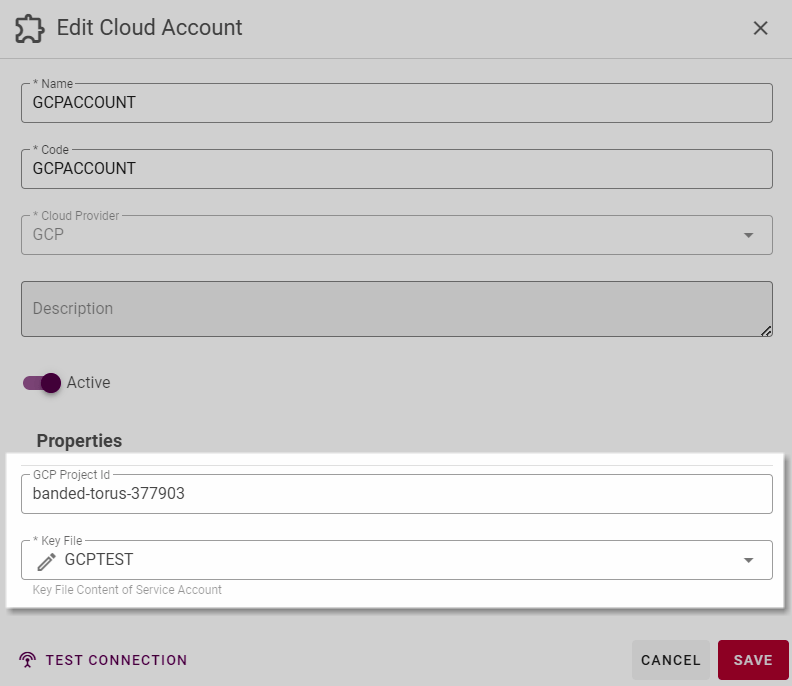
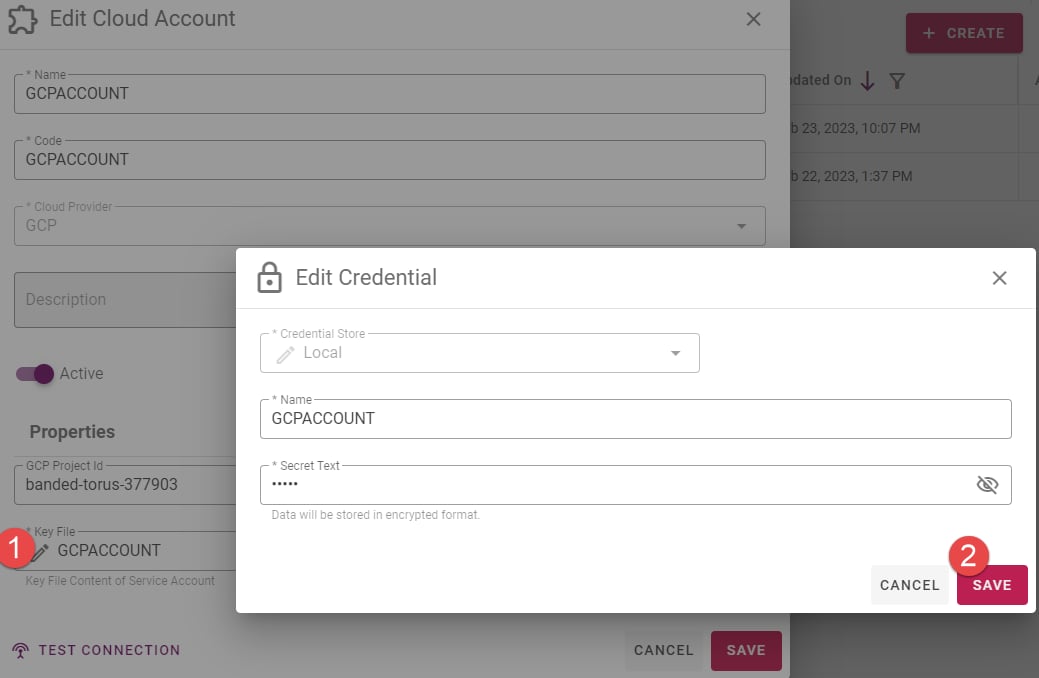
- Key File is a password field and hence needs to be kept hidden. To update it, click on the pencil icon as shown below
Prerequisites
Configure Service Account
To access the GKE cluster, we need to create a service account. Creating a service account to connect with the GKE cluster. Adding Kubernetes Engine Developer role for this tutorial. Different roles are available with different access(which can be assigned).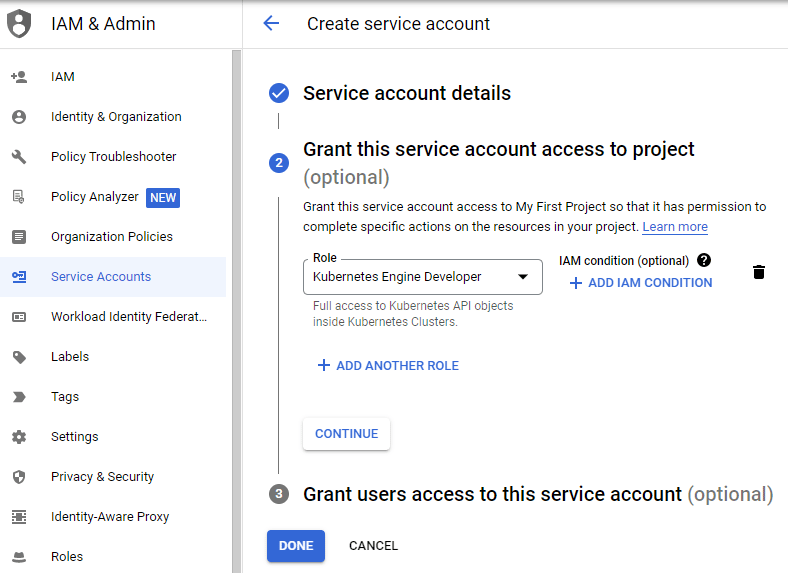
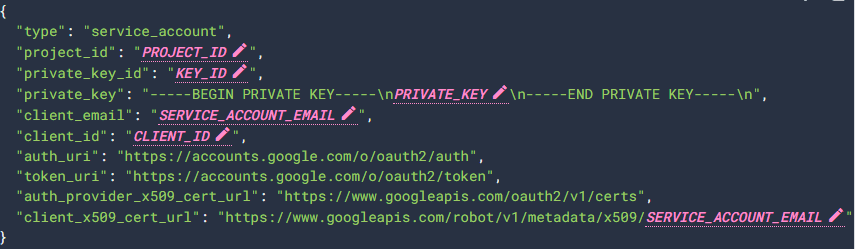
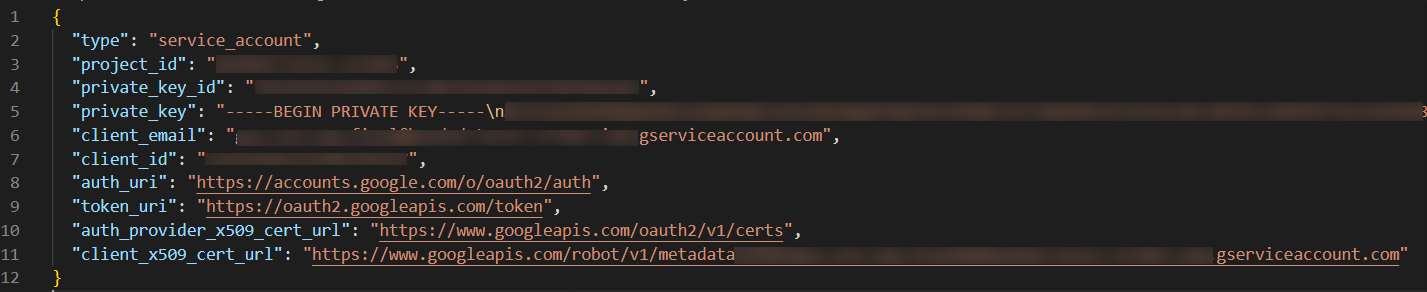
PRIVATE_KEY is the private portion of the public/private key pair:
Configure kubeconfig File
A Kubeconfig is a YAML file with the details to connect to Kubernetes cluster using certificate/secret tokens to authenticate the cluster. This is essential for Helm Plugin to connect to target GKE cluster.CLI Installation
GCP CLI should be installed in the m/c where the plugin is to be executed. Preferably add GCP CLI path in m/c classpath. Please ref. https://cloud.google.com/sdk/docs/install for more information about installation.Deploy Workflow
Navigate to Workflows and create a workflow using the :Create_Button: button as highlighted below.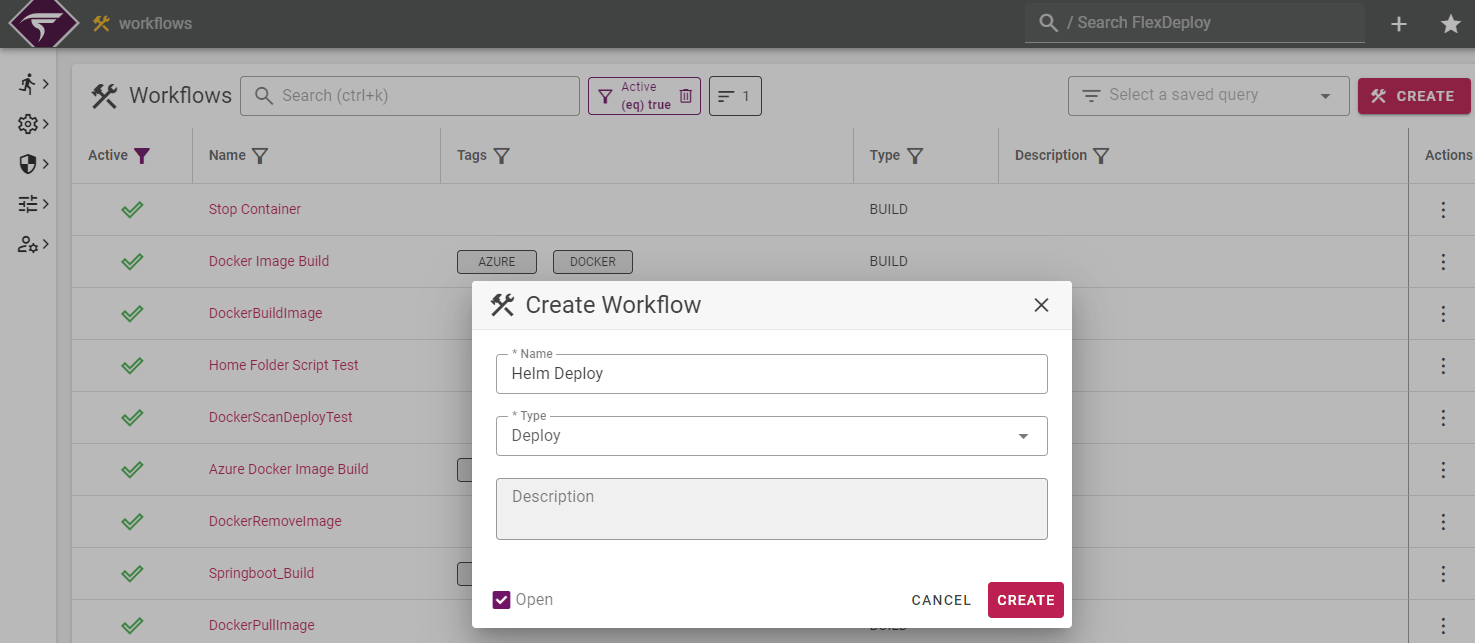
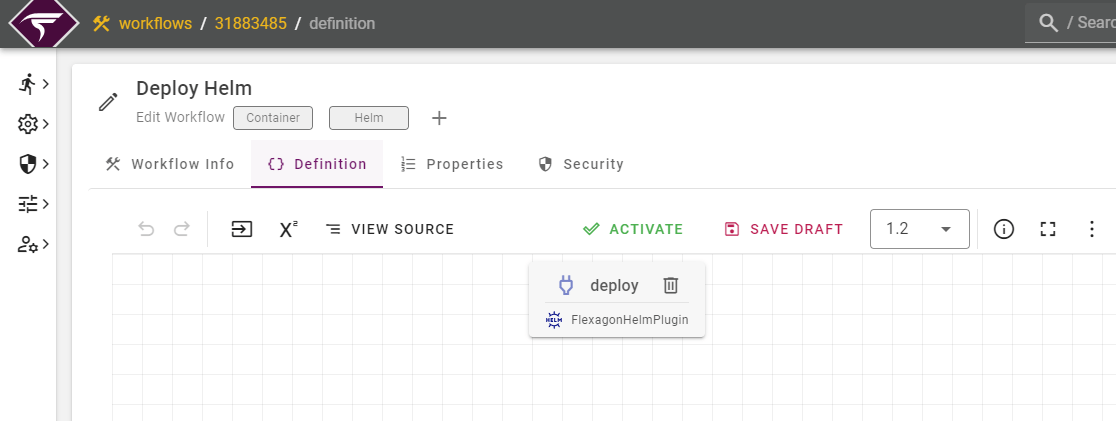
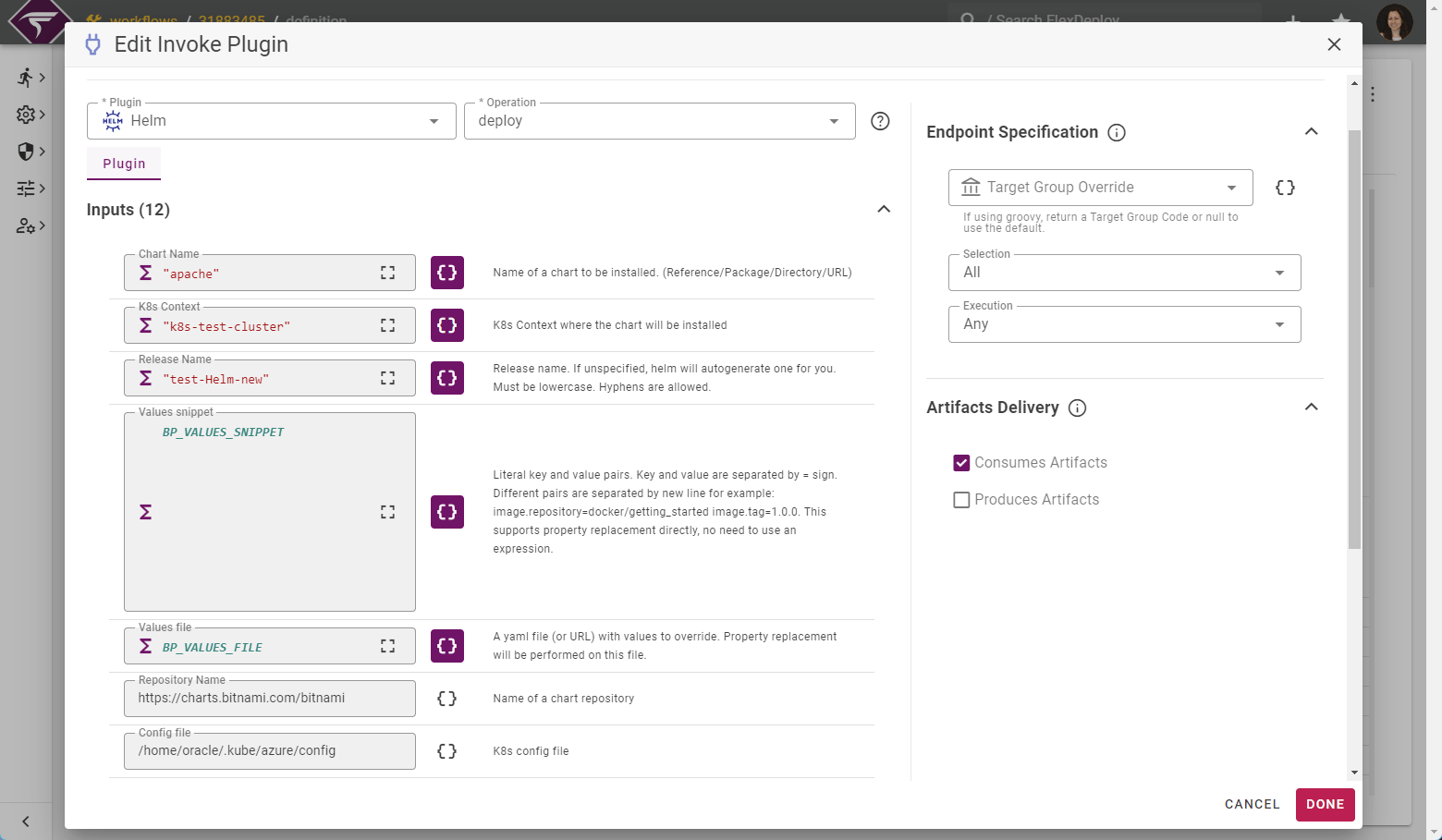
Input Name | Input Value | Description |
|---|---|---|
Chart Name | apache | Name of a chart to be installed. (Reference/Package/Directory/URL). If empty takes the chart name from the project configuration. |
K8s Context | k8s-test-cluster | K8s Context where the chart will be installed |
Release Name | test-Helm-new | Release name. If empty takes the chart name from the project configuration. If unspecified, it will autogenerate one for you |
Repository Name | Name of a chart repository | |
Config file | /home/oracle/.kube/azure/config | K8s config file |
Project configuration
Navigate to the Project tab and create a Project with a logical name(Helm in this case)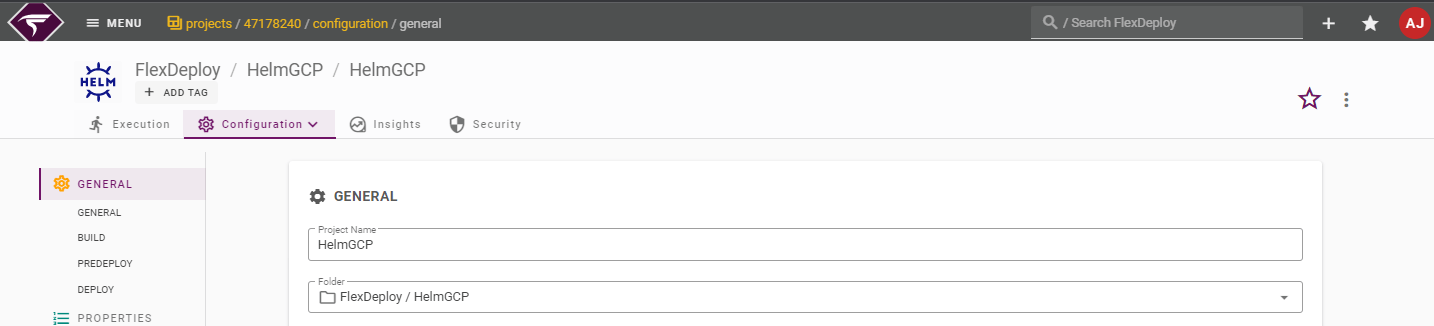
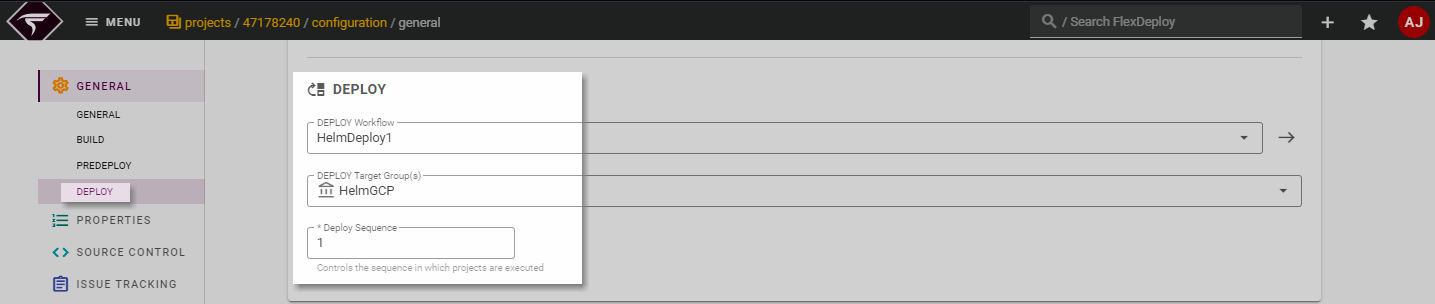
Target Properties
Select Topology from the menu and then select Targets from menu. Select the target group and environment, provide the properties detail, according to the description.Properties | Mandatory field | Description |
Cloud Account | Optional | Select the Cloud Account to connect cluster. |
CLI Path | Optional | Directory where Cloud CLI is installed. |
Kubeconfig File Path | Optional | Absolute path of kubeconfig file |
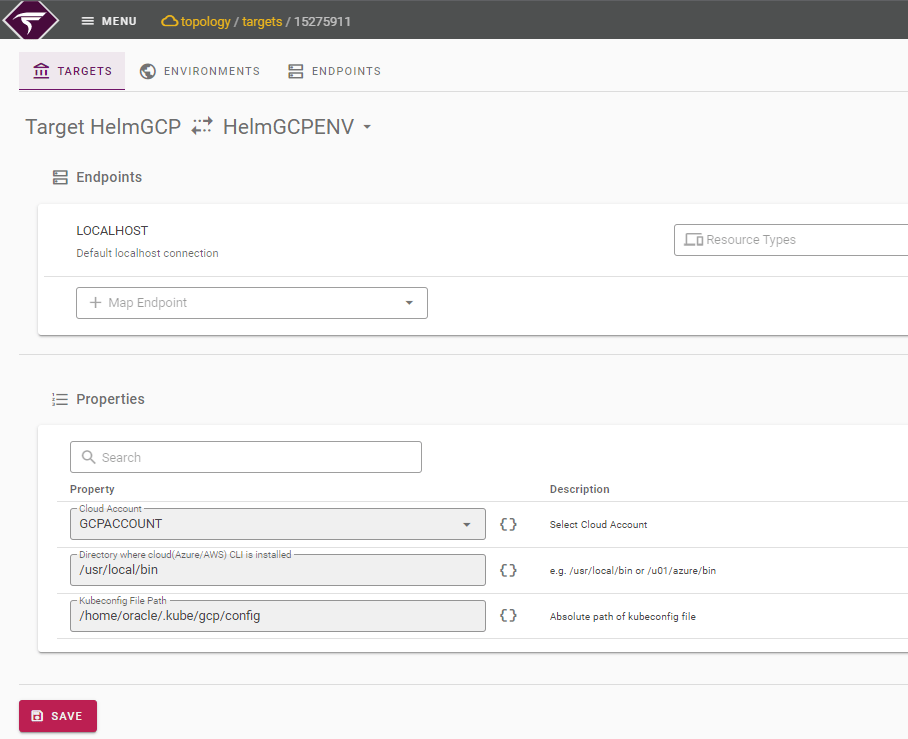
Cloud Account
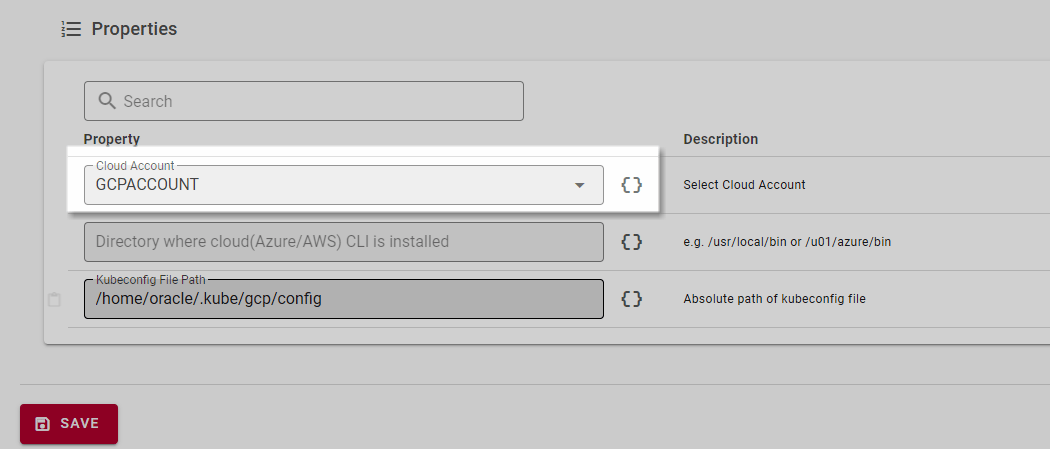
The GCP Cloud account needs to be set here from the drop-down. It will show all Cloud Accounts configured under Topology, which we have already mentioned earlier.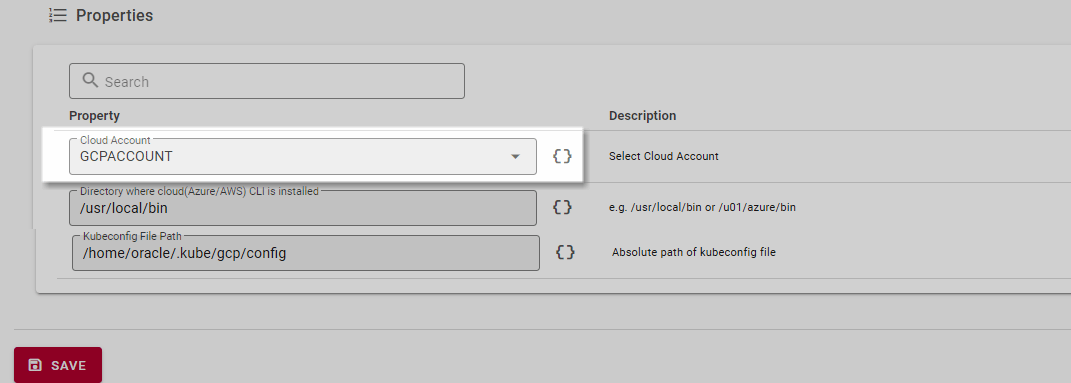
Kubeconfig file path
Absolute path of config file can be set as environment property, if path is not set then by default plugin look for config file in user directory.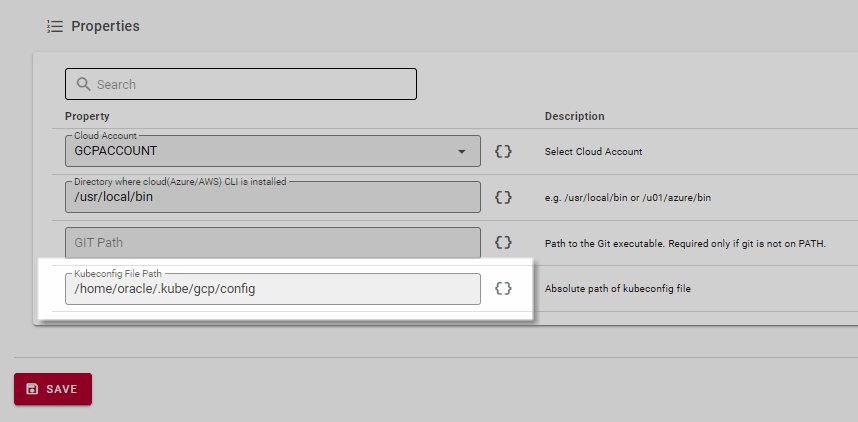
CLI path
GCP CLI path can be set as environment property, if it’s not set then by default plugin use classpath.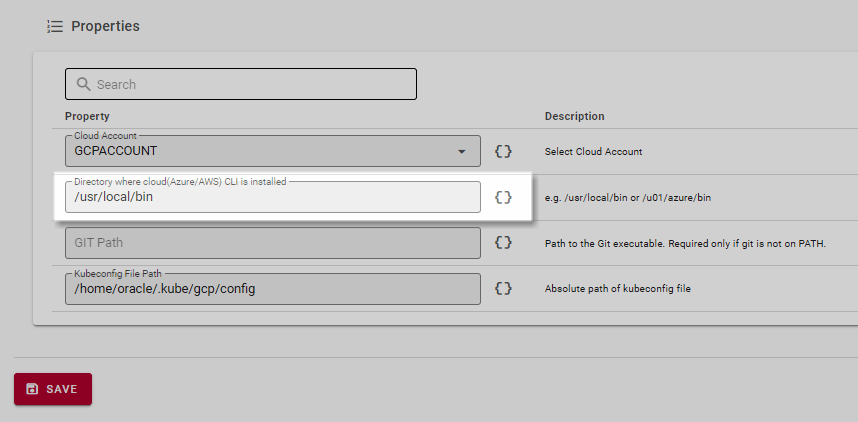
Override properties at Project level
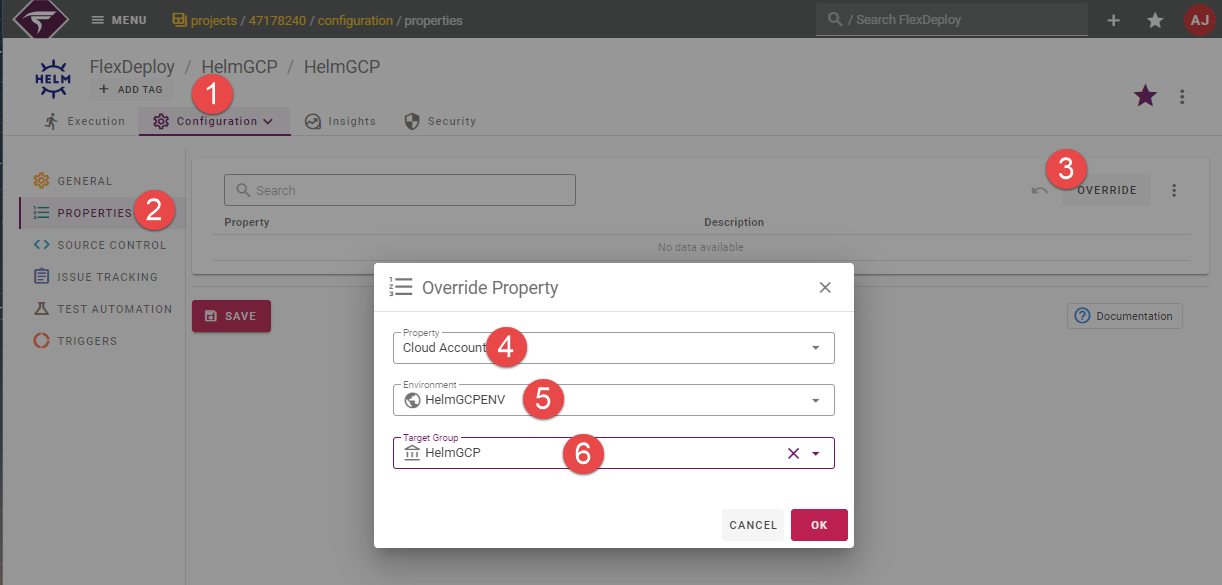
Let assume a scenario, where we want to change Cloud account for any specific project. Apart from setting at environment level, it can also be set at project properties by using Override Property. Please check below mentioned steps.- Navigate to the Project Configuration tab as shown above.
- Next, select the PROPERTIES option from the left-hand pane.
- Click on the OVERRIDE option.
- Select the Cloud Account option from Property.
- Select the Environment from the drop down list.
- Select the Target Group from the drop down list.
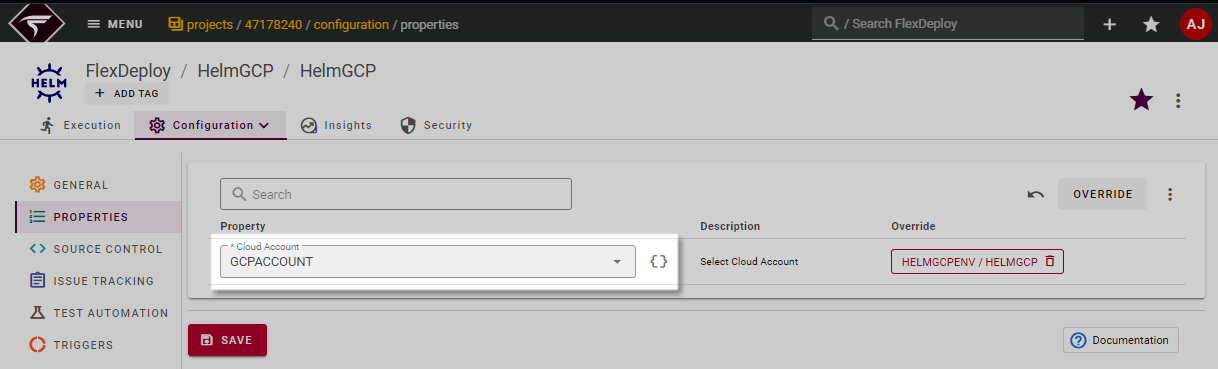
Build Execution
For detailed steps on how to initiate deploy operation using Helm plugin, please refer to Deploy through FlexDeploy using Helm pluginPost deployment
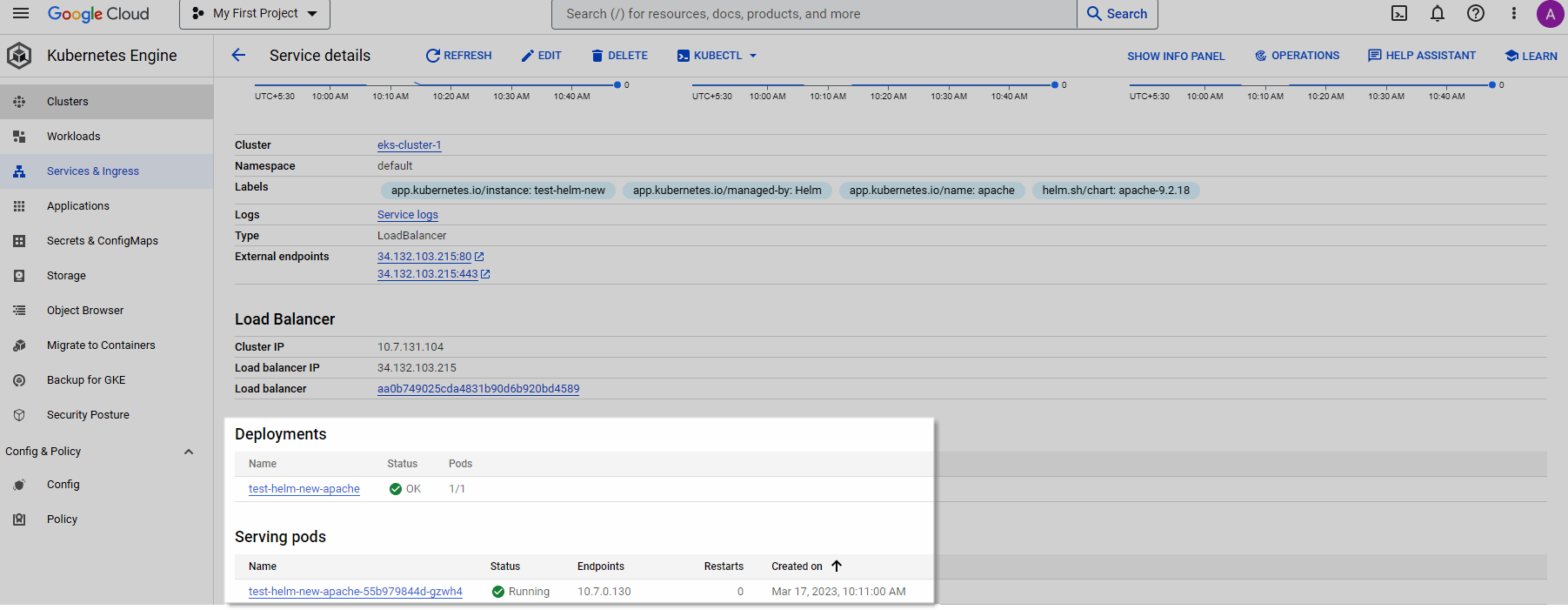
Post deployment success from plugin it can take a little while for the deployment and running. Once deployment successfully completed, we can see the related details on GKE cluster by using GCP console.