
Create User in IAM/IDCS
Create a user in IAM/IDCS for FlexDeploy to connect with and put that user in at least one group with any desired permissions. You can skip this if the user exists already. We will create the API Key for this user.Prepare and configure PEM Key
Generate API Signing Key
Navigate to https://cloud.oracle.com/identity/domains/my-profile/api-keys if you are using your own account. Otherwise, browse to the correct user and click Api Keys on the left side. Click Add API Key. Click Download private Key.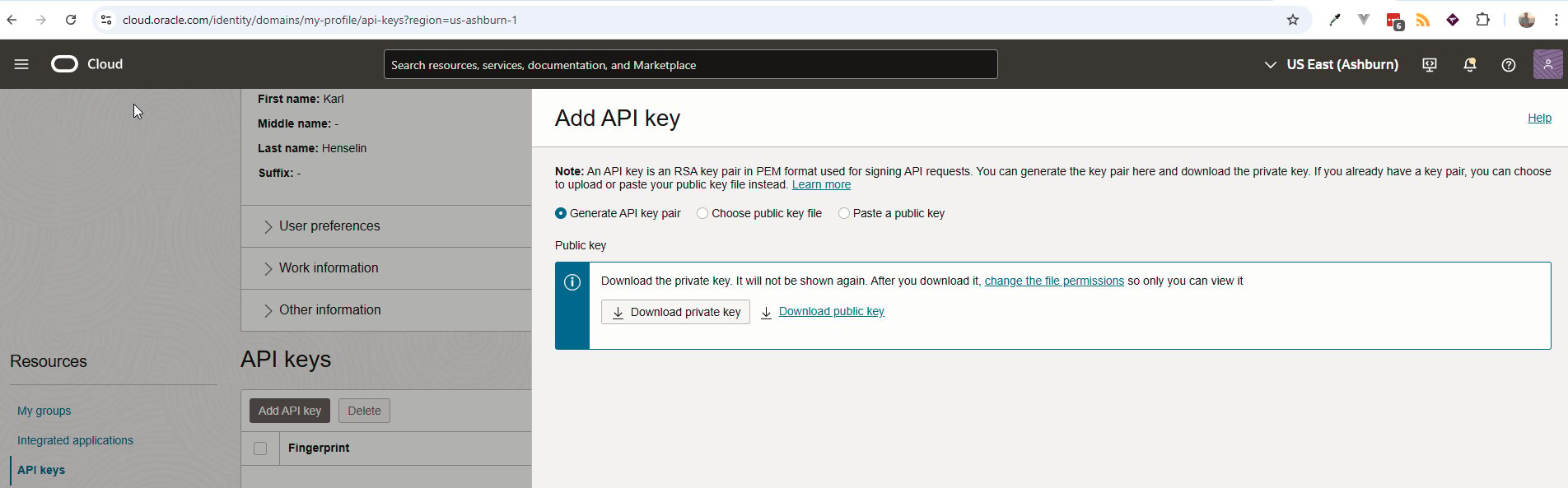
Configuring the Cloud Account
OCI plugin operations require theFDOCI_CLOUD_ACCOUNT_CODEtarget property. The cloud account can be managed directly through the target property drop-down (available since version FlexDeploy 9.0.0.4) or on the Integrations > Cloud page. Below is a description of the OIC cloud account properties. To validate your configurations, use the Test Connection option.
Prior to FlexDeploy 9.0.0.5, OAuthJWTAssertion required using a Java KeyStore for the Private Key and Certificate. When upgrading from FlexDeploy 9.0.0.4 or earlier, the OIC cloud account will automatically migrate to use Private Key and Certificate credentials from the configured KeyStore, eliminating the need to maintain the KeyStore on the file system. As a result, the KeyStore Path, KeyStore Password, Private Key Alias, Private Key Password, and Certificate Algorithm properties are now replaced with the Private Key and Certificate properties.
Property Name | Property Code | Required | Description | From Above, use |
|---|---|---|---|---|
OCI Tenancy Id |
| Yes | Select the OCI Tenancy Id to use. |
|
OCI User OCID |
| Yes | The OCID of the user to connect to OCI as. |
|
OCI Key Fingerprint |
| Yes | The md5 fingerprint of the public key you uploaded for authentication. |
|
OCI Region |
| Yes | The region where your OCI instance is located. For example: us-phoenix-1 |
|
OCI Private Key Content |
| Yes | The private key to use for authentication. | Is downloaded separately using directions above. Upload it. |