FDOVB_CLOUD_ACCOUNT_CODE Target property value or FDOVB_INP_CLOUD_ACCOUNT_CODE plugin input value should be configured. When both are set, the plugin input value will take precedence. See Creating/Editing a Cloud Account and Provider for details on how to setup Cloud Account for OVB.
In order to deploy an application it must have both the rootURL and version set in the visual-application.json file. The rootURL is used as the application ID and version as the version. If you use the export application operation this will be set automatically.
Target Properties
Property Name | Property Code | Required | Description |
|---|---|---|---|
Oracle Visual Builder Account |
| No | The OVB account with all the required properties like Base URI, Username and Password for running OVB Instance. See Configuring an Oracle Visual Builder Account for more details. |
Project Properties
Property Name | Property Code | Required | Description |
|---|---|---|---|
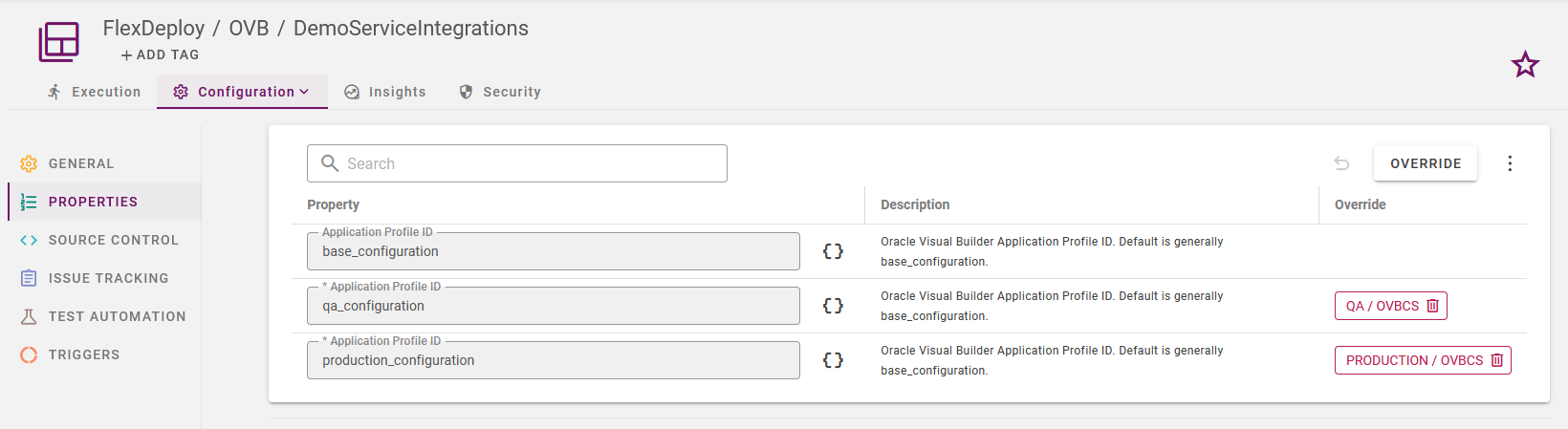
Application Profile ID |
| No | Oracle Visual Builder Application Profile ID. Default is generally base_configuration. |
Inputs
Input Name | Input Code | Required | Description |
|---|---|---|---|
Oracle Visual Builder Account |
| No | The OVB account with all the required properties like Base URI, Username and Password for running OVB Instance. |
Publish Application |
| No | Publish the app, or just stage it. |
Delete if Already Live |
| No | Delete the app if it is already live. If this option is checked, basic auth is not supported. This is due to the REST API being used to determine if an app is already live. |
Schema |
| No | Specifies data schema processing during application stage or publish. Value of ‘new’ creates a new data schema. Value of ‘dev’ uses the data schema from development. Value of ‘stage’ uses the data schema from the previous staged version of the application. Value of ‘live’ uses the data schema from the previous live version of the application. Defaults to ‘new’ |
Nodejs Version |
| No | Nodejs Version, default is v18. |
NPM Install Arguments |
| No | Allows to enter one or more arguments to npm install command. (Ex —no-optional). |
.npmrc |
| No | npm configurations entered as list of key = value parameters(e.g. loglevel=notice), one key value pair per line.
All default npmrc configurations are listed when the command “npm config list -l” is run. Some examples are- 1.registry=https://registry.npmjs.org/ (Specifies the URL of the npm registry) 2.strict-ssl=false (Controls SSL certificate validation during HTTPS requests.) 3.proxy=http://your-proxy-url:port 4.loglevel=verbose (Sets the logging level for npm output (e.g., 5.production=true (Instructs npm to skip installation of devDependencies.) For more details, refer https://docs.npmjs.com/cli/v10/commands/npm-config |
Grunt Arguments< |
| No | Allows to enter one or more arguments to grunt commands. (Ex —verbose) |
Artifacts
This operation consumes artifacts from the artifacts repository.Endpoint Selection
This operation delegates the selection to the workflow developer to determine.Endpoint Execution
This operations delegates the execution to the workflow developer to decide.Application Profiles
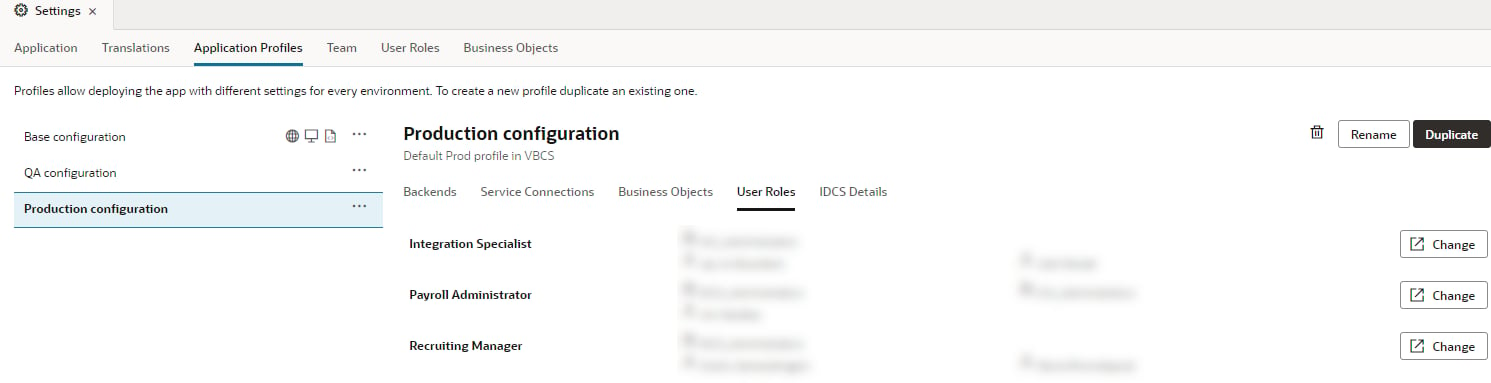
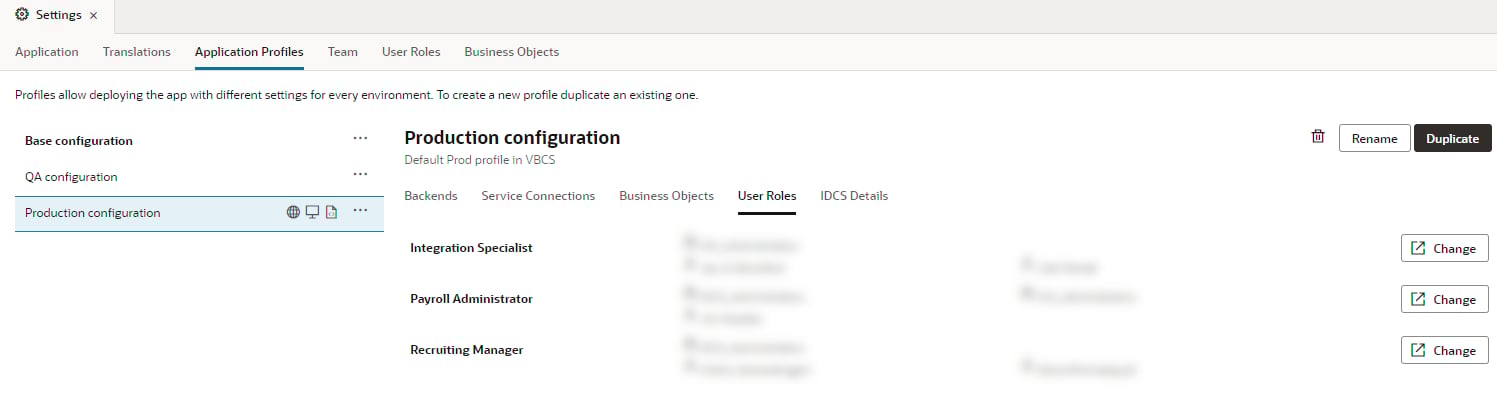
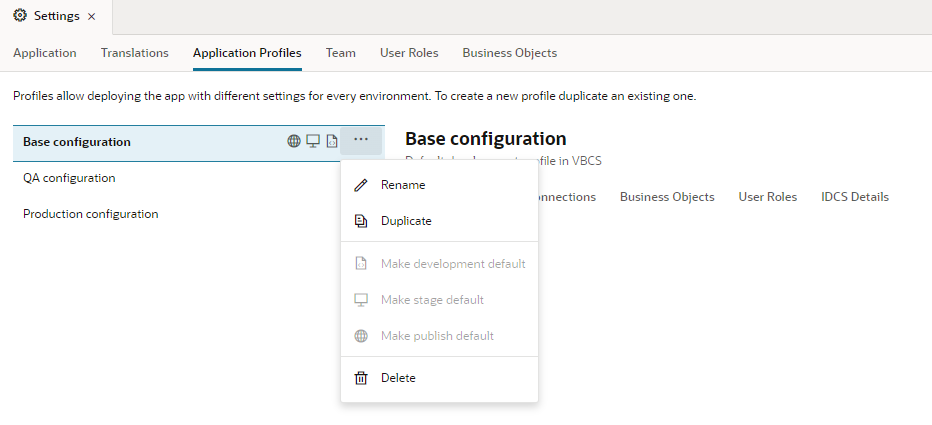
Application profiles in a Visual Builder application facilitate the configuration of the services used within the application, it also provides an option to set user role mappings. You can use the Backends which has a collection of servers. For example you can configure the servers in Oracle Cloud Applications Or Oracle Integration. You can also use it to configure external rest services. The Visual Builder Application provides you with the ability to define application profiles for each environments. In each profile, you specify the appropriate details to use when you deploy it to a development, qa, or production environments. FlexDeploy utilizes the application profile and helps migrate the application to use the correct profile for each Target.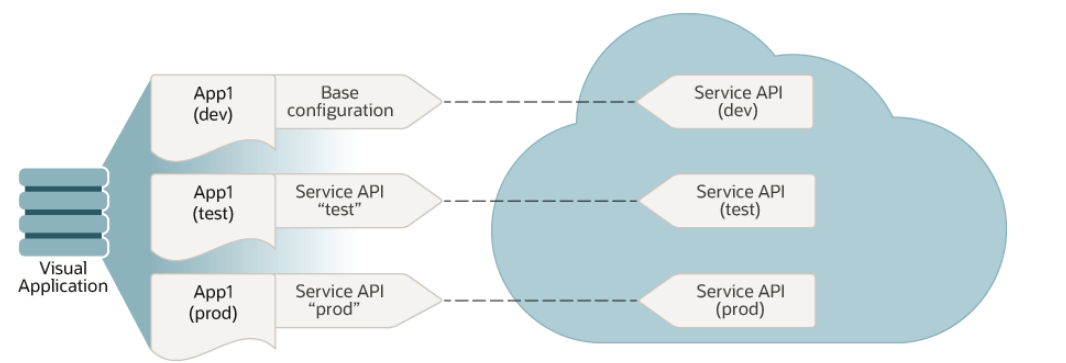
Backends
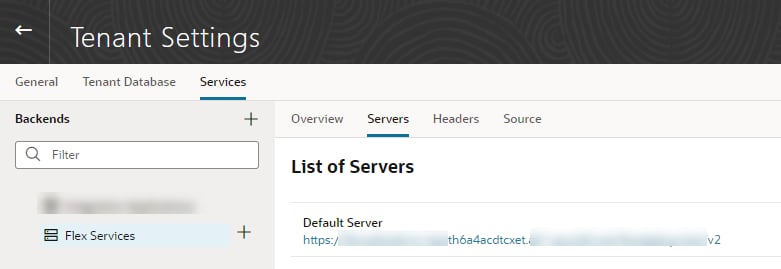
Using the Tenant Settings, you can configure the Backends in the Services tab. Creating all the services used by the applications in the Services tab will help you using the same service names across the environments and also avoid changing any connection or credentials for each deployments. In below example, created a new service called Flex Services in the development environment.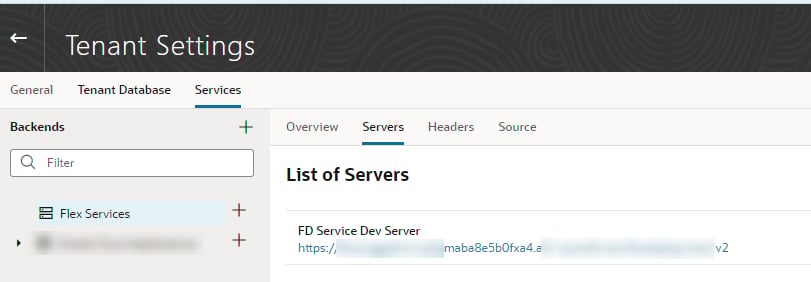
Service Connections
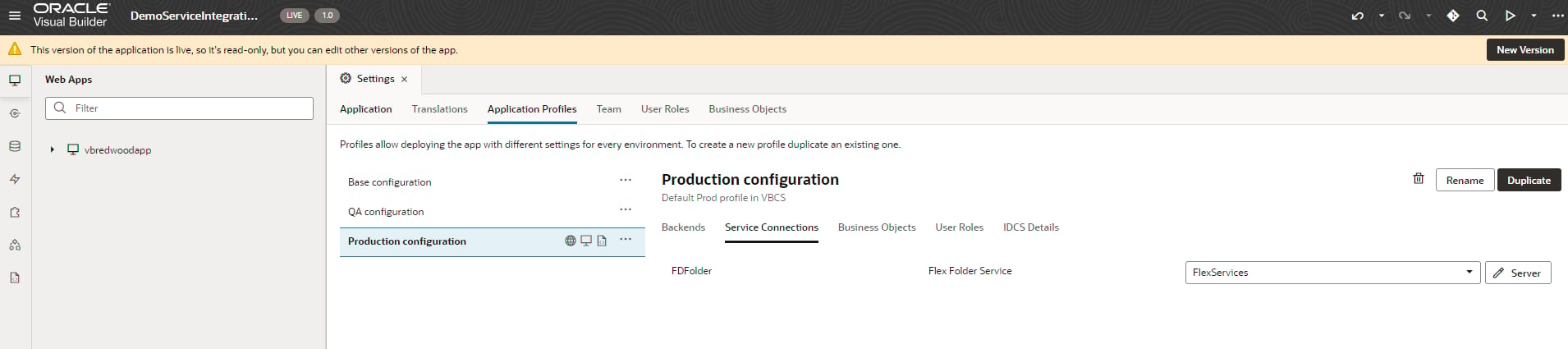
In the application, go to Services, create a new Service Connection and use the Flex Services created from the Backends.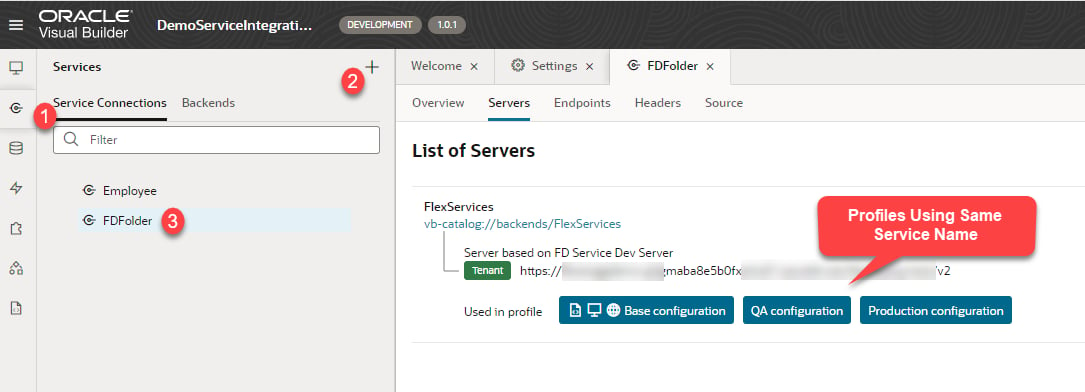
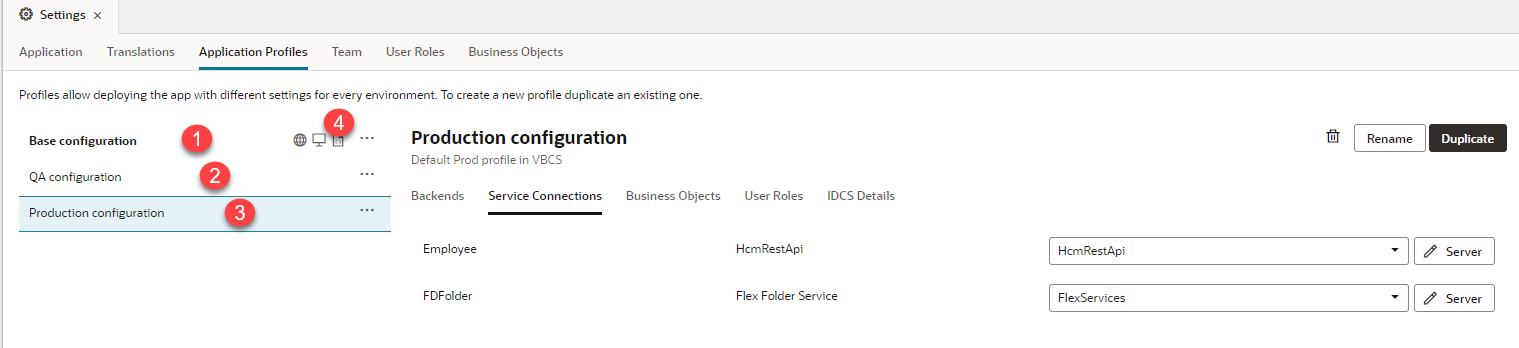
User Roles & Mappings
For creating User Roles, go to Settings and select User Roles tab. Here create the roles and do the appropriate mapping to groups and users.